Open the Photos app, tap the magnifying glass in the bottom-left corner, type a word you remember seeing in a picture, and the matched photos appear with that text highlighted. It takes about five seconds once you know where the search field lives, and it works on any iPhone still running a current version of iOS. The catch is that search reads the words printed inside your images, not their file names, so a query that fails usually means the word you typed is not the word in the photo.
Here is how to search photos by text on iPhone end to end: both routes into the feature, the Photos app search bar and the Spotlight route that surfaces a “Text found in Photos” card, plus what to do when the results come back empty.
Table of Contents
- 1What You Need
- 2Step-by-Step: How to Search Photos by Text on iPhone
- 3Open the Photos App and Use Search
- 4Search for People, Places and Objects
- 5Refine Results by Date, Album or Search Type
- 6Open, Save or Share a Search Result
- 7Common Mistakes
- 8Frequently Asked Questions
- 9Can I search iPhone photos by typing words?
- 10What types of words can I use to search my iPhone photos?
- 11Why does text search not find a particular photo?
- 12Does text search in Photos work for people and places?
- 13Can I search photos on my iPhone if they are stored in iCloud?
- 14What iPhone and iOS versions support searching photos by text?
- 15Conclusion
What You Need
You need an iPhone with the built-in Apple Photos app, which is standard on every device. Nothing to install, no account to set up for the basic search.
The photos you are hunting must actually be in your library. That means either the originals on the iPhone, or items synced through iCloud Photos. Photos still sitting in a computer’s library, a deleted album’s Recently Deleted folder beyond its 30-day window, or a chat you cleared out will not show up.
Give the phone room to work. Photos set to Optimize iPhone Storage keep their full-size originals in iCloud and download them only when you open them. Text recognition still runs, but a photo that has never been downloaded can return nothing, so leaving a few gigabytes free on the phone avoids surprises.
One optional note: natural-language phrasing, where you type a whole sentence instead of a keyword, is an Apple Intelligence feature. On an iPhone 15 Pro or later, and on recent iPhone 16 and 17 models, that phrasing is available. On older hardware the app still searches, but it responds best to short queries.
Step-by-Step: How to Search Photos by Text on iPhone
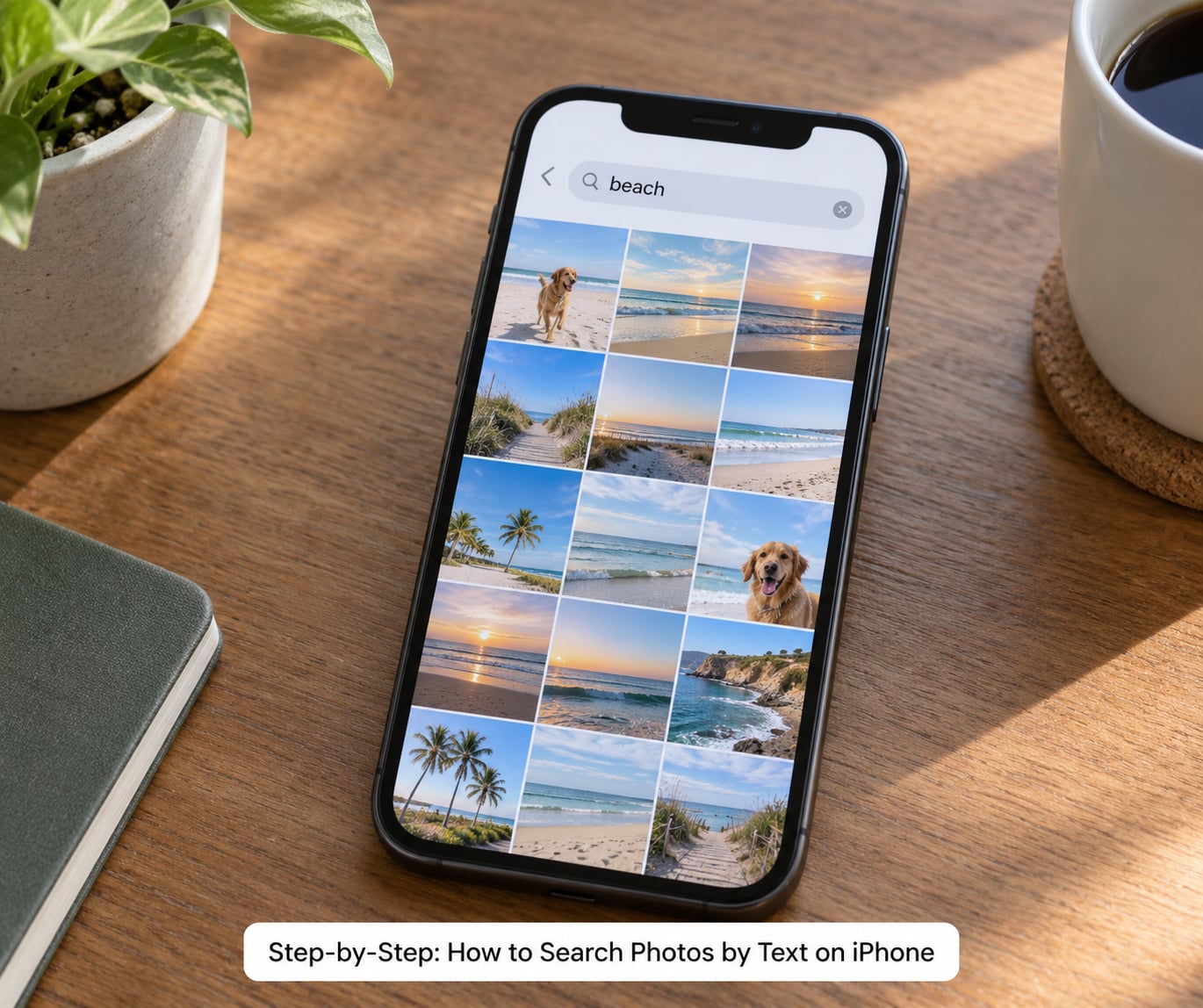
The whole process, condensed: open Photos, tap the magnifying glass, type a word, tap the result. Here is each step with the detail.
Open the Photos App and Use Search
Launch Photos from your Home Screen or App Library. On an iPhone with a notch or Dynamic Island, the magnifying-glass Search icon sits at the bottom-left of the screen, under the Albums and Shared Albums buttons. On older Touch ID and Face ID home-button models, the magnifying glass is top-right.
The search field slides up from the bottom, with a Results and a Cancel button above the keyboard. Type there. There is no separate “search by text” mode to switch on. Photos indexes the text inside your images automatically as they sync.
As you type, suggestions appear above the keyboard: people, places, scenes and categories. Those suggestions are Apple guessing at what you mean, which is handy for broad queries and less useful when you already know the word.
Search for People, Places and Objects
Type a single distinctive word. Searching “receipt” surfaces photos of receipts; searching a store name finds the storefront shot or the paper bag in the frame; searching a street name finds the sign. Search works in dozens of languages at once, so you can look for a French shop name and an English one in the same library.
Named people work as well as objects. Type a contact’s name and Photos searches faces it has recognized, so you do not have to browse through People & Pets to find them. Places behave the same way: a city, a landmark or a specific venue name.
There is a second route, and it is the one most people never find. Swipe down on your Home Screen to open Spotlight, type the same word, then scroll past the top results until you reach a card titled “Text found in Photos”. Tap Show All to see the full grid. This route is stricter than the Photos app field, but it sometimes catches text the in-app search misses. Most walkthroughs of how to search photos by text on iPhone stop at the search bar, which is why the Spotlight card goes unnoticed.
Longer queries still work on Apple Intelligence devices. “Beach at sunset” or “birthday cake” return photos matching the whole phrase rather than photos containing one of those words.
Refine Results by Date, Album or Search Type
Once you have results, tap the Filters button at the top of the results grid. From there you can narrow by date range, by condition such as screenshots or panoramas, and by whether the item is a photo or video. Filtering by Screenshots is the fastest shortcut when you are trying to remember a word from a screenshot of a note.
Add a date to narrow a broad result set. If you know the trip was around last spring, filter to that window and the same word that returned 200 results might return four.
If you already know which album the photo went into, searching within that album is faster than filtering the whole library. Open the album first, then use search inside it.
Open, Save or Share a Search Result
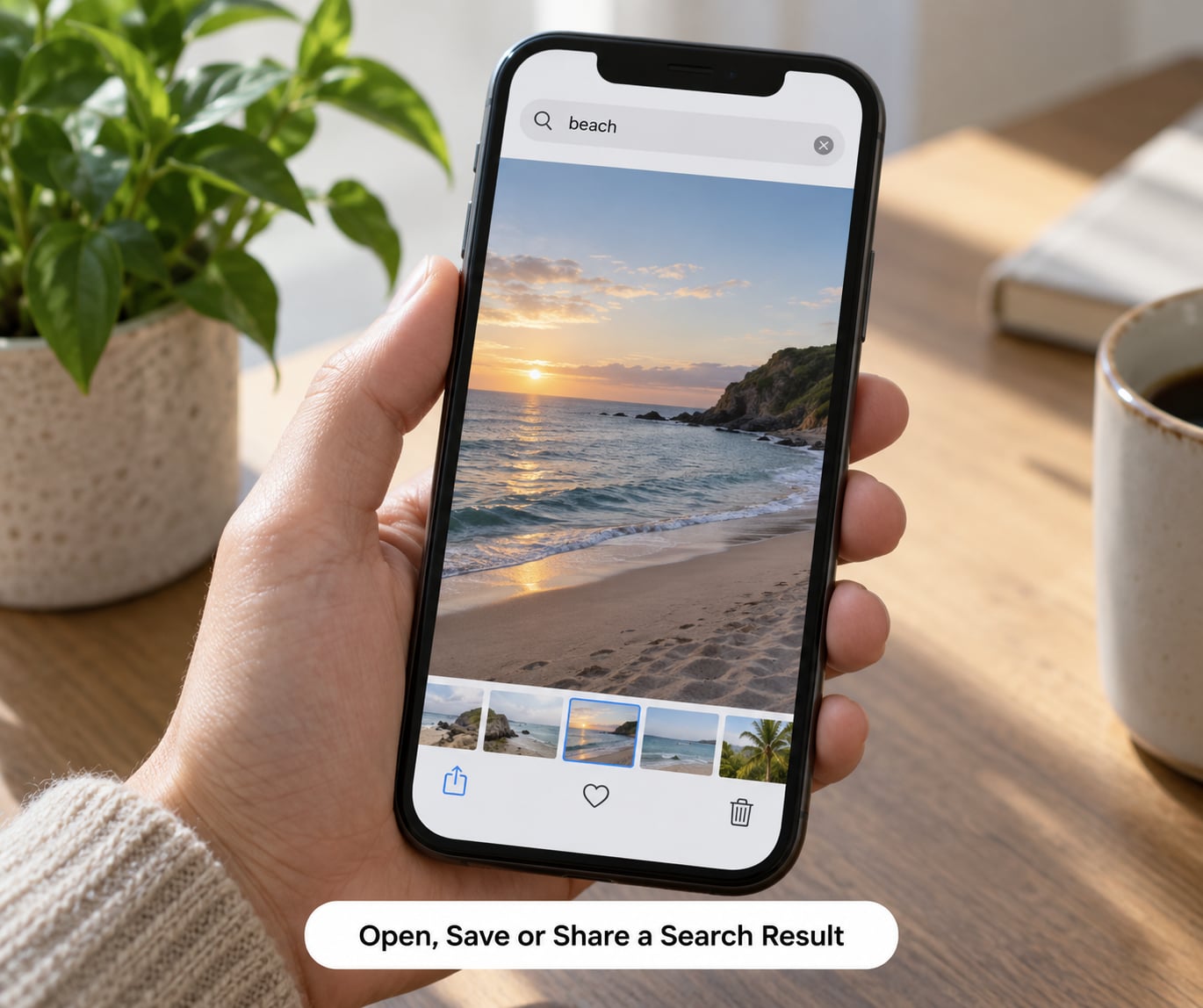
Tap any result to open it full-screen. The text Photos matched is boxed or highlighted on the image, which is a handy way to confirm you have the right shot. Press the heart to favorite it, or swipe up from the bottom edge to share, copy, edit or add it to an album.
Use the back gesture, or tap the Results button in the top-left, to return to your search with the query intact. You can then open a different result without retyping anything.
If you want to keep a match for later, favorite it. Favorites show up as its own collection and sync across your Apple devices, so the photo is easy to find again once search has done its job.
Common Mistakes
The search returns nothing. The most common cause is a word that is not actually in the photo. Search reads printed text, so a photo of a shop’s products with no legible sign will never match the shop name. Shorten to one distinctive word rather than typing the full phrase you think is there.
The photo has not downloaded from iCloud. With Optimize iPhone Storage on, a photo that has never been opened may have no local full-size version for the index to read. Open the photo once so it downloads fully, then search again.
The text is too small, blurry or low-contrast. Handwriting, faded receipts and text at the far edge of a frame often defeat recognition, even when you can read it. Try a different word from the same photo; sign text is sometimes recognized while the small print underneath is not.
The wrong language or script. Text recognition covers many languages but not every script on every iOS version. If a photo is in a script that is not being recognized, copy it out with Live Text instead: open the photo, tap the Live Text icon in the bottom-right, highlight the words, then copy. That gives you the text, though it does not give you a searchable library.
People and places come back wrong or missing. Face and scene recognition improves the more you use it. Open Photos > People & Pets, tap a face, and choose the name yourself; confirm location names as they appear. Manually correcting these is what teaches the search.
The results used to work and now they don’t. Usually one of three things: a major iOS update reset something, storage ran low so the library has not finished indexing, or iCloud sync stalled. Update iOS, check Settings > Photos to confirm iCloud Photos is still on, and give the phone an hour on Wi-Fi with power connected.
Two habits make this much less frustrating. Search a single word rather than a sentence, and search on the iPhone rather than the Mac. On Mac Photos, text inside images is not searched the same way, and that gap is the single most common confusion people run into.
Frequently Asked Questions
Can I search iPhone photos by typing words?
Yes. Open Photos, tap the magnifying-glass icon at the bottom-left, and type any word. Photos recognizes text printed inside your images and returns matching pictures with the matched words highlighted. You can also swipe down on the Home Screen for Spotlight and look for the Text found in Photos card.
What types of words can I use to search my iPhone photos?
Use one distinctive word at a time: a store name, a street name, a product brand, a receipt heading. Names of people and places work too, since Photos searches recognized faces and locations. Whole sentences work on Apple Intelligence devices such as iPhone 15 Pro and later models.
Why does text search not find a particular photo?
Usually the word you typed is not the word in the image, or the text is too small, blurry or handwritten to recognize. It also happens when a photo has never been downloaded from iCloud under Optimize iPhone Storage. Open the photo once, then retry with a shorter, more distinctive word.
Does text search in Photos work for people and places?
It does. Type a person’s name to search recognized faces, and a city, landmark or venue to search location-tagged photos. Accuracy depends on how much you correct names in Photos and People and Pets, so confirm them when the guess is wrong.
Can I search photos on my iPhone if they are stored in iCloud?
Yes, as long as iCloud Photos is switched on in Settings and Photos. Search indexes the iCloud library too. Photos kept in Optimize iPhone Storage may need to download once before their text is searchable, and results appear after sync finishes.
What iPhone and iOS versions support searching photos by text?
Text recognition in Photos works on any iPhone running a current version of iOS, including older models. Natural-language search such as typing a full sentence is an Apple Intelligence feature, so it needs an iPhone 15 Pro or newer, with availability depending on language and region.
Conclusion
Start with one specific word, the most unusual one you can remember from the picture, and search from the Photos app. If nothing comes back, shorten the word, open the photo in question once so it downloads, or try the Spotlight “Text found in Photos” card instead. That loop, one word, one tap, one grid, is the whole of how to search photos by text on iPhone.