Memories in the Apple Photos app are collections your iPhone builds automatically from your own photos and videos, and they live in the Collections tab at the bottom of the app. To use Memories in the Photos app on iPhone, scroll to Memories, tap a collection to play its movie, then edit, favorite, share or hide it from the same screen. Nothing is downloaded and no extra app is needed.
Written against the current iPhone and iPad Photos app, including the Customize and Reorder controls introduced in iOS 18. Apple shifts button labels between versions and screen sizes, so if a name on your phone differs slightly from the one here, look for the equivalent icon in the same corner.
Table of Contents
- 1What You Need
- 2Step-by-Step: How to Use Memories in the Photos App
- 3Open Memories from the Collections tab
- 4Play, pause and skip through a memory movie
- 5Build your own memory from an album
- 6Edit the title, music and filter
- 7Add a memory to favorites and reorder it
- 8Search inside Memories for a person, place or date
- 9See On This Day and past memories
- 10Share a memory or send it to someone
- 11Hide a memory, a person, a holiday or duplicates
- 12Common Mistakes and Quick Fixes
- 13No memories appear at all
- 14The same memory keeps reappearing
- 15Unexpected people show up in a memory
- 16You cannot edit or delete a memory
- 17Show as Memory is missing from an album
- 18A Memory and a shared album feel the same
- 19You want the photos, not the movie
- 20Memories play on the Apple TV or a shared Mac
- 21Frequently Asked Questions
- 22How do I find old Memories in the Photos app?
- 23Can I edit or rename a Memory after creating it?
- 24Does deleting a Memory delete the original photos?
- 25Why are certain people appearing in my Memory?
- 26How do I create and share a Memory on iPad?
- 27What is the difference between a Memory and a shared album?
- 28Conclusion
What You Need
Everything runs inside Apple’s built-in Photos app, which ships with every iPhone and iPad. No account, subscription or third-party editing tool is required.
A few things worth confirming before you start:
- An iPhone or iPad running a recent iOS release, with the Photos app updated through the App Store.
- A photo library with a bit of history in it. Memories need enough photos in one place, with one or two people in them, before the app proposes anything.
- iCloud Photos switched on if you want your memories on more than one device. With iCloud Photos off, memories stay on the device where the library lives.
Names move around a little between versions. The Collections tab is the anchor for everything below, so if you find one menu item somewhere unexpected, start there.
Step-by-Step: How to Use Memories in the Photos App
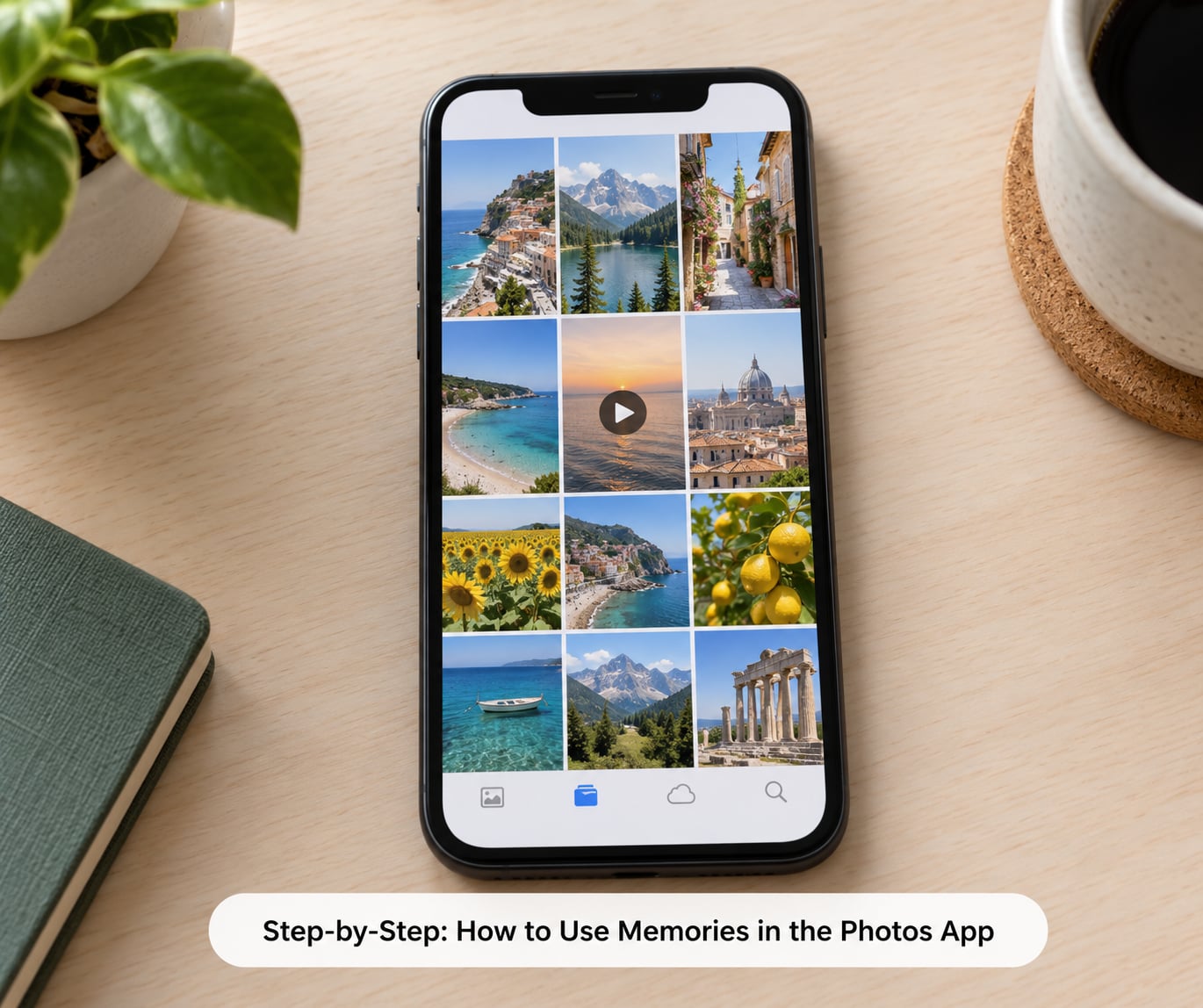
Open Memories from the Collections tab
Open Photos, tap Collections at the bottom of the screen, then scroll down to the row headed Memories.
Swipe horizontally across that row to browse, and tap a collection to open it full screen. If your library is busy, tap Show All above the row to see every memory in a grid instead of one swipe at a time.
Play, pause and skip through a memory movie
Once a memory is open, it plays as a short movie with music and titles over your photos and videos. Tap anywhere on the screen to pause, tap the play button to resume.
Swipe across the movie to move forward or back through the clips. The small X in the corner closes the movie and returns you to the Collections tab, and the three-dot menu gives you sharing, editing and reporting options for the whole memory.
Build your own memory from an album
This is the fastest route to a memory made of photos you picked yourself.
- Go to Photos, then Albums, and open the album you want.
- Tap Show as Memory in the top corner of the album.
- Choose Slideshow to start the movie immediately, or Add to Memories to save it into your Memories collection.
- Watch the preview, then close it when it looks right.
You will know it worked because a movie is playing that only contains photos from that album. Two limits are worth knowing up front: a shared album has no Show as Memory option, and the finished movie cannot be exported as a separate video file.
Edit the title, music and filter
Open the memory, tap Edit, and the controls appear along the bottom of the screen. From there you can retype the title, pick a different track, change the filter between Original, Vivid, Warm, Cool and Black and White, and adjust the fade in and fade out timing.
The star icon cycles through the title graphic styles. Changes save as you tap, so tap Done when you are finished and the edit sticks to that memory.
Add a memory to favorites and reorder it
In an open memory, tap the heart icon, or use the three-dot menu and pick Add to Favorite Memories. Favorites collect at the top of the Memories row so you can find a trip or a birthday without scrolling.
On iOS 18 and later, tap Customize and Reorder in the Memories area to drag favorites into a custom order, hide the ones you would rather not see, or bring a hidden memory back. Earlier versions only offer the heart, so reordering is not available there.
Search inside Memories for a person, place or date
Tap the magnifying glass in the Collections tab and type a name, a place or a year. Results include the memories themselves, so you can jump straight from a search result into the movie.
For faces, open the People and Pets album instead, where grouped photos of one person sit in a single entry. Tap a face to see every photo of that person in the library, which is also the fastest way back to an original you spotted inside a memory movie.
See On This Day and past memories
Swipe across the Memories row to reach the On This Day section, which surfaces photos taken on today’s date in previous years. Tap the dots along the top of an open memory to jump to the same collection from an earlier year without searching.
The On This Day card updates daily, so a memory that is not there this morning can appear tomorrow morning when a new photo from that date syncs in.
Share a memory or send it to someone
Open the memory, tap the share icon, then choose the destination. Messages, Mail, AirDrop and AirPlay all appear in the share sheet, and each one can send the movie as a playable link rather than a flat video file.
To send only the photos, open the memory, tap the grid icon to view the stills, select the ones you want, and share from there instead.
Hide a memory, a person, a holiday or duplicates
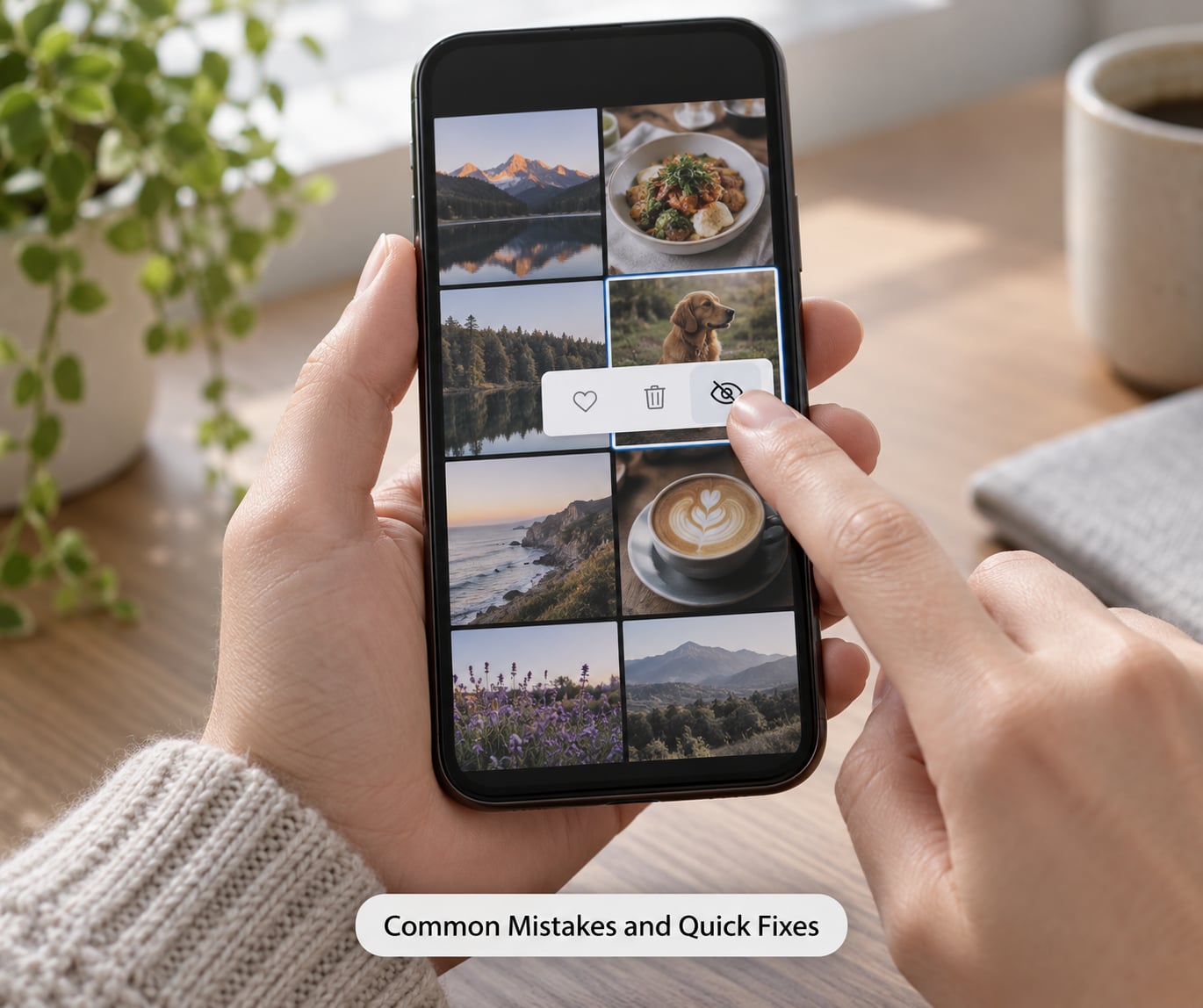
Open the unwanted memory and use the three-dot menu to report it, or hide the source material instead. In Photos, go to Collections and scroll to the Memories, Holidays and Duplicates rows, then use the Show or Hide controls next to each category.
For a specific face, open People and Pets, tap the person, scroll down and tap Hide this Person. Hiding the source is the fix that sticks, because a memory you dismiss alone tends to reappear later. Apple also keeps a Show Holiday Events switch in Settings, then Photos, which is where the holiday memories come from.
Common Mistakes and Quick Fixes
No memories appear at all
Most often the library is too new, too small, or the analysis setting got switched off. Check Settings, then Photos, then Analyze Photos and Videos, and confirm iCloud Photos is on in Settings, then Photos, then Sync with iCloud.
Another cause is a recent iOS update. Users on r/apple and r/ios have reported memories disappearing for a while after a major release, and rebuilding takes time because every photo has to be re-scanned. Leave the phone charging overnight with Wi-Fi on and check again before assuming something is broken.
The same memory keeps reappearing
This is the most common complaint in the Apple forums, and it happens when the underlying group of photos or faces is still there. Dismiss the memory, then hide the person or the holiday category so the app has nothing left to rebuild it from.
If the repetition is about one specific place, hide that place in Places as well. A memory built from twenty photos of the same restaurant will return until one of those three inputs changes.
Unexpected people show up in a memory
Face grouping works on similar-looking faces and on photos where someone appears in the background, so wrong matches happen. Hide the person from People and Pets, and move any badly grouped photos out of the date range or location that triggers the memory.
Editing the memory itself does not remove a face, so this is a source-level fix rather than a movie-level one.
You cannot edit or delete a memory
Editing is available on memories you created from an album, while automatically generated memories open with fewer controls. Older iOS versions also lack the edit screen entirely, so an update is usually the answer there.
To remove an automatically generated memory, hide it rather than deleting it. That is why the Hide controls exist next to the categories in Collections.
Show as Memory is missing from an album
It only appears on albums stored in your own library. Shared albums, albums coming from the iCloud Shared Photo Library, and albums inside another app do not offer it, and neither does the For You or Recently Saved areas.
Copy the photos you want into a new album on your device first, then use Show as Memory from there.
A Memory and a shared album feel the same
They are not. A memory is a movie the app assembles and can edit, while an album is a container of photos you arranged yourself. A shared album is an album other people can add to, and the iCloud Shared Photo Library shares a separate set of pictures with chosen people without you having to build anything.
The practical difference: albums hold originals and keep working offline, while memories are a presentation layer built from those originals. Deleting or hiding a memory never touches the photos.
You want the photos, not the movie
Inside an open memory, tap the grid icon to switch from the movie to the individual stills, then select and share or save the ones you want. Tapping a photo opens it in the library, where you can jump to that date and see everything around it.
Getting the movie itself out as a file is not possible. If you need a standalone video for another platform, record the playback with your built-in screen recording and trim that clip afterwards.
Memories play on the Apple TV or a shared Mac
That is iCloud Photos at work, not a bug. When the same library is active on an Apple TV or a Mac, the same memory movies appear on that screen.
There is no switch to disable memories on the TV alone. The practical option is to hide the people and holidays you do not want shown, which removes them from every device signed into that account. People asking on r/appletv generally end up doing exactly that.
Frequently Asked Questions
How do I find old Memories in the Photos app?
Open Photos and tap Collections at the bottom of the screen, then scroll to the Memories row and swipe sideways through it. Tap Show All for a grid of every memory, including older years. To reach a specific anniversary, open any memory and tap the dots along the top edge to jump to the same collection from a previous year, or search a name or place with the magnifying glass.
Can I edit or rename a Memory after creating it?
Yes. Open the memory, tap Edit, and tap the title text to retype it. The same screen changes the music track, the filter, the fade timing and the title graphic style. Edits save as you tap Done. If the Edit button is missing, the memory was generated automatically rather than made from one of your albums, and older iOS versions offer fewer controls, so an update can help.
Does deleting a Memory delete the original photos?
No. A memory is only a movie assembled from photos that already live in your library, so removing the memory leaves every original exactly where it was, in the same album and date. The same goes for hiding a memory or hiding a person. If you want the photos gone, delete them from the library itself, and remember that deleting from an album or memory never deletes them from your camera roll.
Why are certain people appearing in my Memory?
Apple groups faces it believes belong to the same person, and that occasionally merges two similar-looking faces or picks up someone in the background of a group shot. To stop it, open Photos, tap Collections, then People and Pets, tap the person, scroll down and choose Hide this Person. Hiding the face is what fixes the memory; editing the movie itself will not remove them.
How do I create and share a Memory on iPad?
The steps match the iPhone. In Photos, open Albums, choose an album stored on your device, tap Show as Memory and pick Slideshow to play it immediately or Add to Memories to keep it. To share, open the memory, tap the share icon and pick Messages, Mail or AirDrop. Memories sync across iPhone, iPad and Mac through iCloud Photos, so a memory created on one device appears on the others.
What is the difference between a Memory and a shared album?
A memory is an automatic movie the Photos app assembles around a person, place, holiday or event, and you can edit its title, music and filter. An album is a container you build yourself, holding original photos you can reorder and delete. A shared album lets other people add their own pictures to one of your albums, and it has no Show as Memory option at all.
Conclusion
Start in Photos, tap Collections, and scroll to Memories. Play one collection straight through to get a feel for what your library is offering, then build your own from an album you already know is good.
Before you send anything to family, check the title, the people in it and the sharing destination. A renamed memory and a hidden face take ten seconds each, and they are the difference between a nice surprise and an awkward one.