Burst mode shoots a rapid series of full-resolution photos from a single press and hold, so you can keep the one sharp frame out of the group. To use burst mode on iPhone camera shots, open the Camera app in Photo mode, press the shutter button, swipe it to the left, keep holding, then lift your finger when you have enough frames.
In four moves:
- Open the Camera app and stay in Photo mode.
- Press the shutter button and swipe it to the left (up if you are holding the phone sideways).
- Hold to shoot. The frame counter tells you how many shots you already have.
- Lift your finger, then tap the Burst thumbnail in Photos and keep the frames you like.
That is the whole mechanic, and it works the same on an iPhone 13 or an iPhone 17. What follows is the full version: the other ways to trigger a burst, why your phone sometimes fires one without you asking, and how to pick, save and clean up the result.
Table of Contents
- 1What You Need
- 2Step-by-Step: How to Use Burst Mode on iPhone Camera
- 31. Open the iPhone Camera
- 42. Enable Burst Mode
- 53. Take the Burst
- 64. Review the Photos
- 75. Select and Save the Best Shot
- 86. Share or Keep the Burst
- 9Common Mistakes
- 10Why the burst fires when you did not ask for it
- 11How to use burst mode on iPhone camera with the volume up buttons
- 12The burst button is missing or the hold records video
- 13Only one photo was saved
- 14The frames are blurry or out of focus
- 15Too many frames and no storage left
- 16How to delete an entire burst
- 17Frequently Asked Questions
- 18Does burst mode take better photos?
- 19Are burst photos lower quality?
- 20Do burst photos take up more storage?
- 21Can you use burst mode with a timer?
- 22How do I get rid of burst photos?
- 23Can you turn off burst mode on iPhone?
- 24Conclusion
What You Need
Any iPhone still supported by the current iOS release can take burst photos. Home button models, Face ID models and the Camera Control models all shoot bursts, and none of them need a third-party app or a settings change for the basic swipe gesture.
The one hard requirement is Photo mode. Burst is a stills feature, so it does not fire in Video, Cinematic or Action mode, and it is unavailable when the camera is in Macro on the Pro models. Switch the mode strip back to Photo and the shutter swipe works again.
You also want a bit of headroom on storage. A short hold captures roughly ten frames and a long one can reach sixty, and on higher-resolution models every one of those frames is a full-size photo. Bursts sit in your library as a single stack, but every frame inside it counts toward the space your camera roll uses.
Choosing between the three similar-looking options matters too. People mix these up constantly, so here is the short version.
| Option | What it captures | Best for | How to edit it later |
|---|---|---|---|
| Single shot | One frame | Anything static | Normal edits only |
| Burst | Rapid series of full-resolution stills | Fast or unpredictable movement | Pick frames from the stack, keep favourites only |
| Live Photo | A still plus about three seconds of video | A moment with motion around it | Trim, mute and reorder key photos |
| Timer | A countdown, then the capture | Selfies and group shots | Normal edits only |
Live Photo looks similar in the camera but behaves very differently in Photos: it gives you motion around the moment rather than a choice of moments. Burst is the one that rescues a missed instant.
Step-by-Step: How to Use Burst Mode on iPhone Camera
There are several triggers, and only one of them is the obvious one. This table covers what each does and where it is controlled.
| Trigger | Gesture | Where to control it | Which iPhones |
|---|---|---|---|
| Shutter button, upright | Press, swipe left, hold | Always available in Photo mode | All supported models |
| Shutter button, phone sideways | Press, swipe up, hold | Always available in Photo mode | All supported models |
| Volume up button | Press and hold | Settings > Camera > Use Volume Up for Burst | All supported models |
| Camera Control | Light press and hold | Settings > Camera > Camera Control options | iPhone 16 and 17 families |
1. Open the iPhone Camera
Unlock the phone and open the Camera app, then confirm the mode strip shows Photo. The mode strip is the row above the controls, and Photo has to be selected for any burst gesture to register.
If you came in from the lock screen or Control Center, the app opens straight into the last mode you used, which is often Video by accident. That is the single most common reason a hold produces a movie instead of a burst.
2. Enable Burst Mode
Burst has no on switch. You activate it inside the gesture: touch the shutter button, drag it left, and keep your finger down. While it is armed, the shutter button turns yellow and a frame counter appears above it.
Turn the phone sideways and the direction changes to up, because the gesture follows the on-screen position of the control rather than the physical direction of your finger. Swiping left on a phone held sideways does nothing at all, which trips up nearly everyone at least once.
3. Take the Burst
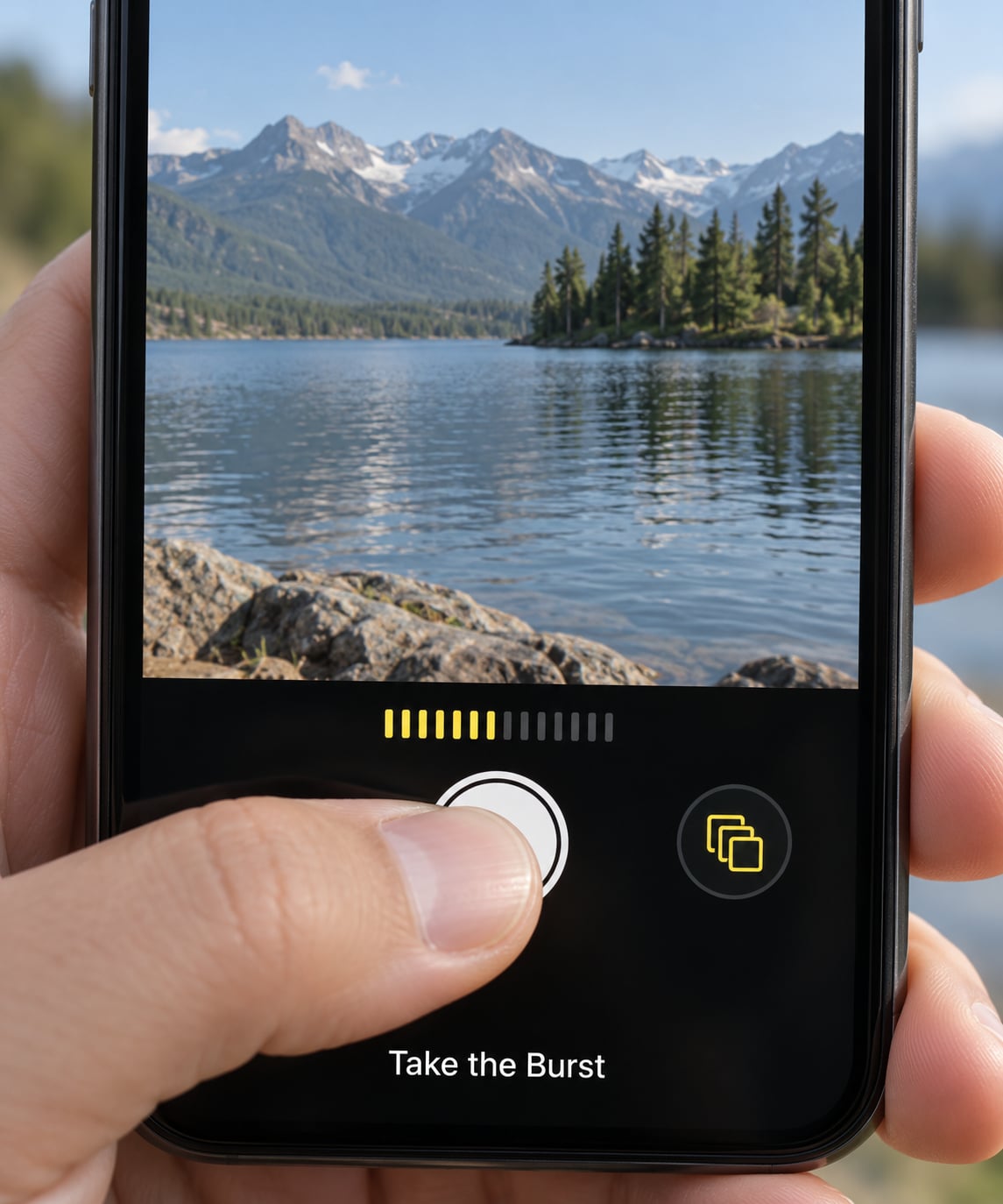
Hold the button for as long as the moment lasts, then lift your finger to stop. iOS shoots at full resolution throughout, and the count keeps climbing for about a second before it slows down.
Start before the peak moment rather than at it, then follow through. A burst that begins a fraction too late and ends early can miss the exact frame you wanted, while one that brackets the action gives you a handful of usable options.
4. Review the Photos
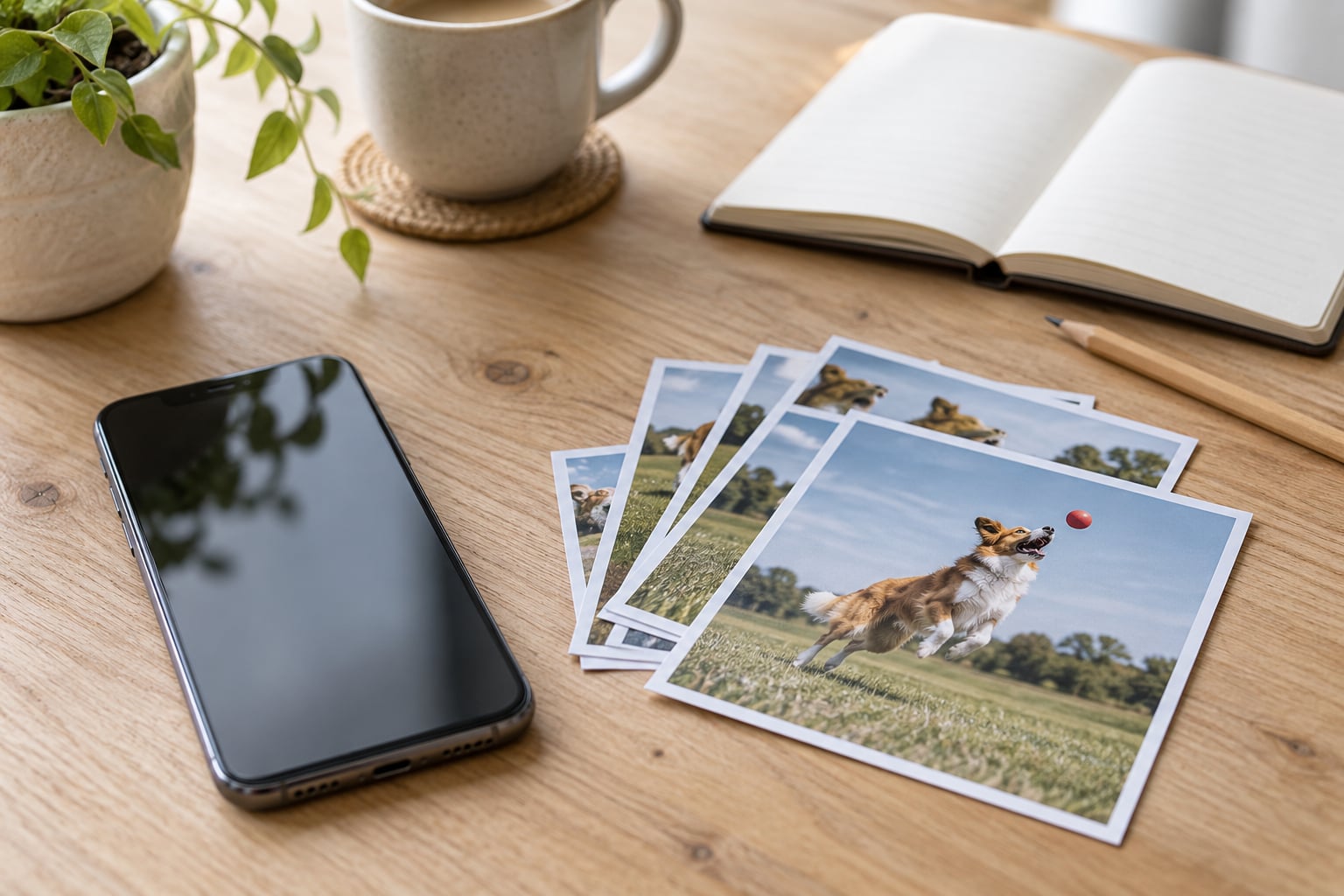
The burst appears at the bottom-left of the Photos view as a stack thumbnail with a frame count on it. Tap it and Photos opens the Select screen, where the frames spread out in a row along the bottom.
Gray dots mark the frames the camera thinks are sharpest, which is a decent starting point but not always right. A dog mid-turn can be perfectly sharp while looking odd, so check the faces yourself rather than trusting the dots.
5. Select and Save the Best Shot
Tap the burst stack, then tap the Burst (number) button at the top of the Select screen to spread the frames out. Tap each frame you want to keep, the circles above them fill, then tap Done.
Drag the row of frames to scroll through more of the sequence. If you only want the highlights, use Keep Only Favorites and Photos discards everything you did not tick, which is the fastest way to reclaim space from a long burst.
Tap outside the Spread view instead, at an unticked frame, and Photos keeps the whole sequence as a Live Photo-style stack. That is the right choice when the motion itself is the point, such as a skateboarder landing and rolling away.
6. Share or Keep the Burst
Saving is automatic once you tap Done; the chosen frames join your library as ordinary photos. Sharing is where behaviour surprises people: users on Reddit and Apple Discussions report that sharing or AirDropping a burst sends a single frame, and it arrives as a .jpg rather than the .heic the camera captured.
So if someone needs the whole sequence, send the individual frames you selected instead of sending the stack. And if you have no plan to cull a burst, delete it now rather than rediscovering it three months later when the phone is full.
Common Mistakes
Why the burst fires when you did not ask for it
This is the question that comes up most often on Apple Discussions and Reddit, and the answer is that several iPhone modes bracket multiple exposures behind a single press. HDR, flash, Night mode, Portrait mode and the selfie timer can all fire a burst on their own because the camera is combining several frames to build one image.
There is no master switch for that. The workaround people settle on is to avoid those combinations when you want exactly one frame, or to live with the stack and use Keep Only Favorites afterwards. On the selfie timer the burst is always on and cannot be turned off at all.
How to use burst mode on iPhone camera with the volume up buttons
Pressing the volume up button shoots a burst only when Use Volume Up for Burst is switched on. The path is Settings > Camera > Use Volume Up for Burst, and the toggle is off by default.
That default is the reason so many people think they recorded a video. With the toggle off, holding the volume up button does nothing useful in Photo mode; with it on, the same hold fires a burst and the frame counter appears, same as the shutter button.
The burst button is missing or the hold records video
Check three things in order. You are in Photo mode rather than Video or Cinematic. You are not in Macro on a Pro model. And if you are using the volume buttons, Use Volume Up for Burst is actually enabled in Settings > Camera.
If the burst control does nothing on the shutter button at all, restart the phone. A stuck camera process is rare but it clears itself that way.
Only one photo was saved
You probably tapped rather than swiped and held, so the phone took a single frame. Another cause is lifting your finger almost immediately after touching the button, before the shutter turns yellow and the counter appears.
Give the button a deliberate slide left first, then hold. On a phone held sideways, slide up instead.
The frames are blurry or out of focus
A burst inherits whatever focus the camera had when you started. If the lens was still hunting, every frame in the sequence is soft and no amount of selection rescues them.
Press and hold on the subject to bring up AE/AF Lock, confirm the focus and exposure are locked, then start the burst. Bright light helps more than anything else here, because the phone lifts the ISO on dim scenes and the extra noise makes every frame worse.
Too many frames and no storage left
Longer holds produce more files, not better files. Ten to twenty frames is plenty for a single action, and beyond that you are usually collecting duplicates.
Open the burst, choose Keep Only Favorites, and the rest of the stack disappears immediately. For an ongoing fix, Settings > Photos > Keep Up To 30 Days can clear burst photos automatically after a month, and Settings > General > iPhone Storage shows which months are eating your space.
How to delete an entire burst
Tap the stack in Photos, tap the Share button, then tap Delete and confirm Delete Burst. All the frames go at once, which no other way of deleting will do for you.
If you want the storage back without hunting for stacks one by one, check Settings > General > iPhone Storage first. Large bursts usually show up as heavy years or months, and pruning from there is faster than scrolling the library.
Frequently Asked Questions
Does burst mode take better photos?
Burst frames are full-resolution photos, the same quality as a single shot. The improvement is choice of moment, not image quality: you get ten or more instants to pick from, so at least one is sharp with the right expression. A blurry scene stays blurry across every frame in the sequence.
Are burst photos lower quality?
No. Every frame in a burst is captured at full resolution and processed like a normal still. The whole stack only looks smaller because Photos groups the frames under one thumbnail. Some people assume the stack is a compressed clip, so expand it and check before you delete anything.
Do burst photos take up more storage?
Yes, and this is the main downside. Each frame counts as a separate full-size file, so a long hold on a high-resolution model can add up quickly. Cull bursts with Keep Only Favorites after selecting, or turn on Settings u0026gt; Photos u0026gt; Keep Up To 30 Days to clear them automatically after a month.
Can you use burst mode with a timer?
Yes, and the timer always shoots a burst on iPhone. Threads on Apple Discussions confirm there is no setting to turn it off. If you want a single frame from the timer, shoot in Portrait mode or with HDR off, or simply pick one photo from the stack in Photos and delete the rest.
How do I get rid of burst photos?
Tap the burst stack in Photos, tap the Share button, then tap Delete and confirm Delete Burst. That removes every frame in one go. To keep a few and drop the rest, open the stack, tick the frames you want, tap Done, then use Keep Only Favorites.
Can you turn off burst mode on iPhone?
There is no master switch. Burst only fires when you swipe and hold the shutter button or press and hold the volume up button with Use Volume Up for Burst enabled. It also fires by itself in HDR, flash, Night mode, Portrait mode and with the selfie timer, and none of that can be disabled separately.
Conclusion
To use burst mode on iPhone camera shots: open Camera in Photo mode, press the shutter button, swipe it left, hold until the frame counter has what you need, and lift your finger. Then tap the Burst thumbnail in Photos, tick the frames worth keeping, and tap Done.
Do that once on a subject that moves and the gesture stops feeling like a trick. It is the same four moves whether you are shooting a kid, a dog or a group that will never hold still for a single frame.