If you want to know how to make a slideshow from iPhone photos, the whole job takes about a minute in Apple’s free Photos app. Select your pictures, tap the ellipsis button, choose Start Slideshow, and it plays full screen with music. No app download, no subscription, no editing skills.
Here is the short version first, then the details most guides skip.
- Open Photos and tap Library, then tap Select in the top right.
- Tap each photo you want, then tap Done.
- Tap the ellipsis button in the top right of the photo.
- Tap Start Slideshow.
- Tap the screen mid-playback, then tap Customize for music, theme, and timing.
- Tap the Share button to send it, or the AirPlay icon to stream it to a TV.
One thing to know up front: the Photos app plays a slideshow. It does not hand you a video file you can keep or text to someone. More on that below, because it is the question I get asked most.
Table of Contents
- 1What You Need
- 2How to Make a Slideshow from iPhone Photos in the Photos App
- 3Open the Photos app and select the photos
- 4Start a quick slideshow
- 5Create a customized Memories slideshow
- 6Choose music, transitions, and playback options
- 7Save, share, or play the slideshow
- 8Common Mistakes
- 9Frequently Asked Questions
- 10Can you save an iPhone slideshow as a video file?
- 11How do I make an iPhone slideshow play on loop?
- 12How do I slow down an iPhone slideshow?
- 13Why is my slideshow missing photos from an album?
- 14Is there a free slideshow maker for iPhone?
- 15What are some good apps for making slideshows?
- 16Start with the six steps above
What You Need
All you need is the iPhone already in your pocket. Photos ships with iOS, so there is nothing to install and nothing to sign up for.
A few practical requirements:
- Your photos should be in the Photos library, either on the device or syncing through iCloud Photos.
- A handful of pictures works. So do two hundred, though the selection gets fiddly past a hundred.
- Photos and videos can be mixed in the same slideshow.
Optional extras: a Mac, an iPad, or an Apple TV makes playback on a bigger screen much nicer. A pair of AirPods helps if you are actually listening to the music. That is the whole shopping list.
How to Make a Slideshow from iPhone Photos in the Photos App
There are two ways to do this in Photos, and picking the right one saves you a lot of tapping. The quick version plays immediately with whatever Apple picked. The customized version gives you control over music, transitions, and timing, then saves the result as a Memory you can revisit.
Open the Photos app and select the photos
Launch Photos and tap Library at the bottom to see everything rather than the For You feed. Tap Select in the top right, then tap the images you want in the order you want them shown.
To grab a burst of photos quickly, swipe across a row without lifting your finger, then lift once at the end of the run. On older iOS versions the top right button says Choose instead of Done. Both do the same thing.
Your selection order is the playback order, so the first photo you tap is the first photo on screen. Tap Done when you are finished.
Start a quick slideshow
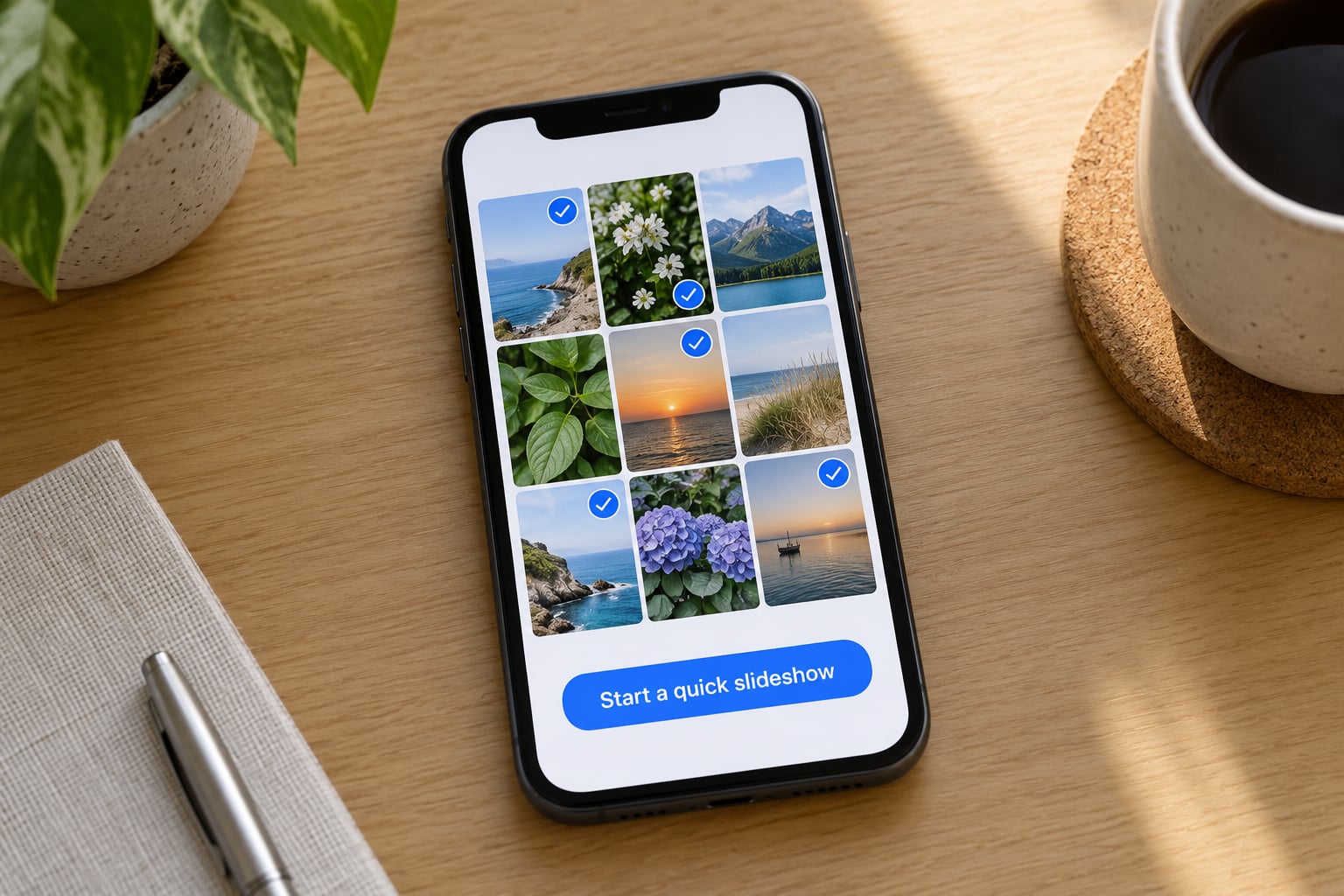
With your photos open, tap the ellipsis button in the top right corner, then tap Start Slideshow. On iOS 18 and earlier that same option is called Slideshow. If it is still called Slideshow on your phone, you are on the older menu layout, and everything else here still works.
The slideshow fills the screen and music starts playing. Tap anywhere on the image to pause it, tap again to resume. To exit, tap the X in the top left corner.
You can also start one straight from an album. Open the album, tap its title at the top, and tap Start Slideshow. That path is quicker when you have already sorted the photos into the right group.
Create a customized Memories slideshow
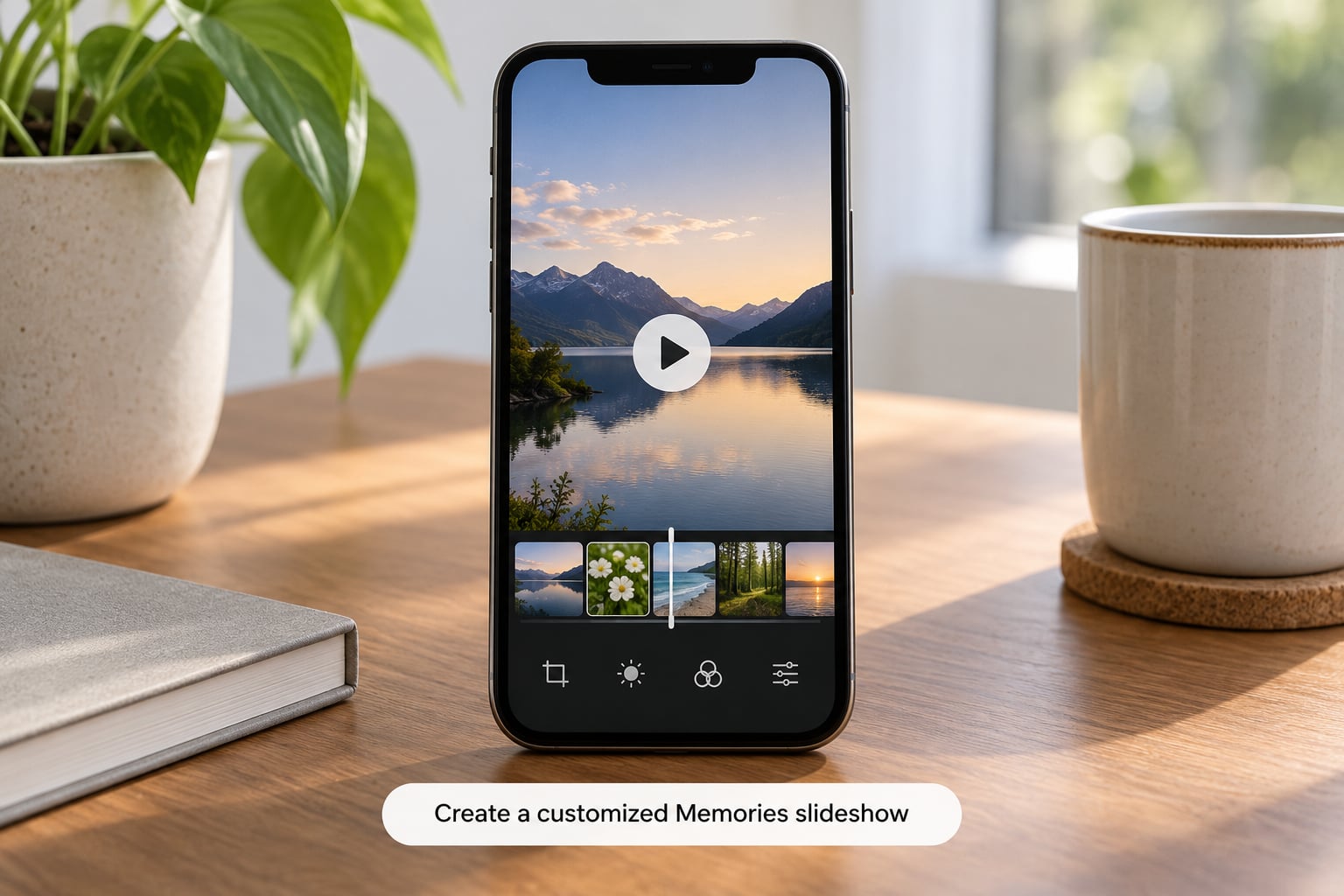
This is the version worth using for a trip, a birthday, or anything you plan to send. Start the slideshow as described, tap the screen to bring up the controls, and tap Customize instead of the default view.
Here is what you can change:
- Theme: Ken Burns, Dissolve, Reflections, Push, and Magazine each move the photos differently. Magazine adds a title card across the first shot.
- Transition and Duration: a slider sets how long each photo sits on screen and how fast the transition runs.
- Music: tap Music, then Choose Song to pick a track from your library or Apple Music subscription.
- Manage Photos: add or remove individual shots after the fact without restarting.
- Add to Favorites: keeps the finished slideshow easy to find in the For You feed.
When you are happy with it, tap Done. iOS 26 and 27 offer to save it as a Memory Movie, which is the editable, replayable version. Tap Save as Memory to keep your changes, or Discard Changes to throw them away.
Choose music, transitions, and playback options
Music lives under Customize, then Music. Tap Choose Song to browse your own library first, or pick one of Apple’s suggested tracks. Mute sits next to it if you want the slideshow silent, which matters when you are on a train.
Transition and Duration is the slider most people miss. Push it right and each photo stays longer, which is what you want for a slideshow with 20 photos and short captions. Pull it left and you get something closer to a fast flipbook.
Loop is the toggle that repeats the slideshow until you stop it. Leave it off for a one-time play, turn it on for a party or an ambient display.
A recurring complaint on r/iPhonehelp is that the built-in soundtrack choices are limited. They are, and Apple will not sync one song to one specific photo. If you need that level of control, you are past what Photos can do and into iMovie territory.
Save, share, or play the slideshow
Three options, depending on where it is going.
Watch it on a big screen. Tap the AirPlay icon during playback and pick an Apple TV or other AirPlay receiver. Your phone goes to the lock screen and the photos play on the television. It works with many smart TVs too, as long as they support AirPlay.
Send it to someone. Tap the Share button mid-playback. Messages, Mail, and AirDrop all send the slideshow as a live object, not a file, so the recipient opens it in their own Photos app. Anyone on Android will not be able to open it.
Keep a real video file. This is the honest part. Photos does not export a slideshow as a video. There is no Save Video button on a standard slideshow, and this is not something hidden behind a setting.
Two workarounds do the job. First, screen-record it: swipe down from the top right to open Control Center, tap the record circle, start your slideshow, then stop and trim the clip. It is quick and the quality is good enough for sharing. Second, build the montage in iMovie, which is free on iPhone. Add each photo to the timeline, drop a track over it, and export a real MP4 you own.
If you are putting a slideshow together from a few hundred photos, the iMovie route is also faster. Import the whole batch at once instead of selecting images one at a time.
Common Mistakes
There is no Slideshow option in the share menu. In iOS 26 and 27 it was renamed Start Slideshow. In iOS 18 it is simply Slideshow. Tutorials that say otherwise are describing a different menu.
The slideshow will not include every photo in the album. Three usual reasons. Some photos are hidden: open Select, tap the Hidden tab at the bottom, and unhide them. Others sit in Recently Deleted, which the Photos app skips entirely. And with iCloud Photos on, an album can list photos that have not downloaded to your device yet, so open the album and wait for the sync to finish.
There is no sound. Check the side switch on the silent position, and make sure Music is not set to Mute inside Customize. Bluetooth devices paired but not connected will also swallow the audio.
The TV shows a black screen. AirPlay occasionally needs a nudge. Lock the phone, wait a few seconds, then unlock and start the AirPlay again. If it still fails, connect both to the same Wi-Fi network and restart the Apple TV.
Music changes at the wrong moment. Photos fades tracks in and out based on the whole set, not the individual shot. There is no setting to change that. iMovie is the only free route if you need a song timed to a specific photo.
Sharing feels broken. A Photos slideshow sent through Messages arrives as a tappable bubble that only opens on Apple devices. If the recipient is on Android, send a screen recording or an iMovie export instead.
Frequently Asked Questions
Can you save an iPhone slideshow as a video file?
Not from the Photos app itself. A standard Photos slideshow is a playback object with no Save Video button, so it cannot be exported or re-shared later. Two free workarounds work well: screen-record the slideshow from Control Center and trim the clip, or rebuild the sequence in the free iMovie app and export it as an MP4 you own.
How do I make an iPhone slideshow play on loop?
Start the slideshow, tap the screen to show the playback controls, then tap Customize and turn on Loop. The slideshow repeats until you tap the X in the top left corner. Loop is useful for an ambient display or a party, and it stays off by default so a normal slideshow plays once.
How do I slow down an iPhone slideshow?
Tap the screen during playback, open Customize, and adjust the Transition and Duration slider. Moving it right gives each photo more time on screen and slows the transition between shots. Moving it left speeds everything up. This slider is also where you control the transition style, including Ken Burns, Dissolve, Reflections, Push, and Magazine.
Why is my slideshow missing photos from an album?
Check hidden photos first: tap Select, then tap the Hidden tab at the bottom of the screen and unhide what you need. Photos in Recently Deleted never appear in a slideshow. With iCloud Photos enabled, album items that have not finished downloading to your device are also skipped, so open the album and give the sync time to complete.
Is there a free slideshow maker for iPhone?
Yes, and it is already installed. Photos handles quick viewing, themed playback, background music, loops, and AirPlay streaming at no cost. iMovie, also free, is the better choice when you need a real exported video file, precise music timing, or text overlays. Paid slideshow apps mainly add templates and cloud sharing on top of that.
What are some good apps for making slideshows?
For most people the free built-in options cover it: Photos for viewing and sharing live, iMovie for a finished video file. If you want more, look for apps with timeline control and per-photo music timing rather than template packs. Many readers on r/iPhoneTipsTricks ask for this every few months and end up back on iMovie once they need an actual export.
Start with the six steps above
Open Photos, tap Library, tap Select, pick your photos in order, tap Done, then the ellipsis button and Start Slideshow. That gets you a full-screen slideshow with music in about a minute, and there is nothing to install.
If you need more than that, open Customize during playback for music, theme, and timing. If you need a file you can actually keep and send to anyone, go straight to iMovie instead of fighting the Photos app.