If you searched for how to find duplicate photos on iPhone, the answer is yes, it does it for you. Open Photos, tap Albums, scroll to the bottom and tap Duplicates under Utilities. Apple groups identical and near-identical shots there, and one tap merges each group into a single best-quality copy. The whole review takes about two minutes once the album is populated.
That album is also the part people get stuck on. It can be empty for weeks, it never flags screenshots, and merging feels risky if you are not sure what happens to the copy you did not pick. This guide walks through the whole routine, including what Merge actually keeps, why the folder sometimes never shows up, and how to find the duplicates Apple misses.
The quick version
- Open Photos, tap Albums, scroll to the bottom and tap Duplicates under Utilities.
- Tap a group to see the stacked copies. Swipe through them and pick the one to keep.
- Tap Merge on that group, or use Select All then Merge for the whole album at once.
- Deleted copies move to Recently Deleted, where they stay for 30 days before they disappear for good.
Table of Contents
- 1What You Need Before You Start
- 2Step-by-Step: How to Find Duplicate Photos on iPhone and Clear Them
- 3Open the Duplicate Photos Review
- 4Review Exact and Similar Duplicates
- 5Find Duplicates Manually in the Photos App
- 6Check iCloud Photos on All Your Devices
- 7Delete the Duplicates You Do Not Need
- 8Before You Delete: A Local Backup and a Missing Album
- 9Common Mistakes to Avoid
- 10Frequently Asked Questions
- 11Can iPhone Photos find duplicates automatically?
- 12Why isn’t the Duplicates option showing up on my iPhone?
- 13Does merging duplicates delete the original photo?
- 14How do I find duplicate photos that Apple does not detect?
- 15Will duplicate cleanup free up storage on my iPhone?
- 16How long does it take for the iPhone to find duplicates?
- 17Conclusion
What You Need Before You Start
Everything happens inside Apple’s built-in Photos app, so there is nothing to download and no account to create. Here is the short checklist.
An iPhone or iPad on iOS 16 or later. The Duplicates album arrived in iOS 16. On older software you get no folder at all, and no setting will make it appear.
A library that has had time to index. iOS groups duplicates in the background. A fresh import or a restored backup can take days before anything shows.
A free decision about the original. Merge keeps one copy, and you get to choose which. Have a rough idea of whether you want the highest-resolution shot, the one with the best edit, or the earliest capture.
Some breathing room. The review itself is cheap, but syncing changes back to iCloud is not. A few gigabytes of free space makes that part painless.
Step-by-Step: How to Find Duplicate Photos on iPhone and Clear Them
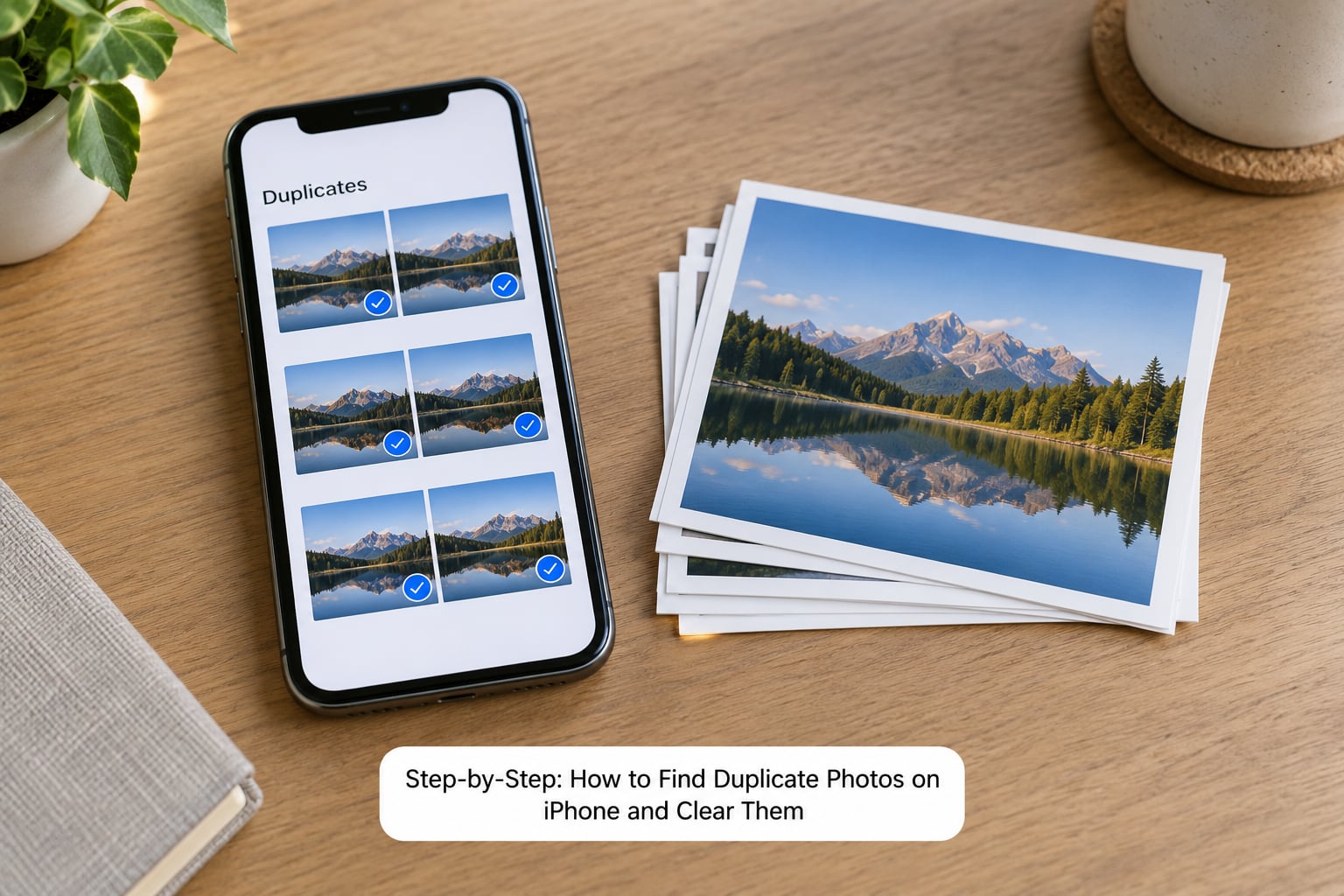
Open the Duplicate Photos Review
Open Photos and tap Albums in the tab bar at the bottom. Scroll all the way down past Recents, People, Places and Media Types until you reach Utilities. Duplicates is the first folder in that group.
If you have ever moved albums into a custom order, keep scrolling. The Duplicates folder sits at the very bottom of the album list and is easy to miss on a long library.
Review Exact and Similar Duplicates
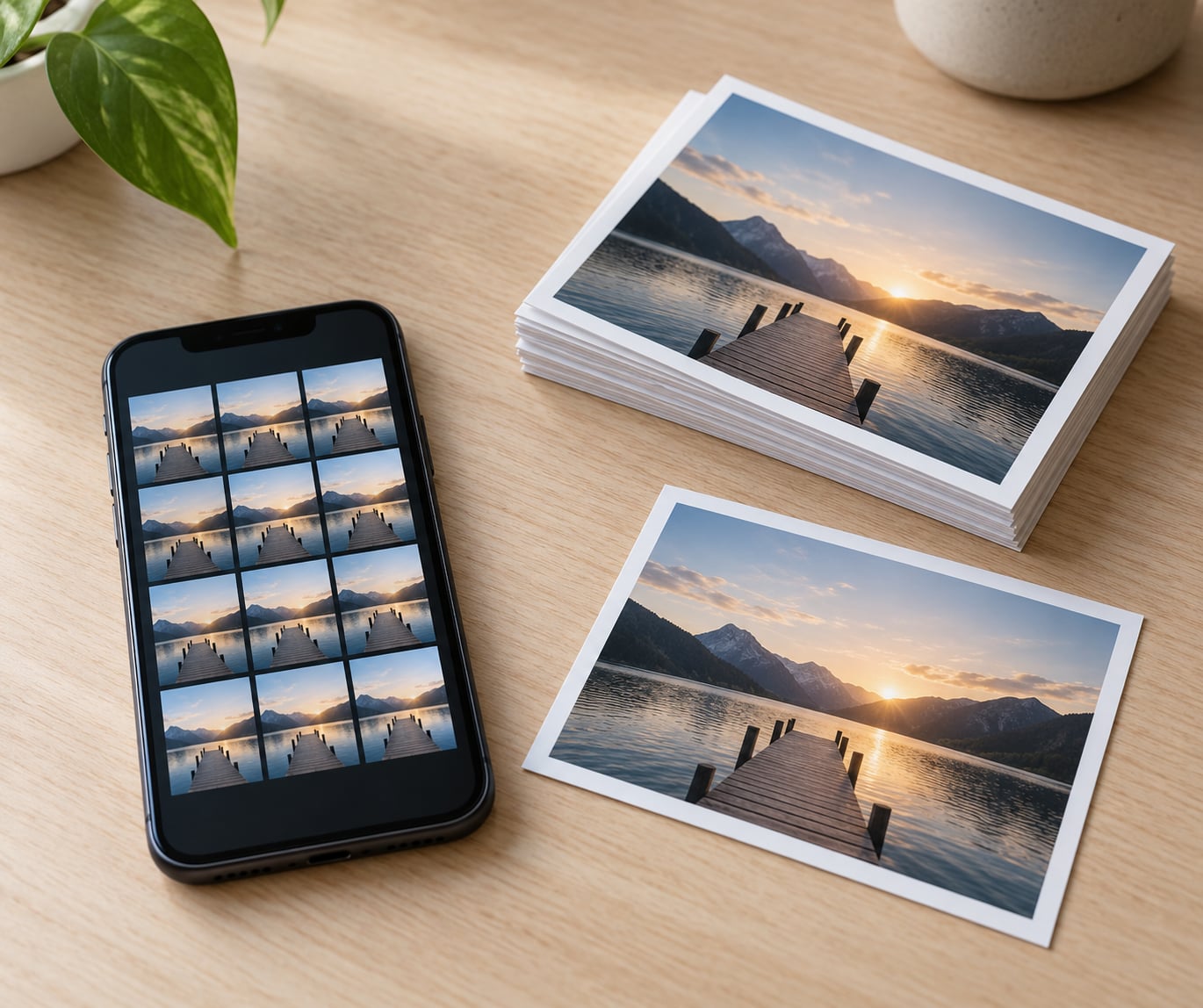
Tap the folder and you see cards stacked like a deck of cards, with the number of copies in the corner. Apple separates them into two groups: Duplicates, which are identical files, and Similar, which are near-matches the algorithm thinks you might want to compare.
Tap a stack to open it. Swipe left and right through the copies. Look at the capture date and time, the resolution, and whether one version has an edit, a Live Photo effect, or metadata the others lack. Then tap the copy you want to keep and tap Merge.
The merge keeps the highest-resolution version and folds the useful data from the others into it. Nothing is silently thrown away beyond the redundant copies themselves.
Find Duplicates Manually in the Photos App
When the Duplicates album is missing or nearly empty, the Search tab is your fallback. Knowing how to find duplicate photos on iPhone without that folder is mostly a matter of changing how you browse. Tap Search, then Photos and scroll to the filter row. Sort by Oldest to walk through the library in the order it filled up, which is how repeat shots cluster.
Search for terms like screenshot, or the name of a messaging app. Screenshots from chat apps are the single biggest duplicate source and Apple never groups them, because they are genuinely different images that happen to look alike.
Two views help with near-identical shots. The Days and Months views in the Years tab put a whole event side by side, so a burst or a ten-shot sequence of the same scene is visible at a glance. Tap the pile, swipe through, and delete the extras one by one.
Check iCloud Photos on All Your Devices
Duplicate review is more effective with iCloud Photos turned on, because the sync pulls in copies from your other devices and Mac first. Check Settings, your name, then iCloud and make sure Photos is switched on.
Merging is a sync event, not a local one. Your iPad and Mac will keep showing the extras until the change finishes propagating, usually within minutes on Wi-Fi. If you merge on an iPad offline, expect the update to appear on your iPhone later.
Open Recently Deleted on a second device before you start if you are nervous. Anything you delete is recoverable from any signed-in device until the 30-day window closes.
Delete the Duplicates You Do Not Need
To clear a single extra: tap the photo, tap the share button, choose Delete, then confirm. In a stack you have already merged, this does not apply because Merge handles the copies for you.
To clear a whole group quickly, tap Select All at the top of the Duplicates folder and then Merge. Every group is processed in one pass. It is tempting, and it is fine, but skim the Similar folder first. Those are the ones where a merge can quietly drop the version you liked.
Deleted items land in Albums > Utilities > Recently Deleted, where a countdown shows the days remaining before they are removed permanently. Storage is not actually reclaimed until you empty that folder.
Before You Delete: A Local Backup and a Missing Album
Copying the DCIM folder to a computer before a bulk merge is a five-minute habit that removes all the anxiety. Finder on a Mac or File Explorer on Windows will show it under the iPhone’s internal storage. iCloud is a fine backup, but a local copy means you are not trusting a sync to protect the only version of a photo.
Some people also mark keepers as Favorites first, which makes the surviving copy easy to spot in a grid of thousands of thumbnails.
If the Duplicates album is not there, or it opens and shows nothing, four things are usually responsible.
- iOS 15 or older. Update the phone and the folder appears.
- Indexing is still running. Plug the phone in, lock it, leave it on Wi-Fi and power for a couple of hours, then reopen Photos. This is the fix people land on most often after a large import or a device restore.
- iCloud Photos is off. Turn it on and give the library time to fill in.
- There are no exact duplicates yet. Similar shots and screenshots never show up here, so an empty folder often means a clean library rather than a broken one.
Also check where your storage is actually going before you go photo-hunting. Open Settings > General > iPhone Storage and look at the Photos entry. Chat and social apps often hold a cached copy of every image they ever sent you, and that cache can dwarf a few hundred duplicate photos.
If you want space back without deleting anything, use the Optimize storage option under Photos in iCloud settings. Full-quality files stay in iCloud and the iPhone keeps smaller versions, which is reversible and costs you nothing but a trip through a slow connection when you want to share.
Common Mistakes to Avoid
Emptying Recently Deleted right away. You lose the 30-day undo. Leave the folder alone for a few days, confirm nothing important went missing, then clear it.
Treating every Similar photo as a duplicate. The Similar folder is a suggestion, not a verdict. Two frames from a burst differ in expression, and merging them can cost you the one you actually liked.
Deleting whole albums to clean up. Removing an album only removes the album. Use the Duplicates folder, or delete individual items, so nothing outside your intent goes with it.
Installing a cleaner app before checking the built-in tools. Apple’s version runs on device and needs no permission. A third-party app is worth considering only if you want similar-photo detection with a similarity threshold you control.
Expecting the scan to be instant. There is no button to force it. If you just upgraded, imported photos or restored a backup, wait a few days and give the phone overnight on power and Wi-Fi.
Frequently Asked Questions
Can iPhone Photos find duplicates automatically?
Yes. On iOS 16 and later the Photos app includes a Duplicates album that groups identical and near-identical photos and videos on its own. Open Photos, tap Albums, scroll to Utilities and tap Duplicates. From there you can merge each group into one copy or use Select All to merge the whole album in a single pass.
Why isn’t the Duplicates option showing up on my iPhone?
Usually one of four things. You are on iOS 15 or older, in which case the folder does not exist yet. The library is still indexing after an import, an iOS update or a restore, so nothing has been grouped. iCloud Photos is switched off. Or there genuinely are no exact duplicates, because screenshots and burst shots are never listed there. Charging the phone overnight on Wi-Fi resolves the indexing case.
Does merging duplicates delete the original photo?
No. Merge keeps the highest-resolution version and carries useful data from the other copies into it, then sends the redundant copies to Recently Deleted. Nothing is destroyed at that moment. Those copies stay recoverable for 30 days from any device signed in to your Apple Account, and you keep the undo as long as you do not empty that folder.
How do I find duplicate photos that Apple does not detect?
Use the Search tab instead. Sort your library by oldest in the Photos filter, then search for terms like screenshot or a messaging app name, since chat screenshots are the biggest hidden source of repeat images. In the Years tab, open Days or Months view so a whole event sits side by side, then swipe through each pile and delete the extra frames yourself.
Will duplicate cleanup free up storage on my iPhone?
Only partially. Deleted photos sit in Recently Deleted until you empty it, and they also stay in iCloud for 30 days. After that the space comes back on the device. Check Settings, General, iPhone Storage first, because chat and social apps often hold more cached images than your duplicate photos ever did. Optimize iPhone Storage is another option that frees space without deleting anything.
How long does it take for the iPhone to find duplicates?
There is no manual scan and no progress bar, so the timing is unpredictable. A library that has been settled for a while often shows groups within hours of an iOS update. A recent large import or a restored backup can take days, and forum regulars report waiting weeks before a big library is fully indexed. Charging on power with Wi-Fi connected lets the background work finish fastest.
Conclusion
Start in Photos, tap Albums and open Duplicates under Utilities. Check that you are on iOS 16 or later and give the library a night on power and Wi-Fi if the folder is empty. Skim the Similar stack before selecting all, confirm which copy you want to keep, merge the rest, then leave Recently Deleted alone for a few days so the 30-day undo stays available while iCloud Photos finishes syncing across your devices. The paths here hold from iOS 16 through 2026, and the manual Search fallback works on every version that ships the Photos app.