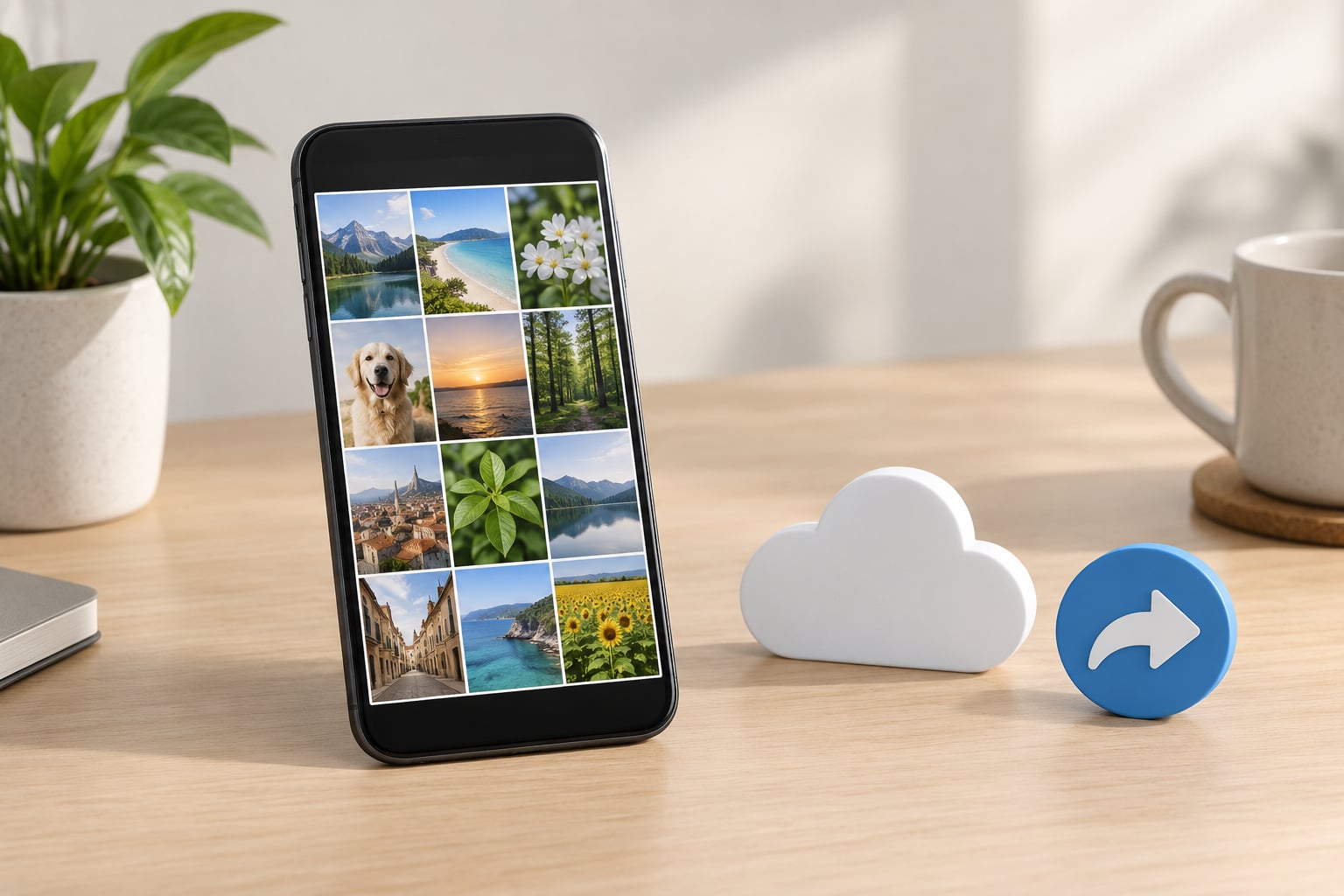
You can create a photo album and share it on iPhone straight inside the built-in Photos app: pick your photos, make an album, then invite specific people or turn on a private link. On Android the same job lives in Google Photos, and it takes about two minutes either way once the basics are set.
Here is the fast path, before the detail:
- Open the Photos app and tap Collections, then Shared Albums.
- Tap the add button, then Add Photos and select the items you want.
- Tap Add, type a name in the Shared Album Name field, and set Sharing Options.
- Choose People You Choose to invite contacts, or Anyone with the Link for a URL anyone can open.
- Tap Create, then pick contacts from the share sheet and send the invite.
- Open the album from Shared Albums and check that each person shows as a subscriber before you assume it worked.
Table of Contents
- 1What You Need
- 2Step-by-Step: Create a Photo Album and Share It
- 3Choose Photos or Videos
- 4Create the Album
- 5Share the Album
- 6Check the Shared Album After You Share It
- 7Common Mistakes
- 8Frequently Asked Questions
- 9Can I send an entire photo album to someone?
- 10Why won’t it let me add photos to a shared album?
- 11How many people can you invite to a shared album?
- 12Can Android users see an iPhone shared album?
- 13Do shared albums take up iCloud storage?
- 14How do I stop sharing an album with someone?
- 15Conclusion
What You Need
An iPhone or iPad running a recent version of iOS, with the Photos app you already use to scroll through your camera roll. You also need an Apple Account signed in on the device and enough iCloud storage headroom for the album to sync.
Two settings do most of the work. First, turn on iCloud Photos: Settings, then your name, then iCloud, then Photos, then Shared Album On. Second, leave the same toggle switched on for every device that will join the album, including the relatives’ phones. An album created with iCloud Photos off simply never finishes syncing.
These steps follow the current iOS layout, where albums live under Collections. On iOS 15 and earlier the same feature sits on the Shared tab at the bottom of the Photos app, and the settings path is Settings, then Photos, then Shared Album On. If a guide you found online sends you to Settings, Photos, iCloud Photo Sharing, it is describing a layout that no longer exists on a current phone.
Step-by-Step: Create a Photo Album and Share It
Choose Photos or Videos
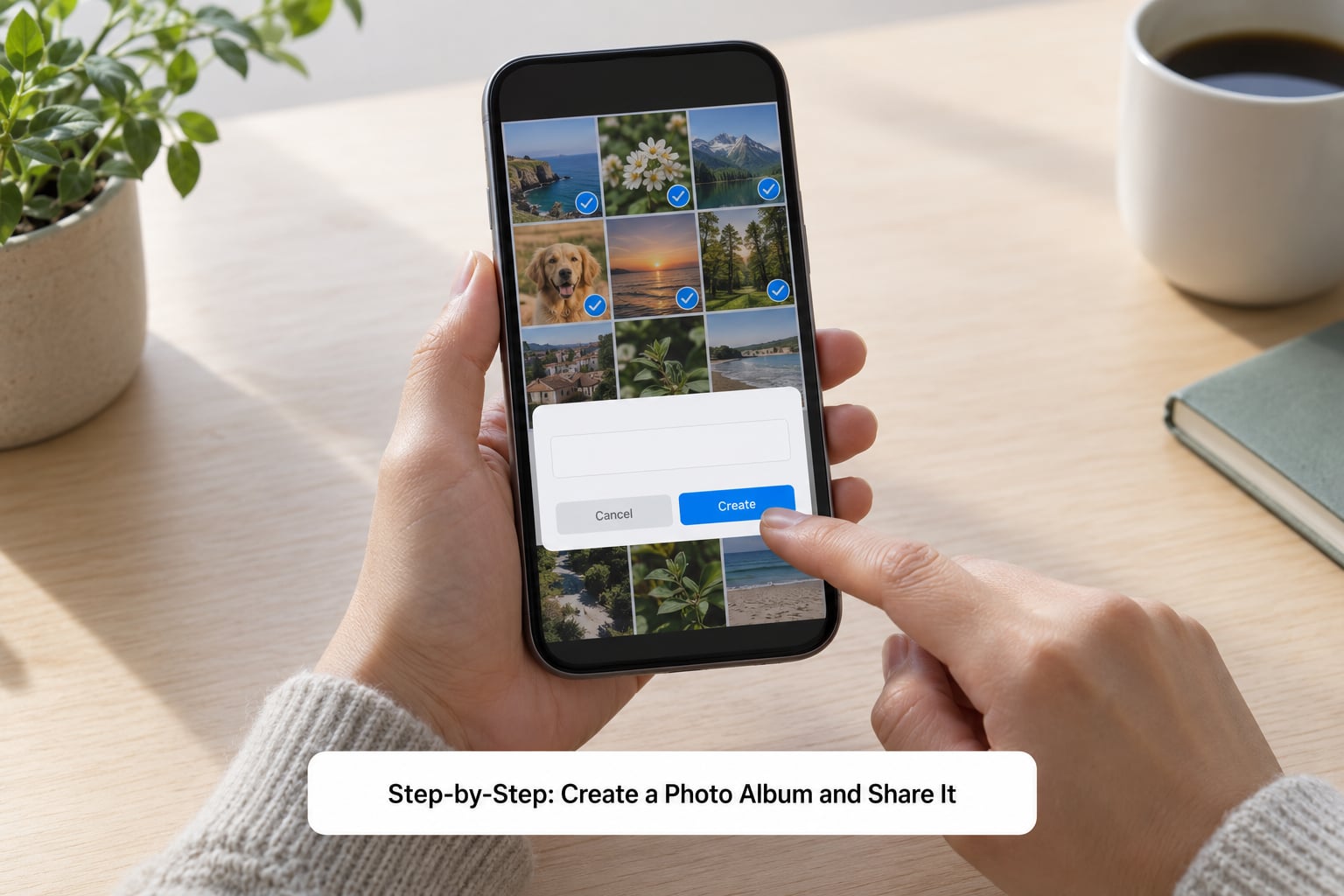
Open Photos, tap Collections, and tap the album the photos already sit in. Tap Select in the top corner, then tap each item you want. The album view shows a number at the top once items are selected, and that count is worth reading before you continue, because it is the easiest way to catch a photo that failed to highlight.
You can pick photos from more than one album. Swipe back to Collections mid-selection and open a second album, and the count carries over. Live Photos and videos are included the same way as stills.
Create the Album
Go back to Collections, tap Shared Albums, then tap the add button in the top corner. Tap Add Photos, choose your items, and tap Add. You land on the create screen with a Shared Album Name field, an optional cover photo, and the Sharing Options row.
Sharing Options is the decision that matters most. People You Choose lets only the contacts you pick see the album, and they can view it, add to it and comment. Anyone with the Link publishes the album as a web address that anyone holding the URL can open, and those viewers can request access if they want to contribute. Under Sharing Options you will also find the switch for a public website and a Make Album Temporary toggle, which expires the album after 30 days and consumes no iCloud storage while it runs.
Name the album something searchable rather than something cute. Grandma 1974 finds the photo again years later; Holiday pics does not.
Tap Create and the album appears under Shared Albums, usually after a few seconds of syncing.
Share the Album
Tap the album, then the share button in the corner, and pick your contacts. Each person receives an invitation they must accept, and a subscriber who has not accepted yet shows as invited rather than active. On a mixed household, iPhone relatives get the full experience: they can add photos, like them and comment.
For anyone without an Apple device, use Anyone with the Link and copy the address. Android users and Windows PC users can open that URL in a browser. AirDrop and Messages move items one at a time, so neither is the tool for handing over a whole album.
On Android the equivalent route runs through Google Photos: open the app, tap your library picture, then Shared, then the add button for a new shared album. Select up to your photos, tap Share, name the album, then either pick people or switch on link sharing. Google Photos link sharing is the usual answer for a family split across both ecosystems, and it is worth knowing that anyone who opens a link can ask to join, which is how unexpected people sometimes turn up in a Google account.
Check the Shared Album After You Share It
Open the album and tap the people icon in the corner to see your subscriber list. Invitees appear as subscribed once they accept. If someone is stuck on invited, tap their name and choose Resend Invitation, which fixes the surprisingly common case of an invitation buried in a filtered inbox.
New photos, comments and reactions land in the album’s Activity feed, and that is where you confirm sharing is live rather than just sent. Open the link yourself from a browser, ideally on a device that is not signed in, to see exactly what a non-Apple viewer gets.
To add more photos later, open the album, tap the add button, pick items, and tap Add. To remove a person, tap the people icon, tap their name, then Remove. To leave someone else’s album, scroll to the bottom of the album and tap Leave Shared Album. Anyone who downloaded photos keeps them even after the album is deleted.
Common Mistakes
- You shared individual photos instead of the album. Sending twenty separate pictures is not an album. Open the album under Shared Albums and use its share button, or share the link from Sharing Options.
- The Shared Albums tab is empty. Usually iCloud Photos is switched off, or the device is out of iCloud storage so the album cannot finish syncing. Check Settings, your name, iCloud, Photos, then confirm the account is not full.
- A recipient can see the album but cannot add photos. They joined through Anyone with the Link, which gives viewing and commenting only. Add them properly as a subscriber instead.
- The invite never arrived. Ask the person to check spam and search for the folder name, then resend from the album’s people list. Also confirm they are signed into an Apple Account.
- iCloud Photo Sharing is not available for this device. A long-running problem on Windows PCs and older Macs, discussed repeatedly in r/iCloud. The native subscribe flow covers iPhone, iPad and recent Mac, so those users need the web link at iCloud.com or an Anyone with the Link address instead.
- The album keeps failing mid-way. Check for an expired temporary album and for storage pressure on the organizer’s account. A full quota stalls every member, not just you.
- Unexpected people appear in your Google Photos. Someone opened a link share and requested access, and you approved it. Review album members under each shared album’s sharing settings and remove anyone who should not be there.
One last habit pays off. Whoever creates the family album should be the person with the most iCloud headroom, because the organizer’s account carries the album. When someone else’s phone fills up, transferring ownership later is more work than starting with the right device.
Frequently Asked Questions
Can I send an entire photo album to someone?
Yes, and the shared album is the right tool for it. On iPhone, create the album under Collections, then Shared Albums, pick People You Choose for named people or Anyone with the Link for an address you can paste anywhere. For a recipient who wants a permanent copy they own, select the photos and share them as files instead. AirDrop and Messages send single items, not whole albums.
Why won’t it let me add photos to a shared album?
Usually the person joined through Anyone with the Link, which grants viewing and commenting rather than contributing. They need to be added as a proper subscriber from the album’s people list. Other causes: the album expired through Make Album Temporary, the album is at Apple’s limit of 5,000 items, or the recipient’s device is signed out of their Apple Account or out of iCloud storage.
How many people can you invite to a shared album?
Apple’s documentation puts the ceiling at up to 100 subscribers per shared album, and 5,000 photos and videos in a single album. Those are Apple limits rather than guesses. For larger groups, a Google Photos shared album or a private link works without an invite list, though each member still needs the app or a browser.
Can Android users see an iPhone shared album?
They can, with limits. An Android phone cannot install an iCloud shared album as a native feature, so Android users open an Anyone with the Link address in a browser and can view and comment, or request access to contribute. In a mixed household, a Google Photos shared album is usually the smoother route because everyone gets the full experience, including adding photos.
Do shared albums take up iCloud storage?
They do, on the account of the person who created the album, because shared albums sync through iCloud Photos. That is the useful detail to know when the family album runs into a full quota. Albums set to expire with Make Album Temporary consume no iCloud storage, and a temporary album is a sensible option for a wedding or a trip that only matters for a month.
How do I stop sharing an album with someone?
Open the album, tap the people icon, tap the person’s name, then Remove to take them off the subscriber list. Anyone with the Link access is different: turn link sharing off in Sharing Options, or delete the shared album entirely, which cancels the URL. To step away from an album someone else created, scroll to the bottom of the album and tap Leave Shared Album.
Conclusion
Start by opening Photos, then Collections, then Shared Albums, and create the album with the photos you already picked. Everything after that is a settings decision: People You Choose keeps the album inside your family, Anyone with the Link reaches relatives on Android or a Windows PC.
A normal album lives only on your device, a shared album syncs through iCloud and lets named people contribute, and a link is the widest but least private option. Before you close the app, check the subscriber list and open the link yourself, so you are not discovering a problem when someone asks where the photos went.