If you want to know how to use Live Text in videos on iPhone, the answer is short: pause the video in Photos on a frame with sharp text, tap the Detect Text button, then touch and hold the highlighted words to select them. Copy, translate, look up or share straight from there.
That whole sequence takes about fifteen seconds. No third-party OCR app, no screenshot, no retyping a serial number by eye. The catch is that a couple of settings have to be right first, and the frame you pause on matters more than anything else.
The steps below cover iOS 15 through the current release. Apple has renamed the on-screen control a few times, so I have noted the older names too in case you are following an older guide. Menu labels shift a little between iOS versions, but the flow itself has been the same since video support arrived.
Table of Contents
- 1What You Need
- 2Step-by-Step: How to Use Live Text in Videos
- 3Open the Video in Photos
- 4Activate Live Text and Select the Text
- 5Copy, Translate, or Share the Recognized Text
- 6Use the Text Elsewhere
- 7Common Mistakes
- 8Live Text is missing entirely
- 9The button appears but no text is highlighted
- 10The wrong words come out
- 11Nothing happens in a third-party app
- 12Live Text is confused with Live Captions
- 13Frequently Asked Questions
- 14Does Live Text work in videos on iPhone?
- 15Does Live Text in videos need an internet connection?
- 16Which iPhone models support Live Text in videos?
- 17How do I select one word instead of a whole block of text?
- 18Why isn’t Live Text working on my iPhone video?
- 19Does Live Text work in the YouTube app, TikTok or Instagram?
- 20Conclusion
What You Need
You need four things, and only one of them is optional.
- A supported iPhone with iOS 15 or later. Video support landed in iOS 16, so anything older than that will not show the Detect Text button on a paused frame.
- The built-in Photos app. Live Text on video is an Apple app feature, which matters more than it sounds. It does not appear in every video player on your phone.
- A video with legible text in it. Signs, subtitles, slide decks, screen recordings, packaging labels, serial numbers, TV lower-thirds.
- Live Text switched on in Settings. It is on by default on most phones, but parental profiles and restored backups sometimes turn it off.
You do not need an internet connection to select text from a paused frame. Recognition happens on your device, so it works in airplane mode. Translation and some look-up results may want a connection, but the copy itself does not.
One more thing worth knowing: Live Text recognition quality depends on language. Apple supports a long list of scripts, but a phone set to a region and language pairing it does not handle well is a common reason the feature seems flaky.
Step-by-Step: How to Use Live Text in Videos
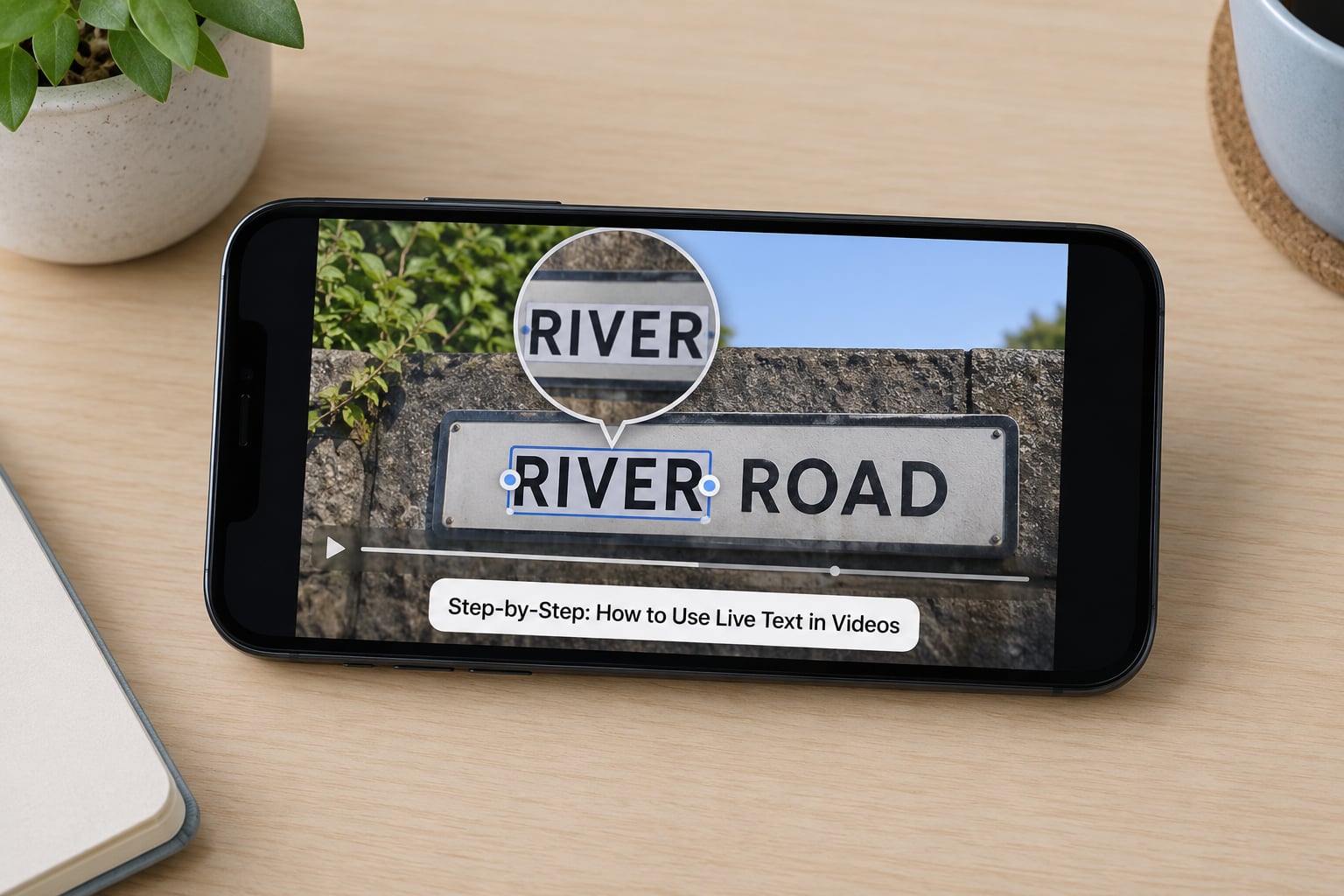
This is the sequence that works on current iOS, with the older control names noted where they differ.
Open the Video in Photos
Open Photos, tap the video, and scrub to the frame you want. Pause it there.
Use the timeline at the bottom of the player to move frame by frame. Pause on text that is large, sharp and high-contrast against its background, because a blurred half-frame is the single biggest reason recognition fails.
How you know the frame is good: you could read it yourself without squinting, quickly and completely. If you would need a magnifying glass, take another frame. If your eyes water, take another frame.
The Detect Text button then appears in the bottom-right of the player. On iOS 16 to 18 you may see a Live Text icon with the letters LT instead, or you may long-press directly on the text without tapping anything.
Activate Live Text and Select the Text
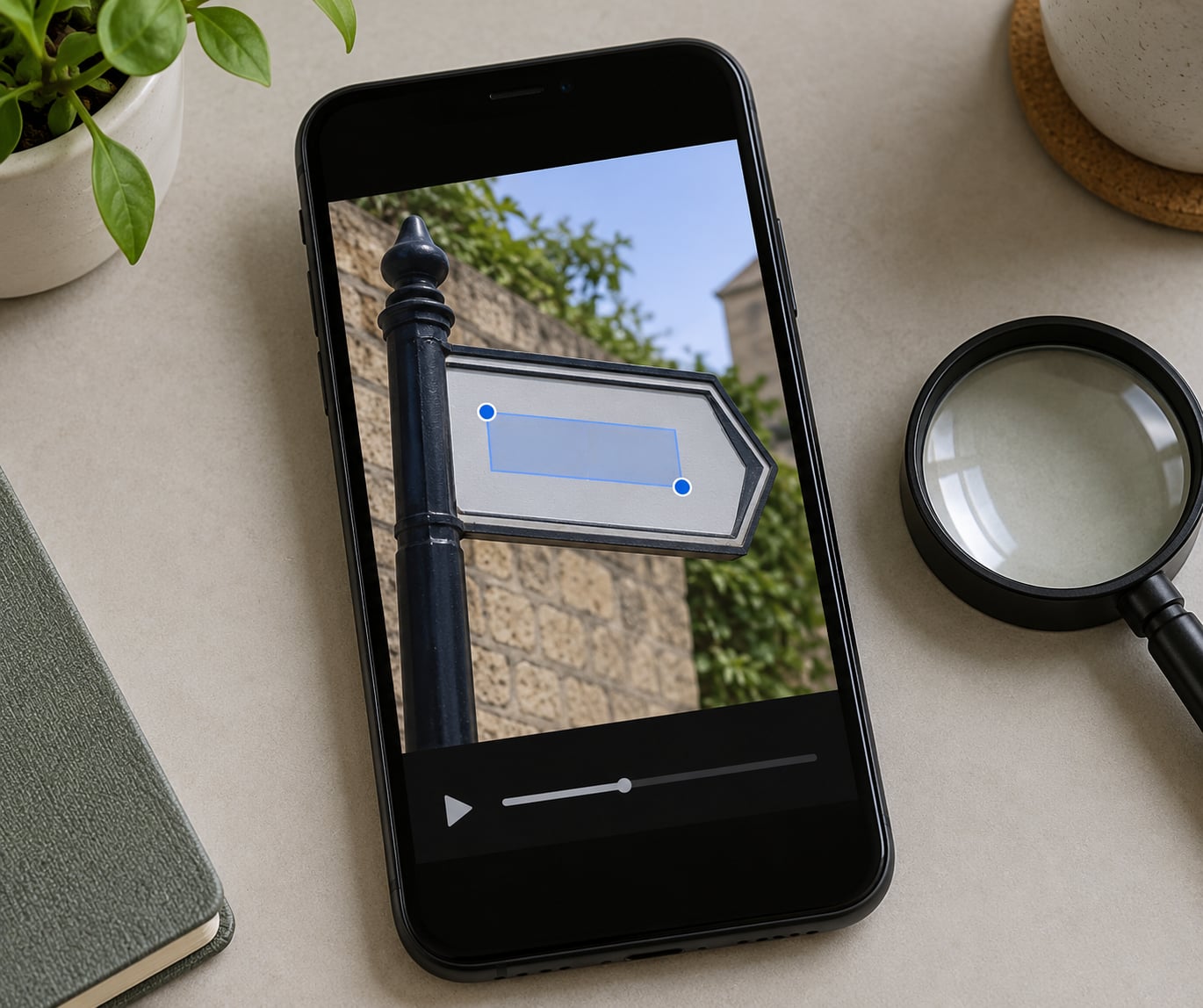
Tap Detect Text and every block of readable text on the frame gets a highlight box around it. Then touch and hold one of those boxes.
The highlight turns into two blue grab points you can drag, and a menu pops up with Copy Text, Select All, Look Up, Translate, Search the web and Share.
Drag the grab points to cover only what you want. If you only need a serial number, drag across the digits instead of accepting the whole line. Select All is fine when you want an entire subtitle.
How you know it worked: the selection box lands exactly on the words you expected, and the letters inside it are highlighted in blue. If the box drifts to the wrong line, let go, tap elsewhere to dismiss, and try again on a cleaner frame.
Text that is upside down or rotated can still be recognised, but the box sometimes catches neighbouring characters. Selecting too much is common with styled fonts, so proofread before you paste.
Copy, Translate, or Share the Recognized Text
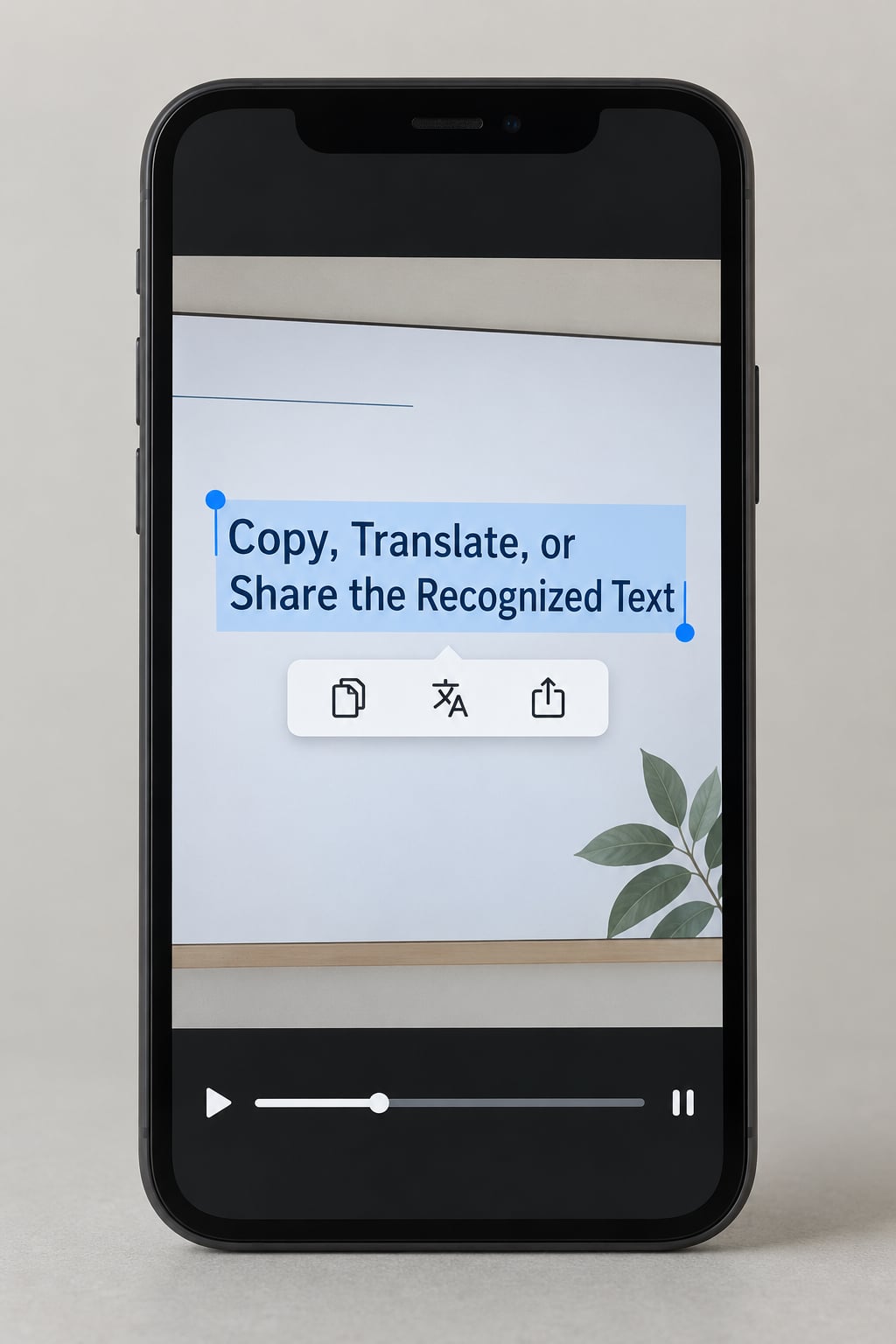
The menu that appears depends on what you selected, so this is where behaviour varies most between iOS releases.
- Copy Text puts the selected words on your clipboard, ready to paste into Notes, Messages or Mail.
- Select All grabs every detected block on the frame at once. Useful for a title slide with a heading and a bullet list.
- Look Up opens the dictionary, thesaurus, calculator and Wikipedia in a small panel. Select a single word and you get definitions and translations.
- Translate opens translation with the detected language already guessed. Available languages depend on your region and the languages you have added in Settings.
- Search the web sends the phrase to a web search. Best for a product name, a film title or a line of dialogue you want traced.
- Share opens the standard share sheet, so you can send the text to a message, a note, a file or another app.
Which ones you actually see depends on the text. A phone number gets a quick action to call it. An address gets directions. A price in a foreign currency gets a conversion. Those quick actions only appear when Live Text recognises that specific kind of content, so do not expect them on every selection.
How you know it worked: the action you tapped either flashes a confirmation, opens a panel with the text in it, or silently copies it. Silence usually means Copy Text, which is easy to miss. Paste into a Notes draft to check.
Use the Text Elsewhere
The point of all this is the second step. Here are the follow-ups I actually use.
Copying a date to a calendar. Pause on a screen showing an event date, detect the text, select just the date, then tap Copy Text. Paste it into a new calendar event title or Notes reminder. The calendar app will usually parse a pasted date into a proper event if you paste into the title field of a new entry.
Grabbing a URL from a screen recording. Pause on the frame with the address bar visible, select the link text, and copy it. The link often comes through as plain text rather than a tappable link, so paste it into Safari’s address bar to make it live again.
Pulling a serial number or product code. This is the use case that saves the most time. Zoom in first if you can, so the digits are unambiguous. Then drag the grab points narrowly around the code and copy. Double-check for O versus 0 and 1 versus I before you paste it into a warranty form.
Copying hard-coded subtitles. Pause on the line, select it, and use Look Up on any word you do not know. Select a single word for a dictionary entry, or Select All if you want the whole line in your notes.
Live Text also works the same way on a photo, which is handy if a frame keeps giving you trouble: pause, take a screenshot of that exact frame, and run Live Text on the screenshot instead. The still image is often cleaner than the moving one.
Common Mistakes
Most failures come down to four causes: the setting, the frame, the language, or the app.
Live Text is missing entirely
If the Detect Text button never appears, the first thing to check is the toggle. Go to Settings, then General, then Language & Region, and confirm Live Text is switched on. This is the step most guides skip, and it is where a surprising number of people are stuck.
If the toggle is not there at all, your region and language pairing does not support the feature, or your iOS version is too old. Video support needs iOS 16 or later.
The button appears but no text is highlighted
Usually the frame. Scrub a little further. The text needs to be on screen and stationary long enough for the recognition pass to complete, and it needs enough pixels to read.
Specific causes, in the order I would check them:
- Motion blur. A frame captured while the camera was moving smears the letter edges. Move to a stiller part of the video.
- Low resolution or heavy compression. Old videos, heavily forwarded clips and long screen recordings get blocky. Native footage from your own camera reads far better.
- Stylised or decorative fonts. Outlined, shadowed, script and heavily kerned type confuse optical character recognition more than plain lettering does.
- Low contrast. Pale text on a pale background, or white text on glare, is the hardest case. Look for a frame where the contrast improves.
- Very small text. Phone numbers in a corner of a wide shot often fail. Zoom the video in if the app allows it, or pick a closer shot.
The wrong words come out
Recognition gets letters wrong in predictable ways. Zero and capital O, one and capital I, five and S, and eight and B are the usual suspects. So are dropped spaces in heavily condensed captions.
Read the selection before you copy. If accuracy really matters, widen your grab points slightly so the box includes surrounding context, then trim your selection afterwards.
Nothing happens in a third-party app
Live Text on video is not an operating-system-wide layer like taking a screenshot. Apps have to opt in to the framework, and many video players do not.
This is the most common confusion I see. People watch a video in a streaming app, no Detect Text button appears, and they assume something is broken on their phone. Nothing is broken, that app just does not support it. Users on the MacRumors forums have confirmed the split behaviour directly: a video paused in Safari exposes Live Text, the same video in the YouTube app does not, and two people in the same thread reported the same pattern independently.
The workaround is the one that thread recommends, and it still works. Take a screenshot of the frame, open it in Photos, and run Live Text on the still image. Screenshots go to Photos, and Photos supports Live Text on images.
Other variations of the same problem:
- Some apps block screenshots outright, in which case you cannot use the fallback there.
- Videos streamed in the browser inside an app behave like the app, not like Safari.
- Older clips in a third-party gallery app may not support Live Text even when the same file works in Photos.
Live Text is confused with Live Captions
These are different features solving different problems, and chasing the wrong one wastes a lot of time.
- Live Text reads text that is already in a photo or video frame, so you can copy it. It is a copy-and-lookup tool.
- Live Captions transcribes audio into subtitles on screen. It is an accessibility feature, found in Settings under Accessibility, then Audio & Visual, then Live Captions.
- Speak Selection reads text aloud with highlighting when you swipe over it with two fingers. It sits next to Live Text in the same Language & Region settings panel.
If you want to add subtitles to a video before you share it, Live Text is the wrong tool entirely. That job belongs to the Captions feature inside Photos, or to the text overlay tools in the markup editor.
Frequently Asked Questions
Does Live Text work in videos on iPhone?
Yes. Live Text reads text from a paused video frame in the Photos app. Pause the video, tap the Detect Text button, then touch and hold the highlighted words to select them. Video support arrived in iOS 16, so earlier versions cannot do it. Photos on iPhone, iPad and Mac all support it.
Does Live Text in videos need an internet connection?
No. Text recognition runs entirely on your device, so you can pause a video and select text in airplane mode. Translate and some Look Up results may want a connection, and copying the text never does. Nothing about the frame you select is uploaded anywhere.
Which iPhone models support Live Text in videos?
Any iPhone running iOS 16 or later supports Live Text on paused video frames, including older models like the iPhone 8 and X. What matters is the iOS version, not the hardware. On iPad and Mac the same feature works through the built-in Photos app.
How do I select one word instead of a whole block of text?
Touch and hold a highlighted block, then drag the two blue grab points until the box covers only the word you want. Release and the action menu applies to just that selection. Select All grabs every detected block on the frame, so avoid it when you want a single word for a dictionary lookup.
Why isn’t Live Text working on my iPhone video?
Four causes cover most cases. Check Settings, General, Language u0026amp; Region and confirm Live Text is on. Move to a sharper frame with larger, higher-contrast text. Confirm your region and language pairing supports the feature. And check the app, because third-party video players often do not support Live Text at all.
Does Live Text work in the YouTube app, TikTok or Instagram?
Often not. Apps must opt in to the Live Text framework, and many video players do not. Users on the MacRumors forums confirmed YouTube in Safari exposes Live Text on paused video while the YouTube app does not. The universal fallback is to screenshot the frame and run Live Text on the still image in Photos.
Conclusion
Start with this: open the video in Photos, pause on a frame where the text is sharp and easy to read, then tap the Detect Text button and hold the highlighted words to select them.
That single habit accounts for most of the quality. Larger text, higher contrast and a still camera give better results than any setting change will. If the frame refuses to cooperate, take a screenshot of that exact frame and run Live Text on the still image instead, since Photos handles images even better than video.
And if nothing appears at all, check Settings, General, Language & Region first. That toggle is off more often than people expect, and it is the reason behind a large share of the “Live Text is broken” posts I see. Once the setting is right, copying a date, a link or a serial number out of a video takes about fifteen seconds.