To use Type to Siri on an iPhone, open Settings, tap Apple Intelligence & Siri, then Talk & Type to Siri, or go to Settings, Accessibility, Touch, Type to Siri on models without Apple Intelligence. Then call Siri with a side button hold or a double-tap near the bottom of the screen, type your request into the box that appears, and send it.
That is the whole trick, and it takes about a minute to set up. Siri reads the typed text and does exactly what it would have done for a spoken command, so the accuracy problem mostly disappears. I switched to typing almost entirely after a train carriage turned three “remind me to call the dentist” requests into nonsense, and I have not gone back.
The confusing part is that Type to Siri lives in two different places depending on your iPhone, and several people assume one of them is broken when it is not. This guide covers both paths, how to open the feature, what to type, and what to fix when the option goes missing.
Table of Contents
- 1What You Need
- 2How to Use Type to Siri on iPhone: Step-by-Step
- 31. Enable Type to Siri
- 42. Open Type to Siri When You Need It
- 53. Type a Siri Request
- 64. Continue the Conversation
- 7Common Mistakes
- 8Type to Siri is missing from Settings
- 9The option disappeared after an iOS update
- 10Voice Siri stopped working
- 11Siri misunderstands typed requests
- 12The double-tap gesture does nothing
- 13Siri still stalls or times out
- 14Frequently Asked Questions
- 15Why can’t I type to Siri anymore?
- 16If I turn on Type to Siri, can I still talk to Siri?
- 17Does Type to Siri send what I type to Apple?
- 18Which iPhones support Type to Siri?
- 19Can I use Type to Siri on an iPad, Mac, or Apple Watch?
- 20What to Do First
What You Need
You need an iPhone running a recent version of iOS, Siri already set up, and a keyboard with English or another supported Siri language. There is nothing to download and no third-party app involved.
Which settings path you use comes down to one thing: whether Apple Intelligence is on and supported by your model.
- Apple Intelligence on (recent Pro and Max models, iPhone 15 Pro and later): the setting lives at Settings > Apple Intelligence & Siri > Talk & Type to Siri. You open it by double-tapping near the bottom edge of the screen, or by holding the side button.
- Apple Intelligence off or unavailable on your model: the setting lives at Settings > Accessibility > Touch > Type to Siri. You open it by holding the side button, or the Home button on older models.
- iPad, Mac, Apple Watch: each device has a similar Siri settings page, and you open typing with a keyboard shortcut on Mac, the side button on iPad, or the watch crown on Watch.
Siri language matters more than most people expect. If your Siri language and your typing language disagree, Siri can fail to match what you typed to a supported request.
How to Use Type to Siri on iPhone: Step-by-Step
1. Enable Type to Siri
On iPhones with Apple Intelligence, go to Settings, tap Apple Intelligence & Siri, and tap Talk & Type to Siri. Choose the option that lets you type and speak, then tap the top switch to turn it on. Allow the keyboard access prompt if iOS asks for it.
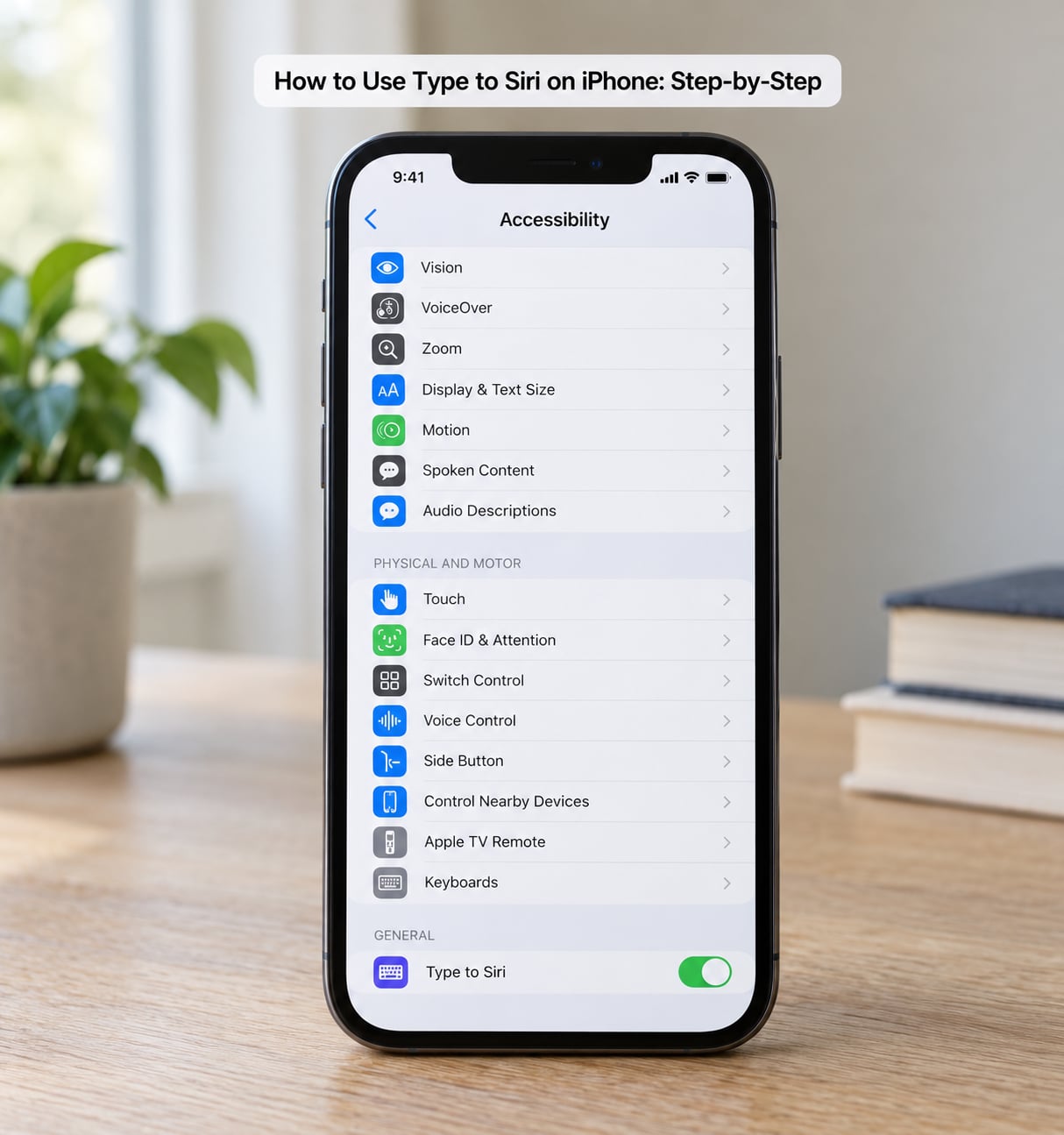
On every other iPhone, go to Settings, tap Accessibility, tap Touch, then tap Type to Siri and turn on the switch. This single toggle is the entire feature on those models. If Type to Siri is not listed under Touch, the toggle is greyed out until Siri has been set up once, so complete the Siri setup prompts and check back.
2. Open Type to Siri When You Need It
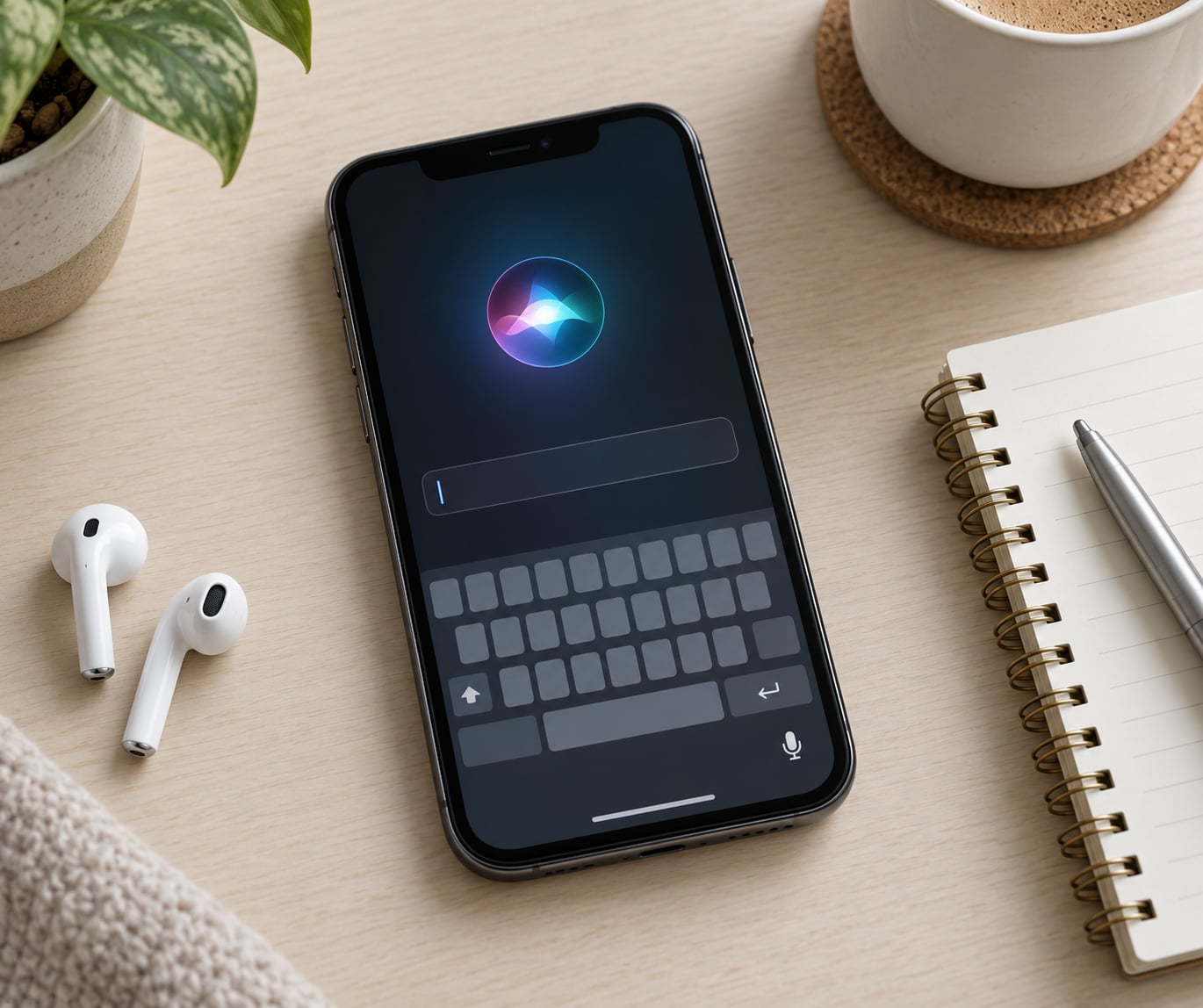
With the Apple Intelligence path active, double-tap near the bottom edge of the display and Siri appears with the keyboard already up. The same hold on the side button works if you prefer the button, which is handy when the phone is in a pocket or on a stand.
On models using the Accessibility toggle, hold the side button until the Siri interface appears, or hold the Home button on an iPhone with one. Siri does not listen for your voice with Type to Siri enabled, so the hold is short and predictable rather than waiting for the listening animation.
Some readers report the side button opening Type to Siri and staying there, which is expected behaviour with the toggle on. Turning the switch off restores the normal voice listening flow.
3. Type a Siri Request
Type in plain language, the way you would say it. Siri shows live suggestions as you type and rewrites the request so you can see how it interpreted your words before anything happens.
Requests that work reliably include “set an alarm for 6:30 in the morning”, “what is the weather in Lisbon”, “add a dentist appointment to my calendar on Thursday at 2”, “play my Focus playlist”, and “text Ana saying I’ll be ten minutes late”. Sending a message without opening the Messages app is the one that changes how people use their phone day to day.
Submit with the return key or tap the submit button. Siri runs the request, gives the spoken or written reply, and in most cases you never leave the Siri screen.
If the suggestion bar keeps popping up full commands before you have typed anything, that is the suggestion engine, not an error. Keep typing, or dismiss it.
4. Continue the Conversation
Stay in the Siri screen and type a follow-up in the same box. Siri keeps the context of the previous exchange, so after asking about tomorrow’s weather you can type “and will I need an umbrella” without repeating the city.
When Siri cannot parse a request, it types back a clarification question such as “which alarm do you mean” or “what time should I set that for”. Answer in the same text box. If it misread you, restate the request rather than backing out, since the correction happens in the same conversation.
Common Mistakes
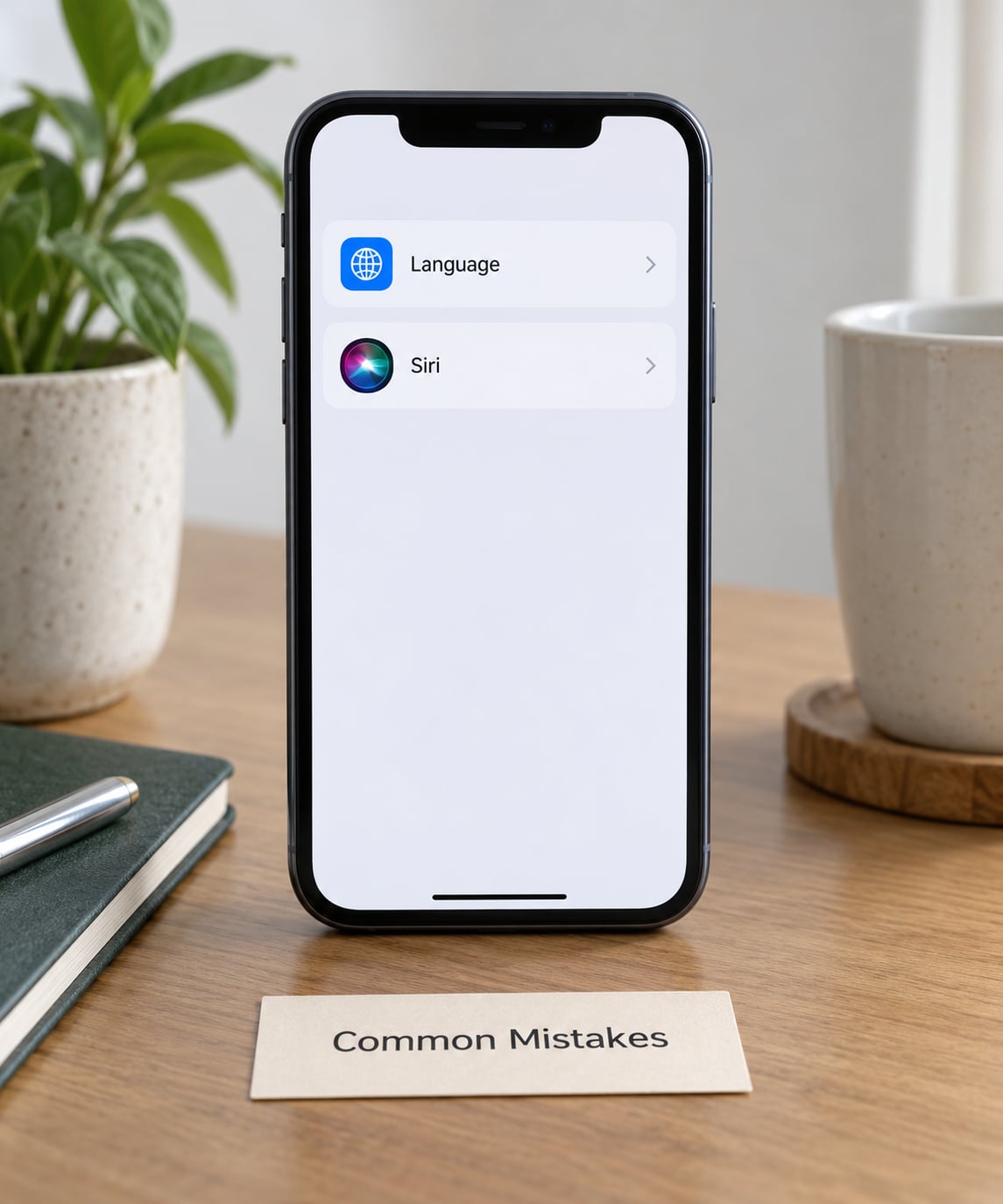
Type to Siri is missing from Settings
Check the other path first. Many people only look in Accessibility when their toggle actually sits under Apple Intelligence & Siri, or the reverse. Search for “Type to Siri” in the Settings search bar and it will jump straight to whichever page holds it on your device.
The option disappeared after an iOS update
This is a common report, and it is usually one of two things. Either Apple Intelligence got switched off in an update, which removes the Apple Intelligence version of the setting, or the device is on a version where the toggle sits under Touch instead. Confirm Apple Intelligence is on, restart the phone, and look again in Accessibility, Touch, Siri.
Voice Siri stopped working
Turning on Type to Siri does not delete voice Siri, but it does change what a side button hold does. Set Siri back to talk only in Settings, Apple Intelligence & Siri, or Settings, Accessibility, Touch, Siri, and both modes become available again. Users on Reddit’s iOS and iPhone communities report being surprised by this switch, not by any actual loss of capability.
Siri misunderstands typed requests
Check that Siri’s language matches the language you are typing in, under Siri Language in the Siri settings. A mismatch is a frequent cause. Also keep requests to one clear action per sentence, since two commands in one line often get dropped.
The double-tap gesture does nothing
Double-tap near the very bottom edge, not at the home bar indicator in the middle, and check that no other app is intercepting the gesture. On iPad with a keyboard shortcut, the shortcut is Command plus the space bar.
Siri still stalls or times out
Type to Siri removes the microphone from the equation, so a timeout usually means network trouble or a heavy request rather than a mishearing. Try a simpler request such as setting a timer. If that works, the original phrasing was the problem.
Two related Siri accessibility settings are worth enabling alongside this one. Spoken Responses controls whether Siri reads replies aloud or only shows them, which matters in a shared space, and Always Listen for Siri gives hands-free access when you do want to talk. Together with Type to Siri they cover the whole range from fully silent to fully voice.
Frequently Asked Questions
Why can’t I type to Siri anymore?
Type to Siri moves between two places in Settings. If Apple Intelligence is on, it sits under Apple Intelligence u0026amp; Siri and is called Talk u0026amp; Type to Siri. If Apple Intelligence is off or your model does not support it, the same feature lives under Accessibility, Touch, Type to Siri. Updates can also switch Apple Intelligence off, which moves the toggle. Search u0022Type to Siriu0022 in Settings to see which page holds it right now.
If I turn on Type to Siri, can I still talk to Siri?
Yes, and this is the part that surprises people most. The toggle changes what a side button hold opens, not whether voice Siri works. On models with Apple Intelligence, set the option to allow both talking and typing and both input methods work. On other models, turning the Type to Siri switch off returns the button to its normal voice listening behaviour, and dictation is unaffected.
Does Type to Siri send what I type to Apple?
Your typed request is handled on device where the feature supports on-device processing, and Siri already processes spoken commands the same way, so typing adds no new category of data leaving your phone. The practical difference is that a typed request is never picked up by the microphone, which matters in meetings, on transit, or anywhere you do not want to speak aloud. Review the Apple Intelligence and Siri privacy settings on your device for the full detail.
Which iPhones support Type to Siri?
Any iPhone capable of a recent iOS can use the Accessibility version, which is the original path and needs nothing more than Siri set up. Models with Apple Intelligence, such as iPhone 15 Pro and later Pro and Max versions, get the newer Talk u0026amp; Type to Siri path with the double-tap gesture at the bottom of the screen. Both do the same job; the newer one is just faster to open and better integrated.
Can I use Type to Siri on an iPad, Mac, or Apple Watch?
Yes. The iPad uses the same Siri settings, and the Mac offers a keyboard shortcut that opens the type field instantly. Apple Watch support is limited, and most people who try it end up doing the work on the phone. If you rely on Siri across devices, set the language and the type option on each one, since the setting does not sync between them.
What to Do First
Open Settings and search “Type to Siri” before anything else. It takes you to the correct page on your iPhone in one tap, whether that is the Apple Intelligence version or the Accessibility one, and removes the guesswork that makes most people think the feature is broken.
Turn it on, double-tap the bottom of the screen or hold the side button, and type one short request such as setting a timer. If that works, everything else is just practice with phrasing.