If you want to know how to copy text from a photo on iPhone, you need nothing more than the Photos app and Apple’s built-in Live Text feature. Open the picture, touch and hold a word, drag the selection handles to cover what you want, then tap Copy. It takes about ten seconds and it works with no app download and no internet connection.
Live Text runs on the phone itself, which matters if the photo happens to be a receipt, a bank document or someone’s ID. Nothing about that image is uploaded anywhere.
Table of Contents
- 1What You Need
- 2Step-by-Step
- 3Copy Text from a Photo on iPhone with Live Text
- 4Copy Text Manually from a Photo on iPhone
- 5Copy Text from Multiple Photos at Once
- 6Paste the Copied Text on Your iPhone
- 7Common Mistakes When Text Is Not Recognized
- 8Frequently Asked Questions
- 9Why can’t I copy text from a photo on my iPhone?
- 10Can I copy handwriting or a screenshot using Live Text?
- 11How do I copy text from several photos into one document?
- 12How do I transfer text copied from an iPhone photo to an Android device?
- 13Is there a difference between copying Live Text and cropping text from an image?
- 14Conclusion
What You Need
Any iPhone or iPad running a current version of iOS or iPadOS will do. Live Text ships in the system, so there is nothing to install and no account to set up.
Before you start, check that the feature is switched on. Open Settings, tap General, choose Language & Region, and make sure Live Text is toggled on. There are separate toggles there for cameras and for photos already in your library.
You also need a photo with visible, reasonably sharp text. Printed pages, screenshots, labels and receipts work well. You do not need to add the language manually; Live Text picks up whatever it can read in the photo.
Step-by-Step
Copy Text from a Photo on iPhone with Live Text
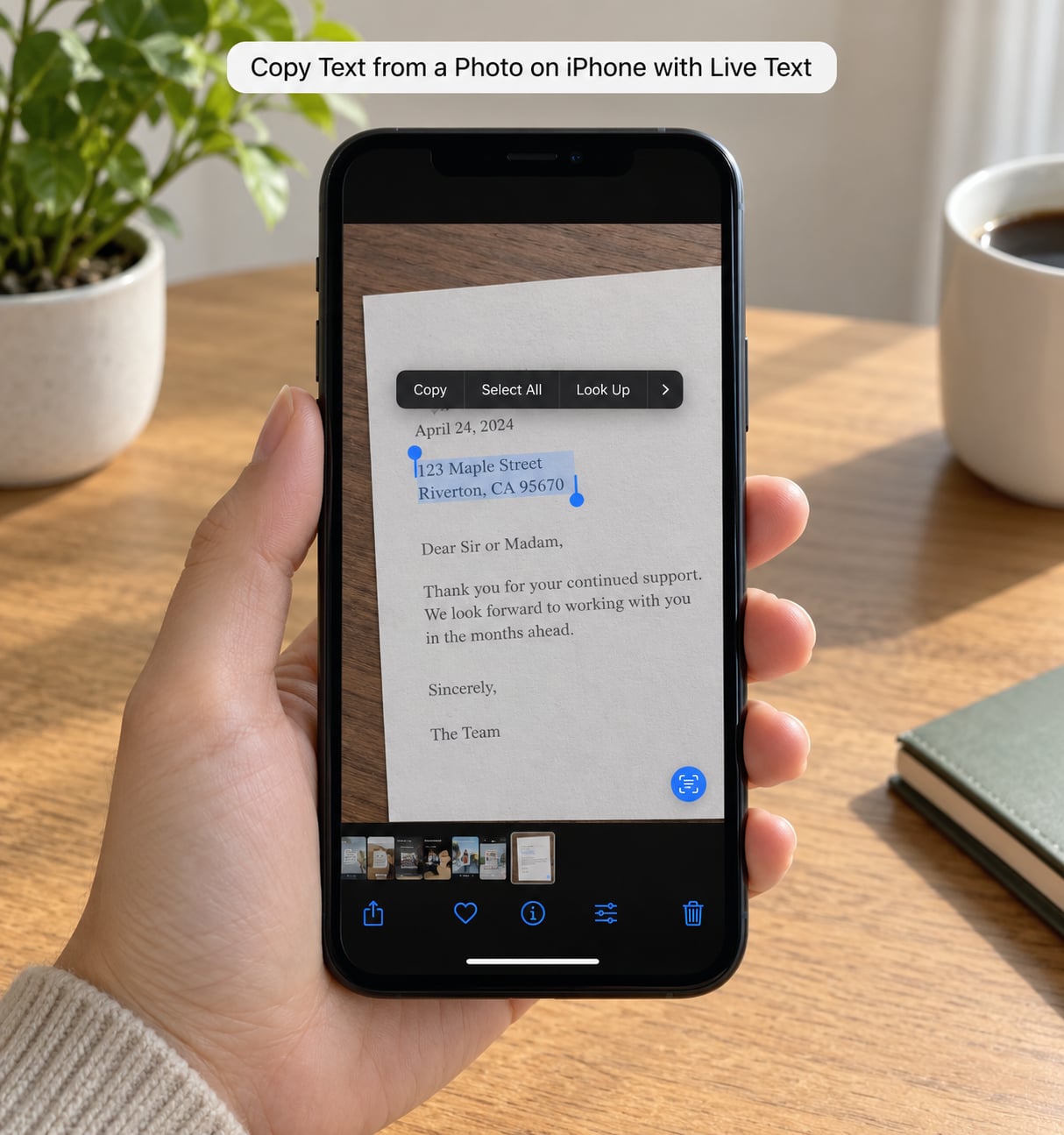
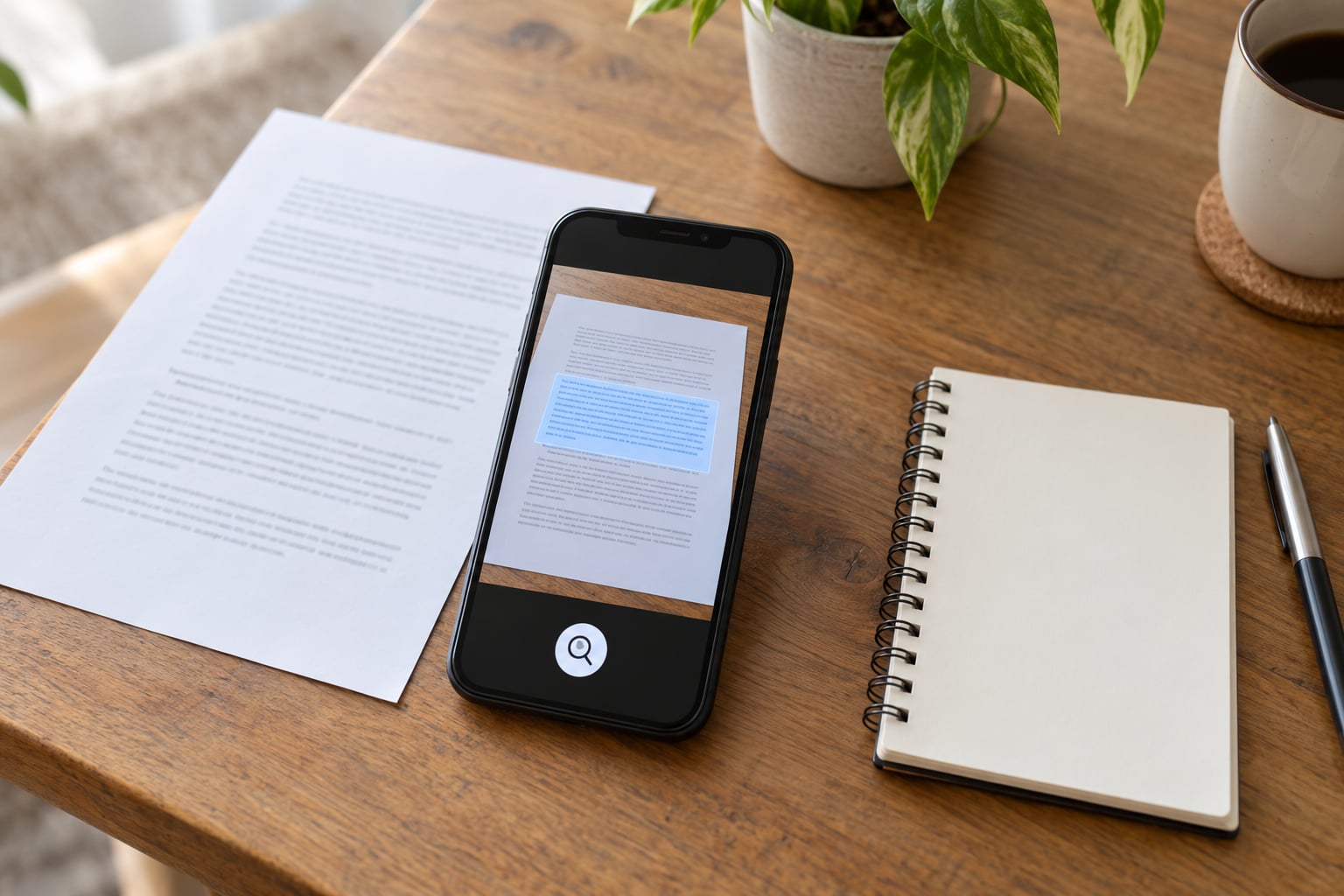
Open the Photos app and tap the picture. Once it has loaded, tap the Live Text icon, which looks like a few small lines in a square, near the bottom-right of the screen. The recognized text appears as a shaded block over the photo.
Now touch and hold on the first word you want. Two grab points appear, one above and one below the word. Drag the points to widen the selection across the words you need. You can lift your finger and drag again to fine-tune it.
Tap Copy in the menu that pops up. If you want the whole block rather than part of it, tap Select All instead and everything recognized on that line or paragraph goes to the clipboard.
Check the result by opening Notes, tapping a new line, pressing to bring up the edit menu, and choosing Paste. If the text arrives, you are done.
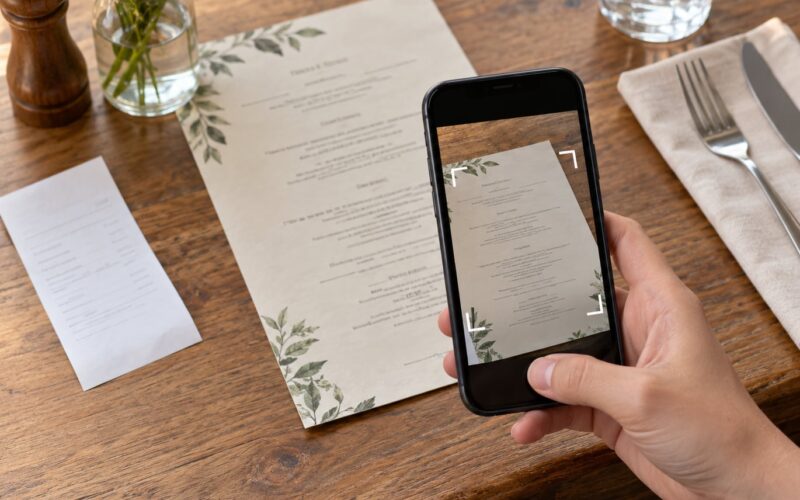
If you photographed the text with the Camera app rather than loading it from the library, the same Live Text icon sits in the bottom-right of the viewfinder. Tap it there and the steps above work without saving the photo at all.
Copy Text Manually from a Photo on iPhone
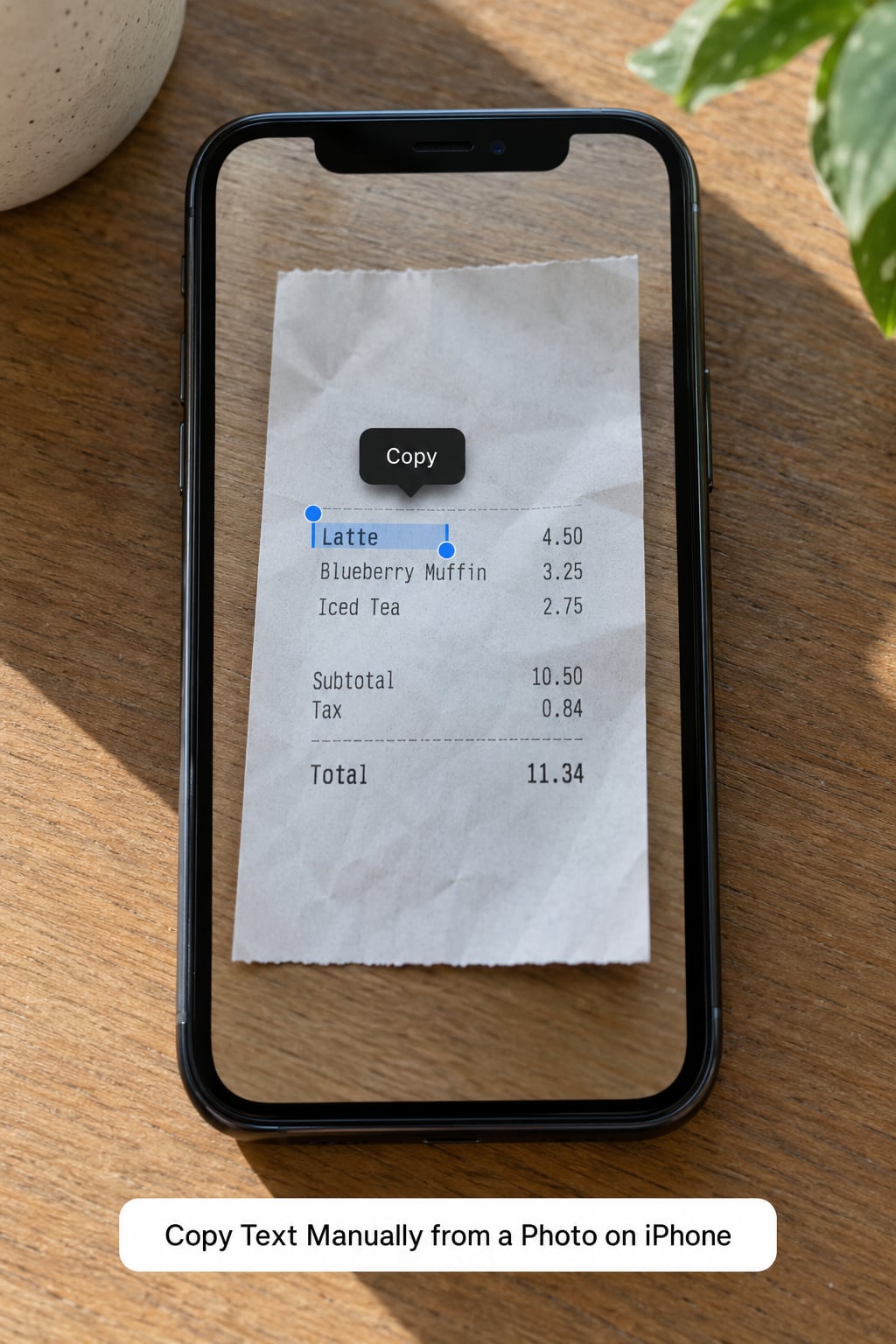
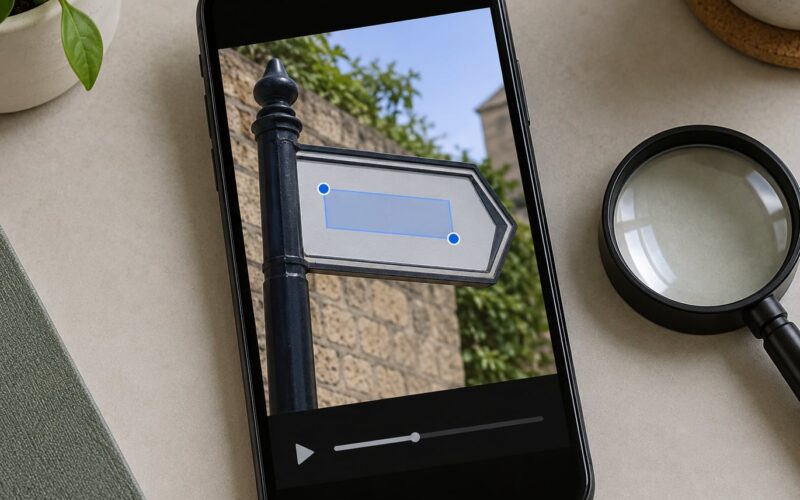
Some images never raise the Live Text control, particularly certain screenshots, images saved from a messaging app, or files that arrived in a format Photos treats as a flat graphic. In those cases the selection interface can still be raised directly.
Open the photo, tap the Live Text control if one is present at all, or tap the Select Text icon that appears at the bottom-right in some versions. Selection handles then appear over the image.
Drag the handles until the blue highlight covers the text, press and hold inside the highlight, and choose Copy. The manual route gives you the same clipboard result as Live Text, it just skips the automatic detection step.
Manual selection is not available on every device and every file type. If no text control shows up at all, the quickest fallback is a dedicated OCR app from the App Store, which reads the image with its own engine.
Copy Text from Multiple Photos at Once
There is no bulk extraction in iOS, so the workflow is one photo at a time and a shared destination. It takes a couple of minutes for a stack of receipts or document pages.
Open the first photo, use Live Text, tap Copy, then open Notes, start a new note and paste. Return to Photos, open the next photo, repeat. Because the clipboard holds the most recent copy, paste each block before you copy the next one.
Add a line of your own between pastes, like the file name or the date, so you can tell the pages apart later. This works well for multi-page documents, labels photographed in batches, and a set of screenshots you want turned into searchable text.
Paste the Copied Text on Your iPhone
Pasting is the same everywhere, which is why copying the text is the hard part and pasting never is. Tap the spot where you want the text to go, then press and hold until the edit menu appears and choose Paste.
In Notes, tap the last line of a note and hold. In Messages and Mail, tap inside the message field and hold. In Safari, tap a search box or a form field and hold. If the Paste option is missing, you have not copied anything yet, or you are pressing on a read-only area.
Nothing is lost if you close the Photos app in between. The clipboard keeps the copied text until you replace it or restart the phone.
Common Mistakes When Text Is Not Recognized
Work down this list in order; the first four fix most cases.
- The photo is blurry. Motion, low light or a shaky hand leaves characters unreadable. Retake it in better light with the phone steady.
- The text is small. Fill the frame with the text rather than photographing the whole page from a distance.
- The contrast is weak. Pale grey text on white paper confuses recognition more often than black on white.
- The image is rotated or curved. A page shot at a steep angle is much harder to read than one taken straight on.
- Live Text is off. Check Settings, General, Language & Region, Live Text, and confirm the toggle for photos is enabled.
- The language is not supported. Recognition covers a long list of languages but not every script, particularly some less common ones.
- The software is behind. Users report Live Text behaving oddly right after a major iOS update. Installing the newest version and restarting the phone usually restores it.
- The gesture was wrong. A quick tap does nothing. Hold your finger on a single word long enough for the selection handles to appear.
One trick worth knowing: if a photo that used to work no longer does, close it and reopen it. Recognition is re-run, and that fixes a surprising number of failures. Using Look Up or opening the image through the Share Sheet forces the same recognition pass again.
Frequently Asked Questions
Why can’t I copy text from a photo on my iPhone?
Usually the photo itself is the problem, not the iPhone. Blurry shots, very small print, low contrast, steeply rotated pages and handwriting all defeat recognition. Check that Live Text is on under Settings, General, Language u0026amp; Region, hold your finger on a single word rather than tapping, and reopen the photo to force recognition to run again.
Can I copy handwriting or a screenshot using Live Text?
Screenshots generally work, and you can raise text selection on them the same way as any photo. Open the screenshot in Photos, tap the Live Text icon, then touch and hold a word to get the handles. Printed screenshots of clear UI text are recognised well. Handwriting is far less reliable, especially cursive, and often needs a dedicated OCR app instead.
How do I copy text from several photos into one document?
iOS has no bulk extraction, so work photo by photo into a shared note. Open each picture in turn, use Live Text, tap Copy, then switch to Notes and paste before copying the next block. The clipboard holds only the most recent copy, so pasting in between is essential. A short label above each paste keeps long document sets readable.
How do I transfer text copied from an iPhone photo to an Android device?
The clipboard does not cross platforms. The quickest route is to paste the text into a note, a message or an email on the iPhone and send it, or to share the note through whichever app you already use with the other device. For larger amounts, put the extracted text in a document and attach it. Pasting directly through a cross-device clipboard app also works if you install one.
Is there a difference between copying Live Text and cropping text from an image?
Copying gives you real, editable characters you can search, paste into a message or translate. Cropping only trims the picture, so the text stays part of the image and cannot be edited or read aloud. Use cropping when you want to keep a visual record or share the exact layout, and use Live Text when you need the words themselves.
Conclusion
To copy text from a photo on iPhone, open the picture in Photos, tap the Live Text icon, hold a word until the selection handles appear, drag them over what you need, and tap Copy. Then paste it anywhere.
If nothing is recognised, retake the photo with more light and less distance, reopen it so recognition runs again, and fall back to raising the text selection manually. Checked for 2026, and still accurate on the current release.