Open Settings, tap Notifications, tap Photos, then tap Memories and switch off Show in Cover Sheet, Show in History and Show as Banner. That is the whole fix for Apple Photos and it takes roughly twenty seconds. Below is how to turn off photo memories notifications on iPhone and iPad, including Google Photos alerts, plus what to do when the reminders keep arriving anyway.
There is no single master switch for Memories, which is where most people get stuck. The Memories screen exposes three separate toggles and you have to kill all three, or the alert simply finds another way in.
Worth knowing before you start: Apple Photos, Google Photos, OneDrive and Facebook each run their own anniversary reminders. Silencing one leaves the others running, and most of the “it did not turn off” complaints come from a person who fixed the wrong app.
Table of Contents
- 1What You Need
- 2Step-by-Step
- 3Step 1: Open Apple Photos Notification Settings
- 4Step 2: Turn Off Memories Alerts in Google Photos
- 5Step 3: Check iOS Notification Settings
- 6Common Mistakes
- 7Frequently Asked Questions
- 8Why won’t the photos notification go away after I turn it off?
- 9How do I turn off Google Photos memories on my iPhone?
- 10Can I hide the photo on my Lock Screen but keep the alert?
- 11Does turning off Memories notifications delete my photos or memories?
- 12Conclusion
What You Need
Nothing to buy and nothing to install. You need your iPhone or iPad, the passcode if prompted, and about a minute of patience while the Photos library quietly syncs behind the scenes.
Two things do matter. First, know which app is bothering you: an alert with an Apple Photos icon on a blue background comes from Apple Photos, while a Google Photos memory usually opens the Google Photos app. Second, know your iOS version, because Apple moved notification settings around. On recent releases the path runs through Settings > Apps > Notifications > Photos instead of the older flat Settings > Notifications > Photos. Both land on the same screen.
Step-by-Step
Step 1: Open Apple Photos Notification Settings
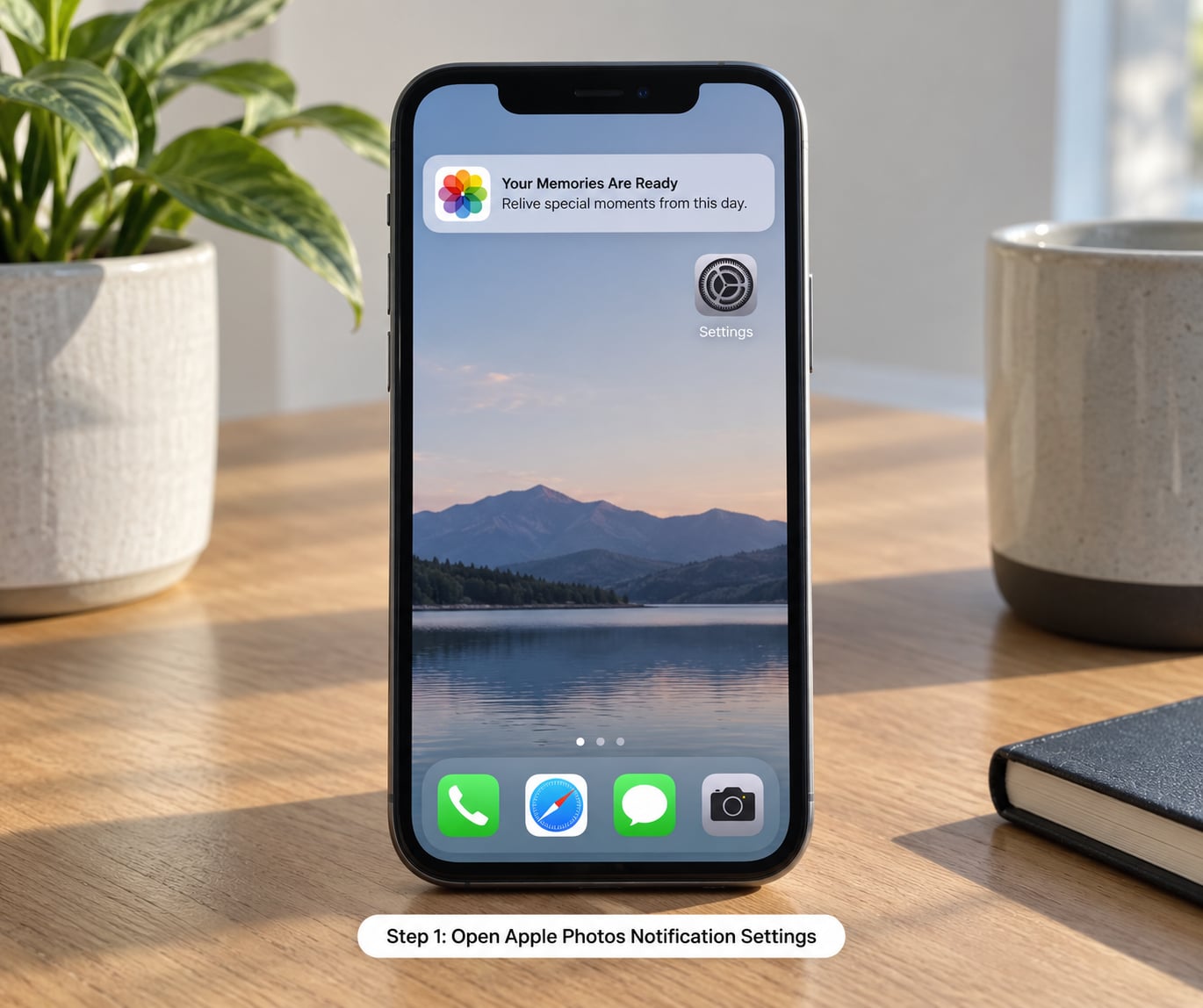
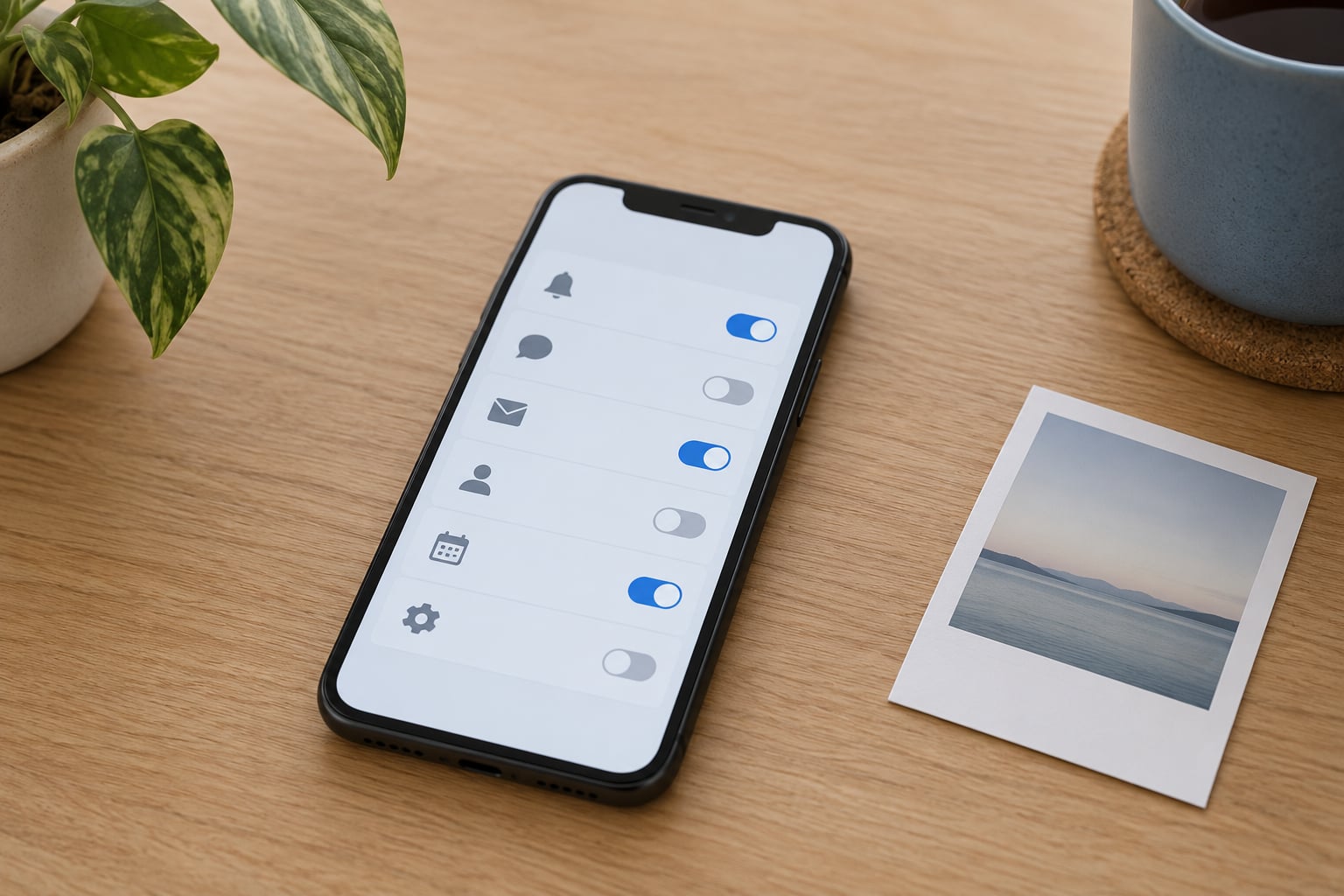
Open the Settings app and scroll to Notifications. Tap Photos, then tap Memories near the bottom of the page. You land on a screen with three switches and no off button.
Here is what each one does, because the labels confuse almost everyone:
- Show in Cover Sheet controls the photo thumbnails that appear when you swipe down on the Lock Screen. This is the setting most people actually want off.
- Show in History keeps Memories in Notification History, the list you see when you swipe left on the Lock Screen.
- Show as Banner drops a full-width alert across the top of the screen when it arrives.
Switch all three off, then back out. Open the Photos app and tap the For You tab to confirm you can still browse Memories, because this only silences alerts, it does not delete anything or stop new memories from being built.
To check it worked, lock your phone and wait. Shared Album and People alerts should still come through, which is the sign you changed the right setting rather than killing every Photos notification on the device.
Step 2: Turn Off Memories Alerts in Google Photos
Google Photos memories are a completely separate system from Apple Photos, so the Photos settings above will not touch them. Open Google Photos, tap your profile picture in the top corner, and look for a notifications or activity setting inside the menu.
Labels shift between Google Photos versions, so if you cannot spot it, use the reliable route that Google Photos Help users recommend: iOS Settings, then Notifications, then Photos, and switch Allow Notifications off for the Google Photos app. That kills every Google Photos alert, including the memories ones.
Verify it by leaving the app closed for a while. Note that Google Photos memories sometimes appear from the Photos widget rather than a notification, and a widget is controlled by a long press on the home screen, not by notification settings.
Step 3: Check iOS Notification Settings
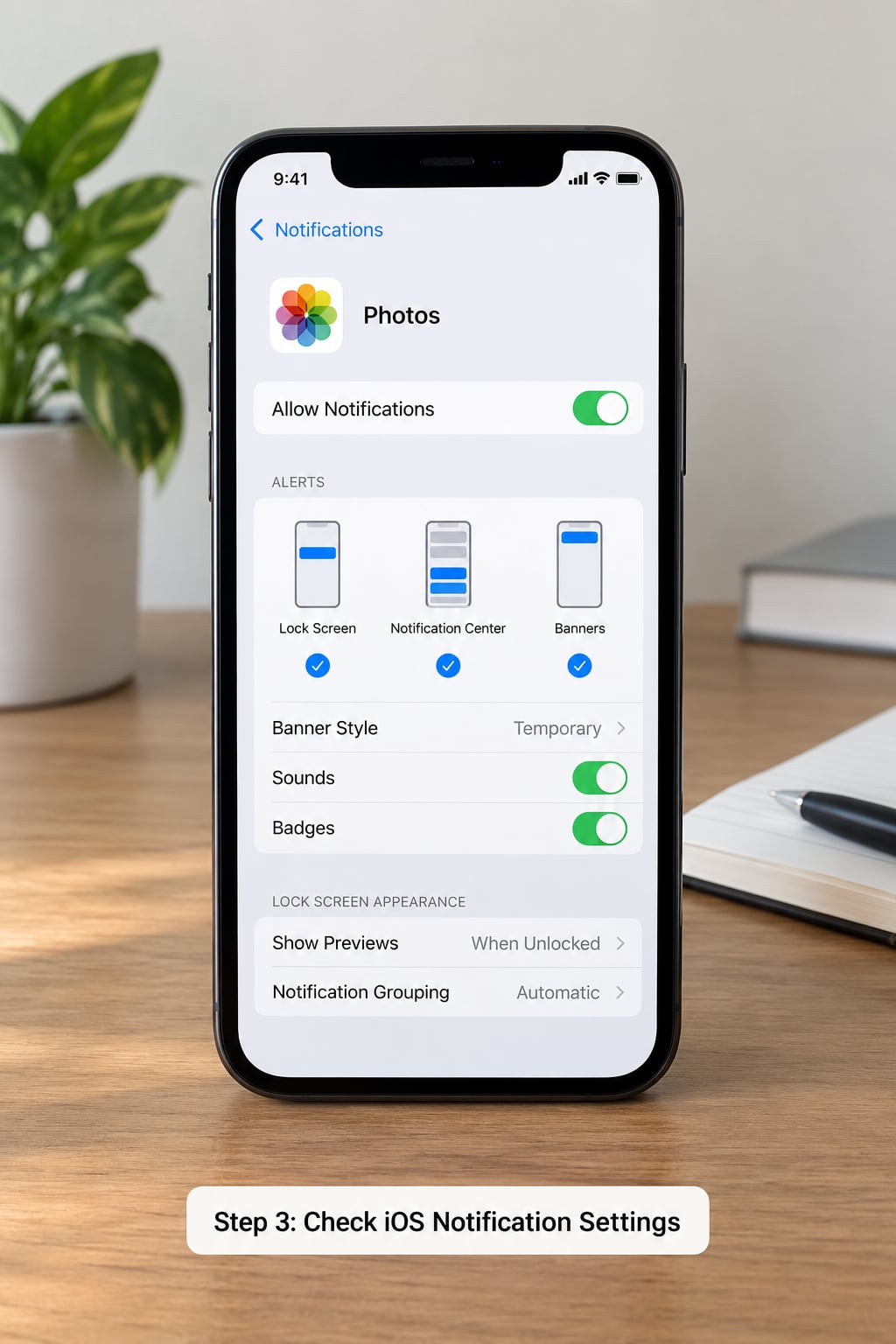
If alerts still arrive, go one level up to the Photos page under Notifications rather than the Memories sub-page. Here you can fine-tune the rest.
Set Alert Style to None to silence the sound and the banner while keeping the entry in Notification Center. Set Show Previews to Never if you are happy to see that a memory arrived but would rather not have the actual photo appear on your Lock Screen. Turn off Scheduled Summary if iOS has grouped your notifications into a digest, since that summary can hold memories even after the individual toggles are off.
Scroll down on the same screen to find Badge App Icon and switch that off too, or you will still get a number on the Photos icon with no way to tell where it came from.
Common Mistakes
You only switched off one of the three toggles. This is the single most common reason people think the fix failed. All three have to be off. Go back into Settings, Notifications, Photos, Memories and check each switch individually.
You turned off all Photos notifications by mistake. If you used Allow Notifications instead of the Memories sub-page, you also killed Shared Album and People alerts. Re-enable Allow Notifications, then go into Memories and disable the three switches there instead.
You fixed the wrong app. Google Photos memories and OneDrive on-this-day reminders are separate systems. Check the icon on the notification. OneDrive users open the OneDrive app, tap their profile picture in the top right, and turn off Notifications there.
A Focus mode is overriding your settings. Focus modes can allow or suppress notifications per app regardless of your Photos toggles. Open Control Centre, check whether a Focus is active, and either end it or edit that Focus to allow Photos notifications.
The setting needs a restart. Occasionally the change does not register until you restart the device. Force quit Photos from the app switcher first, and restart the iPhone if the alert is still there the next day.
The alert is not coming from your phone at all. Photos memories also surface on the Siri watch face on Apple Watch and on Apple TV. The Siri face has its own Photos section you can switch off, and Apple TV needs the same System Settings path on the television itself.
The memories are from years ago, so you assumed nothing is wrong. This is expected behaviour, not a bug. Photos quietly looks back through your library for anniversaries, so a decade-old trip can resurface this month. To stop that particular memory, open the Photos app, find the Collections or For You view, and tap the account area to reset suggestions, or press and hold the memory and tap Feature Less. Blocking a person or place works the same way and stops them reappearing.
On an iPad the route is identical, Settings > Notifications > Photos > Customize Notifications > Memories set to Off. On a Mac, open System Settings > Notifications > Photos and uncheck the alert styles there, since Apple splits Mac and iPhone preferences.
Frequently Asked Questions
Why won’t the photos notification go away after I turn it off?
Usually one of the three Memories switches is still on. Go back to Settings u0026gt; Notifications u0026gt; Photos u0026gt; Memories and confirm Show in Cover Sheet, Show in History and Show as Banner are all off. If they are, check that a Focus mode is not allowing Photos notifications, confirm you are not getting the alert from Google Photos or OneDrive instead, and restart the phone so the change registers.
How do I turn off Google Photos memories on my iPhone?
Google Photos memories are separate from Apple Photos, so iOS Photos settings will not touch them. Open Google Photos, tap your profile picture and look for the notifications option, or go the reliable way: iOS Settings u0026gt; Notifications u0026gt; Photos for the Google Photos app and switch Allow Notifications off. That silences every Google Photos alert, memories included.
Can I hide the photo on my Lock Screen but keep the alert?
Yes. Leave the three Memories switches alone and go to Settings u0026gt; Notifications u0026gt; Photos instead. Set Alert Style to None to drop the sound and banner, then set Show Previews to Never so the photo thumbnail never appears on your Lock Screen. You still get a quiet reminder without the image showing in front of anyone nearby.
Does turning off Memories notifications delete my photos or memories?
No. Nothing is deleted and new memories keep being created in the background. You are only silencing the alerts. If you also want to stop a specific memory from resurfacing, open the Photos app, find it under the For You or Collections view, press and hold it and tap Feature Less.
Conclusion
Start in the app that is actually sending the alert. For Apple Photos on an iPhone or iPad, go to Settings > Notifications > Photos > Memories and switch off all three alert toggles, which is how to turn off photo memories notifications without losing Shared Album updates or any of your photos.
If something still arrives after that, check the sender’s app, look for an active Focus mode, and restart the phone. Updated for 2026, and the same steps work on iPad and Mac with a slightly different menu label.