Satellite messaging on iPhone works by connecting your phone straight to a satellite when there is no cellular or Wi-Fi service, so you can still send short iMessages or texts, share your location, or call for roadside help. You need an iPhone 14 or later model running iOS 18 or later, and you have to be outside with a clear view of the sky and horizon.
Apple calls this feature Messages via satellite, and it runs through a panel called the Connection Assistant. Setup takes about five minutes, and the feature is included on your phone at no extra charge for the initial period after you activate the device.
The catch is expectations. People expect full texting and get 40 characters, a slow connection, and no photos. The steps below cover what you need, how to send, and what to do when the Satellite option refuses to appear.
Table of Contents
- 1What You Need
- 2Step-by-Step
- 31. Confirm That Your iPhone Supports Satellite Messaging
- 42. Set Up Satellite Messaging in Settings
- 53. Compose and Send a Satellite Message
- 64. Check Delivery and Understand the Status
- 75. Know When to Use Emergency Calling or SOS
- 8Extra Step: Run the Satellite Connection Demo Before You Need It
- 9Common Mistakes
- 10Frequently Asked Questions
- 11Can anyone send me a satellite message on an iPhone?
- 12Do I need cellular service to send a satellite message?
- 13Can satellite messaging work indoors or in a city?
- 14How long does it take to send a satellite message?
- 15Does satellite messaging replace Emergency SOS?
- 16Will satellite messages work in other countries?
- 17Conclusion
What You Need
Three things have to be true before the Satellite button will do anything:
- An iPhone 14 or later model. Every iPhone 14, 14 Pro, 15, 16, 17 and iPhone 16e qualifies, in any storage size or region.
- iOS 18 or later. On an iPhone 14 or 15 the feature simply does not exist until you install iOS 18.
- A clear view of the sky and horizon. Outdoors, away from buildings, roofs and dense tree cover.
There are also regional limits. Messages via satellite is not available in Armenia, Belarus, mainland China, Kyrgyzstan, Kazakhstan or Russia, and in Hong Kong and Macao it works only on iPhone 16e and later models. If you travel outside the United States, check that your carrier supports the feature in the country you are standing in, because support follows the carrier and the country, not just your device.
| What you want to do | iPhone model | Software | What you need in hand |
|---|---|---|---|
| Send a text or iMessage | iPhone 14 or later | iOS 18 or later | Clear sky, open area |
| Call emergency services | iPhone 14 or later | iOS 18 or later | Clear sky, open area |
| Request roadside assistance | iPhone 14 or later (US coverage) | iOS 18 or later | Vehicle position and roadside number |
| Share or find location | iPhone 14 or later | iOS 18 or later | Clear sky, open area |
| See a family member location | Family member on iPhone 14 or later, Find My sharing on | iOS 18 or later | Clear sky, open area |
Know the limits before you rely on it. Satellite messaging sends texts, iMessages, emojis, tapback reactions and location shares only. You cannot make or receive satellite voice calls, send photos or video, use RCS, send read receipts, or receive attachments of any kind. Bandwidth is extremely low, so the phone compresses your message and breaks long texts into segments that arrive separately.
Step-by-Step
1. Confirm That Your iPhone Supports Satellite Messaging
Open Settings, tap General, then About. The Model Number line tells you exactly which iPhone you own, and the iOS Version line directly underneath shows the software build.
If the model number starts with a letter that is not one of the iPhone 14, 15, 16 or 17 families, stop here and the rest will not apply. If the iOS Version reads 18 or higher, you are good on the software side.
2. Set Up Satellite Messaging in Settings
You do not have to switch anything on ahead of time, but it is worth confirming the feature exists on your phone and switching on the practice mode before you need it.
Open Settings, tap Cellular, then tap Satellite. Any satellite feature your device, software and region support appears here as a toggle, including Messages via satellite, Emergency SOS via satellite, Roadside Assistance via satellite and Find My via satellite. If this page is empty, your phone, software version or region does not support it.
The second path goes through Messages. Go to Settings, tap Apps, tap Messages, scroll down and tap Satellite. There you can send a message, change which of your phone numbers the satellite line uses, and run the Satellite Connection Demo.
From Control Center it is one swipe. Swipe down from the top-right corner, tap Cellular, then tap Satellite, and the Connection Assistant slides up over Control Center.
3. Compose and Send a Satellite Message
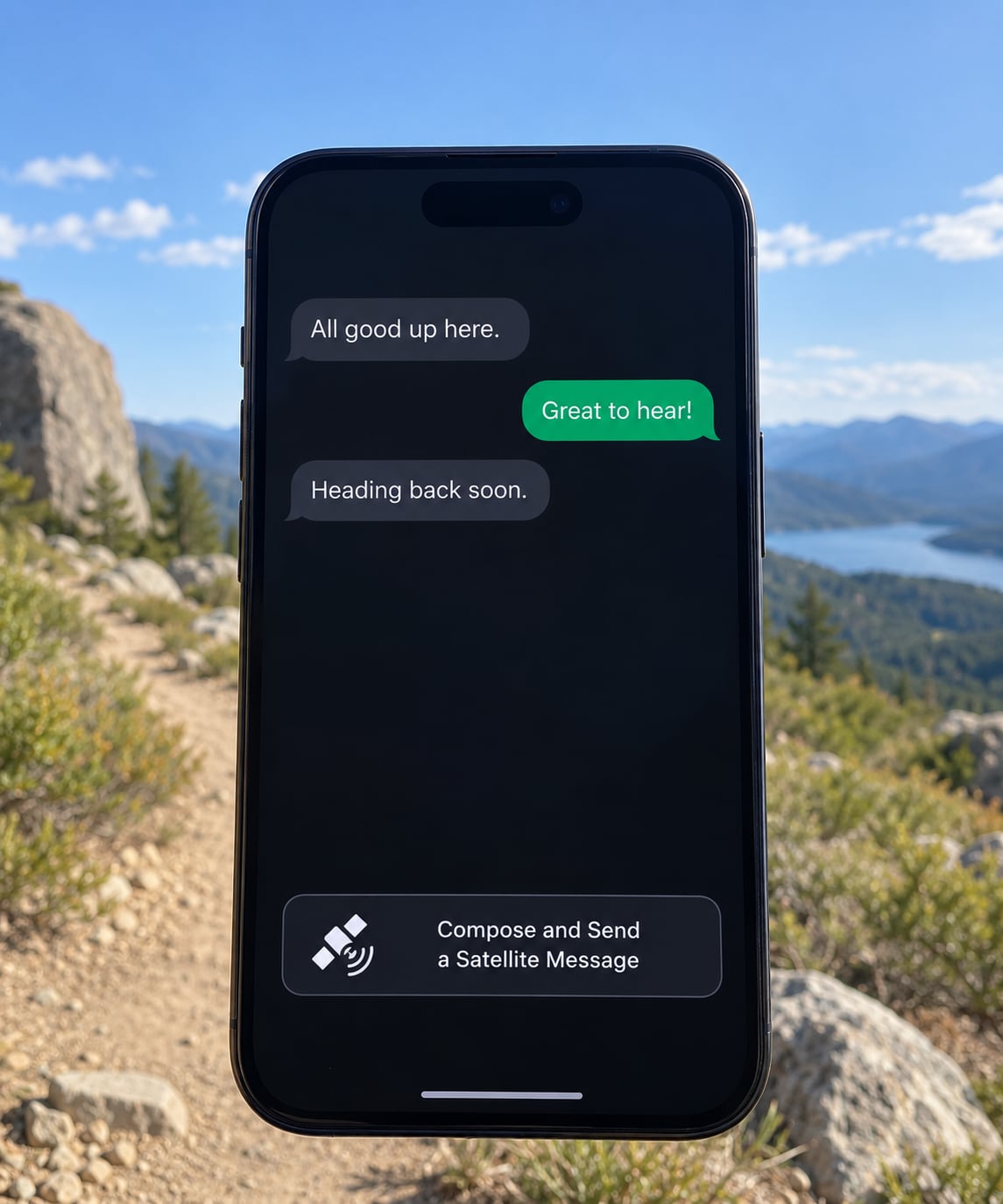
The Connection Assistant handles the connection, so you mostly just answer prompts. It finds the satellite, draws a mini sky view on screen with the direction your phone needs to point, and then reports connected.
To send a message:
- Swipe down from the top-right corner and tap Cellular, then tap Satellite. Or wait for the Messages via satellite notification to appear and tap it.
- Choose Messages from the options in the Connection Assistant.
- Tap New Message and pick a contact, or type the name into the recipient field.
- Type a short message. Keep it under about 40 characters per bubble if you can.
- Turn Dynamic Island or the screen so the phone points at the direction shown in the Connection Assistant.
- Wait for Sent, then Delivered.
Send your message, then stop looking at the screen. The handshakes can take 15 seconds, and a message that goes over a mountain or under heavy canopy can take a couple of minutes. Moving the phone a few degrees side to side usually helps more than holding perfectly still.
4. Check Delivery and Understand the Status
Message bubbles carry a small label and that label tells you where things stand. Sending means the phone has not finished the handshake yet. Sent means the satellite accepted it and it is on its way. Delivered means the recipient’s device picked it up.
If a bubble stays Sending for more than about 15 minutes, treat it as failed. Tap the message, tap Try Again, and if that fails, shorten it or move to a clearer spot. Failed messages only retry automatically under narrow conditions, so do not sit and wait.
You will not get a read receipt, so Delivered is as far as confirmation goes. If nobody replies, that usually means the other person has no service and is not waiting for you to try again.
5. Know When to Use Emergency Calling or SOS
Messages via satellite is not an emergency calling feature, and treating it as one can waste time you do not have. Emergency SOS via satellite dials emergency services directly over the satellite, and it works in far more places because it needs a much smaller connection.
If someone is in danger, call emergency services. If you are safe and simply cut off, send a message. Roadside Assistance via satellite is separate again, and it routes to the roadside provider for your vehicle rather than to emergency services, so it is for breakdowns rather than crashes.
Extra Step: Run the Satellite Connection Demo Before You Need It
Apple built a practice mode so you can see the whole flow at home. Open Settings, tap Apps, tap Messages, scroll to Satellite and tap Satellite Connection Demo, or go through the Connection Assistant from Control Center and pick the demo option.
The demo walks you through pointing at the sky, connecting and sending a test message without using a real satellite or contacting anyone. It is the fastest way to learn where the connection prompts appear before you are somewhere remote with a dead battery bar.
Common Mistakes
Almost every satellite messaging problem is one of five things: the wrong model, the wrong software, the wrong place, the wrong carrier, or wrong expectations about what the feature can do.
| What you see | What it means | Fix |
|---|---|---|
| No Satellite option in Control Center | Device or software does not support it | Check Settings, General, About for an iPhone 14 or later model and iOS 18 or later |
| Satellite tile is greyed out | Sky is obstructed or you are outside the supported region | Move to open ground with a clear horizon, or check the region exclusion list |
| No message arriving, connection spins | Thick trees, a canyon wall or a mountain is blocking the signal | Walk a few paces to a clearing and keep the phone pointed at the sky |
| Message stuck on Sending | Handshake did not complete | Wait about 15 minutes, then tap Try Again or send a shorter message |
| Works with iMessage but not SMS | SMS over satellite depends on your carrier’s support | Use iMessage where the recipient has iMessage, or check with your carrier |
| Recipient says nothing arrived | They cannot start a satellite conversation | Only the off-grid person can open the exchange, unless the recipient is an emergency contact or in your iCloud Family |
Four habits fix most failures. Keep the phone out of your pocket and stop holding your arm overhead, since a raised arm tilts the antenna away from the satellite. Do not walk while you are connected, because the sky view changes with every step. Charge the phone before you leave, since the satellite radio is hungry and a phone that dies in the cold will not send anything.
One more surprise catches people out: only the person who is off the grid can start the conversation. If you are sitting in a city and a friend in the mountains messages you first, the exchange works. If it is the other way around and you have full bars, your message never goes over satellite at all, because the phone uses the faster cellular network instead.
What to write matters too. Lead with your location and the nature of the problem: camp name, trail or road mile, how many people, and what you need. Numbers and proper nouns get mangled by compression, so spell them plainly and keep everything short.
Frequently Asked Questions
Can anyone send me a satellite message on an iPhone?
Yes, but only in one direction to begin with. The person who is off the grid must send the first message over satellite. Once they do, you can reply, because the conversation then travels by satellite both ways. If you are in full coverage and someone off-grid has never messaged you first, your reply goes over cellular instead. Emergency contacts and members of your iCloud Family can start a satellite conversation with you even when you have service.
Do I need cellular service to send a satellite message?
No. You need the opposite. Satellite messaging is designed for when there is no cellular service and no Wi-Fi connection. If your phone has even a weak bar, it uses the cellular network and the satellite connection never starts. It is also worth remembering that the phone needs a clear view of the sky and horizon, so the setting matters as much as the signal bar.
Can satellite messaging work indoors or in a city?
Indoors it usually fails, because roofs and walls block the signal and dense tree cover does the same outdoors. In a city you rarely need it, since towers are everywhere, and the phone will prefer cellular when a bar is available. The one exception is a practice run: the Satellite Connection Demo in Settings, Apps, Messages lets you rehearse the flow at home without a real satellite.
How long does it take to send a satellite message?
Connecting takes roughly 15 seconds in good conditions, and a short message often reaches the recipient within a minute or two. Anything harder, such as thick trees or a deep valley, can stretch to several minutes. The phone needs to stay still and pointed at the direction shown on screen while it works, so keep it out of your pocket and hold it at chest height.
Does satellite messaging replace Emergency SOS?
No, and this is the misunderstanding that matters most. Messages via satellite only sends short texts, emojis, tapback reactions and location shares. Emergency SOS via satellite is a separate feature that calls emergency services directly, and it needs a far smaller connection, so it works in places where messaging will not. If someone is in danger, call emergency services rather than typing a paragraph.
Will satellite messages work in other countries?
Sometimes, and availability is narrower than most people expect. The feature is not offered in Armenia, Belarus, mainland China, Kyrgyzstan, Kazakhstan or Russia, and Hong Kong and Macao limit it to iPhone 16e and later models. Elsewhere it depends on the country and your carrier’s support, and it is not covered by roaming, so check with your carrier before you travel somewhere remote.
Conclusion
Take five minutes now and it will pay off later. Confirm in Settings, General, About that you have an iPhone 14 or later on iOS 18 or later. Open the Satellite page and turn on the features you want. Run the Satellite Connection Demo so the prompts are familiar. Charge the phone fully before any trip away from towers.
When you are actually off grid, move to open ground, point the phone where the sky view tells you to, and keep it still until Sent appears. Write short, and put your location first. If someone is in danger, call Emergency SOS rather than typing. That is how to use satellite messaging on iPhone without wasting the battery you will need later.