To unsend an email on iPhone, send it in Apple Mail and then tap Undo Send at the bottom of the screen before the delay runs out. You get up to 30 seconds. To change that window, go to Settings > Apps > Mail > Undo Send Delay and choose Off, 10, 20 or 30 seconds.
Here is the part almost nobody explains: Mail does not send first and pull back second. While the delay is running, the message is sitting in your Outbox and has not been handed to your mail server yet. The recipient cannot see it, because it has not left your iPhone.
If that window has already closed, nothing will pull the message back. No app, no settings tweak, no clever trick. At that point your only moves are a correction email, a phone call, or a password change if the message contained credentials.
Table of Contents
- 1What You Need
- 2Step-by-Step: How to Unsend an Email on iPhone
- 3Method 1: Use Apple Mail Undo Send
- 4Method 2: Schedule the Email Instead of Sending It
- 5Method 3: Use a Third-Party Unsend App
- 6What to Do If the Email Has Already Been Delivered
- 7Common Mistakes When Undo Send Does Not Work
- 8Frequently Asked Questions
- 9Can I unsend an email after it has already been delivered?
- 10Does Apple Mail have an Undo Send feature on iPhone?
- 11How long does Apple Mail Undo Send keep an email?
- 12Why is there no Undo Send button on my iPhone?
- 13Can I unsend an email from Gmail, Outlook, or Yahoo on an iPhone?
- 14How to Prevent Sending an Email by Mistake
- 15Conclusion
What You Need
Undo Send needs an iPhone or iPad running iOS 16 or later. The feature arrived with iOS 16 in 2022 and has stayed in every version since, so an older device is the first thing to rule out.
It also needs Apple’s Mail app. Undo Send is not part of Gmail, Outlook, Spark or any other mail client, which is the single biggest reason people think the feature is broken.
Your account type does not matter as long as the account lives inside Mail. iCloud, Gmail, Yahoo, AOL, Microsoft Exchange and Outlook.com addresses all work, because Mail holds the message on the device before any server sees it.
If you normally send from the Gmail app, adding that same Gmail address to Mail is the simplest way to get a real undo window. Open Settings > Apps > Mail > Accounts, tap Add Account, choose Mail and sign in with Google.
Step-by-Step: How to Unsend an Email on iPhone
Method 1: Use Apple Mail Undo Send
This is the built-in option and the only one that works without changing any apps.
First, turn it on. Open Settings > Apps > Mail, tap Undo Send Delay, then pick a delay. Apple offers Off, 10 seconds, 20 seconds and 30 seconds. On iOS versions before the Apps section existed, the path is Settings > Mail > Undo Send Delay.
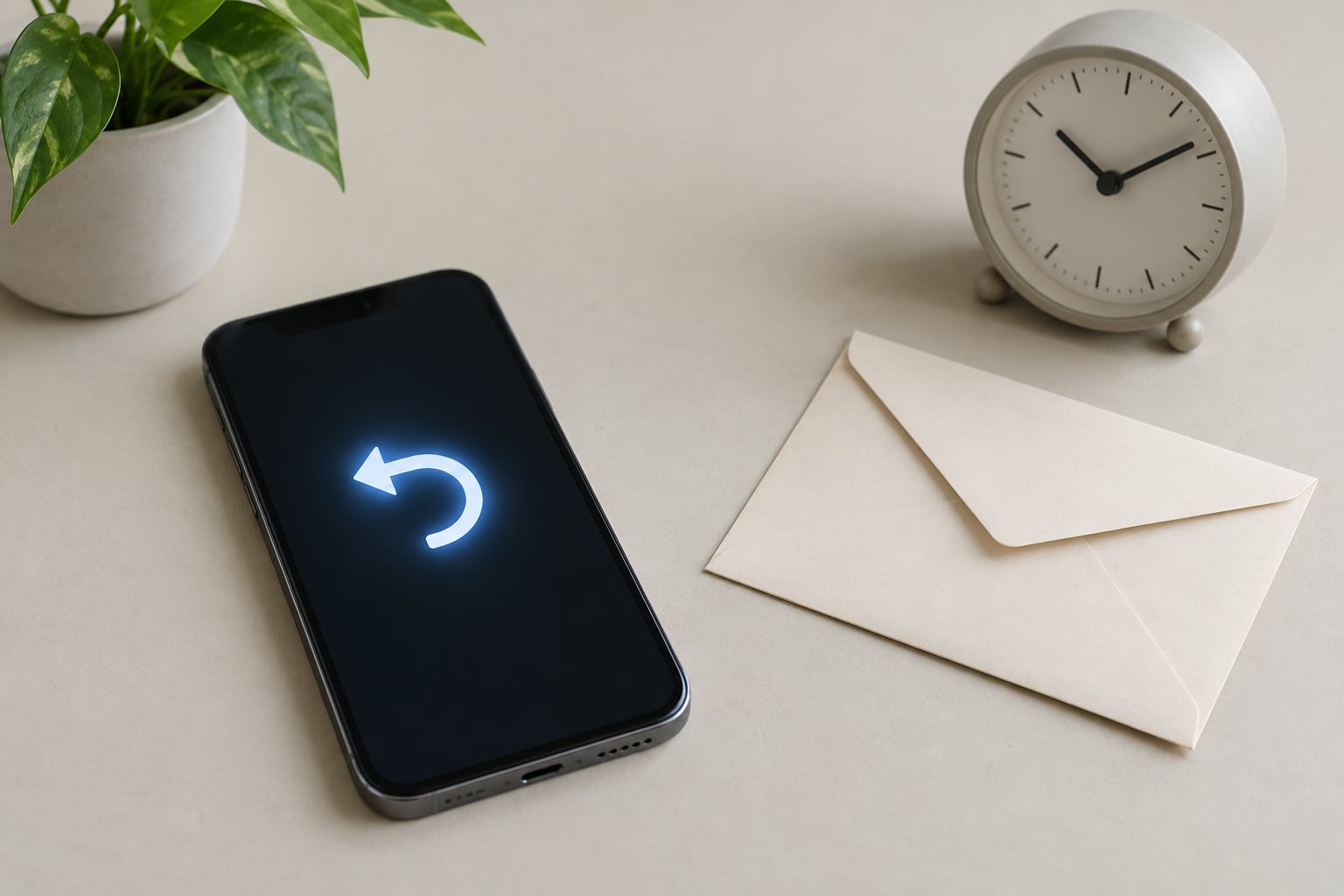
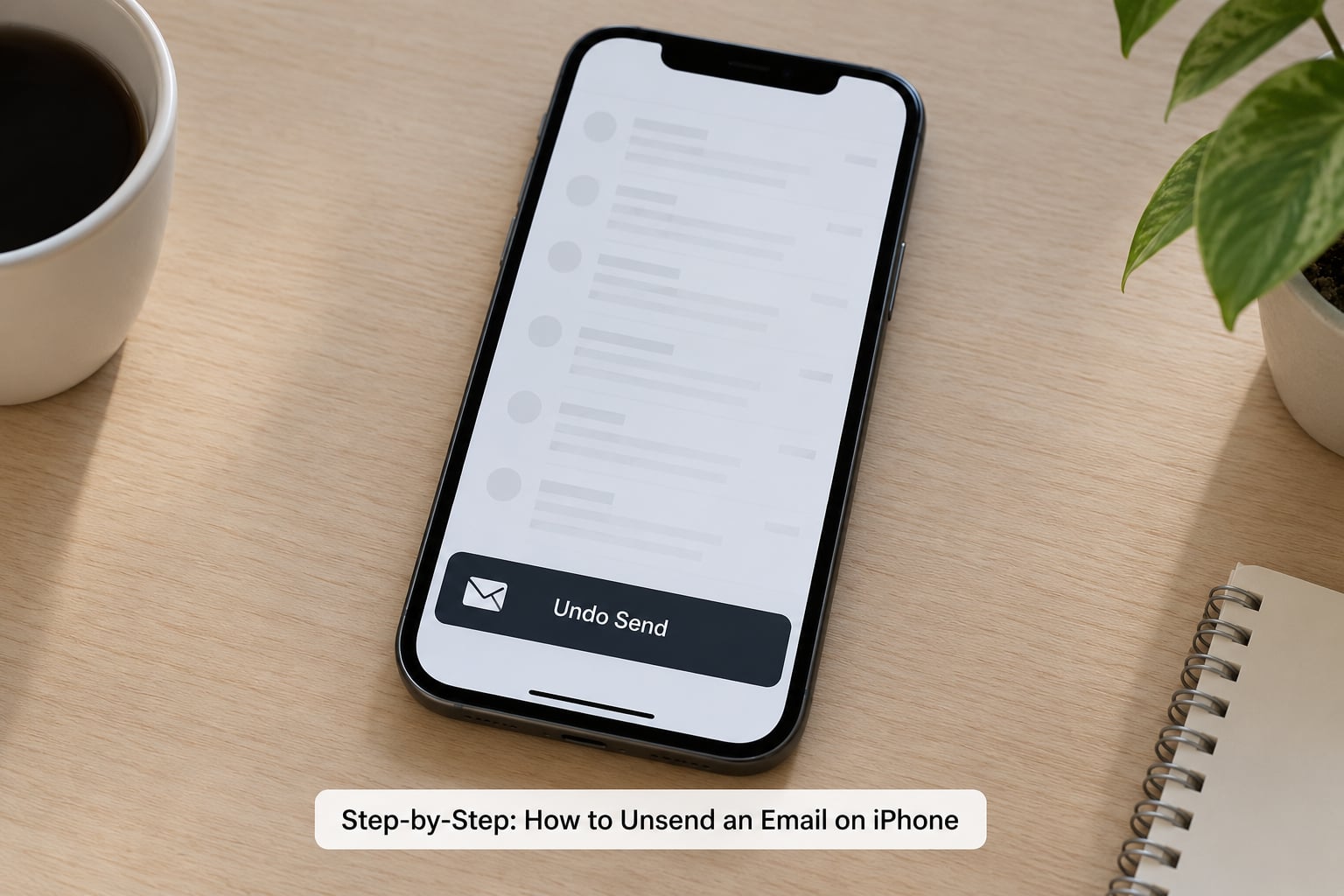
Then send the message normally in Mail. The moment you tap send, a bar slides up from the bottom of the screen with Undo Send on it. Tap anywhere on that bar and the compose window reopens with your text, recipient and attachment intact.
You know it worked because you are back in the message window with nothing sent. Fix the typo, remove the wrong recipient, add the missing attachment, then hit send again and eat the delay a second time.
Choosing a delay is a judgment call. Ten seconds works if you usually spot mistakes the instant you send. Thirty seconds is safer for client work, contracts or anything with an attachment, because it gives you time to actually read what you just wrote.
Method 2: Schedule the Email Instead of Sending It
Scheduling buys you minutes or hours instead of seconds, which makes it the better tool for anything you want to reread before it goes.
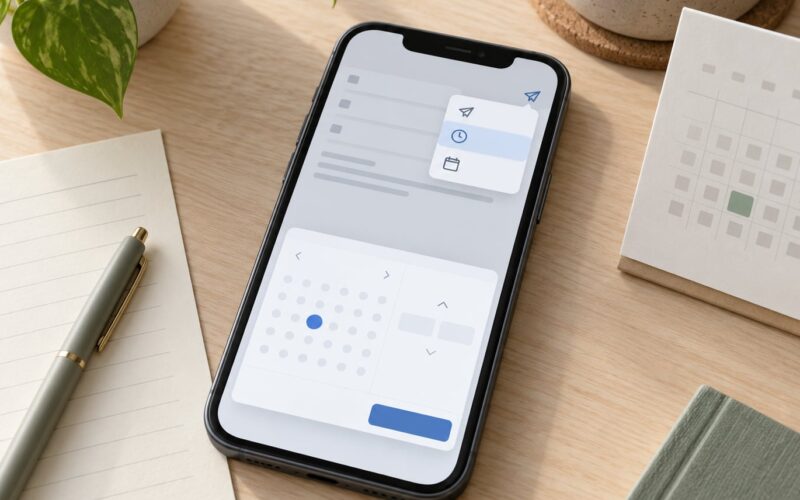
Write the message in Mail, tap the Send button, then choose Send Later instead of Send Now. Pick a time. The message moves into the Outbox with a clock icon and is delivered when you chose.
To cancel it, open the Outbox, tap the scheduled message, and choose Delete. Nothing has gone out yet, so deleting it removes it cleanly. This is also how you send an email at 6am without waking up at 6am.
The catch: while a scheduled message waits, it is not sent. If you scheduled something for the wrong day or your flight lands and the timing is wrong, it sits there until you fix it. Some readers on forums described this as emails that had mysteriously stopped sending, and the clock icon is the reason.
Method 3: Use a Third-Party Unsend App
Third-party apps work by applying the same trick: hold the message briefly so it never reaches the recipient. They are built on Apple’s MailKit framework, which is how an app like Spark can send from your existing accounts without passwords.
Setup is the slow part. You add your email accounts inside the third-party app, grant it access to Mail and Contacts, then look for an undo or delay setting in that app’s preferences. The delay values differ by app and by account provider, and most cap out at a few seconds to a couple of minutes rather than 30.
Gmail’s own iOS app is the exception worth knowing. Open the app, tap your profile picture, scroll to the account, and look for Send delay, where you can set an undo window. With a Google account in Mail instead, you get the same hold-back behaviour using Apple’s 30-second window, which is longer and more predictable.
Outlook.com accounts work through Microsoft Exchange recall: tap the message in your Sent folder and, if the provider still allows it, an Undo Send option appears at the top of the message. That window is short and it depends on the recipient’s system, so treat it as a bonus rather than a plan.
What to Do If the Email Has Already Been Delivered
Once the delay expires, the message is delivered and cannot be recalled from your iPhone. Deleting it from your Sent folder only removes your copy. The recipient’s inbox is unaffected, and anyone they forward it to gets a copy too.
Act fast and keep it simple. Send a short follow-up saying the previous message was sent by mistake and should be ignored, then ask directly whether it can be deleted. A plain one-liner is usually more effective than a long explanation.
If the wrong person received something sensitive, contact them straight away. If the email contained a password or a code, change that password now and do not wait to see whether it gets used. If it was abusive or a genuine data breach, report it to your provider rather than trying to handle it yourself.
One option some people reach for is a retraction service that sends a recall request to mail servers. Whether recipients are required to honour it depends on your country, and plenty of them never do. Treat it as a last resort.
Common Mistakes When Undo Send Does Not Work
- It is set to Off. Settings > Apps > Mail > Undo Send Delay. If Off is selected, the message leaves immediately and no bar ever appears.
- You are in the wrong app. Undo Send only exists in Apple Mail. The same account in the Gmail app behaves differently.
- Your iOS version is too old. The feature needs iOS 16 or later. Check Settings > General > Software Update.
- You deleted the sent message instead of tapping the bar. Deleting from Sent never unsends anything.
- You confused scheduling with recall. A clock icon on a scheduled message means it has not sent yet. It does not mean you can unsend it later.
- You tapped the swipe-up gesture. The Undo Send bar sits right where your thumb swipes home, and users on Apple Community and r/iPhoneTipsTrick threads reported triggering it by accident. Hold the phone lower and use the bar’s text, not the very bottom edge.
- Nothing sends at all. A long delay with weak reception can leave messages sitting in the Outbox. Setting Undo Send Delay back to Off is the fix that resolved stuck emails for one Apple Community user.
Frequently Asked Questions
Can I unsend an email after it has already been delivered?
No. Once the delay window closes, the message has been handed to your mail server and you cannot delete it from the recipient’s inbox. Deleting it from your Sent folder only removes your copy. Send a short correction, ask the recipient to delete it, and change any password or code that was in the message.
Does Apple Mail have an Undo Send feature on iPhone?
Yes, and it arrived with iOS 16 in 2022. Mail holds every outgoing message in your Outbox for a set number of seconds so you can cancel it. Turn it on at Settings, then Apps, then Mail, then Undo Send Delay. It is built into Apple Mail only, so Gmail, Outlook and other clients do not offer it.
How long does Apple Mail Undo Send keep an email?
You choose from Off, 10 seconds, 20 seconds or 30 seconds, and 30 seconds is the maximum Apple allows. During that window the message sits in the Outbox and has not left your iPhone, so the recipient cannot see it. When the delay expires, Mail sends it automatically.
Why is there no Undo Send button on my iPhone?
Check four things in order. The delay may be set to Off in Settings, Apps, Mail. You may be sending from the Gmail or Outlook app instead of Apple Mail. Your iOS version may be older than 16. Or the account may not be set up inside Mail, so open Mail, tap the account and make sure it is configured to send.
Can I unsend an email from Gmail, Outlook, or Yahoo on an iPhone?
Only with a delay window, never with a true recall. The Gmail app has a Send delay setting in its own preferences, and Outlook.com accounts may show Undo Send briefly in the Sent folder. The cleanest option is to add that same address to Apple Mail, where you get the full 30-second hold before delivery.
How to Prevent Sending an Email by Mistake
Prevention is quicker than recall. Read the recipient line once more before you tap send, especially on long addresses that differ by a single letter. Check the attachment list too, since a forgotten PDF is the most common regret people describe.
Set a longer delay for the emails that would actually embarrass you and a short one for the rest. Thirty seconds is my choice for anything leaving the phone on a work day. Ten seconds is plenty for a note to myself.
Schedule anything you wrote at night and want to reread with fresh eyes. A scheduled message can be deleted before it sends, which no sent email can do.
Keep passwords, one-time codes and banking details out of email entirely. If a message can be replaced by a phone call, make the call. And if you have to unsend something important, act before the window closes rather than after.
One last note on iMessage. Blue message bubbles have their own undo with a two-minute window, which is far more generous than Mail’s 30 seconds. That is a different system entirely, and it only applies to texts.
Conclusion
Turn on Undo Send now, before you need it: Settings > Apps > Mail > Undo Send Delay, and pick 30 seconds if your work would suffer from a mistake. If a message has already gone out, contact the recipient immediately, send a one-line correction, and rotate anything sensitive that was in it.