Yes, you can schedule an email on iPhone. In Apple’s built-in Mail app, press and hold the blue Send arrow instead of tapping it, then choose Send Tonight (9 PM), Send Tomorrow Morning (8 AM), or Send Later for a date and time you pick. Tap Schedule and Mail holds the message until the moment arrives, so you can write an email at 11 PM and have it land at 8:30 the next morning.
The whole thing takes about 30 seconds once you know the gesture, and the menu is hidden behind a press-and-hold, which is why so many people never find it. This guide covers the current iOS labels, what happens if the option is missing, and how to edit or cancel a message you already queued.
Table of Contents
- 1What You Need
- 2Step-by-Step: How to Schedule an Email on iPhone
- 31. Open the Email in Apple Mail
- 42. Choose Send Later
- 53. Review and Confirm the Scheduled Email
- 64. Edit or Cancel a Scheduled Email
- 75. Set Up an Automatic or Recurring Schedule
- 8Common Mistakes: Why Send Later Is Missing or Fails
- 9Scheduling Tips
- 10Frequently Asked Questions
- 11Will a scheduled email send if my iPhone is offline?
- 12Can I schedule an email with an attachment on my iPhone?
- 13Can I schedule recurring emails in Apple Mail?
- 14Will the recipient see a scheduled email immediately?
- 15Can I schedule email in Gmail or Outlook on an iPhone?
- 16How far in the future can I schedule an email?
- 17Conclusion
What You Need
Before you start, four things have to be true. Check them in order and you’ll know where a problem is if one shows up later.
- An iPhone (or iPad) on iOS 16 or later. Send Later arrived in iOS 16, so on anything older the menu simply doesn’t exist. The same goes for iPadOS 16 on iPad and macOS Ventura on a Mac.
- The built-in Mail app. Gmail, Outlook and other third-party apps have their own scheduling tools and their own menus. If you never tapped Compose inside Apple’s blue Mail app, you are in the wrong app.
- An email account already added to Mail. iCloud, Gmail, Yahoo and most IMAP accounts work. Check by opening Mailboxes and looking under your account.
- An internet connection when you tap Schedule. Mail needs to upload the queued message to the server at that moment. No connection, no queue.
Here is the part most guides gloss over: Apple asks that your device be online at the scheduled send time as well. If the phone is switched off, in Airplane Mode, or on a dead connection when the alarm goes off, delivery can be delayed or fail silently. Nobody at the recipient gets a message saying it’s late.
Step-by-Step: How to Schedule an Email on iPhone
1. Open the Email in Apple Mail
Open Mail, tap the compose button in the bottom-right corner, and fill in the recipient, subject line and body as you normally would. Attach any files now rather than after scheduling, because attachment handling is where queued messages most often go wrong.
How do you know the compose window is open? The blank message screen with To, Cc/Bcc and Subject fields at the top is the only place the Send arrow appears.
2. Choose Send Later
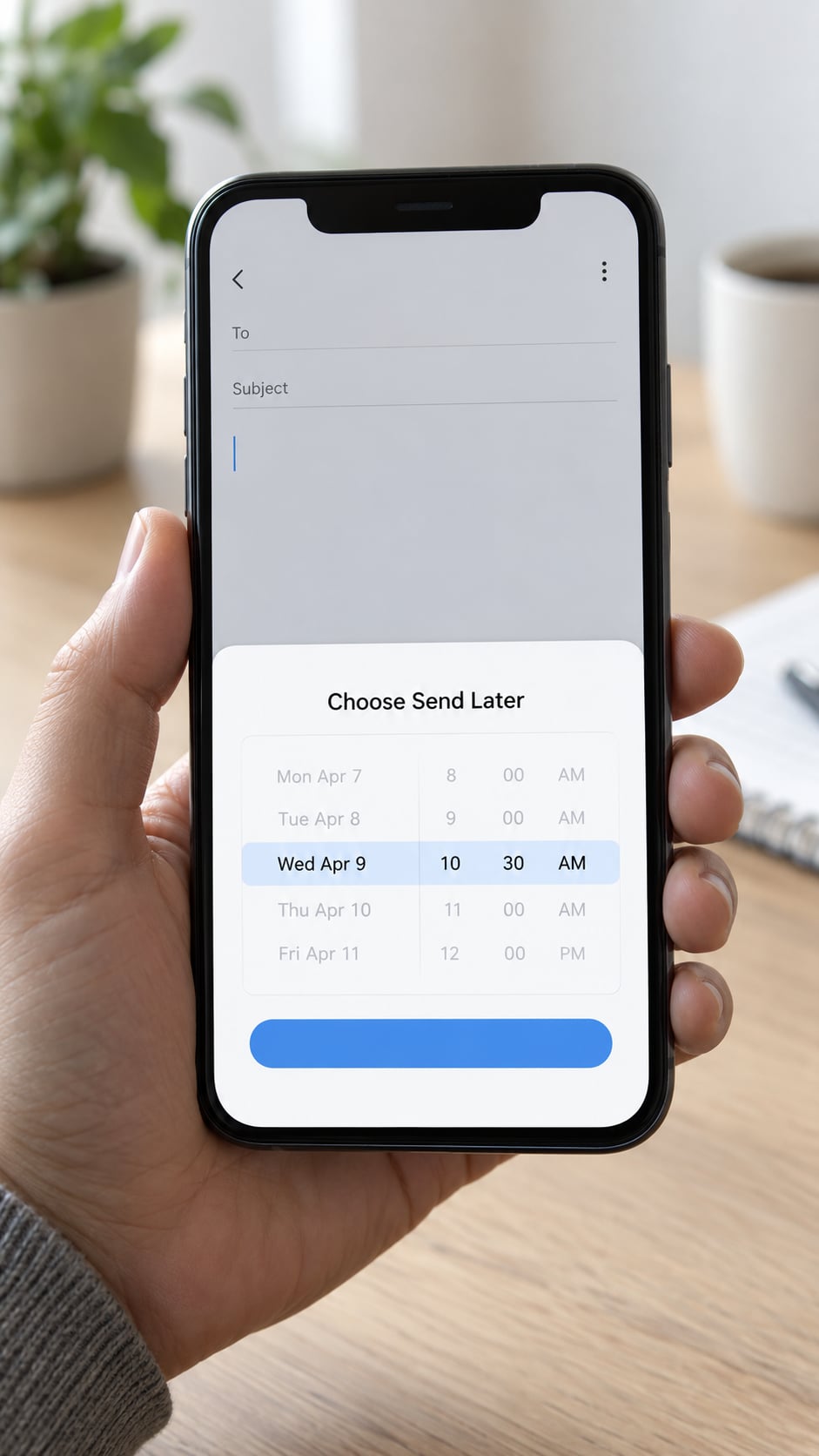
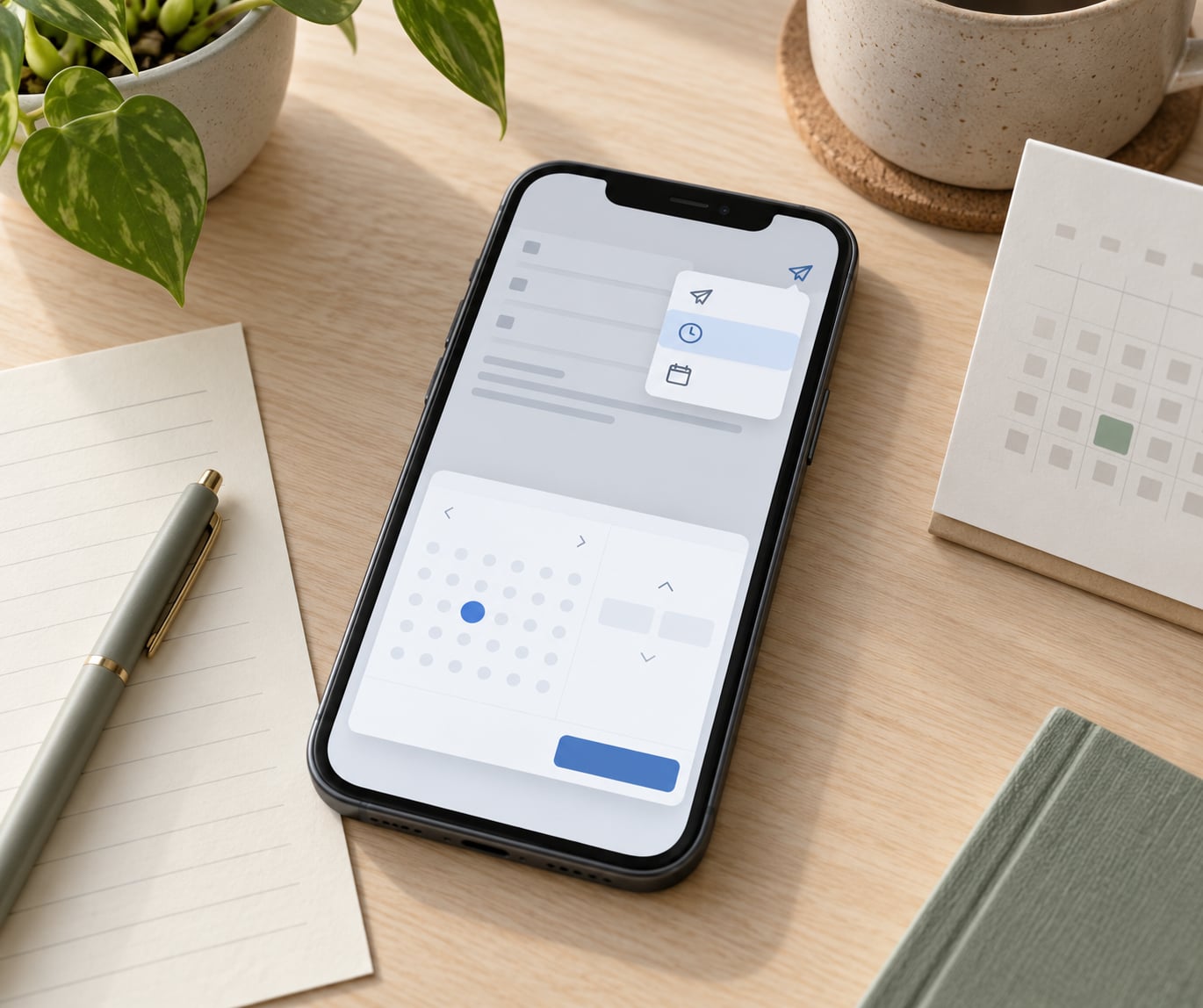
Press and hold the blue Send arrow in the bottom-right of the compose window. Don’t tap and release, and don’t swipe. A menu slides up with three options: Send Tonight, Send Tomorrow Morning and Send Later.
Send Tonight queues the message for 9 PM where you are. Send Tomorrow Morning queues it for 8 AM. Send Later opens the date and time pickers so you can choose any moment. On older versions the labels read a little differently, but the gesture and the destination folder are the same.
A tap on the Send arrow alone sends instantly. If your message went out before you could schedule it, undo is usually available for a few seconds under Settings, then Mail, then Undo Send.
3. Review and Confirm the Scheduled Email
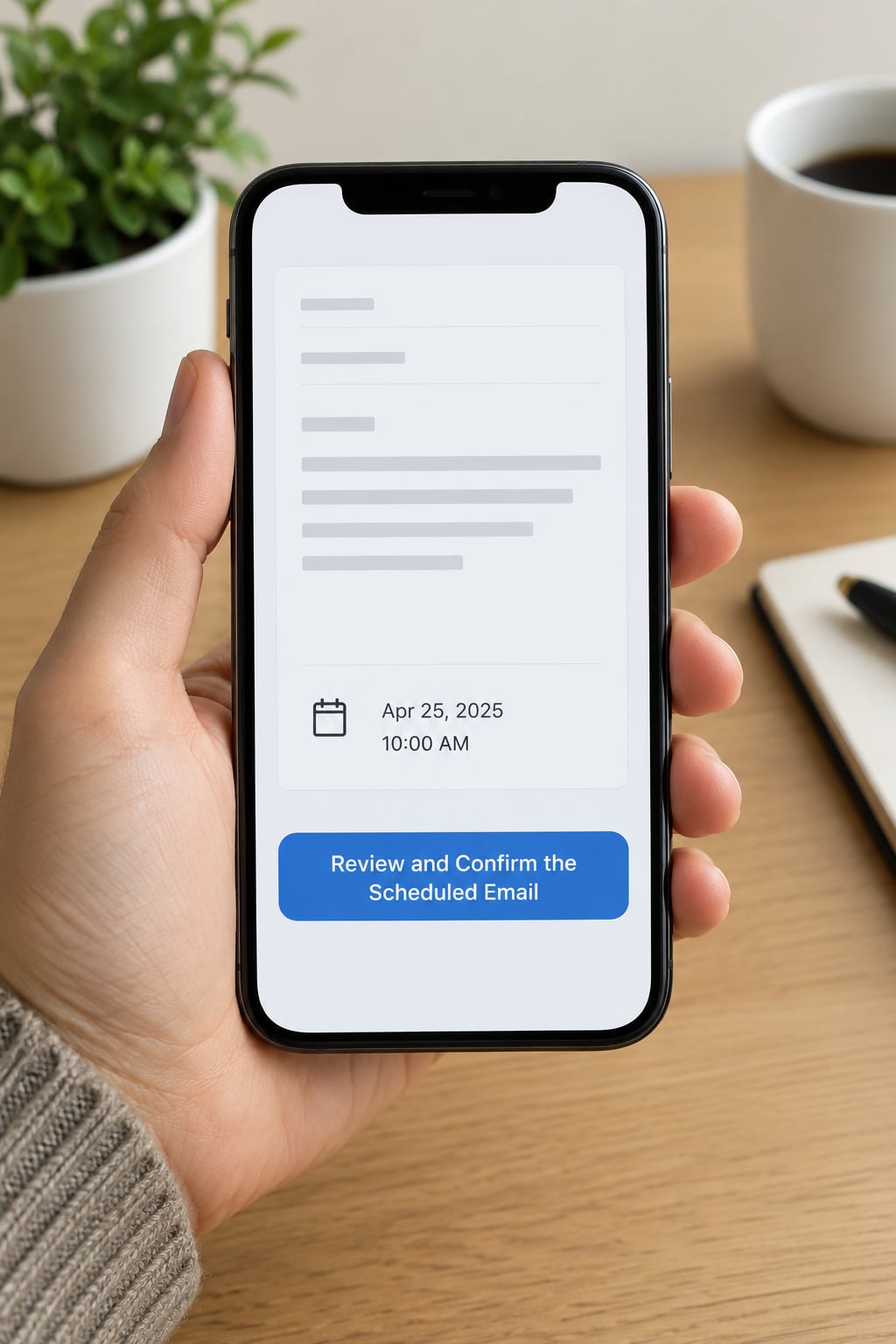
Spin the date wheel and the time wheel to the moment you want, then tap Schedule in the top-right. Mail closes the compose window and the message appears under Send Later on the Mailboxes screen, with its send date in the header.
Open that folder and you can see everything you have queued: the recipient, subject and exact send time. If a message is not in there, it went out immediately. If it is there but the date looks wrong, the picker is showing a different time zone than you expected.
4. Edit or Cancel a Scheduled Email
Tap into a queued message in the Send Later folder and it opens as an editable draft. Change the text, re-press and hold the Send arrow, pick a new time, and it replaces the old schedule. To cancel completely, swipe left on the message in the folder and tap Delete, then confirm with Delete Scheduled Message.
The same folder is how you cancel a scheduled email on iPad and on a Mac running macOS Ventura or later, so the steps carry across your devices. Users on r/ios have reported that editing and deleting a queued message occasionally leaves a failed entry behind, so reopen the folder afterwards and check that the message is really gone.
5. Set Up an Automatic or Recurring Schedule
Apple Mail does not do recurring sends. You can schedule one message for a specific future time, but there is no built-in setting for “every Monday at 9 AM”. That is a real limit, and it is the single most common source of frustration after the hidden gesture.
There are three practical ways around it:
- The Shortcuts app. Build an automation triggered by a time-of-day trigger that finds a draft in a Mail folder and sends it. It takes an afternoon to set up once, then it runs on its own.
- Calendar reminders. A repeating event with a note carries the email text, so you tap and send at the right moment rather than juggling drafts.
- Third-party automation. Apps built for scheduled sending can trigger from a webhook or a recurring calendar entry. Check what each one does with your message body before you paste anything sensitive into it.
Keep Mail, Shortcuts and calendar work separate in your head. Mail handles a single timed send natively; everything more complicated belongs to one of the other two.
Common Mistakes: Why Send Later Is Missing or Fails
The Send Later option isn’t there at all. Check three things in order. First, confirm you’re in the built-in Mail app and not Gmail or Outlook. Second, check Settings, General, About for your iOS version, and update if you’re below 16. Third, note that a few accounts on managed or work phones block the menu entirely.
The email sent immediately. You tapped the Send arrow instead of pressing and holding it. The send and the schedule live on the same button, which is why the mistake is so common. Compose it again and use the press-and-hold this time.
Nothing appears in the Send Later folder. Look for the folder on the Mailboxes screen rather than in Inbox. If it’s genuinely absent, the message sent early, or you were offline when you tapped Schedule.
The date and time are wrong. Apple fixes the send time to the time zone your phone is in at the moment you schedule. Fly to another zone and the queued message keeps the original clock time. Adjust under Settings, General, Date & Time before scheduling.
The scheduled email never arrived. This is the one that worries people. In threads on r/iphonehelp titled around Send Later messages not sending, the usual causes are Airplane Mode at the send time, a phone that powered off overnight, or a send scheduled months ahead, which is unreliable. Keep the phone connected and awake around the send window, and avoid scheduling far into the future.
Attachments are missing or large attachments fail. Add files while you’re still in the compose window so Mail can upload them before queueing, and keep attachments under the limit your mail provider allows.
One last point of confusion, because Mail’s Send Later and Messages’ Send Later share a name and behave very differently. Mail reaches any recipient at any address and files queued messages in the Send Later folder on the Mailboxes screen. Messages only works when the recipient is an iMessage contact, and it keeps queued items in the Scheduled conversation list inside Messages. The gesture is identical in both apps — press and hold the blue send arrow — which is exactly why people try it in the wrong place.
If you tried the gesture in Messages and nothing happened, that’s usually why. People conclude the iPhone can’t schedule sends at all when the recipient’s number simply isn’t an iMessage address. Do the same press-and-hold inside Mail and the menu appears every time.
For accounts where Mail’s scheduling feels too limited, the Gmail and Outlook apps on iPhone both ship their own schedule option with a visible button rather than a hidden gesture. It’s worth opening the compose window in each app to see which workflow you prefer.
Scheduling Tips
Send into the recipient’s working hours, not yours. An email that leaves at 9 PM your time may land at 6 AM theirs. Queue it for the morning instead.
Set the time zone before you schedule, not after. The clock time is captured when you tap Schedule.
Leave yourself an edit window. Queuing a message for tomorrow morning means you can still open it tonight, rewrite the awkward paragraph and reschedule. Queuing for next month means you probably won’t.
Confirm attachments visually. Open the queued message in the Send Later folder and check the paperclip is there. It costs five seconds.
Keep the phone connected near the send time. Charger on, Wi-Fi or cellular on, Airplane Mode off. This is the simple habit that prevents most silent failures.
Schedule from the account that matches the recipient’s expectations. A personal address sending a work subject line at 9 AM can look odd in a shared inbox. Use the account you’d normally use.
Frequently Asked Questions
Will a scheduled email send if my iPhone is offline?
Not reliably. Apple asks that your device be online at the scheduled send time. If the phone is switched off, in Airplane Mode, or without a working connection when the time arrives, the message can sit in the Send Later folder past its scheduled moment or fail altogether, and the recipient gets no notification. Scheduling itself also needs a connection, because Mail uploads the queued message when you tap Schedule.
Can I schedule an email with an attachment on my iPhone?
Yes, but add the attachment before you schedule. Open the compose window, tap the paperclip, choose the file or photo, then press and hold the Send arrow to pick a time. Mail uploads the file while the message is still being written, which avoids the failure you get when a large attachment is attached to an already-queued message. If it fails, the file is usually over your mail provider’s size limit.
Can I schedule recurring emails in Apple Mail?
No. Apple’s Mail app schedules one message for one date and time, with no built-in repeating option. For regular sends you have three choices: build a time-of-day automation in the Shortcuts app that sends a draft, keep a repeating calendar reminder with the text you need and send from it, or use a third-party automation app. Shortcuts is the only option that sends with no tap from you.
Will the recipient see a scheduled email immediately?
No. A scheduled message sits in the Send Later folder on your iPhone until its send time, and it does not appear in the recipient’s inbox before then. The only trace earlier would be one you created yourself, such as a calendar invite. Be aware that a recipient checking a shared or delegated mailbox tied to your account may see server activity sooner, and that Undo Send for a few seconds after sending is unrelated to scheduling.
Can I schedule email in Gmail or Outlook on an iPhone?
Yes, both apps have their own scheduling built in, and both use a visible button rather than a press-and-hold gesture, which some people find easier. In Gmail for iOS, open a draft and use the clock icon in the top bar to choose a date and time. Outlook for iOS offers Schedule Send from the message menu. If you add a Gmail account to Apple’s Mail app, you get Apple’s Send Later instead, not Gmail’s.
How far in the future can I schedule an email?
The picker allows you to choose a date well over a year ahead, but reliability drops the further out you go. Users reporting failed scheduled sends have mostly scheduled messages months in advance. A week or two ahead works reliably, and even then keep the phone powered, connected and out of Airplane Mode around the send time. For anything longer than that, write the draft now and schedule it closer to the date.
Conclusion
Open Mail, tap compose, fill in the message, then press and hold the blue Send arrow until the menu appears and choose Send Later. Spin the date and time wheels, tap Schedule, and confirm it worked by finding the message in the Send Later folder on your Mailboxes screen.
Keep the phone online at the send moment, remember that the queued time is locked to your current time zone, and check the folder after editing or deleting so no stray copy is left behind.