If you need to know how to unsend an iMessage on iPhone, you have about two minutes. Touch and hold the message bubble, tap Undo Send, and it disappears from the conversation on both sides. That two-minute window is the entire feature. After it closes, Apple gives you no way to pull a delivered message back, and the only option left is to edit or apologize.
Apple introduced Undo Send with iOS 16 and has kept the behavior essentially unchanged through iOS 18 and the renamed iOS 26. Most guides online are still frozen at the iOS 16 launch, which is why people end up confused when they cannot find the option. This walkthrough covers the current steps, the exact conditions that make recall work, and what to do when it doesn’t.
It is worth saying up front that this is one of the few things in iPhone settings you cannot find in Settings at all. There is no unsend toggle. The feature lives entirely inside a message menu in Messages, which is exactly why people assume it does not exist until they have sent the wrong text. Getting comfortable with the long-press menu — before you need it — is the whole trick.
Table of Contents
- 1What You Need to Unsend an iMessage
- 2Step-by-Step: How to Unsend an iMessage
- 3How to Unsend an iMessage Within Two Minutes
- 4How to Unsend on iPad and Mac
- 5How to Edit an iMessage Instead of Sending a Correction
- 6What Happens After the Two-Minute Window?
- 7Why Unsend Fails on Group Chats and RCS Threads
- 8What the Recipient Actually Sees
- 9Common Mistakes: Why Unsend Is Not Working
- 10Frequently Asked Questions
- 11Can I unsend an iMessage after more than two minutes?
- 12Does deleting an iMessage remove it from the recipient’s phone?
- 13Can I edit an iMessage after sending it?
- 14Why does my iMessage not have a Recall or Undo Send option?
- 15Can I unsend an iMessage sent to an Android user?
- 16What should I do if I sent sensitive information by mistake?
- 17What to Do First
What You Need to Unsend an iMessage
Before anything else, one hard truth: iMessage cannot retract a message that has already been delivered and read. Recall works on a live connection between your device and Apple’s servers, not as a remote erase. Once the window closes, the message belongs to the other person.
You need four things in place:
- iOS 16 or later on iPhone, iPadOS 16.1 or later on iPad, macOS Ventura (13) or later on Mac. Earlier systems have no Undo Send entry at all.
- An iMessage, not SMS. Your sent bubble must be blue. A green bubble is SMS or MMS and cannot be recalled by anyone, on any device.
- A message sent less than two minutes ago. The timer starts the moment the message leaves your phone.
- A working connection. The recall instruction has to reach Apple. No signal, Low Data Mode, or an active VPN can silently stall it.
One more condition catches people out. Both the sender and the recipient need a recent version of iOS. If the other person is on an older system, your copy still disappears, but their copy stays. The Mac is a special case too: you can recall a message sent from your iPhone using Messages on macOS Ventura or later, as long as both are on the same Apple Account with iMessage for Mac enabled.
Recalling from the Mac is worth remembering if you send from a desk, because the two-minute clock starts on the message, not on the device you press the button on. Sending a reply from your Mac and then trying to undo it from your iPhone does not restart the timer.
Nothing here works retroactively, either. A message that has been read, replied to, or screenshotted is gone from your control. The rest of this guide is about how to act inside the window you still have.
Step-by-Step: How to Unsend an iMessage
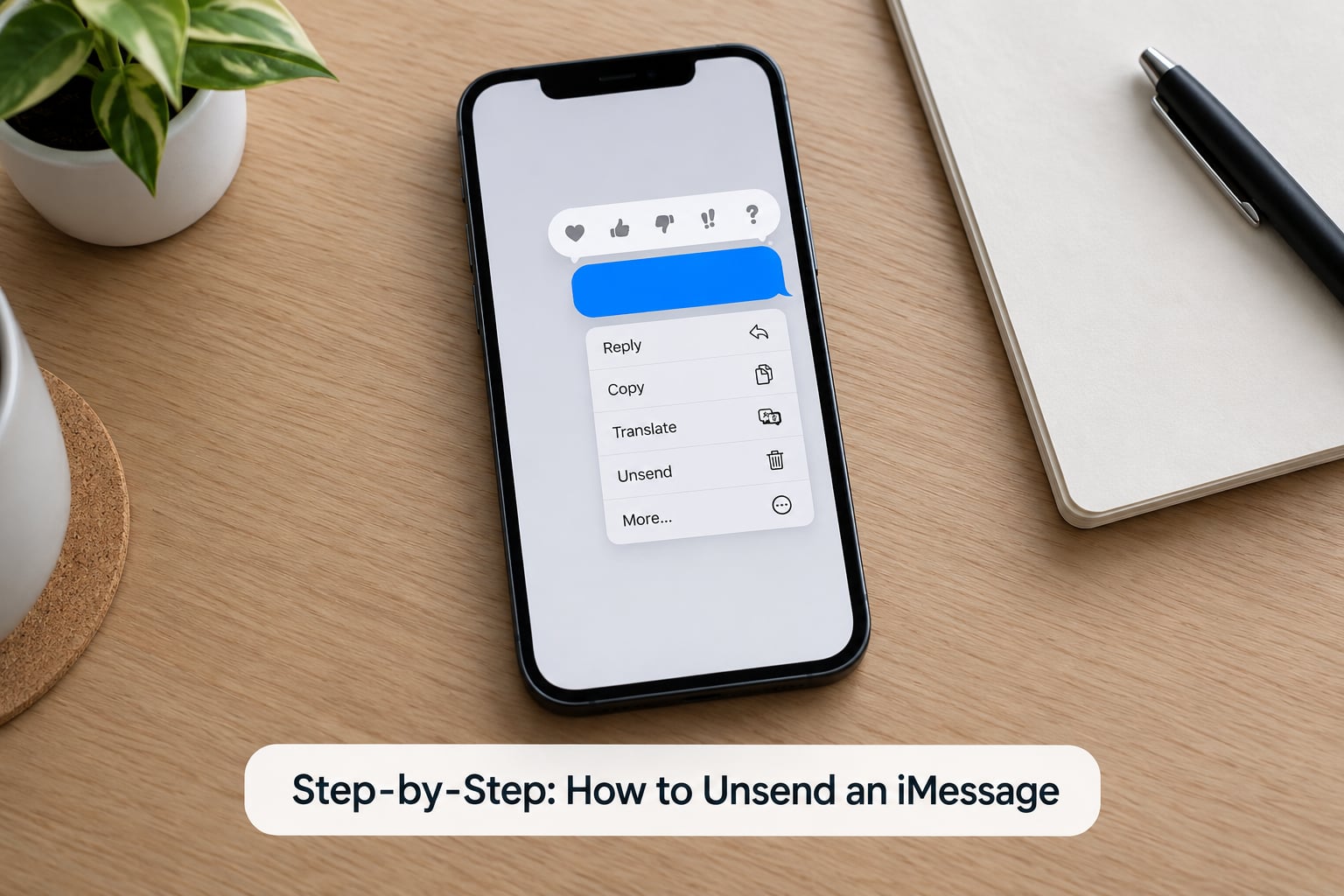
- Open Messages and find the conversation containing the message you regret.
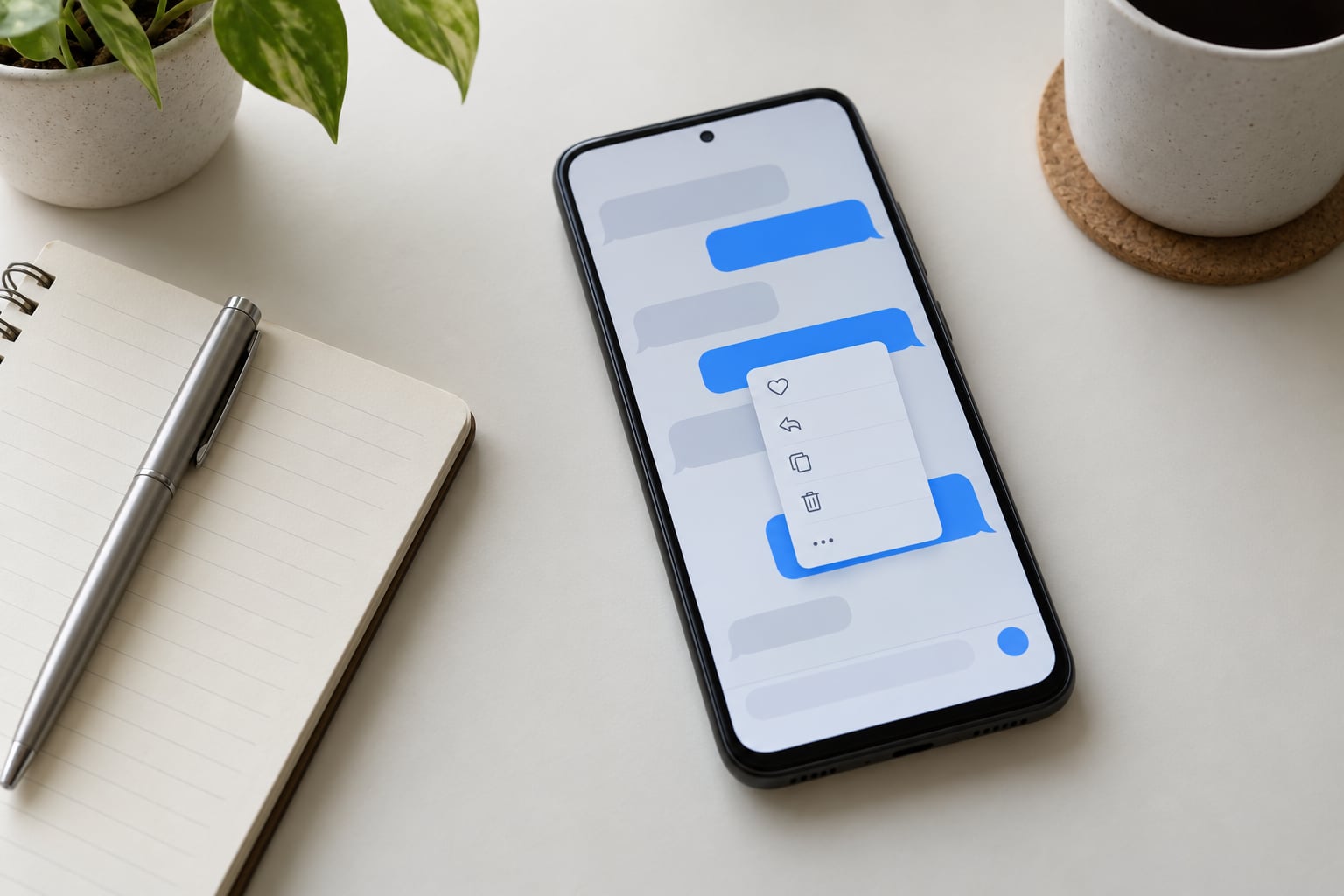
- Touch and hold the sent bubble — the blue one on the right side of the screen. A pop-up menu appears above it.
- Tap Undo Send. On a group chat the option is labeled Undo Send for Everyone. Tap it once and wait; do not tap twice.
- Confirm the result. The bubble disappears and a note reads “You unsent a message” where it used to be. The same note appears on the recipient’s device if their software supports it.
It takes about five seconds if you move quickly. If the Undo Send line is not in the menu, the window has expired or the message is not eligible — the troubleshooting section below covers each reason.
The same four moves work identically on iPhone, iPad, and Mac, which is useful in one specific case: if you sent from your Apple Watch or dictated the message through CarPlay, you have to open Messages on a bigger screen to reach the menu at all.
How to Unsend an iMessage Within Two Minutes
Two minutes is short, and people miss it constantly because they assume the option is always there. Open the long-press menu immediately after sending; do not go looking for it later. The command does not persist in the thread once it expires.
In group chats, recall works, but only where the recipient’s system understands it. Mixed threads are unpredictable: some members see the message disappear, others keep it, and nobody gets a reliable list showing who still has a copy. Users on r/apple and the MacRumors forums report exactly this split in family and work groups, and it is the main reason to avoid sending something you’d mind repeating in public.
Photos and videos behave the same way, with one caveat: if the recipient has auto-download turned on, the file may already be saved to their Photos library before your recall command arrives. Screenshots taken in that gap are gone for good. Undo Send hides the message from the conversation, not from a camera.
Large attachments take longer to travel, which cuts both ways. A 30-second video may still be uploading seconds after you hit send, and a slow connection stretches that gap until auto-download has finished on the other end. If you are sending something you would rather not keep, wait for the upload to settle before you panic, and cancel the message rather than recalling it.
How to Unsend on iPad and Mac
On iPad, open Messages, find the thread, touch and hold the sent bubble, and tap Undo Send. iPadOS 16.1 is the minimum. The gesture and the timer are identical to iPhone because both run the same Messages code.
On Mac, open Messages, right-click the sent bubble, and choose Undo Send from the context menu. You need macOS Ventura or later and Messages turned on for your Apple Account. This path is genuinely useful and rarely documented: if you sent a message from the Mac, you do not need to find your phone at all to take it back.
Apple Watch and CarPlay are the two places this does not work. You can read, reply, and dictate messages from either, but the long-press menu that holds Undo Send and Edit does not exist in those interfaces. If a message goes out from your Watch, reach Messages on iPhone, iPad, or Mac before the two minutes run out.
How to Edit an iMessage Instead of Sending a Correction
Editing is the better tool when the mistake is a typo rather than the whole message. You have 15 minutes instead of two, which is roughly seven times the recall window. Touch and hold the bubble, tap Edit, fix the text, and tap the blue checkmark to send.
Two things to know before you rely on it. First, editing marks the message as edited, and both sides see an “Edited” label. It corrects the text but does not pretend you never made the typo. Second, not everything is editable: some message types, certain recipient combinations, and messages in threads with mixed protocol support cannot be changed once sent.
Editing arrives with iOS 16 and stays available on iPadOS and macOS. With RCS messaging rolled out from iOS 18, Apple has extended editing support to more thread types, but the 15-minute limit and the visible edit marker still apply. If the Edit option is missing on a message, unsending was your only chance.
What Happens After the Two-Minute Window?
After two minutes, Undo Send disappears from the menu. The message stays where it is and you move to the edit window, which runs to 15 minutes. Past that, the only thing left is a correction message.
| Option | Time limit | Recipient sees it | Use it when |
|---|---|---|---|
| Undo Send | 2 minutes | No, on recent systems; a “You unsent a message” note appears | Wrong recipient, or the whole message is wrong |
| Edit | 15 minutes | Yes, with an “Edited” label | A typo or one detail is wrong |
| Delete for Me | No limit | Yes, nothing is removed for them | You want it off your own device only |
| Send a correction | No limit | Yes | The window has closed |
The Delete option people often confuse with recall is exactly that: a local cleanup. It clears the message from your own thread and nothing else. Users routinely tap Delete, assume they have taken it back, and only realize the difference later. If your goal is for the other person not to have the message, Delete is the wrong button.
Notifications are the other leak people forget. If the recipient has message previews enabled, the text may appear on their lock screen within seconds — often before your recall command finishes traveling. Assume anything displayed in a notification has been seen. Settings, then Notifications, then Messages, then Show Previews is where you check your own exposure, and you cannot change someone else’s.
If the message is still sending — the clock or typing indicator is spinning — you have one other option. Tap the word Sending under the bubble, choose Cancel, and the message stops before delivery. That works well outside the two-minute window because nothing has been delivered yet. It does not work for SMS, and it does not help once the message has landed.
On iPad and Mac, the same context applies. A message you recalled from the Mac syncs the removal across your devices, but the two-minute deadline was set when the message first left your iPhone or iPad.
Why Unsend Fails on Group Chats and RCS Threads
Group chats deserve their own explanation because the behavior is genuinely inconsistent, and most of the confusion people report online comes from this one case.
When you recall a message in a group, the command goes out to every participant. Each person’s device decides whether to act on it. Someone on a current iPhone usually sees the message disappear and a note in its place. Someone on an older system usually keeps it, with no warning that anything happened. A third person on a recent system who received the notification first has probably already read the content even if the bubble later vanishes.
There is no report and no list telling you who still holds a copy. That is the practical risk, and it is why sending into a group of mixed software versions is the least predictable thing you can do with this feature. If a message in a group was wrong, a plain correction message usually serves readers better than a recall attempt.
RCS complicates it further. Starting with iOS 18, Apple began routing some conversations over RCS instead of iMessage, particularly to non-Apple devices. Recall and edit support across RCS threads varies by carrier and by the other device, and it is still settling. If a thread has switched protocols, do not count on recall working the way the blue bubble suggests — check the long-press menu right after sending rather than assuming.
What the Recipient Actually Sees
When recall succeeds on a recent system, the sender sees “You unsent a message” in the thread. The recipient sees the same note in place of the original text. The message content is not displayed, so what they cannot read is what they cannot read — but they do know something was withdrawn, which is worth factoring in if the content was sensitive rather than embarrassing.
Three things survive recall in practice, and all three are outside your control:
- Notification previews. If the recipient’s lock screen shows message content, the text can appear within seconds of delivery, before your recall command arrives.
- Auto-downloaded media. Photos and videos saved automatically land in their Photos library before the conversation is updated.
- Screenshots and screen recordings. Anything captured before the recall landed is permanent. There is no way to invalidate a screenshot from the other end.
If you are the one receiving messages, you control the first item yourself. Settings, then Notifications, then Messages, then Show Previews is where you switch off previews entirely or limit them to locked devices. That does not help the sender, but it is the single most effective privacy setting for anyone who does not want message content on a lock screen.
Common Mistakes: Why Unsend Is Not Working
When the option refuses to appear, there is usually one specific cause. Walk through these before assuming your phone is broken.
- You waited too long. Two minutes is the whole allowance. Once it passes, Undo Send is removed from the menu permanently. Nothing re-enables it.
- The bubble is green. Green means SMS or MMS. Apple cannot recall either over any network, so there is no menu entry to find. If you need a correction, send a follow-up.
- The recipient is on old software. Your copy disappears, theirs does not. Older systems ignore the recall command silently, which is why people in large family chats report partial failures.
- The thread is RCS or group chat. Group chats use Undo Send for Everyone, and mixed RCS and iMessage threads can decline the command. Mixed-version group threads are the least predictable case there is.
- No connection, Low Data Mode, or a VPN. Recall has to reach Apple’s servers. Users on the MacRumors boards traced a run of failures to Low Data Mode and VPN routing; both can leave your message stuck in Sending.
- You tapped Delete instead. Delete for Me removes the message from your device only. It is not a recall and it never was.
- A third-party recovery app. No app can do this. Messages are end-to-end encrypted and Apple’s servers do not offer a delete-on-request endpoint for delivered texts. Any app claiming otherwise is misleading you or trying to install something on your phone.
Two more practical checks. Confirm Messages is talking to iMessage at all — a toggle under Messages settings switches the app to SMS or MMS, and it stays on whichever mode you picked. And if recall fails repeatedly while everything else works, check Apple’s system status page for an iMessage outage before restarting anything.
One last thing on expectations. iMessage is end-to-end encrypted, so the delivery of a message and the recall of that message travel over the same channel. That is why a weak connection affects recall and not just sending — and why retrying from a different device does not help once the window is gone. There is no second attempt available to you.
Frequently Asked Questions
Can I unsend an iMessage after more than two minutes?
No. Apple allows two minutes from the moment the message sends, and no workaround extends it. After that, you can still edit a message for 15 minutes if the type and thread support editing. Past 15 minutes, send a short correction and move on. Any app claiming to unsend later is not able to reach messages that have already been delivered.
Does deleting an iMessage remove it from the recipient’s phone?
No. Delete removes the message from your own conversation only. The recipient keeps their copy, and there is no option that removes a delivered message from someone else’s device. Delete is useful for clearing your own thread, for example when a number is unsaved and you want a clean history. It is not a substitute for recall.
Can I edit an iMessage after sending it?
Yes, within 15 minutes, on iOS 16 and later with the same Apple Account setup. Touch and hold the sent bubble, tap Edit, change the text, and tap the checkmark. Both you and the recipient see an Edited label, so the correction is visible rather than silent. Some message types and mixed-protocol threads do not offer the Edit option at all.
Why does my iMessage not have a Recall or Undo Send option?
The usual reasons are that more than two minutes have passed, the bubble is green (SMS or MMS), or you are on software older than iOS 16. Connection problems, Low Data Mode, and VPNs can also stop the recall command from reaching Apple. Check the long-press menu immediately after sending, since Undo Send disappears permanently once the timer expires.
Can I unsend an iMessage sent to an Android user?
A message delivered as SMS or MMS to an Android phone cannot be recalled at all. If the thread uses RCS, Apple cannot unsend it either, and behavior varies by carrier and device. Undo Send is limited to iMessage between devices on recent Apple systems. Your best option is a fast correction message or, if the message has not delivered yet, cancel it while it is still sending.
What should I do if I sent sensitive information by mistake?
Act in this order: cancel the message if it is still sending, then try Undo Send immediately, then Edit within 15 minutes. Assume anything shown in a notification was seen, and assume screenshots already taken cannot be recalled. After the window closes, tell the recipient directly what was sent and ask them to delete it, and if the exposure is serious, report it through the relevant channel at work.
What to Do First
If it just happened, stop reading and long-press that bubble now. Two minutes is the entire window, Undo Send is the first item worth checking, and a message still showing Sending can be canceled outright. If recall has passed, edit within 15 minutes when the mistake is a typo.
After both windows close, the honest answer is that iMessage cannot be erased from another person’s device. Send a short correction, then let it go. Treating recall as a guaranteed undo is what turns a small typo into a much longer problem.