You set Apple Pay up on an Apple Watch from the Watch app on your paired iPhone, then pay by double-clicking the side button and holding the watch near a contactless reader. This guide walks through how to use Apple Pay on Apple Watch end to end, and it takes about five minutes if the card is already in your iPhone Wallet. No card reader, no computer, just the Watch app.
The one thing that trips people up is that the card has to reach the watch, not just the phone. Everything else is a two-tap job at the till.
Table of Contents
- 1What You Need
- 2Step-by-Step
- 31. Check Apple Watch and iPhone Compatibility
- 42. Set Up Apple Pay on Apple Watch
- 53. Choose the Card Used on Apple Watch
- 64. Make a Contactless Payment
- 75. Turn On or Off Apple Pay on Apple Watch
- 8Common Mistakes
- 9Frequently Asked Questions
- 10Which cards and banks support Apple Pay on Apple Watch?
- 11Does Apple Pay on Apple Watch need an internet connection?
- 12Why is my bank card missing from Apple Pay after adding it?
- 13Why does my Apple Watch not always appear on the Lock Screen?
- 14Does Apple Pay work if my iPhone is turned off?
- 15Conclusion
What You Need
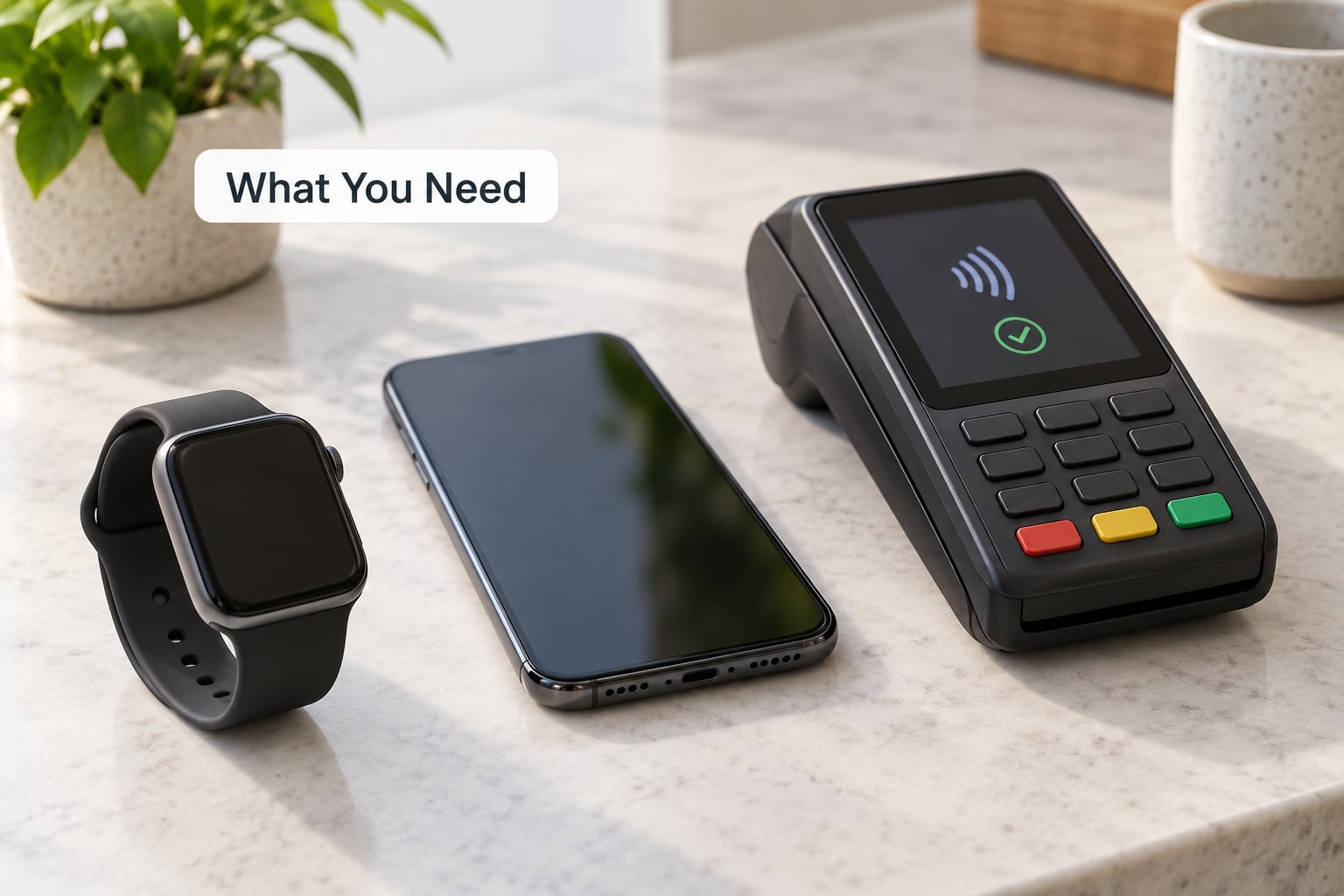
Here is the short version of the prerequisites before you start.
- A paired iPhone. Cards are added through the Watch app on iPhone, not from the watch itself. iPad will not set up Wallet for the watch.
- A supported Apple Watch. Any Apple Watch that runs a current watchOS version can hold cards, provided you live in a country or region where Apple Pay is offered.
- An eligible payment card. A debit or credit card issued by a bank that supports Apple Pay in your region. Store gift cards, prepaid cards and most foreign-issued cards are not supported on the watch.
- A passcode on the watch. Set one under Watch app, My Watch, Passcode. Apple Pay is unreliable without it, and the watch needs one for security reasons anyway.
- Latest available iOS and watchOS. You can check the watch version in the Watch app under My Watch, General, About, next to the iPhone version listed above it.
- A contactless terminal. Look for the hand-and-card symbol on the reader. A contactless-only machine has no slot and no keypad.
NFC hardware is always present in the watch and needs no separate switch, so there is nothing to enable there. The toggle that people hunt for, and often cannot find, is the Apple Pay switch further down.
Step-by-Step
1. Check Apple Watch and iPhone Compatibility
Open the Watch app on your iPhone and tap My Watch. If Wallet & Apple Pay appears there, the watch model and watchOS version are fine and you can move on. If the row is missing entirely, either the watch is on a watchOS version too old for Wallet, or you are in a region where Apple Pay is not offered.
Scroll to the bottom of the My Watch tab to confirm both software versions. Update the watch with Watch app, General, Update, then come back to Wallet & Apple Pay.
2. Set Up Apple Pay on Apple Watch
Tap Wallet & Apple Pay inside the My Watch tab. If the card is already in your iPhone Wallet, it usually appears here on its own, and you can move straight to step 3.
If nothing is listed, tap Add Card, then Debit or Credit Card. Point the iPhone camera at the card or type the details in by hand. Your bank asks for the CVV, the three-digit code on the back, as a security check.
Your card issuer then sends a verification code by text or email, or asks for a phone call. Some banks skip this. Nothing is finished until the card shows as active in the list, so wait for the confirmation screen before you close the Watch app.
3. Choose the Card Used on Apple Watch
Back on the Wallet & Apple Pay screen, the card at the top of the list is the one that opens when you double-click the side button. Tap a card to make it the default, or drag it up. If you own several cards, scroll down to the full list to see every one available on the watch.
Keeping one card as the default and a second one behind it is worth the minute it takes. When the front card gets blocked at a till, you can switch without leaving the payment screen.
4. Make a Contactless Payment
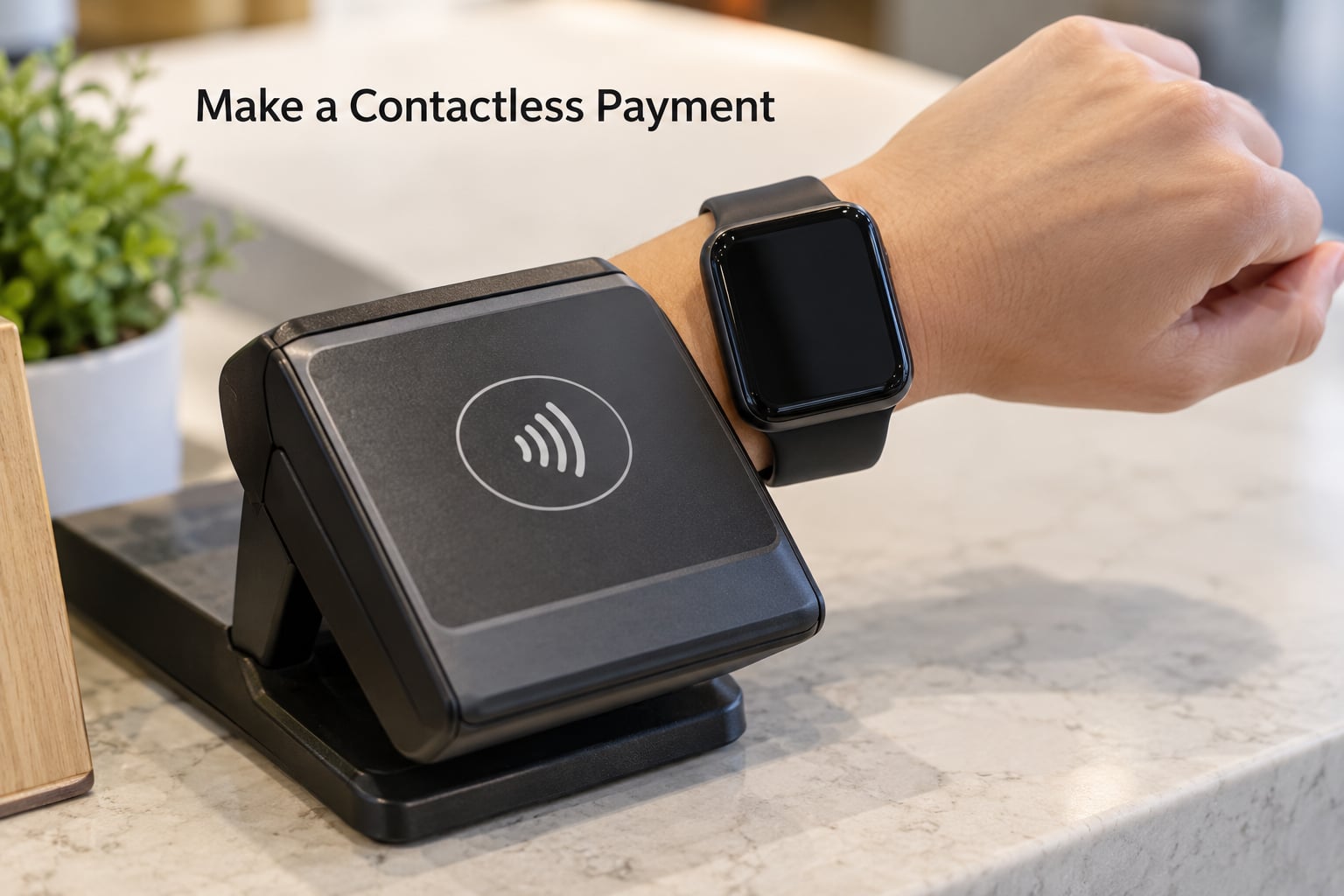
Double-click the side button below the Digital Crown. Your default card appears on screen straight away, and it authenticates with whatever method you chose, usually a passcode or your fingerprint via the crown.
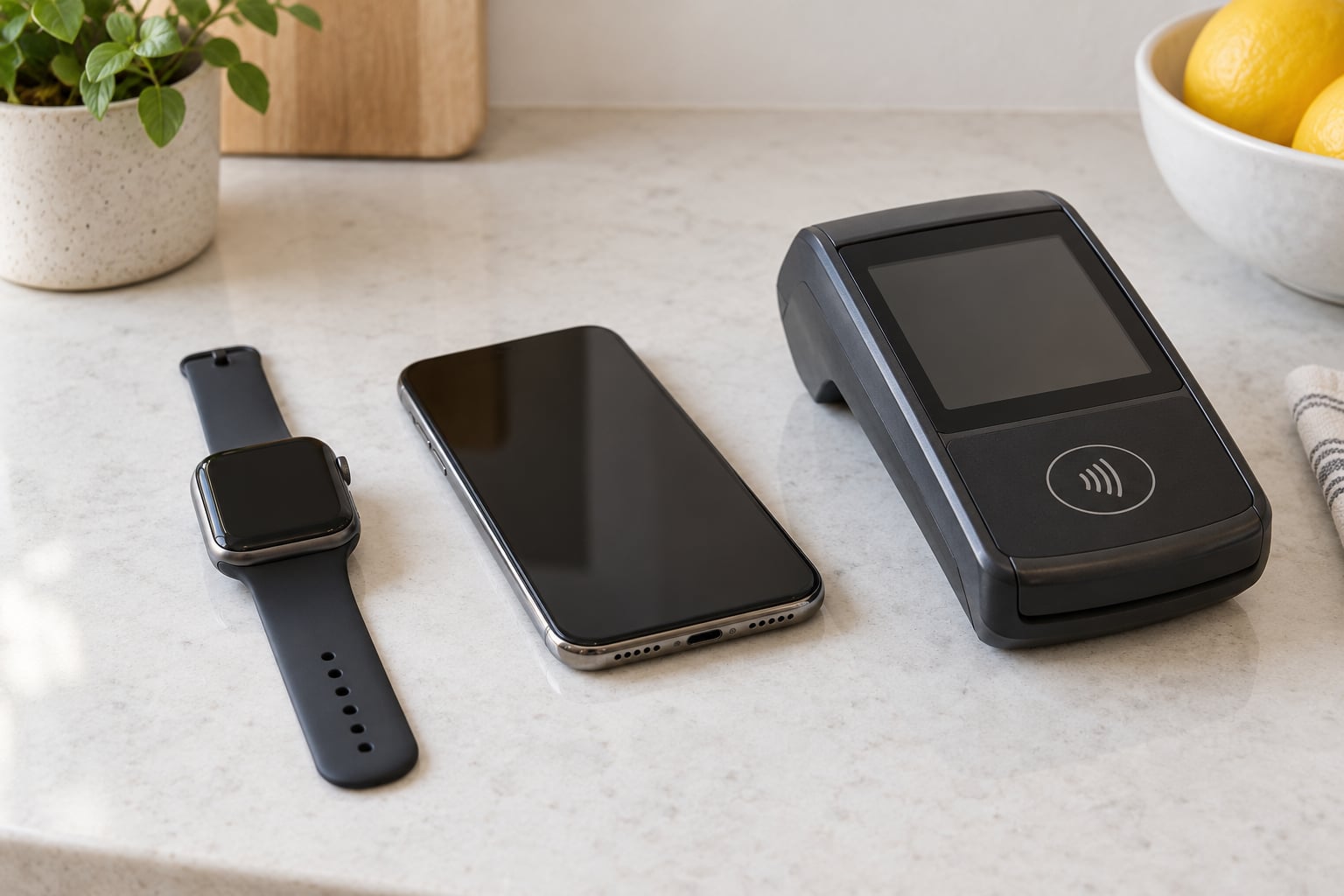
Hold the back of the watch a few centimetres from the terminal, display facing up, until you get a beep and a green checkmark or tick. That is the confirmation the payment went through. The watch does not have to be unlocked first, and it works with your iPhone switched off, out of range, or sitting in your pocket on a call.
If the card you want is not the default one, scroll down or swipe up on the payment screen while it is still open to pick another.
5. Turn On or Off Apple Pay on Apple Watch
Open Wallet on the watch itself and scroll to the bottom, or go back to Wallet & Apple Pay in the Watch app. Turning the Apple Pay switch off disables payments on that watch only. Your card stays in Wallet on your iPhone and on your other devices, and no one at the till sees a failure, they simply see no device.
To take a card off the watch for good, tap it in the Watch app under Wallet & Apple Pay and choose Remove Card, then confirm. That leaves the card on your iPhone.
Common Mistakes
Almost every Apple Pay problem on the watch is one of these.
- The card is in my iPhone Wallet but will not appear on the watch. Reopen Wallet & Apple Pay on the Watch app, tap Add Card and enter the card again even if it looks familiar. Card issuers occasionally fail to push a card across. Prepaid, store gift and foreign-issued cards are the usual offenders, since they are not supported on the watch at all.
- The payment screen appears, the reader declines. Check your balance first. Then try the second card in your list, since the decline is more often the card limit than the watch.
- It worked yesterday and stopped after an update. Restart the iPhone and the watch, then pull the card out of Wallet & Apple Pay and add it again. Post-update failures are common in the Apple communities, and this fixes nearly all of them.
- No card list at all. That points at region or watchOS, not at your bank. Check that Wallet & Apple Pay appears in My Watch.
- Nothing happens when I double-click. The watch is probably locked with no passcode set, so it cannot authenticate a payment. Set one and try again.
- Terminal says card not supported. Some machines, particularly unattended ones, only read certain card networks. Try a different card.
One habit worth keeping: add two cards. A backup with a different network turns a dead checkout line into a two-second scroll.
Frequently Asked Questions
Which cards and banks support Apple Pay on Apple Watch?
Apple Watch accepts the same debit and credit cards that work in Apple Wallet on iPhone, and your bank has to support Apple Pay in your country or region. Credit cards generally have the widest support. Prepaid cards, store gift cards, most foreign-issued cards and some local debit schemes do not transfer to the watch, even when they sit in your iPhone Wallet.
Does Apple Pay on Apple Watch need an internet connection?
No. Once a card is downloaded to the watch, payment details are stored securely on the device itself, so tapping works with no cellular signal and no Wi-Fi. You only need a connection when you first add or verify a card, or when the watch needs to install an update. Community users confirm paying on the watch with the iPhone switched off entirely.
Why is my bank card missing from Apple Pay after adding it?
The usual reasons are that the issuer does not support Apple Pay on the watch, that the card was only partly activated, or that the push from iPhone to watch did not complete. Open the Watch app, My Watch, Wallet and Apple Pay and tap Add Card again, entering the CVV when asked. If your bank supports Apple Pay on iPhone but never shows up on the watch, contact the issuer.
Why does my Apple Watch not always appear on the Lock Screen?
The watch only shows on the Lock Screen when the screen wakes near payment or card screens, which depends on wrist detection and your accessibility settings. Wallet cards themselves stay available no matter what. If you cannot get the payment screen, double-click the side button and swipe up to find Wallet, or open the Wallet app directly on the watch.
Does Apple Pay work if my iPhone is turned off?
Yes. The iPhone is only needed to add and verify a card. Once the card lives on the watch, you can pay with your phone switched off, out of Bluetooth range, charging at home, or in the middle of a call on it. Users report this working without any connectivity to the phone, and the payment never routes through the iPhone.
Conclusion
Start with the compatibility check. Open the Watch app, tap My Watch, and if Wallet & Apple Pay is there, tap Add Card, enter the details and CVV, and let your bank verify it. Once the card is active, pay by double-clicking the side button and holding the watch near the reader until it beeps.
If the card is active on the watch but payments keep failing, remove it under Wallet & Apple Pay and add it again, with a restart of both devices first. That single fix clears most broken setups, including the ones that start right after an update.