To pin a conversation in Messages on iPhone, open the app, swipe right on the chat you want to keep, and tap the pin icon. The thread jumps into the row of large contact circles at the top of the screen and stays there, even when newer messages arrive. It takes about five seconds, and the same move works on iPad and Mac.
Most people never find the feature because the gesture is invisible until you know it exists. Once you have used it once, you will use it every day, because a scrolling list of a hundred chats is no way to find the one thread that matters.
Below are the exact paths, the limits Apple puts on them, and the handful of reasons the pin option seems to be missing.
Table of Contents
- 1What You Need
- 2Step-by-Step: How to Pin Conversations in Messages
- 3Open the Messages App and Choose a Conversation
- 4Pin the Conversation
- 5Manage Pinned Conversations on iPad and Mac
- 6Unpin or Reorder a Conversation
- 7Common Mistakes
- 8Frequently Asked Questions
- 9What does pinning a conversation in Messages do?
- 10Does pinning a conversation in Messages turn off notifications?
- 11Why can’t I find the option to pin a conversation?
- 12Can I pin the same Messages conversation on iPhone and Mac?
- 13How do I unpin a conversation in Messages?
- 14Will my pinned conversations disappear if I change iPhone?
What You Need
All you need is an Apple device and the Messages app that ships with it. Pinning arrived in iOS 14 and has been part of every version since, so an up-to-date phone is all that is required. There is nothing to buy, no setting to turn on, and no change to make to your Apple Account.
You can pin from an iPhone, an iPad, or a Mac running macOS, and the same conversation can be pinned on all three as long as you are signed in to the same Apple Account with Messages in iCloud switched on. Group chats and one-to-one threads both work, including chats that are SMS or MMS rather than iMessage, which show up as green or grey bubbles instead of blue.
One practical note before you start. Pinned chats take up more room than ordinary rows because they render as big circles, so if you pin nine of them the top of your list gets crowded fast. Most people settle on three or four.
Step-by-Step: How to Pin Conversations in Messages
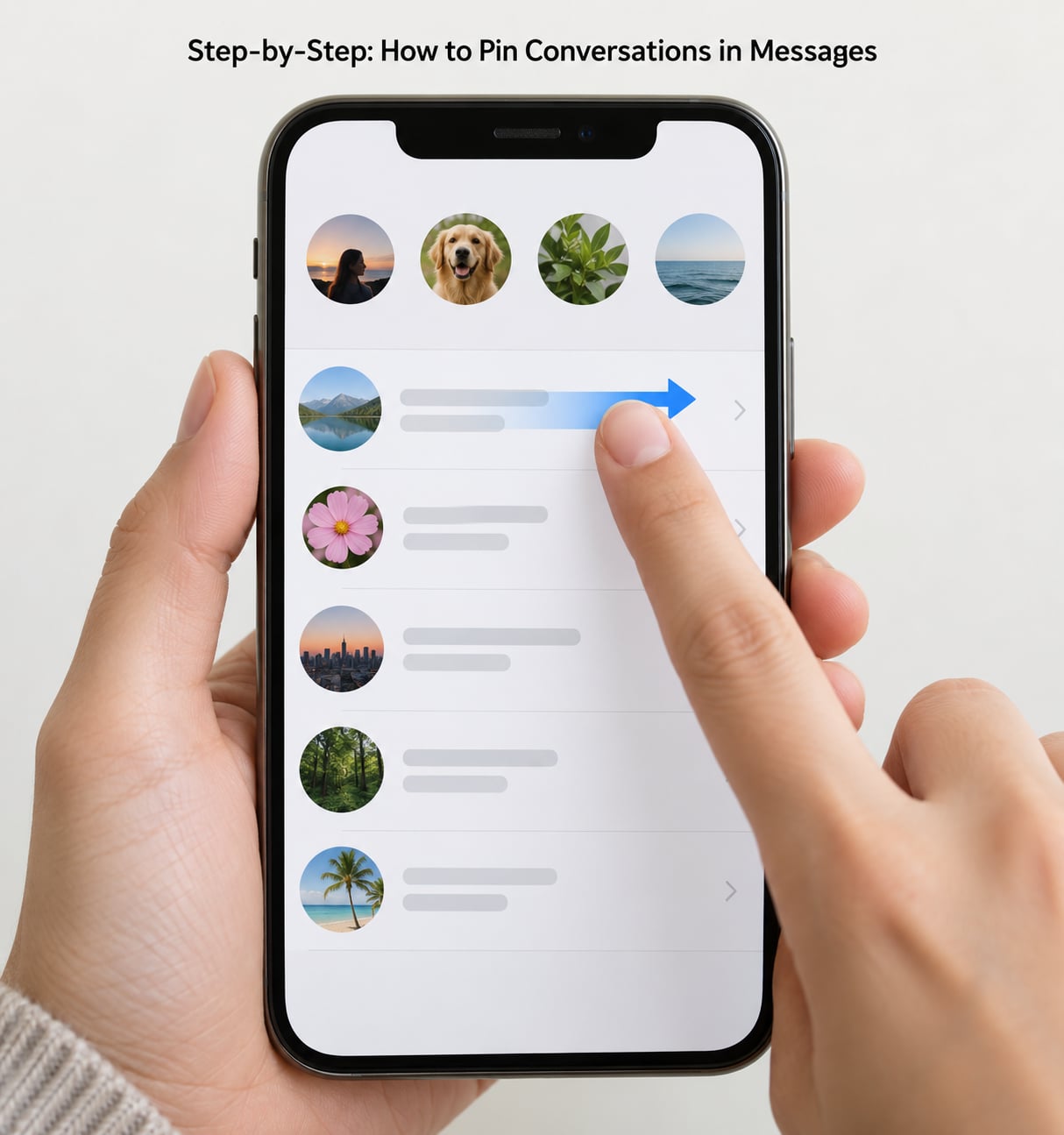
If you only remember one thing from this guide, remember this quick answer. There are three routes to the same result, and all of them end with your chat sitting in the pinned circle row.
- Open Messages and swipe right on the conversation, then tap the pin icon.
- Or touch and hold the conversation until the menu appears, then tap Pin.
- Or tap Edit in the top corner, choose Edit Pins, and tap the circles you want.
Open the Messages App and Choose a Conversation
Open Messages from your Home Screen. The app opens on the conversation list, where the most recent threads sit at the top and older ones slide down underneath.
If the thread you want is buried, swipe down from the middle of the list. That reveals the search field at the top, and typing a name or a few words from the last message filters the list as you type. Tap the result to jump into that conversation or to select it.
There is a second thing that swipe-down gesture does: it exposes the filter controls. Tapping the Filter button and choosing All Messages brings back threads that are currently filtered out, including ones you hid with Show in All Messages earlier. Worth checking before you decide a conversation has vanished.
Pin the Conversation
Method one is the fastest. With the conversation list on screen, swipe right across the row you want to keep. A row of actions slides in from the right, and the pin icon sits among them. Tap it and the chat moves to the top instantly.
Method two is the one people discover by accident. Touch and hold the conversation instead of tapping it, and the context menu appears with options such as Pin, Mark as Unread, Hide Alerts, and Delete. Tap Pin and the thread moves to the circle row. The same menu is where you would turn on Hide Alerts, which is a completely separate setting from pinning and one of the most common sources of confusion.
Method three handles several chats at once. Tap Edit in the top right corner of the conversation list, then Edit Pins. Your current pins fill the top row, and every other conversation shows below with a grey circle beside it. Tap a circle to add that conversation, tap a pinned one to remove it, then tap Done. This is also where you can clear every pin in one go when your pinned group has grown stale.
You will know it worked by the visual cue. A pinned conversation sits in the row of large circles at the very top, and an ordinary row that has just been pinned shows a small pin marker on its right edge for a few seconds before it moves up. Pinned chats also show a typing indicator inside the contact circle when the other person is typing, which is genuinely useful on a busy family group.
Apple allows up to nine pinned conversations at once. When you are at nine, the option is still there on the chats you already pinned, but you need to unpin something before you can add a tenth. Group chats count as one pin no matter how many people are in them, and the circle shows a photo of the participants.
Pinning a single message works differently, and people often mix the two up. Inside a conversation, touch and hold the message bubble, tap More, then Pin. A small pin marker appears on that bubble so you can find the address, the tracking number, or the photo later. Pinning a message keeps it inside that thread; it does not move the whole conversation to the top, and it is not visible to the person you sent it to.
Manage Pinned Conversations on iPad and Mac
The iPad runs the same Messages app, so the swipe-right and touch-and-hold methods behave identically there. The layout is the list of conversations with a conversation column beside it on larger screens, but the pin controls stay in the same place.
On a Mac, the same idea lives in the left sidebar of the Messages window. Right-click a conversation and choose Pin, or drag it up toward the pinned section at the top of the sidebar. The wording and exact menu items vary a little between macOS versions, so if Pin is not in the menu, drag the conversation toward the top of the list instead.
Sync depends on iCloud. If both devices are signed in to the same Apple Account and Messages is switched on under your name in iCloud, a pin you set on the iPhone shows up on the Mac and iPad within seconds. If it does not, check Settings, then your name, then Messages on each device, and give it a minute. Apple Account settings are per-device, so it is common for one device to have it switched off while the others are fine.
Unpin or Reorder a Conversation
Unpinning uses the same paths in reverse. Swipe right on the row and tap the unpin control, or touch and hold the conversation and tap Unpin. From Edit Pins you can clear a single pin or remove all of them at once, which is faster when several chats need to come down.
Order is not something you can set by dropping a conversation onto the very top slot. Touch and hold a pinned row and drag it to move it up or down within the pinned group, then let go. Newly pinned conversations normally land at the end of the pinned row rather than at the front, which surprises people who expected the newest pin to appear first.
One last behaviour worth knowing: pinned chats sit apart from the rest of the list rather than in the timeline, so a pinned thread will not move down as new messages arrive. That is the point, and it is also why old pins can hide a conversation you actually need. Once a quarter goes by, glance at that row and clear anything you no longer check.
Common Mistakes
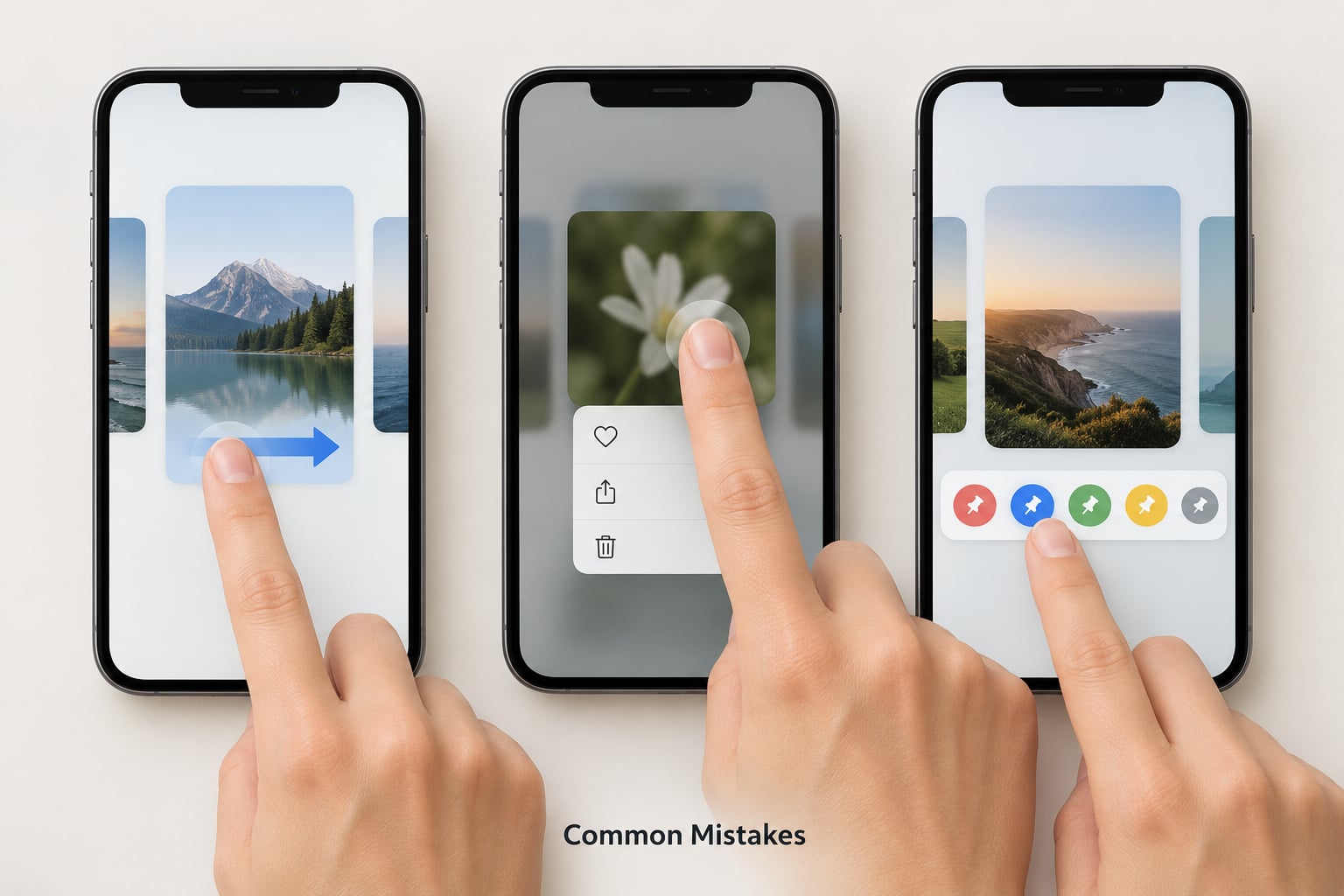
Most pin problems come down to one of these, and all of them are quick to sort out.
The pin option is not there at all. Two usual causes. Either your iOS is old enough to predate the feature, which is unlikely on anything current, or you are inside a conversation rather than on the conversation list. The Edit and swipe actions only exist in the list, not in an open thread. On a Mac, the equivalent action lives in the sidebar of the Messages window.
You swiped the wrong way. Swipe right, toward the contact circle at the edge of the row, to reveal the actions. Swiping left gives you delete and hide, which is how a few people accidentally archive a conversation they wanted to keep.
You are expecting pinning to silence a chat. Pinning controls position only. Notifications are handled separately with Hide Alerts in the same touch-and-hold menu, and that setting is marked with a bell icon rather than a pin.
The conversation is filtered out of the list. Swipe down to reveal the filter controls and switch back to All Messages. Hidden threads and unknown senders will not appear, and you cannot pin what the list is not showing.
You have hit the limit of nine. The pin action still appears, but a tenth chat cannot be added. Open Edit, then Edit Pins, and remove one you barely use.
A pin vanished after an update or a new phone. Some readers report pins not carrying over cleanly after a major iOS update or a device migration, and having to pin again afterwards. If that happens to you, note the names of your pinned chats before switching phones so re-pinning takes a minute rather than an afternoon.
The pin shows on the iPhone but not the Mac. Sign in to the same Apple Account on both, confirm Messages is switched on in iCloud on each, and wait a moment. It syncs through iCloud rather than directly, so a short delay is normal.
Frequently Asked Questions
What does pinning a conversation in Messages do?
Pinning moves that chat to a separate row of large contact circles at the very top of the Messages list. It keeps the conversation there permanently instead of sliding down as new messages arrive, and a typing indicator appears in the circle when the other person replies. You can pin up to nine conversations at once, including group chats.
Does pinning a conversation in Messages turn off notifications?
No. Pinning only changes where a conversation sits on screen. Alerts are controlled separately through Hide Alerts in the touch-and-hold menu, or from the conversation itself, and that is marked with a bell icon rather than a pin. A pinned conversation keeps notifying you exactly as it did before you pinned it.
Why can’t I find the option to pin a conversation?
Most often you are inside an open conversation instead of on the conversation list, where the swipe and Edit actions do not exist. It can also mean the list is filtered to certain senders, so the thread is not showing at all, or that you already have nine pins. On a Mac, look for Pin in the right-click menu in the sidebar.
Can I pin the same Messages conversation on iPhone and Mac?
Yes, as long as both devices are signed in to the same Apple Account and Messages is switched on in iCloud on each one. Your pins then follow you across iPhone, iPad and Mac, usually within seconds. If they do not appear, check that the Messages toggle under your name in Settings is on for every device, then wait a little longer.
How do I unpin a conversation in Messages?
Swipe right on the conversation and tap the unpin control, or touch and hold the conversation and choose Unpin. To clear everything at once, tap Edit in the top corner, then Edit Pins, and remove the pins you no longer want. Unpinning puts the chat back in the normal list, ordered by when you last heard from that person.
Will my pinned conversations disappear if I change iPhone?
Pins are stored with your Messages data and normally reappear once the new phone finishes setting up and syncs through iCloud. Some readers do report having to pin again after a major iOS update or a device migration, so it is worth writing down the conversations you rely on before you hand over the old phone.
Start with the three chats you would be annoyed to hunt for: the family group, the work thread, and whoever you message most. Open Messages, swipe right on each one, and tap the pin icon. Leave Hide Alerts alone unless the chat is genuinely noisy, and revisit the pinned row every few weeks so it stays a shortcut rather than a graveyard.