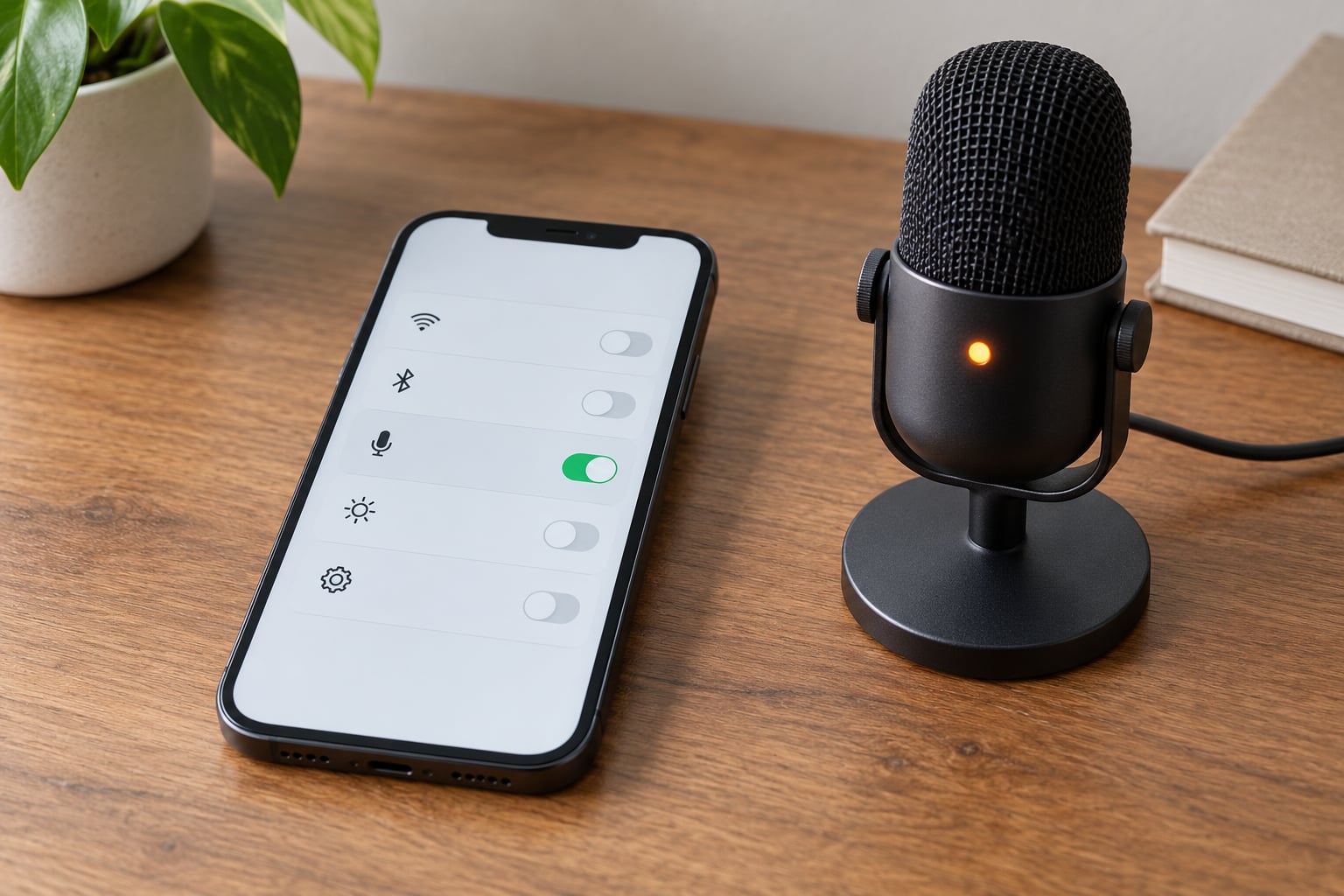
Open Control Center and it names the app using your microphone right now; open Settings > Privacy & Security > Microphone and you get the full list of apps holding microphone permission. Two different questions, two different screens, and most confusion comes from mixing them up.
The orange dot that appears in your status bar is the part that panics people, so let’s get that out of the way first. That dot does not mean someone is listening in on you. It means an app is using the microphone at that moment, and iOS shows it because it cannot prove to you that it isn’t.
Still, a permission you granted three months ago is worth reviewing, especially if you installed something you don’t remember approving. This guide covers iPhone and iPad, with Mac steps at the end because the wording changed recently and most guides still show the old menus.
Table of Contents
- 1What You Need
- 2Step-by-Step: Check Microphone Access on iPhone and iPad
- 3How to See Which Apps Access Your Microphone in Settings
- 4Check Recent Microphone Activity
- 5Test or Revoke an App’s Mic Permission
- 6On Mac: System Settings > Privacy & Security > Microphone
- 7Common Mistakes
- 8Tips for Keeping Microphone Access Private
- 9Frequently Asked Questions
- 10Can apps access my microphone without me knowing?
- 11Why is the orange dot on my iPhone always on?
- 12What does Unknown mean when Control Center says it used my microphone?
- 13Why can’t I allow microphone access on my iPhone?
- 14How do I check which app is using my mic on a Mac?
- 15Where is the Microphone option located in iPhone Settings?
- 16Conclusion
What You Need
You need an iPhone or iPad running a current version of iOS or iPadOS, and about five minutes. No third-party app, no computer, no cables.
If your device is on iOS 17, iOS 18 or anything later, every step below applies as written. Apple moved Privacy into its own Privacy & Security section years ago, so older instructions that say “Privacy” on its own are out of date and will send you looking in the wrong place.
One more thing worth saying plainly: an app with microphone permission is not the same thing as an app actively recording. Permission is a standing key, activity is someone using the key. You need both screens to know what is really going on.
Step-by-Step: Check Microphone Access on iPhone and iPad
Start with the live check, because it answers the question you actually have. Then work through the permission list and clean up anything you no longer want.
How to See Which Apps Access Your Microphone in Settings
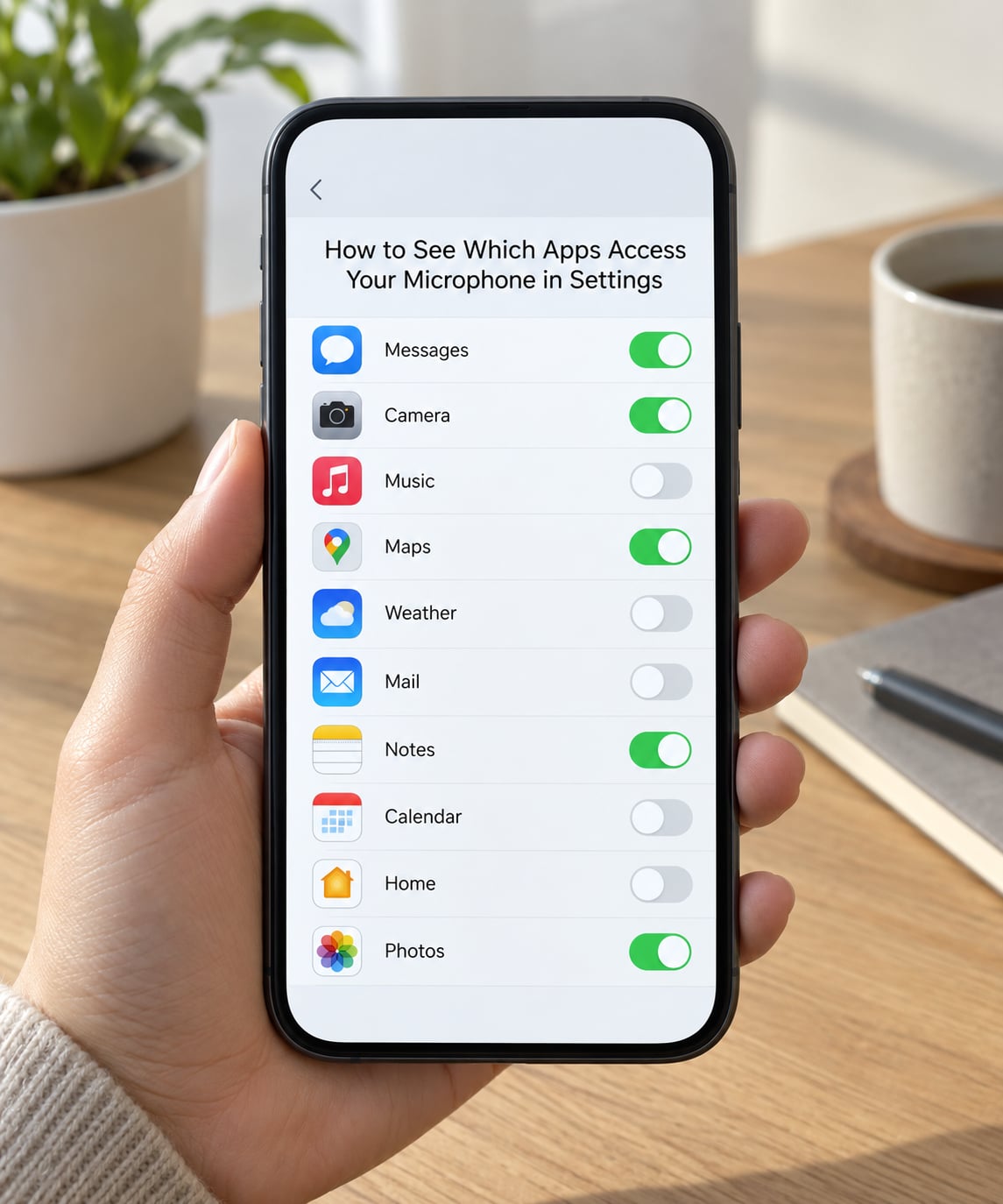
Open the Settings app, tap Privacy & Security, then tap Microphone near the bottom of that list. That single screen is the permission list, and it works identically on iPhone and iPad.
Each app on the list has one of three states, and the wording matters more than people expect:
- Ask means the app asks you every single time it tries to use the mic.
- Allow While Using the App means it can use the mic only while you are actively looking at it. This is the safer of the two “on” states for most people.
- Off means the app cannot reach the microphone at all.
Anything set to Ask or Allow While Using the App has permission. That is the complete answer to “which apps have access to my microphone,” and it is the reason so many people read a permissions list and assume someone is secretly recording. Nothing in this list is recording. It is a list of keys, not a list of open doors with people behind them.
If a name on this list looks unfamiliar, the honest answer is that iOS does not record when the app was installed or who asked for it. Cross-check it against your own memory of what you downloaded, and check the App Privacy Report if you want a timeline instead.
Check Recent Microphone Activity
To see what is using the microphone right now, swipe down from the top-right corner of the screen to open Control Center, then tap the privacy indicator area at the top. On models with Dynamic Island, the indicator sits in the island itself.
When the mic is live, Control Center expands and shows the name of the app currently using it, along with a “Recently Used” entry for whatever touched the microphone just before. Seeing that second line is usually what settles people down, because it explains a dot that appeared a few seconds ago and vanished.
Three details are worth knowing about that readout:
- Orange dot versus orange square. A green dot means the camera is in use, on its own or alongside the mic. If Differentiate Without Colour is switched on in Settings > Accessibility > Display & Text Size, the dot becomes a square instead, which is why some people think they are seeing a different icon entirely.
- “Unknown” in Control Center usually means the app released the microphone between the moment it triggered the indicator and the moment you opened Control Center. The dot is real, the name is simply gone.
- Siri and Apple Watch are not in the app list. Voice assistants and some watch features use the mic at the system level and never appear as an app with a toggle. If you have turned off Listen for Hey Siri and still see the orange indicator, that is the first place to look.
On Mac, the equivalent check is the small dot in the menu bar. Orange means the microphone is in use, green means the camera is. Tap or Control-click the icon for Control Center on Mac to see recent activity for both.
Test or Revoke an App’s Mic Permission
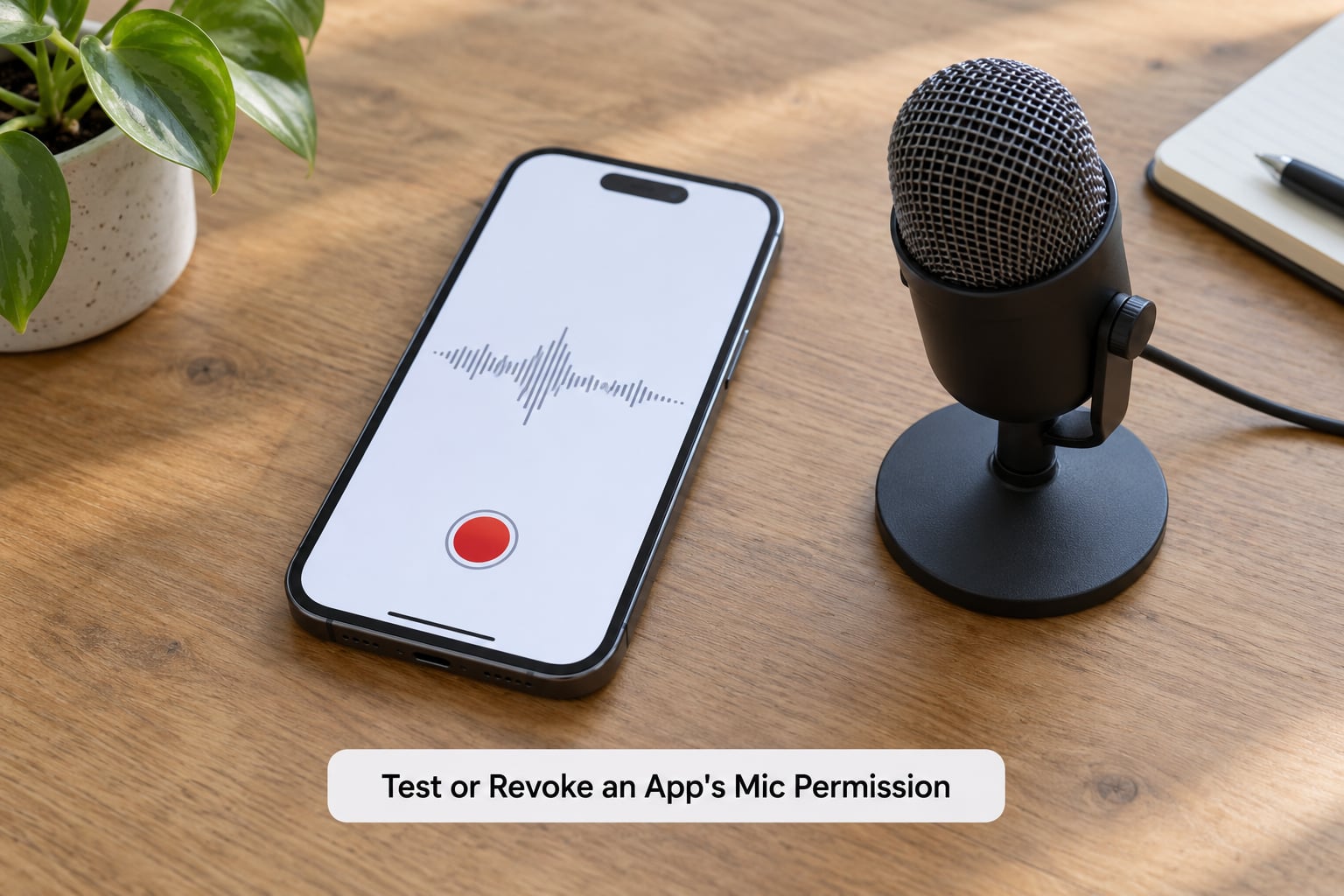
Testing is straightforward: open the app that holds microphone permission, do something that should trigger the mic, like recording a voice note, and glance at the top-right corner. The orange dot appears immediately if permission is working.
If the app is already set to Ask, opening it should produce a permission dialog with the usual allow and don’t allow choices. Deny it and the mic is blocked for good until you change the setting, which is a fast way to confirm the switch really works.
To revoke access for good:
- Open Settings > Privacy & Security > Microphone.
- Tap the app in the list.
- Tap Microphone to turn it off.
- Force quit the app if it is running, then reopen it to confirm it cannot record.
That last step is the one people skip. An app that was already open when you revoked permission sometimes keeps the mic until you quit it, and the indicator keeps lighting up for no obvious reason.
What you lose depends on the app. Messaging apps lose voice notes and video calls, video meeting apps lose audio entirely, and voice recorders stop recording. Turning the mic off for a game or a shopping app costs nothing at all. Revoking from this list is also reversible, so you can switch it back on when you need it rather than permanently deleting the app.
On Mac: System Settings > Privacy & Security > Microphone
Most Mac guides still send you to System Preferences, which Apple retired. The current path is Apple menu > System Settings > Privacy & Security > Microphone, where every app appears with a checkbox rather than a three-way switch.
Untick a box to revoke, tick it to grant. One Mac-specific habit is worth building: quit and reopen the app after changing the setting. macOS caches the permission for the running process, and that restart requirement is the single most common complaint in Mac support threads about this.
Common Mistakes
Looking for a menu called just “Privacy.” It has been Privacy & Security for years. If you find a screenshot showing a bare Privacy row, it predates iOS 14 and the layout no longer matches.
Reading the indicator as a name tag. The orange dot does not identify an app on its own. You have to open Control Center to get the name. A dot with no readable name is usually the “Unknown” case rather than something sinister.
Changing a permission while the app is still running. On iPhone and especially on Mac, revoke it and then force quit the app. Otherwise the old state lingers and you will conclude the toggle is broken.
Forgetting that Bluetooth devices are separate. A pair of headphones or a car stereo can request microphone access on its own, sometimes listed under the accessory rather than the parent app. If a voice note works through your car but not through the phone speaker, check the Bluetooth device before you go changing app permissions.
Expecting Siri to appear in the list. Siri and Hey Siri operate at the system level. They are controlled from Settings > Siri & Search, including Listen for Hey Siri and Allow Siri When Locked, not from the Microphone pane.
Assuming a granted permission means recording. This is the big one. Several dozen apps commonly hold microphone access with no app currently using it, and a permission list alone tells you nothing about live activity. You need the indicator for that.
Tips for Keeping Microphone Access Private
Look again every couple of months. Permissions pile up because prompts appear at the worst possible moment and people tap through. A five-minute review twice a year catches apps you installed for a single trip and never opened again.
Switch anything unremarkable to Ask. For apps you rarely use, Ask is the better setting than a flat On. You get the prompt only when you actually open the thing, and you can refuse in a second.
Use the App Privacy Report for a real timeline. Settings > Privacy & Security > App Privacy Report records which domains each app contacted, which sensors it touched, and when. Turn on App Privacy Report and lock it so it keeps collecting, then read it after a few days of normal use. It is the most thorough audit available and it takes no more than a minute to start.
Check the Hey Siri setting. Listen for Hey Siri keeps the mic available for wake words, and it is a plausible explanation for an indicator that lights up when no app is open.
Delete apps you no longer use. An uninstalled app cannot hold a permission, and revoking a permission does not uninstall anything. Both are true, and only the first one removes the app entirely.
Know the reset option before you need it. Settings > General > Transfer or Reset iPhone > Reset > Reset Location & Privacy puts every permission back to its default state. Every app asks again on next use. It is a clean slate, and it is a blunt instrument, so treat it as a deliberate reset rather than a troubleshooting first step.
Worth keeping a calm head about the whole thing. The orange indicator is a feature working correctly, and iOS blocks microphone access by default until someone approves it. An app cannot quietly turn it on for itself.
Frequently Asked Questions
Can apps access my microphone without me knowing?
No. Since iOS 14, an app cannot use the microphone until you approve it, either at the prompt or by having it switched on in Settings Privacy and Security Microphone. What you may have seen described as hidden access is really a granted permission sitting unused, or an indicator that appeared while an app was legitimately recording. The App Privacy Report records sensor use over time if you want proof.
Why is the orange dot on my iPhone always on?
Usually one of four things: an app with background microphone use, Siri or a wake word still listening, a Bluetooth accessory such as car audio, or an indicator left over from an app you have not force quit since revoking its permission. Check Control Center for the name, force quit any app you have just changed, turn off Listen for Hey Siri, and restart the phone if the indicator persists.
What does Unknown mean when Control Center says it used my microphone?
It means the app released the microphone in the gap between the indicator appearing and you opening Control Center. iOS needs an app that is holding the mic open to display its name. A brief flash of orange followed by Unknown is the normal result of something like a voice memo being saved and the app releasing the mic immediately.
Why can’t I allow microphone access on my iPhone?
If the toggle refuses to move or the app cannot record, it was probably locked at the system level. Check Screen Time under App Limits, and check any parental controls or MDM profile on the device. Some apps also appear grayed out until they request the mic once. Force quitting and reopening the app, then restarting the device, clears most of these cases.
How do I check which app is using my mic on a Mac?
Look at the menu bar. An orange dot means the microphone is in use and a green dot means the camera is. Click the Control Center icon to see what was active recently. For the standing permission list, go to Apple menu System Settings Privacy and Security Microphone and untick the apps you want to block, then quit and reopen them so the change takes effect.
Where is the Microphone option located in iPhone Settings?
Open Settings, tap Privacy and Security, then tap Microphone. The list sits between Camera and Motion and Fitness in that section. Every app with microphone permission is listed there with either a toggle switch or an Ask, Allow While Using the App, or Off state. On iPad the path is identical.
Conclusion
Two screens answer this completely. Control Center tells you what is using your microphone at this moment, and Settings > Privacy & Security > Microphone tells you which apps are allowed to use it in future.
Start with the settings list, set anything you barely use to Ask or Off, and force quit the apps you changed. If the orange indicator still bothers you afterward, open Control Center to read the name, and if it says Unknown or Recently Used with nothing open, a restart clears it in most cases.