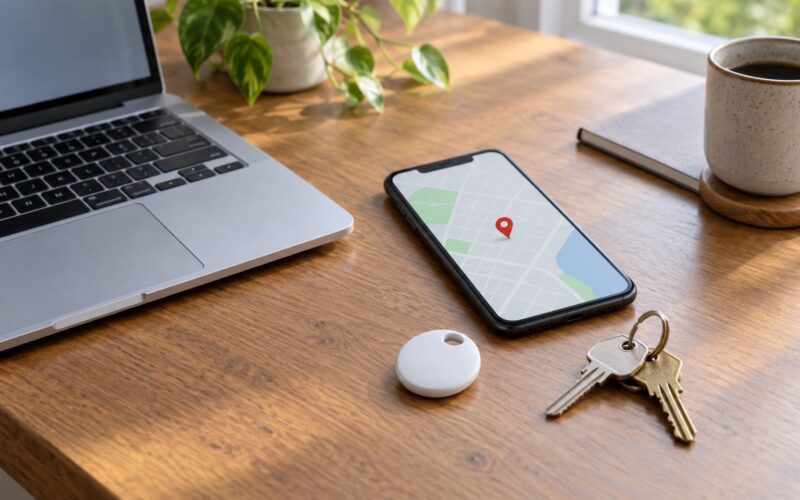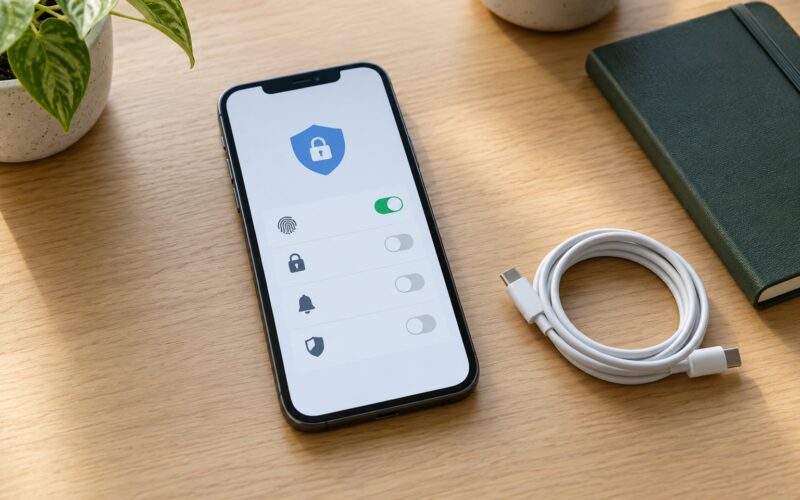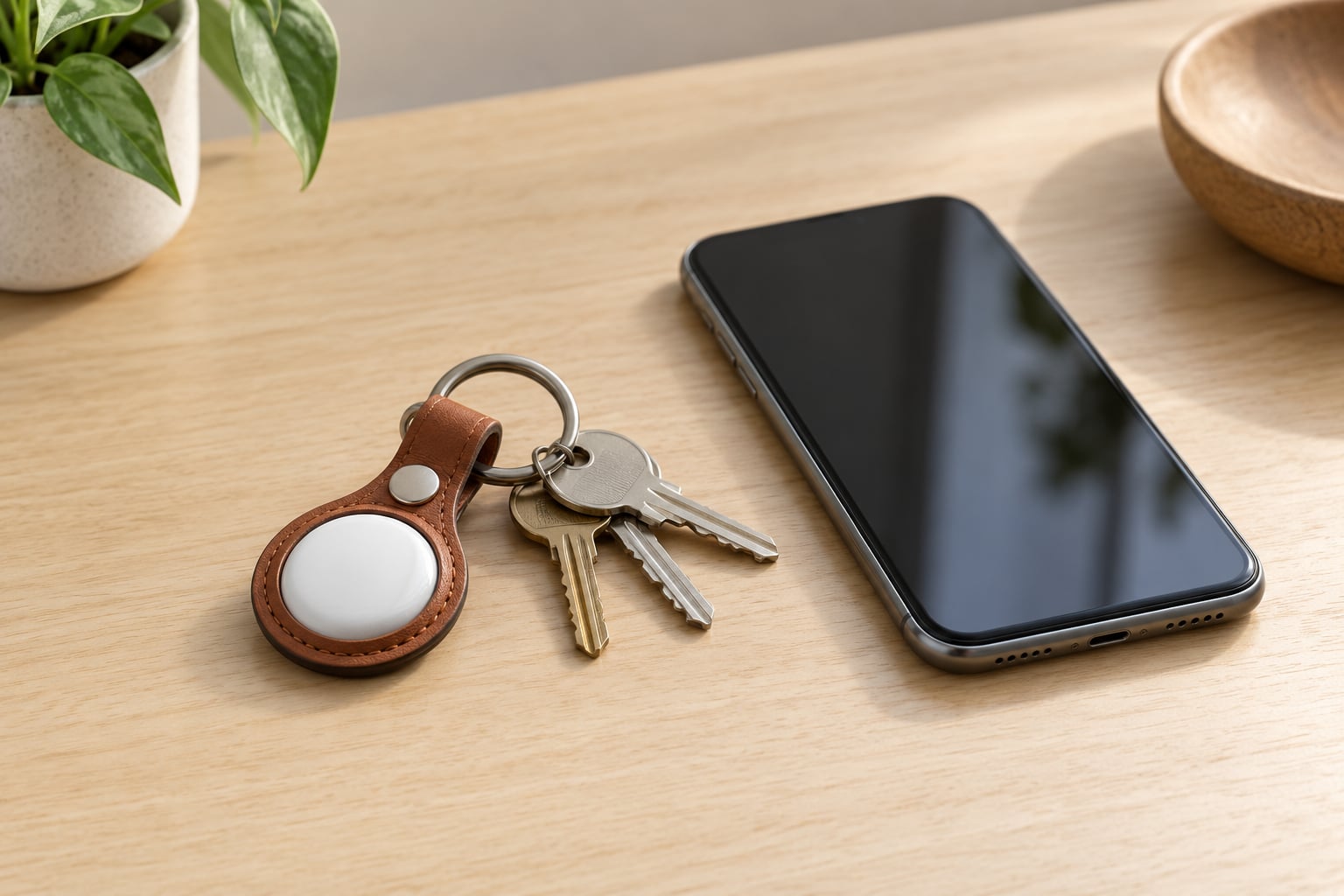
To use AirTag to find keys, attach the tag to your key ring, add it in the Find My app on your iPhone, and name it Keys. Once it is set up, you tap Play Sound when the keys turn up missing, and check the map when they are somewhere else entirely. The whole setup takes about five minutes and needs no tools beyond a holder.
Most of the difficulty people hit is not the pairing. It is attachment — an AirTag has no built-in hole, so it needs a holder or a loop, and the tag is easy to fish out of a pocket if the ring is loose. Get the attachment right and the rest is tap, tap, done.
Table of Contents
- 1What You Need
- 2Step-by-Step: How to Use AirTag to Find Keys
- 31. Check Your iPhone and AirTag Compatibility
- 42. Remove the Battery Film and Turn On the AirTag
- 53. Attach the AirTag to the Keys
- 64. Add the Keys in the Find My App
- 75. Test the Sound and Confirm the Location
- 86. How to Use AirTag to Find Keys Every Day
- 9Common Mistakes
- 10Frequently Asked Questions
- 11Can an AirTag find my keys without my phone?
- 12How far does AirTag Bluetooth reach?
- 13Does an AirTag use GPS to find my keys?
- 14Why does Play Sound not work on my AirTag?
- 15Can AirTags listen to conversations?
- 16What should I do if my keys were left somewhere else?
- 17Conclusion
What You Need
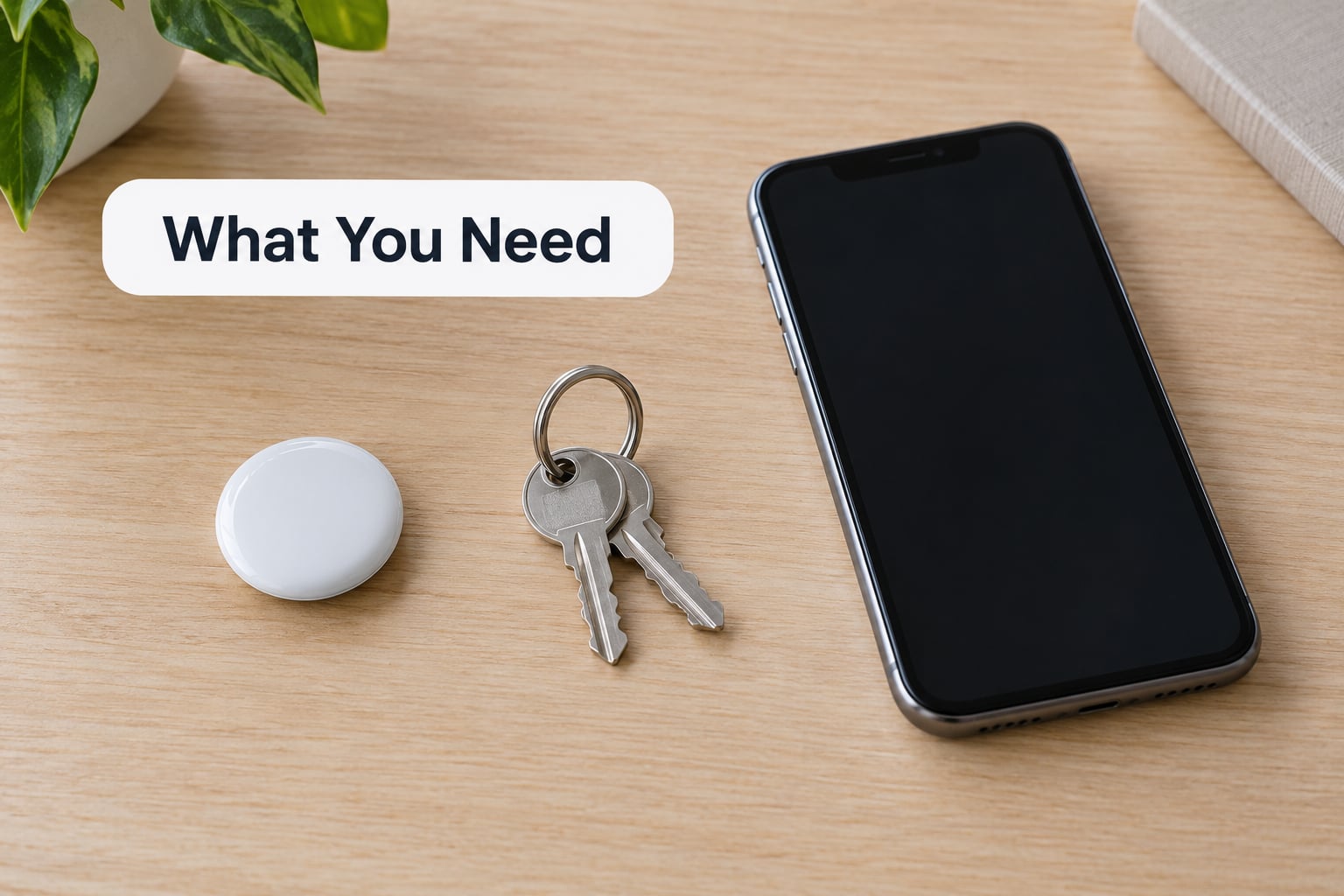
You need an AirTag, a small holder or loop, and an Apple device running a recent version of iOS with Find My turned on. That is the entire shopping list.
One thing worth stating plainly: AirTags work with Apple devices. Pairing and finding happen through Find My on iPhone, iPad or Mac, so if your phone is Android you can borrow an Apple device to add the tag but you will not get the full experience afterwards.
Understanding what the tag can and cannot do makes the setup less disappointing. Close to your phone it uses Bluetooth and can make noise. Far away it relies on other people’s iPhones spotting it and reporting its position, so the map updates in jumps rather than live. It is a lead, not a live tracker.
Step-by-Step: How to Use AirTag to Find Keys
1. Check Your iPhone and AirTag Compatibility
AirTags need iOS 14.5 or later and the Find My app enabled on your Apple Account. Find My is on by default on a new iPhone; if you turned it off, check Settings, then your name at the top, then Find My.
Precision Finding, the arrow that points at the exact spot, only works on iPhone 11 and later because it uses the Ultra Wideband chip. On older phones you still get Play Sound, which is usually enough inside one home.
2. Remove the Battery Film and Turn On the AirTag
Pull the small paper tab out of the AirTag’s edge. That tab sits on top of the battery contact, and the tag stays completely dead until it comes out.
Hold the tag near the top of your unlocked iPhone. A card should pop up offering to connect. Do not pry the shell open, and keep the tab for later battery changes.
3. Attach the AirTag to the Keys
The AirTag goes on with a holder, not by itself. A small loop that threads through the key ring and grips the tag is the least likely to get lost in a coat pocket. A keychain case with a clip works too, and a short carabiner is handy if the ring splits into several bunches.
Skip anything bulky that rattles against other keys, because the sound you rely on later gets muffled by metal. If your keys already have a lot on them, give the tag its own small ring so it cannot slide off.
4. Add the Keys in the Find My App
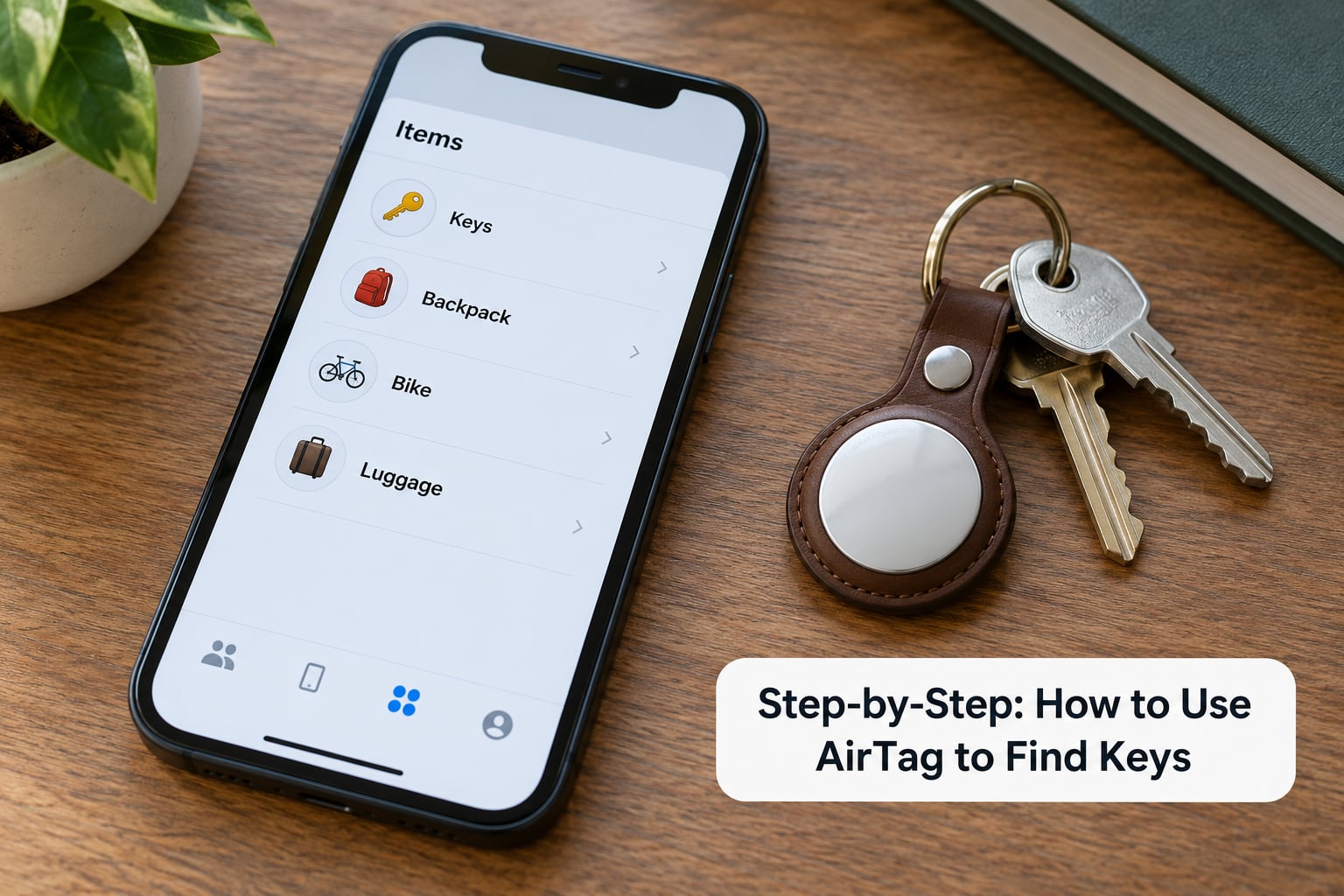
Open Find My and tap Items at the bottom of the screen. Tap the add button in the top right, choose AirTag, then hold the tag near your iPhone until it appears in the list. Tap it, name it Keys, pick a colour or an emoji, and tap Add Item.
Naming it Keys rather than AirTag saves you a second of hunting through the item list when you are already late. If the household shares a key ring, share the item from its detail screen so everyone sees the same tag.
5. Test the Sound and Confirm the Location
Tap your Keys item, then tap Play Sound. The tag chirps for a couple of seconds. Do this right after setup, while the keys are still in your hand, so you know the tag works before you need it.
While you are there, look at the map. A recent timestamp means the position is current; an old one with a greyed-out marker means the tag is out of Bluetooth range and the position is the last known one. If your keys are nearby, tap Find Nearby for the directional arrow on supported iPhones.
6. How to Use AirTag to Find Keys Every Day
When the keys are missing, open Find My, tap Items and tap Keys. If the map shows a current position close by, tap Play Sound and follow the noise. If the position is hours old, use Directions to walk or drive to the last known spot.
Do not read the map as live tracking. The tag reports when another iPhone passes it, so an empty hallway can leave a stale marker for a while. Refresh the item once, then go look physically instead of staring at the pin.
Common Mistakes
Most failed setups come down to a handful of repeating problems, and each one has a quick fix.
- The AirTag never appears when you hold it near the phone. Check that the battery tab is fully out, that Bluetooth is on, and that you are within about 30 cm of the tag. If a previous owner signed it into their Apple Account, you will need to remove it from that account before you can add it.
- Play Sound does nothing. If Find My says the item is not nearby, it will not ring, because the command needs a Bluetooth connection. Walk closer, or use the map instead. A tag that keeps showing the wrong position usually needs to be removed and added again.
- The location looks stale. That is normal. The position updates when another device relays it, so refresh with the pull-to-refresh gesture on the item screen and check the timestamp before trusting it.
- Precision Finding will not enable. If the error reads that your device or account is not compatible with this feature, the usual cause is an iPhone older than 11 or an account region where Ultra Wideband is not offered. Play Sound still works.
- You get an alert that the AirTag is moving with you. This fires when the tag travels with a phone that is not yours, which happens whenever someone borrows your keys or shares a family tag. The alert is doing its job. Nothing about your keys is being recorded beyond the position shown in Find My.
- The sound is hard to hear. Keys buried under other keys, inside a pocket, or in a coat muffle it. A looped holder that lets the speaker face outward solves most of this.
- The tag drains fast. It runs on a replaceable CR2032 coin cell, rated by Apple at about a year. Find My warns you when the battery is low. Keep spare cells away from small children, since coin cells are a serious swallowing hazard.
One more habit pays off: turn on separation alerts for the Keys item. Your iPhone then tells you when the keys walk off without you, which is the warning you actually want before you leave the house.
Frequently Asked Questions
Can an AirTag find my keys without my phone?
Not on its own. An AirTag makes a sound only after your iPhone sends the Play Sound command over Bluetooth, and its map position depends on other iPhones passing it. If you lose your phone first, the tag has no way to alert you. Keep the tag paired to your Apple Account and use another Apple device, such as a Mac or iPad, if that happens.
How far does AirTag Bluetooth reach?
Close range, roughly 10 metres in open air, and much less through walls, closed doors or a pile of other keys. That range is only good enough for Play Sound and Find Nearby inside a house. Past that distance the tag relies on other people’s iPhones, so the map can update minutes or hours later.
Does an AirTag use GPS to find my keys?
No. An AirTag has no GPS receiver and no independent cellular connection. Nearby location comes from Bluetooth, and directional guidance on iPhone 11 and later comes from the Ultra Wideband chip. Distant positions come from other iPhones detecting the tag and anonymously reporting it through the Find My network.
Why does Play Sound not work on my AirTag?
Find My can only trigger the sound when it considers the tag nearby, because the command travels over Bluetooth. If the item shows a stale position, the sound will not fire. Move closer, refresh the item screen, and try again. A constant mismatch between where you are and where the tag appears usually means it needs removing and adding again.
Can AirTags listen to conversations?
No. An AirTag has no microphone. It sends a rotating identifier over Bluetooth, and other devices relay its position when it is not near you. Apple encrypts that relay data, and location data for items is tied to your Apple Account rather than to the individual iPhone that spotted it.
What should I do if my keys were left somewhere else?
Open the Keys item in Find My and look at the timestamp on the last known position. If it is recent, tap Directions and go there before you head off. If the keys are genuinely gone, mark the item as lost from its detail screen, which stops it playing sounds on a stranger’s phone and lets you share a contact method.
Conclusion
Start by doing three things while the keys are still in your hand: fit the AirTag into a looped holder, add it in Find My under the name Keys, and tap Play Sound to confirm the chirp. Once those are done, the tag does its job every morning without you thinking about it.
One small warning to keep in mind: an AirTag points you toward keys, it does not track them live. Check the timestamp before you set off across town.