You can add a digital car key to Apple Wallet through your car manufacturer’s companion app, or through an activation link the brand sends by email, text message, or straight from the vehicle’s own screen. Once the key is in Wallet, your iPhone or Apple Watch handles lock, unlock and start over NFC and Bluetooth. The whole job takes about ten minutes with the car parked and running nearby.
The catch is eligibility. Support depends on the automaker, the model and the model year, not on Apple alone, so a brand new iPhone will not magically accept a car that never shipped with the feature. Below is how to add car keys to Apple Wallet in the right order, plus the fixes for the failures owners actually hit.
If you are setting up a brand new phone rather than adding a key for the first time, go straight to the new iPhone section first. It is the single most common reason a working key suddenly stops working.
Table of Contents
- 1What You Need Before You Start
- 2How to Add Your Car Key to Apple Wallet: Step by Step
- 3How to add car keys to Apple Wallet on iPhone
- 4Prepare Your Vehicle and Digital Key Invitation
- 5Add the Key and Verify Access
- 6Set Up Apple Watch Access
- 7Test the Key Before You Rely on It
- 8Moving a Key to a New iPhone
- 9Common Mistakes When Setup Fails
- 10The Car Keys Option Is Missing From Wallet
- 11The Key Is in Wallet but the Car Does Not See the Phone
- 12The Key Restored from Backup but Never Works
- 13It Unlocks but Will Not Start
- 14Passive Entry Stopped Working After an Update
- 15The Phone Is Not Detected at the Reader
- 16Notifications Are Missing and You Are Not Sure It Locked
- 17Frequently Asked Questions
- 18Which cars and iPhones support adding car keys to Apple Wallet?
- 19Can I add a car key to Apple Wallet without the automaker’s app?
- 20Does Apple Wallet replace the physical car key completely?
- 21Can I share my Apple Wallet car key with another person?
- 22Why is the Car Keys option missing from my iPhone Wallet?
- 23Can I use my Apple Watch to unlock the car after adding the key to iPhone?
- 24What to Do First
What You Need Before You Start
Work through this list first. Every item is a hard requirement, and skipping one usually produces an error message that points nowhere useful.
- An eligible vehicle. The automaker has to support Apple Car Key for your exact model and model year. Check the brand’s digital key page before you start, because support is patchy across years within the same nameplate.
- An iPhone XS or later, or an iPhone SE (2nd generation) or newer. Anything older cannot hold a digital car key at all.
- An Apple Watch Series 5 or later, or Apple Watch SE, if you want the key on your wrist. Not every brand allows the Watch to start the car, only unlock it.
- The latest iOS and watchOS on both devices. Half of the pairing failures people post about are an out-of-date phone.
- Your Apple Account signed in with two-factor authentication on. Digital keys are tied to that account.
- The automaker’s companion app and a registered account. Examples include MyBMW, the Mercedes-Benz app, MyHyundai with Bluelink, Kia Access, Genesis Connected Services, the Volvo app and the Rivian app.
- Proof of vehicle ownership already finished in that app. Most brands require a VIN and either an in-app ownership check or a dealer-verified account.
- The physical key fob within reach. Setup usually asks you to tap the fob to your iPhone to verify you actually own the car.
- The vehicle itself, parked and close. Pairing happens against the reader inside the cabin, not over the air.
One more thing worth saying plainly. You do not add a digital car key by typing anything into Wallet manually. Wallet has no field for a key code, and there is no import button. The key arrives through the automaker’s app, a link, or the car’s screen, and Wallet is only where it lands.
How to Add Your Car Key to Apple Wallet: Step by Step
How to add car keys to Apple Wallet on iPhone
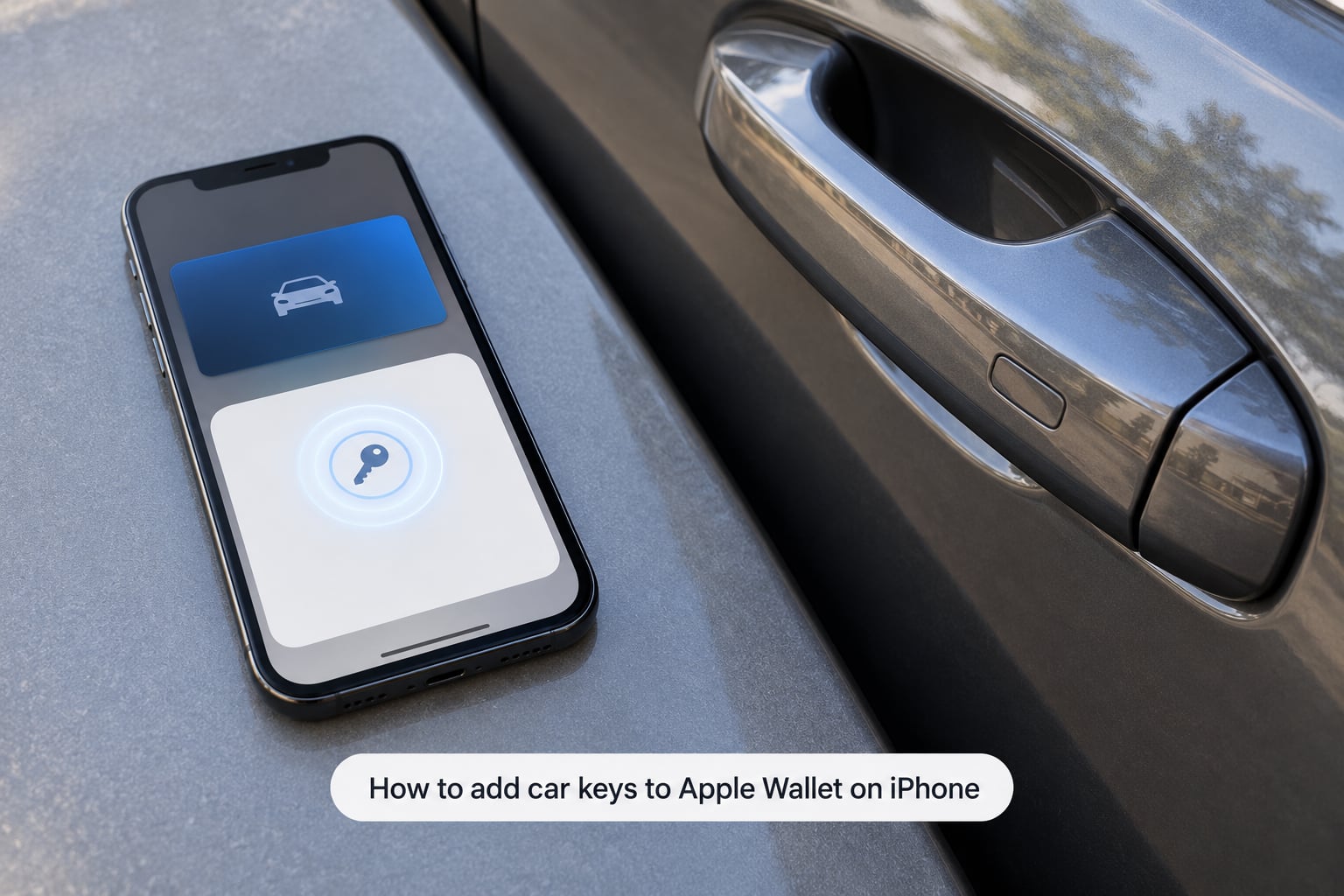
There are two routes and they end in the same place. If your automaker supports the newer in-Wallet flow, open Wallet, tap the add button in the top corner, and choose Car Keys from the list. Wallet then shows which vehicles in range are available to pair.
The more common route starts in the automaker’s app. Sign in, open your vehicle, and find the digital key or digital vehicle key option. Tap it, accept the terms, and the app hands you to Apple Wallet with a Continue button. Tap Continue and Wallet walks you through pairing.
Either way, the next real step happens inside the car. How you tell it worked: the key card appears in Wallet with your vehicle name on it, and the car’s own screen shows your iPhone as a paired device.
Prepare Your Vehicle and Digital Key Invitation
Before you open Wallet, get the invitation straight. Sign into the automaker’s app and confirm your vehicle appears there with an active, verified account. If the app shows a pending verification or an unlinked VIN, Wallet will not offer the key.
Some brands send an activation link instead of an in-app button. That link arrives by email or text, or it shows up as a QR code on the vehicle’s centre screen with the infotainment system on. Open the link on the iPhone you want the key on, not on a different phone, because the key binds to the device that completes the handoff.
Park the car, keep it in accessory or on, and bring the physical fob. When prompted, tap the fob against the top of the iPhone. That tap is the ownership check, which is why you cannot skip it by buying a used car and pairing cold.
Add the Key and Verify Access
Select your vehicle and, where the brand asks, the key type. Some brands offer separate standard and driver keys, and some hand out a time-limited activation code instead.
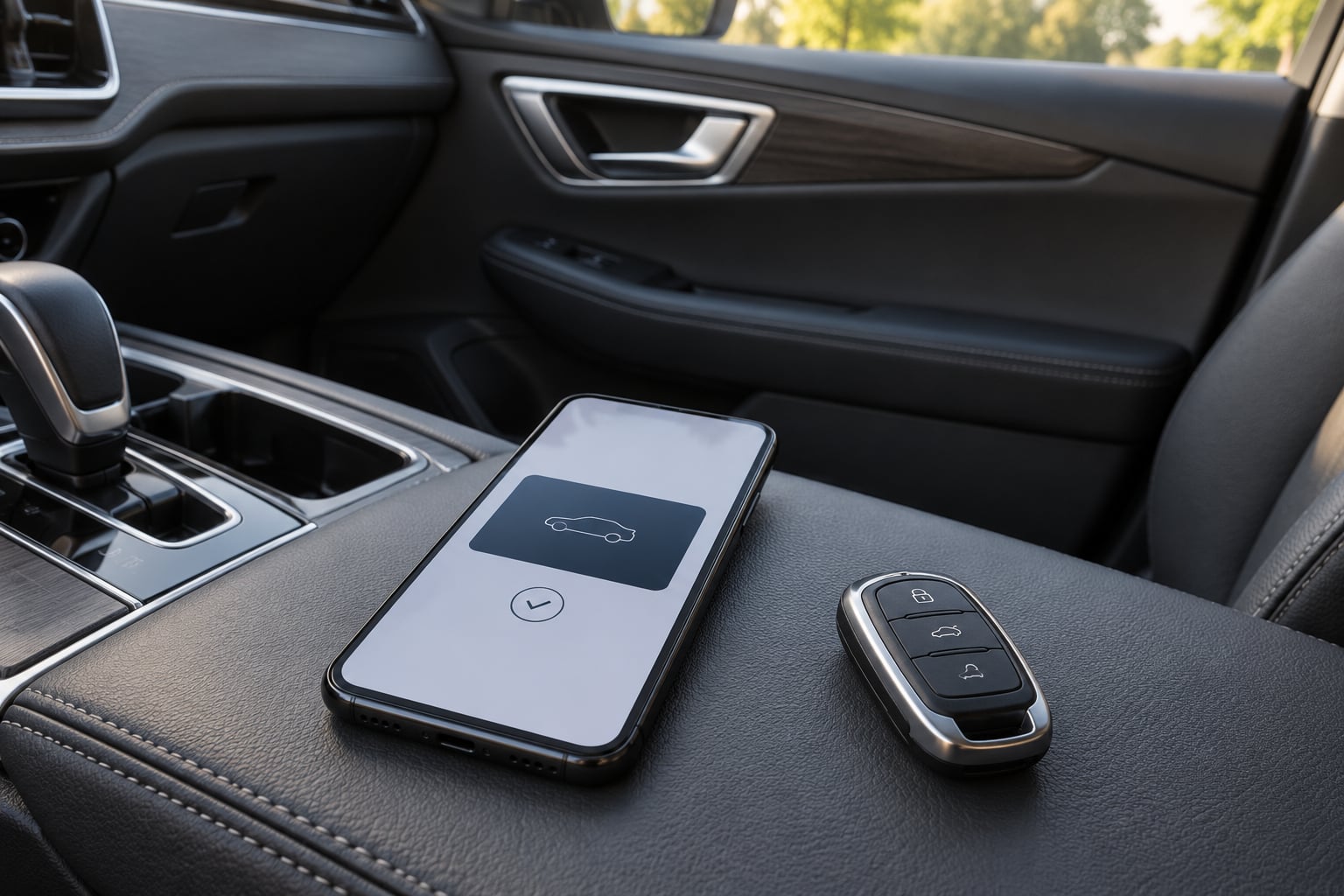
Now hold the top edge of the iPhone against the in-car key reader until you feel a light tap and see the pairing checkmark. On many cars that reader is inside the centre console or the charging pad area; on others it is behind a door-handle trim piece. It takes a few seconds, and lifting the phone too early restarts it.
After pairing, open Wallet and confirm the key sits on the default screen with your car’s name. Lock and unlock the doors from your phone before you drive away. If the phone reports success but the car does not move, treat the key as unconfirmed and keep using the fob.
Set Up Apple Watch Access
On a compatible Apple Watch, open the Watch app, go to Wallet, tap Car Keys, choose your vehicle and tap Add. The watch pairs on its own once the iPhone has the key, provided both devices are on current software and unlocked at the same time.
What you can do with the watch depends on the vehicle. Treat this table as a guide, not a guarantee.
| Function | iPhone | Apple Watch |
|---|---|---|
| Lock and unlock near the car | Yes | Yes, where the brand allows it |
| Walk-up unlock without touching the phone | Yes, with Express Mode on supported models | Yes, on supported Watch models |
| Lock and unlock from across the parking lot | Yes | Yes |
| Start the engine | Yes | Only on some brands and models |
| Minimum hardware | iPhone XS, iPhone SE 2nd gen | Watch Series 5, Apple Watch SE |
How you tell it worked: the watch shows the key in its Wallet app, and you can lock or unlock the car from the wrist while the iPhone is in a pocket or bag. If the key shows on the watch but the car ignores it, the brand usually still requires the iPhone nearby for the engine-start permission.
Test the Key Before You Rely on It
Run a short routine in an empty parking lot, not in traffic. Walk up and confirm passive entry unlocks the doors. Pull the handle, open the driver’s door, press the start button and drive a few metres, then park.
Next, test the remote functions from roughly 20 metres away: lock, then unlock. Check that the fob still works too, since you will want a fallback. Then turn your phone off and confirm the key’s power reserve behaviour matches what the brand describes for your model.
Keep the physical fob in your pocket for the first week. Forum threads from owners of Mercedes, Kia and Volvo models all repeat the same pattern: the digital key works in the showroom and quietly fails on a wet Tuesday morning, and the fob gets you home.
Moving a Key to a New iPhone
Restoring from an iCloud backup or upgrading phones can leave a key that appears in Wallet but is not properly registered with the car. The car keeps looking for the previous phone’s Bluetooth address, and the new phone never shows up in the pairing tray.
The reliable path is a clean rebuild. Remove the old phone from the vehicle’s Bluetooth list, delete the digital key inside the car’s own menu (MBUX on Mercedes, the settings screen on most others), delete the key from the old phone’s Wallet, power the old phone off completely, then add the key again from the automaker’s app with the vehicle nearby. Owners who skipped any one of those four steps reported the new phone simply not being detected.
Common Mistakes When Setup Fails
Almost every failed setup falls into one of these buckets.
The Car Keys Option Is Missing From Wallet
The vehicle is not on the supported list for your country or region, the model year is too old, or the automaker has not enabled Wallet for that market. Check the brand’s own compatibility page rather than a blog list, because these lists change as vehicles are certified. Automaker support can confirm whether your VIN qualifies.
The Key Is in Wallet but the Car Does Not See the Phone
This is the stale Bluetooth pairing problem. Remove the previous device from the car’s Bluetooth menu and repair CarPlay, then delete the key from the old phone’s Wallet and switch that phone off before retrying. Restarting the new iPhone and trying once more solves a surprising share of cases on its own.
The Key Restored from Backup but Never Works
A restored key can look complete in Wallet while the automaker’s backend still has it in a pending or stuck state. Only the automaker can release it. Deleting the key from Wallet and re-adding it through the app fixes most cases, but some owners needed dealer or support intervention, and one Mercedes owner described roughly three weeks of escalation. Set that expectation before you plan a trip around the key.
It Unlocks but Will Not Start
Some brands licence unlock and start separately. In Wallet, tap the information button on the key card and check that passive entry and engine start are both enabled, then confirm the same permissions inside the vehicle’s own app or menu. A key that opens the door perfectly and refuses the start button is almost always a permission switch, not a broken key.
Passive Entry Stopped Working After an Update
Express Mode can default to off after a major iOS release, and some automaker apps reset the feature during an update of their own. No error appears; the car simply stops unlocking as you approach. Re-enable it on the key card in Wallet, and if that fails, toggle it off and on again.
The Phone Is Not Detected at the Reader
A thick case, a metal or card-slot wallet case, and some windscreen mounts block the NFC coil. Take the phone out of the case and hold the top edge flat against the reader for three full seconds. Also confirm you are using the reader inside the cabin, since exterior readers on some models handle a different function.
Notifications Are Missing and You Are Not Sure It Locked
Not every vehicle reports lock and unlock confirmations back to Wallet. If your brand does not support the feedback, check the car itself rather than trusting the phone’s silence. Adding a key to an Apple Watch helps here, since the wrist tap gives a more obvious confirmation than a glance at a locked phone.
Frequently Asked Questions
Which cars and iPhones support adding car keys to Apple Wallet?
Support comes from the automaker, not Apple, and it varies by model, model year and country. You need iPhone XS or later, or iPhone SE (2nd generation) or newer, plus Apple Watch Series 5 or later or Apple Watch SE for wrist access. Cars typically need to be a current generation within a few model years, so check your brand’s official compatible vehicle list with your VIN before you start.
Can I add a car key to Apple Wallet without the automaker’s app?
Usually not. The automaker’s app, an activation link it sends by email or text, or a QR code on the vehicle’s screen all act as the gateway that hands the key to Apple Wallet. Once the invitation is accepted, Wallet does the pairing itself. A few newer vehicles expose Car Keys directly in Wallet, but check for the add button and the Car Keys option first.
Does Apple Wallet replace the physical car key completely?
Not yet. Keep the physical fob, because setup uses it to verify ownership, and because you will need a fallback when the digital key fails to pair after an update or a phone swap. Some brands let you deactivate the fob once you are confident, but plenty of drivers run both for months. The digital key saves you reaching into a pocket, not all the risk.
Can I share my Apple Wallet car key with another person?
Yes, on most supported brands. Open the key in Wallet, tap Share, and use AirDrop or a share link to send it to the other person’s iPhone or Apple Watch. The recipient activates it on their device. You can also invite a family member through the automaker’s app, where some brands let you set roles such as full access or a limited driver profile.
Why is the Car Keys option missing from my iPhone Wallet?
Three things cause this most often: your vehicle is not a supported model for your region, the brand has not enabled Wallet for your market, or the vehicle has no digital key assigned to your account yet. Confirm your VIN appears on the automaker’s compatible vehicle list, make sure your phone runs current iOS, and check that your account is verified inside the automaker’s app before contacting their support.
Can I use my Apple Watch to unlock the car after adding the key to iPhone?
On most supported brands, yes. Open the Watch app, choose Wallet, tap Car Keys and add the vehicle. The watch can lock and unlock the car, and many models support walk-up entry. Starting the engine from the watch is less common and depends on the vehicle, with several brands still requiring the iPhone to be nearby for that permission.
What to Do First
Open your automaker’s app and confirm the vehicle is registered and verified there. That single check resolves most of the failures people describe, because an unverified account never gets an invitation to Wallet.
Then add the key with the car parked and the fob in your hand, pair it against the reader inside the cabin, and test lock, unlock and start in an empty parking lot. Keep the fob for the first week, and if the key ever stops being detected, start your troubleshooting with the car’s Bluetooth list rather than your phone.
Apple Wallet is set up in Wallet under Car Keys, and everything before that happens in the automaker’s app.