FaceTime is Apple’s built-in calling app, and it comes with your iPhone, so there is nothing to download or buy. Learning how to use FaceTime on iPhone for beginners takes about five minutes: open the app, tap a contact, then tap the video camera icon for a FaceTime video call or the phone icon for an audio-only one.
The same controls work once you know what they mean, and the fixes for the two or three problems almost every beginner hits are simple. Paths below use the current iOS layout, Settings > Apps > FaceTime. On an older iPhone, FaceTime settings sit at Settings > FaceTime instead.
Table of Contents
- 1What You Need
- 2How to Use FaceTime on iPhone for Beginners: Step-by-Step
- 31. How to use FaceTime on iPhone for beginners: open the app and choose a contact
- 42. Start an audio or video call
- 53. Control the call from the FaceTime screen
- 64. Add or change FaceTime contact details
- 75. Manage FaceTime settings and permissions
- 8How to start a group FaceTime call and move a call to another device
- 9FaceTime with people who do not have an iPhone
- 10Common Mistakes
- 11The other person cannot hear you
- 12They cannot see you
- 13The call does not ring at all
- 14Quality is poor or the call keeps dropping
- 15The contact cannot be found or the call fails immediately
- 16FaceTime says Waiting for Activation or activation unsuccessful
- 17Nothing works after all of that
- 18Frequently Asked Questions
- 19Is FaceTime free to use on an iPhone?
- 20Do I need an iPhone to use FaceTime?
- 21How do I make a FaceTime video call from my iPhone?
- 22Why can’t the other person see or hear me on FaceTime?
- 23Can I use FaceTime over cellular data?
- 24Conclusion
What You Need
Four things have to be true before your first call connects, and checking them now saves an hour of guessing later.
- An iPhone with a current version of iOS. Apple keeps FaceTime updated, so update before your first call: Settings > General > Software Update.
- An Apple Account signed in. Apple renamed Apple ID to Apple Account, but it is the same login. You can see it under Settings > [your name]. If your name is missing, you are not signed in yet.
- A connection. Wi-Fi is the safe choice for video. FaceTime also runs over cellular data, which works fine on most plans but eats into your data allowance.
- Someone who can receive FaceTime. They need an iPhone, iPad or Mac signed into an Apple Account.
Two smaller details catch beginners out. FaceTime is not offered in every country, including Qatar, the UAE and mainland China, and on your very first launch the app can sit on “Waiting for Activation” for up to a minute while Apple verifies your account. Let it finish rather than force-quitting it.
Expect one permission prompt the first time. FaceTime asks for the camera and the microphone, and if you tap Don’t Allow, video and audio fail later with no obvious explanation.
How to Use FaceTime on iPhone for Beginners: Step-by-Step
1. How to use FaceTime on iPhone for beginners: open the app and choose a contact
Open FaceTime from your Home Screen by tapping the green camera icon. If you cannot find it, swipe down once from the middle of the screen and type “FaceTime”.
Across the bottom are three tabs. Recents holds the last calls you made and received, Contacts lists everyone on your iPhone who has FaceTime switched on, and Favorites holds the handful you call most. To start a new call, tap the blue plus button at the top right, type a name, phone number or email address, then tap the contact.
A contact card shows a photo, a name and the details you can reach that person on. If a phone number appears, FaceTime will use it. If an email address appears, FaceTime rings that address. You will often see both, and you can pick between them.
2. Start an audio or video call
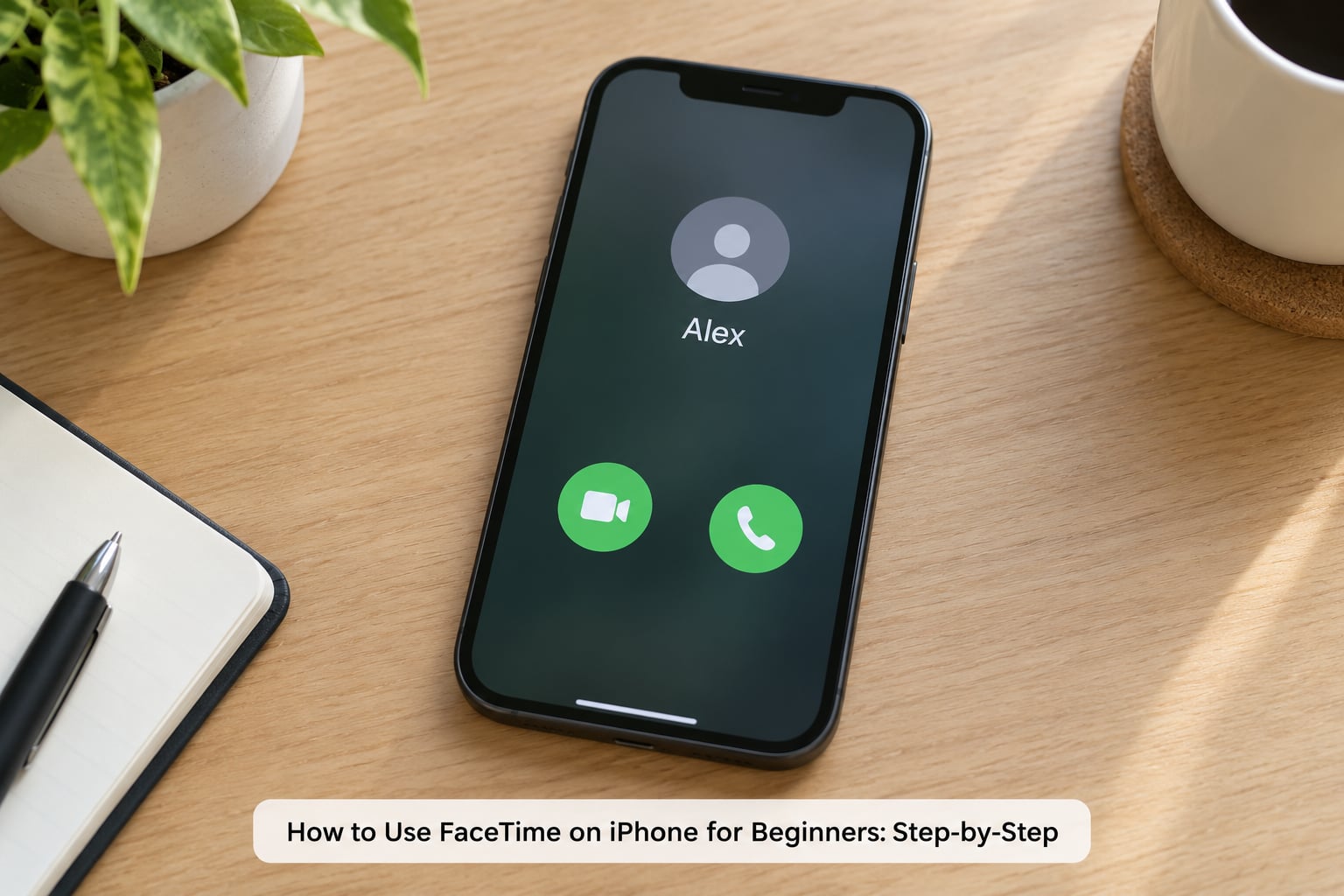
Two icons decide what kind of call you make. The video camera icon starts a FaceTime video call where you both see and hear each other. The phone icon starts an audio-only FaceTime call, which is the same thing as a regular phone call but routed through FaceTime.
The first time, iPhone asks permission to use the camera and microphone. Tap Allow for both. If you skipped it, open Settings > Apps > FaceTime > Camera and Microphone and switch both on.
You will know the call connected when the screen changes from the calling screen to your own face and the other person’s face, and you hear the first word they say. “Connecting” means it is still working, and “Call Failed” means it did not connect at all.
A call you do not answer leaves a video message, the same way a missed call leaves voicemail. FaceTime video messages only arrive from contacts you have saved or people you have called before.
3. Control the call from the FaceTime screen
The in-call screen has a row of round buttons across the middle, and every one of them toggles.
- Mute microphone silences you while keeping your video on, useful in a café or with a dog.
- Video turns your camera off without ending the call, so the other person sees a black tile instead of you.
- Flip camera switches between the front and rear camera.
- Speaker puts the call on the loudspeaker. Tap it twice to get audio routing back to earpiece, speaker, or a Bluetooth headset or car system if one is connected.
- Screen sharing lets the other person watch your screen. Tap the screen-sharing button, then swipe up from the bottom to close FaceTime and open whatever you want to show. Face a call, a photo, a document, anything.
- Effects opens filters, Memoji, and on recent iOS versions Portrait mode and reactions.
- End call hangs up, shown as a red button.
In a group call, tap the grid button to see every person as a tile, then tap a face to bring that person full screen.
4. Add or change FaceTime contact details
FaceTime pulls the addresses you can reach from your Contacts app, so the fix for most problems is there rather than in FaceTime. Open Contacts, tap the person’s name, then Edit, and check the phone numbers and email addresses listed. Anything saved there can receive a FaceTime call.
To add someone new, open the Contacts app, tap the plus button, enter their first and last name, and add a phone number or an email address under the fields for phone and email. Save, and that person appears in the FaceTime Contacts tab on the next search.
Duplicate entries usually mean the same person was saved twice, once as a phone number and once as an email. Merge them by editing one contact, scrolling to Related Contacts, and tapping Merge Contacts. If someone is missing from FaceTime entirely, check Settings > Apps > FaceTime > Caller ID is on and that the person has not switched off “You can be reached by FaceTime at” on their own device.
5. Manage FaceTime settings and permissions
Everything FaceTime-specific lives under Settings > Apps > FaceTime on a current iPhone. The first toggle is the master switch for “You can be reached by FaceTime at”, which lists the email addresses and phone numbers others can call.
Below that, FaceTime Audio decides whether incoming calls ring only on the iPhone or also on your iPad and Mac, through Wi-Fi calling and Bluetooth. Calls from Unknown Senders controls whether people who are not in your contacts can reach you. Camera and microphone permissions sit in the same place, and Camera and Microphone gates the feature that locks FaceTime in Restricted mode or the Screen Time app.
For data, go to Settings > Cellular and check FaceTime under Cellular Data. If you would rather not spend mobile data on video, turn it off there and FaceTime will simply use Wi-Fi. The Video section under Cellular also lets you set Low Data Mode for FaceTime, which lowers video quality on a weak signal.
How to start a group FaceTime call and move a call to another device
Start a group call from FaceTime by tapping the blue plus button, choosing up to eight people in the To field, and tapping the video camera icon once. Group FaceTime works across mixed iPhones, iPads and Macs. Adding someone mid-call is the same as adding a contact during a call.
To move a call to an iPad or Mac, tap the banner reading “Move call to this device”. That hand-off is also the explanation for a very common complaint: a call ringing on the laptop or the iPad while the iPhone sits silent. It is not broken, the call is simply being handed off, and you can turn that off in FaceTime Audio settings.
FaceTime with people who do not have an iPhone
FaceTime is built into iOS, so you do not need to install an app. The other person is the problem: someone on Android or Windows cannot receive a FaceTime call through the FaceTime app. You can create a FaceTime link on recent iOS versions, tap it with the blue plus button and share it by message or email, and on some setups the other person can join from their browser. Otherwise, fall back to the phone app, WhatsApp, or another video app for that one call.
Common Mistakes
Work through these in order, from cheapest to most disruptive. Stop as soon as the problem goes away.
The other person cannot hear you
Check the mute button first, then the Bluetooth route. If audio plays through a car system or an old headset you are not wearing, tap the speaker button twice to cycle back to the earpiece. On recent iOS, open Settings > Accessibility > Audio & Visual and try turning off Phone Noise Cancellation and Voice Isolation in the Sound section, which help in a noisy room but can thin out a quiet voice.
They cannot see you
Your camera is either blocked or turned off. Tap the video button to turn it back on, then open Settings > Apps > FaceTime > Camera and set it to While Using the App. Restart the app and try again.
The call does not ring at all
Slide the Ring/Silence switch on the side of the iPhone to silent and you have silenced FaceTime along with everything else. Flip it back. Still nothing, so open Settings > Apps > FaceTime > FaceTime Audio and check the devices listed there, since the call may be arriving on your iPad or Mac instead.
Quality is poor or the call keeps dropping
That is the connection, not the phone. Move closer to the router, check someone is not downloading a large file on the same Wi-Fi, and turn off Low Data Mode in Settings > Cellular > FaceTime if it is limiting quality. If the other person sounds robotic, their connection is the weak side.
The contact cannot be found or the call fails immediately
The address you are calling is wrong. Open the contact and check the number or email, then open Settings > Apps > FaceTime and confirm it appears under “You can be reached by FaceTime at”. A wrong date and time is another cause of instant failures: open Settings > General > Date & Time and switch on Set Automatically.
FaceTime says Waiting for Activation or activation unsuccessful
Activation sits on Apple’s servers and usually clears itself within a minute. Give it a few minutes with the app open, restart the iPhone, and check Settings > Apps > FaceTime for a red message with details. If it persists, switch FaceTime off, restart, switch it back on, then sign out of your Apple Account and sign back in. Activation problems often appear right after a major iOS update.
Nothing works after all of that
Reset Network Settings, at Settings > General > Transfer or Reset iPhone > Reset > Reset Network Settings, is the next step and it should be your last cheap option. Know what it erases before you tap it: all saved Wi-Fi networks and their passwords are deleted, so you will have to re-enter them for each network. Erase All Content and Settings comes after that and wipes the whole iPhone, so treat it as a last resort.
While you are in there, it is worth checking apple.com/systemstatus when calls fail for everyone in the house at once, since that points to an outage rather than anything you did.
Frequently Asked Questions
Is FaceTime free to use on an iPhone?
Yes. FaceTime comes free with every iPhone, iPad and Mac, and calls between Apple devices cost nothing over Wi-Fi. There is no in-app purchase and no subscription to manage. Over cellular data the call is still free, but it uses your mobile data allowance instead of carrier minutes, which matters on a plan with a small data cap.
Do I need an iPhone to use FaceTime?
You do not strictly need an iPhone, since FaceTime is available on iPad and Mac too. But the person on the other end does need an Apple device signed into an Apple Account, otherwise the call cannot connect. On recent iOS versions you can create a FaceTime link and share it, which some non-Apple users can open in a browser.
How do I make a FaceTime video call from my iPhone?
Open FaceTime, tap the blue plus button, search for the person by name, number or email address, and tap them. Then tap the video camera icon, not the phone icon, since the phone icon starts an audio-only call. Allow camera and microphone access when iPhone asks. The call connects when you see the other person’s face and hear sound.
Why can’t the other person see or hear me on FaceTime?
Two things cause this most often. If they cannot see you, your camera is off or blocked: tap the video button to switch it back on and check Settings Apps FaceTime Camera is set to While Using the App. If they cannot hear you, check the mute button, then tap the speaker button twice so audio is not routed to a Bluetooth headset or car system.
Can I use FaceTime over cellular data?
Yes, and for most people it works with no setup at all. FaceTime runs over Wi-Fi or mobile data automatically and picks whichever is available. If you want to control it, open Settings Cellular and turn FaceTime off under Cellular Data to restrict calls to Wi-Fi. Turning on Low Data Mode for FaceTime lowers video quality when the mobile signal is weak.
Conclusion
Open FaceTime, pick one contact, and make a two-minute test call. Tap the video camera icon, say Allow when the camera and microphone prompts appear, and the rest is buttons you can learn while talking.
If something fails, work the list in order: check the connection, toggle FaceTime off and on, restart, then sign out and back into your Apple Account. Save Reset Network Settings for last, because it deletes your saved Wi-Fi passwords. Fix one thing at a time and you will have the call working inside ten minutes.