To set up text message forwarding to Mac from your iPhone, open Settings on the iPhone, tap Messages, tap Text Message Forwarding, and flip the switch for your Mac. Your iPhone does the actual relaying, so it stays on and connected the whole time. The whole job takes about two minutes once both devices are signed in to the same Apple Account.
The catch is that forwarding only handles SMS and MMS. If you text people on Android, or anyone whose number isn’t registered with iMessage, those green-bubble texts are the ones that need this feature. Blue-bubble iMessage conversations already sync to your Mac through iCloud without any forwarding at all.
I’ve set this up on more Macs than I want to admit, and almost every failure comes down to one thing: something is signed into the wrong Apple Account, or the Mac was never awake and online when the iPhone tried to reach it. Here’s the order that works.
Table of Contents
- 1What You Need Before You Start
- 2Step-by-Step: How to Set Up Text Message Forwarding to Mac
- 3Step 1: Open Messages on Your Mac and Sign In With Your Apple Account
- 4Step 2: Turn On Text Message Forwarding on the iPhone
- 5Step 3: Approve the Six-Digit Activation Code on the Mac
- 6Step 4: Send a Test Text and Confirm It Arrives
- 7Green Bubble or Blue Bubble: What Actually Reaches Your Mac
- 8Common Mistakes and Quick Fixes
- 9Why your Mac does not appear in the device list
- 10How to get old message history onto a new Mac
- 11Frequently Asked Questions
- 12Can I forward text messages from my iPhone to my Mac?
- 13Will forwarded texts appear as iMessages or regular text messages?
- 14Why is the Text Message Forwarding option missing on my iPhone?
- 15Can I forward messages to more than one Mac?
- 16Does text message forwarding work when my Mac is asleep?
- 17How do I turn off text message forwarding on my iPhone?
- 18Start With These First Three Steps
What You Need Before You Start
Four things have to be true before the toggle will do anything. Check them in this order, because each one causes the next failure if it’s wrong.
| What | Requirement | Why it matters |
|---|---|---|
| iPhone | Signed in and powered on, with a working cellular connection | The iPhone is the relay. Every forwarded SMS and MMS travels through it. |
| Apple Account | The same Apple Account on the iPhone and the Mac | Mismatched sign-ins are the most common reason nothing appears in the device list. |
| Messages app | Signed in and activated on the Mac | The Mac has to be running Messages before the iPhone can offer it as a destination. |
| Both devices in range | Same Wi-Fi network and physically nearby for the first approval | The activation code handshake needs both devices close together. |
Two more details worth knowing up front. Apple renamed Apple ID to Apple Account, so older guides that tell you to check your Apple ID are still describing the same account. And the setting path itself moved: on recent iOS versions the Messages folder sits inside the Apps section of Settings, so some guides with a different path are right for their version and wrong for yours.
Step-by-Step: How to Set Up Text Message Forwarding to Mac
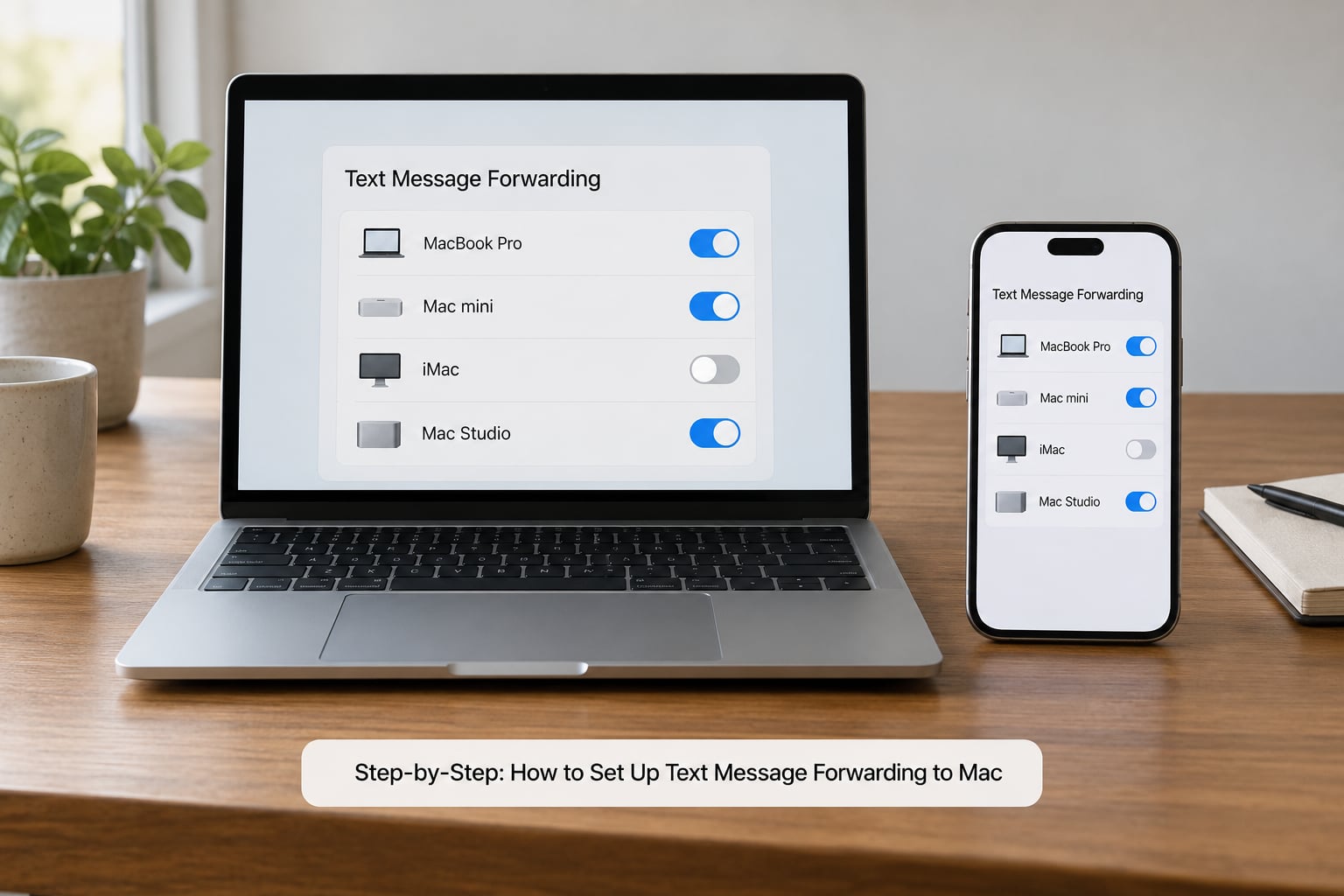
Do these four steps in order. Each one depends on the last, and skipping the first is why so many people find an empty Mac.
Step 1: Open Messages on Your Mac and Sign In With Your Apple Account
On the Mac, open the Messages app. If it asks you to sign in, use the Apple Account that is already on your iPhone, not a second one. Check the address in Messages > Settings > iMessage under Send & Receive to be sure the same email address and phone number are highlighted.
If Messages on the Mac was never opened before, sign in and send yourself one test iMessage from the iPhone first. Seeing that bubble arrive tells you the Apple Account half is working before you start chasing forwarding problems.
A Mac that isn’t signed in won’t appear in the forwarding list at all. That is the single most asked-about failure in Apple’s own forums, and no amount of toggling on the iPhone fixes it.
Step 2: Turn On Text Message Forwarding on the iPhone
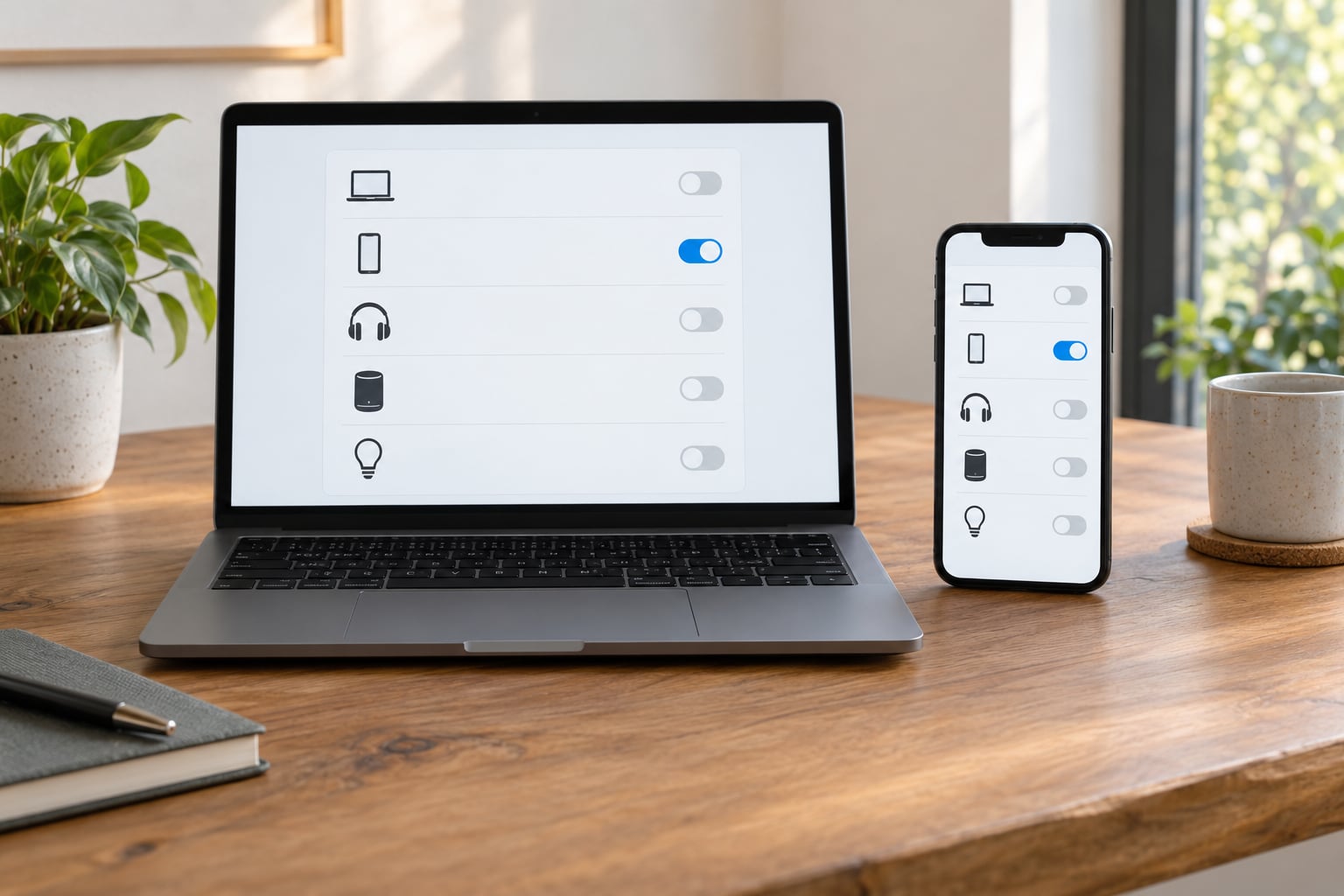
On the iPhone, open Settings and tap Messages, then tap Text Message Forwarding. On recent iOS versions you go through Settings > Apps > Messages > Text Message Forwarding instead, because Messages was moved into the Apps folder. If you see an Apps row near the top of your Settings list, use that path.
Your Mac appears in the list by name with a toggle switch beside it. Flip it on. You can turn on more than one Mac and an iPad at the same time, and they all receive the same relayed messages.
Each Mac has its own switch. Turning one off leaves the others running, which is handy when you have an iMac at a desk and a MacBook that comes and goes.
Step 3: Approve the Six-Digit Activation Code on the Mac
Keep both devices within about three feet of each other, then unlock the Mac and open Messages. A six-digit activation code prompt appears on the Mac, or you tap it in the notification that slides in at the top right.
Type the code exactly as shown and press Return. If no code appears, wait about ten seconds and try once more with both devices unlocked. Plenty of people never see a code at all and forwarding still works, so if nothing shows after a couple of attempts, move on and send a test text. Users on r/MacOS and r/mac report this is normal more often than not.
Step 4: Send a Test Text and Confirm It Arrives
On the iPhone, open Messages, tap the compose icon at the top right, and start a new conversation with a number that uses SMS, such as an Android phone. Type a short message and send it.
On the Mac, the same conversation appears within a few seconds with a green bubble. Reply from the Mac using the full keyboard. If the test text arrives but a conversation from an iMessage contact doesn’t show, that’s an iCloud sync problem, not a forwarding problem.
Green Bubble or Blue Bubble: What Actually Reaches Your Mac
Most confusion about this feature comes from expecting forwarded texts to behave like iMessage. They don’t. Two completely different systems are at work, and only one of them uses forwarding.
| Blue bubble iMessage | Green bubble SMS and MMS | |
|---|---|---|
| How it reaches the Mac | Synced through iCloud with Enable Messages in iCloud turned on | Relayed live by the iPhone through Text Message Forwarding |
| Does the iPhone need to be on | No | Yes, with a cellular or Wi-Fi connection |
| Works on a non-Apple Mac | No | No |
| Old history appears automatically | Yes, if iCloud has room | No, only messages sent after you turned it on |
| Needs forwarding switched on | No | Yes |
This also explains why a reply you send from the Mac sometimes goes out green even when you started with a blue conversation. If your Send & Receive list has no phone number selected as a starting address, the Mac has no way to reach an SMS gateway, so it falls back to whatever route it has.
Open Messages > Settings > iMessage, confirm your phone number appears with a checkmark next to it in Send & Receive, and green-bubble replies start working properly.
Common Mistakes and Quick Fixes
Nearly every problem people hit has a symptom and a fix. Find your symptom in the first column, then work down that row.
| Symptom | Fix |
|---|---|
| No Text Message Forwarding option in Settings | Look under Settings > Apps > Messages first. If it’s still missing, restart the iPhone and confirm you’re on a current iOS version. |
| Your Mac isn’t in the device list | Open Messages on the Mac and sign in with the same Apple Account as the iPhone, then reopen Settings > Messages > Text Message Forwarding. |
| No activation code ever appears | Usually fine. Unlock both devices, keep them close, and test with a real text instead of waiting for a code. |
| Texts not arriving on the Mac | Check the toggle is on, the Mac is awake and online, the iPhone has a connection, and both devices use the same Apple Account. |
| Replies from the Mac send as green SMS | Add a phone number to Send & Receive in Messages > Settings > iMessage on the Mac. |
| Old conversations missing on a new Mac | Forwarding only relays new messages. Turn on Enable Messages in iCloud to bring back synced iMessage history. |
| Two-factor codes don’t appear on the Mac | These come from the carrier, not iCloud. Wait for the code on the iPhone, then enter it manually on the Mac. |
Why your Mac does not appear in the device list
Run this sequence in order and stop at the first step that changes something. Most people find the answer at step two.
- Open the Messages app on the Mac and confirm it is signed in with the same Apple Account as the iPhone, checking the address in Send & Receive.
- Send one iMessage to the Mac from the iPhone. If it never arrives, the Apple Account sign-in is the problem, not forwarding.
- Turn Messages off and on again in Messages > Settings > iMessage on the Mac.
- Sign out of the Apple Account on the Mac and back in, then reopen Settings > Messages > Text Message Forwarding.
- Update both devices. Users report failures cluster around old system versions far more often than around the forwarding toggle itself.
- Turn off two-factor authentication temporarily for the Apple Account, as Apple’s own support documentation suggests, then re-enable it afterwards.
How to get old message history onto a new Mac
Buying a new Mac and expecting your entire history to walk over is the most common disappointment here. Forwarding relays messages sent after you switch it on. It does not move anything backwards.
For iMessage history, turn on Messages in iCloud on the iPhone, make sure your iCloud storage has room, then on the Mac go to System Settings > Apple Account > iCloud > Messages and turn on Sync. Existing blue-bubble conversations start appearing on the Mac. Older iOS versions used a Sync Now button in that same pane.
Green-bubble history has no sync path at all. If you need those conversations on a computer for safekeeping, save a full backup of the iPhone and open it in the Messages app from the backup, which gives you a read-only record rather than a working thread.
Frequently Asked Questions
Can I forward text messages from my iPhone to my Mac?
Yes, as long as both devices use the same Apple Account and Messages is signed in on the Mac. Go to Settings Apps Messages Text Message Forwarding on your iPhone and switch on your Mac by name. Only SMS and MMS messages are forwarded. iMessage conversations reach your Mac through iCloud instead, without this setting.
Will forwarded texts appear as iMessages or regular text messages?
Forwarded texts appear as regular SMS with green bubbles, because the carrier handles them rather than Apple. Replies you send from the Mac also go out green unless your Mac’s iMessage settings have a phone number selected as a starting address. That green appearance is normal and does not mean forwarding failed.
Why is the Text Message Forwarding option missing on my iPhone?
On recent iOS versions Messages sits inside the Apps folder, so the path is Settings Apps Messages Text Message Forwarding. If it is still missing, restart the iPhone and check for a system update. Older guides that show a plain Settings Messages path were written for earlier iOS releases and do not match what you are seeing.
Can I forward messages to more than one Mac?
Yes. Each Mac has its own toggle in Text Message Forwarding, and you can switch on several at once, along with an iPad. Every destination receives the same relayed SMS and MMS messages. Turning one toggle off leaves the others running, which works well if you have a desktop Mac and a laptop you travel with.
Does text message forwarding work when my Mac is asleep?
Not reliably. A sleeping Mac has no connection to relay anything to, and messages that arrive while it is closed may not appear until the Mac wakes and the Messages app opens. Forwarding needs the iPhone awake and online as well, since it is doing the relaying. Closing the lid on a MacBook effectively pauses this.
How do I turn off text message forwarding on my iPhone?
Open Settings Apps Messages Text Message Forwarding and flip the toggle beside your Mac back off. On older iOS versions use Settings Messages Text Message Forwarding. Nothing is deleted when you turn it off, but new SMS and MMS messages stop reaching that Mac. To remove a Mac entirely, sign out of iCloud on it and erase it.
Start With These First Three Steps
Open Messages on the Mac and confirm the Apple Account matches your iPhone. Send one iMessage to confirm the Mac can receive anything. Then turn on the toggle in Settings > Apps > Messages > Text Message Forwarding and send a test SMS to an Android number.
If the test SMS lands, everything is done. If the Mac never showed up in the device list, the Apple Account sign-in is the cause, and no amount of toggling on the iPhone will change that.