Slow motion on an iPhone is a built-in camera mode, not an app. Swipe the mode strip above the red shutter button to choose Slo-mo, pick 120fps or 240fps, record normally, then decide in the Photos app how much of the clip plays slow. The whole thing takes about a minute once you know where the controls sit.
Below is the exact path I use, screen by screen, plus what goes wrong most often and why a 240fps clip sometimes shows up as 177fps on a computer.
Table of Contents
- 1What You Need
- 2How to Use Slow Motion Video on iPhone (2026) Step by Step
- 3Open the Camera and Choose Slo-mo
- 4Select the Frame Rate and Resolution
- 5Record and Check the Clip
- 6How to Edit, Save, and Share a Slow Motion Video on iPhone
- 7Common Mistakes
- 8Frequently Asked Questions
- 9Which iPhone models can record slow motion video?
- 10Should I use 120fps or 240fps for slow motion video?
- 11Why is the Slo-mo option missing from my iPhone Camera app?
- 12Can I change a normal video into slow motion after recording it?
- 13How much storage does a slow motion video use?
- 14Can I edit and share a slow motion video in Photos?
What You Need
You need three things: an iPhone with a compatible rear camera, the built-in Camera app, and enough free storage for high frame rate clips.
On the model side, any iPhone from the 6s generation onward records slow motion. The 240fps option arrived with the iPhone 8, so if you have an older phone you are limited to 120fps. Resolution varies too — some models shoot Slo-mo at 1080p, others at 720p, and a few offer both so you can pick per clip.
Nothing needs to be downloaded. The Camera app handles capture and the Photos app handles trimming, and both are already on the phone.
Check storage before a long session. Open Settings, tap General, then iPhone Storage, and look at how much room Videos is using. High frame rate footage fills space far faster than standard video, so running out halfway through is common.
Light matters more than resolution here. A 240fps clip gathers much less light per frame than a normal 30fps recording, so a bright scene at 720p usually looks better than a dark scene at 1080p.
How to Use Slow Motion Video on iPhone (2026) Step by Step
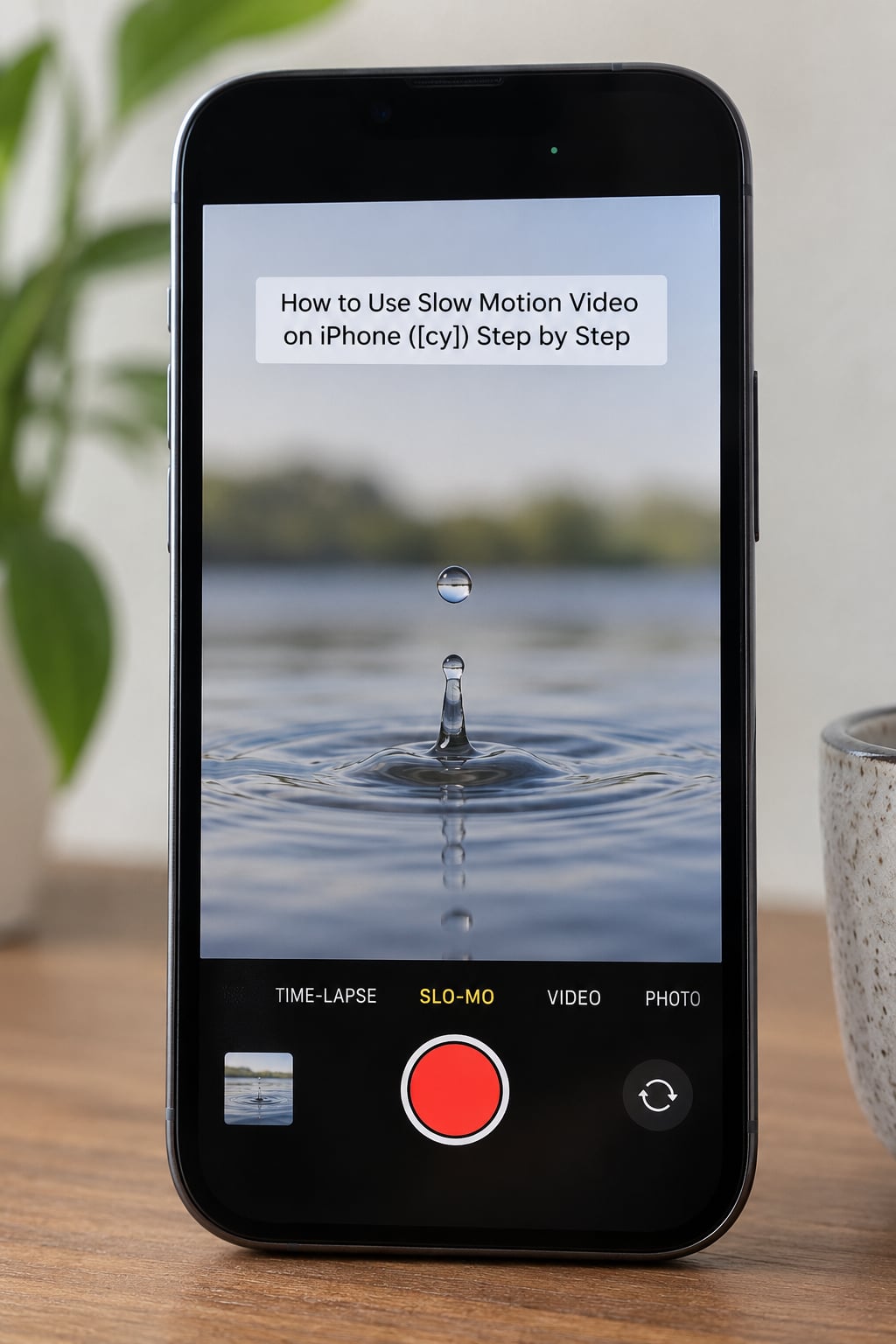
Open the Camera and Choose Slo-mo
Open the Camera app and swipe the mode strip horizontally above the shutter button until you pass Video and land on Slo-mo. The label turns red when it is selected.
On recent iOS versions you can also tap and hold the mode name to get the full mode list in one grid, which is quicker when you bounce between Video and Slo-mo.
If Slo-mo is not on the strip at all, something is restricting the camera. Check Screen Time under Settings, then App Limits, because a Camera restriction hides modes as well as hiding the camera. Restarting the phone clears a mode list that looks frozen or incomplete.
Select the Frame Rate and Resolution
With Slo-mo open, tap the frame rate and resolution numbers in the strip along the top of the viewfinder. A small menu appears with the options your model supports, usually 720p or 1080p at 120fps or 240fps.
Here is the practical difference. 120fps captures far more light per frame, so it stays clean indoors and after sunset, and it plays back at roughly a quarter of normal speed before trimming. 240fps captures less light and pulls motion further, which makes it the right pick for a water splash or a jump in bright daylight.
File size follows the same logic. 240fps clips are noticeably bigger, and combining the highest resolution with the highest frame rate costs you the most space for the shortest recording time.
Record and Check the Clip
Tap the red record button to start and tap it again to stop. A counter shows elapsed time at the top, and the yellow dot marks the current moment.
Keep the camera as steady as you can and try to keep your subject in roughly the same spot in the frame. When the subject leaves and comes back, the trimming step gets harder because the slow section has to start somewhere sensible.
Watch the clip back before you leave the scene. Open Photos, find the newest item, and play it. If you want to judge the quality properly, tap the trim tool and use the frame viewer to step through the action rather than relying on the automatic playback.
How to Edit, Save, and Share a Slow Motion Video on iPhone
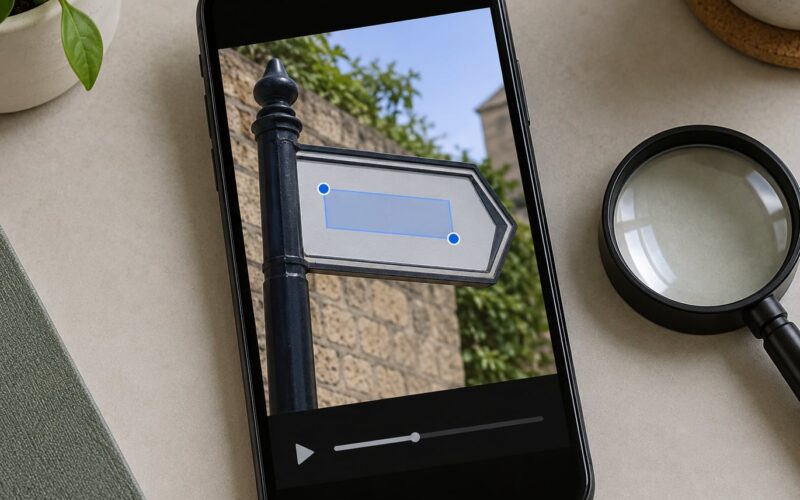
Open the clip in Photos, tap Edit, then choose the slow-motion tool. The timeline shows two vertical trim lines marking the section that plays slow, and you can drag them inward so only the part you care about is slowed.
Two small squares sit below the timeline. Tap the left one and drag it across the timeline to scrub frame by frame, which is the only reliable way to catch the exact frame a runner lands or a glass hits the floor.
Below the timeline you will find the Revert button and the option to switch playback between Normal video and Slo-mo video. Normal video plays the whole clip at real speed with no slow section, which is what you want when you are sharing something that reads better at full speed.
Tap Done to save. iOS keeps your original clip and creates the edited version alongside it, so you always have the raw recording to come back to.
To share, tap the share icon in the top right and choose Messages, AirDrop, or any social app on the sheet. Sending through Messages keeps the clip as a real video file. Some apps re-encode it during upload, and Google Photos is a known example where playback behaviour changes after the upload.
Common Mistakes
The Slo-mo mode is missing. A Screen Time camera restriction is the usual reason. Open Settings, then Screen Time, then App Limits, remove the Camera restriction, and reopen the Camera app.
The footage is dark and grainy. Each frame receives a fraction of the light a normal frame gets, so high frame rates amplify noise. Add light, shoot near a window, or drop from 240fps to 120fps before anything else.
The footage flickers. LED bulbs and fluorescent tubes emit light in pulses that a high frame rate samples unevenly, producing bands or a strobing look. Daylight fixes it. Indoors, film a lamp rather than a ceiling panel, and check whether your phone offers an anti-flicker setting in the Camera or Accessibility menus.
You filmed at normal speed by mistake. Confirm the red Slo-mo label before you record. If the clip is already in Photos, you can slow the whole thing down with the speed slider under Edit, but you are stretching existing frames, so fast motion breaks down quickly.
The clip plays at 30fps on a computer. Most desktop players ignore the high frame rate tag and simply play the file at normal speed, and some editors drop frames on import to keep the timeline responsive. Import it into a program that respects the original frame rate, or change the sequence settings to match the clip before editing.
The metadata reports 177fps instead of 240fps. Players on iPhone 13 Pro Max and later models report a lower effective rate for 240fps clips, and several users on Reddit have hit the same figure. Nothing is wrong with the file. The camera is capturing at the selected rate, and the reported number is a property of how the clip was encoded for playback.
Storage fills up mid-shoot. Check free space in Settings before a long session, delete finished clips from Recently Deleted after you export them, and consider 1080p at 120fps as your default when space is tight.
Frequently Asked Questions
Which iPhone models can record slow motion video?
Any iPhone from the 6s generation onward records slow motion in the built-in Camera app. The 240fps option is available from the iPhone 8 onward. Resolution depends on the model, with some offering both 720p and 1080p while others offer a single option. The relevant factor is the rear camera, not the chip inside.
Should I use 120fps or 240fps for slow motion video?
Use 120fps indoors, at night, or whenever light is short, because each frame gathers more light and stays cleaner. Use 240fps outdoors in bright conditions when you want to pull motion further, such as a splash, a jump, or a spinning fan. Higher frame rate always means lower light per frame and larger files.
Why is the Slo-mo option missing from my iPhone Camera app?
A Screen Time camera restriction is the most common cause. Go to Settings, then Screen Time, then App Limits, and remove any limit applied to the Camera. If none is set, restart the phone, which usually restores the full mode strip. Modes can also disappear on very old devices that no longer receive current iOS updates.
Can I change a normal video into slow motion after recording it?
Yes, you can slow any clip down inside Photos, though you are stretching frames that already exist. Open the video, tap Edit, choose the speed tool, and pick a slower preset or drag the slider. Fast movement turns wobbly and hard to watch, so this works best on gentle motion. Recording in Slo-mo mode gives you far more detail to work with.
How much storage does a slow motion video use?
It depends on the combination of frame rate and resolution, and on how long you record. 240fps clips are considerably larger than 120fps clips because they store about eight times as many frames per second as a 30fps recording. Check free space in Settings, General, iPhone Storage before a long session, and clear Recently Deleted after exporting anything you want to keep.
Can I edit and share a slow motion video in Photos?
Yes. Open the clip, tap Edit, drag the vertical trim lines to set the slow section, and use the frame viewer to scrub single frames before saving. Tap Done to keep both your original and the edited version. Share it from the share sheet, though some apps re-encode uploads and change how the clip plays back afterwards.
Start with one short clip: shoot 10 seconds at 120fps in decent light, trim the slow section in Photos, and scrub it frame by frame. That single test tells you how your model handles motion and how much storage each clip costs, and after that the frame rate choice takes about two seconds to make.