To use Lockdown Mode on an iPhone, open the Settings app, tap Privacy & Security, scroll down and tap Lockdown Mode, then tap Turn On Lockdown Mode twice and choose Turn On & Restart. Your iPhone restarts and the extra protections are active. Yes, you can still use your iPhone in Lockdown Mode, though some websites, attachments and features will stop working, and turning it off later takes another restart.
This guide follows the menus as they appear in 2026, and it works on iOS 16 and later. The whole job takes about five minutes, most of it spent waiting for two restarts.
Table of Contents
- 1What You Need
- 2Step-by-Step
- 3How to Use Lockdown Mode on iPhone in Settings
- 4Turn On Lockdown Mode and Restart Your iPhone
- 5Check That Lockdown Mode Is Active
- 6Review Lockdown Mode Limits and Exceptions
- 7Turn Off Lockdown Mode
- 8Common Mistakes
- 9Mistakes That Trip People Up Most Often
- 10Quick Tips
- 11Frequently Asked Questions
- 12What does Lockdown Mode do on an iPhone?
- 13Which iPhone models support Lockdown Mode?
- 14Does Lockdown Mode stop all viruses and malware?
- 15Can I browse the web normally with Lockdown Mode on?
- 16How can I tell whether Lockdown Mode is enabled?
- 17Will turning off Lockdown Mode remove my existing data?
- 18Conclusion
What You Need
Four things, and one of them trips people up more than the setting itself.
- An iPhone 8 or later. Older models do not have the option at all, and the toggle never appears.
- iOS 16 or later. Apple added Lockdown Mode in iOS 16. Update first, because Apple has extended the protections in later releases and an outdated phone misses them.
- A device passcode. Face ID or Touch ID alone will not work here. Without a passcode set, Lockdown Mode will not turn on.
- A recent backup. Nothing is deleted, but a backup ten minutes before you change security settings is just good manners.
One clarification before you start: Lockdown Mode is an optional, extreme-security setting. It is not antivirus software, it does not scan anything, and it does not replace keeping your iPhone updated. It switches off whole categories of features that sophisticated spyware attacks tend to exploit, which is why it costs you functionality.
If you want a plain-English answer on how lockdown works on iPhone, think of it as shrinking the attack surface. Every blocked feature is one less door for a malicious attachment or a malicious website to come through.
Step-by-Step
How to Use Lockdown Mode on iPhone in Settings
Lockdown Mode lives in one place: the Privacy & Security section of the Settings app. The path has not changed since iOS 16, though the exact position of Lockdown Mode within that list has shifted between versions, so scroll rather than assuming.
You will know you are in the right screen when you see the Lockdown Mode description and a switch at the top. Tapping into it shows the full list of what will be restricted before anything is changed, and you can back out at any point without restarting.
Turn On Lockdown Mode and Restart Your iPhone
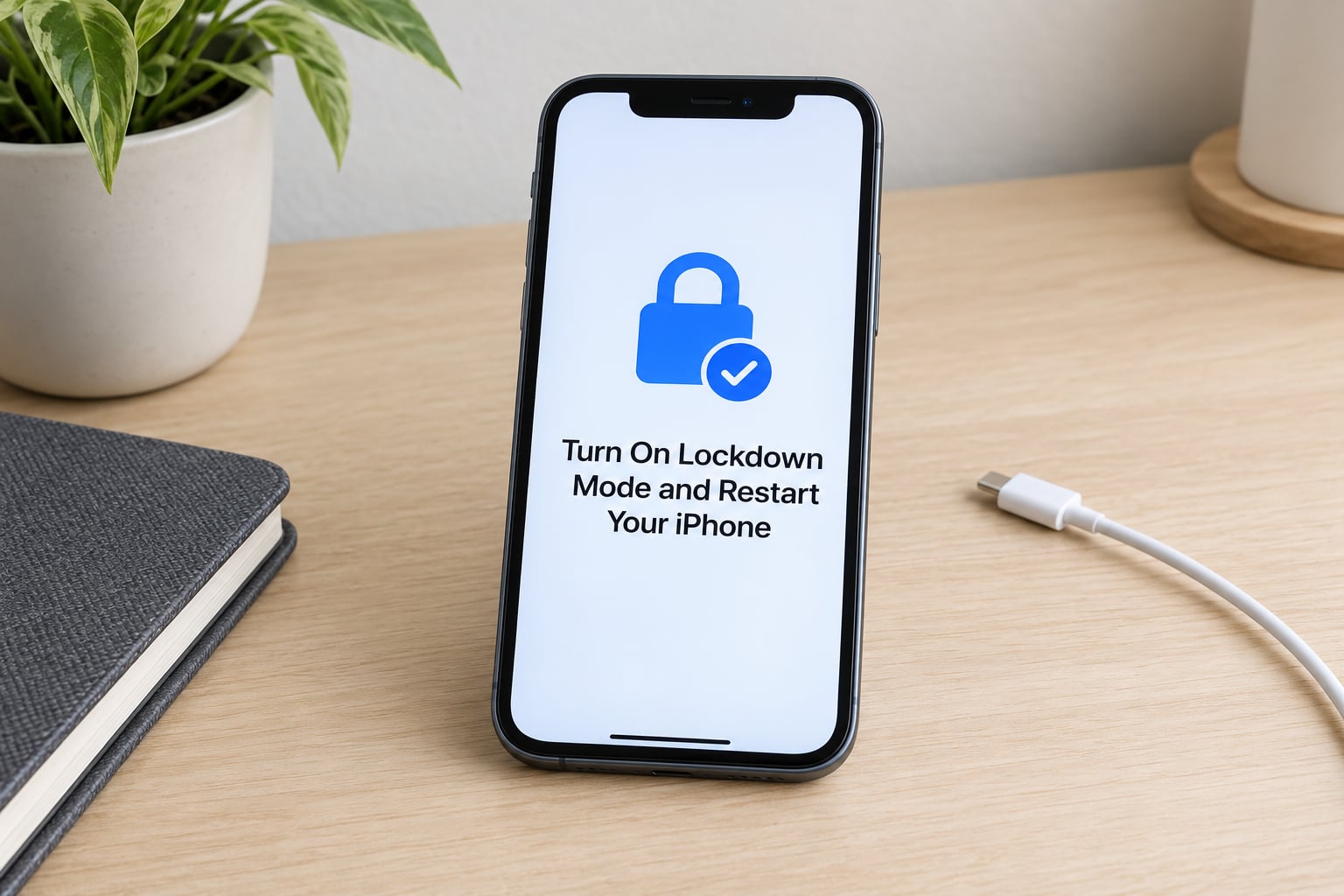
Once you are on that screen, the activation is five short steps. This is the same path Apple documents, which matters because search engines pull their answer straight from it.
- Open the Settings app and tap Privacy & Security.
- Scroll down, tap Lockdown Mode, then tap Turn On Lockdown Mode.
- Review the warning screen listing what will be restricted.
- Tap Turn On Lockdown Mode again to confirm.
- Tap Turn On & Restart, enter your device passcode, and wait for the iPhone to restart.
Cancel is available on the warning screen, so if you change your mind you leave with nothing altered. Once the restart starts, browser and configuration functions can be briefly unavailable while the protections are applied, and the screen stays on the Apple logo a little longer than a normal restart.
If nothing happens after you tap Turn On & Restart, the usual cause is a wrong or missing passcode. Lockdown Mode will not activate without it.
Check That Lockdown Mode Is Active
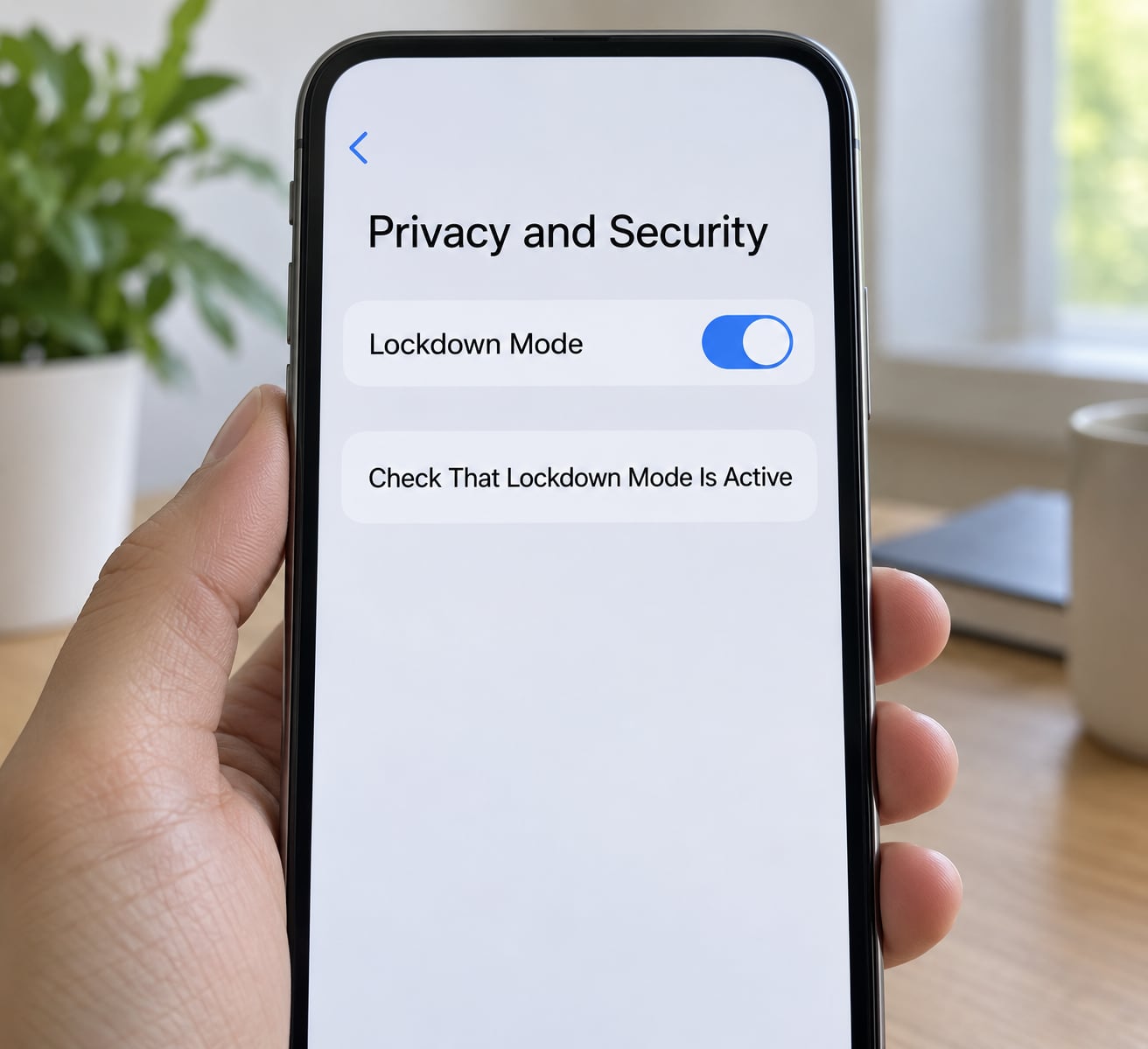
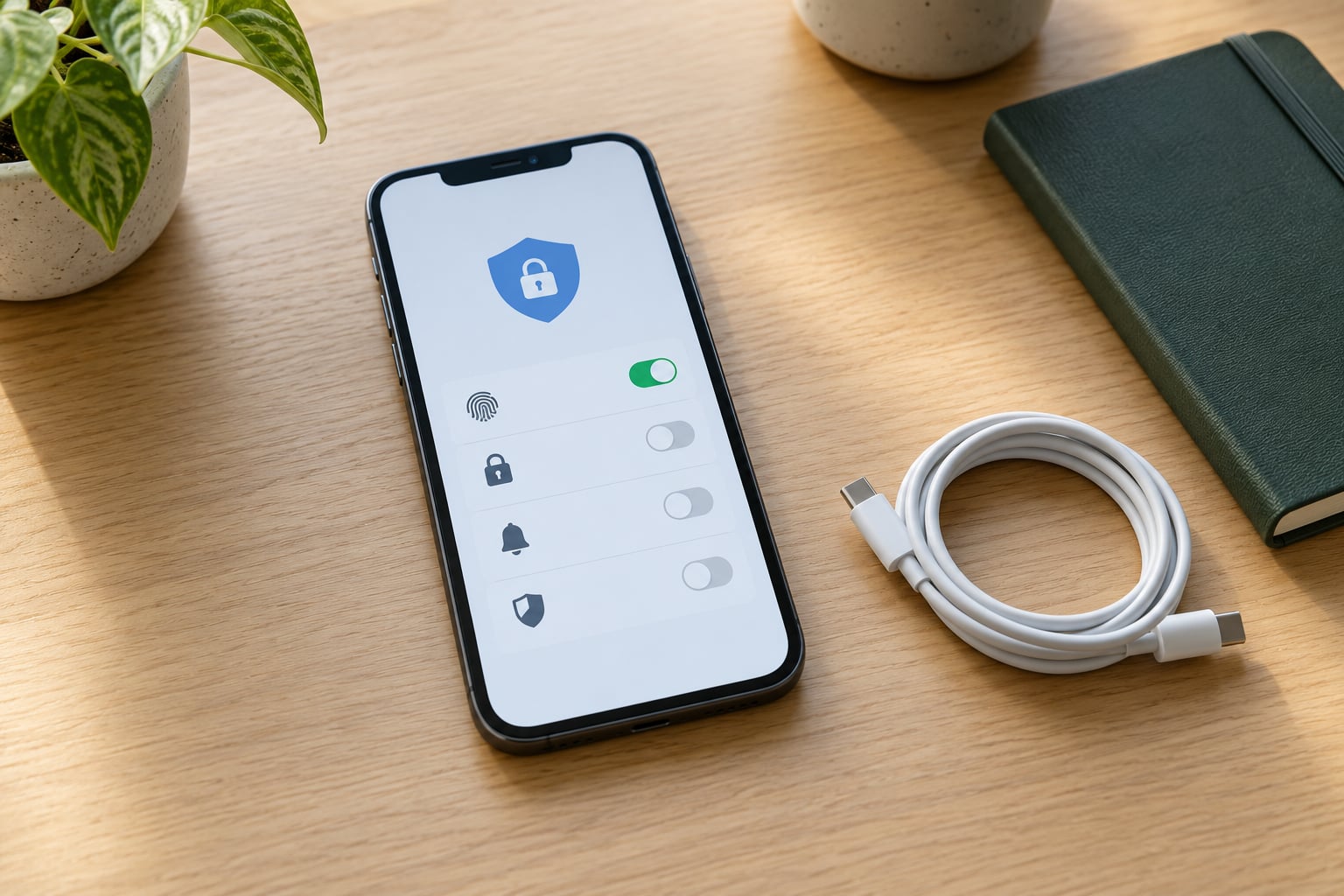
To verify protection, go back to Settings, tap Privacy & Security, scroll to Lockdown Mode, and read the switch. That switch is the only definitive check, and it is the first thing to look at if you are ever unsure.
In Safari, an on-screen banner also appears at the top telling you Lockdown Mode is on. It is a useful secondary signal, but the absence of that banner means nothing on its own: banners get dismissed, some browsers do not show them, and messages and FaceTime restrictions stay active regardless of what Safari displays.
Switch position is also how you tell whether a restriction is doing its job. If a site you expected to be blocked loads perfectly, and the switch is off, someone turned it off deliberately or an update reset it.
Review Lockdown Mode Limits and Exceptions
Here is what actually stops working. The exact list depends on the iOS version installed, so read the on-screen list rather than trusting any article, including this one.
- Web browsing: web fonts, just-in-time JavaScript compilation and WebAssembly are blocked, so some complex sites render badly or not at all.
- Attachments and profiles: certain risky file types are blocked, and configuration profiles cannot be installed while Lockdown Mode is on.
- Messages: link previews are disabled, which removes a common way a hidden preview loads remote content. Some two-factor codes sent by text also stop autofilling.
- Calls and Apple services: incoming FaceTime calls from people you have not contacted in the past 30 days are blocked, as are Apple service invitation requests from unknown senders.
- Shared items: location data is stripped from shared photos, and Shared Albums and Game Center features drop out.
You can carve out exceptions. Under the same Lockdown Mode screen, Customize Web Sites lets you switch specific websites off from blocking, and in recent iOS versions Customize Contacts does the same for specific people. The in-app Page Menu in Safari also shows a lockdown notice with an option to turn it off for that site, which is faster than hunting through Settings.
Turn Off Lockdown Mode
Turning it off follows the same path, and the restart matters just as much here.
- Open Settings, tap Privacy & Security, then tap Lockdown Mode.
- Tap Turn Off Lockdown Mode and confirm.
- Authenticate with your passcode if asked, then confirm the restart and wait for your iPhone to come back up.
Nothing you downloaded, photographed or installed is deleted. What comes back is the normal feature set.
Common Mistakes
Mistakes That Trip People Up Most Often
The Lockdown Mode option is missing from Privacy & Security. Either the device is an iPhone 7 or older, or the software is older than iOS 16. Update in Settings > General > Software Update, then check again. If the toggle is still absent on a current iPhone, it is almost always an iOS install that did not finish, so update again or restart.
Lockdown Mode will not activate. You need a device passcode. Biometrics alone are not accepted, and a managed device can have the setting blocked entirely by a school or work profile.
You assumed it was antivirus software. It is not. Lockdown Mode blocks features rather than scanning for malware, and it is completely separate from Private Relay, which hides your browsing from your network provider. Turning one on says nothing about the other.
You were looking for Screen Time or Guided Access. These get confused constantly. Screen Time sets app limits and schedules, Guided Access pins one app and disables hardware buttons for a supervised session, and Lockdown Mode does neither. To restrict a child’s iPhone, use Screen Time and Family Sharing, not Lockdown Mode.
Websites started breaking. This is the most common complaint from users who enabled it, and it is the expected trade-off. Blocked web technologies are why complex sites fail. Exclude the sites you need through Customize Web Sites, or use the Page Menu option in Safari.
You turned it off and left without restarting. The restart is not optional. Until it completes, restrictions remain in place, and users often assume the change failed because nothing behaved differently afterwards.
Quick Tips
Update iOS before you enable it, so you get the current set of protections rather than an older snapshot. After activation, open the two or three sites and apps you actually depend on and confirm they work before you walk out the door.
Keep a recent backup, and remember Lockdown Mode is designed to be toggled. Turning it on for a specific high-exposure situation, such as travel or an event, then switching it off afterwards, is a legitimate way to use it.
If your phone carries a school or work configuration profile, enable Lockdown Mode before that profile is installed. Devices cannot be newly enrolled for management while Lockdown Mode is active.
Frequently Asked Questions
What does Lockdown Mode do on an iPhone?
It blocks whole categories of features that mercenary spyware typically abuses: certain risky attachment types, web fonts, just-in-time JavaScript compilation, WebAssembly, link previews, and inbound FaceTime or service requests from unknown senders. It also strips location data from shared photos and refuses configuration profile installation. You keep your iPhone; you lose some web and messaging conveniences.
Which iPhone models support Lockdown Mode?
Lockdown Mode requires iPhone 8 or later running iOS 16 or a newer release. Older hardware has no option in Settings at all. The equivalent settings exist on iPadOS 16 and later, watchOS 10 and later, and macOS Ventura and later. Each device is switched on separately, so enabling it on your iPhone does not automatically cover your Mac.
Does Lockdown Mode stop all viruses and malware?
No. It is not antivirus software and it does not scan anything. What it does is shrink the attack surface by disabling features that sophisticated attacks target. That makes a targeted intrusion much harder, but it is not a guarantee against anything, and it does nothing about physical access to an unlocked device, phishing, or ordinary scam messages.
Can I browse the web normally with Lockdown Mode on?
Mostly, but not entirely. Safari works, text and images load, and most everyday sites are fine. Sites that depend on blocked web technologies can render poorly, throw errors, or refuse to run at all. You can restore individual sites through Customize Web Sites in Settings or the lockdown notice in Safari’s Page Menu, though every exception weakens the protection slightly.
How can I tell whether Lockdown Mode is enabled?
Open Settings, tap Privacy and Security, scroll down and tap Lockdown Mode, then read the switch at the top. That switch position is the reliable check. Safari also shows a banner confirming it is on, but that banner can be dismissed and some browsers do not display it, so do not treat it as proof. The Settings switch is the definitive answer.
Will turning off Lockdown Mode remove my existing data?
No. Turning it off restores the standard feature set and leaves your photos, messages, apps and downloads exactly where they were. The iPhone restarts as part of turning it off, and the change only takes effect once that restart finishes. Nothing is wiped and no backup is required specifically for the switch itself.
Conclusion
Start by confirming your iPhone is an 8 or newer and running iOS 16 or later. Then open Settings, tap Privacy & Security, read the restrictions Apple lists on the Lockdown Mode screen, and decide whether that trade-off suits you. If it does, tap Turn On Lockdown Mode twice, choose Turn On & Restart, and enter your passcode. Confirm it took effect by checking the switch afterwards.