The safest way to share a password securely on iPhone is to send it from the built-in Passwords app instead of typing it into a chat or email. AirDrop covers a one-off hand-off, a shared password group covers a household or team, and Messages covers a quick Apple-to-Apple send. Wi-Fi passwords use their own flow entirely.
Every method here takes under a minute once the requirements are in place. The part that trips people up isn’t the sending, it’s the setup on both phones, so that’s where this starts.
Table of Contents
- 1What You Need
- 2Step-by-Step
- 3How to Share a Password Securely on iPhone with the Passwords App
- 4How to Share a Password Securelessly with AirDrop
- 5How to Share a Password Securely on iPhone with Messages
- 6How to Choose the Right Sharing Method
- 7Common Mistakes
- 8Frequently Asked Questions
- 9Can I share a password from my iPhone without sending it as a normal text?
- 10Does AirDrop send the password to anyone nearby?
- 11What is the safest way to share a Wi-Fi password with an Android user?
- 12Can I share one password with several people through the Passwords app?
- 13Should I change a password after sending it to someone I trust?
- 14Conclusion
What You Need
Three things have to be true on both devices before any of these methods will work. Check them once and the steps behave the same every time.
- An Apple device on a recent iOS. The Passwords app on its own arrived with iOS 18, and shared password groups need iOS 17 or later. Both devices need to be new enough for the method you pick.
- iCloud Keychain switched on, with two-factor authentication. Go to Settings, tap your name at the top, then iCloud, then Keychain, and check that Keychain is on. Find Use with iCloud under Advanced.
- AirDrop set to receive. Swipe down from the top-right corner for Control Center and check what AirDrop says. Receiving Off blocks the share sheet entirely.
- Mutual Contacts entries. This is the requirement nobody tells you about. Your contact for the other person and their contact for you both have to hold the same email address, and that address has to be an iCloud email for the feature to fire.
If any item fails, stop there and fix it. Sending a password the ordinary way while debugging is how credentials end up sitting in a chat history for years.
Step-by-Step
How to Share a Password Securely on iPhone with the Passwords App
This is the method to graduate to. A shared group keeps everyone on the same version of the password automatically, and you can pull someone out later with one tap.
- Open the Passwords app and tap Groups at the bottom of the screen.
- Tap New Group in the top-right, then give it a name that means something to everyone in it. A family group and a work group should never share a name.
- Tap Add People. Contacts who can join show in blue. A contact sitting there in grey means their device is too old or their iCloud setup isn’t right, and the invite will never arrive.
- Tap a contact, tap Share Passwords, then pick the credentials you want them to have. You can share all of them or hand-pick.
- On the other phone, a Group Invitations banner appears at the top of the Passwords app. Tap it, read who the group belongs to, then Accept or Decline. Never accept an invitation from a sender you don’t recognise.
From then on, any password you add to the group appears on every member’s devices, and a password change updates everyone at once. Add a Wi-Fi credential to the group and guests stop asking for the network name too.
How to Share a Password Securelessly with AirDrop
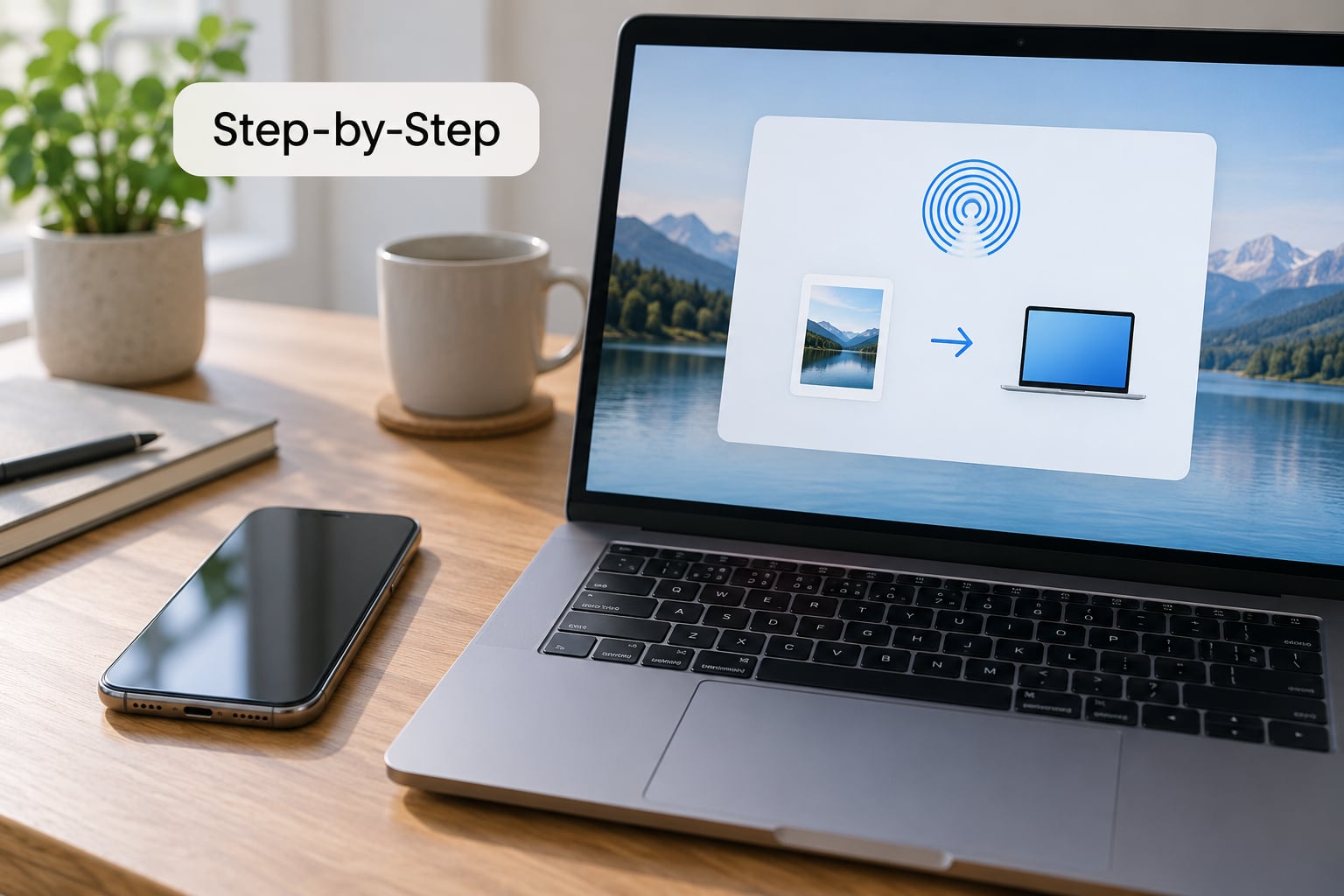
AirDrop is the right pick for a single credential going to one person, once. The password travels over a short-range encrypted link and lands straight in their Passwords app.
- Open the Passwords app and tap All.
- Tap the account you want to send, or search by name and tap the entry.
- Tap the Share button in the top-right. If it sits there greyed out, iCloud Keychain is off or the entry is a passkey-only item you have not used yet.
- Scroll the share sheet and tap Share with AirDrop next to the other person’s device.
- Check the name on the receiving device before accepting. AirDrop shows names, and accepting the wrong one hands over a live credential to a stranger standing in the same room.
- On their phone, tap Accept. The password saves to their Passwords app and iCloud Keychain, ready for AutoFill.
Confirm it worked by opening the Passwords app on the receiving device and checking that the entry is there and can AutoFill. If the other person’s device never appears in the share sheet, it’s almost always the mutual iCloud email address in Contacts, or AirDrop is set to Receiving Off on their side.
Worth knowing: community discussion on Ars Technica’s forums has raised the concern that AirDrop-based sharing can reveal a phone number to the recipient. Keep it in mind for sensitive work credentials rather than treating it as a non-issue.
How to Share a Password Securely on iPhone with Messages
Messages can present a password in a protected form, which is different from you typing the characters yourself. On an iPhone with iOS 15 or later, tap Add Attachment in a conversation, then look for the option to insert a password from the Passwords app or a suggestion from a Sign in with Apple account.
Some app logins in Messages show the same AutoFill Passwords suggestions you get in Safari. Choosing the suggestion fills the credential into the field automatically rather than writing it out as text in the bubble.
That distinction matters. A password typed into a message is a password sitting in a searchable history that syncs to your other devices and gets backed up along with everything else. Use the suggestion or the attachment, and verify the recipient name in the header before you send either one.
How to Choose the Right Sharing Method
Pick by what the credential is and by what the other person is holding. The wrong method is the reason so many shares end up in plain text.
- A streaming or shopping account several people use. Use a shared password group. It’s the only method where a password change reaches everyone without you messaging each person separately.
- A one-off login for a contractor, sitter or guest. AirDrop it. Once they have it in their Passwords app, you can change the password later and their stored copy becomes worthless.
- A credential with a limited lifetime. AirDrop, then rotate it as soon as the person is finished. Shared groups suit long-lived accounts, not temporary access.
- A passkey rather than a password. Passkeys can be shared the same way through the Passwords app or AirDrop, and a passkey can sit on more than one device. See the FAQ below for the detail.
- A Wi-Fi password. This is a different flow entirely and it doesn’t touch the Passwords app. Put the password in a shared group and everyone on the group gets network access.
- An Android or Windows recipient. None of the above reach them. Create a dedicated login for that person with its own password, or use a password manager that supports sharing to non-Apple accounts. Never fall back to a plain message as the compromise.
Wi-Fi deserves its own note because people search for it constantly and then follow the wrong tutorial. If both phones run iOS, Settings, then Wi-Fi, then the i next to your network name, then Share Password is the direct route. The other person taps their Settings, Wi-Fi, then their network name, and your phone prompts you. It uses Bluetooth for the hand-off and needs no password reading aloud.
Common Mistakes
Most bad shares aren’t caused by a security hole, they’re caused by skipping a step. These are the ones I see repeat.
- Sending it as plain text. The message sits in a synced history and a cloud backup. Fix: use the Passwords app, AirDrop or a group, then delete the message.
- Sharing the wrong saved entry. People have a work login and a personal login for the same service and pick the one that autofills first. Fix: open the entry, read the account name and website on the details screen before you hit Share.
- Sharing over public Wi-Fi. Even an encrypted transfer is better than an open network, but don’t manage credentials over café Wi-Fi if you can help it. Fix: wait, or use cellular.
- Not checking who’s on the other end. AirDrop device names are attacker-controlled. Fix: confirm the name aloud with the person before accepting anything.
- Leaving the password on screen. A password visible in a share sheet or notification gets caught in a photo or a shoulder-surf. Fix: tap away, then lock the screen once done.
- Never revoking access. A group with a former housemate still in it is a live problem. Fix: remove people you no longer need, delete finished groups, and rotate any credential that left your device.
- Trusting an invitation by name alone. Group invitations arrive looking like any other. Fix: only accept one you were expecting, and check the group name and members.
Two habits cover most of that list. Rotate a credential once someone no longer needs it, and treat every share as revocable from the moment you make it. If you can’t revoke it, don’t send it.
Frequently Asked Questions
Can I share a password from my iPhone without sending it as a normal text?
Yes, and you should. The Passwords app can send a saved credential straight to another Apple device through AirDrop, straight into a shared password group, or into Messages as a protected suggestion rather than typed characters. All three keep the password out of your message history and off any chat backup. Wi-Fi passwords have their own hand-off in Settings, Wi-Fi.
Does AirDrop send the password to anyone nearby?
Only to the device you pick, and only when that device is set to receive. AirDrop shows discovered devices for ten minutes before dropping back to contacts-only, and the other person still has to tap Accept. Someone nearby cannot pull a credential off your phone without you selecting their device first. Keep your own AirDrop set to Receiving Off when you are not actively sharing.
What is the safest way to share a Wi-Fi password with an Android user?
Neither AirDrop nor a shared password group reaches an Android phone. Set up a guest network on your router with its own password, which is safer than handing over your main network anyway. If the guest needs access to one device or service, create a separate login for them. Avoid reading the password out loud or pasting it into a chat app where it stays searchable.
Can I share one password with several people through the Passwords app?
Yes, that is exactly what a shared password group does. Create a group, add each person through Add People, and tick Share Passwords for the credential they need. Everyone in the group then gets a copy on their own devices, and when you change the password it updates for all of them. You can also add the Wi-Fi credential to the group so guests join the network too.
Should I change a password after sending it to someone I trust?
That depends on why you sent it. For a shared subscription, leave it and let the group keep it in sync. For a one-off AirDrop to a contractor, sitter or anyone outside your household, change it as soon as they are finished so their stored copy no longer works. If the password was ever exposed in a message, a screenshot or a lock screen, rotate it straight away.
Conclusion
Confirm who you’re sending to before you send anything, then use the Passwords app rather than a message. AirDrop for a single credential, a shared group for anything several people rely on, and the Settings hand-off for Wi-Fi.
Then do the part most guides skip: rotate a credential that was exposed, and remove people from groups they no longer belong in. That habit is what keeps a convenient share from turning into a permanent one.