You can translate text with iPhone camera in two ways: point the Camera at printed words and use Live Text, or open Apple’s Translate app and use its own camera mode. Both work in a few seconds, need no extra download for basic languages, and handle menus, signs, labels and screenshots.
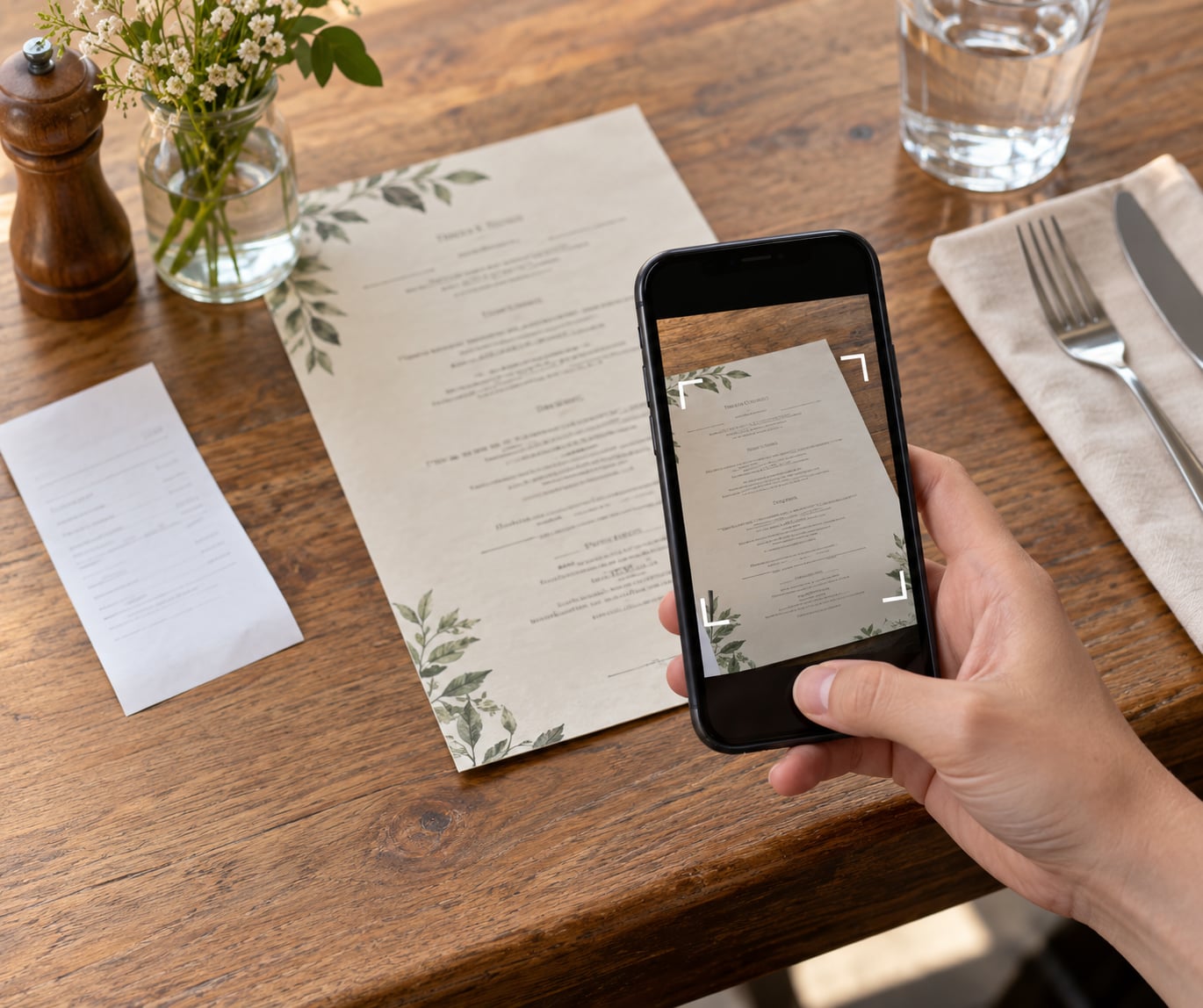
The fastest route is the Camera app. Hold your phone over the text, tap the Text Selection icon in the bottom-right of the viewfinder, then tap Translate. The whole thing takes about fifteen seconds once you know where the icon hides.
Below I walk through the full process, the language settings that decide what you get back, and the failures that make the Translate option vanish when you most need it.
Table of Contents
- 1What You Need
- 2Step-by-Step: How to Translate Text With iPhone Camera
- 3Open the Translate App and Choose Your Languages
- 4Point the iPhone Camera at Printed Text
- 5Review and Copy the Translation
- 6Translate Text Without the Camera
- 7Which Camera Translation Method Fits Your Situation
- 8Download Languages So Camera Translation Works Offline
- 9Turn Live Text Off If the Boxes Annoy You
- 10Common Mistakes
- 11Frequently Asked Questions
- 12Can I translate text with my iPhone camera without using another app?
- 13Which iPhone models support camera translation through Apple’s Translate app?
- 14How do I translate a foreign sign or menu that is not in my camera roll?
- 15Why is the translation from my iPhone camera inaccurate or incomplete?
- 16Can I use iPhone camera translation offline?
- 17The Fastest Path, In One Minute
What You Need
Before you point the camera at anything, check these five things. Most “it does not work” reports come down to one of them.
- An iPhone XS, XR or newer. Live Text needs the neural engine hardware found in those models and later, running iOS 15 or a newer release.
- The Translate app. It ships preinstalled on most iPhones. If you deleted it, reinstall it from the App Store.
- Camera permission. Open Settings, then Privacy and Security, then Camera, and check that Translate is allowed.
- Your two languages picked. Set the source and target before you scan, otherwise you may get English back when you wanted Spanish.
- Readable print and decent light. Flat, printed, dark-on-light text works far better than handwriting or a curved bottle label.
Step-by-Step: How to Translate Text With iPhone Camera
Open the Translate App and Choose Your Languages
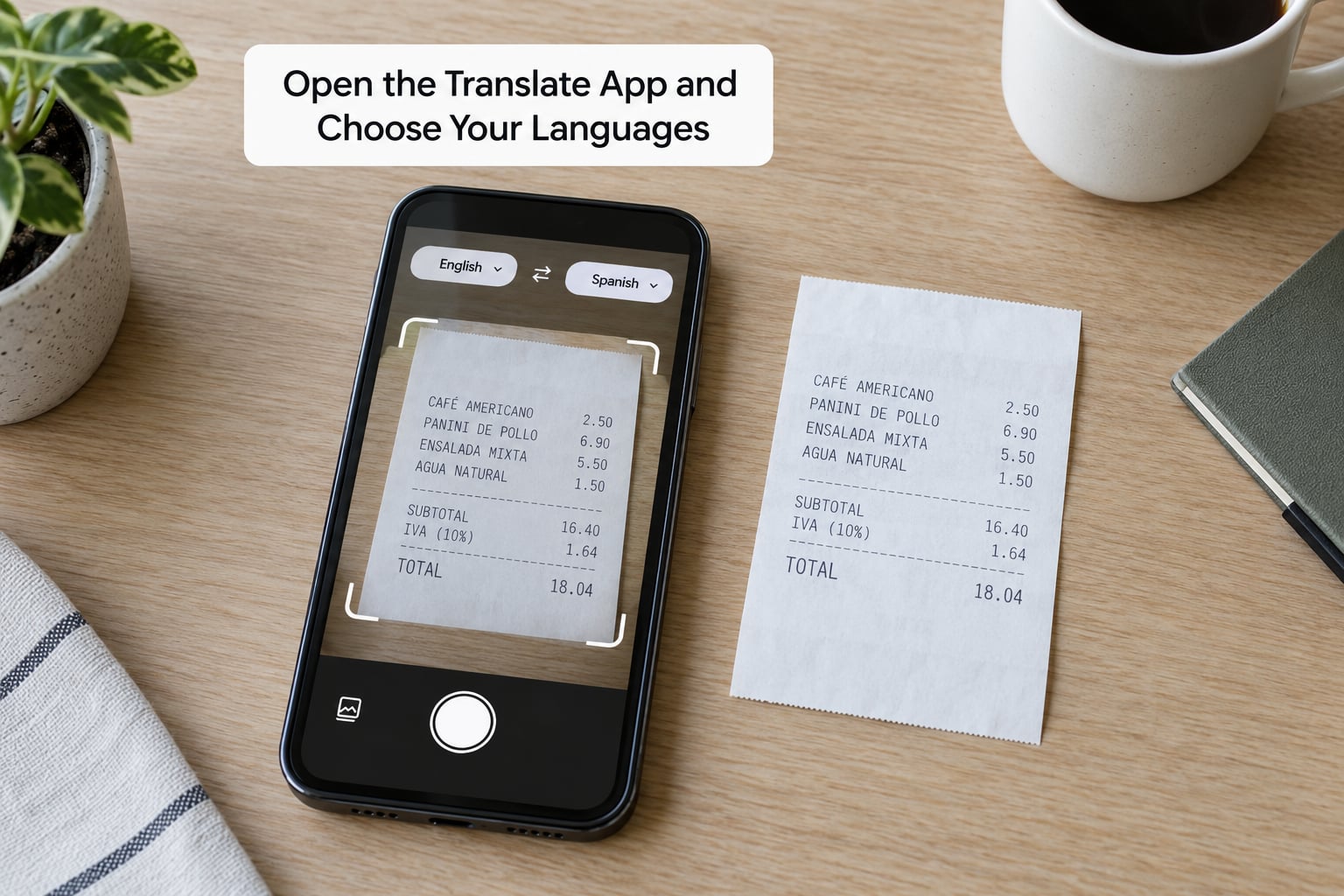
Open Translate from your Home Screen. On first launch, choose the language you want to translate from, then tap the language you want it translated into. The two tabs at the top of the screen are your source and target languages.
Set your source language to Auto if you are unsure. It costs a little accuracy on mixed-language pages but saves a lot of guessing. If the languages you need are not in the list, your iPhone is set to a region or software version that does not carry them, and you will need to change that in Settings.
Point the iPhone Camera at Printed Text
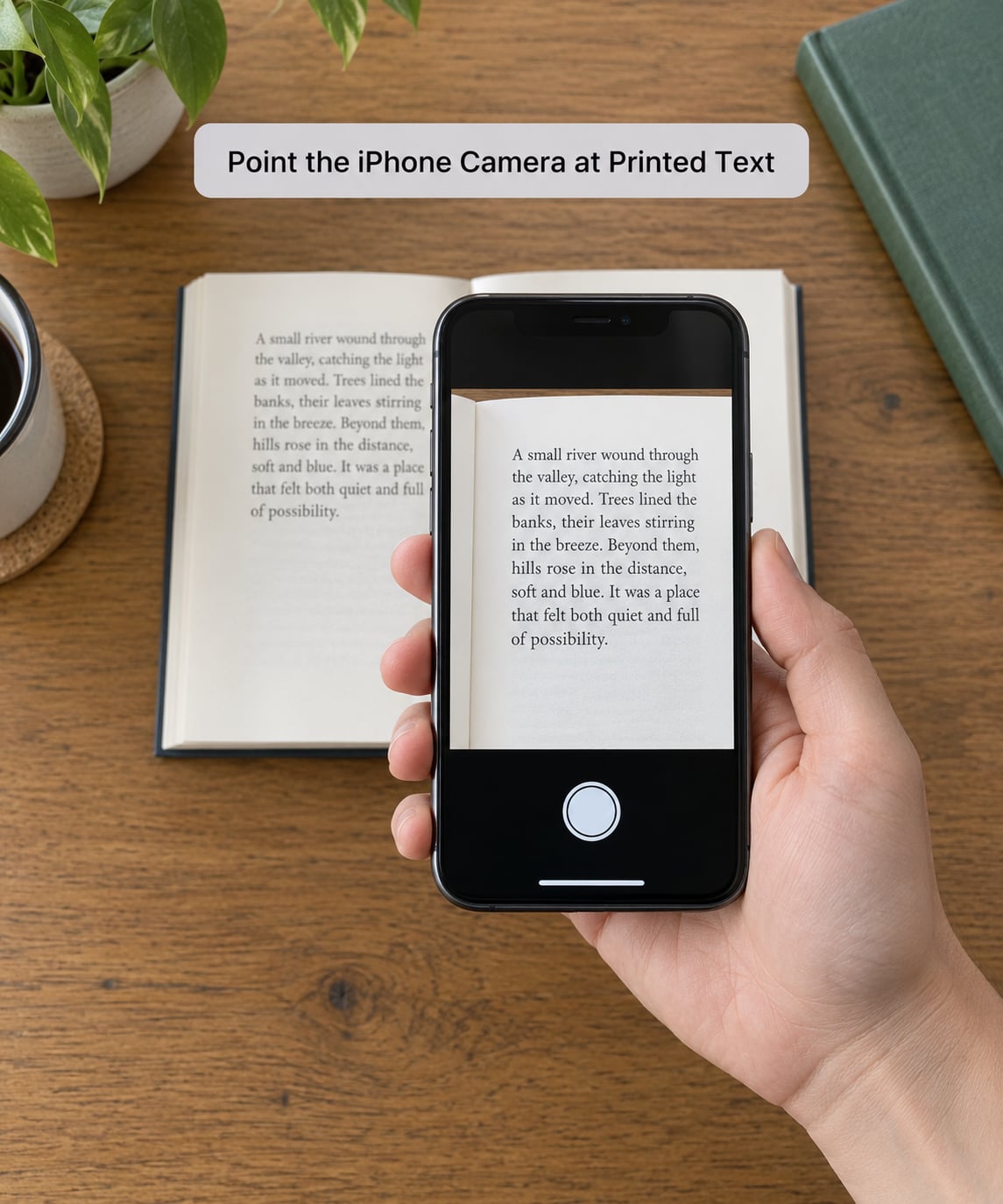
Tap the Camera tab, then fill the frame with one short block of text. A menu heading or three or four lines beats an entire page, because the recogniser reads the larger characters more reliably.
Hold steady and wait for the yellow frame to appear around the detected words. If nothing highlights, move closer, tap the screen to refocus, or angle the phone slightly to kill the glare from a window or overhead light.
Tap the Translate Camera button at the bottom-right to freeze the view. Once it is paused, the translation stays put so you can read it without the text sliding away.
Review and Copy the Translation
The translated text appears over the original. Tap any word to hear it pronounced, or tap and hold to select a phrase. The quick-action bar gives you Copy, Share, and the option to send it straight to Notes or Messages.
Check anything involving numbers, prices, dates, units of measure and legal wording before you act on it. Machine translation handles a menu description well and mangles a lease clause quite happily. If a line looks wrong, rescan that line alone with more light rather than accepting a guess.
Translate Text Without the Camera
Sometimes you already have the text in digital form, and scanning is the slow route. A screenshot of a foreign message or a paragraph in Safari can go straight into Translate: copy the text, tap Translate, and paste it into the Translate field.
Inside Photos, long-press a detected block of text to bring up the same quick actions, including Translate. That path is faster when the text is already on screen and saves scanning altogether.
Which Camera Translation Method Fits Your Situation
Three built-in paths exist on a current iPhone. They overlap, but each wins in a specific case.
| Method | Best for | Language control | Offline |
|---|---|---|---|
| Camera app with Live Text | Quick reads of signs, labels and menus | Automatic, minimal setup | Yes, after languages download |
| Translate app camera mode | Longer passages where you need to listen and share | Full source and target selection | Yes, with downloaded languages |
| Photos, screenshots and in-app text | Text you already captured | Full selection | Yes |
One honest limitation before you plan around it: Apple does not offer a true continuous overlay that translates a whole page or book as you pan across it. You scan, read, and scan again. People ask for the other behaviour constantly, and it is not built into the stock apps.
Download Languages So Camera Translation Works Offline
Signal is exactly what you lack when a menu matters most. Open Translate, tap the language you plan to need, tap Download, then tap Make Available Offline. Do the same for the language you will translate into.
Language packs are small enough that downloading a handful before a trip costs you little. Airplane mode afterwards still leaves you with menus, signs and printed instructions covered.
Forum threads on Apple’s own discussion boards show one recurring complaint: after an iOS update, downloaded languages vanish or refuse to download again. Switching between Wi-Fi and cellular, then force-quitting and reopening Translate, usually restores it. Reinstalling Translate from the App Store is the next thing to try.
Turn Live Text Off If the Boxes Annoy You
Live Text highlights every scrap of text it finds, including serial numbers and price tags, which gets noisy on receipts and packaging. Go to Settings, then Camera, then tap Show Detected Text to switch it off. Text you have already captured still translates in Photos and Translate.
Common Mistakes
The Translate option never appears. Usually poor detection: glare, low light, text too small, or an angle that foreshortens the lines. Fill the frame with less text and hold steadier.
You get the wrong translation. Your source language is set to something other than the printed one. Switch it to Auto and rescan.
Only half the text came through. The recogniser dropped lines. Scan in smaller blocks, or take the photo and translate it from Photos where you can pick each block separately.
Nothing happens after an iOS update. Reopen Translate, re-select both languages, and reinstall the app if the Translate Camera button is still missing.
Handwriting gives poor results. Expected. Print is recognised far more reliably than a scrawled note, and the answer usually needs a human anyway.
The camera will not open in Translate. Camera access is switched off for the app. Settings, then Privacy and Security, then Camera, then set Translate to Allow While Using the App.
Frequently Asked Questions
Can I translate text with my iPhone camera without using another app?
Yes. Your iPhone does it with built-in tools only. Open the Camera, point it at printed text, tap the Text Selection icon in the bottom-right of the viewfinder, then tap Translate in the quick-action bar. The alternative is Apple’s own Translate app, which opens from your Home Screen and has a camera tab. Neither route needs a third-party download, and both work offline once you have downloaded the relevant language packs.
Which iPhone models support camera translation through Apple’s Translate app?
Live Text needs an iPhone XS, XR or newer running iOS 15 or later, which covers everything from iPhone 11 onward comfortably. Older hardware such as iPhone X or earlier simply has no Live Text in the Camera app. The Translate app itself still runs on older devices, so its camera mode remains a workable fallback if you are stuck with an older phone.
How do I translate a foreign sign or menu that is not in my camera roll?
Live in the moment with the Camera app. Frame a short block of text, wait for the yellow detection outline, tap the Text Selection icon in the bottom-right corner, then tap Translate. For a menu with many items, capture one section at a time rather than the whole page, since the recogniser reads large text far more accurately than small print. Pausing the live view lets you read each result before moving on.
Why is the translation from my iPhone camera inaccurate or incomplete?
Most gaps come from the scan, not the translation. Glare, shadows, curved surfaces, low light, tiny print and handwriting all degrade recognition, and lines are silently dropped when the frame holds too much text. Scan shorter blocks in better light and check that your source language is correct. Treat anything involving money, medication dosage, dates or legal terms as unverified, and find a second source before acting.
Can I use iPhone camera translation offline?
Yes, once the languages are downloaded. Open Translate, tap the language you need, tap Download, then tap Make Available Offline. Do this for both the language you read and the one you translate into, before you travel. After that, Live Text and the Translate camera mode both keep working in airplane mode. If downloads disappear or fail after an iOS update, reinstall the Translate app from the App Store.
The Fastest Path, In One Minute
Open the Camera, fill the frame with three or four lines of clear printed text, and tap the Text Selection icon in the bottom-right of the viewfinder. Choose Translate. That single path handles most signs, labels and menus without opening an app or changing a setting.
Open the Translate app instead when you need a specific source language, want to hear the pronunciation, or have to share the result with someone. And download your languages before you leave home, so the camera still works when the signal does not.