To change Siri’s voice, open the Settings app, tap Siri (it says Apple Intelligence & Siri on newer software), tap Voice, then choose a country or region and tap a voice to hear a preview. The whole thing takes under a minute, although the new voice needs a moment to download before it starts speaking.
It is the same basic path on iPhone, iPad and Mac, and the menu labels have changed over the years. Older guides point you to Siri & Search, which is why so many people swear the setting has disappeared. Below I use the current labels first and note the older ones where you may still see them.
Table of Contents
- 1What You Need
- 2Step-by-Step: Change Siri’s Voice on iPhone, iPad or Mac
- 3Change Siri Voice on iPhone and iPad
- 4Change Siri Voice on Mac
- 5Common Mistakes and Why Siri’s Voice Won’t Change
- 6The voice option is greyed out or won’t tap
- 7Siri still uses the old voice
- 8I can’t find the original Siri voice
- 9Siri answers in a different language
- 10Frequently Asked Questions
- 11Can I change Siri’s voice to Darth Vader?
- 12Is there a male Siri voice?
- 13Can I change Siri’s voice on a Mac the same way as on an iPhone?
- 14How do I add a new Siri voice or accent?
- 15Does changing Siri’s voice also change the language Siri understands?
- 16Conclusion
What You Need
You need very little. An iPhone, iPad or Mac signed into your Apple Account is enough, along with a working internet connection for anything that has to download.
Voices for languages you already have installed are usually present from the start. New accents and Personal Voice recordings download over Wi-Fi or cellular data, and each one takes a few seconds to a minute depending on your connection. I have seen a full accent take noticeably longer on mobile data than on Wi-Fi.
Two menu names matter here, depending on your software version:
- Apple Intelligence & Siri — the label on recent iOS and iPadOS versions. Siri’s controls sit inside this section.
- Siri & Search — the older label, still present on devices that have not been updated or on Macs running earlier macOS releases.
If you cannot find either one, search “Siri” in the Settings search bar at the top of the screen. That jumps straight to the right panel whichever label your version uses.
Step-by-Step: Change Siri’s Voice on iPhone, iPad or Mac
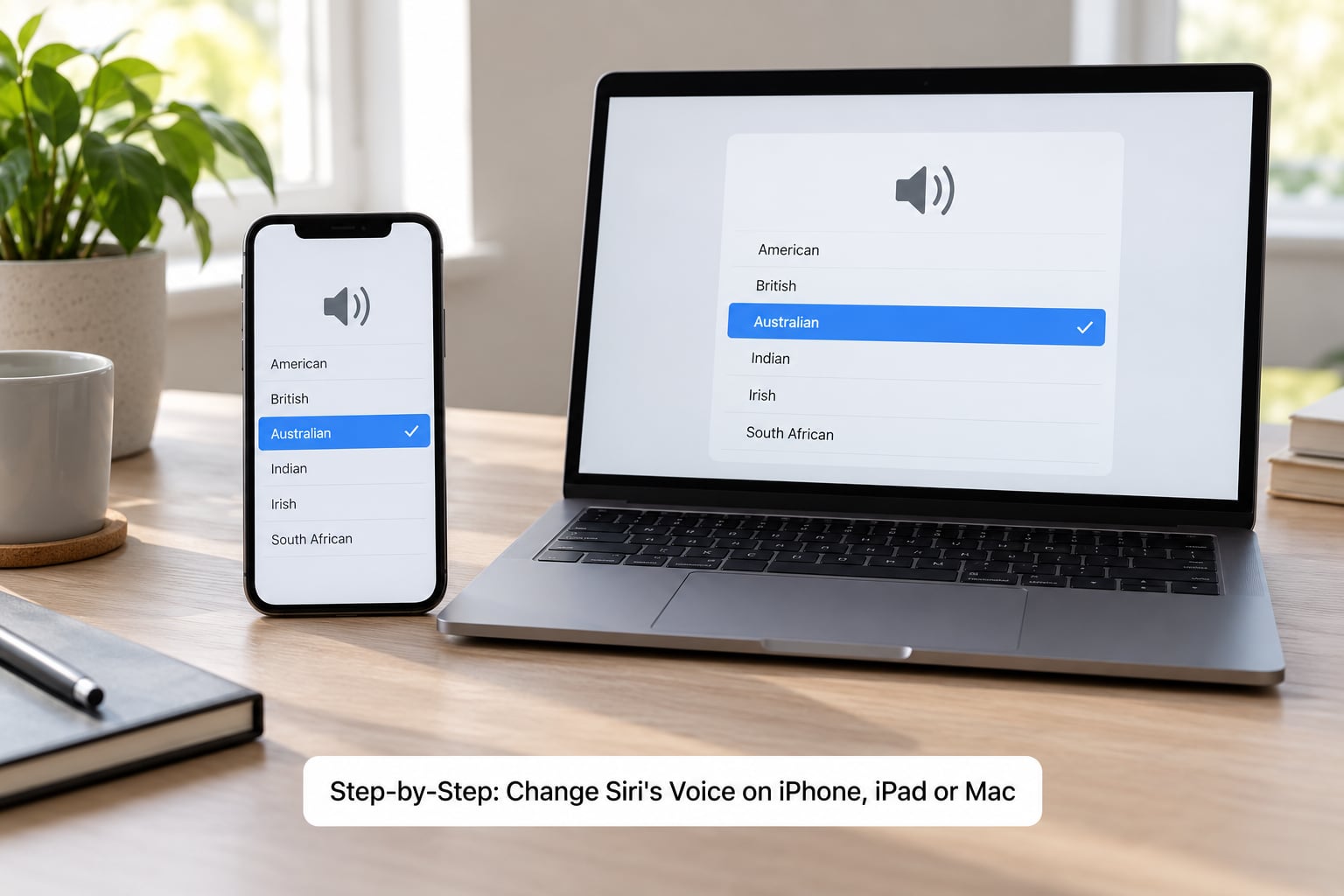
The quickest route is the same everywhere: pick an accent, then pick a specific voice inside it. These are two separate taps, and most people miss the second one, which is why they pick a new accent and still hear the voice they had before.
Change Siri Voice on iPhone and iPad
- Open the Settings app and tap Apple Intelligence & Siri. On older software, tap Siri & Search instead.
- Tap Voice to open the voice list.
- Tap a country or region such as United States, United Kingdom, Australia, Ireland, India or South Africa. Each accent group holds several voices.
- Tap a voice under Variations to hear a short audio preview. Nothing is selected until you confirm.
- Tap Done, then wait a few seconds for the voice to download if it is not already installed.
- Say “Hey Siri” and ask something to check it worked.
Here are the accents you will normally see for English, and what each group contains. The list changes with your region, your device language and your software version, so treat it as a guide rather than a fixed list.
- United States — male and female voices, plus several named Variations. The largest selection, and the group where the Pace and Expressivity sliders show on recent software.
- United Kingdom — male and female voices with several Variations. The second group that supports the Pace and Expressivity sliders.
- Australia — male and female voices, often grouped with New Zealand.
- Ireland — male and female voices, with a smaller selection than the US and UK.
- India — male and female voices, covering English as spoken in India.
- South Africa — male and female voices, and usually the smallest group.
When you tap a voice, the preview plays a short sample. Variations are named styles within the same accent — a warmer or more conversational version of the same voice, rather than a different speaker. Some accents list a plain set of Voices with no variations at all.
If your iPhone or iPad runs recent software with Apple Intelligence, you may also see a Siri AI (Beta) row. New expressive voices appear there, and Apple has been rolling them out gradually, so the extra options can take time to appear on your device. If you want them, tap through the prompts to join the waitlist and check back after an update.
How to confirm the change: lock the screen, say “Hey Siri” and ask for the time. The accent should match what you selected. If it does not, wait fifteen seconds and try again — most mismatches are just a slow download.
How to get back the original voice: open the same Voice screen, tap the accent group you want, and pick the default voice for it. If you miss the original one, it is usually the first voice listed in its accent group. Note that Apple has renamed several of the classic voices, which is why the one you remember is sometimes hard to find by name.
Making Siri sound like you: Personal Voice records a few minutes of your speech and uses it for Siri to read aloud. Go to Settings > Accessibility > Personal Voice, create a voice name, then record the prompts as they appear. You need roughly 150 phrases, and it takes a while. Once it is approved you can select it for Siri’s spoken replies.
Change Siri Voice on Mac
On a Mac the steps sit in System Settings rather than the old System Preferences panels that older guides mention.
- Open System Settings from the Apple menu, then tap Siri in the sidebar.
- Tap Voice to open the dropdown of available voices.
- Pick a voice from the list. macOS downloads it automatically if it is not on the Mac yet.
- Close System Settings, then press the Siri key or click the Siri icon in the menu bar to test it.
The Mac list is shorter than the iPhone list and pulls from the same voice downloads, so a voice you installed on iPhone is usually already there. If a voice is missing on the Mac, open Settings > General > Software Update and check for an update — new voices arrive with system updates.
Common Mistakes and Why Siri’s Voice Won’t Change
Most of these come up in the same shape: someone changes the setting, says “Hey Siri”, hears exactly what they had before, and assumes the change failed. Here is what is usually happening.
The voice option is greyed out or won’t tap
A greyed-out option usually means Siri is still finishing something, or the voice is mid-download. Close the Settings app completely, reconnect to Wi-Fi and reopen it. If the option is still unresponsive, restart the device — that clears the Siri background process, and the option normally comes back within a minute.
Siri still uses the old voice
The two usual causes are a voice that has not finished downloading and a second device overriding the first. Wait fifteen seconds after selecting, then test on the lock screen. If it still sounds wrong, check whether you have a HomePod or another Apple device signed into the same Apple Account, because that device can hold its own Siri voice setting.
I can’t find the original Siri voice
This is the most common frustration, and it is rarely a bug. Apple has renamed and reorganised the classic voices over the years, so the one you remember may now sit under a different name or a different accent group. Open the Voice screen and look at the full list for your language rather than searching for the old label.
Siri answers in a different language
Language and voice are two separate settings. The Voice control changes how Siri sounds, while Language controls what Siri understands and answers in, and it also affects Maps, turn-by-turn directions and Listen to Page. If Siri replies in another language, change the Language setting first and then set the voice you want for that language.
Frequently Asked Questions
Can I change Siri’s voice to Darth Vader?
No, Apple does not offer character or celebrity voices in the Voice list. What you get instead is named Variations within each accent, which sound like different moods or styles of the same speaker rather than different people. Some third-party apps will mimic a movie character through audio playback, but that is not the built-in Siri voice and it changes nothing about how Siri responds.
Is there a male Siri voice?
Yes. Most English accents include both male and female voices, including American, British, Australian, Irish, Indian and South African. Tap Voice, choose your accent group, then tap a male voice to hear its preview before you confirm. On recent software the American and British groups also add Variations, which are alternate styles of the same voice.
Can I change Siri’s voice on a Mac the same way as on an iPhone?
Nearly. The steps are the same but the menu differs. On a Mac, open System Settings, tap Siri in the sidebar, then tap Voice and pick from the dropdown. Older instructions say System Preferences and point to Siri and Spotlight, which no longer exists on current versions of macOS.
How do I add a new Siri voice or accent?
Open Settings, tap Apple Intelligence and Siri (or Siri and Search on older software), then tap Voice. Pick a country or region from the list and tap a voice to hear a preview. Voices that are not installed yet download over Wi-Fi or cellular and may take several seconds to apply. Once finished, tap Done and test Siri on the lock screen.
Does changing Siri’s voice also change the language Siri understands?
No, they are separate controls. Siri’s Voice setting changes only how Siri sounds. Siri’s Language setting changes what language Siri listens for and replies in, and it also affects Maps, turn-by-turn directions and Listen to Page. If you change the language, set the voice again afterwards, because each language has its own list of voices.
Conclusion
The shortest path to a new Siri voice is Settings, then Siri or Apple Intelligence & Siri, then Voice, then your accent, then the specific voice. That is it, and it works the same on iPhone and iPad, with only the Mac’s System Settings layout looking different.
If the change does not take effect, check three things in order: whether the voice was still downloading, whether the menu label on your device is Siri & Search instead of Apple Intelligence & Siri, and whether Siri is replying in a language you changed separately from the voice. In 2026, those three cover almost every case I have run into.