To collaborate on a note with others in Apple Notes, you share the note itself rather than sending a copy. Open the note, tap the Share button, turn on Share a Link, choose who can edit, and send the invite. Everyone then works in the same note and sees changes as they happen, with a record of who changed what.
On iPhone, iPad or Mac the whole thing takes about a minute once the note is stored in iCloud. If you have to move the note into iCloud or unlock it first, give it a few more minutes.
One thing catches people out constantly: iOS 27 and iPadOS 27 renamed the old Collaborate button to Share a Link. If you are following a tutorial that says tap Collaborate and the option is not in your share sheet, you are probably on the new naming rather than missing the feature. Both sets of names are covered below.
Last updated October 2026. Instructions cover iOS 27 and iPadOS 27, with the older iOS 26 and earlier wording noted wherever it differs.
Table of Contents
- 1What You Need
- 2Step-by-Step
- 3How to Collaborate on a Note with Others Using a Share Link
- 4Share a Note Directly in Messages
- 5Share a Note by Email on iPhone or iPad
- 6Share a Note Collaboratively on Mac
- 7Review Changes and Stop Collaboration
- 8Common Mistakes
- 9Quick Tips for Easier Note Collaboration
- 10Frequently Asked Questions
- 11Can you collaborate on a note in Apple Notes without iCloud?
- 12Why did the other person receive a copy instead of a collaborative note?
- 13Do collaborators need the same Apple Account?
- 14Can you stop someone from editing a shared Apple Note?
- 15Why can I see a shared note but not the other person’s changes?
- 16How long does a shared Apple Notes link remain available?
- 17Conclusion
What You Need
Apple Notes collaboration is picky about where a note lives. Get these six things right and the option appears every time; get one wrong and the button is simply not there.
- Apple Notes, iOS 18 or later (or the matching iPadOS and macOS versions). Collaboration did not exist on older systems.
- The note must be in an iCloud folder. Notes stored in On My iPhone, On My Mac, or a third-party account such as Gmail or Google cannot be shared for collaboration at all.
- Notes sync switched on. Go to Settings, tap your name, then iCloud, then Notes, and check Sync this iPhone.
- The note must not be locked. A note protected with a password or Touch ID cannot be shared, and a folder containing locked notes cannot be shared either.
- An Apple Account signed in on both sides. On iOS 26 and earlier, collaborators need an Apple device and an Apple Account. Android and Windows users are excluded.
- Free iCloud storage. A full iCloud account silently blocks new shares.
There is also a hard ceiling of 100 people on a single shared note, with no warning when an invitation beyond that quietly fails.
Same feature, different labels depending on your system:
| What you are looking for | iOS 27 / iPadOS 27 | iOS 26 and earlier |
|---|---|---|
| Start a shared note | Share a Link | Collaborate |
| Edit permission | People you choose can edit | Only invited people can edit |
| View permission | People you choose can view | View and Download Only |
| Open access | Anyone with the link | Anyone with the link |
| Add more people later | Add Participant | Add Participant |
| Control panel | Manage Shared Note | Manage Shared Note |
Once that checklist passes, there are two completely different things you can send from the share sheet, and picking the wrong one is the most common mix-up of all.
| Option | What the recipient gets | Best for |
|---|---|---|
| Send a Copy | A separate, frozen duplicate. Edits never sync back. | Sending someone a fixed version to read or print |
| Share a Link | The live note, with edit or view rights you set. | Anything with more than one editor |
| Anyone with the link | The live note, openable by anyone who gets the URL. | Open groups, like a class or a club |
AirDrop is a third option entirely, and it is a copy. AirDrop sends a duplicate note to the other device, so you end up with two versions that drift apart.
Step-by-Step
How to Collaborate on a Note with Others Using a Share Link
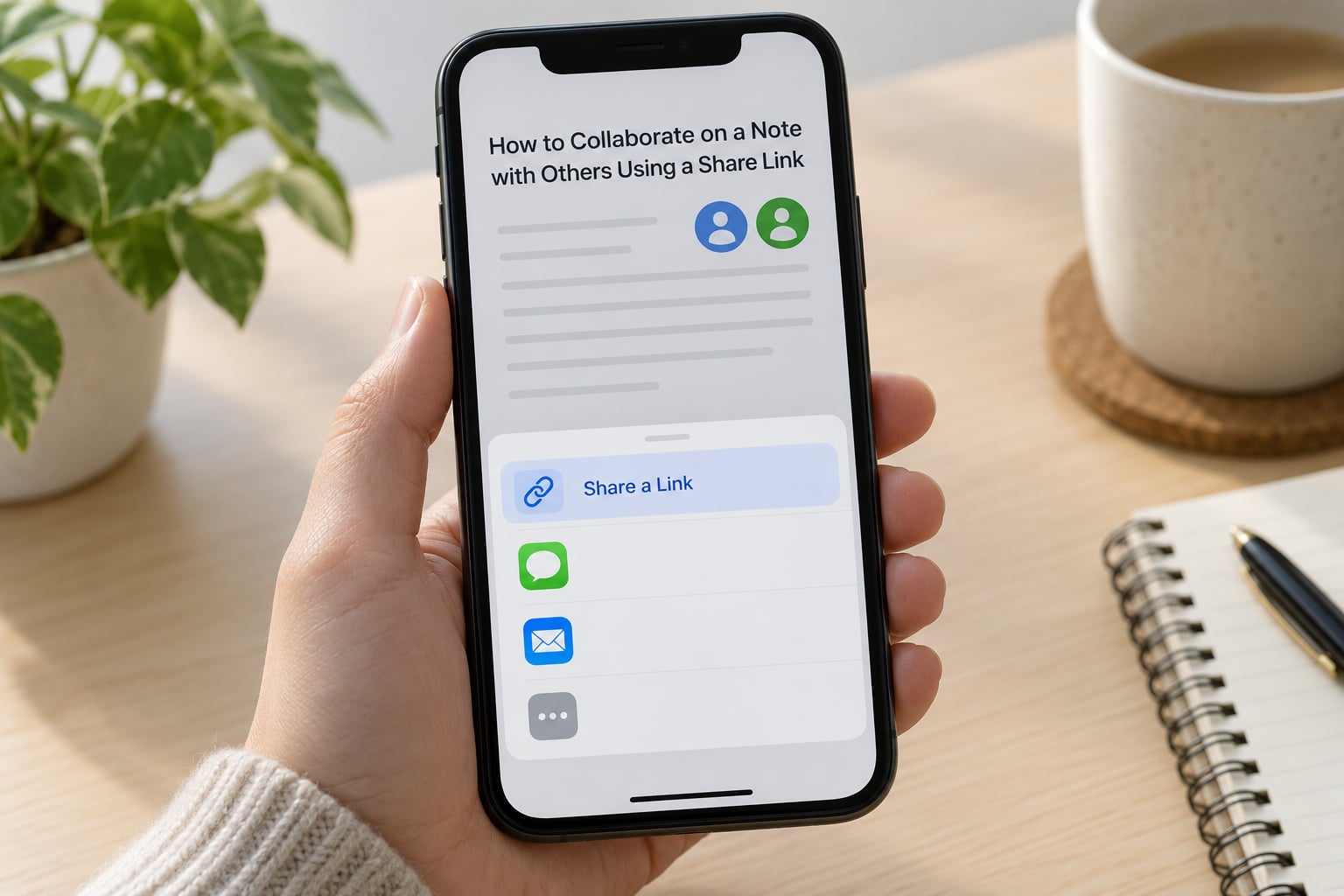
- Open the note in Apple Notes. Check the folder name at the top. If it says On My iPhone, move the note into an iCloud folder first, otherwise nothing else will work.
- Tap the Share button, the square with an arrow pointing up, usually in the top-right corner on iPhone and iPad, or in the toolbar on Mac.
- Tap Share a Link in the share sheet. On iOS 26 and earlier this is called Collaborate.
- Choose who has access. Pick People you choose, or Anyone with the link if you want an open link. Anyone with the link means anyone who forwards the URL can open the note, so use it thoughtfully.
- Set the permission level. People you choose can edit, or view only. If you want the second person onward to join without your approval, turn on the option that allows others to invite.
- Add protection if the note is sensitive. You can require a password and set an expiration date so the link stops working after a set time.
- Send it. Tap Add People to pick a person directly, or tap Copy Link to paste the URL into any chat or email yourself.
- Verify it worked. Participant avatars appear beside the note title, and the note shows a Shared badge. If you do not see them, the share did not go through.
One detail worth knowing: the first person you invite joins straight away. Anyone after that may have to send an access request, which then shows up under Access Requests until you approve it.
Share a Note Directly in Messages
In the note, tap Share, then Add People, then Messages. Pick the contact, type your message, and send.
This is the smoothest route between two people with iPhones. Because Messages is an Apple app, the shared note opens inside Notes on the recipient’s device rather than in a browser, and activity updates appear right in the conversation thread.
How can the recipient tell a shared note from a copy? A collaborative note lands in the Shared section at the bottom of their notes list, shows the participant avatars, and stays editable. A copy just appears as an ordinary note in the folder you sent it from and has no avatars at all.
If the note was shared into a group chat, everyone in that thread can open it, and the conversation is one tap away from the note itself.
Share a Note by Email on iPhone or iPad
Tap Share, choose Add People, then Mail. Enter the recipient’s address, check the subject line, and send.
Mail works well for people who are not in your contacts, or for a mixed group where some people are on a Mac and some on a phone. Recipients still need an Apple device with an Apple Account signed in to open and edit the shared version on iOS 26 and earlier.
To confirm you sent a collaboration link rather than a duplicate, open the sent message on the other device. A collaborative share includes the note preview with a link that opens into Notes, while a copy is simply a static note with no link back to you.
Be aware that an email sent from a Gmail or Outlook account is still a third-party account, but the sharing method is what matters here. The account problem applies to where the note is stored, not where the invitation is emailed from.
Share a Note Collaboratively on Mac
On Mac, open the note in Notes and use the Share button in the toolbar, or right-click the note in the list and choose Share Note. The share sheet that opens is the same one you get on iPhone, with the same Share a Link option and the same permission settings.
The Mac has one extra catch. If the note lives in an On My Mac account, the Share Note and Share Folder options are greyed out. Move the note into an iCloud folder from the Notes sidebar, and sharing unlocks immediately.
You can also reach shared notes from the Shared section at the bottom of the sidebar. Pending invitations to notes other people have shared with you show up there too, which is the quickest way to spot an invitation you never opened.
Review Changes and Stop Collaboration
You do not have to sit in the note to see what collaborators are doing. A shared note that has new activity shows an orange dot, and tapping it opens the activity card with the latest updates.
From the note, you can also open Show Updates, Show All Activity, and Show Highlights. Highlights colour text that has changed, so you can see at a glance what a collaborator touched since you last looked. Typing an @ sign inside a shared note brings up the participant list, so you can mention someone by name to pull them into the thread.
To change who has access, open the note, tap the participant avatars, then Manage Shared Note. From there you can Add Participant, change someone’s permission between editing and viewing, promote someone to Co-Owner, Remove Participant, or Cancel Invitation. A Co-Owner can manage participants and permissions for everyone except you, which is useful when someone else needs to add people on your behalf.
Stop Sharing removes the note from every other participant’s device. Their copy disappears rather than being left behind as an orphan, so everyone should have anything they need saved before you do it.
If a link has been shared too widely, turning sharing off and then back on produces a fresh link, and the old URL stops working.
Common Mistakes
Almost every complaint about Apple Notes collaboration comes down to one of eight things. Work down the list; the first match is almost always the right one.
- No Share a Link option in the share sheet at all. The note is stored locally or in a Gmail, Google, or other third-party account. Drag it into an iCloud folder and reopen the share sheet.
- The option is greyed out. The note is locked with a password or Touch ID. Unlock it, share it, then lock it again if you want.
- It worked yesterday and does not today. Check Settings, your name, iCloud, then Notes, and confirm Sync this iPhone is still on. Full iCloud storage has the same effect.
- You shared with someone on Android or Windows. On iOS 26 and earlier they cannot edit a shared note at all. Send them a copy, or move the collaboration to something that works cross-platform.
- They received a copy instead of a shared note. You chose Send a Copy in the share sheet. Turn on Share a Link instead and resend.
- The link opens in Safari instead of Notes. Links sent through Slack, WhatsApp, or Gmail often hand off to a browser, and the recipient gets asked to sign in to iCloud.com. Sending through Messages avoids this entirely.
- No notification when a collaborator edits. Apple does not always send a push alert for edits to a shared note. Check the Shared section for the orange dot and activity card, and use an @mention when you need a real nudge.
- The invitation appears to do nothing. It is probably a pending access request, which needs your approval under Access Requests. There is also the 100-person cap, which fails silently.
Community answers on r/iphone and the Apple forums converge on the same two fixes for the missing option: move the note out of On My iPhone into an iCloud folder, and unlock it. Those two solve the large majority of cases.
Quick Tips for Easier Note Collaboration
A few habits make shared notes much less fiddly once several people are involved.
- Give the note a real title. Generic titles like Notes or List make shared notes impossible to find later. Use something like Kitchen renovation – decisions.
- Put an action date on anything with a deadline. A date turns a note from a reference into a task, and everyone can see it change.
- Give the minimum access that works. Many people only need to read a plan. View-only access stops accidental deletions, and you can promote someone later.
- Check the participant list before you walk away. The first invite joins automatically; everyone after that may still be waiting on an access request.
- Use mentions instead of hoping people check. An @mention is the only reliable way to get a collaborator’s attention inside a note.
- Pin a shared note you use constantly. Pinning keeps it at the top of your list so you do not have to hunt through the Shared section every morning.
- Keep exactly one owner. Only the owner can stop sharing or delete the note for everyone. Decide who that is before you invite a large group.
- Reach for Freeform when it is a whiteboard, not a document. Notes collaboration is built for text and lists. If your group wants to sketch, drop sticky notes around a board and talk it through live, Freeform handles it better.
Frequently Asked Questions
Can you collaborate on a note in Apple Notes without iCloud?
No. A note has to be stored in an iCloud folder before the Share a Link option appears at all. Notes in On My iPhone, On My Mac, or a Gmail or Google account cannot be shared for collaboration. Move the note into an iCloud folder from the Notes app and the option becomes available immediately.
Why did the other person receive a copy instead of a collaborative note?
You picked Send a Copy in the share sheet, which sends a static duplicate that never syncs back to you. Open the note, tap Share, then choose Share a Link, set the permission level, and resend. The recipient will know the difference: a shared note appears in their Shared section with participant avatars, a copy does not.
Do collaborators need the same Apple Account?
No, they do not need to share yours, but each person needs their own Apple Account signed in on an Apple device. On iOS 26 and earlier, collaboration simply does not work with Android or Windows users. They can still receive a copy of the note, or view it through iCloud.com in a browser.
Can you stop someone from editing a shared Apple Note?
Yes. Open the note, tap the participant avatars, then Manage Shared Note. You can change that person to view-only, remove them as a participant, or turn off their ability to invite others. If you stop sharing entirely, the note is deleted from every other participant’s device rather than left behind.
Why can I see a shared note but not the other person’s changes?
Usually the recipient is not fully inside the shared note yet, or a sync is still pending. Check that they opened the link in the Notes app rather than a browser, and that Settings, your name, iCloud, then Notes has Sync this iPhone switched on for them. Some collaborators see the note straight away while edits catch up seconds later.
How long does a shared Apple Notes link remain available?
As long as sharing stays switched on. You can set an expiration date when you create the link, and once that date passes the note stops opening for anyone using it. Turning sharing off and then back on generates a fresh link, and the old URL stops working.
Conclusion
Open the note in Apple Notes, tap Share, turn on Share a Link, and send it to one person first. Check that it opens in their Notes app and that their edits come back to yours before you invite a whole group. If the option is not in your share sheet, the note almost certainly needs moving into an iCloud folder and unlocking.