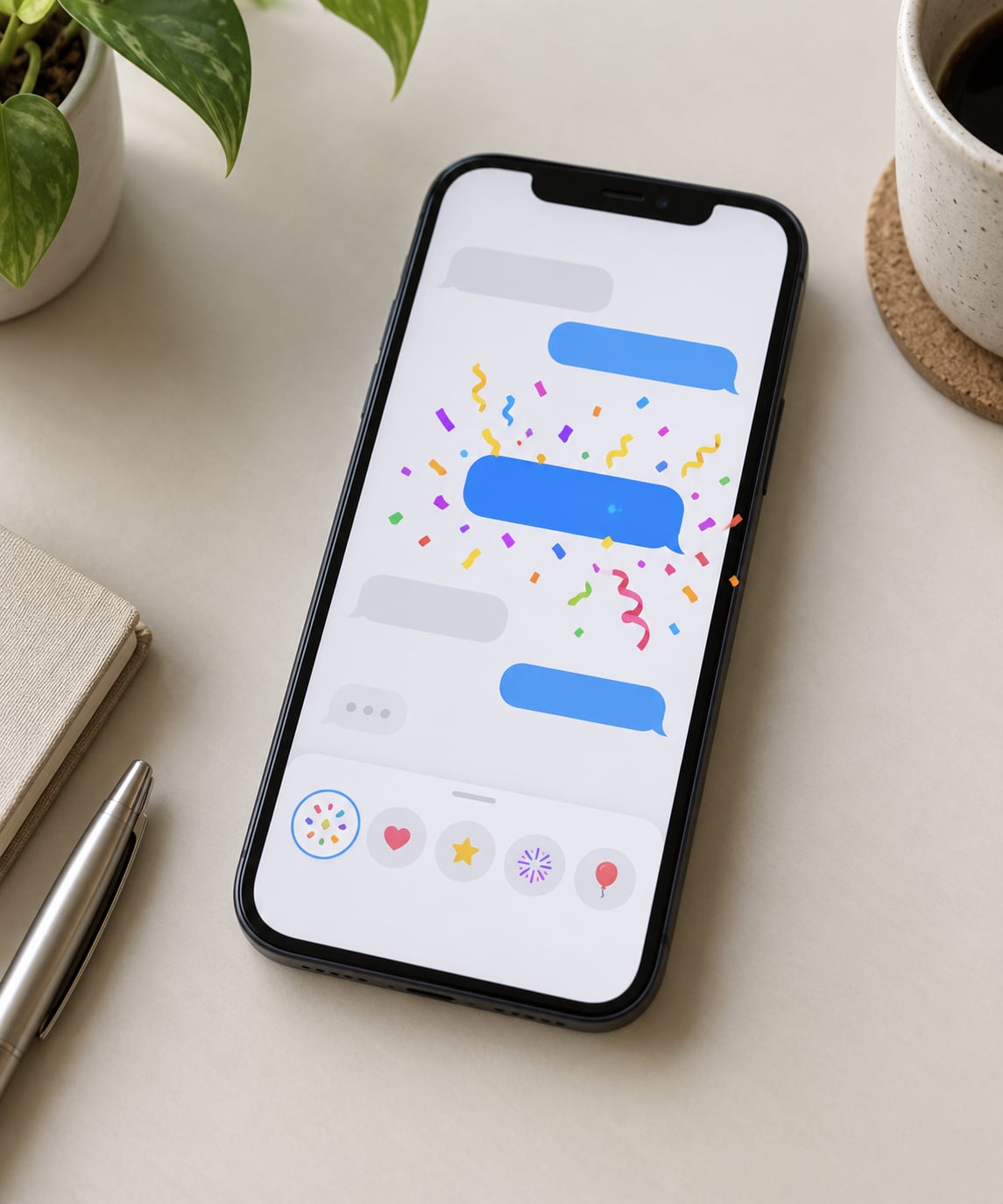
To use message effects on iPhone, open the Messages app, pick a conversation that shows blue bubbles, type your message, then press and hold the blue send arrow until the effects menu slides up. From there you pick a screen effect like Confetti or Fireworks, or a bubble effect like Slam or Invisible Ink, and send. It takes about fifteen seconds once you know where the arrow is.
The catch is that almost nobody finds this by accident, even after years of owning an iPhone. The controls hide behind a press-and-hold, and they only work inside iMessage. Here is exactly where everything sits, what each effect actually does, and how to fix it when the menu refuses to appear.
Table of Contents
- 1What You Need
- 2Step-by-Step: How to Use Message Effects on iPhone
- 3Step 1: Open the iMessage Conversation
- 4Step 2: Open Message Effects
- 5Step 3: Choose a Screen or Bubble Effect
- 6Step 4: Preview and Send the Effect
- 7Step 5: Remove or Change an Effect
- 8Common Mistakes
- 9Message Effects is missing from the menu
- 10The effect is not playing on the other phone
- 11The screen effect fired in the wrong conversation
- 12I can only find some of the effects
- 13Frequently Asked Questions
- 14Are message effects available on every iPhone?
- 15Why can’t I find Message Effects in my iPhone Messages app?
- 16Can I use message effects with regular SMS messages?
- 17Will the person receiving my iMessage see the same animation?
- 18How do I turn off message effects after sending a message?
- 19What is the difference between a screen effect and a bubble effect?
- 20Conclusion
What You Need
Message effects need three things: an iPhone with the Messages app, iMessage switched on, and a conversation that is running over iMessage rather than SMS or MMS.
Check the bubble colour. Blue means iMessage, and every effect in this guide works. Green means SMS, and no screen or bubble effect will send. If a conversation has been green for months, tap the info button at the top of the thread and switch Send Messages & Calls to iMessage before you try anything else.
iMessage turns on once you have an Apple Account signed in and either Wi-Fi or mobile data working. You can check it in Settings, then tap your name at the top, then iMessage.
The effect list itself shifts a little between iPhone models, iOS versions, languages and regions. An older phone may show fewer choices, and effects added years ago may sit under a different menu name now. Treat the lists below as the full catalogue rather than a promise that every option appears on your screen.
Step-by-Step: How to Use Message Effects on iPhone
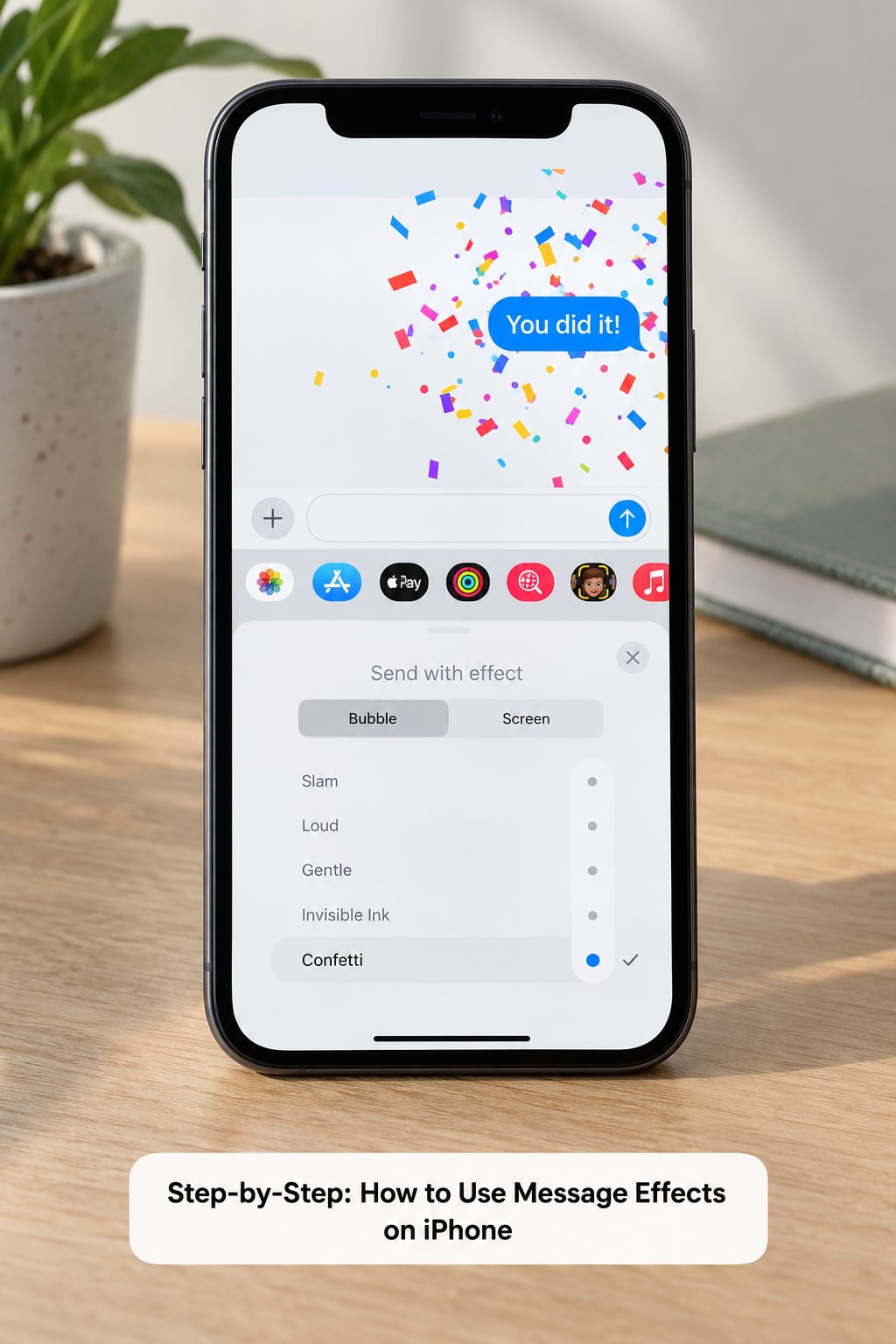
The route below is the current path on recent iOS versions. On an older phone, the send-arrow press-and-hold still works, so the two routes end in the same place.
Step 1: Open the iMessage Conversation
Open Messages and tap the thread you want to send into. Confirm the bubbles above the keyboard are blue, then tap the message field so the keyboard is up and the composer is active.
The effects controls do not appear in a thread you are only reading. You have to be at the point where you can type.
Step 2: Open Message Effects
Tap the plus button on the left of the compose row, then tap Apps to expand the full grid of apps and features. Message Effects sits in that expanded view. Tap it and the effects panel slides up from the bottom of the screen.
If you do not see the plus button row, the thread is probably SMS, or you are looking at a conversation where the field is inactive. On older iOS versions the route is simpler: type your message, then press and hold the blue send arrow on the right. The same menu appears.
Step 3: Choose a Screen or Bubble Effect
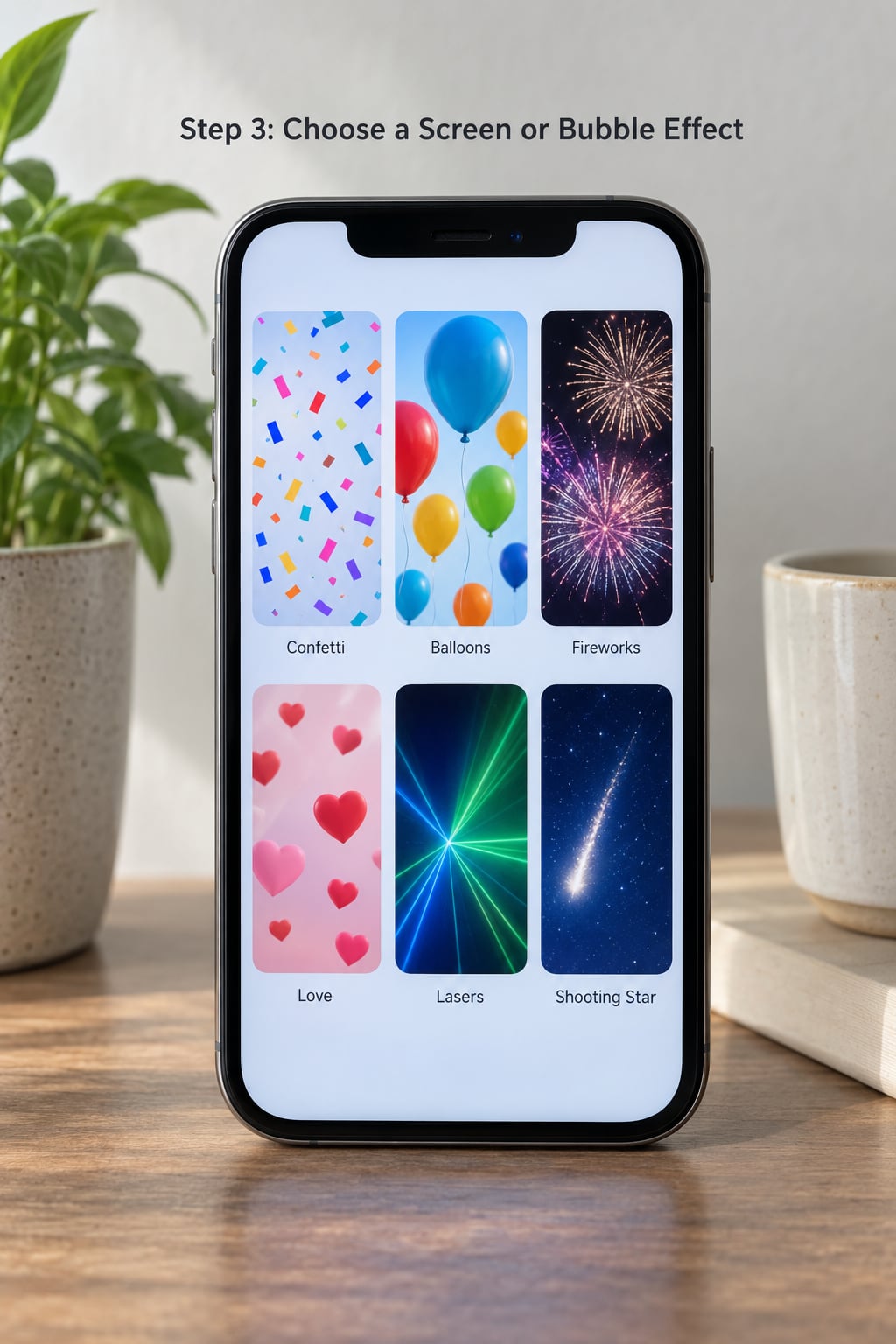
The panel is split into bubble effects at the top, which animate the message itself, and screen effects below, which take over the whole display. Scroll down for the full screen list, and swipe the effects row for more options.
Here is what everything does, so you can pick without opening each one.
| Effect | Type | What happens | Good for |
|---|---|---|---|
| Slam | Bubble | The bubble crashes down onto the screen with force | Bad news, arguments, strong emphasis |
| Loud | Bubble | The bubble balloons up to fill the screen | Shouting across the room at someone |
| Gentle | Bubble | The bubble shrinks to a whisper | Saying something quietly or sweetly |
| Invisible Ink | Bubble | The text hides until the recipient swipes or taps to reveal it | Spoilers, surprises, secrets |
| Celebration | Screen | Confetti shoots across the screen | Good news, promotions, wins |
| Fireworks | Screen | Fireworks burst behind the message | New Year, big milestones |
| Balloons | Screen | Balloons float upward | Birthdays, congratulations |
| Hearts | Screen | Floating hearts rise and fill the display | Romantic messages, anniversaries |
| Lasers | Screen | Laser beams fire across the screen | Playful banter, hype |
| Spotlight | Screen | The message is lit by a spotlight | Drawing attention to one line |
| Echo | Screen | Rings ripple out from the message | Announcements, calling someone in |
Some effects also fire on their own. Type congrats, happy birthday, happy new year or happy chinese new year and Confetti, Balloons or Fireworks can trigger without you opening the panel at all. Pew pew draws the lasers automatically, the same way you would write pew pew in a text. Automatics depend on your language settings, so they fire more reliably on English devices.
There is a third family that behaves differently from both lists. Starting in iOS 18, you can animate individual words inside the message: type your text, double tap a word to select it, then tap the A icon above the keyboard. The options include Big, Small, Shake, Nod, Explode, Ripple, Bloom and Jitter. These animate on the text itself, so they suit ordinary sentences rather than greetings.
Step 4: Preview and Send the Effect
Tap an effect once and it plays as a preview right there in the panel, with your message visible. That preview is not sent to anybody. When it looks right, tap the blue arrow and it goes.
On the receiving end, screen effects fill their display when the message arrives, and they can be replayed by tapping the bubble. Bubble effects animate once and then settle into the thread like a normal message. If the recipient is on an older iPhone or an Android phone, they usually still receive the text, just without the animation, and there is no warning label telling them something was lost.
Step 5: Remove or Change an Effect
An effect stays selected until you clear it. Tap the effect you chose again to deselect it, or close the effects panel and tap the field to return to the normal composer. Once you are back to a plain blue arrow, your next message sends normally.
If you already sent it and want to try again, delete the message, tap and hold it, choose Undo Send, then resend with a different choice. Undo Send only works for about two minutes.
Common Mistakes
Message Effects is missing from the menu
Almost always one of three things. The conversation is running on SMS, so the blue send arrow is green. The phone is on an older iOS version that predates the current menu layout, in which case press and hold the send arrow instead of hunting through Apps. Or the thread is not active because you opened a conversation you are not typing in.
The effect is not playing on the other phone
Two usual reasons. The recipient has Reduce Motion turned on in Settings, then Accessibility, then Display and Text Size, which switches animations off on their side rather than yours. Or they are on Android, or an iOS version old enough that the animation is dropped. The message text still arrives either way.
The screen effect fired in the wrong conversation
Autos are easy to trigger by accident. Congrats, happy birthday and pew pew fire the moment you send, with no menu involved. Tap and hold the sent message, tap Undo Send, then reword the line or send it as a plain message.
I can only find some of the effects
Lists differ by iOS version, device, language and region, and a few effects retire over time. Swipe the effects row sideways and scroll the screen column before assuming anything is missing. If you are on a version that predates iOS 18, the text effects under the A icon will not be there at all, because they did not exist yet.
Two habits make this less fiddly. Pick your effect before you type the full message rather than after, since autos can hijack a line you did not mean to animate. And when a message matters more than the animation, send it plain. Nobody has ever been fired for a text without confetti.
Frequently Asked Questions
Are message effects available on every iPhone?
They need iMessage, so any iPhone that can send a blue-bubble message can send effects. Older hardware and older iOS versions show a shorter list, and the iOS 18 text effects such as Big, Shake and Bloom need a recent version of iOS to appear at all. Availability also varies by language and region.
Why can’t I find Message Effects in my iPhone Messages app?
Check three things in order. First, confirm the bubbles are blue, because effects do not work in SMS or MMS threads. Second, make sure the conversation is open and the keyboard is up. Third, try pressing and holding the blue send arrow instead of the plus button, which is the route on older iOS versions.
Can I use message effects with regular SMS messages?
No. Screen effects and bubble effects are an iMessage feature, so they only send to conversations running over iMessage. If the bubbles in your thread are green, switch the thread to iMessage by opening it, tapping the name at the top and changing Send Messages and Calls to iMessage.
Will the person receiving my iMessage see the same animation?
Only if they are on a recent iPhone or iPad running a recent version of iOS. Android recipients, Macs on older macOS and anyone with Reduce Motion switched on will usually get the text without the animation. There is no badge telling them an effect was missed, so mention anything important in the message itself.
How do I turn off message effects after sending a message?
To stop the next one, tap the selected effect again or close the effects panel so the composer returns to a plain blue arrow. To undo one you already sent, press and hold the message within about two minutes and tap Undo Send, then resend it as a plain message.
What is the difference between a screen effect and a bubble effect?
A bubble effect animates the message bubble itself, so Slam, Loud, Gentle and Invisible Ink change how your text looks on the screen. A screen effect such as Confetti, Fireworks or Balloons takes over the whole display behind the message. The iOS 18 text effects are a third category, animating individual words rather than the bubble.
Conclusion
The fastest route to any effect is: open the thread, make sure the bubbles are blue, type your message, tap the plus button, tap Apps, then Message Effects. Pick Confetti or Fireworks for a screen effect, or Invisible Ink when you want the words hidden until they tap it, and hit the blue arrow.
If the option is not there at all, do not go hunting through Settings. Start with the bubble colour, because a green thread is the cause more often than anything else. After that, press and hold the send arrow instead of using the plus button, and if an effect sends but nobody sees the animation, the setting to check is on their phone, not yours.