To add a legacy contact on your iPhone, open Settings, tap your name at the top, choose Sign-In and Security, then tap Legacy Contact and Add Legacy Contact. You pick one person, confirm with Face ID or your passcode, and Apple generates an Access Key you hand over to them. The whole thing takes about two minutes, and it needs iOS 15.2 or later with two-factor authentication switched on.
Here is the part most guides skip. A Legacy Contact does not get a password, and Apple does not tell them anything has happened. They only gain access if they request it, and only after they can produce a death certificate along with the key you gave them.
This guide covers the 2026 version of the steps, the two ways to deliver the Access Key, what your chosen person can actually open once they have it, and why the Legacy Contact option is missing for a lot of iPhone owners.
Table of Contents
- 1What You Need to Add a Legacy Contact on iPhone
- 2Step-by-Step: How to Add a Legacy Contact on iPhone
- 3Step 1: Check Your iOS Version and Two-Factor Authentication
- 4Step 2: Open Sign-In & Security on Your iPhone
- 5Step 3: Tap Add Legacy Contact and Choose the Person
- 6Step 4: Choose How the Access Key Is Delivered
- 7Step 5: Verify the Saved Legacy Contact
- 8How to Share the Access Key: Messages vs Printed PDF
- 9What Your Legacy Contact Can and Cannot Access
- 10Legacy Contact vs Recovery Contact: Which One Do You Want
- 11How to Add More Than One Legacy Contact
- 12How to Remove or Change a Legacy Contact
- 13What Happens After You Pass Away
- 14How to Access the Account if You Are the Legacy Contact
- 15Troubleshooting: Why the Legacy Contact Option Is Missing
- 16Helping an Older Relative Set One Up
- 17Frequently Asked Questions
- 18Why can’t I find the Legacy Contact option on my iPhone?
- 19How do I save the Access Key for my legacy contact?
- 20Does my legacy contact need an iPhone or any Apple device?
- 21How many legacy contacts can I add to my Apple Account?
- 22What happens to my iCloud data if I never set a legacy contact?
- 23How do I remove a legacy contact from my iPhone?
- 24Conclusion: What to Do First
What You Need to Add a Legacy Contact on iPhone
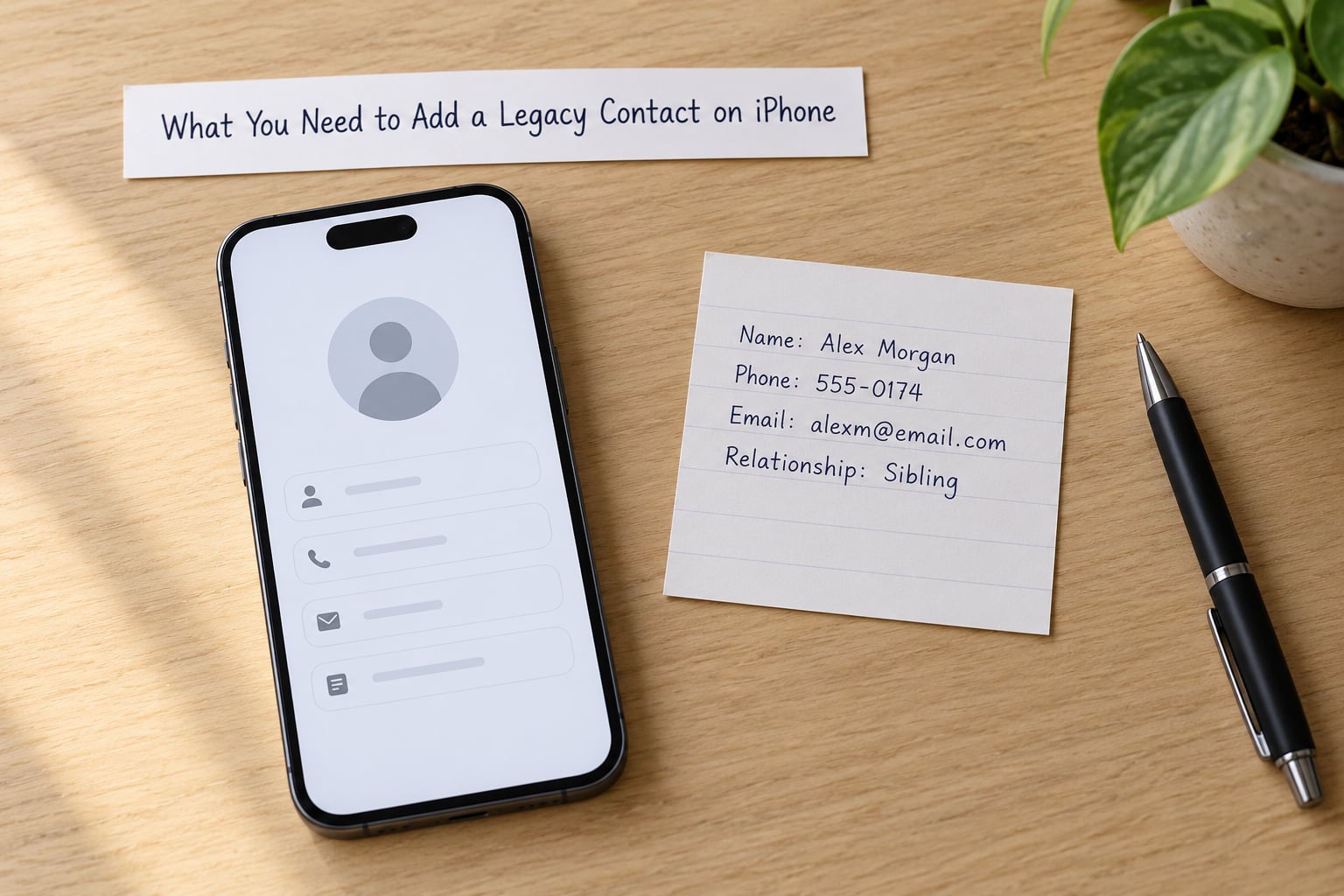
Three things have to be true before the Legacy Contact row even appears in your settings.
- iOS or iPadOS 15.2 or later. Check with Settings, then General, then About. Older versions simply do not contain the feature.
- Two-factor authentication turned on. Apple requires it. You find the toggle in the same Sign-In & Security screen.
- You are signed in to your Apple Account and you remember the password, because authenticating with Face ID, Touch ID or your passcode is part of adding and removing the contact.
You also need a person in mind. Apple lets you designate several, but the first one you choose is the one who receives an Access Key, so pick someone who will still be around in a few years. A sibling, an adult child or a spouse is usually a better fit than a friend who may drift out of touch.
Apple may rename menu labels in future iOS updates. The path below is what current iOS shows, and support.apple.com keeps its own version of these instructions if the wording drifts.
Step-by-Step: How to Add a Legacy Contact on iPhone
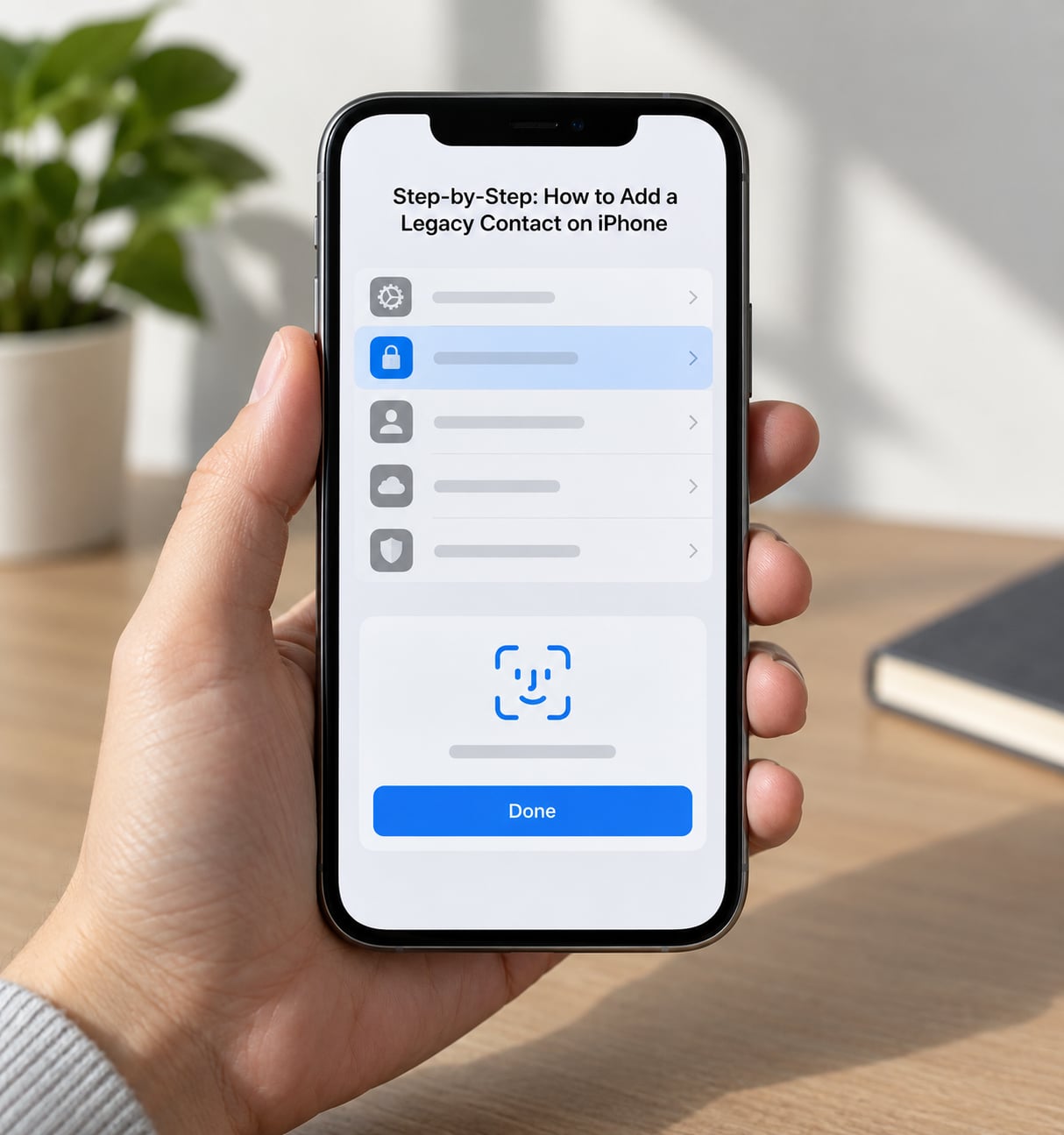
Step 1: Check Your iOS Version and Two-Factor Authentication
Open Settings and tap General, then About. If the number reads 15.2 or higher, you are fine. While you are in Settings, scroll to the row with your name and tap it, then tap Sign-In & Security. You should see Two-Factor Authentication listed and switched on.
If it is off, turn it on first. You will need a trusted phone number that still belongs to you, and turning it on later will not retroactively unlock the Legacy Contact option.
Step 2: Open Sign-In & Security on Your iPhone
In the same screen, scroll down until you reach the section titled Legacy Contact. Tap it. If you already added a contact, this screen lists them and gives you the option to add another or remove the existing one.
If the row is greyed out or missing entirely, skip ahead to the troubleshooting section further down. Work iPhones managed by an employer are the usual reason.
Step 3: Tap Add Legacy Contact and Choose the Person
Tap Add Legacy Contact, then Choose Someone Else. Apple shows your existing contacts and lets you enter a new phone number or email address if the person is not in your list. Pick carefully, because this is the person who will be able to request your iCloud data.
Tap Next, then authenticate. Face ID or Touch ID is the quickest route, and a six-digit passcode works too. Apple will not let you skip this step, which is deliberate.
Step 4: Choose How the Access Key Is Delivered
Apple now generates the Access Key and asks how you want to send it. You pick between sending it through the Messages app to an Apple device, or printing a copy as a PDF for someone who does not use Apple products.
Pick the option that matches the person, not the one that is quickest for you. More on that below.
Step 5: Verify the Saved Legacy Contact
Once you confirm, the name appears under Legacy Contact on that screen. Tap it to see the phone number or email address on file. Tap View Access Key if you need to check the key again later.
Then confirm the person actually received it. If you chose Messages, they should see it on their own device. If you printed it, walk them through where you put the sheet, because a printed key sitting in a drawer nobody opens is the same as no key at all.
How to Share the Access Key: Messages vs Printed PDF
The Messages route puts the key directly onto the other person’s iPhone, iPad or Mac, where it stays available in Messages. That is the most convenient choice and the one most people pick.
The print route produces a PDF with a QR code and a long key string. It exists for the very common situation where the person you trust does not own an Apple device, or has an Android phone and will never see a Messages delivery. People posting on Reddit about naming a non-Apple-user family member almost always end up on this route.
One thing worth knowing: the two choices are not perfectly interchangeable later on. You can view a key you have already sent or printed, but the safest habit is to hand the printed copy over in person and tell them not to lose it.
What Your Legacy Contact Can and Cannot Access
This is where people get surprised. A Legacy Contact gets a narrow, specific set of iCloud data, not your whole account.
| Data | Can your Legacy Contact open it? |
|---|---|
| iCloud Photos and photo albums | Yes |
| iCloud Drive files and documents | Yes |
| Messages in iCloud | Yes |
| Notes | Yes |
| Contacts | Yes |
| Reminders and calendars | Yes |
| Passwords in iCloud Keychain | No |
| Payment methods and Apple Pay cards | No |
| Your Apple Account settings | No |
| Purchases and subscriptions | No |
Finances are the thing families worry about most, and they are excluded by design. Nobody reading this list gets into your banking apps or your Keychain passwords.
Note that this covers iCloud data only. Anything you kept outside iCloud, such as a photo library stored solely on your laptop or an encrypted chat backup on an external drive, stays closed.
Legacy Contact vs Recovery Contact: Which One Do You Want
People pick the wrong option constantly, because the two have historically sat near each other in the same settings area and sound alike.
A Recovery Contact is for a locked-out account while you are alive. If you forget your password or lose your device, Apple can send a code to that person so they can help you back in. It does nothing after you die.
A Legacy Contact only matters after your death, and only for the iCloud data listed above. If someone on Reddit tells you to add a Recovery Contact for estate planning, they are mixing up the two. You want the Legacy Contact.
How to Add More Than One Legacy Contact
You can designate several people. Go back to Settings, tap your name, then Sign-In & Security, then Legacy Contact, and tap Add Legacy Contact again for each additional person. Each one gets their own Access Key.
Before you do it, know this: any legacy contact who completes the request can delete all of the account data. Once that happens, it is gone for everyone else too. Spreading it across three people makes the loss less likely only if none of them act quickly, which is not a plan.
The tidier approach is one legacy contact plus a good password manager entry in your own records, and a printed copy of the key stored somewhere your family knows about.
How to Remove or Change a Legacy Contact
To remove someone, open the Legacy Contact screen, tap the person, then tap Remove Legacy Contact and confirm with Face ID or your passcode. That reverses the whole designation.
Swapping people works the same way. Remove the old contact, then add the new one and generate a fresh Access Key. Adding a new legacy contact does not invalidate a key you already gave to someone else, so if you are replacing someone deliberately, remove first.
What Happens After You Pass Away
Apple does not contact your legacy contact. Nothing appears in their inbox, and no notification is queued up somewhere waiting. This surprises almost everyone, and it is the single most misunderstood part of the feature.
Access is entirely request-driven. Your designated person goes to digitallegacy.apple.com, submits the request, and uploads a copy of your death certificate along with the Access Key. Apple reviews it. Once approved, they can see the iCloud categories from the table above.
Once access is granted, Apple keeps the data for a three-year window before deleting it. Nobody extends that. An early request followed by a deletion wipes the account data for good, which is another reason to designate someone thoughtful rather than someone curious.
On the hardware side, users confirm that an approved request can lift Activation Lock from an associated device, though the device still has to be erased before it is useful to anyone else.
How to Access the Account if You Are the Legacy Contact
If this is you, you need three things: a copy of the death certificate, the Access Key in the exact form you received it, and proof of your own identity. Then you file the request at digitallegacy.apple.com.
Be realistic about the timeline. Apple reviews each request by hand, and the process is not fast. If you never received an Access Key because nobody sent one, there is no route around that at digitallegacy.apple.com. People in this situation end up on Reddit and Apple community threads with nowhere official to go, because the key is the whole gate.
Troubleshooting: Why the Legacy Contact Option Is Missing
If the Legacy Contact row is not there, work through these in order.
- iOS below 15.2. Update in Settings, General, Software Update. Nothing else will work first.
- A managed work or school device. Apple disables the option under MDM profiles. Your IT department controls this and you cannot override it.
- A child account. Accounts in Family Sharing for a minor do not expose the setting.
- Wrong Settings screen. It lives under your name, then Sign-In & Security, not under Face ID & Passcode or General.
- Two-factor authentication off. Turn it on, then look again.
- The key never arrived. Messages delivery needs an Apple device on the other end. Remove the contact and add them again using the print option instead.
One more worth flagging: the printed PDF is the record. If someone sends the key through Messages and then loses the phone it was delivered to, re-printing can be awkward. Have them screenshot it or forward the message into a place you control.
Helping an Older Relative Set One Up
A recurring question on Apple community boards and r/applehelp is how to do this for a parent who cannot manage a six-level menu or an authentication prompt. Sit with them and do the tapping. The screen matters less than the two decisions you make together: who gets the key and where the printed copy lives.
Go to their Settings, tap their name, Sign-In & Security, Legacy Contact, Add Legacy Contact. Choose someone else, authenticate with their passcode while you are sitting there, and pick the print option so the key is on paper rather than in an app they may not open.
Write three things down for them: who the contact is, where the printed key is stored, and that they can change any of it later. That last point matters. People often assume this is permanent once set, and they leave a designation in place years after the relationship changed.
Frequently Asked Questions
Why can’t I find the Legacy Contact option on my iPhone?
It is usually one of four things. You need iOS or iPadOS 15.2 or later, two-factor authentication switched on, and an account that is not a managed work or school device or a child’s Family Sharing account. Apple also hides the row entirely under an MDM profile, so a work phone will never show it. Check Settings, then your name, then Sign-In and Security and look again.
How do I save the Access Key for my legacy contact?
When you add the contact, Apple offers two routes. Sending by Messages delivers the key to an Apple device the person already owns. Printing produces a PDF with a QR code for anyone without an Apple device. You can view the key later from the same Legacy Contact screen using View Access Key. If it matters, have the recipient screenshot the message or keep the printed sheet somewhere agreed.
Does my legacy contact need an iPhone or any Apple device?
No. That is exactly why the print option exists. Choose someone with an Apple device and Messages is simplest. Choose someone on Android or with no smartphone at all and print the key as a PDF, then store it somewhere secure. Either way the person still has to submit a request with a death certificate at Apple’s digital legacy site before any data is released.
How many legacy contacts can I add to my Apple Account?
You can designate more than one, and each receives their own Access Key. The catch is that once a request is approved, the legacy contact who made it can delete the account data entirely, which removes it for everyone else. Most people are better off naming one person and keeping a copy of the key themselves than spreading the designation widely.
What happens to my iCloud data if I never set a legacy contact?
Nobody can request it. Without a designated legacy contact there is no one Apple can hand the request to, no Access Key to verify, and no route through Apple’s digital legacy process. Your iCloud photos, messages, notes and files stay permanently inaccessible to your family. Photos still on the phone itself can sometimes be recovered, but everything living only in iCloud is gone.
How do I remove a legacy contact from my iPhone?
Open Settings, tap your name at the top, then Sign-In and Security, then Legacy Contact. Tap the person you want to remove and choose Remove Legacy Contact, confirming with Face ID, Touch ID or your passcode. Removing someone does not invalidate a key you already sent them, so if you are replacing a contact deliberately, remove the old one first and then add the new one.
Conclusion: What to Do First
Open Settings, tap your name, then Sign-In & Security and tap Legacy Contact. Confirm two-factor authentication is on, tap Add Legacy Contact, choose the person, authenticate, and pick the delivery method that fits them rather than the one that suits you.
Then do the part most people skip: hand over the key yourself and make sure they know where it lives. If you have an aging parent, sit with them and do it on their phone today, in 2026, while both of you are still available to each other.