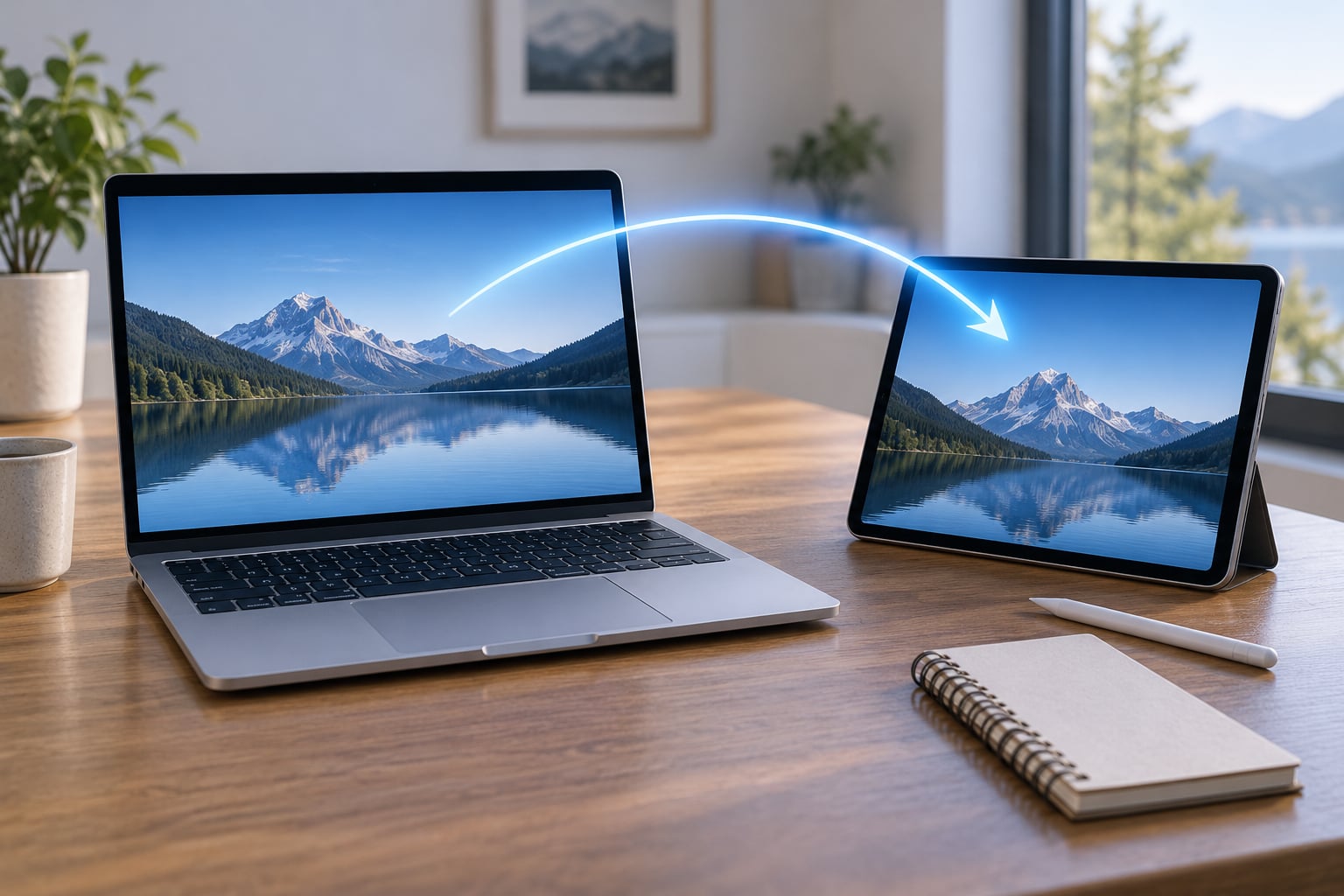
Universal Control lets you push your Mac’s pointer past the edge of the screen and have it land on your iPad, so one keyboard and trackpad drive both devices. Learning how to use Universal Control between Mac and iPad takes about five minutes: two toggles, one sign-in check, and a walk of the iPad to within arm’s reach of the Mac. Once it is on, the iPad behaves like an extra display and you can drag files across, copy text, and type on it from the Mac keyboard.
The catch is that both devices have to be signed into the same Apple Account, running a fairly recent version of their operating system, and sitting within roughly 10 metres of each other. Get any one of those wrong and the iPad simply never appears.
This guide covers the current 2026 menu paths on both devices, which matter because most guides still show the old System Preferences layout from macOS Monterey. It also covers the fixes that work when Universal Control stops working after a system update, which is the single most common complaint in Apple Community threads.
Table of Contents
- 1What You Need
- 2Step-by-Step
- 3Enable Universal Control on Your Mac
- 4Enable Universal Control on Your iPad
- 5Move the Cursor and Open Apps
- 6Use a Mac and iPad at the Same Time
- 7Check Compatibility and Requirements
- 8Common Mistakes and Quick Fixes
- 9Frequently Asked Questions
- 10Can I remotely control my Mac using my iPad?
- 11How many devices can Universal Control connect at once?
- 12Does Universal Control work with Apple Pencil?
- 13Does Universal Control work with an iPhone or a second iPad?
- 14Should I use Universal Control or Sidecar?
- 15Why does my Mac keyboard type on the iPad but nothing happens on the Mac?
- 16Conclusion
What You Need
Before you touch any settings, run through this list. If one item fails, nothing further will work.
- A supported Mac. MacBook Pro (2016 or later), MacBook Air (2018 or later), iMac (Retina, 2016 or later), Mac mini (2018 or later), or Mac Pro (2019 or later). Both Intel and Apple silicon models are supported.
- A supported iPad. iPad Pro (all models), iPad Air (3rd generation and later), iPad (6th generation and later), or iPad mini (5th generation and later).
- Current software. Universal Control needs macOS Monterey 12.3 or later and iPadOS 15.4 or later. Anything released before that has no toggle to find.
- The same Apple Account. Both devices signed into one Apple Account with two-factor authentication turned on.
- Handoff, Bluetooth and Wi-Fi switched on for both devices, with Handoff also permitted in iCloud settings on the iPad.
- Physical proximity. About 10 metres (30 feet) or less. Universal Control is local, not remote.
One detail catches people out: the devices do not need to be on the same Wi-Fi network, but one device must not be sharing a Personal Hotspot cellular connection to the other. That one configuration breaks discovery in a way that looks exactly like a broken toggle.
Step-by-Step
Enable Universal Control on Your Mac
On the Mac, click the Apple menu, then System Settings, then General, then AirDrop & Handoff. At the bottom of that pane you will find Cursor and Keyboard with a toggle beside it. Turn it on and the row below, Allow your pointer and keyboard to move between any nearby Mac or iPad, switches on with it.
Two things confirm this worked: the toggle stays blue after you close and reopen the pane, and no error appears underneath it. If the toggle greys itself out, the Mac is not signed into iCloud or has no network, and that is the real problem to solve.
Some builds surface the same switch under Apple menu, System Settings, Displays, Advanced, labelled Allow your pointer and keyboard to move between any nearby Mac or iPad. If you cannot see it in AirDrop & Handoff, search for Universal Control in the System Settings search box and it will take you straight there.
On macOS Ventura and earlier, the equivalent path is Apple menu, System Preferences, General, then AirDrop & Handoff. That older path is still accurate for those versions, so use whichever matches what you actually see.
Enable Universal Control on Your iPad
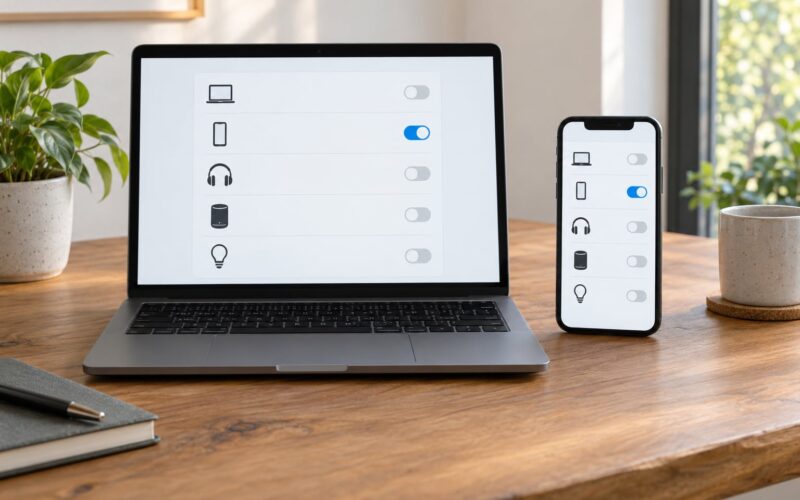
On the iPad, open Settings, tap General, then AirPlay & Handoff, then Cursor and Keyboard. The same description line appears there. There is no separate Universal Control switch on iPadOS; the Mac-side toggle is what allows the iPad to be reached.
Below that toggle on the iPad is a list of nearby Mac and iPad devices your iPad has connected to before. An empty list on a first attempt is normal. It fills in once a handoff succeeds.
Before assuming the iPad is broken, check three things: that iPadOS is 15.4 or later under Settings, General, About; that the iPad is signed into the same Apple Account as the Mac; and that Handoff appears in the iCloud app on the iPad, where you may need to switch Handoff on if it is greyed out.
Move the Cursor and Open Apps
Put the iPad next to the Mac with both screens awake and unlocked, then sweep the pointer to the edge of the Mac display and push it a couple of centimetres past that edge. If everything is set up right, a grey outline of the iPad appears in the gap and the cursor jumps across onto the iPad.
That grey outline is the signal to look for. Push further and it turns into a black iPad with your content on it; pull the pointer back toward the Mac and it becomes a thumbnail you can drop into position. Nothing at all appearing usually means discovery failed, so jump to the fixes below rather than pushing harder.
Once you are across, a few things come naturally:
- Typing. The Mac keyboard types directly into whatever is focused on the iPad.
- Drag and drop. Drag a photo from a Mac Finder window and drop it onto the iPad’s Files or Photos app.
- Copy and paste. This is Universal Clipboard and it works with no setup at all: copy on the Mac, paste on the iPad.
- App icons. In the iPad strip on the Mac’s Dock, clicking an iPad app opens it on the iPad and takes you there.
- Getting back. Push the pointer past the iPad’s far edge to return to the Mac.
Scrolling on the iPad scrolls whichever device your pointer is over, not both. That trips people up for a day.
Use a Mac and iPad at the Same Time
The iPad appears in the Mac’s display arrangement as an extra screen, and you can position it with the Arrange button in Apple menu, System Settings, Displays. If the Arrange button is greyed out or the iPad will not budge, the iPad has to be added to the display list first: in System Settings, Displays, click Add Display and choose the iPad while it is awake next to the Mac.
With it arranged, treat it as a wide monitor to the left or right. Open a document on the Mac, drag the window across until half sits on the iPad, then resize the divider line to give the iPad as much width as you want. It is a genuinely useful second screen for references, Slack, or a document and a chat window at once.
Then use both at the same time rather than swapping. Drag half the window onto the iPad, move the pointer over, and work on the iPad half with the Mac keyboard while your other hand is on the Mac trackpad. Two Macs and one iPad works the same way; the iPad just joins whichever Mac your pointer was last on.
If your iPad is connected by USB instead of over Bluetooth and Wi-Fi, you may be asked to tap Trust This Computer on the iPad the first time. Accept it and the wired path becomes available as a more stable alternative when wireless discovery is flaky.
Check Compatibility and Requirements
Most people who cannot get this working are running software that is too old, or a Mac model that predates the feature. macOS Monterey 12.3 and iPadOS 15.4 are the floor, and any release from 2026 onwards runs it comfortably.
One detail worth knowing: which features you actually get depends on the older of your two operating systems. Universal Clipboard has existed since iOS 10 and works far beyond the supported device list. The pointer and keyboard sharing that makes Universal Control distinct needs both devices on the newer versions.
If you want to check where the toggle lives on your exact build, Settings, General, About on the iPad and Apple menu, About This Mac on the Mac both name the version in plain text.
Common Mistakes and Quick Fixes
Work through these in order. The order is by how often each one turns out to be the cause, not by how technical it sounds.
- It broke right after an update. Toggle Cursor and Keyboard off on both devices, restart both, and turn it back on. If that fails, sign out of iCloud on the Mac and sign back in. Apple Community threads document cases where neither worked and the feature only returned after a later patch shipped, which points at a platform bug rather than anything you did.
- Different Apple Accounts. One device signed into a work or school Apple Account will never show up. Compare the account name in Apple menu, System Settings on the Mac with Settings, General, About on the iPad.
- Bluetooth or Wi-Fi off. Both must be on for both devices. Wireless discovery can also take 30 seconds or so, which reads as failure if you retry impatiently.
- Handoff unavailable. Sign in to iCloud on the iPad, open the iCloud app, and switch Handoff on. It stays greyed out until the iCloud sign-in completes.
- Cursor reaches the edge and stops. This is the screen arrangement, not the connection. The iPad has to sit to the left, right, or above the Mac in the arrangement rather than diagonally behind it.
- A Personal Hotspot is involved. If the iPad is sharing its cellular connection to the Mac, or the reverse, discovery fails. Put them on a normal Wi-Fi network.
- It hands off when you did not ask. Leave or a phone notification can trigger an automatic reconnect. Turn off Cursor and Keyboard when you want the iPad to stop joining in.
- It works for the Mac but not two Macs at once. Multi-Mac setups are handled less reliably than one Mac plus one iPad. Keeping only two devices signed in for a test tells you which pair is at fault.
- Gestures do nothing. Three- and four-finger trackpad gestures sent from the iPad’s keyboard do not work on the Mac. That includes Mission Control and some window management shortcuts. Use the mouse or trackpad for those.
- One app refuses to draw. Apps built for a Mac’s native window size can render oddly when the window is mostly on the iPad. Widen the window back onto the Mac display for those.
Frequently Asked Questions
Can I remotely control my Mac using my iPad?
Not with Universal Control, because it only works over Bluetooth and Wi-Fi within about 10 metres. If you need to reach your Mac from another room or another building, use Screen Sharing. On the Mac, open System Settings, General, Sharing, Screen Sharing, then open Screen Sharing on the iPad and sign in to the Mac.
How many devices can Universal Control connect at once?
Apple describes two nearby Macs and an iPad working together in one setup, and most people run a Mac and an iPad in practice. Multi-Mac configurations are handled less smoothly than a single Mac and iPad, so if you own two Macs, test with only one signed in to see which pair is the problem.
Does Universal Control work with Apple Pencil?
No. Apple Pencil input does not carry across from the iPad to the Mac, and pressure and tilt do not translate. Touch gestures on the iPad screen work while it is the active device, but the Pencil does not. If you need drawing input, keep the iPad as a standalone device.
Does Universal Control work with an iPhone or a second iPad?
An iPhone is supported for other Continuity features such as Handoff and Universal Clipboard, but not for Universal Control. Two iPads cannot connect to each other either, because the feature needs a Mac as the source of the pointer and keyboard. It does not work with Windows or Android devices either.
Should I use Universal Control or Sidecar?
Use Universal Control when the two devices sit next to each other on a desk and you want to type and drag between them. Use Sidecar when the iPad is across the room as a genuine second display. Some people run both at once, but you cannot use Sidecar on the same iPad that Universal Control is controlling at that moment.
Why does my Mac keyboard type on the iPad but nothing happens on the Mac?
Your pointer is probably sitting on the iPad, so keystrokes go there instead. Push the pointer past the iPad’s far edge to bring it back to the Mac. If that does not help, check that Cursor and Keyboard is still toggled on in AirDrop and Handoff on both devices after any system update.
Conclusion
Start by confirming both devices are current enough, signed into the same Apple Account, and within about 10 metres of each other. Turn on Cursor and Keyboard in AirPlay & Handoff on the Mac and the iPad, then push the pointer past the edge of the Mac display.
If the iPad does not appear, work the fix list from the top. In most cases the toggle-and-restart sequence, or a mismatch in Apple Accounts, resolves it within a couple of minutes.