Journal is Apple’s free built-in diary app, and learning how to use Journal app on iPhone takes about five minutes. Open Journal, tap Continue on the welcome screen, turn on journaling suggestions, then tap the plus button at the bottom, pick a journal and start a blank new entry. Photos, music, sketches, audio recordings and web links go in from the button on the entry toolbar, and you lock the whole thing with Face ID whenever you want.
Apple shipped Journal with iOS 17.2, and it has been free and preinstalled on every iPhone since. What makes it different from a blank notes app is that it offers you something to write around: photos, workouts, places and songs from your own day, surfaced on the device.
Here is what the app does in four short moves:
- Set up — open the app, tap Continue, turn on Journaling Suggestions.
- Create an entry — tap the plus (+) button at the bottom, choose a journal, tap New Entry or pick a suggestion.
- Review entries — use the search icon and the calendar icon to find old writing by word, date or category.
- Keep it private — turn on Journaling with a passcode, then require Face ID or Touch ID to open the app.
Table of Contents
- 1What You Need
- 2How to Use Journal App on iPhone Step-by-Step
- 3Open Journal and Create a New Entry
- 4Add Photos, Audio, and Links to Your Entry
- 5Use Prompts, Favorites, and Journaling Features
- 6Organize, Search, and Edit Journal Entries
- 7Common Mistakes
- 8Quick Tips for a Better Journaling Routine
- 9Frequently Asked Questions
- 10What is the diary app on iPhone?
- 11What is the point of the Apple Journal app?
- 12Is Apple Journal private and encrypted?
- 13What is the difference between Apple Notes and Journal?
- 14Why is my Journal not syncing to my iPad?
- 15Do I need the Journal app on my iPhone?
What You Need
There is no purchase, no account to create inside the app and no trial. Journal is part of iOS itself.
- An iPhone running iOS 17.2 or later. Journal arrived in iOS 17.2 in December 2023 and has been included in every version since.
- An Apple Account. You already have one if you use iCloud, the App Store or Find My.
- iCloud turned on if you want your entries on iPad, Mac, Apple Watch or the Journal web app, or if you want the end-to-end encrypted sync that keeps your writing unreadable to anyone else, Apple included.
- Some free space. Photos and audio attachments count toward your iCloud storage, so if you are near a storage limit, expect sync to stall.
- An optional passcode on your iPhone. Journaling with a passcode only works when your device already has one.
One thing worth checking before you start: a passcode and Face ID or Touch ID are the lock. Journal does not have its own password, which is why setting up a device passcode matters more here than it does in most apps.
How to Use Journal App on iPhone Step-by-Step
Open Journal and Create a New Entry
The first launch walks you through the setup. It takes under a minute, and you can redo any of it later in Settings.
- Open Journal from your Home Screen or App Library.
- Tap Continue on the welcome screen. Apple explains that the app uses on-device machine learning to pick suggestions.
- Turn on Journaling Suggestions with the toggle. This is the feature people switch on and then never see working, because suggestions need a little time and some photos in your library before they appear.
- Tap the plus (+) button at the bottom of the screen.
- Choose a journal from the top of the screen, or tap New Journal to make another one.
- Tap New Entry for a blank page, or tap a suggestion or reflection prompt to start from something.
- Type, then tap Done. The entry saves itself as you go.
You will know it worked when your entry appears in the list with today’s date and a preview of the first line. To check later, scroll to the top of the entry list, where the most recent writing sits first.
Worth knowing: you can start an entry from other apps without opening Journal. In Photos, News, Podcasts or Safari, tap the share button, then choose Journal. Several people in r/appleJournal use this as their fastest capture route, because it takes one tap instead of four.
Add Photos, Audio, and Links to Your Entry
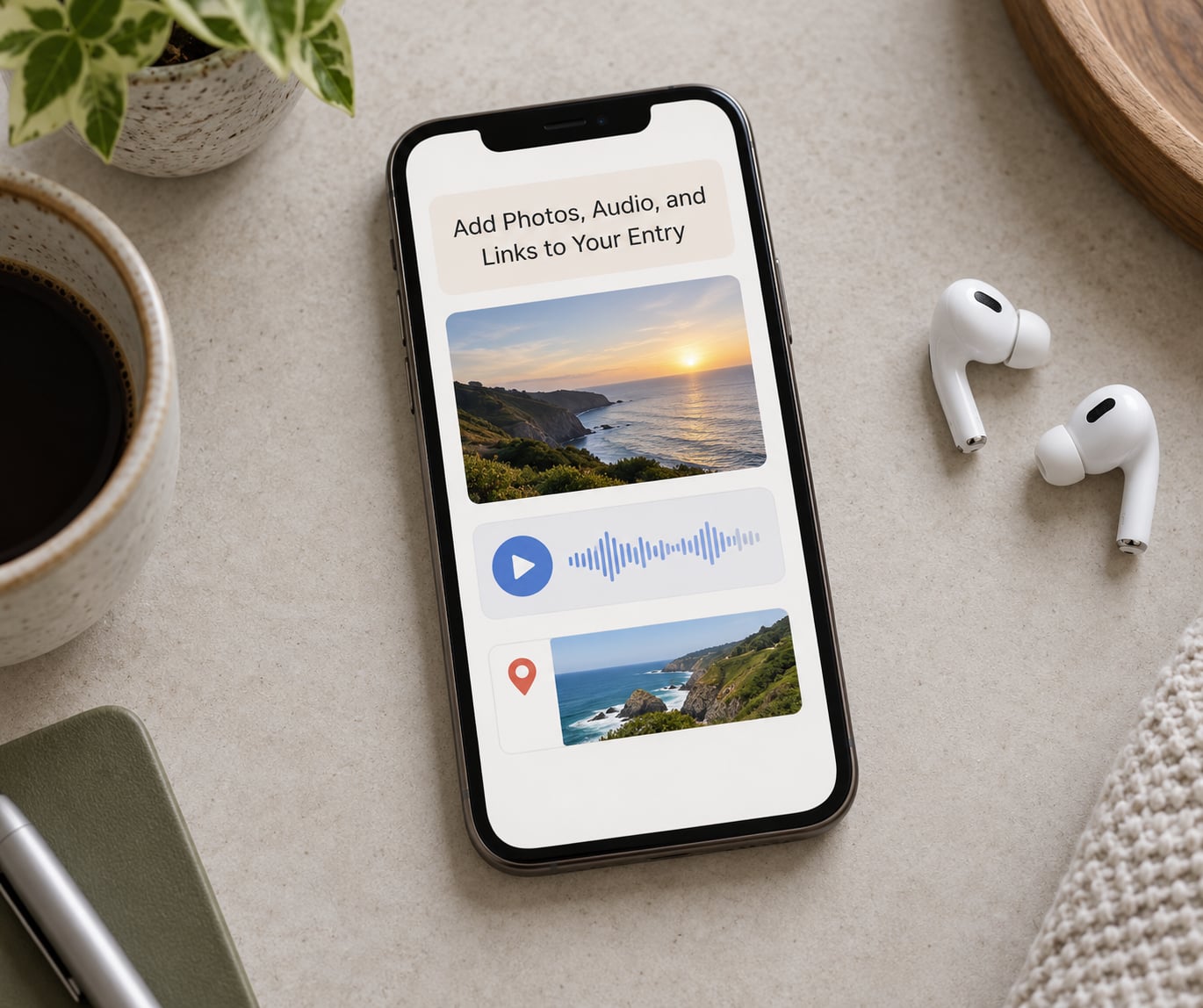
Everything attaches from the button that looks like a photo icon in the entry toolbar. Tap it and Journal offers what it can attach to the entry you are writing.
Photos — tap the toolbar button and choose Add Photo. Pick from your library or take a new one. Multiple photos can go into a single entry, and they stay grouped with the writing.
Audio recordings — tap the button and choose Record Audio. Recording happens while the entry is open, so stop it before you save. The clip attaches as a playable item, which is why people use Journal for voice notes and dream logging.
Music — choose Add Music, pick a song, and set how much of it plays. It is the most asked-about attachment on Reddit, and the answer is that it is inside the same toolbar button, not in a separate screen.
Sketches — Add Sketch lets you draw or write by hand with Apple Pencil on iPad or with a finger on iPhone. Drawing over a photo works too.
Places — when a suggestion already carries a location, it stays attached automatically. Otherwise the entry records where you wrote it if you have location services enabled for Journal.
Links — tap and hold a URL in your text, then choose Journal to send it in as its own entry, or paste it into the body of a current one.
Confirm each attachment by looking at the top of the entry: photos show as thumbnails, audio shows a waveform, and links appear as a row under the title. If an attachment is missing, close the entry and reopen it — Journal writes media to storage in the background.
Use Prompts, Favorites, and Journaling Features
Journaling suggestions are the feature that makes the app worth using instead of a plain notes app. Tap the plus button and Journal offers moments from your own history: a photo from this day in a past year, a workout, a place you visited, a song you played, a podcast you finished.
Reflection prompts are the other half. Tap New Entry, then tap the prompt icon in the toolbar to start from a question like what you are grateful for today. Prompts are also handed out by the app on its own schedule, which is the easiest way to build a habit without setting a reminder.
Beyond that:
- Bookmarks — tap the bookmark icon in an entry to mark it as a favorite. Bookmarked entries stay pinned to the top of the journal when you swipe down from the top of the list.
- Filters — on the entry list, filter by date, location or category, or search the text inside entries with the search icon at the top.
- Goals and streaks — Settings lets you set a daily or weekly writing goal, and Journal tracks a streak. Most people lose the streak in a busy week, so treat it as a nudge, not a scoreboard.
- Reminders — schedule a daily time and Journal will send a notification so you write before you forget.
- Widgets — a Lock Screen or Home Screen widget shows your streak and last entry, which removes the “where do I even start” moment.
- State of Mind — Apple Health mood entries can appear in Journal next to sleep and workout data, so a daily entry can sit beside the numbers behind your day.
Feature names move around between iOS releases. The plus button, the New Entry option and the toolbar have been stable for years, but if a name here does not match your screen, look for the same function under a nearby label in Settings or in the entry toolbar.
Organize, Search, and Edit Journal Entries
Reopening an entry is simple: tap any item in the list, edit the text, then tap Done. There is no separate save button because entries save continuously.
For search, tap the search icon at the top of the entry list and type a word, a date or a category. Journal matches words in your text plus the photos and places attached to entries, so searching for a town name can surface an entry you wrote without remembering the words you used.
Deleting is reversible for thirty days. Open an entry, tap the share or options control, choose Delete Entry, and it moves to Recently Deleted inside Journal. Empty that folder and it is gone permanently, so check the folder before you assume something is lost.
Backing up takes one setting. Go to Settings, Apple Account, iCloud, iCloud Drive and turn on Journal, and your entries sync to your other devices and the web. Turning off data for Journal stops that sync.
If you also use Notes, the two apps overlap more than people expect:
| Feature | Journal | Apple Notes |
|---|---|---|
| End-to-end encrypted sync | Yes, entries are unreadable to anyone else including Apple | Notes sync through iCloud but are not end-to-end encrypted |
| Writing prompts | Journaling Suggestions and reflection prompts from your own photos, workouts, places and music | No suggestions, you start from a blank page or a folder |
| Audio and sketches | Built in, with recordings and handwriting stored with the entry | Audio attachments yes, drawing via markup rather than a dedicated sketch |
| Lock | Whole-app passcode plus Face ID or Touch ID, or a lock on one entry | App-level lock only |
| Search | Searches text plus attached photos, places and dates | Faster, stronger search across all notes |
| Best for | Private reflection and memory keeping | Quick capture, lists and shared notes |
The honest summary from people in r/appleJournal is that plenty of them keep Journal as a private, media-heavy archive while using something else for fast daily capture. That is a perfectly good split.
Common Mistakes
Journal is not on your iPhone. Confirm you are on iOS 17.2 or later in Settings, General, Software Update. On an iPad or Mac, Journal arrived later than it did on iPhone, so update iPadOS or macOS too.
Journaling suggestions never show up. Check Settings, Journal, Journaling Suggestions is on, and leave the app alone for a day or two. Suggestions draw on your Photos library, Health data and listening history, and they can stay empty on a device with almost nothing in the library.
Entries are not syncing to your iPad. This is the most reported problem in r/iCloud and r/appleJournal. Work through it in order: both devices signed into the same Apple Account, iCloud for Journal enabled in Settings on each device, enough free iCloud storage, and the iPad on a recent iPadOS. Sync also stalls when you are over the storage limit, so check that before anything else.
A photo is missing from an entry. Open the entry and wait a moment — large attachments can still be processing. If it never appears, the original may have been deleted from Photos, so take your Journal photos out of “auto delete” in the Photos app.
An entry was deleted by accident. Check Recently Deleted inside Journal first; entries stay there for thirty days. Then check the Recently Deleted folder in Photos for any attachments you need to reattach.
You are stuck on iCloud storage. Journal uses your iCloud allowance like any other app, and a year of daily photos adds up quickly. Review what is taking space in Settings, Apple Account, iCloud, and remember that upgrading to iCloud+ changes the limit, not where the entries live.
You locked one entry and cannot open the journal. Locking a single entry and locking the whole app are different. If the app itself demands a passcode and you have forgotten yours, no amount of Journal settings will help — it is your iPhone passcode.
Quick Tips for a Better Journaling Routine
- Write short. Three lines about the day beats an empty entry you abandon. The habit dies faster from skipped days than from thin entries.
- Name entries descriptively. “Coffee with Sam after the flat tyre” is findable next year. “Tuesday” is not.
- Use the same prompt daily. Pick one and repeat it, or pick a suggestion when one appears so the blank page never shows up.
- Set one reminder, not five. A single daily notification tied to an existing habit, like after your morning coffee, works better than a stack of alerts.
- Check the lock twice. Confirm Face ID is required in Settings, Journal, then reopen the app once to be sure. This is the one setting worth verifying before you write anything sensitive.
- Let iCloud sync stay on. It is the backup. Turn it off and the only copy of your writing is the device in your pocket.
- Expect search to be weaker than Notes. It is. Search by a distinctive word or a location rather than a general theme.
- Read one entry a month. Bookmark entries you want to see again and scroll to them with a downward swipe on the entry list.
Frequently Asked Questions
What is the diary app on iPhone?
Journal is the free diary app Apple built into iOS, introduced with iOS 17.2 and preinstalled on every iPhone since. It keeps dated text entries and lets you attach photos, music, sketches, audio recordings and links. Its distinguishing feature is journaling suggestions: moments from your own Photos library, workouts, places and music that give you something to write around instead of a blank page.
What is the point of the Apple Journal app?
The point is privacy plus prompts. Your entries sync end-to-end encrypted through iCloud, so nobody but you can read them, and you can require Face ID or Touch ID to open the app. On top of that, Journal suggests photos, places, workouts and songs from your day and offers reflection prompts, which removes the reason most people abandon a blank page.
Is Apple Journal private and encrypted?
Yes. Journal entries sync to your other devices with end-to-end encryption, and the analysis behind journaling suggestions runs on the device itself. Apple cannot read your entries. You can also require a passcode, Face ID or Touch ID to open the app, and lock individual entries so one entry can stay hidden inside an otherwise open journal.
What is the difference between Apple Notes and Journal?
Journal is built for private reflection: end-to-end encrypted entries, journaling suggestions from your photos, workouts, places and music, audio recordings, sketches and an app lock. Notes is built for quick capture: faster search, folders, checklists, shared notes and collaboration, but its iCloud sync is not end-to-end encrypted. Many people use both without conflict.
Why is my Journal not syncing to my iPad?
Check four things in order: both devices are signed into the same Apple Account, iCloud for Journal is enabled in Settings on each device, neither device is over its iCloud storage limit, and your iPad runs a recent iPadOS. Storage is the most common culprit, because photo and audio attachments count against the same allowance. Entries stay on the iPhone while sync is blocked, so nothing is lost while you sort it out.
Do I need the Journal app on my iPhone?
You do not need it, and there is no cost to ignoring it. But it is already installed, it works offline, it has no subscription, and it is one of the few apps where your writing is encrypted so that only you can read it. If you have wanted to keep a diary and stopped because every app asked for a subscription or an account, Journal is worth ten minutes.
Open Journal tonight, tap Continue, turn on Journaling Suggestions and write one entry about your day before you turn off the screen. Everything after that — photos, prompts, Face ID, sync to your iPad — is a setting you can adjust once the habit is there.