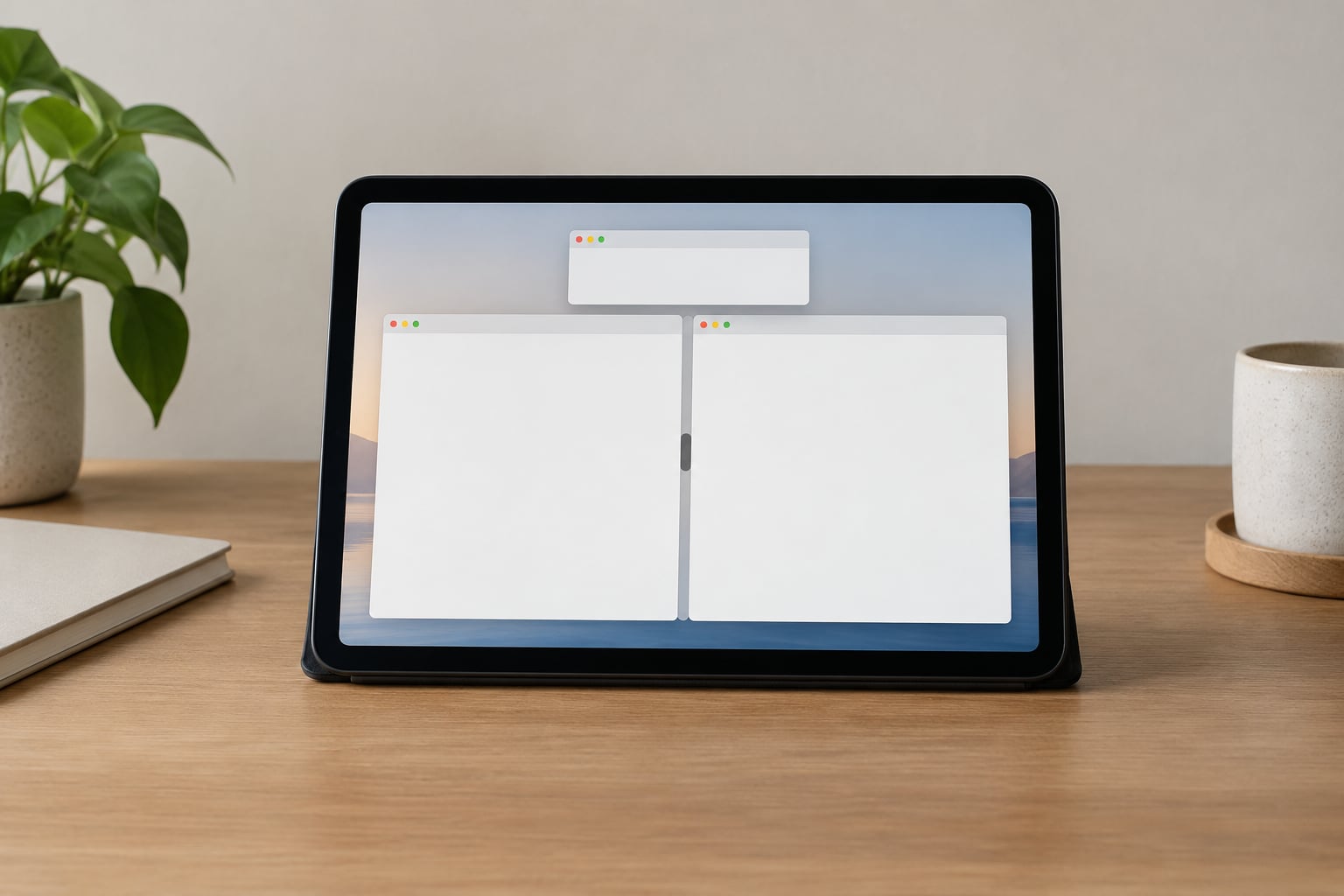
To use split screen on iPad, open the first app, tap the three-dot Multitasking button at the top of the screen, choose Split View, then pick your second app from the Home Screen or Dock. Two apps share the display with a draggable divider in the middle, and it takes about ten seconds once you know where the controls hide. The catch is that iPadOS 26 and later changed the windowing system, so the exact route depends on which version your iPad is running.
This guide covers both the current windowed-app system and the older Split View layout, plus Slide Over for anyone whose iPad hides the Split View option. Paths are named exactly as Apple labels them on iPad, so you can match each step to what is on your screen.
Here is the short version in four steps:
- Open the first app you want to use.
- Tap the three dots at the top of the screen, then tap Split View.
- Choose the second app from the Home Screen, Dock or App Library.
- Drag the divider left or right to resize both windows.
Table of Contents
- 1What You Need: iPad Models, iPadOS Versions and Supported Apps
- 2A quick compatibility check before you start
- 3Step-by-Step: How to Use Split Screen on iPad
- 4Open Two Apps in Split View
- 5Choose a Supported App for the Second Window
- 6Adjust the Split-Screen Divider
- 7Switch, Close and Restore Split-Screen Apps
- 8How to Use Split View on an iPad Without the Multitasking Button
- 9Working With Two Windows: Drag and Drop, Keyboard Shortcuts and Other Tricks
- 10Common Mistakes and What Causes Them
- 11Frequently Asked Questions
- 12Which iPad models support Split View?
- 13Why can’t I do split screen on my iPad anymore?
- 14How do I get my split screen back to full screen?
- 15What is the difference between Split View and Slide Over?
- 16Can I open the same app twice in Split View?
- 17Does Split View work with an external display?
- 18What to Do First
What You Need: iPad Models, iPadOS Versions and Supported Apps
Split View needs iPadOS 15 or newer on any iPad that runs it, which covers iPad Air 3rd generation and later, iPad mini 5th generation and later, and every iPad Pro. Older hardware is not the problem in 2026.
What actually blocks Split View is usually one of three things: the app itself does not support multitasking, Stage Manager or the new windowed-app system is handling your windows differently, or you are opening the multitasking menu from a place that has no Split View option. Check those before assuming your iPad cannot do it.
Apple supports three windowing modes plus a fourth on newer versions, and picking the right one saves a lot of confusion:
| Mode | What it looks like | Best for |
|---|---|---|
| Full Screen | One app fills the display | Reading, video, drawing |
| Split View | Two apps side by side with a divider | Email next to a browser, notes next to research |
| Slide Over | A narrow floating window over a full-screen app | Quick reference, a timer, a chat window |
| Stage Manager and windowed apps (iPadOS 26 and later) | Free-floating, resizable windows you drag around the Home Screen | Power users running three or four apps |
If your iPad has no Home button, there is no Multitasking button in the Control Centre or the Dock either. The gesture route in the last section below covers those models, and Slide Over works on every recent iPad regardless of version.
A quick compatibility check before you start
Run through these four questions and you know within a minute whether Split View is going to work:
- How old is the iPad? Anything from iPad Air 3rd generation, iPad mini 5th generation, iPad 7th generation and every iPad Pro is fine. Older tablets that stopped receiving iPadOS updates are the only real hardware exclusion.
- What version is it running? Check Settings, General, About. iPadOS 15 introduced the modern multitasking menu. On iPadOS 26 and later the windowed-app system is available, and whether it is switched on changes what you see.
- Do your two apps multitask? Apps built for the iPad normally do. Video players, games and some audio apps are the usual exceptions, and they will only ever offer Full Screen.
- Is Slide Over turned off? On a school or work iPad, an administrator can restrict it under Settings, General, Multitasking & Gestures, or through a device management profile. When Slide Over and Split View are both missing from the multitasking menu, a restriction is the most likely reason.
On an iPad with a Home button, you also have the older Split View controller bar along the bottom edge of the screen when two apps are open. It is easier to ignore than the modern menu, but it still resizes windows and shows the close buttons for each app.
Step-by-Step: How to Use Split Screen on iPad
Open Two Apps in Split View
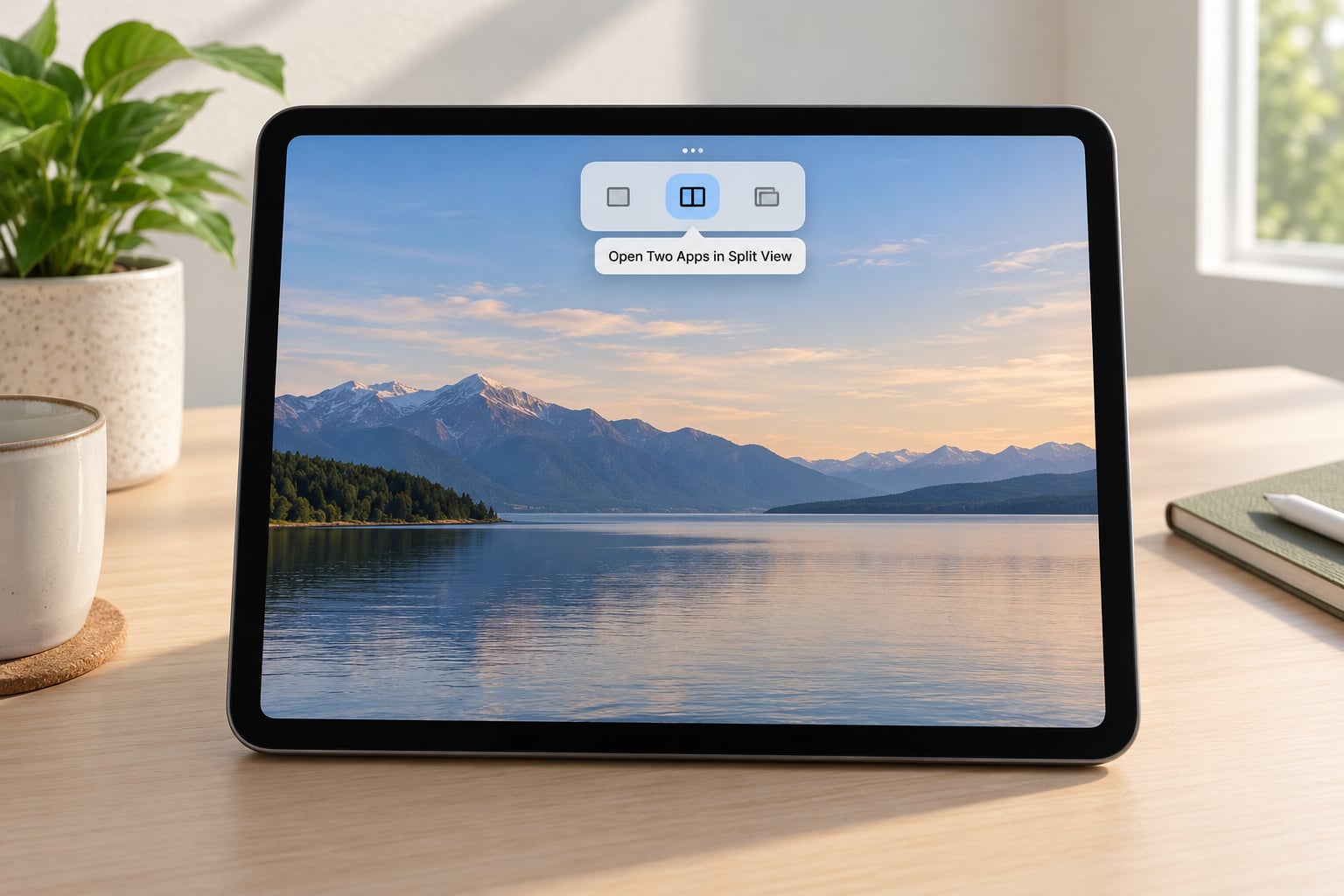
Open the app you want on one side and make sure it is in full screen. Tap the three dots in the top-right corner of the status area, or the Multitasking button on an iPad with a Home button.
The multitasking menu appears with a row of window options. Tap the Split View icon, which looks like a rectangle divided into two panels. You will see a dimmed Home Screen where the second app goes.
If the app window shrinks immediately and the other half stays blank, the first half of Split View is working.
On iPadOS 26 and later with the windowed-app system turned on, the same three-dot menu offers Split View, Slide Over and Full Screen as separate choices, so the menu can look slightly different from screenshots you find online. Older versions show a similar layout with the Split View option on the left.
Choose a Supported App for the Second Window
With one side active and the other side showing the Home Screen, tap any app icon to load it into the empty window. You can pick from your Home Screen pages, the Dock at the bottom, or the App Library if you have more apps than pages.
Both apps now run at once. A thin vertical divider sits between them, and a small grab handle appears in the middle.
Some apps refuse to appear in Split View. Streaming services, many music apps and a fair number of games are locked to Full Screen because their video or audio engine expects the whole display. When you tap one of those icons, it takes over the entire screen instead, and the split silently collapses. That is the app’s choice, not a fault on your iPad, and there is no setting that changes it.
Adjust the Split-Screen Divider
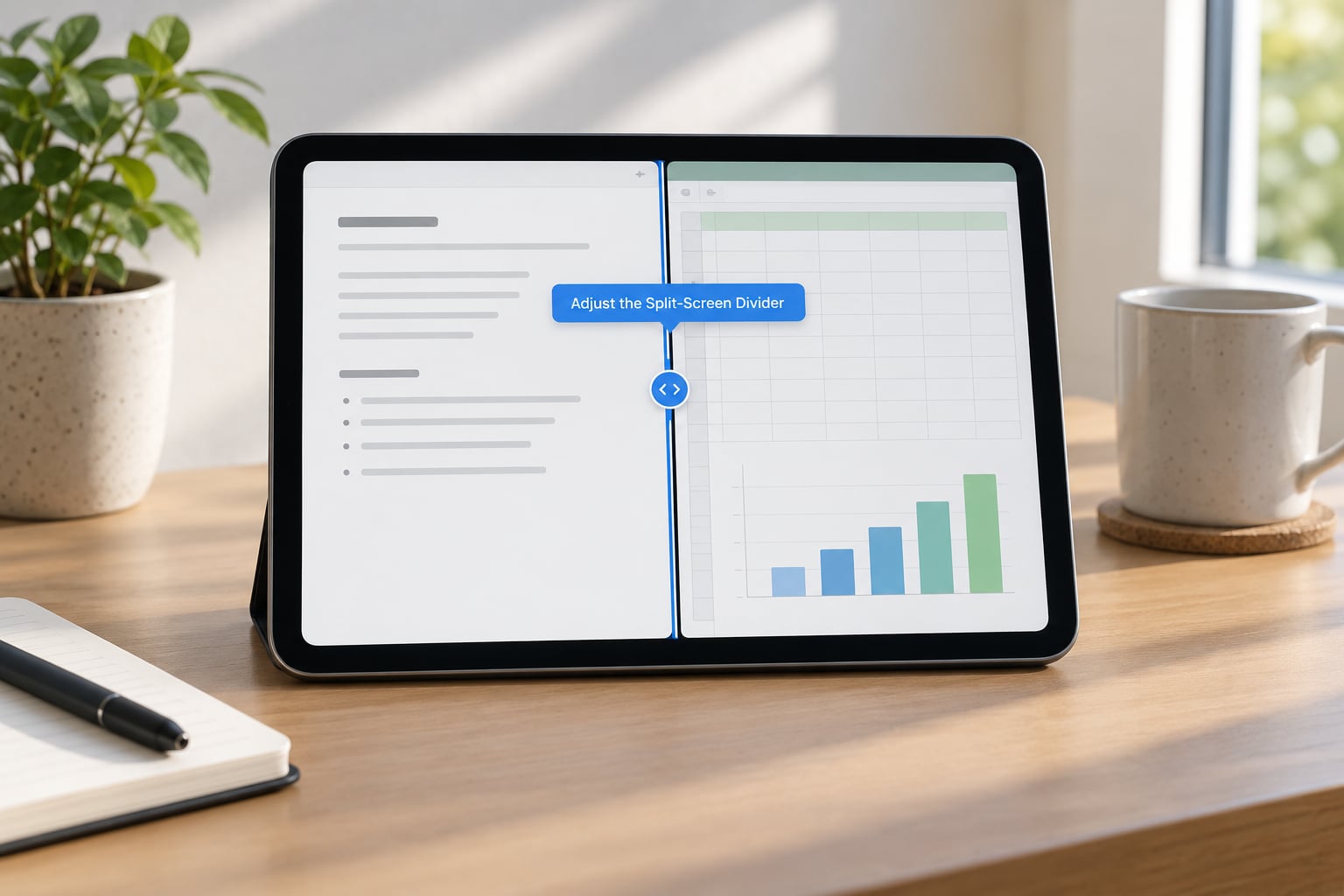
Put a finger on the divider and drag it. Dragging right gives more room to the right-hand app, dragging left does the opposite. Release when the proportions suit what you are doing.
The window underneath your finger changes size live, so you can see the layout before you settle. This works the same in either orientation, though on smaller iPads a horizontal layout can leave both windows cramped. If a window gets too narrow to read, drag the divider back toward the middle.
A useful trick is the three-finger pinch or drag on the divider, which snaps the split to a clean half-and-half, one-third to two-thirds, or the reverse. Tapping the divider also opens a small menu with a Hide option and a way to swap the two apps between sides.
Switch, Close and Restore Split-Screen Apps
To swap which app sits on which side, drag one app icon from the Dock onto the other window. iPad exchanges them and keeps both running.
To close one app and keep the other, swipe that window down and off the top edge of the screen, or drag its window up to the top edge until it shrinks away. The remaining app expands to fill the space. In the older Split View layout, dragging the divider hard to the left or right edge until the other app disappears does the same thing, and it is still the method most long-time iPad users reach for out of habit.
Pairing your two apps once means they reopen together later. Set up the split, then leave it as it is and the layout tends to be restored the next time you open one of the apps. It is not a formal feature with a switch to flip, but the system does remember window position and pairing across restarts in most cases.
Apple also lets you run the same app in both halves. Open the app, enter Split View, then tap the same app icon in the empty window. It needs to be an app built for multiple scenes, such as Safari or Notes, otherwise the second copy replaces the first.
How to Use Split View on an iPad Without the Multitasking Button
iPads with no Home button have no Multitasking button at the bottom, but they still support the drag gesture. Open the app you want to keep large, then press and hold its icon in the Dock and drag it to the left or right edge of the screen.
Hold the drag until a thin divider appears along that edge, then lift your finger. The app settles into roughly half the display and the Home Screen fills the other side. Tap a second app to load it there.
Resizing is the same divider drag as before, and closing one side works with a swipe down from the top edge.
One thing catches nearly everyone out: if you lift your finger before the divider appears, iPad treats it as a Slide Over request instead and you get one floating window over a full-screen app. That is not a broken feature. Slide Over opens the same way, and you can convert it later by dragging its window down to the bottom-left or bottom-right corner of the screen until it snaps into Split View.
Working With Two Windows: Drag and Drop, Keyboard Shortcuts and Other Tricks
Once both windows are live you can move content between them, which is where Split View starts paying for itself. Select text in the left app, press and hold the highlight, then drag it to the other window. Let go and a new line appears with the text already in place. The same works for images, files, links and contact details, in any app pair where at least one of them accepts dragged text.
It is the fastest route for a handful of everyday jobs:
- Research and note-taking. Safari beside Notes or a dedicated notes app, dragging quotes across as you read.
- Email and attachments. Mail beside Files, dragging a document straight onto the compose field instead of hunting through folders.
- Reference while writing. A document app beside a chat window or a dictionary.
- Video alongside work. A video window beside notes, though streaming apps often refuse to multitask as noted earlier.
- Two pages of the same site. Two Safari windows, one for the specification and one for the manual you are comparing it against.
If you type with a keyboard, a few shortcuts make window handling much quicker. Pressing Globe and Up Arrow, or Command and Up Arrow with a hardware keyboard, opens the multitasking menu on the current window. From there the same Full Screen, Split View and Slide Over options are a couple of taps away.
Command and Tab cycles between the two open apps without leaving the split. The Control Centre opens from a swipe down at the top-right corner, where you can lock orientation so the divider stays put while you rotate the device. If the screen keeps flipping mid-task, that orientation lock is the setting most people miss first.
Three-finger swipes also resize: pinch in or out on a window to change its size directly, independent of the divider. That is quicker than dragging when you want one window noticeably larger and you do not mind the proportions being uneven.
And if you would rather have the apps pair up by themselves, there is no built-in shortcut for it on current versions. The closest option is to open both apps from the Dock right after one another and leave the arrangement alone, since iPad tends to restore the last window layout on relaunch.
Slide Over is the answer when an app insists on Full Screen, and it is genuinely useful on its own. Swipe up from the bottom edge of the screen to open the Dock, press and hold an app icon, and drag it to the middle of the display rather than to an edge. It opens as a floating panel roughly a third of the screen width. Drag it to any edge to hide it out of the way, and drag it back from the edge to bring it forward.
To swap which app is in the Slide Over panel, swipe it down to the bottom of the screen, then pick a different app. To remove it, swipe it off the top edge or drag it to the edge and let it slide away entirely. If it keeps covering the Split View window underneath, park it against the opposite edge from where you are working.
Setting up Slide Over once means iPad remembers the pairing. After you have a browser beside a messages app in a sliding panel, opening either one later brings the other back with it, which saves a few taps every morning.
Common Mistakes and What Causes Them
No Split View option in the menu. Usually the app does not support multitasking. Full-screen video apps, most games and a number of audio apps only offer Full Screen in the multitasking menu.
You meant Split View and got Slide Over. Release your drag too early. The drag must reach the very edge of the screen before you lift off, and the divider has to appear before the drop. To convert afterwards, drag the floating window down into a bottom corner.
Nothing changed after an update. iPadOS 26 replaced the old full-width Split View with the windowed-app system, which moves and resizes windows like a desktop. To go back, open Settings, then Multitasking & Gestures, and turn off the windowed-app option. Existing apps go back to the classic layout, though the old Full Screen, Split View and Slide Over triple still exists on iPad models that support it.
The split keeps resetting to the default size. That happens when a window is closed or an app is relaunched from the Dock rather than the app switcher. Open the app you want from its icon first, then drag it into place. People running older software report the position holding more reliably on versions before 26.
The divider will not move. Check that Multitasking & Gestures has not been restricted, and make sure you are grabbing the divider itself rather than the edge of an app window. On very small iPads the handle is only a few millimetres wide, which is why it feels broken at first.
One window is frozen or blank. Force-quit that app by swiping up from the bottom edge of the multitasking menu and reopening it. Heavy PDFs and video editors running next to a dozen background apps are the usual culprits, so closing a couple of unused windows first prevents most of it.
Everything feels slower than it used to. This is the most common complaint after iPadOS 26, and it is not your device. The new system adds animation and extra steps between windows. If you want the snappier feel, the Multitasking & Gestures setting above is the switch to flip.
Frequently Asked Questions
Which iPad models support Split View?
Any iPad running iPadOS 15 or later supports Split View, which covers iPad Air 3rd generation and later, iPad mini 5th generation and later, iPad 7th generation and later, and every iPad Pro. What matters more than the model is the app: streaming video, most games and many music apps do not support multitasking, so they stay Full Screen no matter which iPad you own.
Why can’t I do split screen on my iPad anymore?
Three usual causes. The app you opened may not support multitasking, so the multitasking menu shows only Full Screen. Your iPad may be running iPadOS 26 or later, where the windowed-app system replaced the classic full-width Split View; turning off windowed apps in Settings, Multitasking and Gestures restores the old layout. A third cause is dragging to the screen edge too early, which opens Slide Over instead.
How do I get my split screen back to full screen?
Swipe the app you want to remove downward and off the top edge of the screen. The remaining app expands to fill the display. On the older Split View layout, drag the divider hard to the left or right edge until the other app slides away completely. You can also tap the divider, choose Hide, or pick Full Screen from the three-dot multitasking menu.
What is the difference between Split View and Slide Over?
Split View divides the display into two side-by-side windows that share the screen equally or in any ratio you drag. Slide Over floats a narrow window on top of one full-screen app, taking up roughly a third of the width. Slide Over suits a quick reference like a timer or a message thread. To turn a Slide Over window into Split View, drag it down into a bottom corner until it snaps in place.
Can I open the same app twice in Split View?
Yes, for apps built to support multiple windows, such as Safari and Notes. Open the app, enter Split View, then tap the same app icon in the empty window and it appears on the other side. Two Safari windows can show different sites and even different profiles. If the second tap just replaces the first window, that app runs a single window only.
Does Split View work with an external display?
Yes, and an iPad that supports an external display can run Split View on the built-in screen while a second app runs full screen on the attached monitor, or you can mirror the same workspace to both. Support for each app varies: a developer can mark an app as not supporting multiple windows, in which case it stays on one display. Drag a window to the top edge of the screen to send it to the external display.
What to Do First
Start with the four steps at the top: open one app, hit the three dots, choose Split View, pick a second app. That gets you two working windows in about ten seconds, and every adjustment after that is just dragging the divider.
If Split View does not appear, check Multitasking & Gestures in Settings first, since the windowed-app switch in iPadOS 26 and later is the single most common reason the option vanished. After that, look at whether the app you opened supports multitasking at all.