Tags and smart folders let you sort Apple Notes by topic, project or date without moving a single note out of its current folder. A tag is a keyword you add to a note by typing the hash symbol followed by a word. A smart folder is a saved filter that collects every note matching rules you set, and it refreshes itself as notes change. Together they take about ten minutes to set up and they solve the classic Notes problem: one note that genuinely belongs in three places.
The important thing to know before you start is that neither feature stores anything. Notes stay exactly where they are, and a smart folder holds references to notes, not the notes themselves. Once that clicks, the rest is just taps and menu paths. This guide covers iPhone first, with the iPad and Mac routes called out where they differ. Last reviewed October 2026.
Table of Contents
- 1What You Need
- 2Step-by-Step: How to Use Tags and Smart Folders in Notes
- 31. Update Apple Notes and Choose an Organization Method
- 42. Create a Tag with a Clear Naming System
- 53. Apply and Change Tags on Existing Notes
- 64. Build a Smart Folder from Tags
- 75. Combine Multiple Filters When Needed
- 86. Find Tagged Notes Quickly
- 97. Maintain the System
- 10Common Mistakes
- 11Frequently Asked Questions
- 12What is the difference between a tag and a smart folder in Apple Notes?
- 13Can one Apple Note have multiple tags?
- 14Why is my Apple Notes smart folder empty?
- 15Do Apple Notes tags and smart folders sync between iPhone, iPad, and Mac?
- 16Can I create a smart folder based on a date or keyword?
- 17How do I rename or delete a tag in Apple Notes?
- 18Conclusion
What You Need
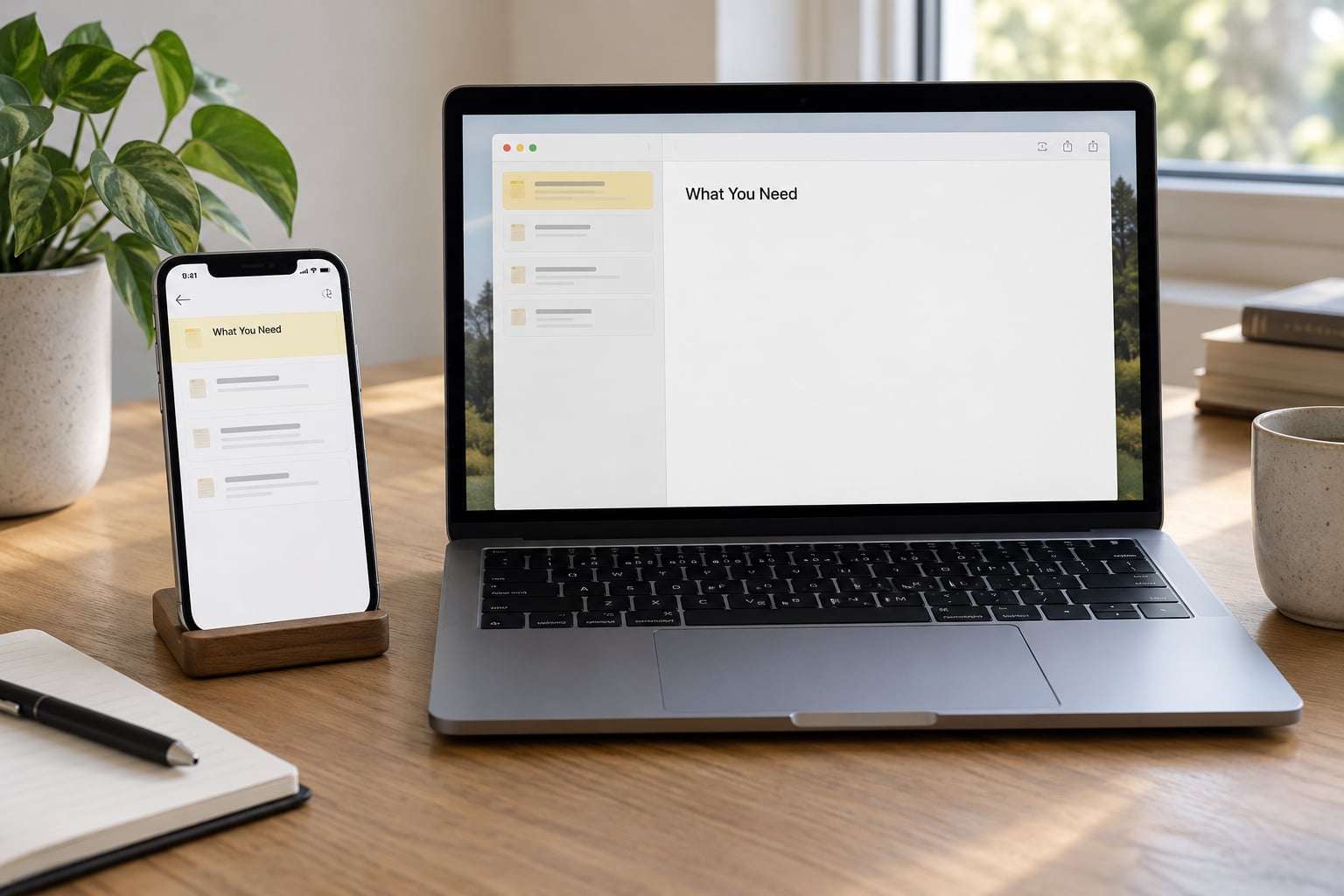
Just the Notes app that already ships with your device. There is nothing to buy and no third-party app involved.
You’ll want a recent version of iOS, iPadOS or macOS, since the smart folder filters expanded over the last few releases. An Apple Account signed into iCloud makes the setup useful across devices, but it is not required for ordinary use. Everything in this guide works offline; the account only matters for syncing.
Before you start tagging, it helps to know which kind of note you are dealing with. A project note that belongs to one client, a recipe note you search by ingredient, and a meeting note that might need a follow-up tag all get organized differently. Pick one small pile of ten to twenty notes and practise on those first.
Step-by-Step: How to Use Tags and Smart Folders in Notes
1. Update Apple Notes and Choose an Organization Method
Check for an app update in the App Store or through System Settings, then open Notes and tap the New Folder icon at the top so you can see the folders view. You need that view for every step that follows.
There are three tools, and mixing them up is the most common reason people give up. A regular folder holds notes and can contain subfolders. A tag is a word attached to a note, and a note can carry several. A smart folder is a saved search that shows notes from anywhere based on tags, dates, mentions, checklists or untagged status.
A practical split: use folders for where a note lives (Work, Personal, School), tags for what it is about (keto, invoice, reading), and smart folders for the views you actually open (Work and urgent, anything untagged, last 30 days). If you keep everything in tags, the folders view turns into a wall of words.
2. Create a Tag with a Clear Naming System
Open a note, place the cursor at the end of a line, and type the hash symbol followed by the tag name, then a space. The word turns yellow and the tag is created. That yellow colour matters: a tag typed but not confirmed stays grey and will not register anywhere.
Alternatively, use the tag menu that sits above the keyboard and tap Create New Tag, then type the name. On Mac, the same menu appears under Insert in the menu bar or in the format menu above the note.
On naming, I have learned the hard way: one lowercase word, no spaces, no hash symbol in the name. So #keto and #invoice, not #Keto Diet. Multi-word tags need quoting marks and get fiddly fast.
Also decide on a vocabulary up front. Start with maybe eight tags and hold the line, rather than inventing a new tag every time a note feels slightly different. If you are just learning how to use tags and smart folders in notes, a short list you actually apply beats a long list you abandon.
3. Apply and Change Tags on Existing Notes
To add a tag to a note that already exists, open it, tap the ellipsis (…) button at the top right, choose Tags or use the hash method from the previous step. To tag several notes at once, go back to a folder or search result, tap Select in the top right, choose your notes, then tap the tag control in the toolbar and select or create the tag you want.
Removing a tag works the same way in reverse: open the tag menu, tap the tag again to untick it, and it disappears from that note. The note itself is untouched.
Then verify. Open the folders view and look at the Tags section below your folder list, which is the tag browser. Every tag in use appears there as a row; tap one and it shows every note carrying it. If your new tag is missing from that list, it was never activated.
4. Build a Smart Folder from Tags
You create a smart folder from the folders view, and a tag filter is the easiest one to start with. Here is the whole path on iPhone and iPad.
- Open Notes and tap the New Folder icon in the top right corner.
- Pick the account the smart folder should live in. If you use more than one Apple Account, this is the step people skip and later regret.
- Enter a name that describes the view, not the contents, so Work or Follow-up rather than Work notes archive.
- Tap Make Into Smart Folder.
- Turn on Tags in the filter list, tick the tag or tags you want, then tap Save.
On Mac, the route is File > New Folder, then select Make into Smart Folder from the folder type menu, choose your filter, and save. Control-click any folder later to reach Edit Smart Folder and change the rules without rebuilding it.
Check your work by opening the smart folder and confirming the expected notes are listed. If it is empty, jump to the common mistakes section below, because an empty smart folder is almost always an account or filter problem rather than a broken feature.
5. Combine Multiple Filters When Needed
Smart folders accept several filters at once, and one setting decides how they interact: match any or match all of the selected filters. Match any is the forgiving setting, showing a note that satisfies at least one rule. Match all requires every rule, so a note must carry both tags to show up.
Available filters include Tags, Date Created, Date Edited, Mentions (notes where someone has tagged a person), Checklists (notes with open checklist items) and Untagged Notes Only. That last one is the most useful in practice: it turns your Notes app into an inbox you clear weekly.
A couple of combinations that work well: a reading list made from a #reading tag plus date edited in the last year, a receipts folder from a #receipt tag plus date created in the last three months, and a follow-up view from a #followup tag combined with match any so an old reminder note still surfaces.
The exact filter list varies a little between Notes versions and platforms, and the wording changes between macOS releases, so look for the closest equivalent if Mentions or Checklists is missing. Tags, date created and date edited have been available for a long time and are safe to rely on.
6. Find Tagged Notes Quickly
On iPhone and iPad, the fastest route is the folders view. Tap the New Folder icon to open the sidebar, then scroll past your folders to the Tags section and tap the tag name. You land straight in the filtered list, and swiping the same way returns you to your folder view without a back-button hunt.
On Mac, the tags list runs down the left sidebar under the folders list, so a single click gets you there. You can also drag a tag onto the sidebar to keep it pinned in front of you.
Search is the other route. Tap the search field and type a tag name including the hash symbol, and Notes returns notes carrying it. Search works in a smart folder view too, which lets you narrow a filtered list without leaving it.
Verify the same way each time: the notes shown should all carry the tag, and the count should match what you tagged. If it does not, the filter is doing what you asked and the tagging is where the gap is.
7. Maintain the System
Tag systems rot through duplicate names, and the usual cause is #Work and #work existing as separate tags, each on different notes. Once a month, open the tag browser and look for near-identical rows, then merge them by applying the spelling you want to every affected note and deleting the other.
Deleting a tag is straightforward: in the tag browser, swipe left on the row, or control-click it on Mac, and choose Delete Tag. Two things worth knowing. The tag is removed from every note that used it, so check the affected notes first. It is also pulled out of any smart folder that referenced it, which can quietly empty a view you still use.
Rename a tag the same way but choose Rename Tag, then type the new name. Notes keep the tag and the smart folders keep working, which makes renaming the safer option when you are consolidating spellings.
Also worth a periodic look: archived notes (archived notes can be tagged but will not appear in a smart folder until restored), shared notes (a shared note keeps your tags, but the recipient may not see the same smart folders), and accounts. If you have notes in both an iCloud account and an on-device account, tag them consistently or your smart folders will only ever show half the picture.
One last habit. Clearing your untagged notes each week is what stops the library from turning back into a pile.
Common Mistakes
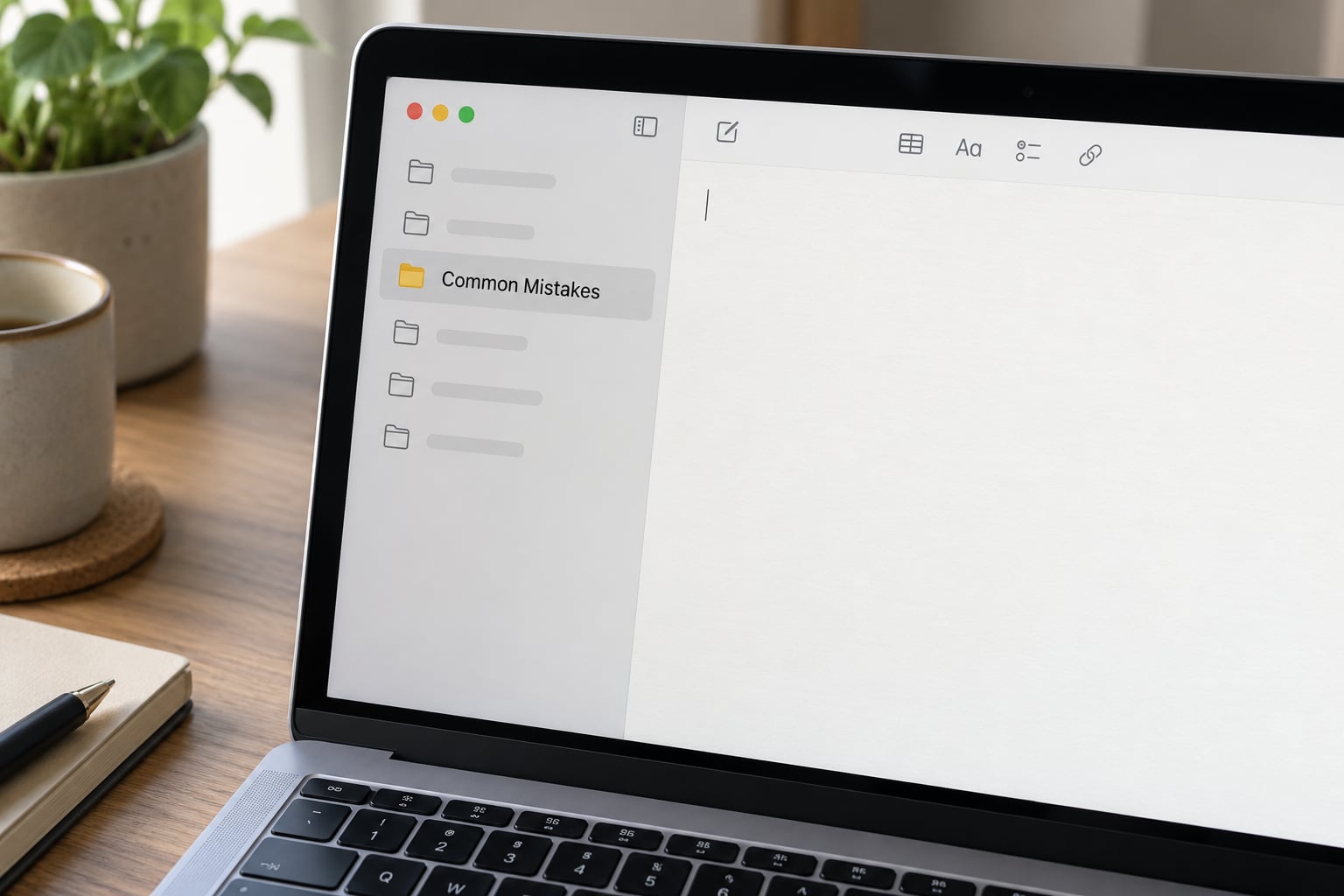
You typed the tag but nothing appears in the tag browser. This is the most reported problem and it has one main cause: the tag was never activated. Type the hash symbol and the word, then press space or return so the word turns yellow. A grey word is just text.
The smart folder is empty. Check two things in order. First, the account: if the smart folder is in iCloud and your notes are on the device only, it will never populate. Second, the filter: open the smart folder, control-click and choose Edit Smart Folder to confirm the tag is ticked and that match any is selected if you added several rules.
You are treating tags like folders. A tag does not move a note and does not create a place. If you are copying notes into folders to make them show up somewhere, the fix is to leave the notes where they are and let the smart folder do the collecting.
Tag names are confusing and the sidebar is unusable. Dozens of near-duplicate tags is the usual cause. Rename to one lowercase word, keep the list to what you actually use, and pin only the handful you open daily rather than letting all of them stack in the sidebar.
Filters exclude the notes you expected. Match all is stricter than most people assume. Switch to match any, or drop the date filter and see whether the notes reappear. Also check that date edited is not silently excluding notes you never opened after tagging.
Tags are missing on one device. Confirm iCloud for Notes is switched on for that account on every device and that each device is signed into the same Apple Account. A note tagged while offline syncs once it reconnects, so a stale device view right after tagging is normal and clears on its own.
A couple of limits to know up front, since they surprise people. You cannot nest a smart folder inside another folder, you cannot lock a smart folder or a note that is surfaced by one, and you cannot share a smart folder the way you share a note. Converting an existing folder into a smart folder is one-way: the notes move to the main Notes folder and pick up a tag matching the old folder name, and there is no undo.
Frequently Asked Questions
What is the difference between a tag and a smart folder in Apple Notes?
A tag is a keyword attached to a note, created by typing the hash symbol and a name. A smart folder is a saved filter that shows notes from anywhere based on rules such as tags, dates or mentions. Tags are the label you apply; smart folders are the view that collects notes carrying those labels. Neither moves or stores notes.
Can one Apple Note have multiple tags?
Yes, a note can carry as many tags as you like, and there is no hard limit in the app. The practical limit is discipline: most people stay organised with five to seven tags per note. Add them by typing the hash symbol and name, or by opening the tag menu above the keyboard and tapping tags one at a time.
Why is my Apple Notes smart folder empty?
The usual causes are an account mismatch or an over-strict filter. If the smart folder lives in iCloud and your notes sit in an on-device account, it cannot pull them in. Open the smart folder, control-click it, choose Edit Smart Folder, confirm the tag is ticked and that match any is selected if you added several rules, and check both are on the same account.
Do Apple Notes tags and smart folders sync between iPhone, iPad, and Mac?
They do, as long as every device is signed into the same Apple Account with iCloud for Notes switched on. A tag applied on the iPhone appears in the tag browser on the Mac within seconds. Changes made while a device is offline catch up once it reconnects, so a briefly stale view right after tagging is normal.
Can I create a smart folder based on a date or keyword?
Yes. Smart folder filters include date created and date edited, which let you build views such as notes edited in the last 30 days or anything created this month. For keywords, search inside a filtered list, or combine a date filter with a tag to narrow further. The exact filter list varies slightly between app versions.
How do I rename or delete a tag in Apple Notes?
Open the folders view and scroll to the Tags section, which is the tag browser. On iPhone and iPad, swipe left on the tag and choose Rename Tag or Delete Tag. On Mac, control-click it. Renaming keeps every note and smart folder working, while deleting removes the tag from all notes that used it and from any smart folder referencing it.
Conclusion
Start small. Pick ten notes that belong to one project, apply a single tag to each of them, and check the tag browser shows the tag and finds all ten. Then build one smart folder filtered on that tag and name it after the view you actually want.
If that works, the second thing worth adding is an untagged notes only smart folder, because clearing it weekly keeps the rest of the system honest. Everything after that, extra filters, match all rules, renaming schemes, you can layer on once the basic workflow is doing its job.