AirPods firmware updates happen automatically in the background, and there is no button anywhere in Settings to force one. To update AirPods firmware, put both earbuds in their charging case with the lid closed, keep the case plugged in and within Bluetooth range of your iPhone or iPad, and give it at least 30 minutes. Your phone downloads the file over Wi-Fi, then pushes it across.
That is the whole official process, and it works most of the time without you noticing. The trouble starts when the case is empty, the host device is out of date, or a VPN is intercepting the connection, which is why the steps below matter more than they look.
Table of Contents
- 1What You Need
- 2How to Update AirPods Firmware Step by Step
- 31. Check that your AirPods and iPhone are compatible
- 42. Put both AirPods in their charging case
- 53. Open the AirPods settings on your device
- 64. Start the firmware download and installation
- 75. Confirm the firmware version and finish
- 8Common Mistakes
- 9Frequently Asked Questions
- 10Do AirPods update automatically?
- 11Can I update AirPods with Bluetooth instead of USB?
- 12Why are my AirPods not showing a firmware update?
- 13How do I check which AirPods firmware version is installed?
- 14Do I need a Mac or iTunes to update AirPods?
- 15Why is my AirPods firmware update stuck?
- 16Conclusion
What You Need
You need three things and nothing else. No cable, no Mac, no special app.
- An Apple host device. An iPhone, iPad, or Mac signed into your Apple Account and connected to Wi-Fi. This is the delivery mechanism for the firmware file, not just a remote control.
- A recent iOS or iPadOS release. Check Settings > General > Software Update and install anything pending before you start. AirPods inherit their features from the host device’s OS, and older releases often refuse to push new firmware at all.
- Bluetooth and Wi-Fi switched on. Bluetooth carries the file the last few inches. Wi-Fi downloads it. Turn either one off and the update quietly fails.
You also need the AirPods themselves, both of them, seated in a case with a decent charge. The case needs power too, either from a cable or a wireless charging pad. Keep everything within about 15 feet of the host device.
Menu labels shift a little between iOS and iPadOS releases, but the path has been stable for years: Settings, then Bluetooth, then the info button next to your AirPods.
How to Update AirPods Firmware Step by Step
1. Check that your AirPods and iPhone are compatible
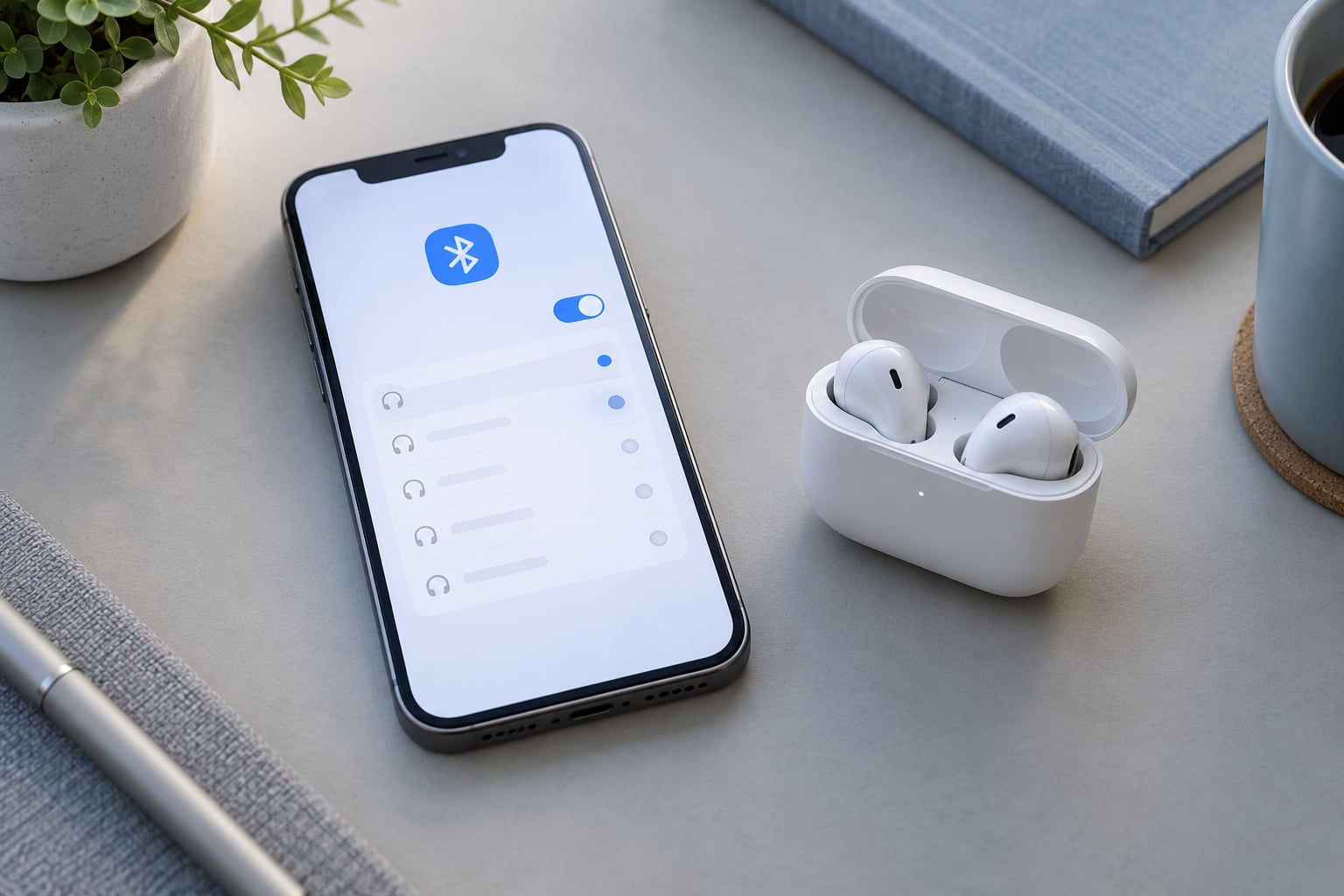
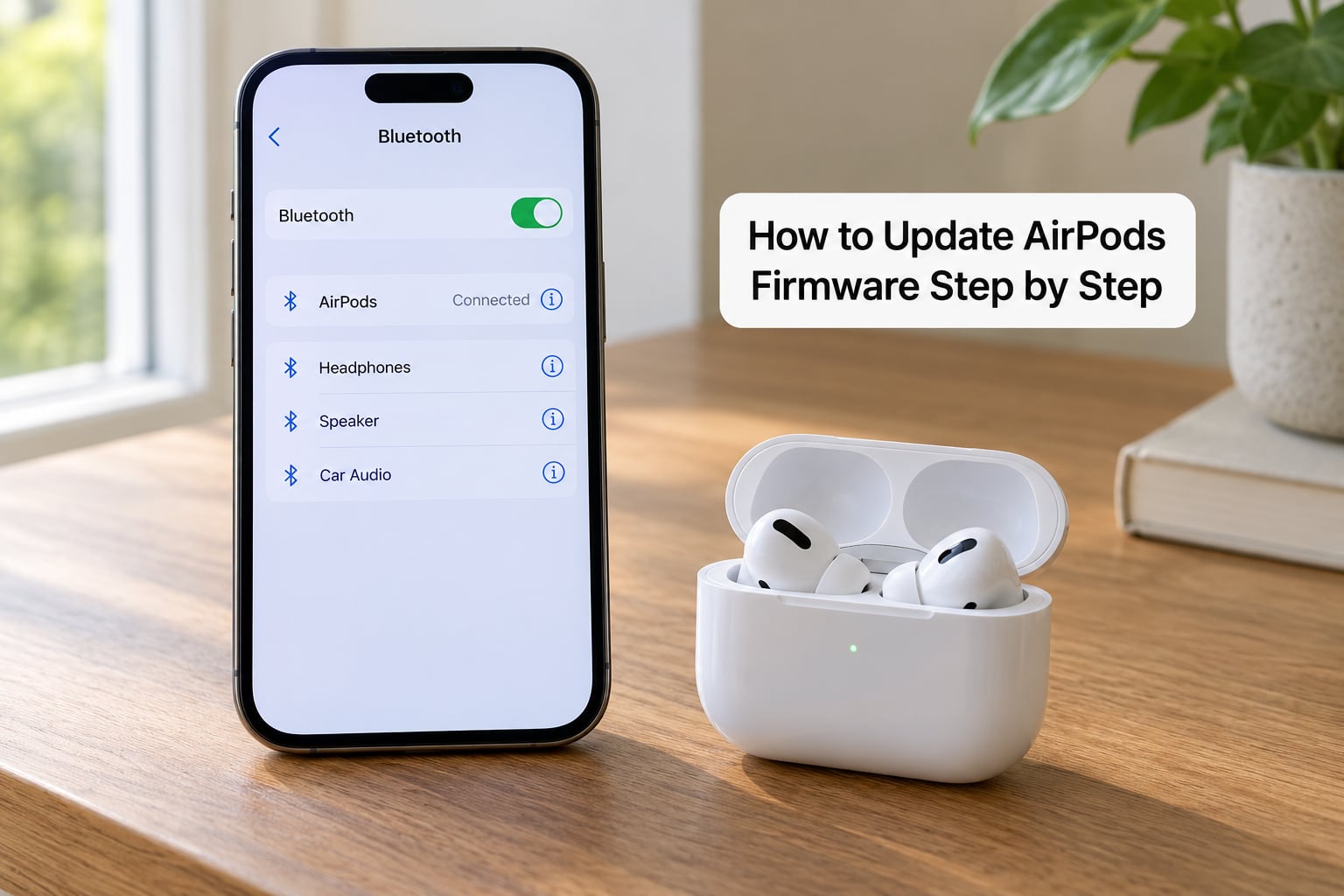
First confirm iOS sees the AirPods at all. Open Settings and tap Bluetooth. Your AirPods should appear in the device list with a Connected status. If the name is missing entirely, the pairing has broken and no amount of waiting will update anything.
AirPods from the first generation onward all receive firmware. What changes with age is the host requirement: newer firmware often needs a fairly recent iOS release on the iPhone or iPad, which is why Apple support’s own instructions tell you to update the host device before touching the AirPods.
2. Put both AirPods in their charging case
Drop both earbuds into the case and close the lid. Firmware installs to the earbuds and the case through the case’s connection to your phone, so a missing earbud means half a pair stays on old firmware. Users who hit this fix it by seating both buds and closing the case again.
Plug the case into power. Overnight is the most reliable window, and people on the AirPods support forums report that a phone on charge beside a closed case is when updates tend to land without argument.
3. Open the AirPods settings on your device
Open Settings > Bluetooth, then tap the small information button beside your AirPods name. That opens a page showing the AirPods model, serial number, and firmware Version, along with noise control and automatic ear detection toggles depending on the model.
There is no separate firmware update app, and no download button on this page. Apple designed the transfer to be invisible, which is also why you never get a notification the way your iPhone or Mac does.
4. Start the firmware download and installation
Nothing to tap. The phone pulls the file down over Wi-Fi in the background, then transfers it to the case, which installs it onto both earbuds.
During the install the case status light flashes white. An amber light after the reset procedure means the AirPods are in pairing mode and ready to reconnect, which is a different thing entirely. Give the process at least 30 minutes, longer if the file is large or the Wi-Fi is slow.
People routinely assume the silence means failure and open the case to check, which interrupts the transfer. It pauses rather than breaks, but you lose the 30 minutes you already spent.
5. Confirm the firmware version and finish
After the wait, reopen Settings > Bluetooth and tap the info button next to your AirPods again. Read the number next to Version. If it matches the current build Apple publishes for your model, the update finished.
Check the version before you contact Apple Support, because the serial number on that same page is what they ask for first. Once the number has moved, take the earbuds out, pair them normally, and carry on.
Common Mistakes
Most failed updates trace back to one of a handful of things, and they are worth working through in order of cost.
A VPN is running on the iPhone. This is the cause that Apple Community moderators name repeatedly and that almost no guide bothers to mention. Disconnect the VPN, then put the case back near the phone and wait again.
The host device is out of date. A pending iOS update quietly blocks a new firmware push. Install it first, restart, and retry.
Battery levels are low. A rule of thumb is 50% or more on both the phone and the AirPods case. Below that, the transfer stalls without an error.
The two earbuds are running different versions. This happens after a partial or interrupted install. Putting both back in the case together and closing the lid forces them to reconcile.
You interrupted the 30-minute wait. Reopening the case, moving the AirPods across the house, or putting the phone to sleep all stop the handoff. Restart the wait with the case in one place.
The AirPods came second-hand. Pairs bought used can carry firmware old enough that they will not hold a stable connection long enough to finish installing anything. Reset them, try a second Apple device signed into the same Apple Account, and expect that you may not be able to bring them fully current.
If all of that fails, reset properly: tap Forget This Device in the Bluetooth settings, then hold the setup button until the status light flashes amber, then re-pair. Resetting clears the pairing, so you are starting the relationship over. It fixes a large share of stuck-update cases, but it is the step people hesitate over, and hesitation is why they stay stuck.
Frequently Asked Questions
Do AirPods update automatically?
Yes. Once the conditions are right, your iPhone, iPad, or Mac downloads the firmware over Wi-Fi and installs it in the background with no prompt, no progress bar, and no notification. Because it is silent, the only reliable way to confirm an update happened is to reopen the AirPods information page in Settings and read the Version number.
Can I update AirPods with Bluetooth instead of USB?
You never need a USB connection. Bluetooth is the final hop, carrying the firmware from your phone to the case and earbuds, while Wi-Fi handles the download. Plugging the case into a computer is an old habit that carried over from the first-generation AirPods and their separate Audio Dongle.
Why are my AirPods not showing a firmware update?
The usual reasons are a host device that has not been updated to a recent iOS release, a case that is not plugged in, earbuds sitting outside the case, or a VPN running on the phone. Check that the AirPods still appear as Connected under Settings and Bluetooth first. If they are not listed at all, the pairing needs resetting before any update can be attempted.
How do I check which AirPods firmware version is installed?
Open the Settings app, tap Bluetooth, then tap the information button beside your AirPods name. Scroll to the Version line, which sits under the model name and serial number on that screen. On a Mac, the same information appears under Bluetooth in System Settings once the AirPods are connected.
Do I need a Mac or iTunes to update AirPods?
Neither one. An iPhone or iPad running a current iOS or iPadOS release handles the update on its own over Wi-Fi and Bluetooth. iTunes was only ever relevant for the earliest AirPods, and it plays no part in the process on any current model.
Why is my AirPods firmware update stuck?
Updates stall quietly for three main reasons: the host device is on an older OS release, the case ran out of power partway through, or something interrupted the handoff, like moving the phone out of Bluetooth range. Leave both earbuds in the case, keep the case plugged in and in one spot, and allow at least 30 uninterrupted minutes before checking the Version number again.
Conclusion
Open Settings, tap Bluetooth, and tap the info button next to your AirPods right now. Read the Version number. That single screen tells you whether you need the update process at all, and it gives you the serial number Apple Support will ask for if something goes wrong later.
Most updates start on their own once both earbuds are in a powered case near a current iPhone or iPad. Battery, a recent host OS, and no VPN cover nearly every failure. Give it a full 30 minutes without opening the case, and then look again.