To use Conversation Boost on AirPods, put them in your ears, open Settings on your iPhone, then go to Accessibility, Audio/Visual, Headphone Accommodations, Transparency Mode and turn on Conversation Boost. It takes about a minute once you know the path. The feature only runs while Transparency mode is active, and it only appears on AirPods Pro models.
I set it up on a pair of AirPods Pro for an older relative who struggles in restaurants, and the biggest surprise was how buried the switch is. Six taps deep, under an accessibility menu most people never open. Once you know where it lives, you stop hunting for it.
One thing worth setting expectations on: Conversation Boost is not a hearing aid. It leans the microphones toward whoever is speaking in front of you and pulls the rest of the room down. In a quiet room that does very little. In a busy one it is a real difference.
Table of Contents
- 1What You Need
- 2Step-by-Step
- 3Enable Conversation Boost in iPhone Settings
- 4Use Conversation Boost During Conversations
- 5Adjust or Turn Off Conversation Boost
- 6Common Mistakes
- 7Frequently Asked Questions
- 8Does Conversation Boost work on 1st generation AirPods Pro?
- 9Why is Conversation Boost not showing up in my settings?
- 10What is the difference between Conversation Boost and Conversation Awareness?
- 11Can I use Conversation Boost without Transparency mode?
- 12Does Conversation Boost drain the battery faster?
- 13Conclusion
What You Need
Before you start, check four things. Getting these right saves most of the troubleshooting later.
- An AirPods Pro model. Conversation Boost requires the beam-forming microphone array, which standard AirPods and AirPods 3 do not have. AirPods Pro 1st generation, 2nd generation and later Pro models all support it.
- An iPhone or iPad on a current version of iOS or iPadOS. The feature arrived with iOS 15 and needs a newer release on today’s systems.
- Up-to-date AirPods firmware. Open Settings, tap General, then About, and read the version listed next to your AirPods.
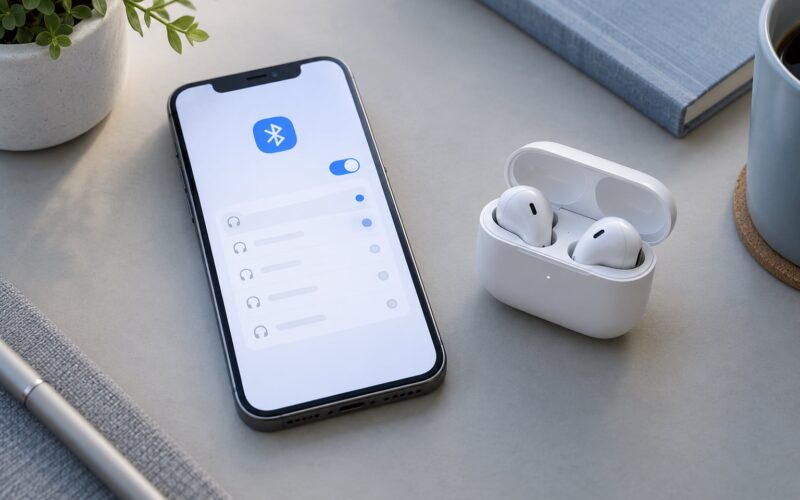
- The earbuds connected and in your ears. The Headphone Accommodations panel behaves differently when no AirPods are paired to the device you are holding.
Availability follows your region and language settings. If the menu exists but some options are greyed out, that is usually the region or the connected model rather than anything you did wrong.
Step-by-Step
Enable Conversation Boost in iPhone Settings
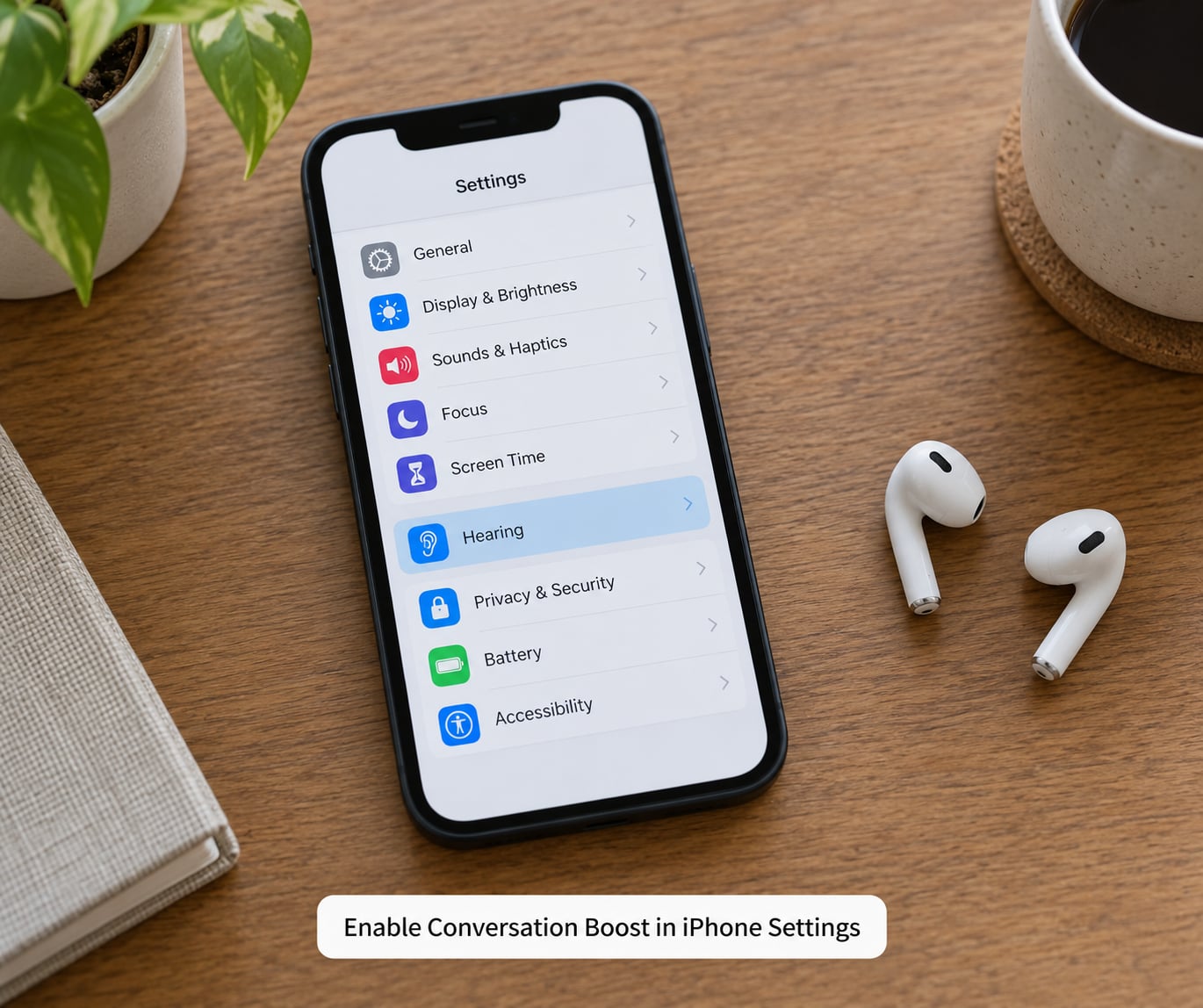
Here is the exact path, spelled out so you can follow it without guessing at the wording Apple uses.
- Put both AirPods Pro in your ears, or at least have them connected to the iPhone you are using.
- Open Settings, then tap Accessibility.
- Under the Hearing section, tap Audio/Visual.
- Tap Headphone Accommodations. Make sure the main switch at the top of that screen is on, then tap Transparency Mode.
- Turn on Conversation Boost.
- Close Settings. The setting takes effect the next time Transparency mode runs.
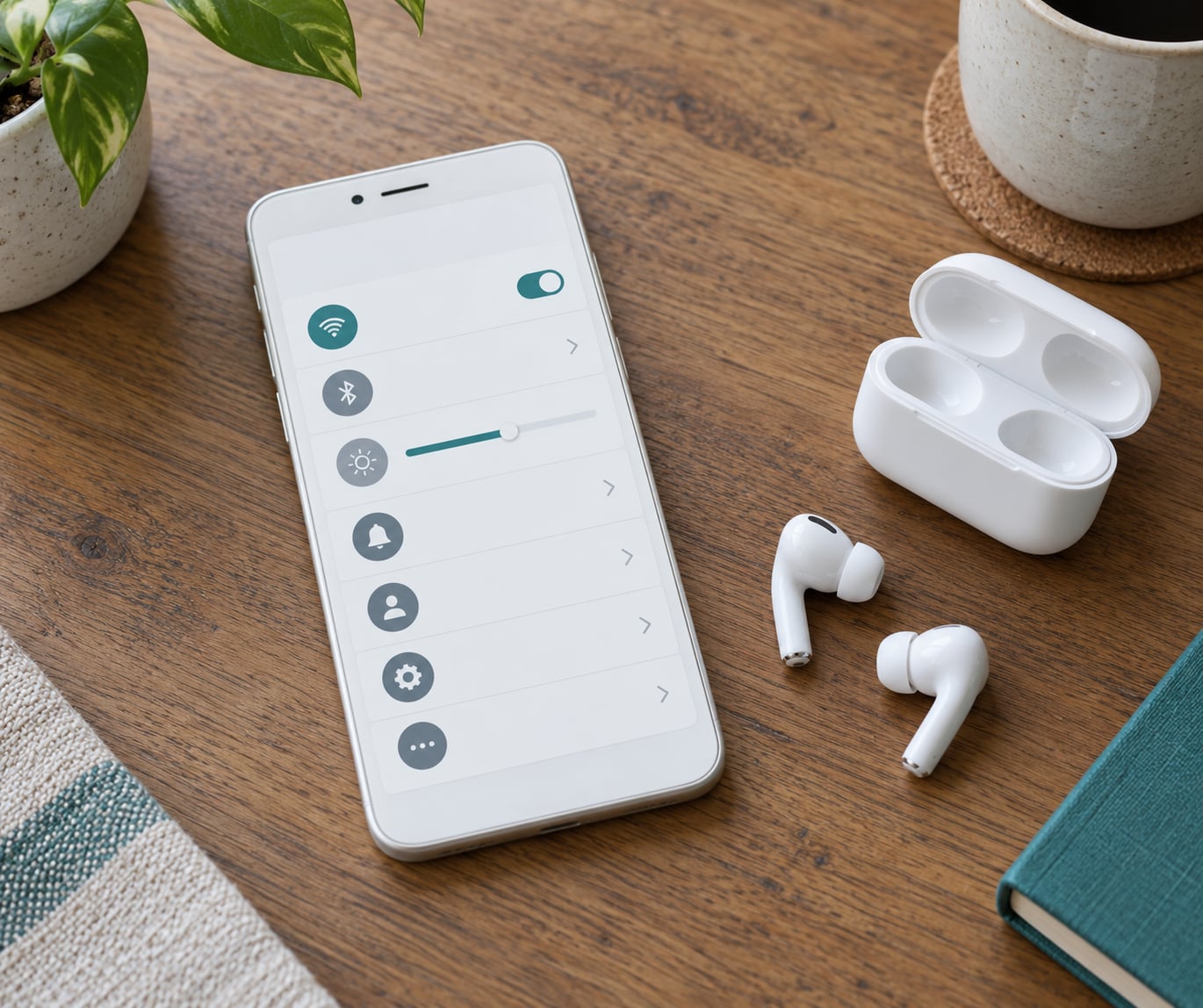
You will know it worked because the Transparency Mode panel now shows the Conversation Boost row switched to green, and the sliders below it become adjustable. If the row is there but greyed out, your AirPods are not connected or not a Pro model.
A quicker route exists if you use Settings search. Pull down on the main Settings screen, type transparency, and tap the Headphone Accommodations result. That skips four taps every time you want to adjust something.
Use Conversation Boost During Conversations
Conversation Boost does not switch itself on when someone talks. You put the AirPods in, turn on Transparency mode, and then they work for as long as the mode stays on.
Turn Transparency on the way you normally do: press and hold the stem of an AirPod, or open Control Center and tap the hearing icon, or ask Siri to turn on Transparency. The conversation ahead of you comes in through the microphones rather than being blocked by ANC.
Position matters more than most people expect. The microphones focus on the person speaking straight ahead of you, so face the speaker. At a family dinner that means turning your head toward whoever is talking, which reads as attention rather than as a weird habit.
Adjust the level as you go. The volume buttons still work while Transparency mode is running, so you can bring the voice up without touching Settings again. If a conversation sounds thin or underwater, that is usually the balance, not the feature. The next section covers which slider to move.
Adjust or Turn Off Conversation Boost
Back in Settings, Accessibility, Audio/Visual, Headphone Accommodations, Transparency Mode, you will find the controls that decide how Conversation Boost sounds. Turning on the Custom Transparency Mode switch exposes them.
- Amplification sets how much the front voice is boosted. Somewhere around half way suits most rooms. Higher sounds harsh fast.
- Ambient Noise Reduction pulls down the background hum. Useful in a restaurant, less useful at home.
- Transparency Balance shifts the focus between outside sound and whatever music or audio is playing underneath. More outside sound means less background audio.
- Tone adjusts the EQ, so voices can be warmer or brighter.
People who tune this usually land in the same place: amplification in the middle range, ambient noise reduction kept fairly low, and Transparency Balance turned toward outside sound. Push noise reduction to maximum and voices start to sound hollow, which is the most common complaint about this feature.
To end a session, switch Transparency mode off. To stop using the feature altogether, turn off the Conversation Boost row itself and leave Custom Transparency Mode off. Leaving it switched on costs you nothing except a slightly heavier Transparency profile when you use the mode normally.
Common Mistakes
The Conversation Boost row is missing. Usually the earbuds are not connected to the device in your hand, or you are on a non-Pro model. Connect them and reopen the panel.
Headphone Accommodations is on but nothing changes. Transparency mode itself has to be active. Conversation Boost rides on top of Transparency and does nothing while ANC or Spatial Audio audio is playing.
It works, then switches off on its own. Users on the Apple forums report the mode dropping when the AirPods reconnect to another device or after a firmware update. Re-check the setting after any update.
Voices sound echoey or underwater. Drop Ambient Noise Reduction to around a quarter and raise Transparency Balance toward outside sound. The underwater effect comes from over-processing, not from a fault.
One earbud is quieter than the other. Take both out and put them back in. A blocked mesh or a slightly misseated bud causes this more often than anything software-related.
Your iPad shows the old settings. Headphone Accommodations settings can take a while to catch up across your devices. Push each earbud into its case, wait a minute, then reopen the panel on the iPad.
Frequently Asked Questions
Does Conversation Boost work on 1st generation AirPods Pro?
Yes. Conversation Boost works on AirPods Pro 1st generation, 2nd generation, and later Pro models because each has the beam-forming microphone array the feature needs. Standard AirPods, AirPods 2, and AirPods 3 do not support it. The toggle stays hidden on those models, which is the most common reason people think the feature is missing.
Why is Conversation Boost not showing up in my settings?
Check three things in order. Your AirPods Pro must be connected to the device you are adjusting. Headphone Accommodations itself must be switched on. And the Transparency Mode panel must be open while connected. If all three are true and the row is still absent, restart the iPhone and put both earbuds back in their case to force a reconnection.
What is the difference between Conversation Boost and Conversation Awareness?
Conversation Awareness lowers the volume automatically whenever you start speaking, so the person in front of you hears your reply clearly. Conversation Boost amplifies and focuses on the front speaker so you hear them more clearly. One helps them hear you, the other helps you hear them. Conversation Awareness also sits in a different settings area and can behave oddly while Conversation Boost is active.
Can I use Conversation Boost without Transparency mode?
No. Conversation Boost is a layer on top of Transparency mode, not a separate listening mode. You have to switch Transparency on first, either through the Control Center hearing icon, a press and hold on the AirPod stem, or Siri. If you turn Transparency off, Conversation Boost stops working until you switch it back on.
Does Conversation Boost drain the battery faster?
It uses a little more than plain Transparency mode because the microphones stay active and process the audio continuously. In practice the difference is small enough that most people only notice it in a full day of heavy use. If you are relying on the earbuds for a long flight or workday, keep a charger in your bag rather than turning the feature off.
Conclusion
Start by confirming you have AirPods Pro rather than standard AirPods, then open Settings and follow Accessibility, Audio/Visual, Headphone Accommodations, Transparency Mode and switch Conversation Boost on. Test it in a quiet conversation first, where you can hear exactly what the microphones are picking up, before taking it somewhere noisy. Once you know how it sounds clean, raise Amplification a step at a time rather than all at once.