You can share a grocery list on iPhone with the free Apple Reminders app. Create a list, set its type to Groceries, tap the collaborate button, and invite people who have an Apple Account. Everyone you invite then adds, edits, and checks off items on the same live list through iCloud. The whole setup takes about two minutes.
My household did this after one too many group-text conversations about milk. The version that works has three pieces: iCloud turned on for Reminders, a list whose type is set to Groceries so items sort into sections, and an invitation sent to each person rather than a link forwarded around.
Table of Contents
- 1What You Need
- 2Step-by-Step
- 3Step 1: Open Reminders and Create a Grocery List
- 4Step 2: Turn On iCloud for Reminders
- 5Step 3: Invite Someone to the Grocery List
- 6Step 4: Add, Assign, and Check Off Items Together
- 7Common Mistakes
- 8Frequently Asked Questions
- 9What is the best grocery list app for iPhone?
- 10Can I share a grocery list with someone who has an Android phone?
- 11Do I need Family Sharing to share a Reminders list?
- 12What happens if someone is offline when they check off an item?
- 13Why isn’t my grocery list sorting into categories in Reminders?
- 14Conclusion
What You Need
Before you start, check these four things on every phone that will use the list.
- An iPhone or iPad on iOS 16 or later. Sharing was introduced in iOS 13, but the assignment and per-list notification controls need a newer version. On iOS 18 and iOS 26 the labels below still apply.
- An Apple Account for each person. They do not need to share yours, and they do not need to be in your Family Sharing group. A shared list crosses household boundaries and Apple Account boundaries freely.
- iCloud Reminders switched on. Sharing runs entirely through iCloud. If Reminders is off in iCloud settings, the collaborate button either does nothing or silently fails.
- An iPhone, iPad, or Mac for the people participating. Anyone on Android cannot join a Reminders shared list. That limit is fixed, and the workarounds are in the last section.
Step-by-Step
Step 1: Open Reminders and Create a Grocery List
Open the Reminders app, tap the Lists tab at the bottom left, then tap Add List in the top right. Name it something specific, like Weekly Groceries, rather than just Groceries. A dated or weekly name keeps old trips from blending into the current one.
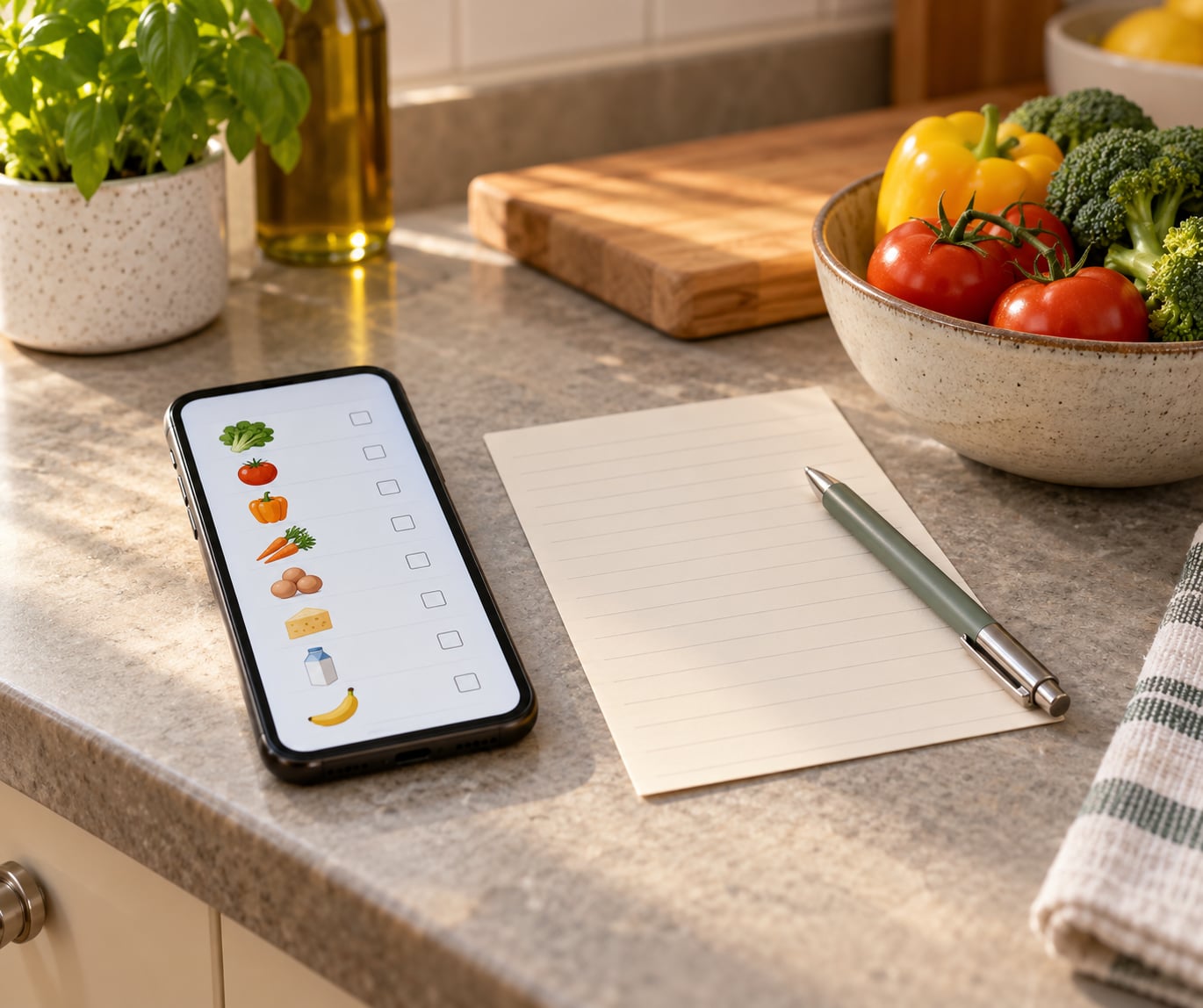
Then set the list type. Tap the three dots at the top right of the list, tap List Type, and choose Groceries. Once the type is set, Reminders starts filing new items into sections like Produce and Dairy as you type, which is the single biggest upgrade over a plain to-do list. You can change the type later the same way.
Add a few items now so the list is not empty when you share it. Type an item, press Return, and tap the circle beside it later to complete it. You should see your items grouped under category headings before you move on.
Step 2: Turn On iCloud for Reminders
Open Settings, tap your name at the top of the screen, tap iCloud, then tap Reminders and make sure the switch is green. Do this on your own phone first, then ask each person to check it on theirs before you send invitations.
If the Reminders row is missing from the iCloud screen, the account is probably not an iCloud account at all. Some work and school accounts run on Microsoft Exchange or Google, and those setups have no Reminders sync option.
While you are in iCloud, glance at Manage Account Storage at the bottom. A full iCloud account is a quiet cause of lists that refuse to update.
Step 3: Invite Someone to the Grocery List
Open the list, then tap the collaborate button. On most versions it is the person-with-a-plus icon in the top right, sometimes labelled Share List. If you cannot see it, the list may be sitting under My Lists but not yet shared, or you may be in the wrong tab.
Pick how to send the invitation: Messages, Mail, or copy a link into any other messaging app. Select the contact, tap Send, and they receive an invitation they must accept. Until they tap Accept, they see nothing and you see them listed as pending.
You can tell sharing worked when their name appears under the list title with a small person icon, and when their device shows the list the next time Reminders opens. A MacRumors forum regular described the same setup without any shared sign-in: shared lists, a shared Home app, and a shared calendar were the only things their two separate Apple Accounts collaborated on.
To change who has access, reopen the collaborate menu and tap Manage Shared List. From there you can remove a participant, and turn off the toggle for people you invite being able to add others. Turning that off matters when you do not want a guest adding your partner.
Step 4: Add, Assign, and Check Off Items Together
Everyone with access adds items the normal way, and changes show up on every device within seconds. Tap the circle next to an item as you pick it up in the aisle, and it disappears from the other person’s screen too. That live checkoff is what stops two people buying the same butter.
To hand someone a specific job, swipe right on the item and tap the assigned person, or long-press the item and choose Assign To. Assigned items collect in the Assigned to Me smart list, which is a tidy way to run a household task board without a separate app.
- Swipe right on the item, or long-press it and tap Assign To.
- Tap the name of the person who should buy it.
- Check Assigned to Me on their phone to see everything they owe.
- Add notes or a due date so the item does not slip between two people.
If your phone is full of hands, say Hey Siri, add milk to Weekly Groceries and the item lands on the shared list without opening the app.
Noise is the one thing people complain about, and it is fixable. Open the collaborate menu again and look for Notify When. Turn off notifications for Adding Items or Completing Items, keeping only the one you care about. Two people on one list do not both need a buzz every time someone types.
Common Mistakes
The list will not sync between two phones. Work down this list in order. Check the Reminders switch in iCloud on both devices, confirm both people are signed in with their own Apple Account rather than a shared one, then force-quit Reminders by swiping it away from the app switcher and reopening it. Turn airplane mode on for a few seconds and off again. If iCloud.com/reminders shows a different set of lists than your phone, that is the mismatch an iCloud user described when four of eleven lists appeared.
Someone sees an outdated version of the list. Usually the app has been open in the background for hours. Swipe it out of the app switcher and reopen it, or ask them to restart the phone.
The share button is missing or greyed out. Check you are inside the list and not on the Reminders home screen. If Reminders is off in iCloud, sharing is unavailable entirely.
You have two copies of the list. Someone created Weekly Groceries instead of using the one you shared. Delete the duplicate, keep the older list if it holds more history, and share that one.
Too many notifications. Use Notify When on the list, described above.
Tags your household uses are invisible to everyone else. One Reddit user organised a shared grocery list with hashtags and their partner could see the items but never the tags. The reliable fix is a section header instead of a tag: add an empty reminder, title it Produce, and leave it unchecked. Section headings show up for everyone, tags often do not.
You are sharing with someone on Android. Reminders will not work. Copy the list into a Notes note, tap the share button, send it as a link, and let them view or check it off in any browser. For a live two-way list you need a cross-platform app such as AnyList, SharedList, or OurTable, where one of you installs the app and sends an invite by link.
A few habits make the whole thing stick. Keep one list per trip rather than one permanent list. Name items the way the store labels them, so oat milk does not become a mystery carton later. And check the shared list before you leave the house, because a checked-off item usually means someone already handled it.
Frequently Asked Questions
What is the best grocery list app for iPhone?
Apple Reminders is the best grocery list app for most iPhone households because it costs nothing, syncs through iCloud, and already syncs to iPads and Macs. Set the list type to Groceries and it files items into sections automatically. The tradeoff is that it needs an Apple Account on every device, so households with an Android phone in the mix should look at a cross-platform app like AnyList or OurTable instead.
Can I share a grocery list with someone who has an Android phone?
Not through Reminders. Shared lists run on iCloud and only work on iPhone, iPad, and Mac. Your options are copying the list into a Notes note and sharing it as a link they can read in a browser, or using a cross-platform grocery list app where you send them an invite. Some people also share through Messages so the list stays viewable outside the Apple ecosystem.
Do I need Family Sharing to share a Reminders list?
No. A shared list is invitation-based and works between completely separate Apple Accounts, including people who live in different homes. Family Sharing covers purchases, subscriptions, and location sharing. Turning it on changes nothing about list access, and people in your family who have their own Apple Account still need their own invitation before they can edit your list.
What happens if someone is offline when they check off an item?
Reminders keeps the change on their device and pushes it up through iCloud the next time the phone connects, so nothing is lost. The catch is timing. Two people who are both offline at the same time can add the same item twice, or one person may shop from a stale version. Open the list once you have signal before you start checking things off in the aisle.
Why isn’t my grocery list sorting into categories in Reminders?
Sorting only works on a list whose type is set to Groceries. Open the list, tap the three dots in the top right, tap List Type, and choose Groceries. Items already on the list get sorted as you go, but the categories show only for newer entries and can take a refresh to appear. If the List Type option is greyed out, the list is probably already shared through something other than iCloud.
Conclusion
Start with one list. Open Reminders, add a list, set its type to Groceries, confirm the Reminders switch is on in iCloud, then invite every person who shops with you.
Once it is running, keep the names obvious and check the list before you walk out the door. That last habit is what turns a shared list into fewer duplicate jars and fewer forgotten eggs, which was the entire point.