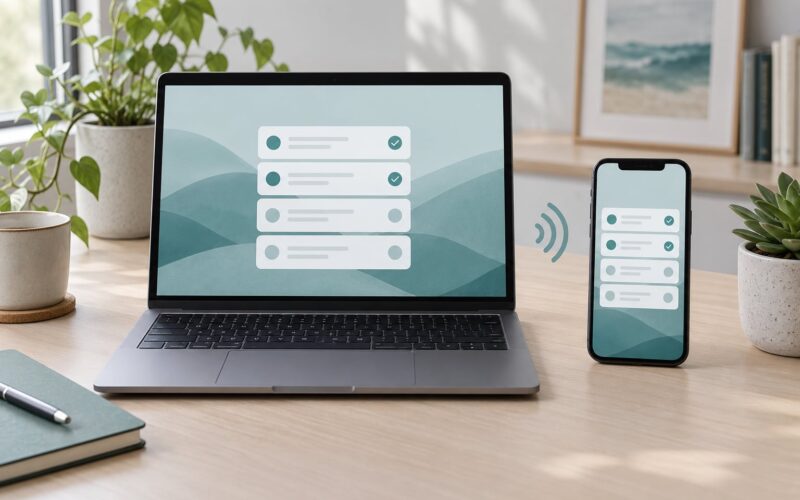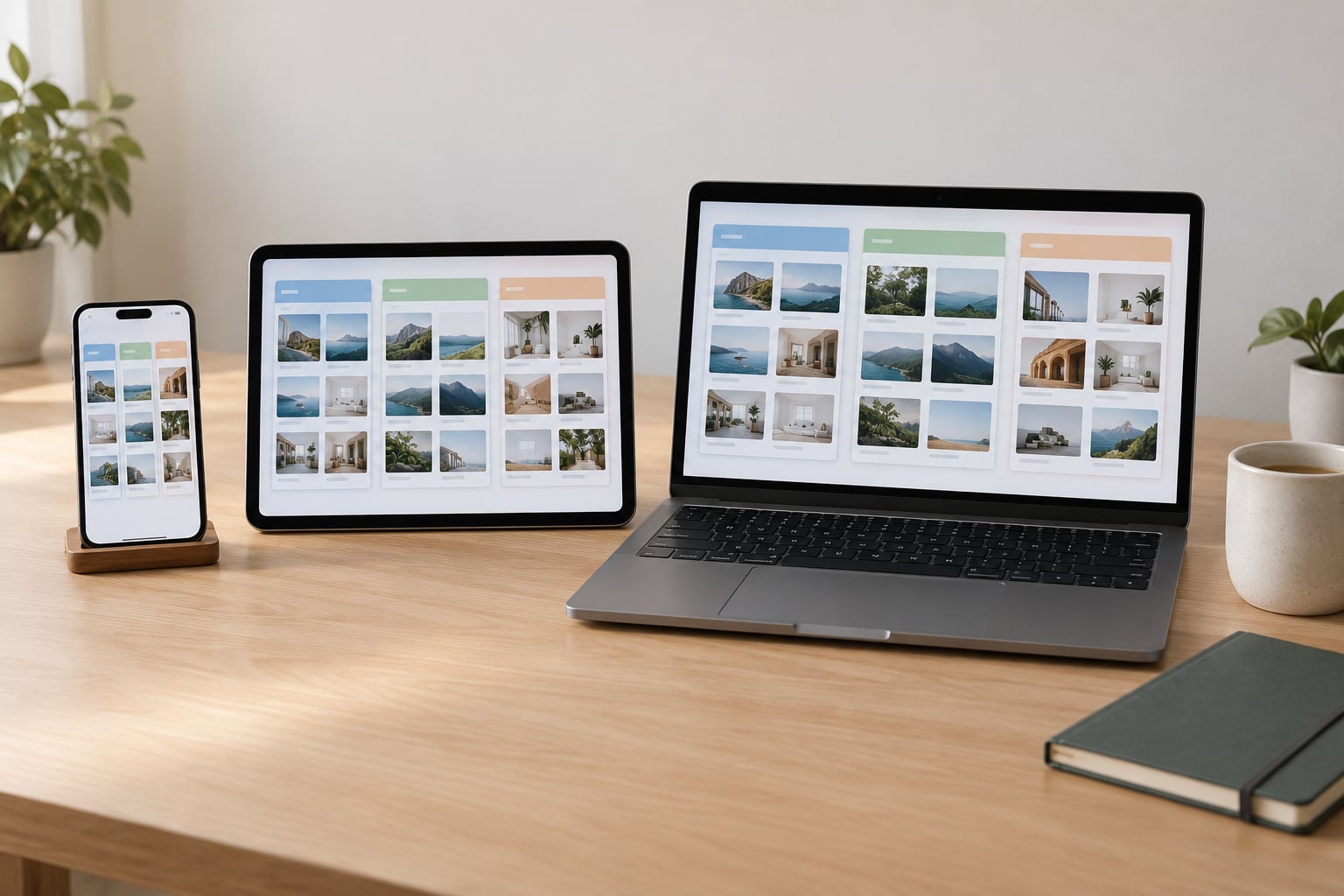
Safari tab groups are named collections of tabs that keep a busy browser readable, and knowing how to use safari tab groups takes about two minutes to set up. Open the tab overview, create a group, give it a name, and every tab inside it stays bundled together on iPhone, iPad and Mac. The whole thing is free, built into Safari, and needs no extra app.
The part that trips most people up is that Apple has moved these controls twice in recent years. Older guides point at a sidebar button that no longer exists in the same place, so I’ll name the current control and flag the older path where it differs.
Table of Contents
- 1What You Need
- 2Step-by-Step: How to Use Safari Tab Groups
- 3Step 1: Open Safari’s Tab Overview on iPhone and iPad
- 4Step 2: Create a New Tab Group and Name It
- 5Step 3: Move Existing Tabs Into a Group
- 6Step 4: Add the Page You Are Viewing to a Group
- 7Step 5: Reopen and Organize Saved Safari Tab Groups
- 8Step 6: Sync Tab Groups Across iPhone, iPad and Mac
- 9Common Mistakes and How to Fix Them
- 10Frequently Asked Questions
- 11What are Safari tab groups?
- 12Which Apple devices support Safari tab groups?
- 13Can I recover a Safari tab group after deleting it?
- 14How many tabs can I put in a Safari tab group?
- 15Why are my Safari tab groups not syncing between devices?
- 16Are Safari tab groups the same as bookmarks or reading lists?
- 17Conclusion
What You Need
You need a device running Safari and an Apple Account signed in. That is the short version.
- iPhone and iPad: iOS 15 or iPadOS 15 and later. Tab groups arrived with the iPhone tab redesign in that release.
- Mac: macOS Monterey or later, which is where Apple first shipped tab groups.
- Syncing between devices: the same Apple Account with iCloud Drive on, plus Safari’s iCloud Tabs setting switched on.
No subscription, no extension, no separate app. If you upgraded from an older phone, groups open fine on the new one, but iCloud Tabs has to be turned back on in Settings after a restore.
One practical note for iPhone: the tab overview button sits in the bottom-right corner, which is comfortably reachable one-handed. If you use Reachability or AssistTouch, you can pull the top of the screen down without changing your grip.
Step-by-Step: How to Use Safari Tab Groups
Six steps cover everything most people need. Follow them in order once, then you only need steps three and four day to day.
Step 1: Open Safari’s Tab Overview on iPhone and iPad
Tap the tab-overlap button in the bottom-right corner of Safari. That single tap replaces the old separate-tab switcher and shows every open tab as a small card, grouped into named sections.
Look for the Start Page. It is the plain tile at the top with the background image, and it holds tabs that do not belong to any group yet. Everything under it in a labelled column is a group you have already made. If you see one labelled section with no name, that is the uncategorized pile, and it is usually the messiest part.
On Mac, the equivalent view is the Safari sidebar. Click the sidebar button at the top of the window, or use Control-Command-L, and your groups appear down the side with their names and tab counts.
Step 2: Create a New Tab Group and Name It
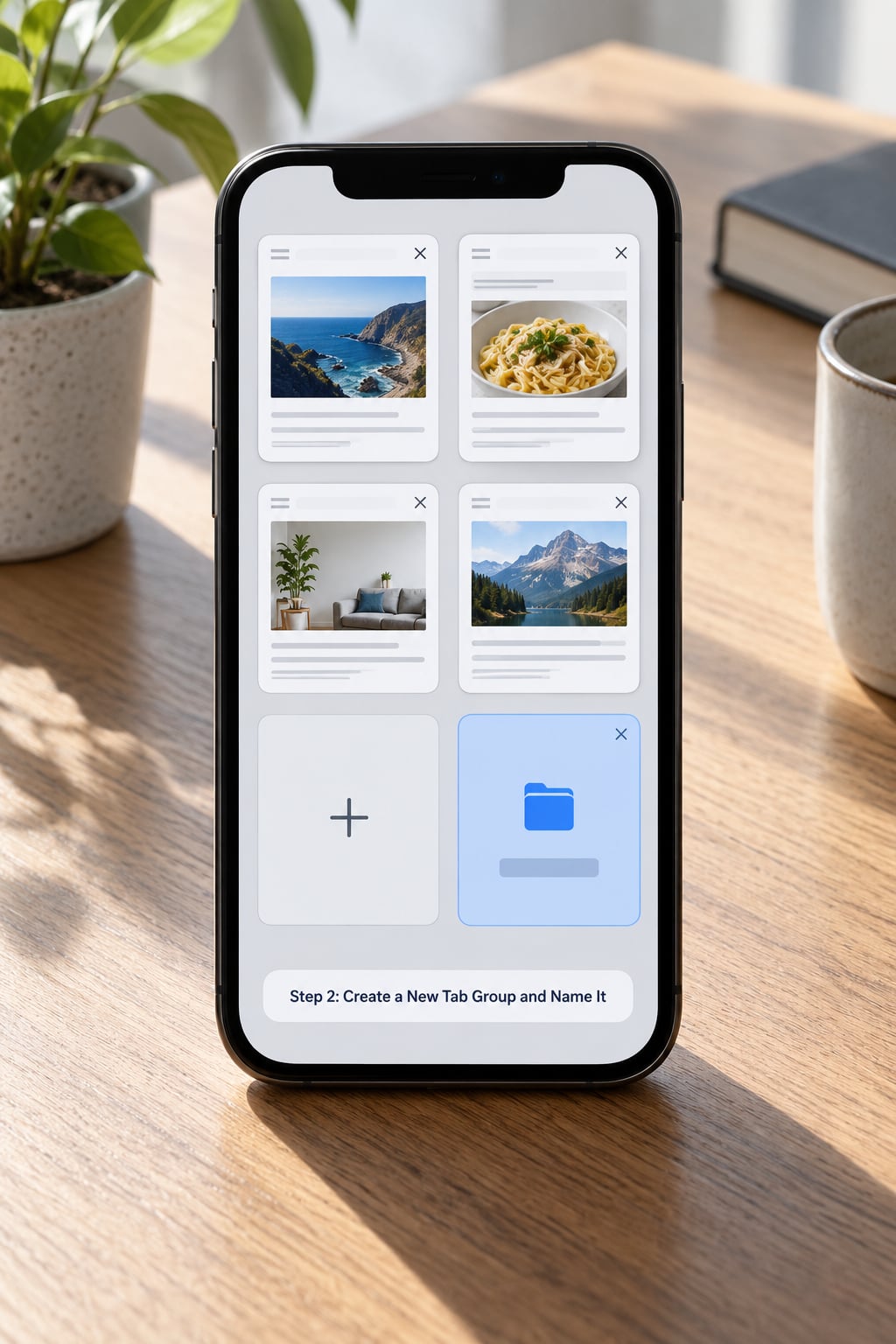
From the tab overview, tap the add control and choose between the two options that matter. New Tab Group with [X] Tabs bundles the tabs you currently have selected, which is the one you want nine times out of ten. New Empty Tab Group creates a blank named group you will fill later, which is handy for a trip or a project you have not started yet.
Type a short, specific name and tap Done. Names such as “Kitchen reno” or “Q4 numbers” beat “stuff” every time, because Safari sorts groups alphabetically and a vague name hides them.
Check for the result: a new column with your group name and a small stack of tab cards should appear in the tab overview. Tap any card in it to open that page.
On Mac, click the down arrow next to the sidebar button, pick the same two options, type the name, and press Return.
Step 3: Move Existing Tabs Into a Group
You rarely want to close tabs and reopen them, so moving is the useful path. In the tab overview, tap Edit, tap the tabs you want to move, then tap Move to Tab Group and choose an existing group or start a new one.
You can also press and hold a single tab card to get the same menu without entering Edit mode. On Mac, Control-click (or two-finger tap) the tab and choose Move to Tab Group.
Check for the result: the tabs have left the uncategorized section and now sit under the destination group’s name. If a tab looks like it is still in both places, give the view a pull to refresh and it will settle.
Step 4: Add the Page You Are Viewing to a Group
Sometimes the tab you need to file is the one already on screen. The fastest route is to press and hold the page preview in the tab overview, then choose the add-to-group or new-group option from the menu that appears.
Depending on your version, the same command is exposed in the Share sheet or in the page menu in the address bar, so look there if the long-press menu does not offer it. macOS puts it in the page’s right-click menu and in the Window arrangement menu.
Check for the result: the page preview moves into the group the moment you confirm, with no closing and reopening.
Step 5: Reopen and Organize Saved Safari Tab Groups
Reopening a group takes one tap. In the tab overview on iPhone or iPad, tap the group name to open every tab inside it at once. On Mac, click the group name in the sidebar and all its tabs load together.
Renaming takes a few seconds. Press and hold the group header on iPhone and iPad, then tap Rename, or on Mac right-click the group in the sidebar. Names are not case-sensitive and you can use spaces freely.
Worth knowing: a group and its Start Page favorites are different things. Tabs can be open inside a group without being saved to your Start Page, and saving a group to the Start Page does not keep those tabs open. Users get these mixed up constantly, so check which one you actually want.
Two more tidy-ups. Tap a group in the Start Page settings and switch on compact view to show more groups per screen. And use Share to send a group to someone with the same Apple platform, which sends the links rather than your browsing history.
To close everything, long-press the group and tap Delete, then confirm. The pages themselves stay in your history, so nothing is lost permanently, just the bundle.
Step 6: Sync Tab Groups Across iPhone, iPad and Mac
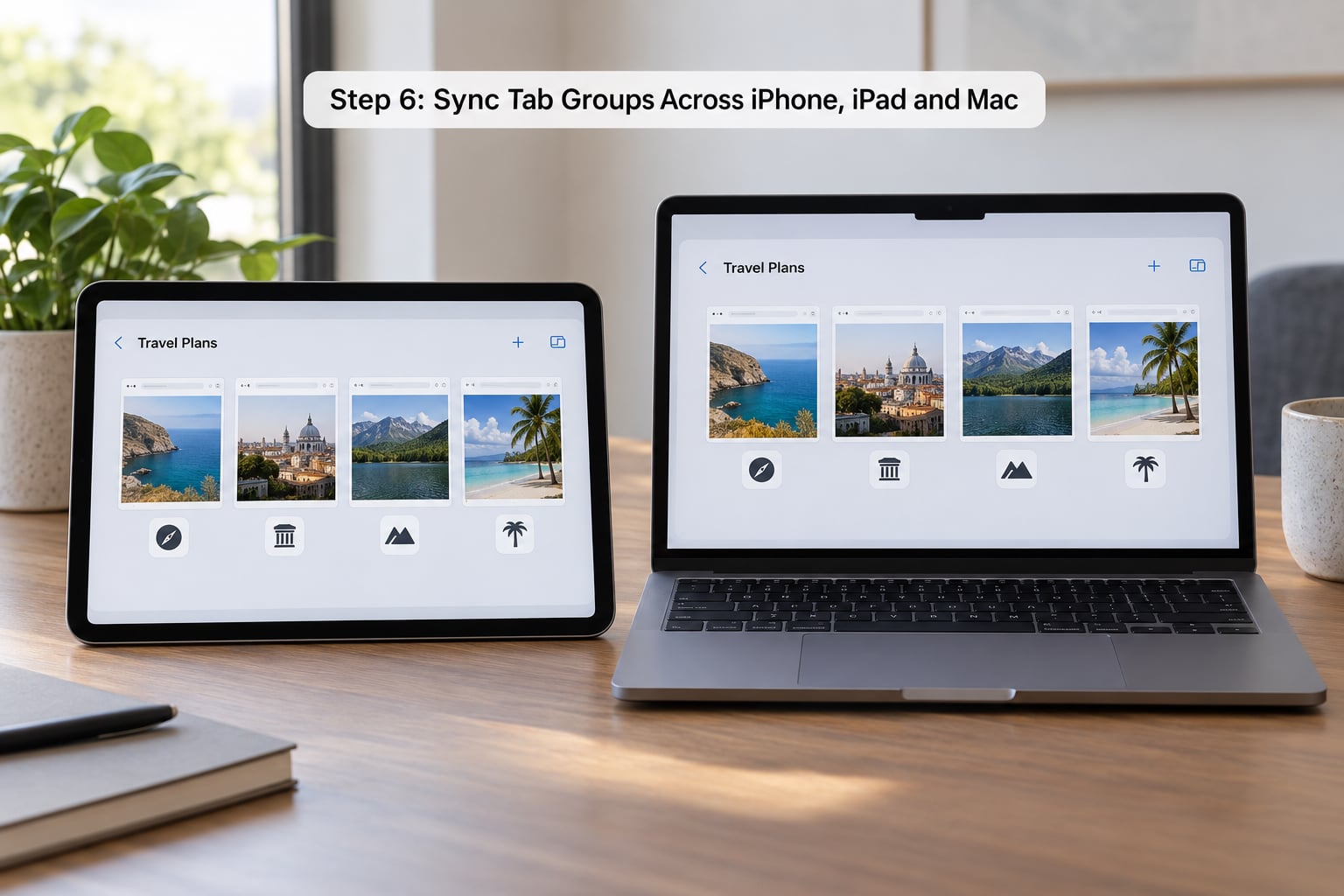
Safari syncs groups through iCloud, using the same Apple Account on every device. The switch lives in Settings, tap your name at the top, then iCloud, then Safari, and turn on iCloud Tabs. On Mac the same setting is in System Settings under your Apple Account, then iCloud, then Safari.
The rule people miss is that groups sync between devices signed into the same Apple Account, and only those devices. Tabs open on a phone do not show up on a Mac logged into a different account.
Check for the result: open Safari on the second device, tap the tab overview button, and the group name appears in the list. Give it a few seconds after a restart; Safari often needs one launch to pull the latest set from iCloud.
If a group is missing on the other device, check that iCloud Tabs is on for both, that both devices have iCloud Drive enabled, and that you are looking at the same Apple Account. Connectivity matters too, since a device that has been offline syncs the next time it connects.
Common Mistakes and How to Fix Them
No add-to-group option in the menu. This usually means an older Safari build, or that you long-pressed a Start Page tile instead of an open tab. Press and hold an actual webpage card. On iPad, the same commands live in the top-right menu rather than the long-press popup, so the control genuinely sits somewhere else on the larger screen.
The group exists on your iPhone but not your Mac. Almost always iCloud Tabs being off on one device, or two different Apple Accounts. Verify in Settings on each device rather than assuming.
Your tabs keep rearranging themselves. Safari has Arrange Tabs By Title and Arrange Tabs By Website in the group menu. If either was enabled by accident, every group re-sorts as you browse. Turn the option off, or turn on Preserve Tab Order so positions stay put.
You deleted a group and want it back. Reopening History and tapping Reopen Closed Tab restores individual pages, but a deleted group has to be rebuilt from those restored tabs. Clearing history and website data wipes open tabs for good, which is why people who care about organization save groups to the Start Page instead.
A pinned tab will not move. Pinned tabs have to be unpinned first. Long-press the tab, unpin it, move it to the group you want, then pin it again in its new home.
You cannot tell groups from bookmarks. A tab group is a temporary workspace of open pages. A bookmark is a saved link. A reading list is a queue of pages you plan to read. Use groups for active work, bookmarks for anything you want to keep, and reading lists for articles you have not got to yet.
A couple of habits that make this stick. Name groups by project rather than by category, and clear the uncategorized section once a week, because that is where grouping stops if you leave it. Turn on Preserve Tab Order if you care about tab positions more than automatic sorting.
Frequently Asked Questions
What are Safari tab groups?
Safari tab groups are named collections of browser tabs you create, switch between and manage together inside Safari on iPhone, iPad and Mac. Each group holds its own set of open pages, so you can jump between work, shopping or a research project in one tap instead of scrolling through a wall of tabs. Groups sync between your own devices through iCloud Tabs.
Which Apple devices support Safari tab groups?
Tab groups work on any iPhone or iPad running iOS 15 or iPadOS 15 or later, and on any Mac running macOS Monterey or later. Older hardware can still use them, since the feature is tied to the software rather than to a particular chip. Sharing a group and Start Page favorites work best when sender and recipient both use Apple devices.
Can I recover a Safari tab group after deleting it?
A deleted group does not come back on its own. What you can do is reopen your History and use Reopen Closed Tab, or Reopen All Closed Tabs, to bring the pages back as normal tabs, then select them and build a new group with them. Clearing history and website data is different and removes open tabs with no way to restore them, so save groups you care about to your Start Page.
How many tabs can I put in a Safari tab group?
Safari does not publish a hard limit on tabs per group or on the number of groups you can keep. In practice a group holds as many tabs as your device will comfortably render in the tab overview, and large sets of several hundred tabs get slow to draw on older hardware. Ten to thirty tabs per group is the range most people settle on, with a separate group per project rather than one giant pile.
Why are my Safari tab groups not syncing between devices?
Four things cause this most often: iCloud Tabs switched off on one device, two devices signed into different Apple Accounts, iCloud Drive turned off, or the second device has not been online since the group was created. Check iCloud Safari settings on both devices first, confirm the same Apple Account is in use, then reopen Safari on the device that is missing the group and give it a moment to sync.
Are Safari tab groups the same as bookmarks or reading lists?
No, they serve different purposes. A tab group is a temporary workspace of pages open right now. A bookmark is a saved link that stays in your bookmarks list whether or not the page is open. A reading list queues articles to read later. Many people keep all three, using groups for work happening today, bookmarks for pages worth finding again, and reading lists for saved articles.
Conclusion
Start in the tab overview today: tap the overlapping-squares button on your iPhone, tap add, choose New Tab Group with [X] Tabs, give it a real name, and tap Done. That single group is enough to feel the difference, and it takes under a minute.
From there, the fastest habit is to name every group by project, because the two commands you will use most are Move to Tab Group for the pages you already have open and the press-and-hold menu for the page you are looking at right now. Turn on iCloud Tabs once and the same groups follow you to your iPad and Mac, so you never rebuild a list again.