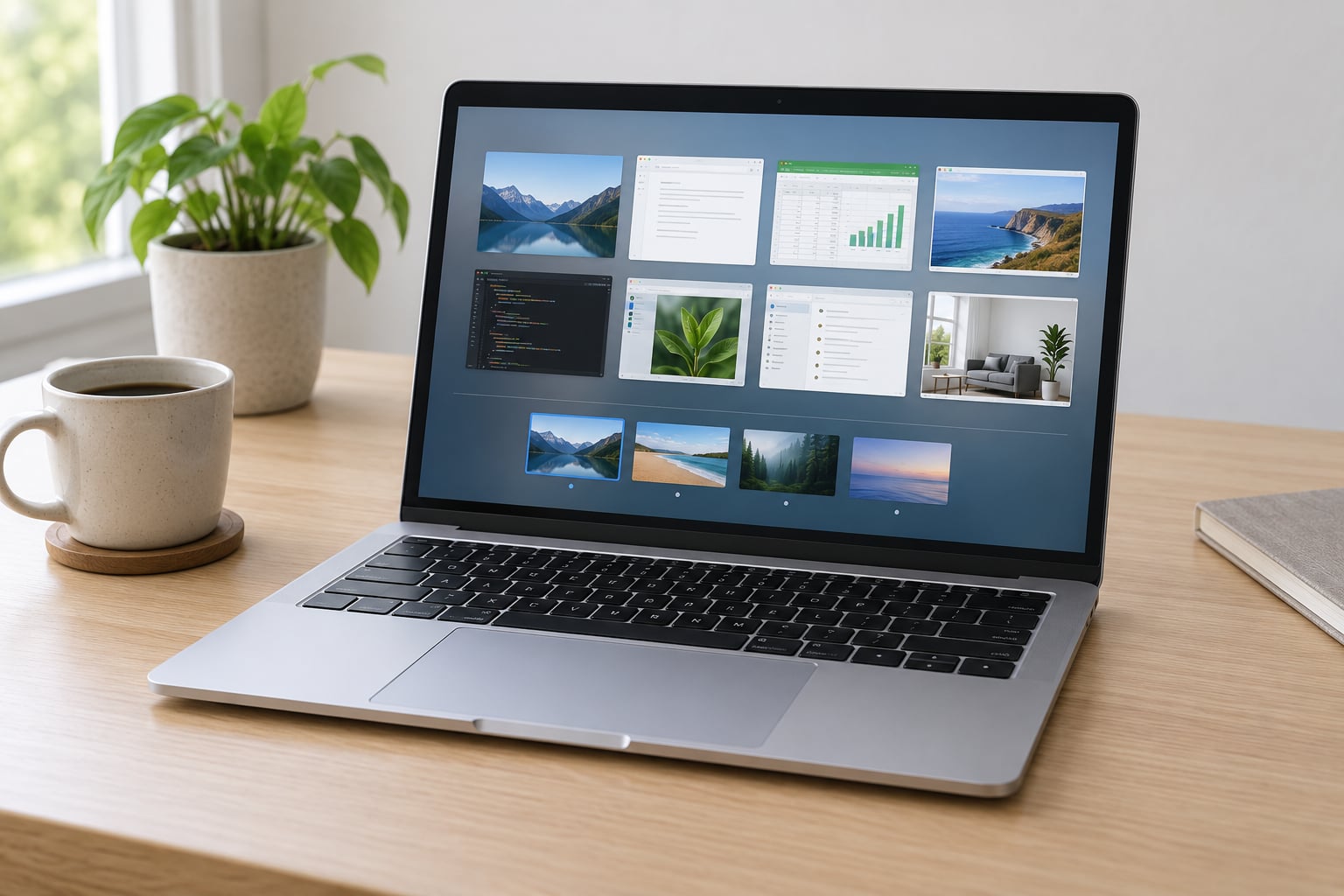
To open Mission Control on a Mac, press F3, press Control + Up Arrow, or swipe up with three or four fingers on the trackpad. Zooming out like this puts every open window, every app and every virtual desktop (Mac calls them Spaces) on one screen so you can jump straight to the one you want.
It takes about two minutes to learn, no install required, and it is built into every Mac that has shipped for well over a decade. If you have lost a window behind four others or you juggle a laptop plus an external monitor, this is the view that fixes it.
Table of Contents
- 1What You Need
- 2How to Use Mission Control on Mac Step by Step
- 3How to Open Mission Control on Mac
- 4How to Switch Between Windows and Apps
- 5How to Move Between Desktops and Spaces
- 6How to Organize Windows in Mission Control
- 7How to Leave Mission Control
- 8Common Mistakes and Quick Fixes
- 9Frequently Asked Questions
- 10What is Mission Control used for on a Mac?
- 11Is Mission Control available on every Mac?
- 12Why does Control-Up Arrow not open Mission Control?
- 13Can Mission Control switch between full-screen apps?
- 14How do I add or remove desktops in Mission Control?
- 15Does Mission Control work with multiple monitors?
- 16Conclusion
What You Need
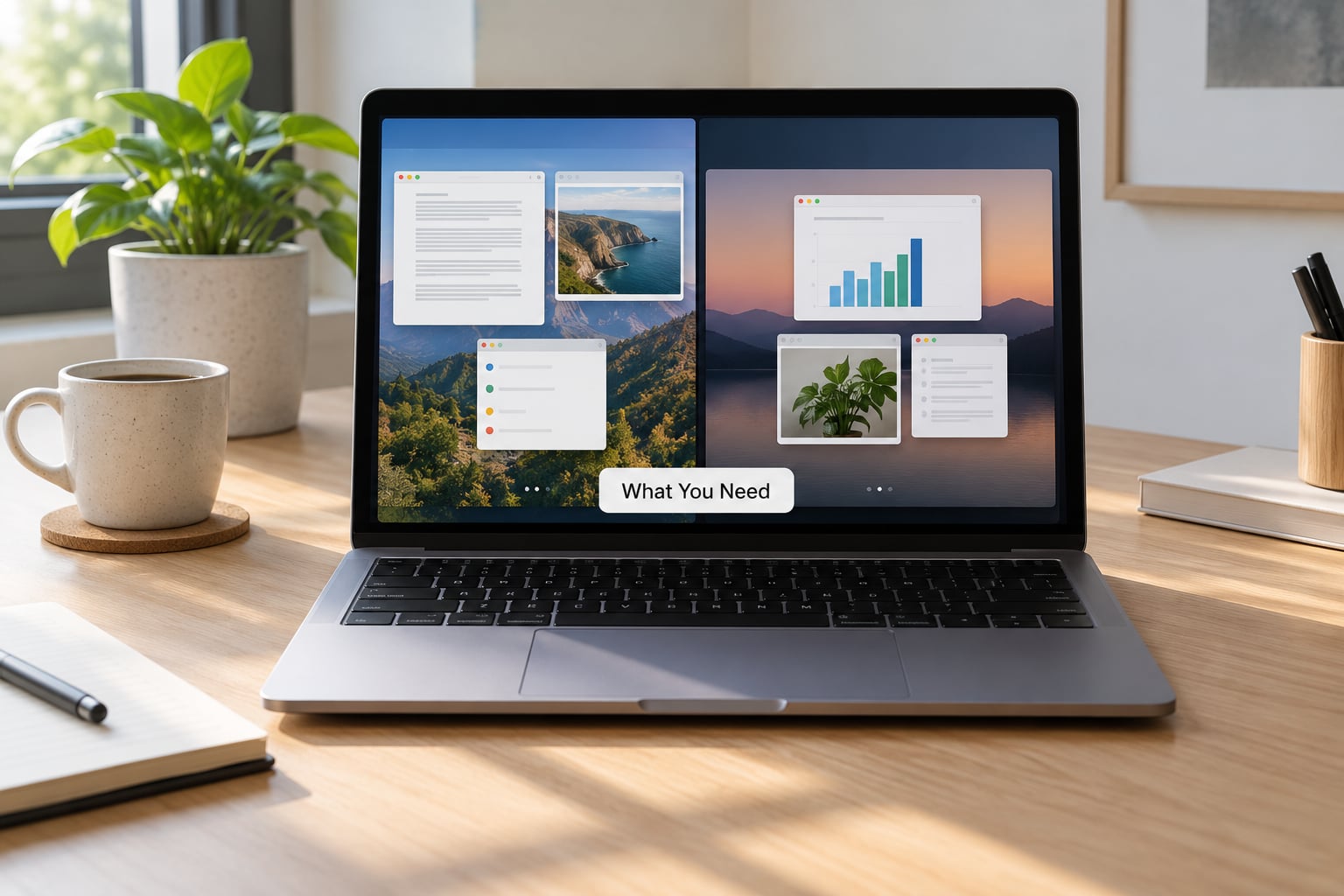
You need very little. A Mac running any recent version of macOS is all the hardware you need, and Mission Control is switched on by default, so there is nothing to install or turn on.
- An input method: a keyboard, a trackpad, or a Magic Mouse. Every Mac keyboard has a dedicated Mission Control key marked with the F3 label, and the function row also gives you Control + Up Arrow.
- A Mac running macOS: the views described here match macOS 13 Ventura and later, which includes current releases. Older systems behave the same way, only the settings path changed (see the note below).
- Nothing else. No account, no subscription, no third-party app.
One thing trips up nearly everyone: Apple renamed System Preferences to System Settings in macOS 13. On macOS 13 or later, Mission Control options live in System Settings > Desktop & Dock. On macOS 12 and earlier they sit in System Preferences > Mission Control.
How to Use Mission Control on Mac Step by Step
How to Open Mission Control on Mac
Pick whichever input you already use. Each method lands you in the same place.
- Keyboard: press F3. If F3 does nothing, you likely need fn + F3, because macOS routes the top-row keys as brightness and volume by default. Change that behavior in System Settings > Keyboard, where you can set F1, F2 and F3 to function keys.
- Keyboard: press Control + Up Arrow. This is the most reliable shortcut on laptops, and it works on desktop keyboards with no extra setup.
- Trackpad: swipe up with three or four fingers. Four fingers is the default for a wireless trackpad; three is the default on the newer MacBook trackpads.
- Magic Mouse: double-tap with two fingers on the top surface.
- Menu bar: click the Mission Control icon if you have added it to Control Center, or use the View menu with a trackpad app such as BetterTouchTool.
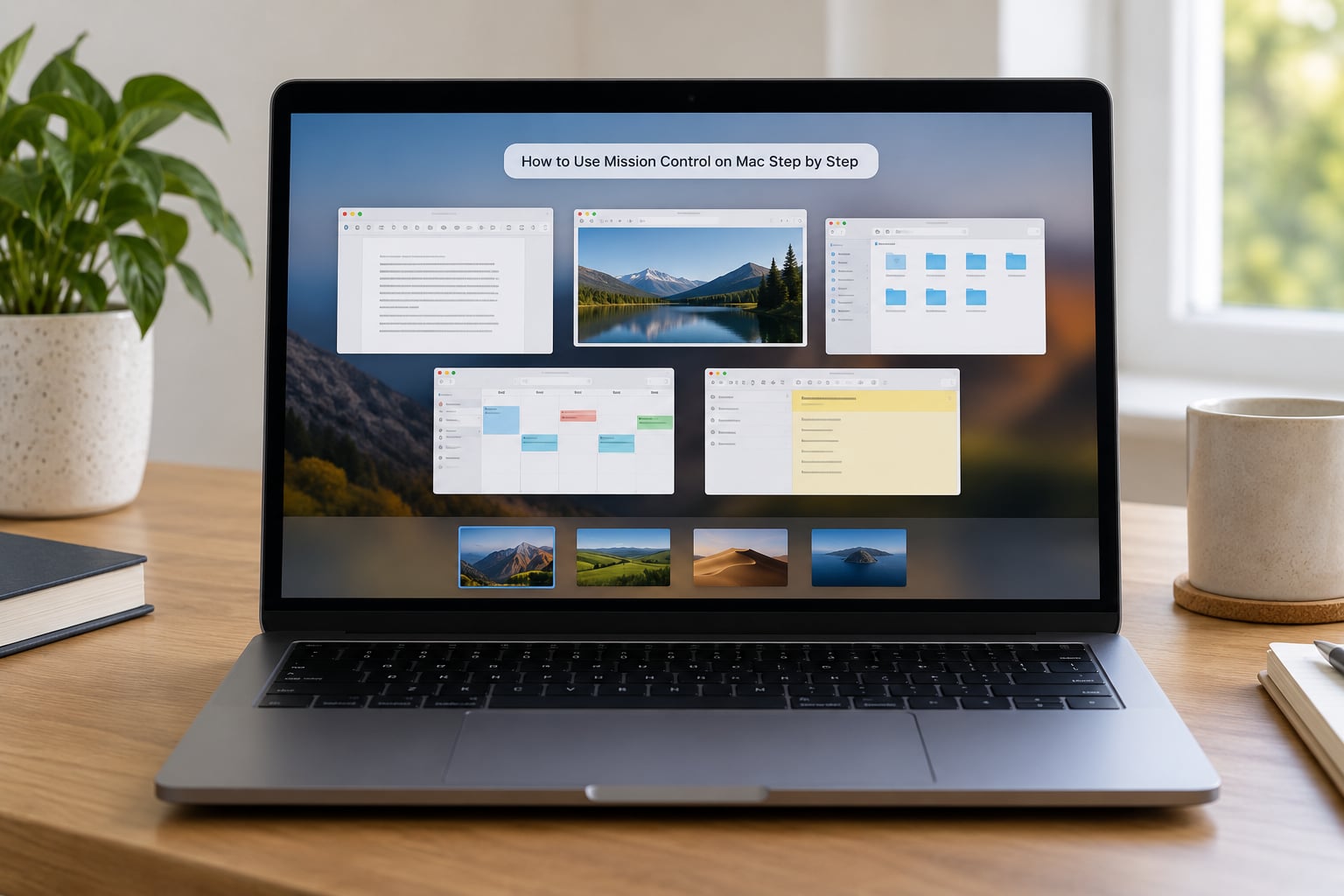
You will know it worked because the screen zooms out and everything shrinks at once. What you see is a strip of thumbnails along the top for your desktops and full-screen apps, and your ordinary app windows spread out below it.
How to Switch Between Windows and Apps
Windows live in the lower area, grouped by application. Hover a thumbnail and it enlarges so you can recognise it, then click to zoom into it.
Many beginners miss the next bit. While your pointer is over a window in Mission Control, press the space bar and that single window zooms to full screen under the cursor. It is the fastest way to pull one window out of a group of five.
If you only want the windows of one app, skip Mission Control and press Control + Down Arrow. That opens App Expose, which shows the windows of the frontmost app and nothing else. For plain app switching, Command-Tab is still faster, so save Mission Control for the moments when you need to find or place a window rather than just change apps.
How to Move Between Desktops and Spaces
Desktops, called Spaces, appear as thumbnails across the top of the view. Click any of them and macOS switches to that desktop along with everything open on it.
To jump by keyboard, hold Control and press a number: Control + 1 goes to the first desktop, Control + 2 to the second, and so on up to nine. Control + Left Arrow and Control + Right Arrow step to the desktop either side of the current one.
To add a desktop, hover over the right edge of the top strip until the plus button appears and click it. The new desktop is created empty and becomes the active one straight away. Open Mission Control again, move a window onto that new thumbnail, and it now lives there permanently.
To remove a desktop, open Mission Control, hover over its thumbnail and click the small close button in the corner, then confirm. Everything on that desktop moves back to the desktop before it, which surprises people the first time.
Full-screen apps always get a Space of their own. That is not configurable, and it is the single biggest reason a carefully built desktop layout falls apart. If you want an app to sit inside a Space alongside other windows, avoid the green full-screen button and resize the window with the corner drag instead.
How to Organize Windows in Mission Control
This is where Mission Control earns its keep. You can drag any window thumbnail onto a desktop thumbnail at the top, and the window moves to that Space permanently.
You can also drag a window up to the very top edge of the screen. A plus button appears, you click it, and macOS creates a new desktop and moves the window there in one motion.
There is a faster version that skips Mission Control entirely. Move the pointer to the very left or right edge of your screen and hold it there for a moment while a window is active, and macOS slides over to the neighbouring Space, dragging the window with it.
One setting explains most of the irritation people report: turn off Automatically rearrange Spaces based on most recently used application in System Settings > Desktop & Dock and switch on Group windows by application if you want each app clustered together. With the rearrange option on, macOS re-sorts your desktops every time you switch apps, which is why muscle memory keeps failing.
How to Leave Mission Control
Clicking a window or a desktop thumbnail is the normal exit: macOS zooms into whatever you picked. Pressing Escape or clicking the desktop background behind the thumbnails also drops you back to where you started.
Nothing changes if you leave this way. No window moves, no app closes, and the app you were using before is still the active one. If you only wanted to look, this is the safe way out.
Common Mistakes and Quick Fixes
F3 does nothing. This is the fn key issue, not a Mission Control fault. Press fn + F3 once. If you like it, open System Settings > Keyboard > Keyboard Shortcuts > Function Keys and turn on “Use F1, F2, and F3 keys as standard function keys”.
Control + Space does not open Mission Control. It never did. Control + Space is Spotlight in recent macOS versions, and input source switches have grabbed it on some setups. Mission Control is Control + Up Arrow.
Your desktops keep shuffling. That is the automatic rearrange setting. Switch it off in Desktop & Dock, and if you would rather not jump between desktops at all, switch off the automatic switching options in the same pane.
An app keeps jumping into its own full-screen Space. Stop using the green button for that app. Resize it with the corner handle, or use Window > Zoom from the menu bar.
Mission Control stutters when many windows are open. Each thumbnail is a live snapshot, so thirty open windows means thirty live previews. Close what you do not need. Turning off reduced transparency in Accessibility > Display also lightens the animation noticeably.
A minimized window still shows up. macOS keeps hidden and minimized windows in Mission Control, and some apps leave a stale thumbnail behind. Quit and reopen the app to clear it.
Mission Control opens when you reach for a corner. You have set a Hot Corner to Mission Control. Change it in System Settings > Desktop & Dock > Hot Corners, or turn Hot Corners off entirely.
Dragging a window to the second monitor fails. Check Displays have separate Spaces in the same settings pane. When it is on, each display keeps its own set of desktops, and moving a window across displays moves the Space with it, which changes what you are looking at.
Frequently Asked Questions
What is Mission Control used for on a Mac?
Mission Control gives you one zoomed-out view of every open window, app and desktop on your Mac. You use it to find a window you cannot see, jump to a different desktop, or drag a window onto another desktop so it stays there. It is built into macOS, switched on by default, and needs no setup.
Is Mission Control available on every Mac?
Yes. It ships with macOS on MacBooks, Mac mini, iMac and Mac Studio alike, and it has been part of the system for many years. It also works on an older machine, though very slow hardware can make the animation feel sluggish. Nothing needs to be downloaded or enabled to use it.
Why does Control-Up Arrow not open Mission Control?
Usually the shortcut is fine and something else is intercepting it, or the key you pressed is not what you think. If F3 is dead, you probably need fn + F3, because macOS treats the top row as brightness keys by default. Control + Up Arrow should always work, so if it does not, restart the Mac to clear any stuck modifier key.
Can Mission Control switch between full-screen apps?
Yes. Every full-screen app gets its own Space, so it appears as a thumbnail in the top strip of Mission Control and you can click straight into it. Remember that full-screen apps never share a desktop with ordinary windows, which is why resizing a window instead of going full screen keeps your layout intact.
How do I add or remove desktops in Mission Control?
Open Mission Control and hover over the right edge of the top strip until a plus button appears, then click it to create an empty desktop. You can also drag a window up to the top edge and click plus, which creates the desktop and moves the window there. To delete one, click the close button on its thumbnail and confirm.
Does Mission Control work with multiple monitors?
Yes, and it is one of the more reliable ways to move a window between displays. Whether you see all displays in one zoomed-out view or each one separately is controlled by Displays have separate Spaces in System Settings under Desktop and Dock. With separate Spaces switched on, each display keeps its own desktops.
Conclusion
Press Control + Up Arrow the next time you lose a window, and that is the whole first lesson. Once it becomes a habit, open Mission Control twice a day and spend five minutes dragging windows onto separate desktops, then turn off the automatic rearranging option so your layout stops moving on you.
Keep the three that matter close by: Control + Up Arrow for the overview, Control + Down Arrow for one app’s windows, and Control + 1 through Control + 9 to land straight on a desktop. Everything else you can look up later.