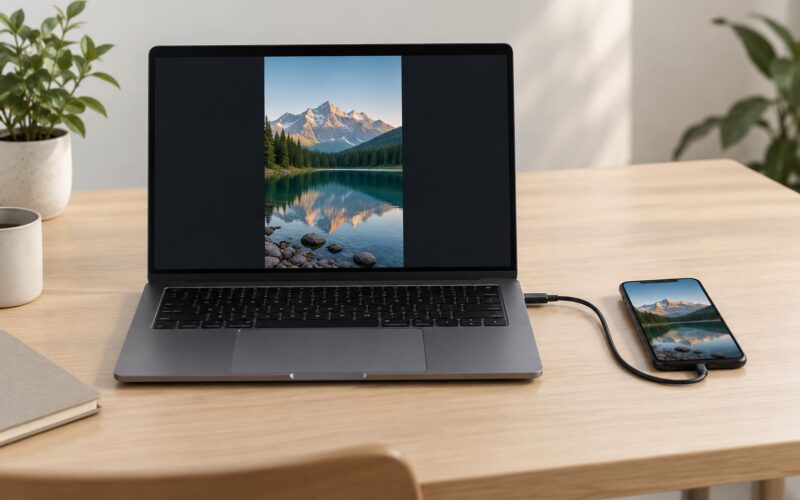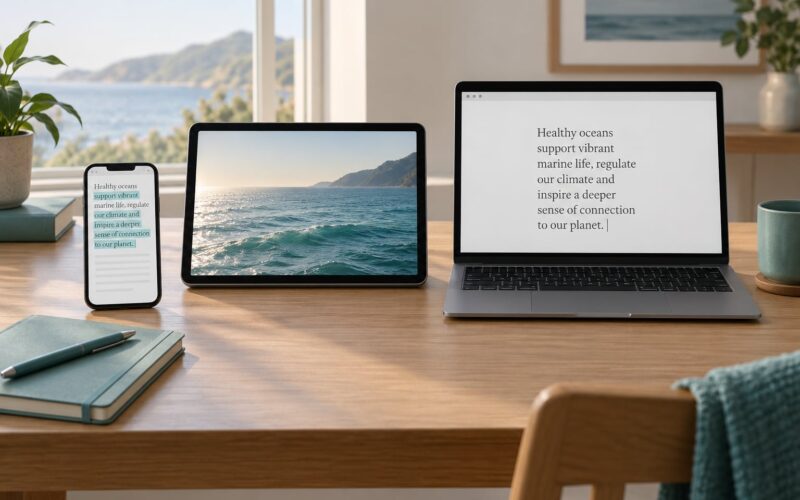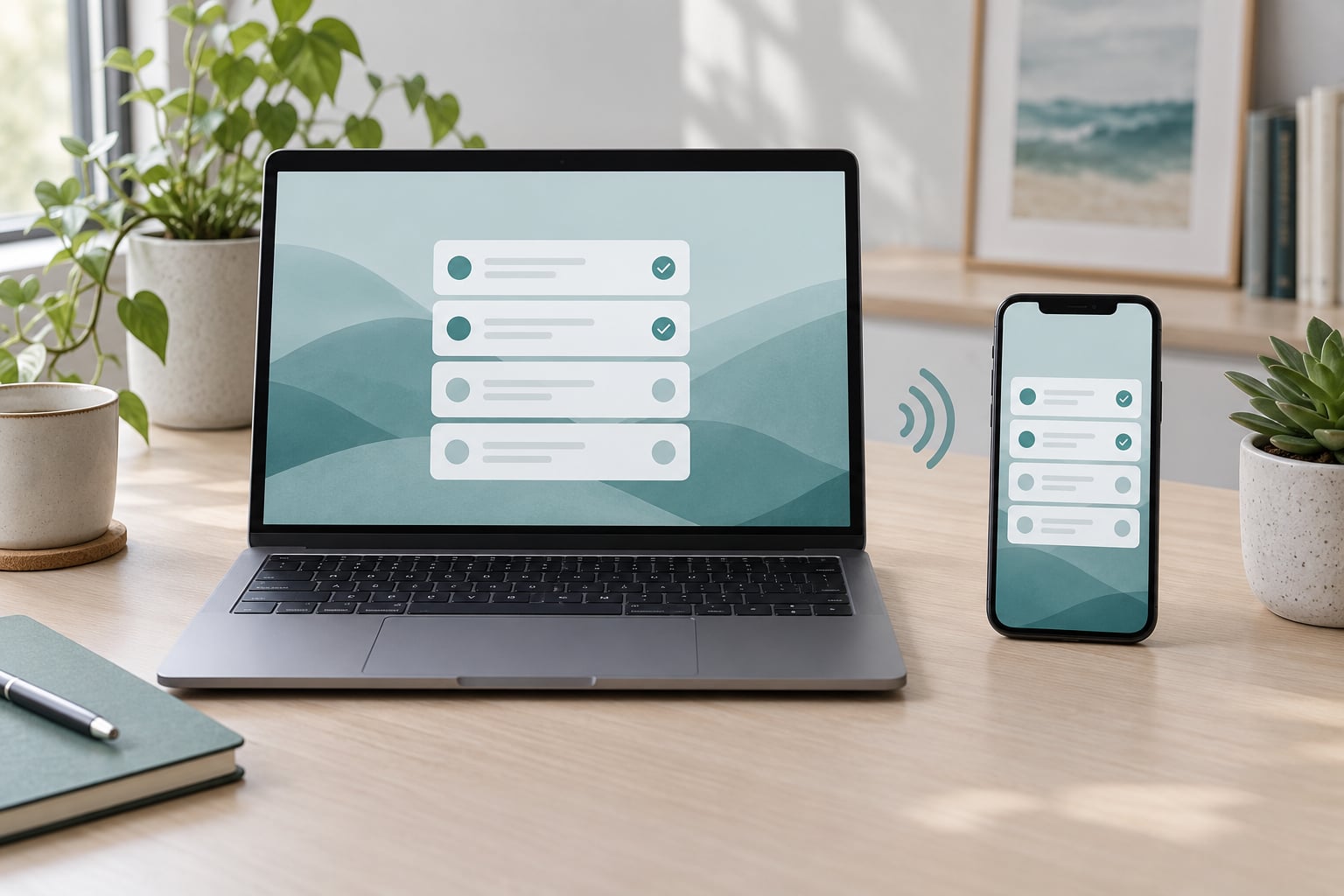
Handoff is an Apple Continuity feature that lets you start a task on one Apple device, like reading a webpage in Safari or writing an email, and continue that same task on a nearby Mac or iPhone signed in to the same Apple Account. Learning how to use Handoff between iPhone and Mac takes about five minutes to set up and no time at all once it is running.
The catch is that Handoff quietly fails more often than Apple suggests, usually because the settings pane has been renamed, the phone is locked, or the app you are trying to hand off does not support it at all. So this guide covers both halves: turning it on correctly on every macOS generation, and an ordered fix list for when the icon refuses to appear.
Before you begin, check these on both devices:
- Wi-Fi and Bluetooth are switched on on both the iPhone and the Mac.
- Both devices are signed in to the same Apple Account with two-factor authentication enabled.
- The devices are within roughly 10 metres (30 feet) of each other.
- The app you want to hand off is installed and open on both devices.
- The iPhone is unlocked and the app is in front of you, not buried in the background.
Table of Contents
- 1What You Need Before Using Handoff Between iPhone and Mac
- 2The devices themselves
- 3The same Apple Account, signed into iCloud
- 4Wi-Fi, Bluetooth and distance
- 5The source device must be unlocked and in use
- 6The app has to support Handoff
- 7Two-factor authentication
- 8Step-by-Step: Turn On Handoff and Use It
- 91. Turn on Handoff on your iPhone
- 102. Turn on Handoff on your Mac
- 113. Confirm the Apple Account, Wi-Fi and Bluetooth
- 124. How to use Handoff between iPhone and Mac: hand off a task
- 135. Hand off from your Mac to your iPhone
- 146. Where the Handoff icon appears on each device
- 157. Hand off a FaceTime or phone call
- 168. Turn on Handoff for Apple Watch
- 179. Which apps support Handoff
- 1810. Handoff compared with the other Continuity features
- 19Common Mistakes: Why Handoff Stops Appearing
- 20Match the symptom to the cause
- 21Why Handoff breaks after an iOS or macOS update
- 22The silent mode rule nobody documents
- 23What Handoff cannot do
- 24Privacy, battery and shared Macs
- 25When Handoff is the wrong tool
- 26Frequently Asked Questions
- 27Do my iPhone and Mac need to use the same Apple Account for Handoff?
- 28Which tasks can I continue from my iPhone on my Mac with Handoff?
- 29Does Handoff work when my devices are using cellular data instead of Wi-Fi?
- 30How do I turn off Handoff on my iPhone or Mac?
- 31Why is the Handoff banner not appearing on my Mac?
- 32Can I use Handoff with an iPad or Apple Watch instead of an iPhone?
What You Need Before Using Handoff Between iPhone and Mac
Handoff is not a standalone app. It is a switch that sits inside two other settings panes, and it quietly depends on four things at once: the same Apple Account, working Bluetooth and Wi-Fi, physical proximity, and app support. Miss any one of them and the icon simply never shows up, with no error message.
The devices themselves
You need a Mac running a reasonably recent version of macOS and an iPhone on a recent version of iOS. Older hardware does not support Handoff at all, and older software versions show the settings in different places, which is the single biggest reason people think the feature is missing.
The same Apple Account, signed into iCloud
Both devices must be signed in to the same Apple Account, and that account needs iCloud turned on. Two devices signed into the same account will hand off without any extra pairing. A Mac and an iPhone on separate accounts generally will not, even when they sit on the same desk and the same Wi-Fi network.
Wi-Fi, Bluetooth and distance
Bluetooth Low Energy does the discovery work and Wi-Fi carries the data, so both radios need to be on. The devices should be within about 10 metres of each other, which is roughly the length of a large room. In practice the limit is generous, but a Mac in one room and an iPhone two floors away will fail silently.
The source device must be unlocked and in use
This one catches almost everyone. The device doing the handing off has to be awake and showing the task. If your iPhone locks or the app goes to the background, the hand-off offer disappears until you unlock it and return to that app.
The app has to support Handoff
Apple’s own apps support it broadly. Many third-party apps do not, and that is a developer decision, not something you can fix in Settings. If a browser like Safari hands off fine but your usual third-party browser never appears, that is why.
Two-factor authentication
Two-factor authentication is required for most Continuity features. If your account has it turned off, or if you are signed in without it, Handoff will not activate even though the toggle is on.
Step-by-Step: Turn On Handoff and Use It

Turn this on once per device and it stays on. Do the iPhone first, because the Mac toggle is greyed out and unusable until the iPhone has Handoff enabled.
1. Turn on Handoff on your iPhone
- Open Settings.
- Tap General.
- Tap AirPlay & Continuity. On older iOS versions it is called AirPlay & Handoff.
- Turn on the Handoff switch.
You can tell it worked because the Handoff row stays visible and the switch turns blue. Nothing appears on the Mac yet, and that is expected at this stage.
2. Turn on Handoff on your Mac
- Click the Apple menu, then System Settings.
- Click General in the sidebar.
- Click AirDrop & Continuity. Some versions call this AirDrop & Handoff.
- Turn on Allow Handoff between this Mac and your iCloud devices.
That last line is the exact wording Apple uses, and it is worth reading carefully because the toggle greys out when iPhone Handoff is off. If it is dim, go back to step 1.
The pane name depends on your macOS version, and searching for the wrong one is the most common reason people give up:
| macOS version | Where the setting lives | Pane name |
|---|---|---|
| Monterey and earlier | System Preferences > General | Allow Handoff between this Mac and your iCloud devices |
| Ventura and Sonoma | System Settings > General | AirPlay & Handoff |
| Sequoia and Tahoe | System Settings > General | AirDrop & Continuity |
3. Confirm the Apple Account, Wi-Fi and Bluetooth
On the Mac, open System Settings, click your name at the top and check the Apple Account shown. On the iPhone, check the same thing in Settings at the top. They need to match exactly.
Then confirm both radios. On the Mac, the Wi-Fi icon and Bluetooth icon both sit in the top-right menu bar. On the iPhone, swipe down from the top-right corner to check Wi-Fi and Control Centre for Bluetooth.
4. How to use Handoff between iPhone and Mac: hand off a task
- Open a supported app on your iPhone, such as Safari or Mail.
- Start the task and leave the app open in front.
- Look at the right end of the Mac Dock.
- Click the Handoff icon showing the small iPhone glyph.
The icon carries a miniature picture of the handing-off device in its corner, which is how you tell it apart from ordinary app icons. On a Mac with the Dock on a side edge, the Handoff icon moves to the bottom of the Dock instead of the far end.
Prefer the keyboard? Hold Command and press Tab to open the App Switcher on the Mac, then pick the Handoff icon from the list. That is the fastest route once you know it exists.
5. Hand off from your Mac to your iPhone
- Start the task on your Mac and leave the app in front.
- Unlock your iPhone.
- Swipe up from the bottom edge to open the App Switcher.
- Tap the app banner at the bottom of the App Switcher.
That banner at the bottom of the App Switcher is the iPhone-side equivalent of the Dock icon. If your iPhone has a Home button rather than a gesture, double-press it instead of swiping.
6. Where the Handoff icon appears on each device
| Device | Where the hand-off offer appears | How to open it |
|---|---|---|
| Mac | Right end of the Dock, or the bottom of the Dock when it sits on a side edge | Click it, or Command-Tab and select it |
| iPhone | Bottom of the App Switcher | Swipe up, then tap the banner |
| iPad | Right end of the Dock | Tap the icon |
| Apple Watch | The watch screen itself when your wrist is near the Mac | Look down at the Watch |
7. Hand off a FaceTime or phone call
Calls behave differently from documents. You do not use the Handoff icon; you use the call itself.
- Start a FaceTime call or a regular phone call on your iPhone.
- Click the green Handoff button in the call screen.
- Choose the Mac from the list, or let it hand off automatically when both devices are nearby.
Handing off back to the iPhone works the same way, using the Handoff button in the Mac call window. You will hear the call move between devices, which is the cue that it worked.
8. Turn on Handoff for Apple Watch
In the Watch app on your iPhone, tap General, then Enable Handoff. This lets a task from your phone surface on the Watch and lets the Watch pass work back to the Mac, such as when you unlock the Mac by approaching it.
9. Which apps support Handoff
Apple’s apps cover most everyday use: Safari, Mail, Messages, Phone, FaceTime, Calendar, Contacts, Maps, Notes, Reminders, Freeform, Keynote, Numbers, Pages, News, Stocks, Clock and Voice Memos.
Third-party apps support it when their developers build Handoff support in, and the list changes with every app update. Some do it well, some intermittently. Banking, password manager and authenticator apps usually block it deliberately, and DRM-protected video will not hand off for the same reason.
10. Handoff compared with the other Continuity features
Several similarly named features sit on the same SERP and get confused constantly. Here is the practical difference.
| Feature | What it moves | How you invoke it |
|---|---|---|
| Handoff | A whole task in progress, such as a webpage, email or document | Dock icon or App Switcher banner |
| Universal Clipboard | Only copied text, images and links, pasted straight into the other device | Copy on one device, paste on the other |
| AirDrop | A file you deliberately send to the other device | Share sheet > AirDrop > choose device |
| Sidecar | An extended or mirrored Mac display driven by an iPad | System Settings > Displays > Sidecar |
| Universal Control | Your Mac cursor and keyboard, used on an iPad as if it were a Mac screen | Automatic when both devices are nearby |
If you want the same email open in two places at once, you want Handoff. If you want to paste a link you copied on your phone into a document on your Mac, that is Universal Clipboard, and it needs no hand-off step.
Common Mistakes: Why Handoff Stops Appearing
Work through these in order. Each step tests one thing, so you stop as soon as the icon comes back instead of retrying everything blindly. Most cases resolve within the first four.
- Check you are in the right settings pane for your macOS version. Use the table above rather than guessing from a screenshot.
- Confirm the iPhone Handoff switch is on first. The Mac toggle stays greyed out until it is.
- Unlock the device doing the handing off and bring the app back to the front.
- Confirm both devices are signed in to the same Apple Account with iCloud enabled.
- Turn Bluetooth and Wi-Fi on for both devices, then toggle Bluetooth off and on again.
- Check two-factor authentication is enabled on the shared Apple Account.
- Move the devices within about 10 metres of each other, ideally on the same surface.
- Test with a first-party app such as Safari or Notes before judging the feature.
- Restart both devices. This is the step that clears a stale Handoff token after an update.
- Check whether your Mac is managed by an employer, because an MDM profile can block Continuity entirely.
Match the symptom to the cause
| Symptom | Likely cause | Fix |
|---|---|---|
| Handoff option missing from Settings | Looking in the wrong pane for your macOS version | Use the version table above |
| Allow Handoff toggle is greyed out | Handoff is off on the iPhone, or iCloud is signed out | Turn on iPhone Handoff, then re-check iCloud |
| No icon in the Dock at all | iPhone locked, app in the background, or devices too far apart | Unlock, foreground the app, move devices closer |
| Works one way but not the other | The app supports Handoff in only one direction | Try a first-party app to isolate the cause |
| Safari hands off, other browser never does | That developer has not added Handoff support | Use Safari or ask the developer |
| Stops working right after an update | A software regression on that release | Restart both devices, then update again |
| Nothing works on a work Mac | An MDM or configuration profile restriction | Ask your IT administrator |
Why Handoff breaks after an iOS or macOS update
This is worth knowing so you do not assume you broke it yourself. Users on iOS 18.4 and macOS 15.4 reported Handoff stopping, particularly with Pages documents on iPhone, and the same pattern showed up again on iOS 26 and macOS Tahoe 26. In both cases the toggle stayed on and no error appeared anywhere.
What usually works is restarting both devices after the update, since a hand-off token left over from before the update can wedge the feature. Updating again once a later release ships resolves most reported cases.
The silent mode rule nobody documents
Plenty of users have found that when the iPhone is on silent, the Mac tends not to receive hand-offs and call pushes. Turning Focus or Do Not Disturb off on the iPhone, and clearing Focus on the Mac, regularly fixes an otherwise unexplained failure.
What Handoff cannot do
Some things simply will not hand off, and no setting will change that. DRM-protected video, most banking and authenticator apps, and third-party apps without developer support are all excluded by design.
Handoff also does not sync in the background. It hands off the task sitting in front of you right now, which is why the source device has to be unlocked.
Privacy, battery and shared Macs
Handoff and Universal Clipboard both send content over your local network between signed-in devices. Anyone with physical access to your unlocked Mac can see what you hand over, so it is worth turning Handoff off on a shared or family machine if that bothers you.
Battery impact is small but not zero. Both radios stay active for discovery, and the iPhone will wake more often with Handoff enabled. On a phone you already live on, I would leave it on; on an older device, switch it off and turn it back on when you need it.
When Handoff is the wrong tool
If you want both screens live at once rather than moving a single task, use Universal Control or Sidecar instead. And if you just need to move a file, AirDrop is faster and more predictable than trying to hand off an app that may not support it.
One last naming warning: the iOS 27 feature called iPhone Handoff moves a phone number between two iPhones. That is unrelated to everything in this guide, and it is a frequent source of search confusion.
Frequently Asked Questions
Do my iPhone and Mac need to use the same Apple Account for Handoff?
Yes, for the standard setup. Both devices must be signed in to the same Apple Account with iCloud enabled and two-factor authentication turned on. Devices on separate accounts generally will not hand off, even on the same Wi-Fi network in the same room. Apple has no supported way to pair two different accounts for this feature.
Which tasks can I continue from my iPhone on my Mac with Handoff?
Anything open in a supported app. Safari webpages, Mail drafts, Messages threads, Notes, Reminders, Maps directions, Calendar events and Pages, Numbers or Keynote documents all hand off, as do Photos and Freeform. Third-party apps work only if the developer added support. Banking apps, authenticators and DRM-protected video deliberately block it.
Does Handoff work when my devices are using cellular data instead of Wi-Fi?
Usually yes. Handoff relies on Bluetooth Low Energy for discovery and Wi-Fi for the transfer, but once the devices have found each other the data can travel over cellular. Bluetooth must stay on for the icon to appear at all, since that is how discovery works. If the icon shows but the task will not load, reconnecting Wi-Fi usually settles it.
How do I turn off Handoff on my iPhone or Mac?
On your iPhone, open Settings, tap General, then AirPlay and Continuity, and turn Handoff off. On your Mac, click the Apple menu, open System Settings, choose General, then AirDrop and Continuity, and turn off Allow Handoff between this Mac and your iCloud devices. Older macOS versions put this in System Preferences General under AirDrop and Handoff.
Why is the Handoff banner not appearing on my Mac?
Check four things in order. The device doing the handing off must be unlocked with the app in the foreground, the app must support Handoff, both devices need Wi-Fi and Bluetooth on and the same Apple Account, and they must be within about 10 metres. If the toggle on the Mac is greyed out, Handoff is still switched off on the iPhone.
Can I use Handoff with an iPad or Apple Watch instead of an iPhone?
Yes. An iPad uses the same toggle and offers hand-offs through its own Dock, so an iPad and a Mac work exactly as an iPhone and a Mac do. For Apple Watch, open the Watch app on your iPhone, tap General and turn on Enable Handoff. The Watch also hands off to the Mac, which is how it unlocks your Mac when you approach.
Start with the iPhone toggle, because everything else depends on it. Set the Mac toggle next using the version table to find the right pane name, then unlock your phone, open Safari and watch the Dock icon appear. If it does not, the first item in the fix list above is the one to check. Last updated in 2026.