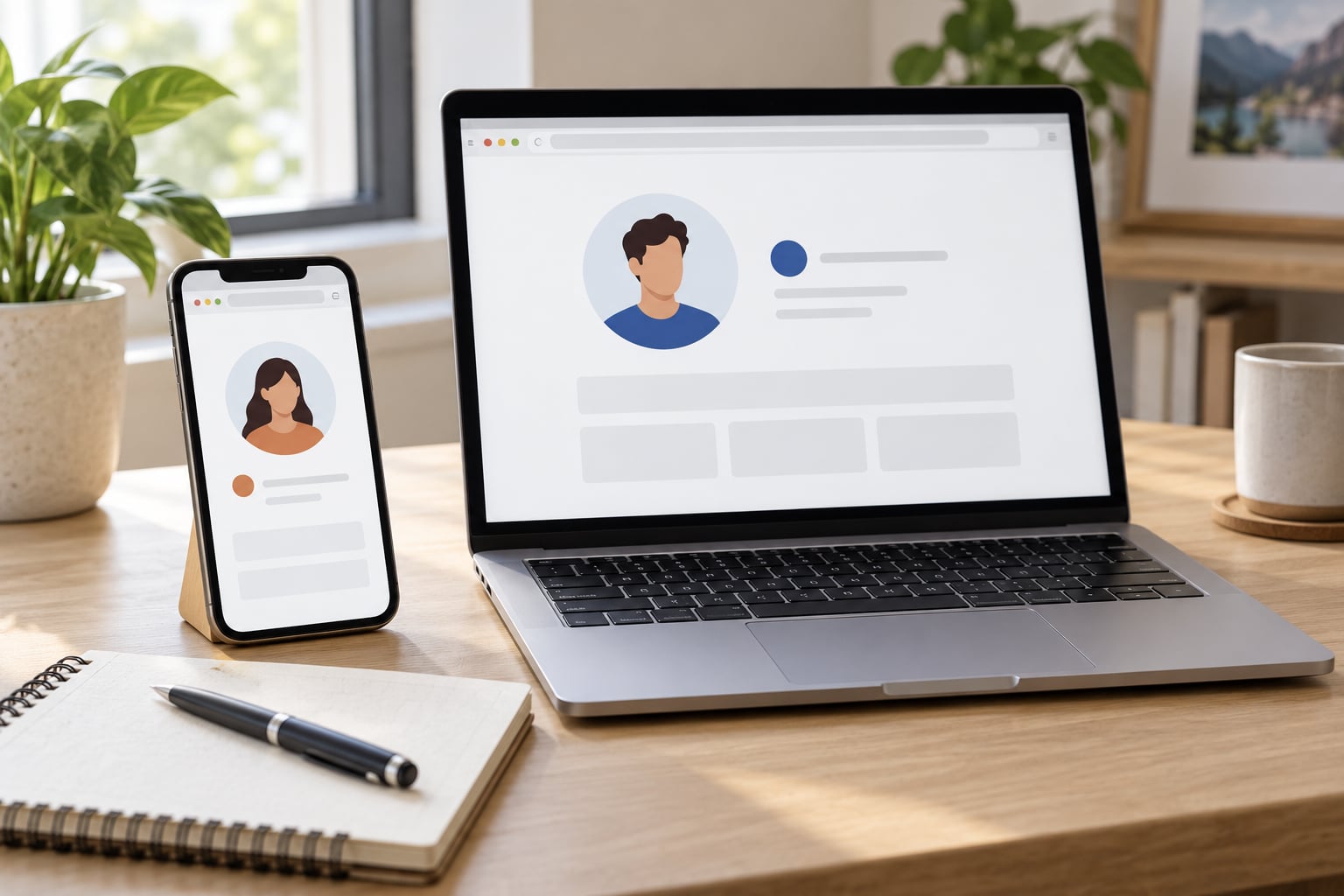
Safari profiles are built-in, separate browsing environments, so you can keep work and personal activity apart on one iPhone, iPad, or Mac. Each profile carries its own history, cookies, tab groups, extensions, bookmarks folder, and start page, and you switch between them in a couple of taps. Setting up how to use Safari profiles for work and personal browsing takes about five minutes per device.
The part that trips people up is not creating the profiles. It is what happens after, whether the profile you think you are in is the one that is actually open, and why bookmarks and passwords still follow you around. This guide covers all three, on iPhone, iPad, and Mac, with the current menu paths for each.
Table of Contents
- 1What You Need
- 2Step-by-Step
- 3Check That Safari Profiles Are Available
- 4Create Separate Work and Personal Safari Profiles
- 5Choose Which Profile Safari Opens by Default
- 6Switch Between Work and Personal Profiles
- 7Organize Tabs, Cookies, and Saved Passwords
- 8Use the Same Profiles Across Apple Devices
- 9Common Mistakes
- 10Frequently Asked Questions
- 11Do Safari profiles keep work and personal tabs separate?
- 12Can I use the same Safari profiles on my iPhone, iPad, and Mac?
- 13Are Safari passwords shared between work and personal profiles?
- 14Why can’t I find Safari profiles on my iPhone or iPad?
- 15Will a work Safari profile stop me from accessing personal websites?
What You Need
You need iOS 17 or later, iPadOS 17 or later, or macOS Sonoma or later. Those are the versions where Safari profiles exist at all; earlier releases have no Profiles section to find.
Beyond that, you just need the devices you already use. The steps below work on iPhone, iPad, and Mac, and the profile names you choose are yours to make. Work, Personal, School, and Client are all common choices.
One thing worth clearing up before we start. A Safari work profile is a browsing profile inside Safari. It is not the same thing as a work profile installed on an iPhone by your employer’s device management system, which can install apps, restrict websites, and wipe data. If your phone came from work with a managed profile on it, that is a separate system, and it can restrict what you can do in Safari.
Step-by-Step
Check That Safari Profiles Are Available
On a Mac running Sonoma or later, open Safari and choose Safari, then Settings, then Profiles. If you have never used profiles before, that panel shows a Start Using Profiles button instead of a list.
On iPhone and iPad, profiles live in the Settings app rather than inside Safari. In iOS 18 and later, go to Settings, then Apps, then Safari, and scroll to Profiles. On iOS 17, Safari sits directly in the main Settings list, so you tap Settings, then Safari, then Profiles. That difference is the single biggest reason people on iPhone say they cannot find profiles at all.
Create Separate Work and Personal Safari Profiles
On iOS 18 or later on iPhone or iPad:
- Open Settings and tap Apps.
- Tap Safari in the app list.
- Scroll down and tap Profiles.
- Tap New Profile.
- Tap the name field and type Work, then choose an icon and a color.
- Choose the bookmarks folder the profile should use, then tap Create Profile.
- Repeat the steps and name the second one Personal.
On iOS 17, the path is Settings, then Safari, then Profiles, then New Profile. The rest of the flow is identical.
On Mac:
- Open Safari and choose Safari, then Settings.
- Click Profiles in the sidebar.
- Click Start Using Profiles if you see that button instead of a list.
- Click the Add button below the profiles list, then enter a name, pick an icon and color, choose a bookmarks folder, and click Create Profile.
- Repeat to create your second profile.
Safari comes with a Personal profile already in place on Mac, labelled as the default. You can rename it or keep it as is, and add a Work profile alongside it.
Choose Which Profile Safari Opens by Default
On Mac, Safari has a startup profile setting that decides which profile opens when you launch it. Most people pick Personal, so work only appears when you deliberately switch to it.
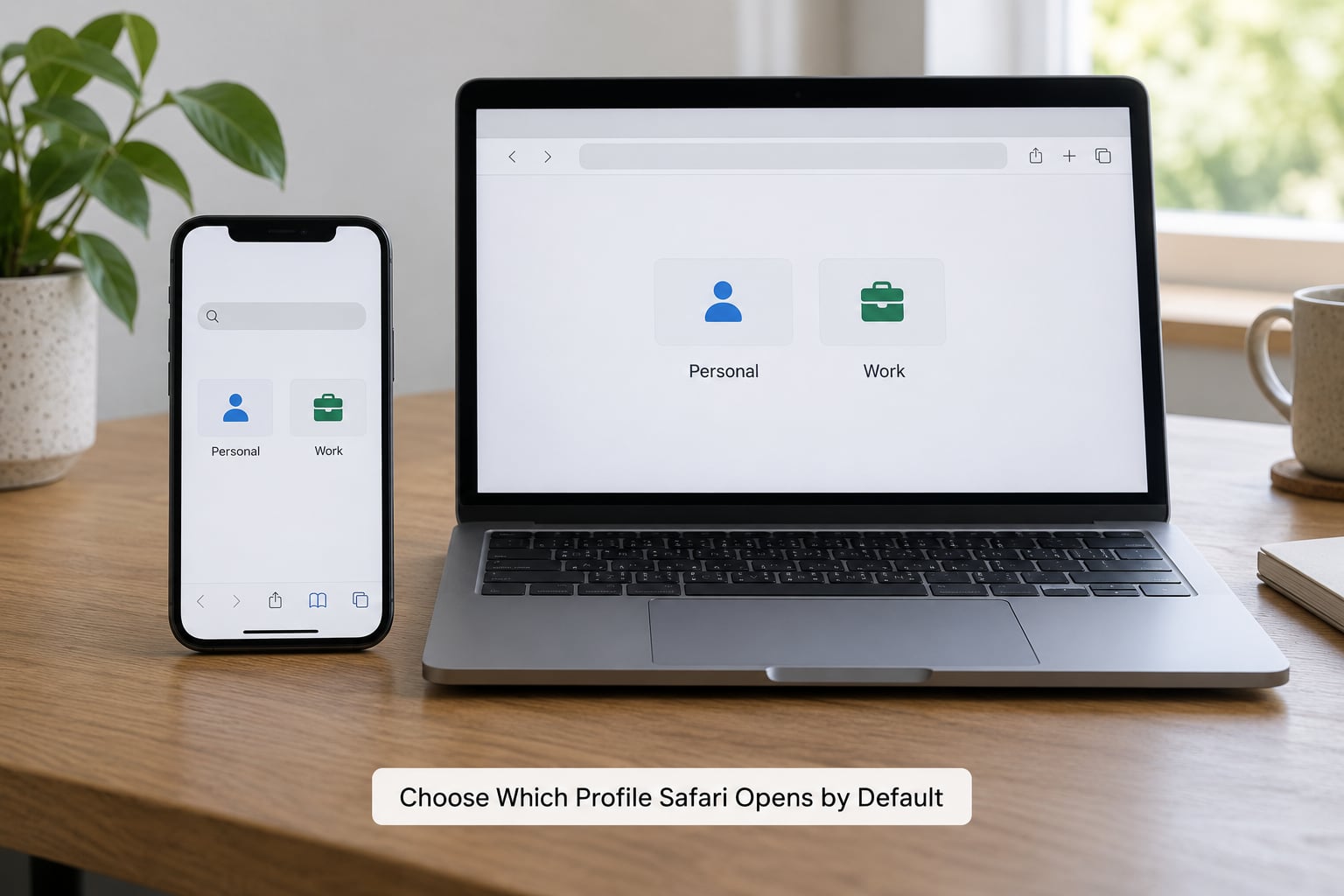
On iPhone and iPad there is no equivalent startup control. Safari opens in whatever profile you used last, so if you finish a work session and forget to switch back, the next time you pick up your phone you are still in the work profile. Keeping Personal as your last-used profile is the habit that prevents that.
Switch Between Work and Personal Profiles
On iPhone and iPad, tap the tab switcher button at the bottom of Safari, then tap More, and the list of profiles appears. Tap a profile name to move into it. On iPad, the same list shows a color label next to each profile, which is handy when two names look similar.
On Mac, click the profile name in the toolbar to see the menu, then pick another profile. To run both at once, choose File, then New Window, then the New Work Window or New Personal Window item for the profile you want, and the new window opens in that profile while your existing window stays put.
Before you open anything sensitive, confirm which profile is active. On Mac the toolbar shows the current profile name and its icon. On iPhone and iPad, the profile color appears in the tab switcher next to each tab group and in the profile list. If you cannot see a name, open the selector and look for the one you did not expect.
Organize Tabs, Cookies, and Saved Passwords
Here is what each Safari profile keeps to itself: browsing history, cookies and website data, tab groups, enabled extensions, the bookmarks folder you chose, the start page, and per-site settings that remember permissions and form entries. A site you have already dismissed in your work profile will ask again in your personal profile, because the stored answer never crossed over.
Passwords are the exception, and this is where most people are disappointed. Passwords saved in iCloud Keychain stay available in every profile on the device. Separate profiles separate browsing, not your keychain. On a Mac you can turn off Keychain for a specific profile in Safari Settings, but on iPhone and iPad that option is not offered.
The practical habit is to save work logins in a work-only password manager or a work account, and to avoid autofilling personal credentials on a work profile. Treat the work profile as a device you would hand to a colleague, not a vault.
Use the Same Profiles Across Apple Devices
Profiles themselves are local to each device. Creating a Work profile on your Mac does not create it on your iPad. To keep the same set everywhere, sign in with the same Apple Account on every device and turn on iCloud for Safari.
What syncs is the data inside the settings you chose, mainly bookmarks folders and passwords through iCloud Keychain. What stays on the device is the browsing history, cookies, and open tabs for each profile. That distinction is why work bookmarks sometimes seem to appear on an iPad while work history does not.
Common Mistakes
No Profiles section in Settings. On iPhone and iPad with iOS 18 or later, look under Settings, then Apps, then Safari. If you are on iOS 17, Safari is in the main list. On Mac, use Safari, then Settings, then Profiles, and if the sidebar shows Start Using Profiles, click it once to turn the feature on.
Tabs from work and personal appear together. Check the profile name in the Mac toolbar, or open the tab switcher list on iPhone and iPad. If the name is right and tabs still look mixed, you likely have both a tab group and a separate window open in the same profile.
Bookmarks or passwords still show up everywhere. That is expected. Bookmarks folders you assigned to a profile sync through iCloud, and iCloud Keychain passwords are shared across profiles on a device. Only history, cookies, and tabs are fully isolated.
Safari keeps jumping into the work profile. The startup profile is set to Work on Mac, or the work profile was your last-used one on iPhone or iPad. Change the startup profile in Safari Settings on Mac, and switch back to Personal before you close the app.
Profiles do not appear on your iPad or iPhone. Either the device is on an OS version older than 17, or it uses a different Apple Account, so the profile set differs. Profiles are per-device, so a fresh iPad needs its own profiles created.
The Profiles panel is greyed out. On a work-issued or school-issued device, mobile device management can restrict profile creation and switching. Check Settings, then General, then VPN and Device Management. If a profile is listed there, your employer controls the configuration, and the Safari profile controls may not be available to you.
Deleting a profile and losing data. Deleting a profile erases its tabs, history, and website data for good. The bookmarks folder you assigned survives in Favorites. Export anything you want to keep first.
A few habits make this easier day to day. Give each profile a distinct color, since the color shows up in the switcher lists faster than the name does. Keep one profile per context rather than five overlapping ones. And if you pair the setup with a Focus mode, switching into Work can silence your personal notifications at the same time.
Frequently Asked Questions
Do Safari profiles keep work and personal tabs separate?
Yes. Open tabs, tab groups, browsing history, cookies, and website data all belong to the profile that created them, so a work tab group never appears in the personal profile and vice versa. On Mac, keep each profile in its own window to make the separation obvious. Note that bookmarks folders and iCloud Keychain passwords are shared through iCloud, so those can still show up in both.
Can I use the same Safari profiles on my iPhone, iPad, and Mac?
Not automatically. Profiles are created separately on each device, so you need to create a Work profile on your Mac, your iPhone, and your iPad yourself, with matching names, icons, and colors. Signing in with the same Apple Account and enabling iCloud for Safari keeps your bookmarks folders and passwords in step, but browsing history, cookies, and tabs stay on each device.
Are Safari passwords shared between work and personal profiles?
They are, and this surprises most people. Passwords saved through iCloud Keychain remain available in every Safari profile on the device, so autofill can offer a work login inside your personal profile. On Mac you can disable Keychain for an individual profile in Safari Settings, but iPhone and iPad do not expose that control. For real separation, keep work credentials in a separate password manager.
Why can’t I find Safari profiles on my iPhone or iPad?
On iOS 18 and later the path is Settings, then Apps, then Safari, then scroll to Profiles. On iOS 17, Safari is listed directly in the main Settings screen, so tap Settings, then Safari, then Profiles. If Profiles is missing entirely, the device is probably running an OS version older than 17, or it is a managed work or school device where the control is restricted.
Will a work Safari profile stop me from accessing personal websites?
No. A profile changes what you see inside Safari, not what the network allows. You can open any site in a work profile, and you can always switch back to your personal profile from the tab switcher on iPhone and iPad or the profile menu on Mac. If an employer has restricted websites, that comes from device management restrictions, not from the Safari profile itself.
Start by creating two profiles and naming them, one Work and one Personal. Give each a different color so you can tell them apart at a glance in the switcher, set Personal as the Mac startup profile, and leave everything else alone until you have actually hit the friction.