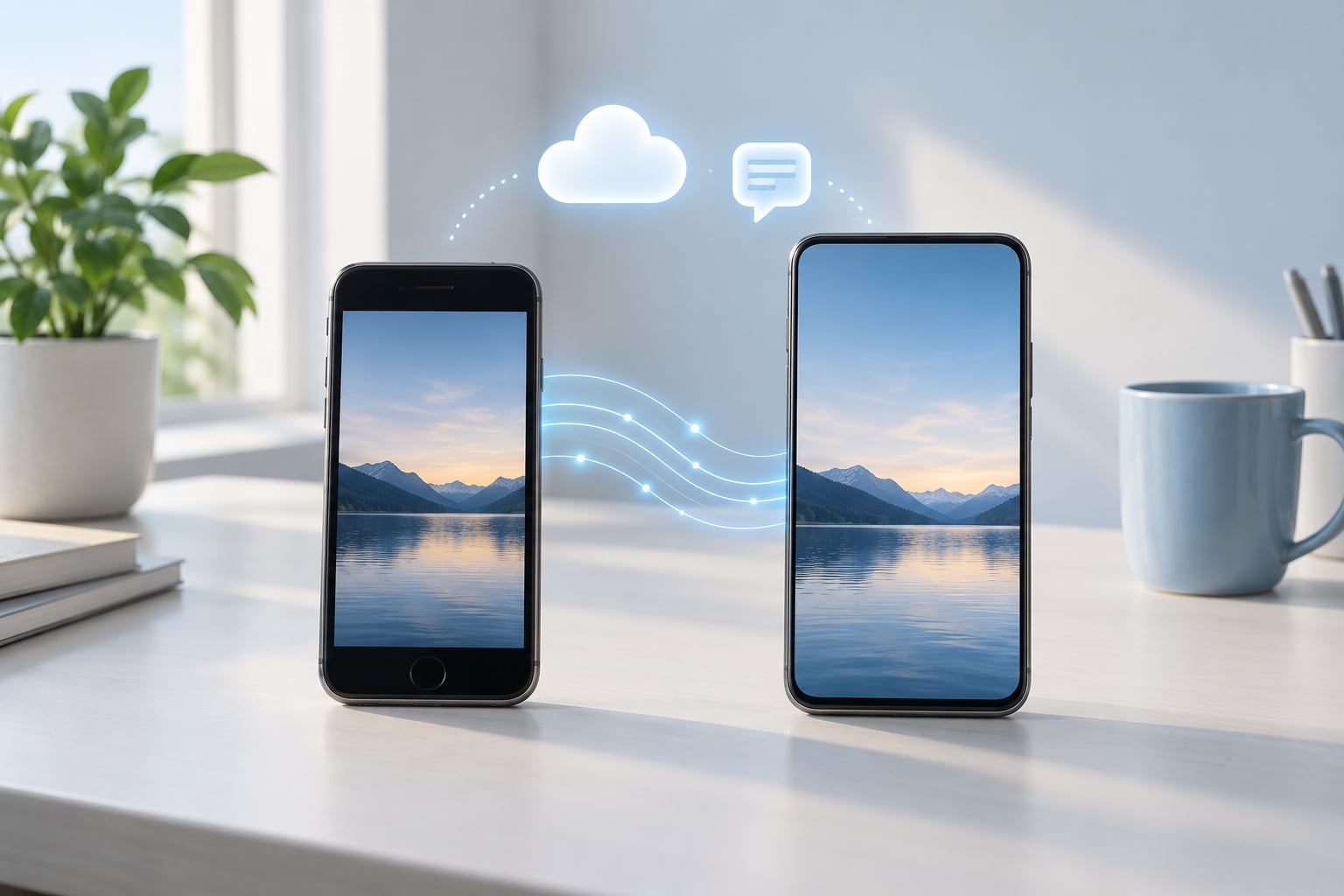
Transferring WhatsApp chats to a new iPhone takes about 15 minutes with WhatsApp’s built-in transfer, and it costs nothing. You do not need iCloud, a computer, or paid migration software. Both iPhones sign into the same Apple Account, sit near each other on Wi-Fi, and WhatsApp copies the whole history directly between them.
What you need is simple: your old iPhone, your new iPhone, the same phone number, the same Apple Account, the latest version of iOS and WhatsApp on both devices, and both phones plugged in and powered. If those five things line up, the transfer usually finishes without drama.
That is the whole answer. The rest of this guide covers how to transfer WhatsApp chats to a new iPhone step by step, which method fits your situation, and what to do when the transfer stalls or some chats are missing afterwards.
Quick answer, in order:
- On the old iPhone, open WhatsApp, go to Settings, Chats, Chat Backup, then tap Back Up Now and wait for it to finish.
- On the new iPhone, set it up normally with your Apple Account, then install WhatsApp from the App Store and open it.
- When WhatsApp finds the old phone, tap Transfer chats to iPhone, scan the QR code on the new screen with the old phone, and leave both phones alone until it completes.
Table of Contents
- 1What You Need
- 2Step-by-Step
- 3Step 1: Prepare Both iPhones and Back Up WhatsApp
- 4Step 2: Choose the Right Transfer Method
- 5Step 3: Transfer WhatsApp Chats to a New iPhone
- 6Step 4: Restore or Verify the Chats
- 7Step 5: Confirm Your Chats and Media Are Complete
- 8Common Mistakes
- 9Frequently Asked Questions
- 10Do I need iCloud to transfer WhatsApp chats to a new iPhone?
- 11Will WhatsApp chats transfer automatically from my old iPhone?
- 12How long does it take to transfer WhatsApp chats to a new iPhone?
- 13Can I transfer WhatsApp photos and voice messages too?
- 14What should I do if WhatsApp does not show the transfer prompt?
- 15Can I erase my old iPhone after transferring WhatsApp chats?
- 16Conclusion
What You Need
Six things have to be right before you begin, and checking them now saves an hour of frustration later.
- Both iPhones, powered and connected. Old and new, both unlocked or at least awake, both plugged into chargers.
- The same Apple Account. Sign into iCloud on the new phone with the Apple ID used on the old one. Two different Apple IDs will block the iCloud route.
- The same phone number. The SIM has to be active in the new iPhone before you start. Changing numbers is a separate process.
- The latest iOS and WhatsApp on both phones. Open the App Store, tap Update, and do this on each device.
- A steady Wi-Fi connection. Both phones on the same reliable network, ideally with the router in the same room.
- Local network permission turned on for WhatsApp on both devices. This is the setting people forget, and without it the transfer quietly fails partway.
Open Settings, tap Privacy and Security, then Local Network, and confirm WhatsApp is enabled on each phone. Newer iOS versions also ask for this permission the first time WhatsApp tries to reach another device, so watch for the pop-up and tap Allow.
One more thing worth checking: free storage on the new iPhone. A large chat history plus its photos and videos can run to many gigabytes, and an iPhone with very little room free will start failing mid-transfer.
Step-by-Step
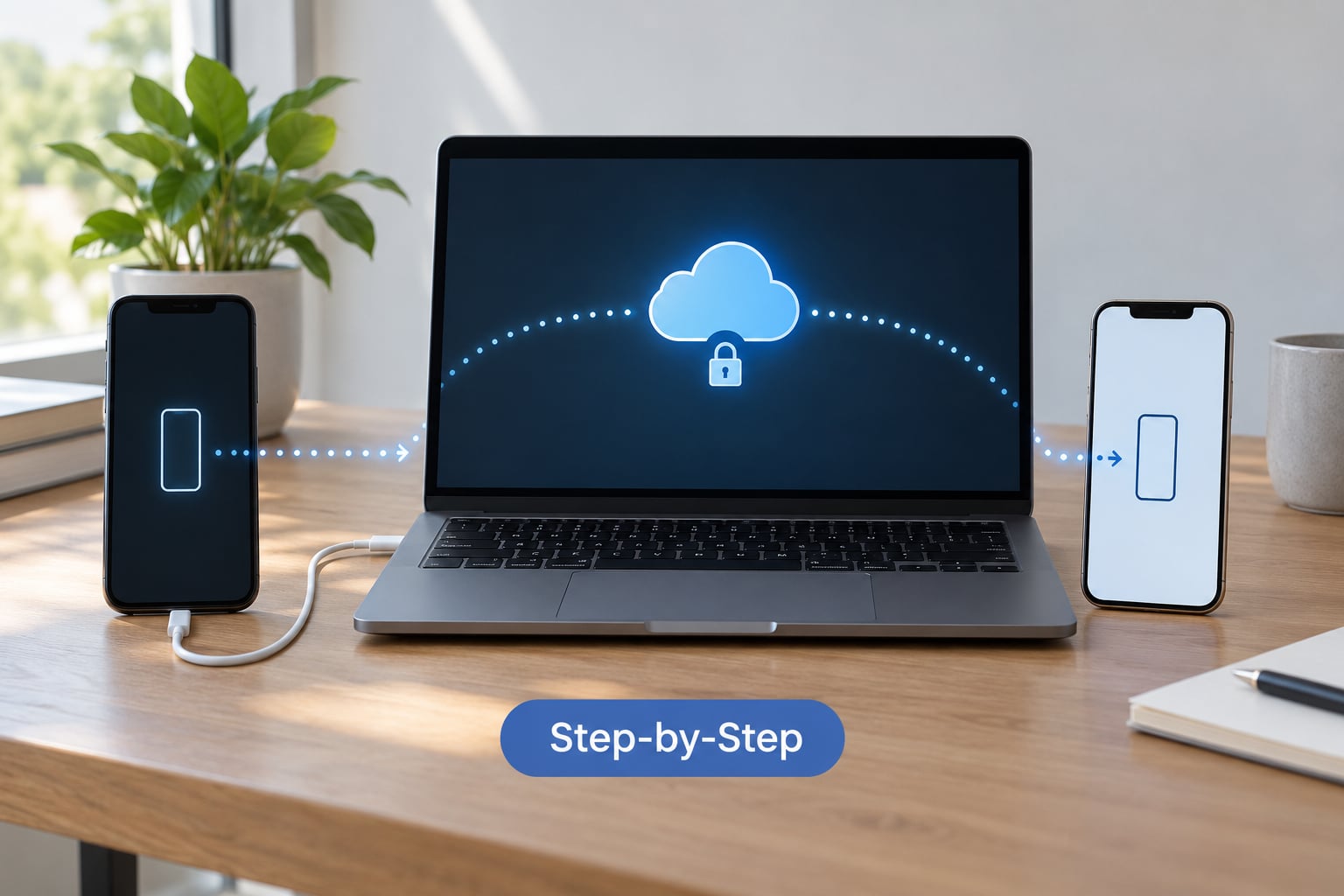
Step 1: Prepare Both iPhones and Back Up WhatsApp
Start on the old iPhone, because it is the only place your history exists right now. Update iOS through Settings, General, Software Update, and update WhatsApp in the App Store.
Then take a fresh backup. Open WhatsApp, tap Settings, go to Chats, tap Chat Backup, and choose Back Up Now. Select Include Chats if you want the text history alongside the media, and check that End-to-end encrypted backup is switched on for the fullest protection.
Wait for the backup line to change to your most recent time. That confirmation is what tells you the old phone has a usable safety net before anything irreversible happens.
Do the same iOS and WhatsApp updates on the new iPhone while the old one is backing up. If you have not set up the new phone yet, finish its setup assistant first and sign in with your Apple Account.
Step 2: Choose the Right Transfer Method
There are three practical ways to move WhatsApp across, and the difference between them matters more than most guides admit.
- Direct phone-to-phone transfer. Needs no internet and no computer. Best when you still have the old iPhone in your hand, which makes it the default choice.
- iCloud backup restore. Needs internet but no computer. Best when the old iPhone is already gone, or when you want a copy of the history stored off the device.
- Computer backup restore. Needs no internet, but does need a Mac or Windows computer. Best when you want a local copy of the data or your iCloud storage is full.
Direct transfer is the fastest and most complete option because it copies everything locally. Use the iCloud route only when the old phone is no longer available. Reach for a computer backup when you want an offline copy of the data as an extra layer of protection.
One clarification that causes a lot of head-scratching: a WhatsApp chat backup and an iPhone backup are different things. The chat backup lives in the WhatsApp app and contains messages and media. The iPhone backup lives in iCloud or on your computer and contains the entire device. Restoring a full device backup can bring WhatsApp back, but only if the WhatsApp chat backup was switched on first.
Step 3: Transfer WhatsApp Chats to a New iPhone
This is the direct transfer, and to transfer WhatsApp chats to a new iPhone this way both phones need to be awake, close together, on the same Wi-Fi, and plugged in.
- Put your SIM in the new iPhone and activate it so the number works.
- Install WhatsApp on the new iPhone from the App Store, then open it.
- Register with the same phone number as the old phone, using the SMS code or phone call verification.
- When WhatsApp asks whether you want to move chats from the previous device, tap Transfer chats to iPhone. If no prompt appears, see the Common Mistakes section below.
- On the new phone, tap Show QR code and scan it with the old iPhone.
- Leave both phones untouched until the transfer finishes.
On the old iPhone, the trigger is either a notification that WhatsApp wants to move chats to the new device, or WhatsApp opening automatically during setup. If nothing appears, open WhatsApp on the old phone and tap Settings, Chats, Move chats to iPhone, then scan the code from there.
The progress bar sits on the new phone. Transfers that look stuck at one percentage for a while are usually still running, because the bar tracks stages rather than a live byte count. Phone users regularly report a long pause around the three-quarter mark; that is normal. Do not switch apps, put either phone in a pocket, or restart anything.
A chat history of ordinary size finishes in 5 to 15 minutes over Wi-Fi. Heavy media libraries can take an hour or more, so plug both phones in and leave them alone.
Step 4: Restore or Verify the Chats
If you used direct transfer, WhatsApp finishes the job on its own and no restore is needed. If you restored from iCloud, the restore happens while WhatsApp opens on the new phone for the first time.
For the iCloud route, WhatsApp has to be switched on inside iCloud before you restore. Go to Settings on the old phone, tap your name at the top, tap iCloud, tap WhatsApp, and switch on Include Chats. Tap Show All to see which devices hold the backup, and note when the most recent one was made.
On the new phone, sign into iCloud with the same Apple Account, install WhatsApp, verify the number, and choose Restore from Chat Backup when the prompt appears. WhatsApp restores the newest backup automatically. Selecting an older one is possible on the iCloud screen, but most people want the latest.
A restore can take much longer than a direct transfer, sometimes 30 to 60 minutes, and the progress appears on screen. Keep the new phone on Wi-Fi and leave WhatsApp in the foreground if you can.
Step 5: Confirm Your Chats and Media Are Complete
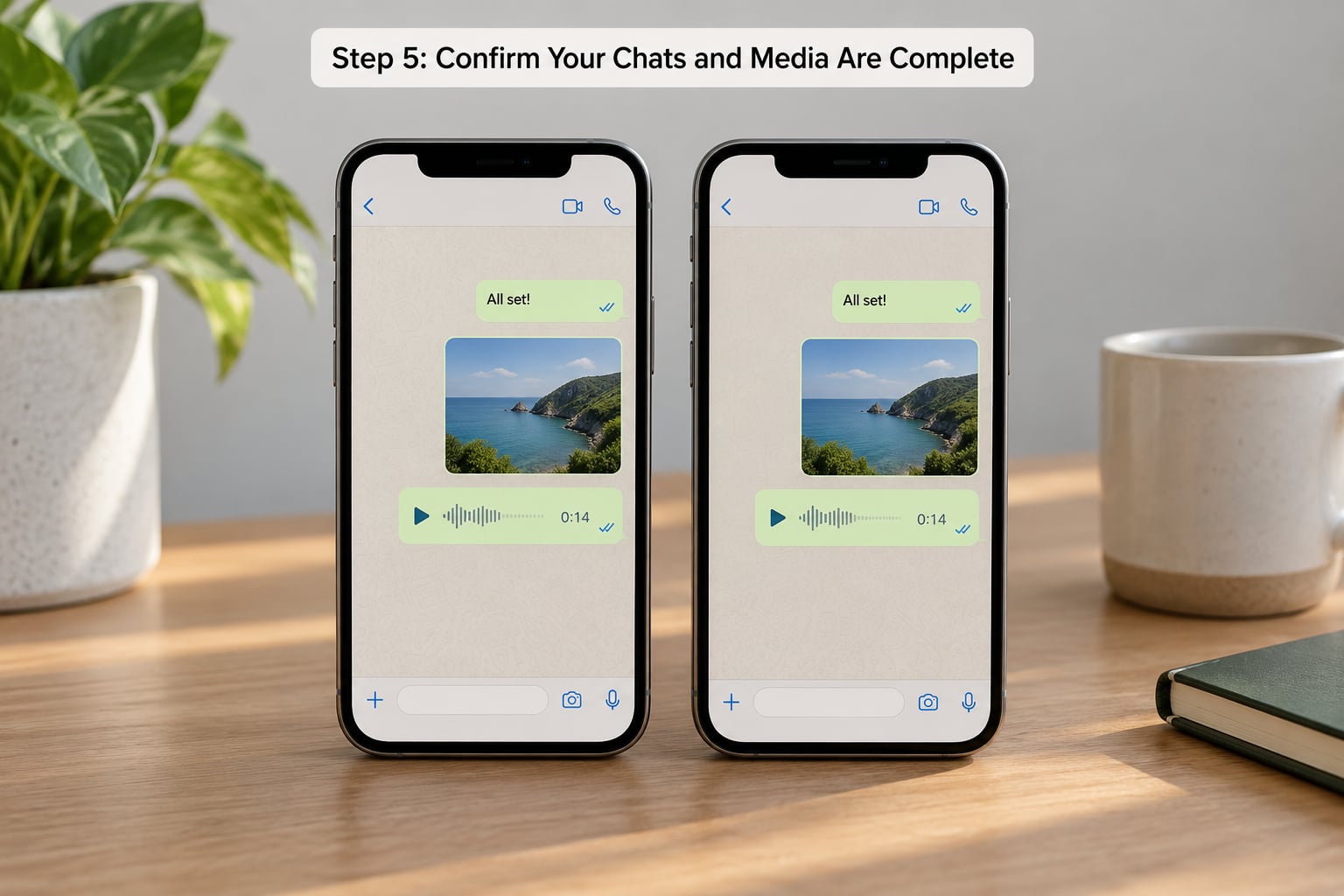
Do not erase the old iPhone yet. Open a handful of chats and check them properly, because a transfer can look complete and still be missing pieces.
- Scroll to the very top of a long chat. Old messages are the first thing to go missing.
- Open an image sent years ago and confirm it loads rather than showing a grey placeholder.
- Play a voice note end to end.
- Check the Calls tab for missed calls, and check Archived for conversations you had archived.
- Send a message to a friend and get a reply, so you know sending and receiving both work.
- Confirm group chats are intact, including ones where you are an admin.
What normally comes across: text messages, photos, videos, voice notes, documents, stickers, message reactions, archived chats, group chats, your profile photo, your About text, and most status updates.
What can disappoint you: very large videos may need a second to load from WhatsApp servers, some sticker and animated-sticker data re-downloads on demand rather than arriving locally, and status updates often expire instead of transferring. Nothing is lost permanently, but those items are not always present the second you switch over.
Two-step verification needs attention during the move. On the new phone, WhatsApp may ask for your six-digit PIN before it finishes restoring. Have that PIN ready, and check that your linked devices list still makes sense once you are done.
If a chat is missing and you want to try again, you do not need to start from zero. Restore again from the same backup, or repeat the direct transfer while the old phone is still intact. Do not delete the backup on the old phone until the new phone is verified.
Only after the checks pass should you wipe the old device. A forum worry worth repeating: reactivating the old iPhone with the same number can cause problems for the new phone, so once it is erased, do not sign that number back into it.
Common Mistakes
Here are the failures people hit most, each with the fix that actually resolves it.
No transfer prompt appears on the new iPhone. Open WhatsApp on the old phone, tap Settings, Chats, then Move chats to iPhone. If that option is greyed out, check that both phones run a recent WhatsApp version, that both are on the same Wi-Fi, and that the Apple Account on the new phone matches the old one. Turn Local Network access on for WhatsApp on both devices and try again.
Chats are missing after setup. The usual cause is that you restored a full iPhone backup without the WhatsApp chat backup switched on. Go back to Settings, your name, iCloud, WhatsApp on the old phone and confirm Include Chats was enabled before the backup was taken. If it was not, the chat history cannot be pulled out of the device backup.
Only some chats arrived. Two phones on different Apple IDs, or a restore from an older backup, is the usual explanation. Check the backup date on the iCloud screen. Another common cause is an encrypted backup whose password was never saved, which makes it unreadable on the new phone.
Photos and videos are grey squares. The message arrived but the media has not finished downloading. Tap each item to pull it from WhatsApp servers while both phones are on Wi-Fi. If it stays grey, the file may have been removed from cloud storage, and no transfer method will bring it back.
Transfer stops partway. Interruption, weak Wi-Fi, or a phone going to sleep. Put both phones on the charger, stay in range of the router, disable Low Power Mode on both, and start the transfer again. A stalled transfer cannot be resumed, so you repeat the step.
Messages sit at one tick and will not send. Usually a network or registration issue rather than lost chats. Check that the new phone has mobile data or working Wi-Fi, then send a fresh message. If it refuses, sign out and back in on the new phone, or reinstall WhatsApp and restore again from the backup.
Verification codes never arrive. SMS delays with a newly activated SIM are routine. Use the voice call option instead, or wait a few minutes and request another code. If you have two-step verification on, the six-digit PIN is required too.
Backups fail or say not enough space. Free up iCloud storage through Settings, your name, iCloud, Manage Storage, or delete large files from the old phone and retry. Very large backups can also fail on a phone that is nearly full.
Coming from Android instead. WhatsApp transfers through Apple’s Move to iOS app, which requires a factory reset of the new iPhone before it starts. Set up the transfer during the initial iPhone setup, not afterwards. If chats go missing after Move to iOS, the workaround people report is backing up to Google Drive on the Android phone, uninstalling WhatsApp, reinstalling it, letting the backup download again, then retrying the move.
Using WhatsApp Business. The steps are identical to regular WhatsApp. Install WhatsApp Business on the new iPhone, verify the same business number, and accept the transfer prompt when it appears. Quick replies and catalogue items re-download from the app.
Two final tips. Make the backup before anything else, because a backup taken after a partial transfer only contains what already made it across. And never leave the old iPhone erased until the new one has been checked message by message.
Frequently Asked Questions
Do I need iCloud to transfer WhatsApp chats to a new iPhone?
No. WhatsApp has a built-in transfer that moves your chats straight from the old iPhone to the new one over Wi-Fi, with no cloud storage involved. iCloud is only needed as a fallback when the old iPhone is no longer available, or when you want an off-device copy of the history. If you do use iCloud, switch on WhatsApp under Settings, your name, iCloud, then restore from the chat backup on the new phone.
Will WhatsApp chats transfer automatically from my old iPhone?
Not quite automatically. The transfer starts on the new iPhone: after you install WhatsApp and verify your number, WhatsApp looks for the previous phone on the same Wi-Fi and offers a Transfer chats to iPhone prompt that you accept, then confirm by scanning a QR code. Nothing moves until you tap through that prompt, and the old phone has to stay awake and nearby until it finishes.
How long does it take to transfer WhatsApp chats to a new iPhone?
Direct phone-to-phone transfer usually takes 5 to 15 minutes for a normal chat history and can reach an hour or more with years of photos and videos. Restoring from an iCloud backup is slower, commonly 30 to 60 minutes, since the data downloads first. Keep both phones plugged in and awake, leave them in the same room as the router, and avoid switching apps until the progress bar completes.
Can I transfer WhatsApp photos and voice messages too?
Yes. Photos, videos, voice notes, documents and stickers all transfer along with the text messages. Most media arrives on the new phone ready to open, while some larger videos or stickers re-download from WhatsApp servers when you first tap them, so they can show a grey placeholder for a few seconds. Media that was manually deleted from WhatsApp long ago cannot be recovered by any transfer method.
What should I do if WhatsApp does not show the transfer prompt?
Start it from the old phone: open WhatsApp, tap Settings, Chats, then Move chats to iPhone and scan the QR code shown on the new device. If that option is missing, check that WhatsApp and iOS are up to date on both phones, that both are connected to the same Wi-Fi, and that WhatsApp is allowed under Settings, Privacy and Security, Local Network on each device. A mismatched Apple Account also blocks it.
Can I erase my old iPhone after transferring WhatsApp chats?
Yes, but only after you have verified the move. Open several old chats, scroll to the top of each, play a voice note, open an old photo, check Archived and Calls, and send a message to confirm sending works. Once those pass, erase the old iPhone. Afterwards, do not reactivate the old device with the same phone number, because that can disrupt the new phone.
Conclusion
If you take one action before anything else, update iOS and WhatsApp on both iPhones and tap Back Up Now in WhatsApp, Settings, Chats, Chat Backup. That single backup protects every other step, including the ones you might have to repeat.
After that, pick the method that matches your situation: direct phone-to-phone transfer while the old iPhone is still in your hand, an iCloud restore if it is gone, or a computer backup for a local copy. Then verify your chats and media message by message before you erase anything, because once the old phone is wiped there is no second chance to fetch what did not make it across.