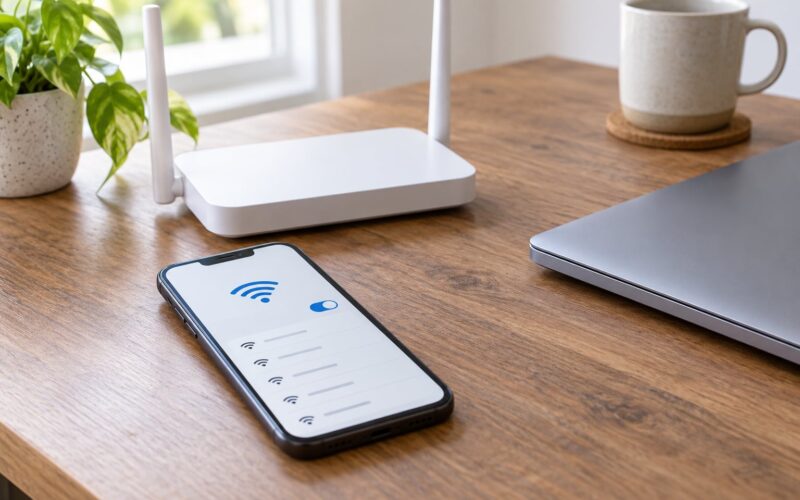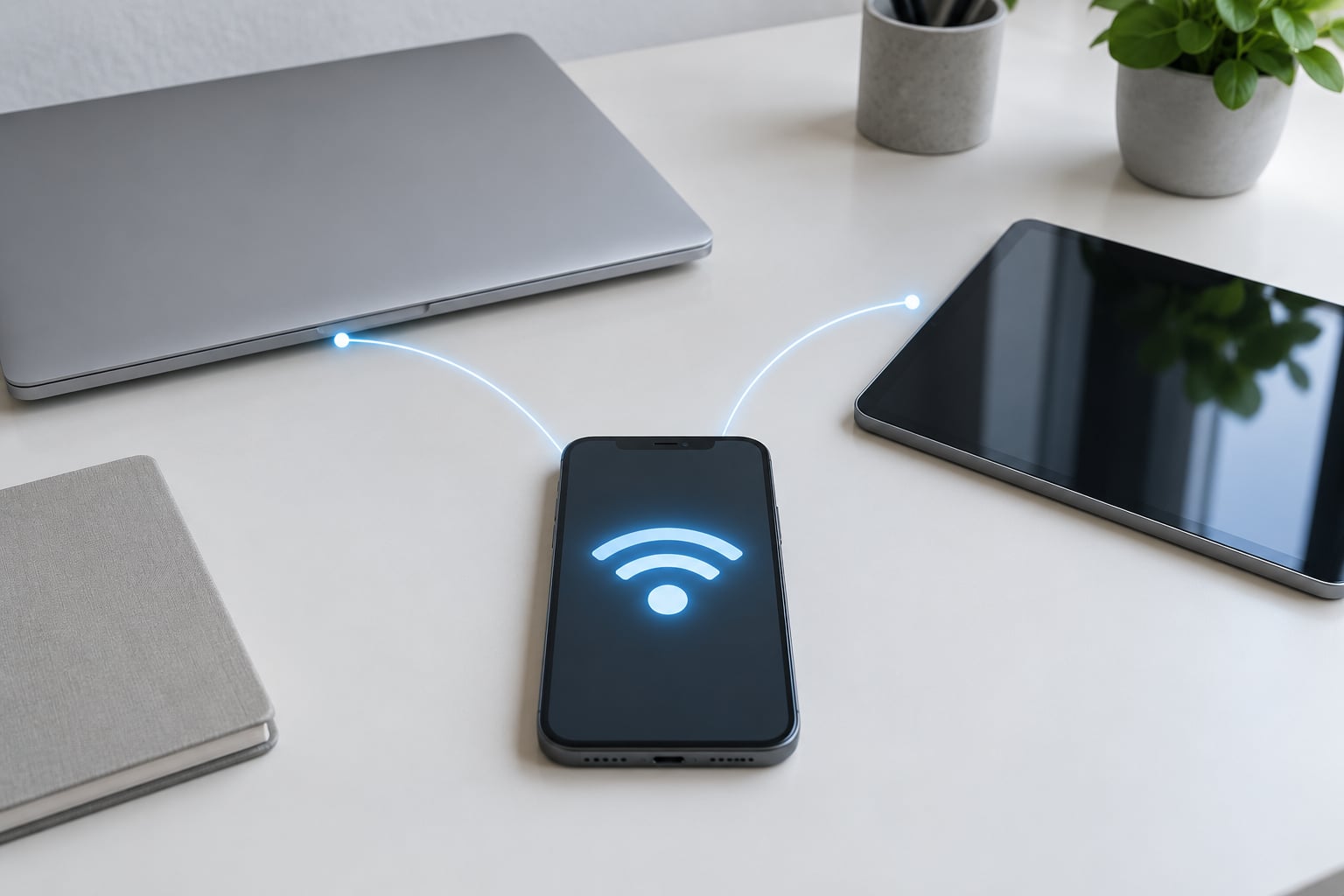
Personal Hotspot fails most often because the iPhone has no active cellular data connection, the toggle is on but the other device never finished joining, or your carrier blocks tethering on that line. Personal hotspot not working on iPhone usually takes under ten minutes to sort out, and most cases are fixed with one setting.
This guide walks through the checks in the order that costs you the least time. Work from the top and stop as soon as your second device loads a page.
The menu paths below match current iOS versions on iPhone. Where an option only exists on certain models or where a name changed in an earlier release, I say so.
Table of Contents
- 1What You Need
- 2Step-by-Step: How to Fix Personal Hotspot Not Working on iPhone
- 31. Check the iPhone’s mobile connection
- 42. Personal Hotspot Not Working After a Toggle or an Update — Fix It
- 53. Check the hotspot password and connected-device settings
- 64. Forget and reconnect the other device
- 75. Check for carrier, network, and iOS problems
- 86. Reset network settings or restore the iPhone as a last resort
- 9Common Mistakes That Break Personal Hotspot
- 10Frequently Asked Questions
- 11Why is my iPhone Personal Hotspot not showing up on another device?
- 12Can I use Personal Hotspot without mobile data?
- 13Why does my iPhone hotspot keep disconnecting?
- 14Does Personal Hotspot work when my iPhone is locked?
- 15How do I fix a Personal Hotspot password problem?
- 16Does my mobile carrier support iPhone Personal Hotspot?
What You Need
Three things, and none of them cost money.
- An iPhone with working cellular service. If mobile data is dead on the phone, the hotspot has nothing to share.
- A second device with Wi-Fi. A laptop, tablet, another phone, a handheld console. Bluetooth and USB options need their own cables or pairing.
- Enough battery and data headroom. Tethering drains the iPhone faster than normal use, and your data allowance drops fast on video.
Your plan also has to allow tethering at all. Some carriers and MVNOs include it, some block it by default, and some disable it until you ask support to turn it on for your specific line.
One more thing worth knowing: Personal Hotspot requires cellular. There is no setting that turns a phone into a Wi-Fi router using a Wi-Fi connection it already has.
Step-by-Step: How to Fix Personal Hotspot Not Working on iPhone
1. Check the iPhone’s mobile connection
Open Control Center and check that Airplane Mode is off and cellular data is on. Or go to Settings > Cellular and confirm the Cellular Data switch is green and the network name shows in the top bar.
Test it by opening Safari on the iPhone itself and loading any page. If nothing loads there, no hotspot trick will help. Fix the cellular connection first, then come back.
Test it by turning Personal Hotspot on and watching for the Wi-Fi-style indicator. If the iPhone shows “No Service” or “Not Available,” stop here.
2. Personal Hotspot Not Working After a Toggle or an Update — Fix It
Go to Settings > Cellular > Personal Hotspot and switch Allow Others to Join off. Wait about fifteen seconds, then switch it back on.
Wait for the Wi-Fi icon to appear in Control Center, then try connecting the other device again. This clears the stale session that often survives an iOS update.
If it worked, the problem was a stuck toggle. If it did not, move on — do not repeat the toggle five times hoping for a different result.
3. Check the hotspot password and connected-device settings
On the same Personal Hotspot screen, look at the Wi-Fi Password field. Type a short, simple password with no spaces and no unusual symbols. Some older devices and smart TVs silently reject long mixed-case passwords.
Check Maximum Connections next to it. If it is set lower than the number of devices you are trying to join, the extra device will fail to connect for no visible reason.
Scroll down to the list of connected devices and disconnect anything you do not recognise. Then check Allow Others to Join and the two visibility switches nearby, which control whether nearby devices can see the iPhone without a password. On iPhone 12 and later, look for Maximize Compatibility in this same panel. It moves the hotspot to the slower 2.4 GHz band, which older laptops, printers, and game consoles often need.
4. Forget and reconnect the other device
A saved network with a stale password is the most common reason a device connects and then shows no internet.
On another iPhone or iPad, open Settings > Wi-Fi, tap the network name, then tap Forget This Network. On Android, long-press the network name and choose Forget. On Windows, use the Wi-Fi flyout, right-click the network, and choose Forget. On macOS, open Wi-Fi settings, click the network, and use the minus button.
Then reconnect using the exact network name and password shown on the iPhone. Type the password carefully — iPhones do not show characters as you enter them, so a single capital letter in the wrong spot is easy to miss.
Test it by loading a page on the second device. If a page loads, you are done. If a captive.apple.com page opens instead, the device joined the Wi-Fi network but internet traffic never reached it, which points to the cellular side rather than the Wi-Fi side.
5. Check for carrier, network, and iOS problems
Look at the failure pattern. Each one rules something out.
- The toggle is greyed out or says Contact Carrier. Your line is not provisioned for tethering. Call or chat your carrier and ask them to confirm hotspot is enabled on the line.
- The toggle turns on and off immediately. Usually the same provisioning problem, or an iOS bug after a recent update.
- Mobile data works but the hotspot never appears. Check Settings > Cellular > Cellular Data Network. If the APN fields are empty after an update, the provisioning profile did not load correctly. Your carrier can resend the correct APN values over the phone or by email.
- It works in one place and not another. Weak signal at the location, or a congested tower. Hotspot inherits the phone’s signal quality exactly.
- It fails right after an iOS update. Wait 24 hours for carrier settings to finish installing, then check Settings > General > About for a Carrier Update notice. Install it if one appears.
A restart is worth doing at this point because it clears the modem and network stack without touching your data. If a work phone has an MDM profile installed, that profile can disable Personal Hotspot entirely, so check Settings > General > VPN & Device Management if the toggle refuses to stay on.
6. Reset network settings or restore the iPhone as a last resort
Go to Settings > General > Transfer or Reset iPhone > Reset > Reset Network Settings. Confirm with the passcode.
This erases every saved Wi-Fi network and its password, VPN configurations, and Bluetooth pairings on the iPhone. Your photos, apps, and messages are untouched.
Turn Personal Hotspot back on, reconnect your device, and test it. If it still fails, the cause is not in your settings.
Restoring the iPhone itself is the final option. Back up first with iCloud or with Finder on a Mac, then use Settings > General > Transfer or Reset iPhone > Erase All Content and Settings, or connect to a computer and restore through Finder. Never do this without a backup — it removes everything on the device.
If it survives a full restore, suspect hardware or the carrier line. A modem or antenna fault shows up as weak or missing cellular service, failed calls, and often a Service Mode line in Settings > General > About. That is a repair, not a settings problem.
Common Mistakes That Break Personal Hotspot
Each of these has a matching fix, and all of them look identical from the second device.
- Airplane Mode was turned on and forgotten. Fix: check Control Center first, then toggle Airplane Mode off and on to force the radio to re-register.
- Mobile data is switched off inside Settings. Wi-Fi off plus cellular off means no internet at all. Fix: Settings > Cellular > Cellular Data on.
- The data allowance ran out. The phone still shows bars, so it feels like service, but tethering gets nothing. Fix: check remaining data in Settings > Cellular and with your carrier.
- The password was changed on the iPhone and never on the other device. Fix: forget the network on the second device and re-enter the current password.
- The second device is too old for the current band. Fix: turn on Maximize Compatibility in the Personal Hotspot panel.
- The iPhone screen locks mid-session. Fix: on some setups the connection drops when the display sleeps. Leave the screen awake during the session, and keep the iPhone plugged in when streaming.
- The carrier blocks tethering on that line. Fix: ask the carrier to enable hotspot for the specific number.
- iOS is several versions behind. Fix: Settings > General > Software Update, and install any pending Carrier Update afterward.
One tip that saves people hours: watch the iPhone, not the second device. If the Wi-Fi indicator stays on after the other device fails to load a page, the iPhone thinks the hotspot is running fine and the fault is downstream. If that indicator drops, the fault is upstream, on the iPhone’s own network.
Frequently Asked Questions
Why is my iPhone Personal Hotspot not showing up on another device?
Usually the second device is holding an old copy of the network. Forget the hotspot network on that device, confirm Personal Hotspot is switched on and the iPhone shows the Wi-Fi indicator in Control Center, then reconnect using the exact name and password shown on the iPhone. If it still does not appear, turn on Maximize Compatibility for older devices.
Can I use Personal Hotspot without mobile data?
No. Personal Hotspot shares the iPhone’s cellular connection, so mobile data has to be active and within your allowance. With cellular data off, or with the allowance exhausted, the hotspot still appears in the network list but the connected device will not load anything. Some plans route tethering through a separate data bucket that can run out before your main data does.
Why does my iPhone hotspot keep disconnecting?
Frequent disconnects usually come from the iPhone sleeping, weak cellular signal at your location, a low battery, or a device that drops off when Maximum Connections is reached. Keep the screen on during a session, plug the iPhone in, and check signal strength. If it disconnects in the same spot every time, that points to coverage rather than settings.
Does Personal Hotspot work when my iPhone is locked?
It is meant to. The iPhone keeps the hotspot running while the screen is off, but on some setups the connection drops when the display sleeps, especially while streaming. If that happens to you, leave the screen awake for the session, or turn on Always-On Display so the phone stays more active. Restarting the iPhone clears the issue in many cases.
How do I fix a Personal Hotspot password problem?
Change the Wi-Fi Password in Settings, then forget the network on every device that used the old one and reconnect with the new password. Use a short password with no spaces. If the password field looks locked or will not save, a device management profile or a failed carrier update can block changes, so check Settings, General, VPN and Device Management.
Does my mobile carrier support iPhone Personal Hotspot?
Most do, but not all plans include tethering and some carriers switch it off by default for a specific line. If the Personal Hotspot toggle is greyed out, says Contact Carrier, or turns off by itself, your line is not provisioned for it. Your carrier can confirm and enable it. Some plans bill tethering against a separate or reduced data bucket.
Start with the cellular connection and the toggle, because those two cause most failures and take under a minute between them. If the second device joins but nothing loads, forget the network on that device and re-enter the password. Past that, the answer is almost always carrier provisioning or an iOS bug, so restart, check for a Carrier Update, and only then reset network settings.