Short answer: not directly. Apple gives you a summary of an iCloud backup — device name, date, size — but it will never let you open the archive and browse it like a folder of photos and documents. To learn how to see what is inside an iCloud backup, you check the backup record in Settings, locate the stored copy on a Mac or Windows PC, and then read it with a compatible backup explorer. That takes about ten minutes and it does not touch your current phone.
The reason this trips people up is that two different things get called “iCloud.” One is the backup, a hidden restore package Apple builds so it can rebuild your device later. The other is the data your apps sync through iCloud, which does show up at iCloud.com as normal files. Only the second one looks like anything you recognise.
What follows is the route I use: confirm the backup exists and when it last ran, open it locally on a computer, and inspect it read-only. Nothing here requires erasing your phone, and nothing requires handing your Apple Account password to a stranger’s website.
Table of Contents
- 1What You Need to See What Is Inside an iCloud Backup
- 2Step-by-Step
- 3Check the iCloud Backup on iPhone or iPad
- 4Locate the Backup with Apple Devices on Windows
- 5How to See What Is Inside an iCloud Backup on Mac
- 6Use a Compatible Explorer to Browse Individual Data
- 7Confirm the Backup Password and Encryption Status
- 8Check Specific Data and Export a Copy Only
- 9Common Mistakes
- 10Common Mistakes and Quick Fixes
- 11Frequently Asked Questions
- 12What is inside an iCloud backup?
- 13Can I open an iCloud backup as a normal folder?
- 14Why does my iCloud backup need a password?
- 15Are iCloud Drive files included in my iPhone backup?
- 16Can I recover one file without restoring the whole iCloud backup?
- 17Conclusion
What You Need to See What Is Inside an iCloud Backup
Before anything else, be clear about what you are inspecting. There are three separate items and mixing them up wastes an afternoon.
- Device backup — seen in Settings, at iCloud.com, in Finder or in the Apple Devices app. You get one summary row per device, plus the stored archive if you inspect it locally.
- iCloud-synced data — seen at iCloud.com, in the Finder sidebar or in iCloud for Windows. These are real files and folders you can open normally.
- Local computer backup — a folder on your Mac or PC. Same archive format, saved to disk instead of to iCloud.
So the prerequisite list is short. You need the iPhone or iPad the backup came from, or at least its backup record in your account. You need your Apple Account details and password, because iCloud.com and any download step will ask. You need a trusted Mac or PC, since the archive itself only lands on a computer — there is no file-level browser on the phone. You need a recent backup, which you confirm before you go hunting for one. And you need a working internet connection for anything involving iCloud.com.
One more thing worth saying plainly: you do not need to restore anything. Restoring is the slow, destructive path. Inspection is the fast, safe one.
Two more warnings before you continue, because both are irreversible. Never rename, edit or delete anything inside a raw backup folder — the files carry hashed names and a database that ties them together, and editing one breaks the whole archive. And never type your Apple Account password into a website you found through a search result; if a tool needs account access, check that it is a reputable product you installed yourself.
Step-by-Step
Check the iCloud Backup on iPhone or iPad
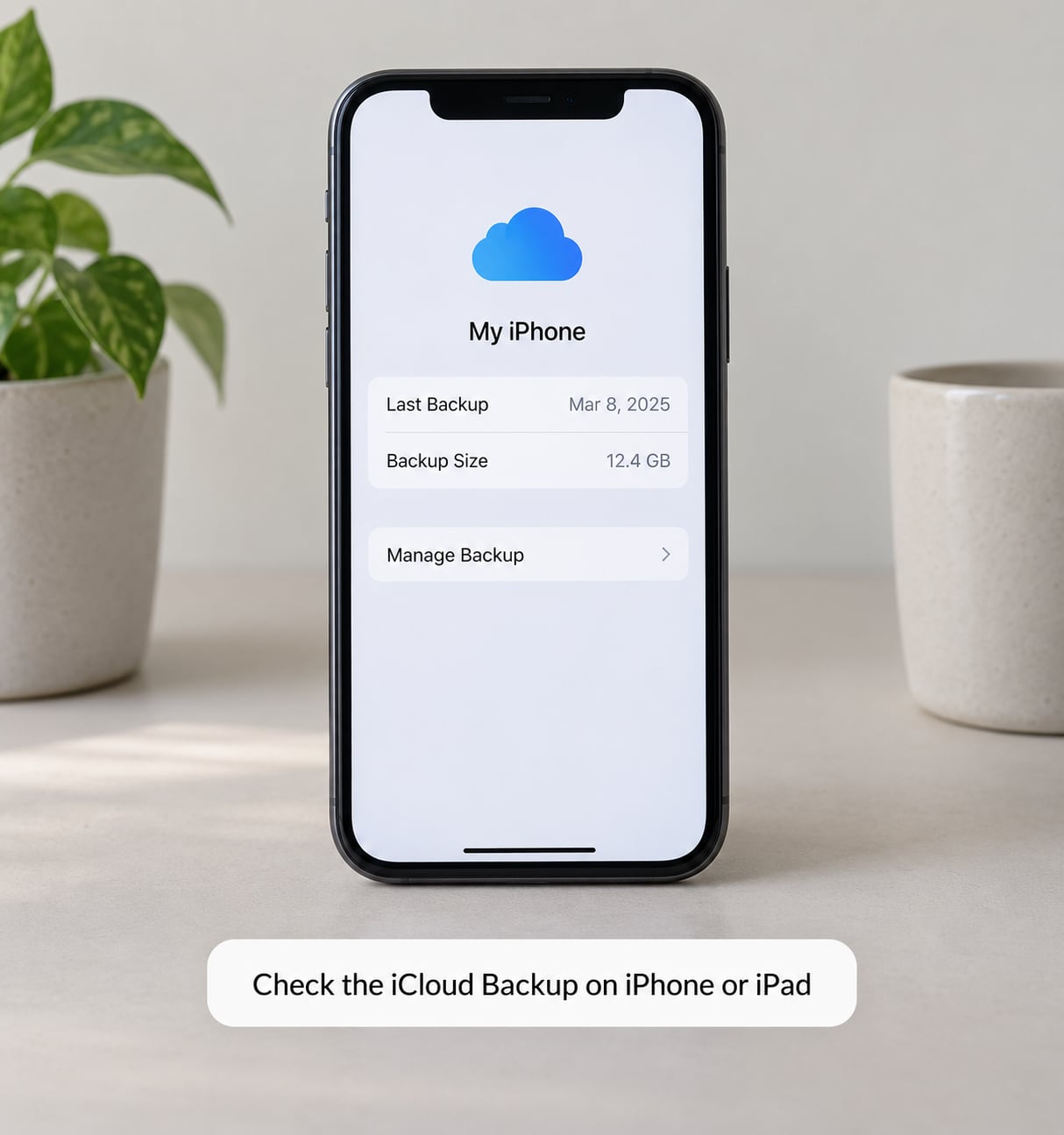
Start on the device itself. Open Settings, tap your name at the top, then iCloud, then iCloud Backup. You will see a status line saying iCloud Backup is on or off, a line for the last successful backup, and a Back Up Now button.
If backup is off, switch it on and tap Back Up Now while the phone is on Wi-Fi and plugged in. You know it worked when the last successful line updates to today’s date and time.
To see the backup list itself rather than the toggle, tap Manage Backup. That opens the Manage Account Storage screen on iCloud.com, where each device you own appears as a row with its name, the date of its most recent backup, and its size. This is the single most useful screen for the question of what is in a backup, because it is the only place Apple reports the archive’s size at all.
Note the limitation: this row summarises the archive. It does not list the photos, messages or notes inside it. Expect that, and you will not feel cheated.
Locate the Backup with Apple Devices on Windows
Windows is split in two, and mixing the halves is the usual source of confusion. iCloud for Windows shows synced data and your storage breakdown. The Apple Devices app, which replaced the iTunes role on recent Windows versions, handles backups.
Open the Apple Devices app from the Microsoft Store, sign in with your Apple Account if it asks, and connect your iPhone or iPad by cable. Tap the device in the left panel, then choose its iCloud backup area, then Manage Backup. Your browser opens the same Manage Account Storage page you reached from the phone, showing that device’s backup date and size.
What you cannot do here is open the archive. Windows can manage and delete backups, and it can save a fresh local copy to disk, but it cannot show you the contents as browsable files. That step needs a third-party reader.
If your local backup folder is what you actually want, it lives under your user profile in AppDataRoamingApple ComputerMobileSyncBackup. AppData is hidden by default, so enable View > Show > Hidden items in File Explorer, or paste that path straight into the address bar.
How to See What Is Inside an iCloud Backup on Mac
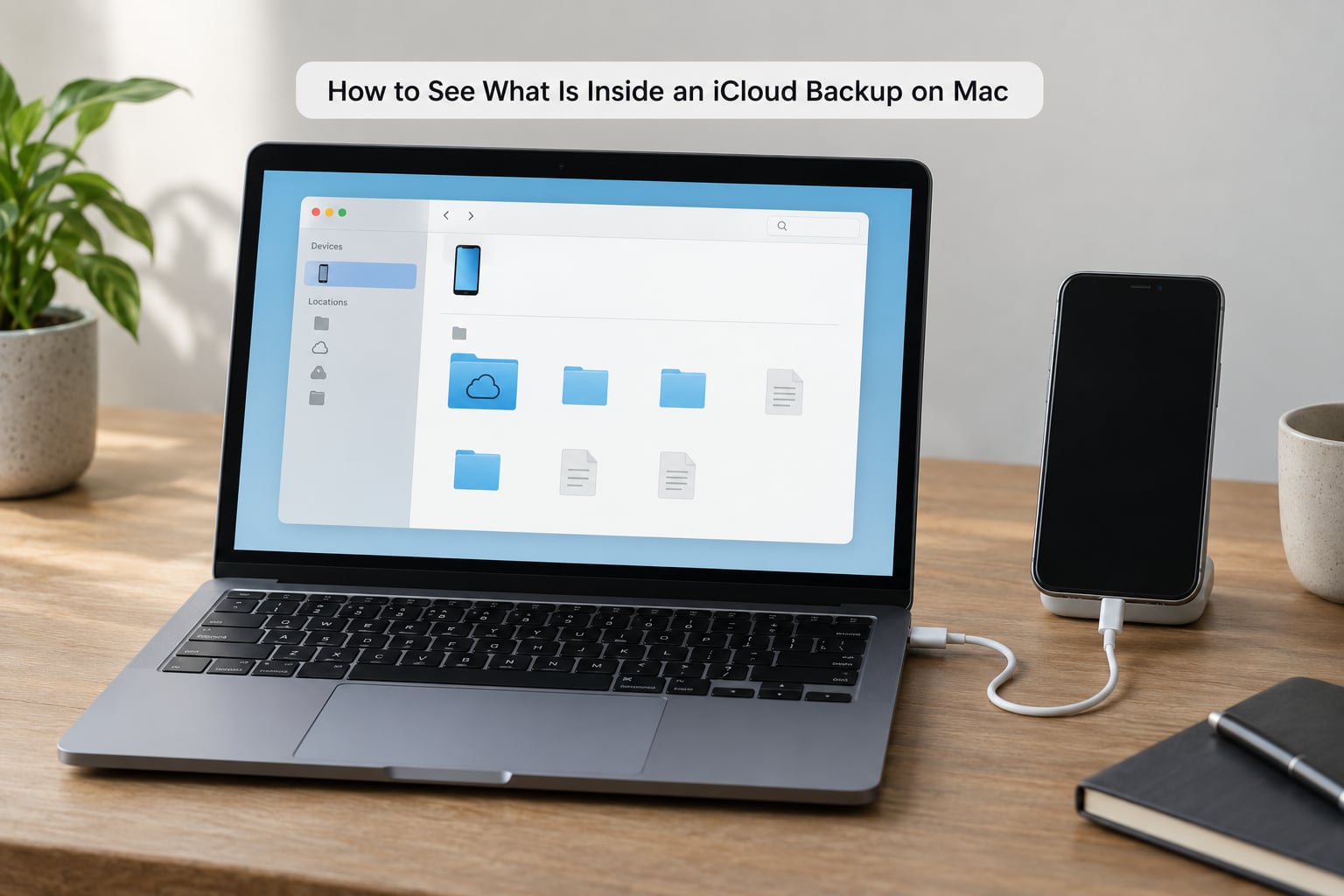
On a Mac, connect the device by cable and unlock it. Tap Trust on the phone when it prompts. Open Finder and look for the device in the sidebar.
Select the device, then choose Manage Backups. Finder reveals your local backups as a list with dates and sizes, and selecting one shows the backup folder in the right-hand pane — the same folder that lives at ~/Library/Application Support/MobileSync/Backup in your home directory. You can reach it without Finder by pressing Command+Shift+G in a Finder window and pasting that path.
Here is the moment people realise the truth. The backup folder is not a photo library. It contains files with hashed, unreadable names, plus a manifest database that maps those hashes to real locations. Nothing in there opens in Preview or Pages. This is deliberate, and it is why the archive is protected.
Finder’s iCloud Drive entry is a different thing entirely. It shows files your apps have synced — the ones you recognise — and it reveals nothing about the backup archive. That distinction trips up people on Reddit constantly, and it is worth internalising before you go further.
Use a Compatible Explorer to Browse Individual Data
This is the only realistic way to read the archive. A reputable iOS backup explorer sits on top of the backup folder and translates the hashed files into a readable list: messages, contacts, call history, notes, photos, files, app data and device settings. iMazing is the long-standing example on Mac and Windows, and there are a few others with narrower feature sets.
The flow is consistent across them. Install the tool. Choose to work with an iCloud backup or a local one, and sign in through Apple’s own authentication page that opens in your browser rather than a form the tool built itself. Pick the backup you want by device name and date. Choose a category from the sidebar. Read, preview and search inside it.
Your success indicator is simple: a category tree on the left and a list of real items on the right. If you instead see an error about the backup being locked or unreadable, move to the next step.
Be disciplined about what you do once the tool opens. Read, search and export only. Do not write back into the archive, and do not let the tool “repair” or re-save the backup. Those operations rewrite the manifest, and a rewritten manifest can turn a working restore point into a useless one.
Confirm the Backup Password and Encryption Status
A standard device backup is not encrypted with a password, so most backups open straight away in a reader. If you turned on encrypted local backup, or if the backup was pulled with a passcode set, every file inside it is locked behind a backup password.
You will know within a second: the tool reports the backup as encrypted or locked rather than listing categories. That is the encryption status, stated plainly.
Here is the part that needs straight words. If you do not have that password, nobody can recover the contents for you. Apple cannot, and no legitimate tool can. If you have forgotten it, stop. Repeated guessing wastes time, and download or bypass tools that claim otherwise are phishing attempts or scams.
If you are not sure whether you set one, check on the device: Settings, then your name, then iCloud, then iCloud Backup, and look for the Change Password option. If it asks for a current password before it will show you anything, one is set.
Check Specific Data and Export a Copy Only
Now the practical part. Most readers let you filter by file type, sort by date, and search by filename, and for the questions people actually bring to a backup — is this photo in there, is this thread still there — those three controls answer it in under a minute.
Photos and videos show up as thumbnails with dates. Messages show as conversations with timestamps. Contacts and notes appear as readable lists. Search by a distinctive word from the message you lost, and you either find the thread or you do not.
When you find something worth keeping, export a copy to a separate folder on your computer. Export, then verify the exported file opens. Do not rename anything inside the backup folder, and do not export an entire database expecting a usable file — messaging and chat apps store their content in SQLite databases that only an app can open properly. Extracting the database gives you a file, not readable conversations.
Two habits keep this safe. Work on a copy of the backup folder, not the original. And before you export anything at all, confirm the phone in front of you is still intact — because if a restore is what you eventually need, restoring onto a set-up iPhone erases it first.
Common Mistakes
Grabbing the wrong device’s backup is the most frequent error, especially for households with several iPhones. Check the device name and the date in the backup list before you inspect anything.
Expecting Finder’s iCloud Drive folder to reveal backup contents is the second. It shows synced files only, and it never will show the archive.
Running an old backup utility is the third. Utilities built for legacy iTunes are out of date and often fail on current iOS backups. Use a tool that has been updated for recent iOS versions.
Opening a hashed file in a text editor and finding gibberish is not a fault. That is what the format looks like, and it is also why editing is dangerous.
Ignoring the encryption prompt leaves people staring at a blank reader. Enter the backup password if you have one; stop if you do not.
Exporting into the backup folder itself is the last mistake worth naming, because it looks tidy and is not. Everything you export goes somewhere else entirely.
Common Mistakes and Quick Fixes
If a category is missing, the cause is almost never a broken backup. Check whether Messages in iCloud was switched off when that backup was made — with it off, messages travel in the device backup; with it on, they sync separately and the backup holds far less. That single toggle explains most “my messages did not come back” complaints in the Apple Community threads.
If no backup appears at all, verify you are signed into the right Apple Account, and check that the device shows a successful recent backup on its own Settings screen. Backups live per device, under the account that created them.
If a backup is locked, that is encryption doing its job. There is no fix without the password.
If changes look out of date, iCloud is usually still syncing. Recent items can lag by minutes; give it time and check the timestamp on the device rather than assuming failure.
If iCloud reports storage you cannot account for, that is normal. Your storage total includes synced app data and the backup archive, and Finder or the Apple Devices app shows only part of it. Seeing less than the reported total is not evidence of a problem.
Here’s the safety checklist, condensed. Work read-only. Export to a folder outside the backup. Never hand over your Apple Account password to a page a search result sent you to. Never delete the only backup you have — deleting a backup also switches off iCloud Backup for that device, and backups are kept for 180 days after you turn backup off, not forever. And when the goal is getting a device back rather than reading an archive, a full restore through Apple’s own interface is the safer choice than any inspection workflow.
Frequently Asked Questions
What is inside an iCloud backup?
An iCloud backup is a hidden archive containing your settings, device information, app data, messages, call history, health data and stored passwords, saved so Apple can rebuild the device later. It also holds photos and videos only when iCloud Photos is switched off. You cannot open it as an ordinary folder at iCloud.com — Apple shows a summary row with the device name, date and size instead.
Can I open an iCloud backup as a normal folder?
No. The archive is stored as files with hashed names plus a manifest database that maps them to real locations, so nothing inside opens in Preview or Pages. On a Mac the local copy sits in ~/Library/Application Support/MobileSync/Backup, and on Windows under AppDatau005cRoamingu005cApple Computeru005cMobileSyncu005cBackup. To read it, use a compatible iOS backup explorer.
Why does my iCloud backup need a password?
A standard device backup is not password-protected, so it opens immediately in a backup reader. If the backup is encrypted — because you enabled encrypted local backup or the archive was created with a passcode set — every file inside is locked and the reader reports the backup as locked. If you do not have that backup password, the contents cannot be recovered by Apple or by any legitimate tool.
Are iCloud Drive files included in my iPhone backup?
Usually not, and this is the most common misunderstanding. Files stored in iCloud Drive sync as ordinary documents and show up at iCloud.com and in the Finder sidebar, but they are not carried inside the device backup archive. A backup mainly holds settings, app data, messages, call history and device information. If a file lives in iCloud Drive, you can open it directly rather than digging through a backup.
Can I recover one file without restoring the whole iCloud backup?
Yes, and it is usually the better choice. Open a backup in a compatible explorer, search for the item, then export a copy to a folder on your computer and confirm it opens. Restoring is the destructive route: it erases a phone that is already set up first. Note that messaging and chat data sit in SQLite databases, so exporting the database gives you a file rather than readable conversations.
Conclusion
Start in Settings and confirm three things: the correct device, the date of the most recent successful backup, and whether encrypted backup is on. That gives you the summary in about fifteen seconds and settles whether the archive even exists.
From there, use Finder on a Mac or the Apple Devices app on Windows to locate the stored copy, and reach for a compatible explorer only if you genuinely need to read individual items inside. Export what you find, keep it outside the backup, and leave the original untouched. Updated for 2026.