If your iPhone is frozen, the fix is a button combination, not a factory reset. On iPhone X and newer, press and release Volume Up, press and release Volume Down, then press and hold the side button until the Apple logo appears. iPhone 8 and older use the Home button or the top Sleep/Wake button instead. It takes about ten seconds of holding and nothing on your phone is erased.
Table of Contents
- 1What You Need
- 2Step-by-Step
- 3How to force restart an iPhone with Face ID and a side button
- 4How to force restart older iPhone models
- 5How to force restart an iPhone when the screen is unresponsive
- 6Common Mistakes
- 7When a force restart does not fix the problem
- 8Frequently Asked Questions
- 9How long should I hold the buttons to force restart an iPhone?
- 10Will force restarting an iPhone delete anything?
- 11Can I force restart an iPhone if the screen is completely frozen?
- 12Which buttons do I press on an iPhone 8 or older?
- 13What should I do if the Apple logo stays on the screen?
- 14When should I use Recovery Mode instead of a normal force restart?
- 15Conclusion
What You Need
Nothing. No tools, no downloads, no computer, no Apple ID. The whole procedure runs from the hardware buttons on the phone you are already holding, which is exactly why it works when the screen is dead.
What you do need is a rough idea of which iPhone you own, because the combination changed over the years. If the screen still responds, check Settings > General > About and read the Model Name line. If it is frozen, look at the hardware instead: a device with Face ID and no Home button is an iPhone X or newer, and an iPhone SE 2nd or 3rd generation also uses the modern method despite having a Home button.
Save anything unsynced before you press buttons. A force restart will not delete your photos, apps, or messages, but text sitting in an unsent draft or a half-finished note can disappear along with the app that was stuck.
Step-by-Step
How to force restart an iPhone with Face ID and a side button
This covers iPhone X, XS, XR, 11, 12, 13, 14, 15, 16, 17 and the current SE models with a side button.
- Press and quickly release the Volume Up button.
- Press and quickly release the Volume Down button.
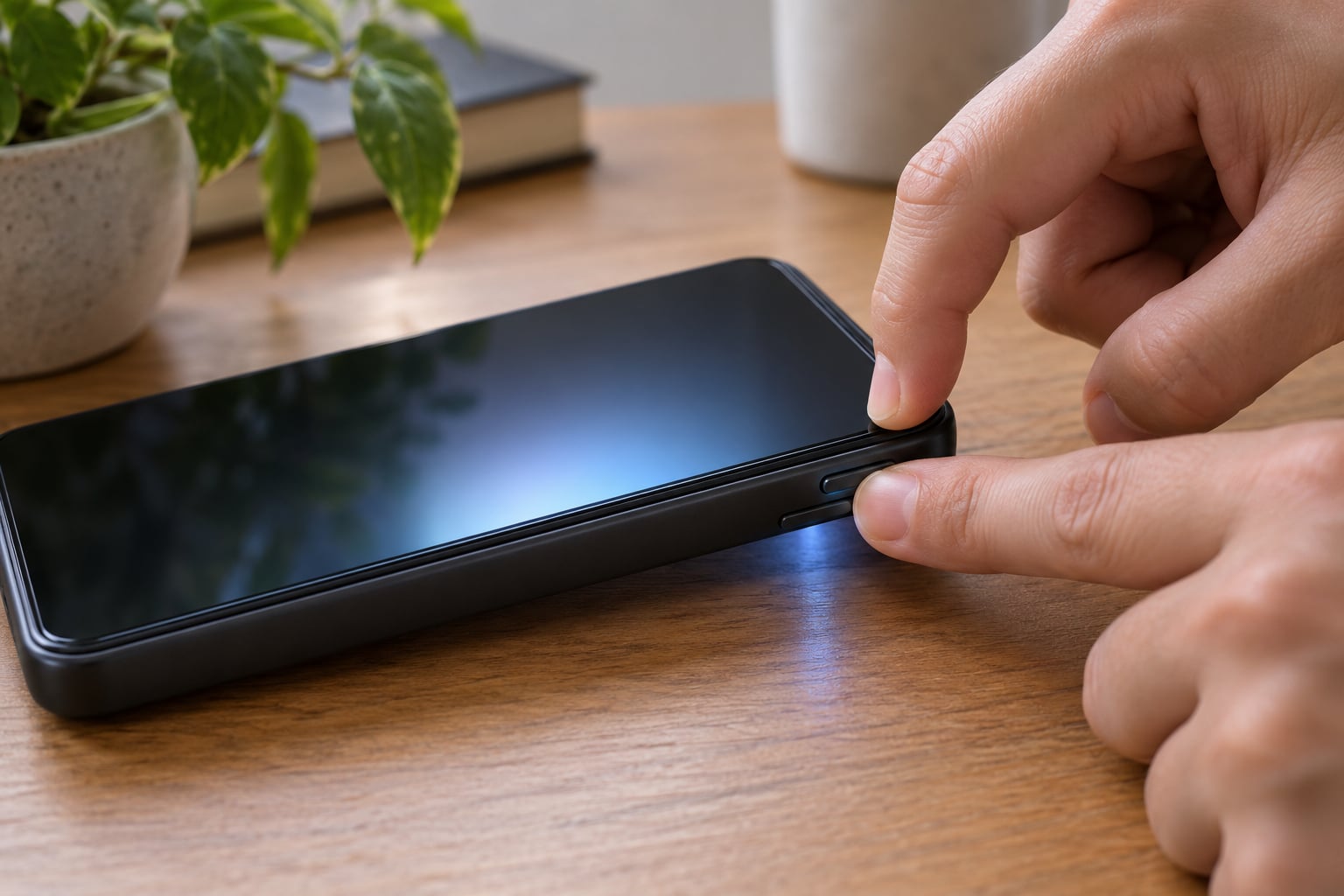
- Press and hold the side button and keep holding. The slide to power off slider will appear; ignore it and keep holding.
- Release the side button the moment the Apple logo shows up.
- Wait for the progress bar to finish and the lock screen or home screen to appear.
The first two presses are quick taps, not holds. Step three is the one that does the work, and holding the side button for roughly ten seconds is normal.
How to force restart older iPhone models
On iPhone 7 and 7 Plus, press and hold the Volume Down button and the top button together until the Apple logo appears, then let go. The top button on those models is the Sleep/Wake button, sitting on the upper right edge.
On iPhone 6s and earlier, and on the original iPhone SE, hold the Home button and the top Sleep/Wake button at the same time until the Apple logo shows up. Keep holding for a few seconds after the slider appears. Volume Up does nothing on these models, which trips up a lot of people who learned the combo on a newer device.
How to force restart an iPhone when the screen is unresponsive
A frozen screen and a broken screen look identical until you touch it. If nothing responds to taps, the button combination still works because it is handled by the hardware power circuit rather than the touchscreen.
Same rule as always: ignore the slide to power off slider and keep holding until you see the Apple logo. Reddit users in the iPhone communities describe this as the step almost everyone gets wrong, releasing the button as soon as that slider appears and then assuming the restart failed.
Tell a restart apart from a factory reset by what comes next. A force restart lands on your lock screen with everything intact, no Apple ID prompt and no hello screen. If you are staring at a language and region picker, you have erased the phone, and that is a different, much longer road back.
Common Mistakes
- Tapping the side button instead of holding it. A quick press wakes the screen or opens Siri. Press and hold until the Apple logo appears.
- Letting go when the slide to power off slider shows. That slider is a distraction. Ignore it and keep holding.
- Holding the volume buttons on modern iPhones. Volume Up and Volume Down get quick presses. Only the side button is held.
- Using Volume Up on iPhone 7 or older. Those models need Volume Down plus the top button, or Home plus the top button.
- Choosing Reset instead of Restart. Settings > General > Transfer or Reset > Erase All Content and Settings wipes the device. A force restart never goes near that menu.
- Judging the result too early. A restarted iPhone can take a minute or two to finish loading, especially one that was stuck on a heavy app.
When a force restart does not fix the problem
Give it one full boot before giving up. If the phone freezes again within days, check Settings > General > iPhone Storage, since a nearly full phone is a common cause of lag and lockups. Low battery is the other quiet culprit: leave it on a charger for a while, then try again.
Next, install any pending iOS update through Settings > General > Software Update. Software fixes bugs that cause unresponsiveness, and skipping them tends to bring the freezing back.
If the iPhone will not boot normally, use Recovery Mode. On iPhone 8 and newer, connect a cable to a computer, press and release Volume Up, press and release Volume Down, then hold the side button until you see the loading screen instead of the Apple logo. On iPhone 7 and older, hold Volume Down plus the side or Home button until the loading screen appears.
An Apple logo that sits on screen for twenty minutes or more means the phone is stuck in a boot loop rather than frozen, and Recovery Mode is the correct next step. Back up before you restore or erase anything, and contact Apple support if the phone will not leave Recovery Mode.
Frequently Asked Questions
How long should I hold the buttons to force restart an iPhone?
Hold the side button or Home button for roughly ten seconds. If the Apple logo has not appeared after about fifteen, keep holding a little longer rather than starting over. If nothing happens after a full minute of holding, the buttons may not be registering at all, which usually means damage, moisture, or a case interfering with the side button.
Will force restarting an iPhone delete anything?
No. A force restart is a hardware-level reboot that kills running apps and reloads iOS. Your photos, apps, messages, and settings all stay exactly where they are. This is the key difference from Erase All Content and Settings or a restore through Recovery Mode, both of which erase the device.
Can I force restart an iPhone if the screen is completely frozen?
Yes, and it is the main reason this method exists. The button combination is handled by the hardware power circuit, so it works with a dead touchscreen, a black screen, or an iPhone that will not respond to the slide to power off slider. Keep holding the button past that slider until the Apple logo appears.
Which buttons do I press on an iPhone 8 or older?
On iPhone 7 and 7 Plus, hold Volume Down and the top Sleep/Wake button together until the Apple logo appears. On iPhone 6s and earlier, and the original iPhone SE, hold the Home button together with the top Sleep/Wake button. Release both as soon as the logo shows and let iOS finish loading.
What should I do if the Apple logo stays on the screen?
Wait at least twenty minutes, since a large install can take a while on older phones. If the logo never clears, the iPhone is in a boot loop. Put it into Recovery Mode by connecting it to a computer and using the volume button sequence for your model, then restore from a backup or contact Apple support.
When should I use Recovery Mode instead of a normal force restart?
Use Recovery Mode when the phone will not start at all, when the Apple logo appears and then disappears repeatedly, or when a normal force restart fails several times in a row. It is a deeper tool with a cable attached to a computer, so try the button restart first and keep a backup current before going further.
Conclusion
Start by working out which iPhone you have, because that decides the combination. Face ID models and the SE models with a side button take two quick volume presses followed by a ten-second hold of the side button, while iPhone 7 and older use the top button with Volume Down or Home. Release when the Apple logo appears and give the phone a minute to load before you judge whether the restart worked. Only if it freezes again should you move on to storage checks, an iOS update, Recovery Mode, or Apple support.