To check which iOS version you have, open the Settings app, tap your name at the top, and scroll to the bottom of that page. The number next to iOS Version is the release your iPhone is running. On an iPad the same line reads iPadOS Version or Software Version, depending on the layout.
It takes about fifteen seconds once you know where to look, and there is no account, computer or internet connection required. Most people miss it because they expect to find a menu called iOS in the Settings list. There is no such menu. The version sits on your account page, at the very bottom, underneath the model name, serial number and coverage.
If you only need the number to check whether an app will install or to find out if an update is waiting, the path below gets you there. I have also included the computer route for when the phone is locked, second-hand or stuck on the setup screen, because that is the situation where the usual three taps simply do not exist.
Table of Contents
- 1What You Need
- 2Step-by-Step: How to Check Which iOS Version You Have
- 3Open the Settings App
- 4Tap Your Name or Apple Account
- 5Find the Version Number on iPhone or iPad
- 6What Each Part of the Version Number Means
- 7Check the Version on a Mac or PC
- 8Confirm Whether You Can Update
- 9Common Mistakes
- 10Frequently Asked Questions
- 11Where do I find my iOS version on an iPhone?
- 12Is iPadOS the same as iOS?
- 13What does the build number mean?
- 14Why can my iPhone not install the latest iOS update?
- 15Does checking the iOS version change or update anything?
- 16How do I check the version on an Apple Watch or a Mac?
- 17Conclusion
What You Need
You need the device itself, unlocked and in your hands, plus nothing else. An internet connection only matters afterward, if you decide to install whatever update the device offers.
One naming point saves a lot of confusion. iPhones run iOS, iPads run iPadOS, Apple Watches run watchOS and Macs run macOS. All of them are Apple’s mobile and desktop operating systems, but each has its own version number and its own About screen, so the label you read depends entirely on which device is in front of you. Some iPad layouts use the older Software Version wording instead of iPadOS Version, and older iPhones do the same. If you searched for “Software Version” and landed here, you are in the right place.
Step-by-Step: How to Check Which iOS Version You Have
This is the shortest reliable method on the device itself, and it has worked the same way across recent releases. Exact labels shift slightly between versions, so read the account page rather than memorising a path.
Open the Settings App
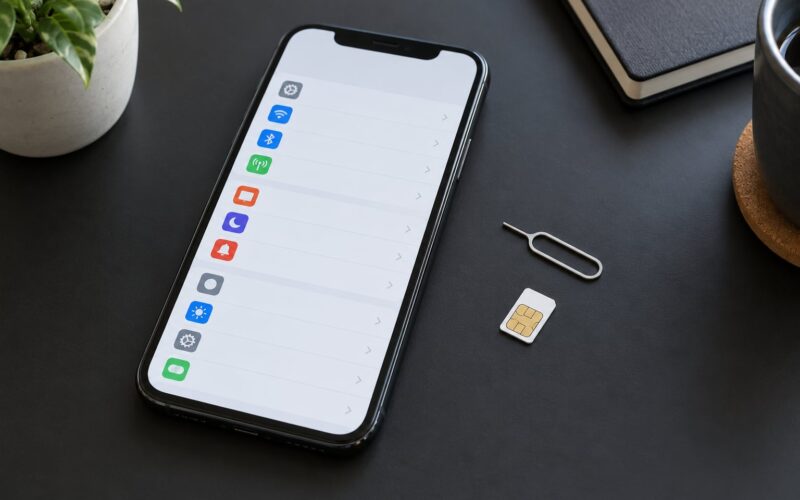
Unlock the iPhone or iPad and tap the grey gear icon called Settings. On an iPhone it is the third icon along the bottom row; on an iPad the app lives in the App Library, so search for it instead of hunting through folders.
Scroll to the very top of the Settings list. The first row is your account, showing either an Apple Account banner, an iCloud banner, or your own name followed by your email address and initials. That row is the only place the version number appears.
Tap Your Name or Apple Account
Tap that top row to open your account page. You will see your name, your Apple Account details, and a list of services including iCloud, Find My, Media and Purchases, and Payment and Shipping. On an iPad, the same services sit in a sidebar rather than a single scrolling column.
Keep scrolling. The version line is near the bottom, below iCloud, Media and Purchases and Payment and Shipping, close to the buttons for Sign Out and Account Security. Nothing here needs to be tapped or changed. This page is purely informational, so scrolling through it is harmless.
Find the Version Number on iPhone or iPad
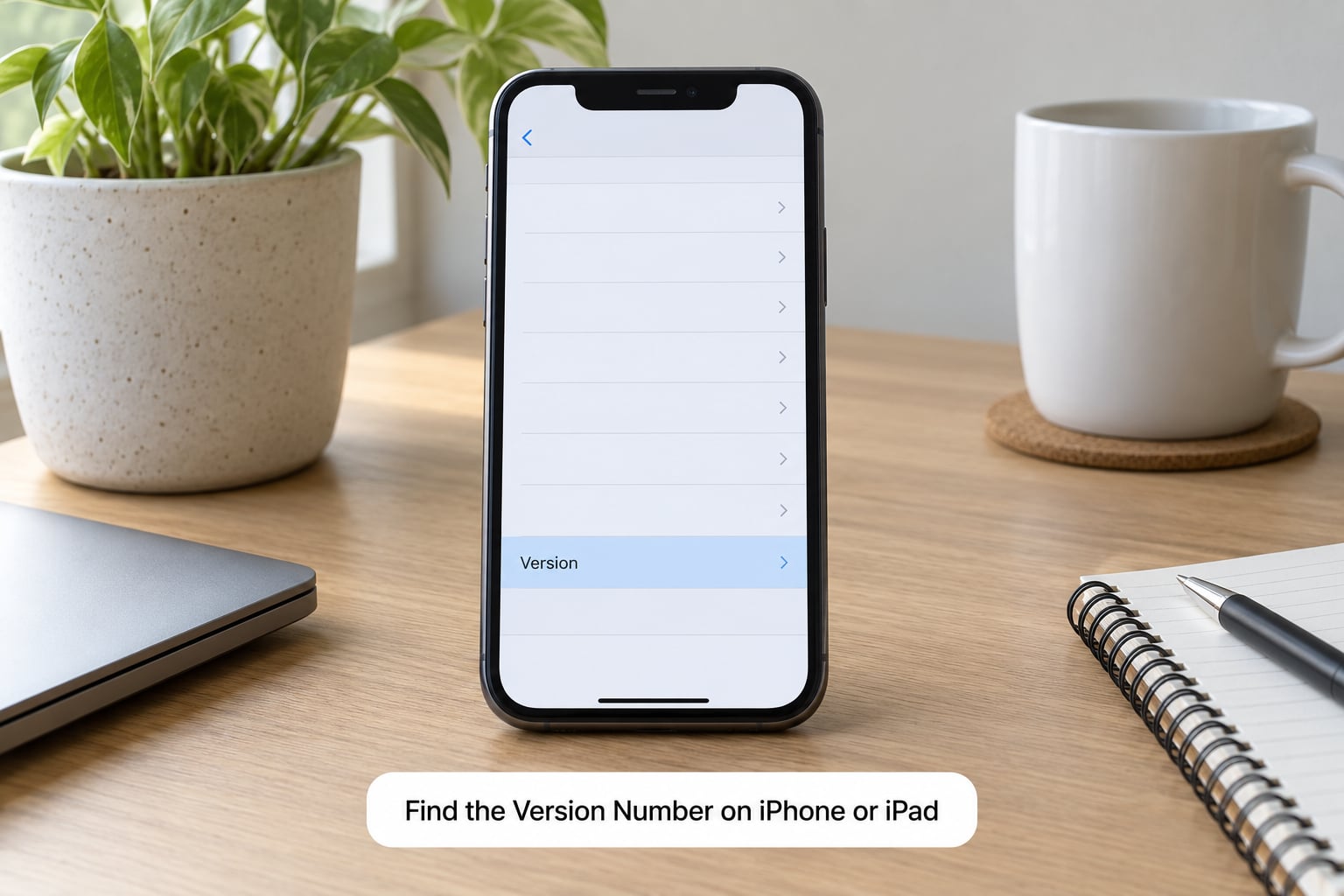
On an iPhone you are looking for a row labelled iOS Version. On an iPad it reads iPadOS Version, or Software Version on some layouts and older systems. The answer sits directly to the right of that label, in the same grey value column as the Model Name and Serial Number above it.
Tap anywhere on that row once. A second page opens with a fuller description of the release, which is handy if you want the exact wording, but the number on the first page is already the one you need. Note that the page also lists the Model Name, which is a hardware identifier like iPhone 13, and is not the version you are after.
What Each Part of the Version Number Means
Read the number as major, minor, patch. A version such as 18.5.1 means major release 18, update 5, and a single bug-fix pass on top of that update. The first number moves when Apple ships a large yearly release, the second moves through the smaller updates inside it, and the third appears only when something needed patching.
Underneath the version row there is a Version or Build entry with a much longer string of numbers and letters. That is the build number, which identifies one exact compile of the software. You need the plain version number for compatibility questions and app store listings, and the build number when a developer asks for it in a bug report or when Apple support tells you to read it back. A version ending in a letter, such as 18.5 beta or a build ending in an a, means you are running pre-release software from the Beta Software Program.
Check the Version on a Mac or PC
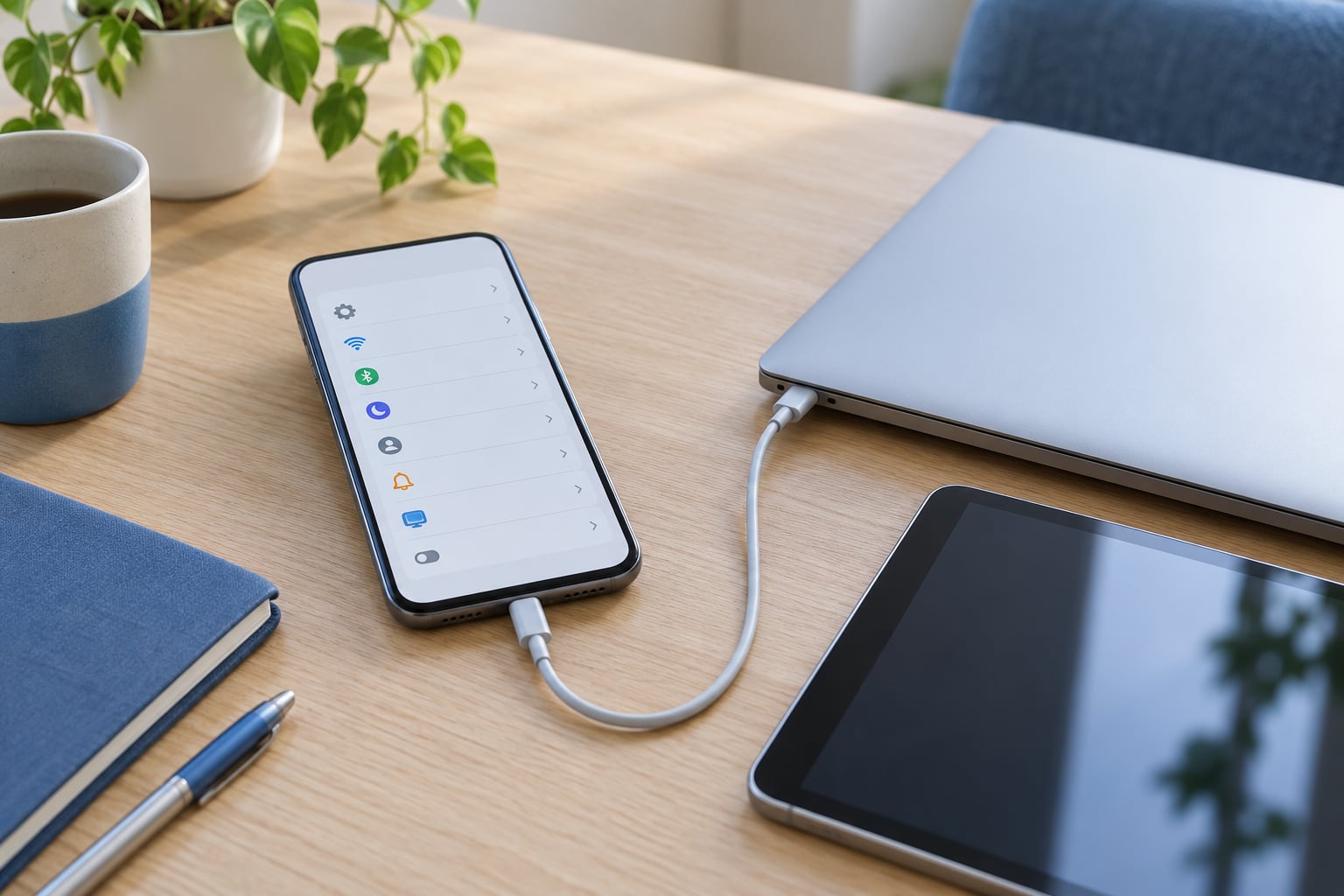
On a Mac, connect the device with a USB cable, open Finder, and pick the device from the sidebar under Locations. The device summary panel lists the software version directly under the model name. Finder replaced the old iTunes device summary on macOS, so a current Mac needs no extra software for this.
On Windows, open Apple Devices, the successor app to the device-management part of iTunes on recent systems, connect the phone, tap it, and read the software version on the device panel. On an older Windows install you will still be using iTunes, where the same number sits under Summary, or under General in the very oldest layouts. Whichever app you have, the version appears without needing the device to be activated.
Confirm Whether You Can Update
Go back to the main Settings list, tap General, then tap Software Update. The screen checks Apple’s servers and reports back. A current device tells you it is up to date. A device with a newer release waiting shows the version available and an Update Now button, often with a note about how long the download and install will take.
If nothing happens and the Update button stays greyed out, the usual causes are a device that is out of date on storage, a device model too old for the current release, or a device that has not finished activating. Some models also keep the button inactive until they are plugged in, because a security update needs power. Checking the version first is still worthwhile, because it tells you whether you are looking at an out-of-date device or a blocked one.
Common Mistakes
Looking for an iOS entry in the Settings list. There is no top-level iOS menu. The version lives on your account page, so scroll to the top of Settings, tap your name, then scroll to the bottom of that page.
Reading the Model Name as the version. iPhone 13 is hardware. If you need the software release, it is the row labelled iOS Version or Software Version, sitting just above the Version and Build entries.
Not finding General at all. On a device many years behind on updates, the Settings layout is flatter and About may sit at the top level rather than under General. Scroll the whole Settings list on those systems instead of assuming the path is missing.
Trusting a stale computer view. Finder and Apple Devices both cache what they last saw. Quit the app completely, reconnect the cable, and reopen it before you believe a version shown there differs from the phone.
Checking a second-hand phone that will not activate. When a device is still on the Hello screen or locked to another Apple Account, the Settings path does not exist. Connect it to a computer instead, where the version shows without activation, and cross-check the serial number and model number printed in Settings, General, About on a running phone against the box. Buyers on Reddit’s r/setupapp regularly post photos of the About screen for exactly this check before paying.
Assuming a backup tells you the version. An iCloud or Finder backup does not display the iOS version it was created on anywhere in the backup list. The only reliable record is the version you noted on the device at the time, or the date of the backup itself. This is the step people miss when a restore fails on a version mismatch.
Frequently Asked Questions
Where do I find my iOS version on an iPhone?
Open Settings, tap the Apple Account or your name at the very top of the list, and scroll to the bottom of that page. The row labelled iOS Version shows the release your phone is running, right above the build number. No app, account or computer is needed. If your phone shows Software Version instead of iOS Version, it is an older layout and the number means the same thing.
Is iPadOS the same as iOS?
No. iOS is the operating system on iPhone, iPadOS is the separate version on iPad, and Apple splits them apart even though they share most of their code and apps. That is why an iPad shows iPadOS Version, or Software Version on some layouts, where an iPhone shows iOS Version. The path to find it is identical: Settings, your name, then scroll to the bottom.
What does the build number mean?
The build number identifies one exact compiled version of iOS, and it is the longer string of numbers and letters shown under Version on the About page. The short version number tells you the release; the build tells you the precise install, which is what app developers ask for in a bug report and what Apple support reads back when diagnosing a problem. It also reveals whether you are on beta software.
Why can my iPhone not install the latest iOS update?
Three reasons are common. Some older iPhone models cannot run the newest release at all. Other devices are blocked because free storage is too low for the install, or because a security update needs the phone plugged in. A device still finishing activation will also show the update button greyed out. Checking Settings, General, About first tells you which of these you are dealing with.
Does checking the iOS version change or update anything?
No. Reading the version on the About screen is completely passive. Scrolling past the sign-in services and the sign-out button does not touch your account, and tapping the version row only opens a read-only description page. The only action that changes anything is installing an update from Settings, General, Software Update, which is a separate step you have to start yourself.
How do I check the version on an Apple Watch or a Mac?
On an Apple Watch, open Settings, tap General, then About, and read the Version row near the bottom. On a Mac, click the Apple menu in the top-left corner, choose About This Mac, and read the macOS version line. Neither device uses the iOS label, and neither can be read through a computer connection the way an iPhone can.
Conclusion
Start in Settings, tap your name or Apple Account at the top of the list, and read the iOS Version, iPadOS Version or Software Version line at the bottom of that page. Once you know the number, go back to General and open Software Update to see whether anything is waiting, and record the version somewhere useful before reporting a compatibility problem or considering a used phone.