Safari has no Reset button any more. Apple removed it after Safari 7, so to reset Safari on Mac you do it by hand in four parts: clear your browsing history, delete website data and cookies, empty the cache, and remove extensions. Most of the time the cache alone fixes it, and you stay signed in to everything.
That last point matters. Guides online still tell you to hunt for a Reset Safari option, or they push you into a wipe that signs you out of every account you own. Both are bad advice in 2026. The menu paths below match current macOS, where the menu says Settings instead of Preferences, and the order goes from least destructive to most.
Table of Contents
- 1What You Need
- 2Step-by-Step: How to Reset Safari on Mac
- 3How to reset Safari’s website settings and clear the cache
- 4Clear Safari cookies and website data
- 5Reset the home page and search settings
- 6Delete Safari history and individual site data
- 7Restore defaults by deleting Safari preferences
- 8Common Mistakes
- 9Frequently Asked Questions
- 10How do I completely reset my Safari?
- 11Does resetting Safari on Mac delete my saved passwords and bookmarks?
- 12Does clearing Safari history on my Mac also clear it on my iPhone?
- 13How do I force a restart of Safari?
- 14Why is my Safari not working after I cleared the cache?
What You Need
You need a Mac running a recent version of macOS and a Safari that still opens. If Safari will not launch at all, jump to the last step in this guide, which does not require Safari to be running.
Before you delete anything, make sure iCloud Safari is finished syncing. Open Safari, look at the bottom of the sidebar, and wait until syncing finishes. Deleting browsing history on the Mac while sync is in flight can leave iPhone and iPad in a strange state.
Worth knowing what each store holds before you clear it:
- Cache — temporary copies of page files Safari uses to load sites faster. Clearing it changes nothing about your accounts.
- Website data — cookies and per-site preferences, which is what keeps you signed in and remembers cart contents.
- Browsing history — the list of pages you visited. It does not include saved passwords, bookmarks, or files you have downloaded.
- Preferences — the local file holding your homepage, search engine, and extension settings.
Step-by-Step: How to Reset Safari on Mac
Work down this list in order. Stop as soon as the problem goes away, because every tier after the first one costs you something.
How to reset Safari’s website settings and clear the cache
Empty the cache first. It is the least destructive step and it solves the majority of slow-loading and stale-content complaints.
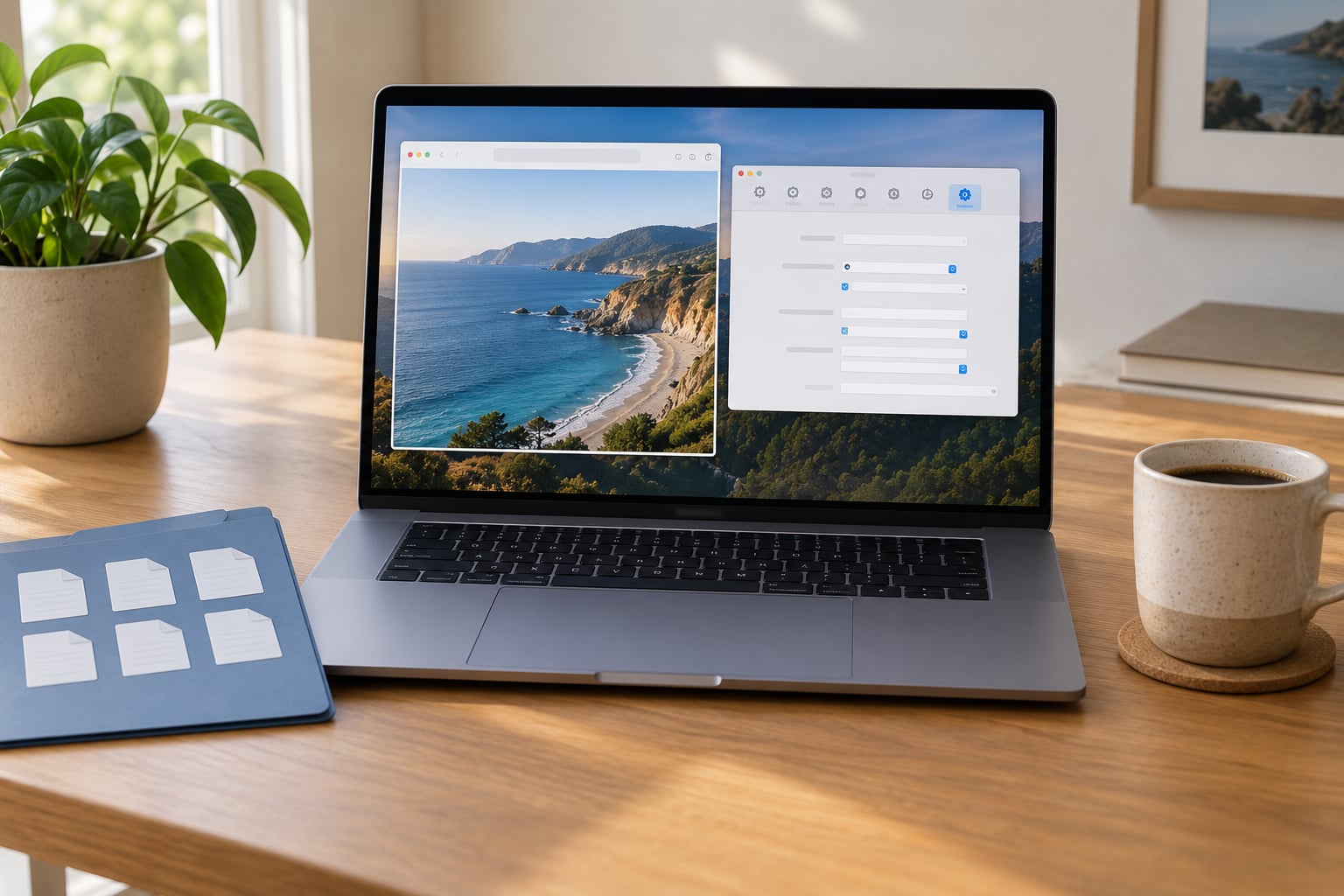
- Open Safari and click the Safari menu, then Settings. On older macOS releases it is Safari, then Preferences.
- Select the Advanced tab and tick the box labelled Show features for web developers. A Develop menu now appears in the menu bar.
- Click Develop in the menu bar, then Empty Caches. Hold Option while clicking it to skip the confirmation dialog.
- Quit Safari completely with Command-Q, then reopen it and reload the page that was misbehaving.
Your logins, cookies, bookmarks, and history all survive this. Hard reload a single stubborn page with Command-Option-R before you do anything else; often that alone is enough.
Clear Safari cookies and website data
Use this tier when a site keeps you signed out, loops you back to a login screen, or shows content belonging to a different account.
- Open Safari, then Settings, then Privacy.
- Select Manage Website Data. A list of every site with stored data appears, sorted alphabetically.
- Click a site to remove just that one, or click Remove All to wipe website data for everything.
- Quit and reopen Safari. Expect to sign in again on each site whose data you removed.
Removing all website data signs you out of every site, clears saved preferences inside pages, and empties carts that were stored locally. Clearing the cache does not do any of that, which is why the two get confused so often.
Reset the home page and search settings
If your homepage or default search engine changed on its own, the fix lives in General, not in Privacy.
- Open Safari, then Settings, then General.
- In the Homepage dropdown, pick New Tab, Blank, or Bookmark File to replace whatever was set there.
- Click the Search engine field and choose Google, Bing, DuckDuckGo, or another entry from the list.
- Open the Extensions tab and switch off anything you do not recognise, since extensions can set both of these values.
If the values change again after you have set them, an extension or unwanted software is rewriting them. Check the Extensions tab, then read the last step in this guide.
Delete Safari history and individual site data
For one troublesome website, targeted removal beats a full clear. Open Safari, then History, and you will see the sites you visited, grouped by day. Click the entry on the right of any site and choose Remove from History.
To clear everything instead, click History, then Clear History, and pick a time range: last 15 minutes, last hour, today, yesterday, or all time. Apple documents exactly what this removes: browsing history, the back and forward list, non-permanent Top Sites, the frequently visited list, cookies and website data, recent searches, tab icons, page snapshots, the downloaded items list, Quick Website Search entries, and the sites you granted location, notification, Power Saver, or WebGL permission to.
Saved passwords, bookmarks, and downloaded files are not touched. But with iCloud Safari switched on, the deletion travels to your iPhone and iPad too, which surprises a lot of people.
Restore defaults by deleting Safari preferences
This is the last resort, and the one that answers the Mac equivalent of wiping a browser profile from scratch. It puts Safari back to a first-run state while leaving your passwords and bookmarks alone.
- Quit Safari. Check the Dock for a still-running Safari icon, then use Force Quit with Command-Option-Esc if it refuses to close.
- Open Finder and press Shift-Command-G, then type ~/Library and press Return. This reveals the hidden Library folder.
- Inside Caches, move the com.apple.Safari folder to the Trash. Do the same for com.apple.Safari.Sandbox in the same folder.
- Go to Preferences and move com.apple.Safari.plist to the Trash. This is the file holding your settings.
- Go to Saved Application State and move com.apple.Safari.savedState to the Trash.
- Empty the Trash, restart the Mac, and open Safari.
Safari rebuilds all of these on launch. You lose custom homepage settings, per-site permissions, and the Develop menu toggle, and you may have to sign in to iCloud again. Files you have downloaded and bookmarks in your Reading List are not affected. If you want a way back, move the folders to a new folder on your Desktop rather than straight to the Trash.
Common Mistakes
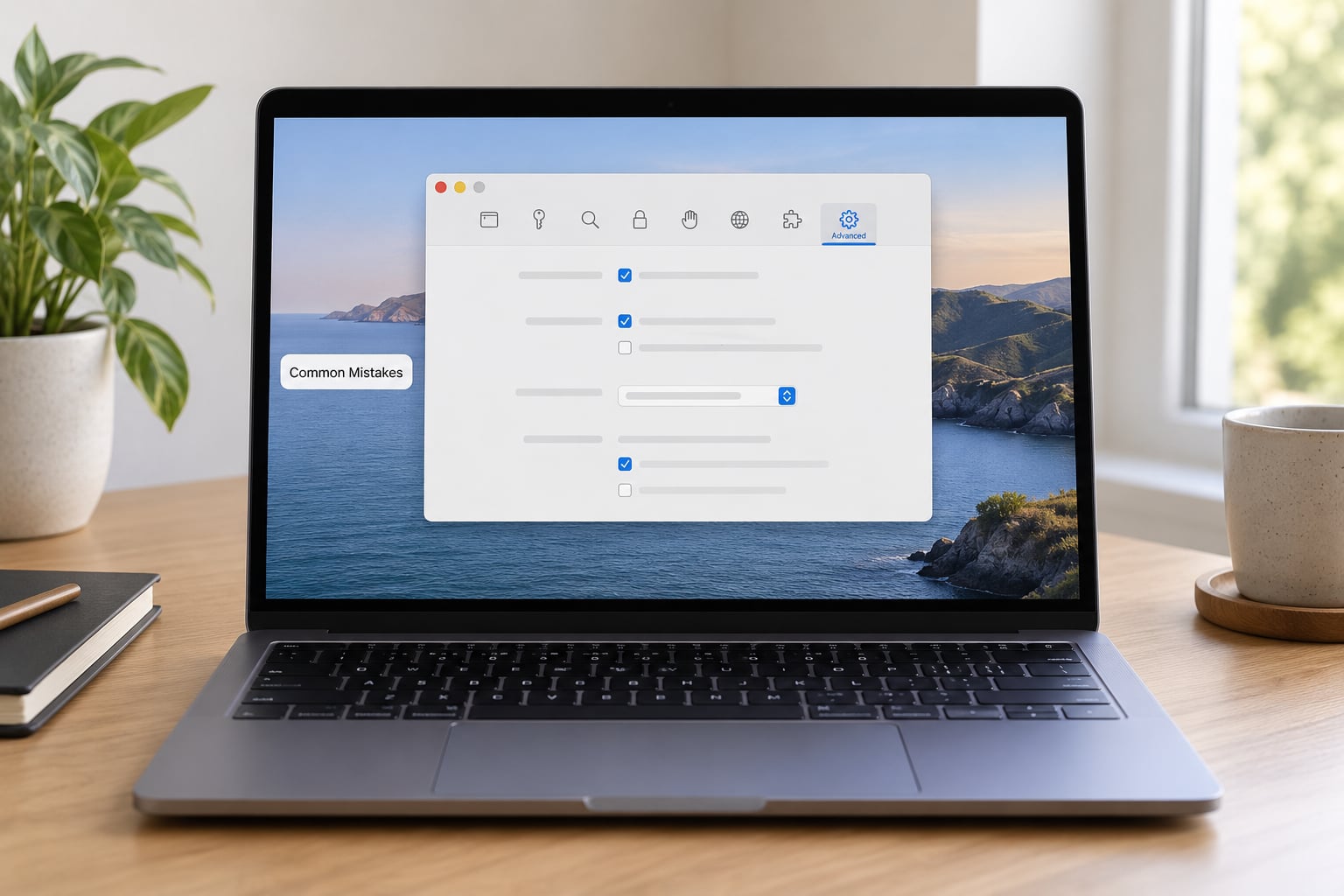
The most common mistake is chasing a Reset Safari button that has not existed for years. The second is following a guide written for Safari 7, where Preferences had different tabs. Menu labels in current macOS: Safari, Settings, Advanced, Privacy, General, and the Develop menu in the menu bar.
Another is clearing website data with no plan for signing back in. Decide which accounts you will need before you click Remove All, and make sure you know the passwords or that iCloud Keychain is switched on. If Keychain is off and you have no record of a password, clearing that data can lock you out of an account permanently.
Some people delete files from the wrong place, or empty the Trash before checking what was in it. Another iCloud mistake: deleting on the Mac and assuming the iPhone keeps a copy. Safari sync pushes deletions both ways.
A reset will not fix an outdated macOS, a failing network connection, or unwanted software that reinstalls itself. A hijacked homepage that returns minutes after you change it points at software, not settings. Check for installed profiles under System Settings, General, Device Management, and run a malware scan before you reset again.
Two habits prevent most repeat problems. Keep macOS and Safari current, and update extensions from the App Store rather than letting them sit on old versions. A Safari that only started misbehaving after a macOS update usually needs a second look after a hard refresh and one cache clear, not a full wipe.
Frequently Asked Questions
How do I completely reset my Safari?
There is no one-click reset, because Apple removed that button after Safari 7. You do it in four parts: clear browsing history from the History menu, delete website data under Settings, Privacy, Manage Website Data, empty the cache from the Develop menu, and switch off any extension you do not recognise. Saved passwords, bookmarks and downloaded files survive all four.
Does resetting Safari on Mac delete my saved passwords and bookmarks?
No, not if you stay inside Safari. Clearing the cache, website data, history and extensions all leave saved passwords and bookmarks in place. Passwords live in Keychain and, with iCloud Keychain on, are restored automatically after a full reset. Bookmarks sync the same way. You only lose your login sessions, which means re-entering details without losing them.
Does clearing Safari history on my Mac also clear it on my iPhone?
It does, if iCloud Safari is switched on for your Apple Account. Safari syncs browsing history both ways, so a deletion on the Mac removes it on your iPhone and iPad as well. If you want to keep the history on your other devices, turn Safari sync off in System Settings before clearing, or clear history for a specific time range rather than all time.
How do I force a restart of Safari?
Press Command-Option-Escape to open the Force Quit window, select Safari, and click Force Quit. If the window will not respond, hold Option and Command and press Q. On an older Mac with a dedicated Force Quit shortcut, the same key combination works. Reopen Safari from the Dock, then hard reload the affected page with Command-Option-R.
Why is my Safari not working after I cleared the cache?
Clearing the cache can briefly make sites slower because Safari has to download every file again, which usually settles within a minute or two. If a site still fails, the problem is likely stored website data rather than the cache, so remove that one site under Privacy, Manage Website Data. If the homepage or search engine reverted, check the Extensions tab for something rewriting those settings.
Start with the cache and a hard reload. If the problem is a single site, remove that site’s data only. Save the preference file deletion for a Safari that is genuinely broken, and put the folders somewhere you can drag back before you empty the Trash.