If you only remember one thing about how to mirror iPhone screen to Mac, make it this: the USB cable method works on every Mac and every iPhone, and it takes about three minutes. Apple’s own iPhone Mirroring app is nicer when your hardware supports it, and a third-party app covers the wireless cases in between. Below are all three, in the order I’d try them.
Table of Contents
- 1What You Need
- 2Step-by-Step
- 3Step 1: Mirror Your iPhone With QuickTime Player
- 4Step 2: Mirror Wirelessly With AirPlay
- 5Step 3: Use a Third-Party Mirroring App
- 6How to Tell the Mirror Is Working
- 7Common Mistakes
- 8Common Mirroring Tips
- 9Frequently Asked Questions
- 10Can I mirror my iPhone to any Mac?
- 11Does screen mirroring use a lot of iPhone storage?
- 12Why does the mirrored iPhone have no sound?
- 13Can I control my iPhone from the Mac screen?
- 14Can I mirror my iPhone to a Mac over USB without Wi-Fi?
- 15Conclusion
What You Need
For the wired method you need very little: a Mac with QuickTime Player (it ships with macOS), an iPhone, and a USB cable that actually carries data. That’s it.
- A Mac — anything from the last decade with macOS installed. QuickTime Player lives in Applications > Utilities, and AirPlay Receiver needs a 2018 or newer Mac.
- An iPhone — any current model. Older iPhones still mirror fine over USB; they just don’t run the AirPlay route on some hardware.
- A USB cable — USB-C to USB-C for newer phones, USB-C to Lightning for older ones. Charge-only cables won’t work, and that’s the single most common reason the iPhone never shows up.
- The same Wi-Fi network — only for the AirPlay and third-party app methods. The wired method needs no network at all.
- An Apple Account with two-factor authentication — only if you plan to use Apple’s built-in iPhone Mirroring app, which requires macOS Sequoia or later on an Apple silicon or T2 chip Mac. That app is worth checking first if you meet the requirements, but it is not available to everyone.
Short version on which to pick: cable and QuickTime if you want the same result on any machine, AirPlay if your Mac supports the receiver and you just want to show something on a bigger screen, third-party app if wireless matters more than polish.
Step-by-Step
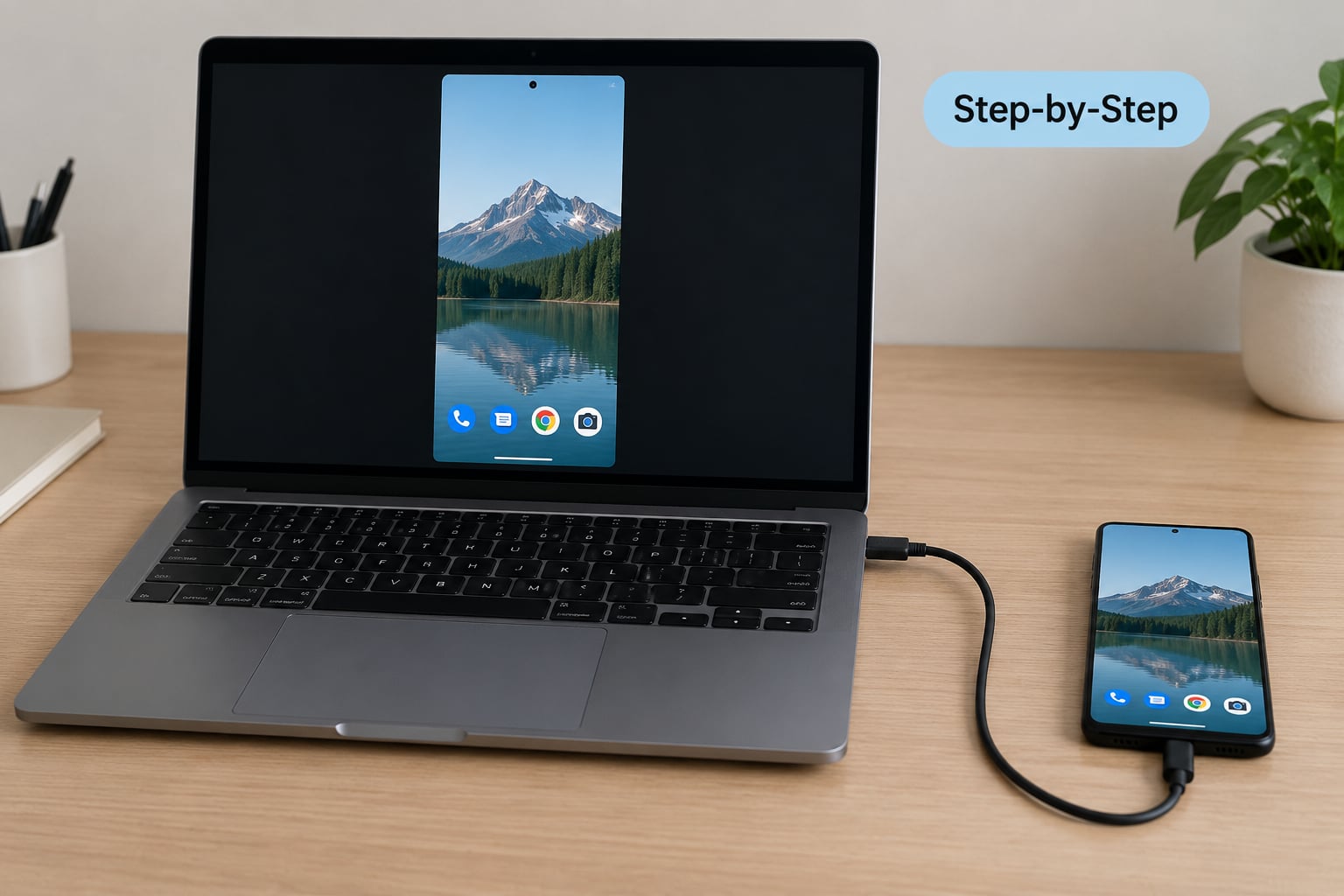
Step 1: Mirror Your iPhone With QuickTime Player
This is the method I’d fall back on every time, because it doesn’t care about your Mac model, your Apple Account, or whether Wi-Fi is working.
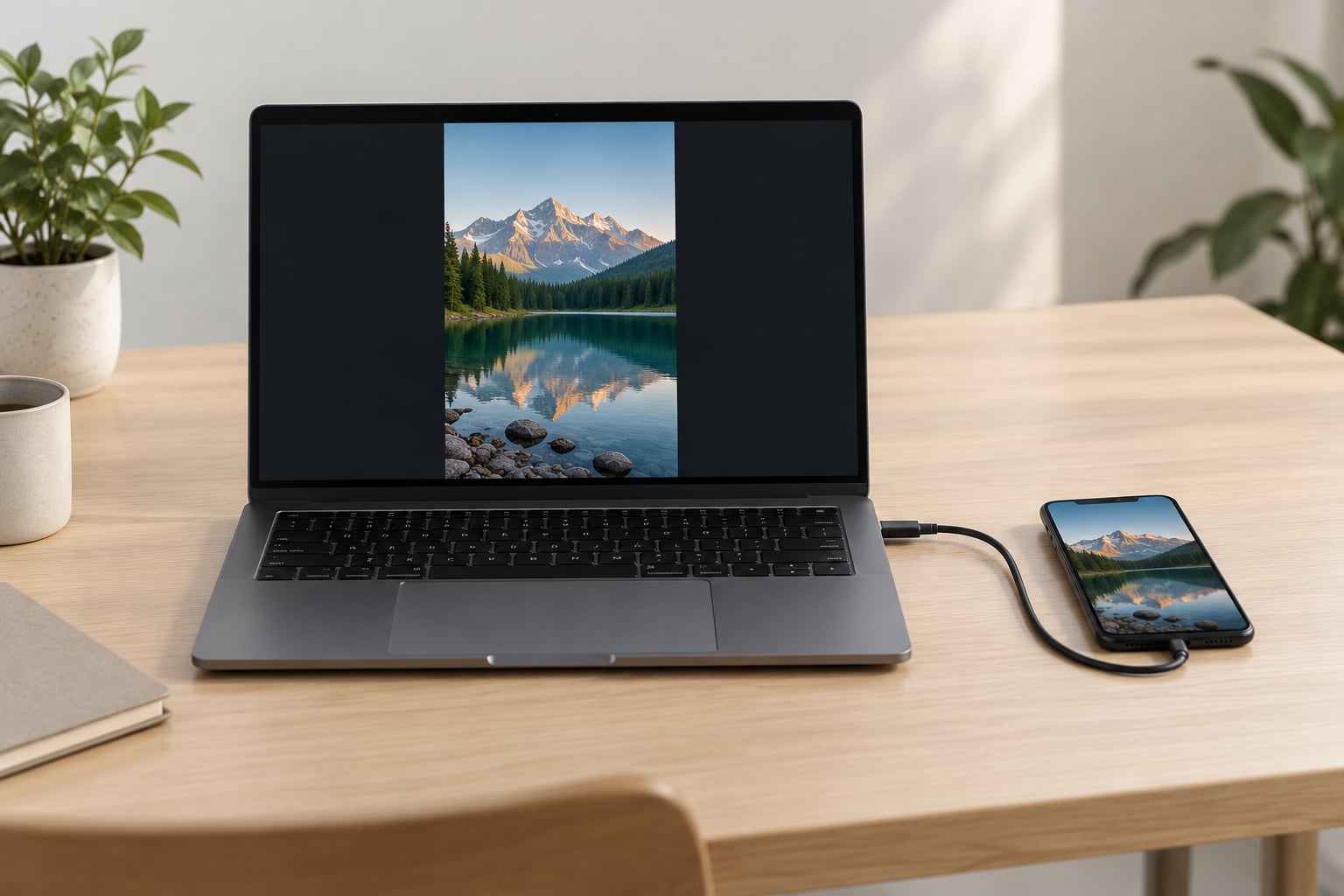
- Connect the iPhone to the Mac with the USB cable and unlock the phone.
- Open QuickTime Player from Applications > Utilities.
- Choose File > New Movie Recording.
- Click the small arrow next to the record button to open the camera source list, then pick your iPhone. It normally appears as “iPhone” or “iPhone (USB)”.
- If the phone asks whether you want to Allow This Computer to Connect, tap Allow and enter your passcode.
- Click the record button. The mirrored iPhone screen appears in the recording window.
- Click the stop button when you are done, then close the window without saving.
You’ll know it worked when the phone’s home screen shows up inside the window and moves when you move the phone. Sound plays through the Mac’s speakers, and the mirrored image rotates as you turn the phone. This is how to mirror iPhone screen to Mac without Wi-Fi, and it’s also the route that works when the iPhone screen is cracked, the two devices use different Apple Accounts, or the phone is somewhere you can’t reach.
Step 2: Mirror Wirelessly With AirPlay
AirPlay screen mirroring is video only. The image shows up on the Mac but your clicks and swipes don’t do anything, which makes it good for demos and photos and useless for controlling the phone.
- On the Mac, open System Settings and go to General > AirDrop & Continuity. On older versions look under General > Sidecar & Handoff instead, then turn on AirPlay Receiver.
- Put the iPhone and the Mac on the same Wi-Fi network. Both need to be on the same network, not merely connected to the internet.
- On the iPhone, swipe down from the top right corner to open Control Center, tap the Screen Mirroring icon, then choose the Mac by name.
- The iPhone display appears full width on the Mac. Rotate the phone to switch the Mac display between portrait and turned orientation.
If your Mac doesn’t show up as an AirPlay Receiver, it’s almost always because the model is older than 2018 or the option isn’t switched on. Macs from 2019 onward and every Apple silicon Mac support it. The iPhone will also refuse to appear in the Screen Mirroring list if it’s connected to a personal hotspot or if a VPN is running on either device.
Step 3: Use a Third-Party Mirroring App
Third-party apps sit between the two Apple methods: wireless, and not tied to a specific Apple Account. They vary a lot in quality, so treat this as a flexible option rather than a guaranteed one.
- Open the Mac App Store and search for a phone mirroring app.
- Install it and launch it on both the Mac and the iPhone if the developer asks for both.
- Grant the permissions it requests, especially Local Network access. iOS will not show the phone on the network until you allow this.
- Put both devices on the same Wi-Fi network and select your iPhone from the app’s device list.
Some of these apps also capture what they display to a file, which saves you a second step later. Check that the app supports your Mac’s version and your iPhone’s model before you commit to it, because that support changes often.
How to Tell the Mirror Is Working
A healthy mirror shows the iPhone interface inside the Mac window, at the phone’s real size or scaled to it, with no stutter. Rotate the phone: if the mirrored image follows, everything is connected properly.
Sound is the better test than video. Play something with audio and listen on the Mac rather than the phone — if you hear it from the Mac, the audio path is live. On the wired method, the QuickTime window also shows a green running timer once recording has genuinely started, which is a cleaner signal than the record button’s appearance.
To check delay, open a stopwatch on the iPhone and time it against your Mac clock. A wired mirror is usually close to instant. A wireless mirror with any real distance between the devices will show visible lag, and no amount of setup will remove it.
Common Mistakes
Black screen. On the wired method this almost always means the phone is locked. Unlock it and the image appears. If the screen is blank on the phone itself, there’s nothing to mirror.
The iPhone doesn’t appear in QuickTime. Unplug and replug the cable, unlock the phone, and check the arrow menu next to the record button again. A charge-only cable is the usual culprit, as is a hub or dock that doesn’t pass data.
No sound. Check the volume on the Mac, not the phone, and make sure the iPhone’s ringer or silent switch isn’t suppressing output for the QuickTime session. If audio cuts out after a few seconds, disconnect other audio output devices from the Mac.
Laggy or freezing video. Wireless methods suffer on crowded Wi-Fi. Move both devices closer to the router, drop to the 5 GHz band if your router offers it, and close large downloads. A VPN on either device can also stall the connection.
Your Mac doesn’t appear on the iPhone’s Screen Mirroring list. Confirm AirPlay Receiver is on, confirm both devices are on the same network, and turn off any hotspot sharing or VPN on either device. Restarting Bluetooth on the Mac by toggling it off and back on in Control Center resolves a surprising share of stalled connections.
Rotation or full-screen problems. In QuickTime, rotate the phone rather than the window, and drag the window edge to resize. If the mirrored image is stretched, quit and relaunch QuickTime — the aspect ratio caches itself oddly after a few reconnects.
Common Mirroring Tips
Reach for the cable whenever the job matters. It removes Wi-Fi from the equation entirely and it’s the difference between a smooth session and a stuttering one.
Keep the iPhone unlocked for the whole session on the wired method. It will screen-lock after its usual timeout and the mirror will freeze at the lock screen.
If you want a video file rather than a live window, you don’t need to mirror at all. In QuickTime, after clicking record, choose the save option and export the file — that captures the mirrored feed directly.
Mind privacy if you’re sharing your screen with other people. Mirroring shows every notification, message and app that appears on the iPhone, so close anything personal before you start.
Check compatibility before you pay for anything. If your Mac or iPhone is outside the requirements for Apple’s built-in app, no third-party tool will change that, so confirm your exact model numbers first.
Frequently Asked Questions
Can I mirror my iPhone to any Mac?
Yes, as long as QuickTime Player is available, which it is on every Mac released in the last decade and many older ones. The USB and QuickTime method needs no particular Mac model, no matching Apple Account and no Wi-Fi. Apple’s own iPhone Mirroring app is the restricted one, needing macOS Sequoia or later on Apple silicon or a T2 chip Mac.
Does screen mirroring use a lot of iPhone storage?
Not in any meaningful way. Live mirroring streams the screen over the network or the cable and stores nothing on the phone, so it will not fill up your camera roll or eat into your iCloud quota. The only case where storage matters is when you record the mirrored feed in QuickTime and save the file, because that file lives on your Mac.
Why does the mirrored iPhone have no sound?
Raise the volume on the Mac rather than the phone — the QuickTime mirror plays audio through the Mac’s speakers, not the phone’s. If sound plays and then stops after a few seconds, another audio device is likely claiming the output; disconnect headphones or external speakers and try again. Wireless methods sometimes drop audio entirely on congested networks.
Can I control my iPhone from the Mac screen?
Only with Apple’s built-in iPhone Mirroring app, which lets you tap, swipe and type with your Mac’s mouse, trackpad and keyboard while the phone stays locked. The QuickTime and USB method shows the screen but ignores your input. AirPlay to a Mac is display only as well, so if you need control, use the cable method for viewing and the built-in app for control.
Can I mirror my iPhone to a Mac over USB without Wi-Fi?
Yes, and this is the reason the wired method is worth learning first. QuickTime Player receives the video over the cable itself, so no network connection is involved at any point. Turn Wi-Fi off on both devices and the mirror behaves identically. It also works when the two devices use different Apple Accounts, when you cannot reach the phone to tap Trust This Computer, and when the screen is broken.
Conclusion
Start with the USB cable and QuickTime Player. It is the one method that works regardless of Mac model, Apple Account or network, and it handles a cracked screen as gracefully as it handles a normal one. Use AirPlay when your Mac supports the receiver and you just need the image on a bigger display, and reach for a third-party app only when wireless flexibility matters more than polish. Before you buy any software, check your exact Mac and iPhone models against its requirements — the built-in Apple app is the best experience where it exists, and simply unavailable everywhere else.