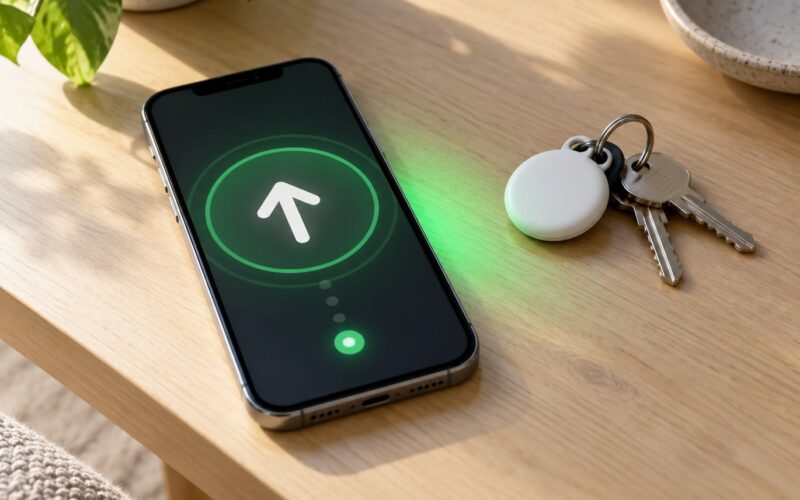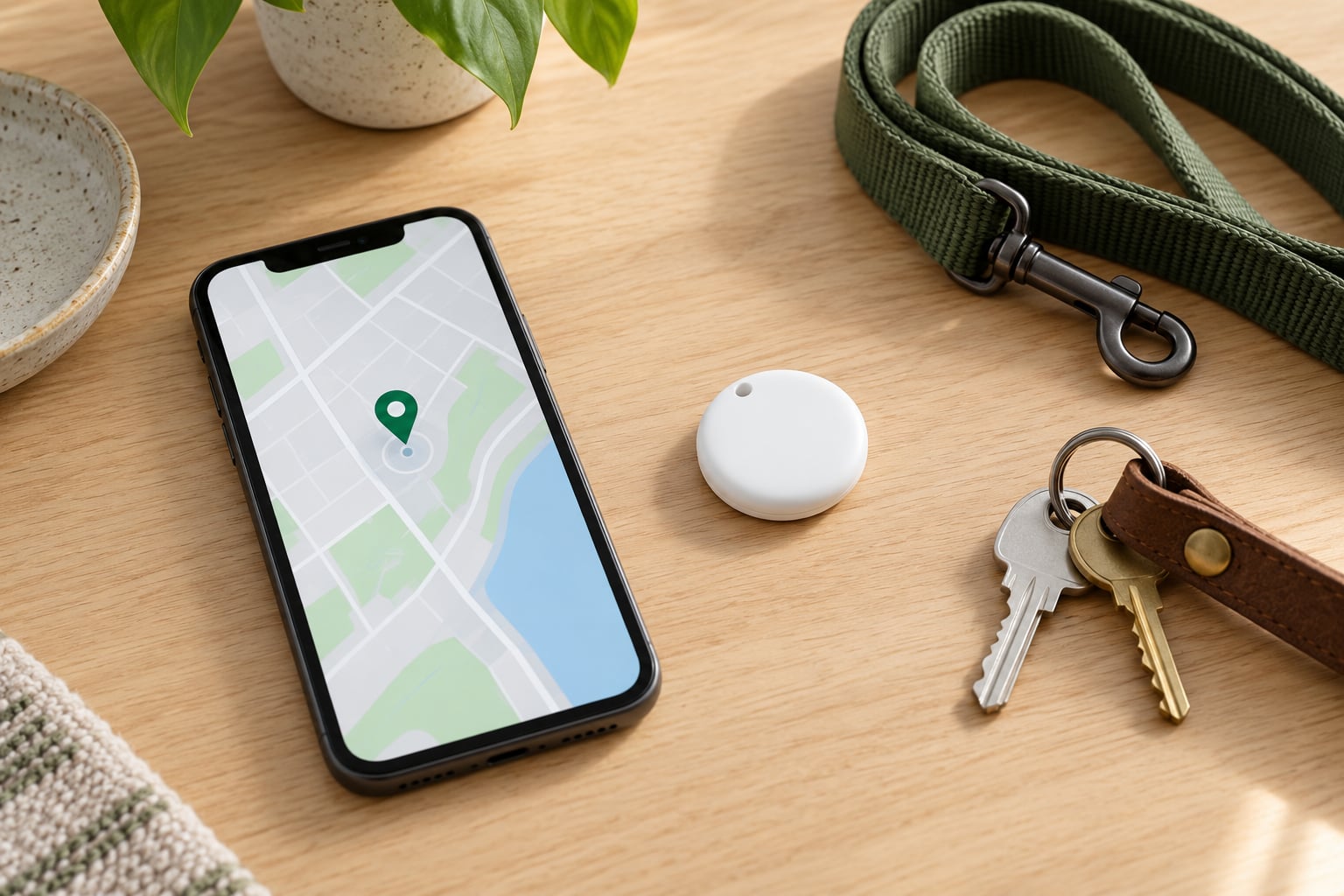
Yes — since iOS 17 you can share one AirTag with up to five other people, so a single set of house keys, a car key fob or a pet collar becomes findable by everyone who needs it. You do it inside Apple’s free Find My app, it takes about a minute, and nothing about ownership changes. This guide covers the exact taps on an iPhone, what the recipient has to do on their own device, and the nine things that stop sharing from working at all.
One reason the answers online look contradictory: before iOS 17, an AirTag could only ever be seen by the one Apple Account that set it up. An old MacRumors thread has someone unable to locate their car keys while working abroad, and Apple Support confirmed at the time that it simply wasn’t possible. Those threads still rank today. If a page tells you AirTags cannot be shared, it was written before iOS 17 landed.
Table of Contents
- 1What You Need Before You Start
- 2How to Share an AirTag With Family: Step-by-Step
- 31. Open the AirTag in Find My
- 42. Choose the Family Member or Enter Their Apple Account
- 53. Set Their Location Access
- 64. Send the Invitation
- 75. Test the Shared AirTag
- 8Common Mistakes
- 9Frequently Asked Questions
- 10Can you share an AirTag between two people?
- 11How many people can I share one AirTag with?
- 12Can I share an AirTag with a child’s Apple Account?
- 13Will my family member see that I am tracking the item?
- 14How do I stop sharing an AirTag or remove one person?
- 15Is sharing an AirTag the same as Family Sharing?
- 16Conclusion
What You Need Before You Start
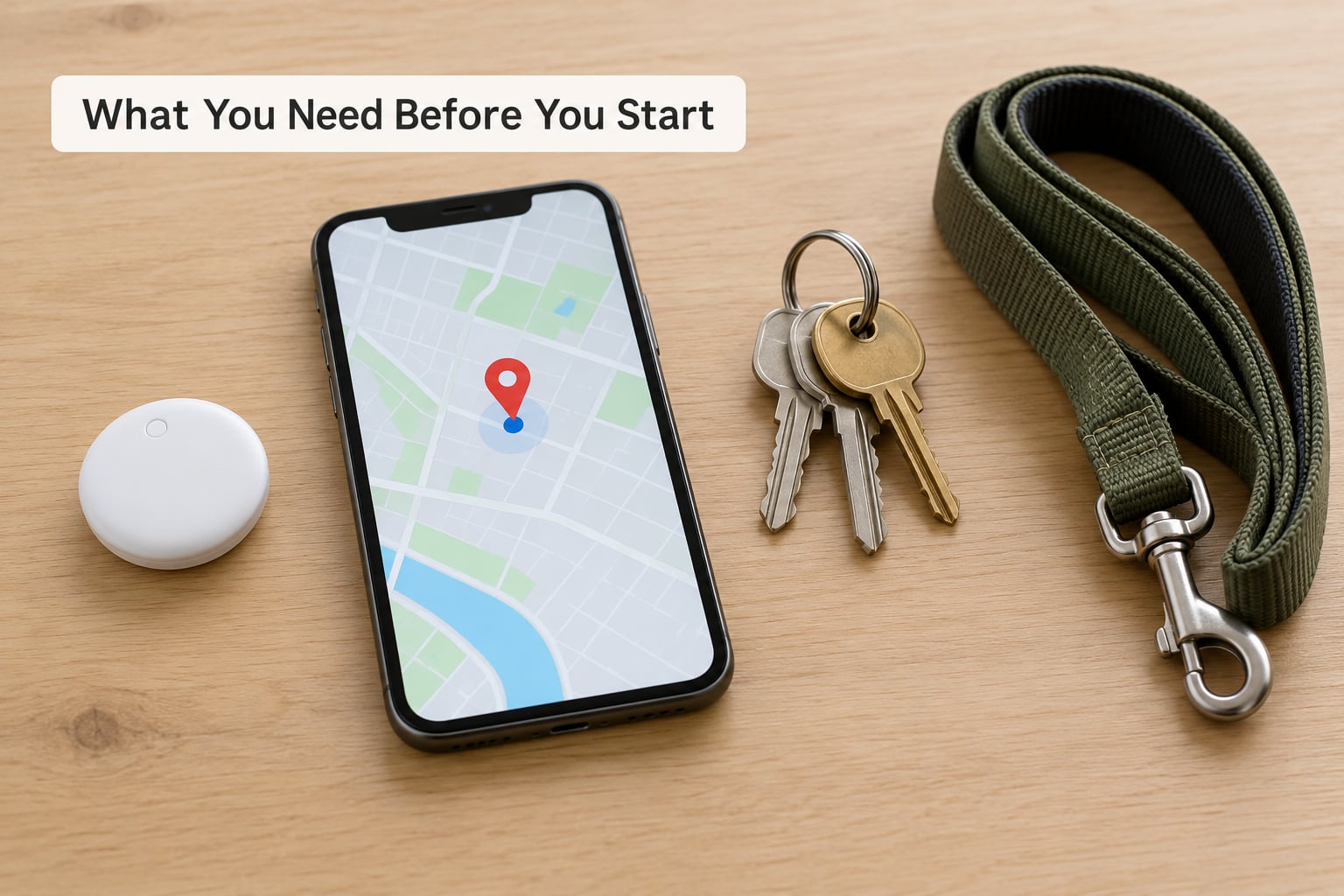
Sharing fails more often because of the account settings below than because of anything wrong with the AirTag. Run through this list first and the rest of the guide goes smoothly.
- An AirTag that is already set up on your own device. Open Find My, tap the Items tab and confirm the tag shows a live location and plays a sound. If it does not, finish setup before sharing.
- iOS 17 or later, iPadOS 17 or later, or macOS 14 Sequoia or later — on both your device and the recipient’s device.
- Two-factor authentication switched on for both Apple Accounts. Check yours at Settings, then your name, then Sign-In & Security.
- iCloud Keychain switched on. It lives at Settings, then your name, then iCloud, then Keychain.
- A full Apple Account for the person you are inviting. Child Apple Accounts cannot be invited.
- Both of you in the same country or region, and both signed in to the Find My app on a device you actually keep with you.
The ceiling is five people besides you, six people in total viewing one tag. One AirTag is enough for a whole household; you do not need a second tag per person. If you want each person to have their own alerts and their own view of several items, share each item separately rather than buying duplicates.
How to Share an AirTag With Family: Step-by-Step
1. Open the AirTag in Find My
Open Find My, tap the Items tab along the bottom, then tap the AirTag you want to share. Swipe up on the item’s detail page to reach the Share This AirTag section, then tap the Add Person button and confirm with Continue. If you cannot find Add Person at all, the tag has not finished pairing — put it next to your iPhone and wait for the checkmark.
2. Choose the Family Member or Enter Their Apple Account
On the Add Person screen, pick a contact who already uses an Apple Account, or tap Enter a phone number or email address and type theirs exactly as Apple has it. Getting this wrong is the single most common reason an invitation never arrives: entering the address they use for iMail instead of the one they sign in with sends the invitation into an account they never open.
Adult children, partners, siblings and flatmates are all fine. A child Apple Account is not, because Apple has not opened item sharing to child accounts — the limit is built into iOS rather than something you can toggle.
3. Set Their Location Access
On the same screen you will see a Share Play Sound control. Leave it off and the other person can see where the item is and use Precision Finding on supported devices, but only you can make it chirp. Switch it on and they can play a sound too, which is handy when someone needs to find keys in a handbag or a coat pocket but wider than most people want by default.
There is no graduated privacy dial for borrowers. What you choose here is either location only, or location plus sound. Everything else stays with you as the owner: Mark as Lost, AirTag removal lock, and the removal of the borrower.
4. Send the Invitation
Tap Share. The recipient gets a notification on their Apple device and has to accept it themselves — you cannot force it, and the tag does not appear in their list until they do. They open the notification, tap Add, and the item shows up in their own Items tab.
On your side, tap the tag and swipe up to the person you just invited. A pending invitation stays marked as pending until it is accepted, which is worth checking before you assume the share worked.
If they receive a tracking notification for a tag that is moving with them and they have no idea whose it is, members of your Family Sharing group can tap Ask Owner to Share AirTag inside that notification. That reverse request only appears to Family Sharing members, and only inside the alert itself — not anywhere in Find My.
5. Test the Shared AirTag
Ask the person to open Find My, tap Items, and look for the shared item under Shared Items. The right test is not the map pin but the sound: have them walk into another room with the keys and play a sound if you enabled Share Play Sound. A location update depends on the Find My network and can lag, so a stale pin does not mean sharing broke.
Then check the access level matches what you intended. Open the item on your device, swipe up to the share section, and confirm only the people you chose are listed. That list is also where you remove someone later.
Common Mistakes
Almost every failed share traces back to one of the following. Work down the list in order, because the first two account settings cause most of it.
1. The Add Person button is missing. The AirTag has not completed setup on your account. Confirm it appears in the Items tab with a recent location and that Play Sound works, then share it.
2. Two-factor authentication is off. Sharing requires it on the owner’s account and the recipient needs it on theirs. Turn it on at Settings, then your name, then Sign-In & Security, and confirm the other device has accepted the sign-in code.
3. iCloud Keychain is off. This one fails silently — the invitation just never arrives. Turn Keychain on at Settings, then your name, then iCloud, then Keychain.
4. You invited a child Apple Account. MacRumors and Apple Discussions threads put it plainly: AirTags cannot be shared with child Apple IDs under Family Sharing, and that is baked into iOS. The workaround is to have a parent hold the tag and share it with the adult accounts that need it.
5. The other person has no Apple device, or an older one. Borrowing requires a current iPhone, iPad or Mac. Someone on Android, or on a device still running iOS 16, will never see the item no matter how correct your setup is.
6. The invitation is still pending. It stays pending until the recipient accepts it, and they must be signed in to the exact Apple Account you typed. A wrong email address is the usual culprit — check by asking them which account they use for the App Store.
7. The item looks offline or out of date. AirTags report through the Find My network, so an update only arrives when the tag has been near a compatible Apple device recently. If nothing has changed for hours, tap Play Sound on your own device to wake it.
8. They are searching on the web. Shared items live in the Find My app on their own device. Searching findmac.com or iCloud.com in a browser is a common dead end that makes people think the share failed.
9. They silenced the unknown-tracker alerts. The Item Safety Alerts control under Settings, Privacy & Security, Location Services, Find My is global, not per person. Turning it off to quiet one relative’s tag also switches off the warning that catches a stranger’s tracker.
One last thing that surprises people: removing a borrower stops them seeing the item, but it does not automatically switch off tracking notifications they may still receive for it. Tell them directly rather than assuming the removal did everything.
Frequently Asked Questions
Can you share an AirTag between two people?
Yes, since iOS 17. Open Find My, tap Items, select the AirTag, swipe up, tap Add Person, choose a contact or type their Apple Account, and tap Share. They accept the invitation on their own device and the item appears in their Items list. You keep ownership and can remove them at any time.
How many people can I share one AirTag with?
Up to five other people, which makes six people in total viewing the same AirTag. Every borrower sees the current location and can use Precision Finding. Only the owner can play a sound unless Share Play Sound is enabled, and only the owner can mark the item lost or remove a borrower.
Can I share an AirTag with a child’s Apple Account?
No. Apple has not opened item sharing to child Apple Accounts, and that restriction is part of iOS rather than a setting you can change. The workaround is for a parent to hold the tag and share it with the adult accounts that need to locate it, or to give the child their own tag on a supervised device.
Will my family member see that I am tracking the item?
They see the item in Find My with its location, so yes, anyone you share with can tell the tag is being tracked. Someone who was not invited gets an alert that an unknown AirTag is travelling with them, and a Family Sharing member can tap Ask Owner to Share AirTag to find out whose it is. Consent matters here.
How do I stop sharing an AirTag or remove one person?
Open Find My, tap Items, select the AirTag, swipe up to the share section, tap the person, then Stop Sharing and confirm removal. They lose access to the item immediately. Note that this does not automatically stop tracking notifications they may still receive for the tag, so tell them directly.
Is sharing an AirTag the same as Family Sharing?
No, and mixing them up is the most common source of confusion. Family Sharing is the Apple account group that shares purchases, subscriptions and device location through the People tab. AirTag sharing is a separate Find My feature for one physical item, set up item by item and revoked person by person.
Conclusion
Confirm the invitation shows as accepted rather than pending, then walk the person through Find My once so they know where the item lives. Sharing an AirTag with family takes a minute, and the only decision worth slowing down for is how much access to hand over. Start with location only, add sound if someone genuinely needs it, and review the borrower list whenever a shared item changes hands. Everything here is current as of October 2026.