To use the Action button on your iPhone, press and hold it for about a second until you feel the haptic confirmation, and it runs the action you assigned. To change that action, open the Settings app, tap Action Button, swipe to the action you want, then tap the Choose button underneath if the action offers more than one option. It takes about a minute.
The Action button is the physical button on the left side of your iPhone that took the place of the old Ring/Silent switch. Out of the box it just toggles Silent Mode, which is why a lot of owners never think about it again. Change it once and it becomes a one-press route to whatever you do most, whether that’s the camera, a flashlight in a dark hallway, or a Shortcut you build yourself.
Table of Contents
- 1What You Need
- 2Step-by-Step: How to Use Action Button on iPhone
- 3Open the Action Button Settings
- 4Choose What the Action Button Does
- 5Test and Adjust the Action Button
- 6Common Mistakes and Quick Fixes
- 7Frequently Asked Questions
- 8Which iPhone models have an Action button?
- 9What can I make the Action button do on my iPhone?
- 10How do I change the Action button action on iPhone?
- 11Can the Action button run a custom Shortcut?
- 12Why is my Action button not working?
- 13Can I disable the Action button on iPhone?
- 14Conclusion
What You Need
You need an iPhone that has the hardware. The Action button first appeared on iPhone 15 Pro and iPhone 15 Pro Max, and carried through the later Pro models and the standard models that replaced the mute switch. If you still have a switch on the side that slides, or you bought an iPhone 12, 13 or 14, there is nothing to set up, because the button does not exist on that hardware.
For software, keep iOS up to date. Apple adds and reshuffles actions between releases, so the exact list you see may differ slightly from an older guide, including this one.
Here is the one thing worth knowing before you start. Three of the assignable options, Controls, Shortcut and Accessibility, do nothing at all until you pick a specific item from their list. Swipe to Shortcut and walk away, and the button will feel completely dead. That single skipped tap is the most common reason people file a bug about a button that is working exactly as designed.
Step-by-Step: How to Use Action Button on iPhone
Open the Action Button Settings
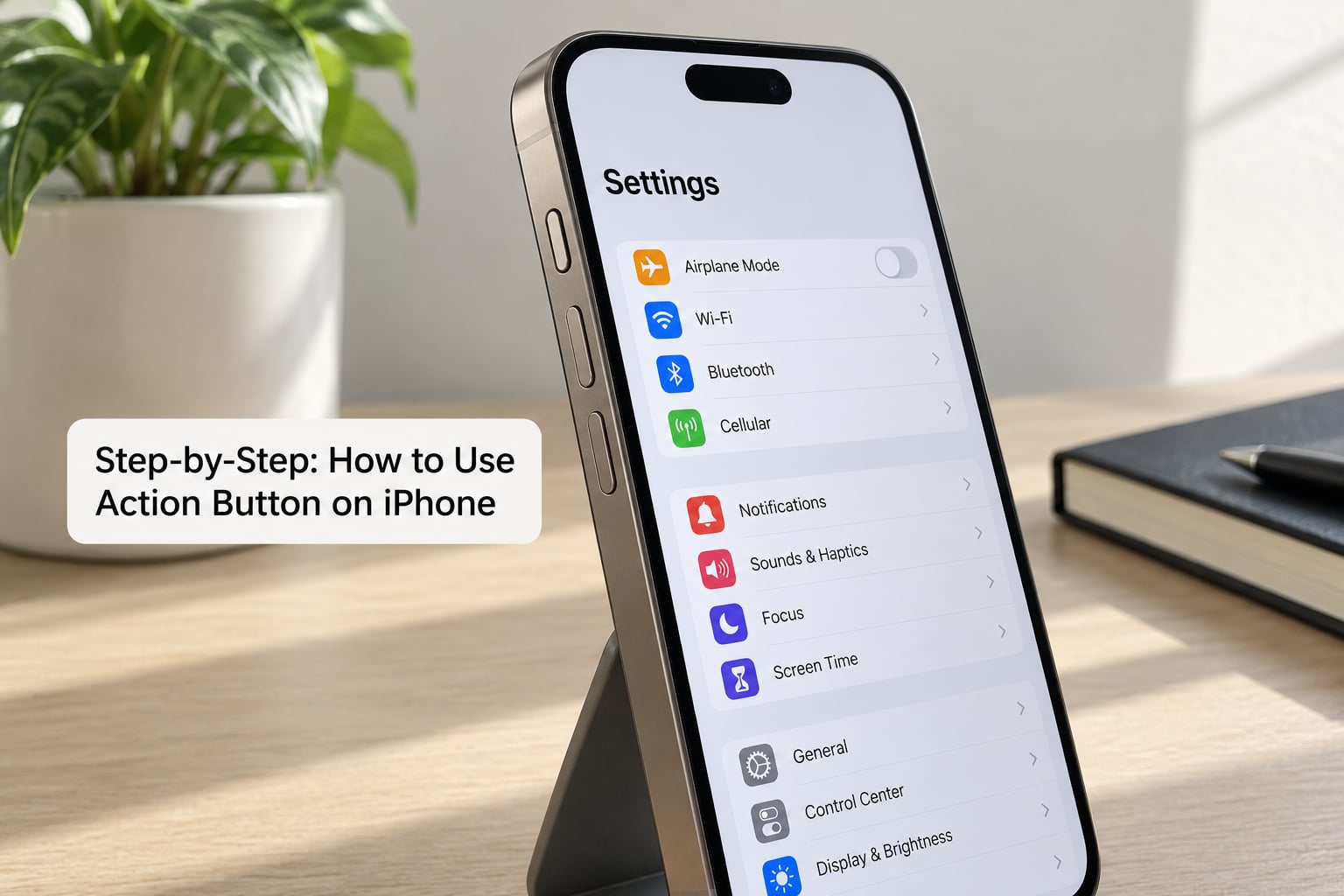
Open Settings and tap Action Button. It sits in the main Settings list between Accessibility and Camera Control on current versions, so scrolling about a third of the way down gets you there. On models or iOS versions where the list is alphabetical, the same name works with search at the top of Settings.
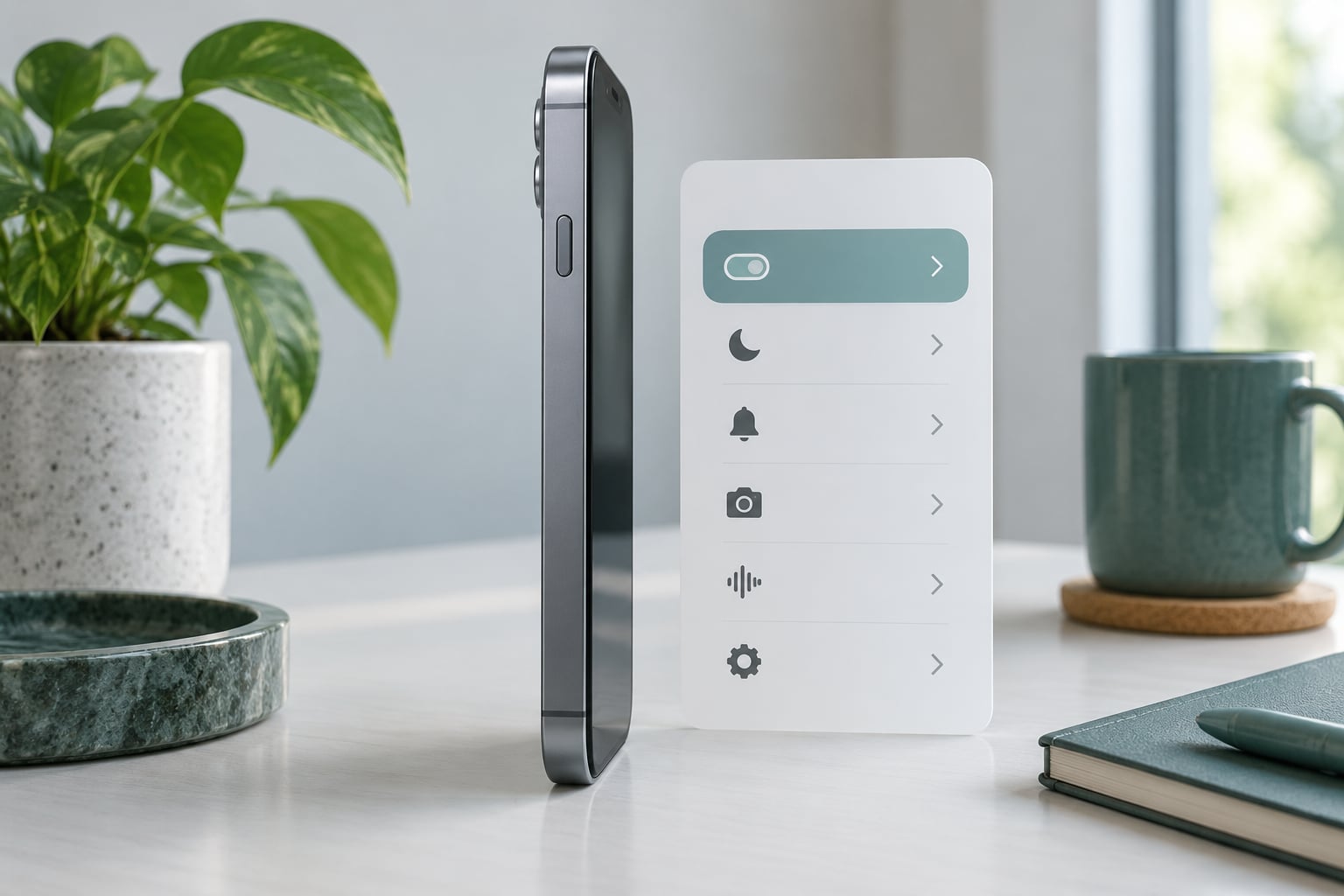
What you land on is a horizontal strip of action icons with the current one highlighted, plus an Action Button heading at the top. Depending on what is already assigned, you may also see a row of extra options underneath, such as a setting for how the Camera behaves or which Control is used. The screen looks broadly the same across models that have the button; the actions listed are what change over time.
Choose What the Action Button Does
Swipe left or right through the strip until the action you want is centred, then tap the Choose button below it to save. For the plain built-in actions, centring the icon is enough. For Controls, Shortcut and Accessibility, tapping Choose opens a list, and you have to select one entry from that list before the button will do anything.
Here is the full reference, with a note on when each one earns its place.
- Silent Mode — toggles the ringer switch. This is the factory default and the reason the button exists at all.
- Focus — switches Do Not Disturb on or off, which is far more useful than the mute switch once you use Focus modes properly.
- Camera — opens the camera app. A quick press, not a hold, is what the stock Camera Control does, so the two are easy to confuse.
- Visual Intelligence — analyses what the camera is pointed at, for things like a plant or a serial number.
- Flashlight — turns the torch on and off. Handy at night, useless the rest of the time, and easy to reassign later.
- Voice Memo — starts a recording without opening the app first, so nothing is lost in the first second.
- Recognize Music — the Shazam behaviour, holding the button hums the song around you and identifies it.
- Translate — opens translation with the camera view, handy while travelling.
- Magnifier — opens the accessibility magnifier, which uses the rear cameras as a zoom lens.
- Controls — surfaces Control Center. You must choose which specific control appears.
- Shortcut — runs anything you build in the Shortcuts app. You must pick a named shortcut from the list.
- Accessibility — launches one accessibility feature. You must choose which one.
- No Action — switches the button off entirely.
If you have never opened the Shortcuts app before, a Shortcut is simply a sequence of actions you record once and trigger later, like a macro. You can build one in a couple of minutes, and a small folder of them is the most flexible thing you can put on the button.
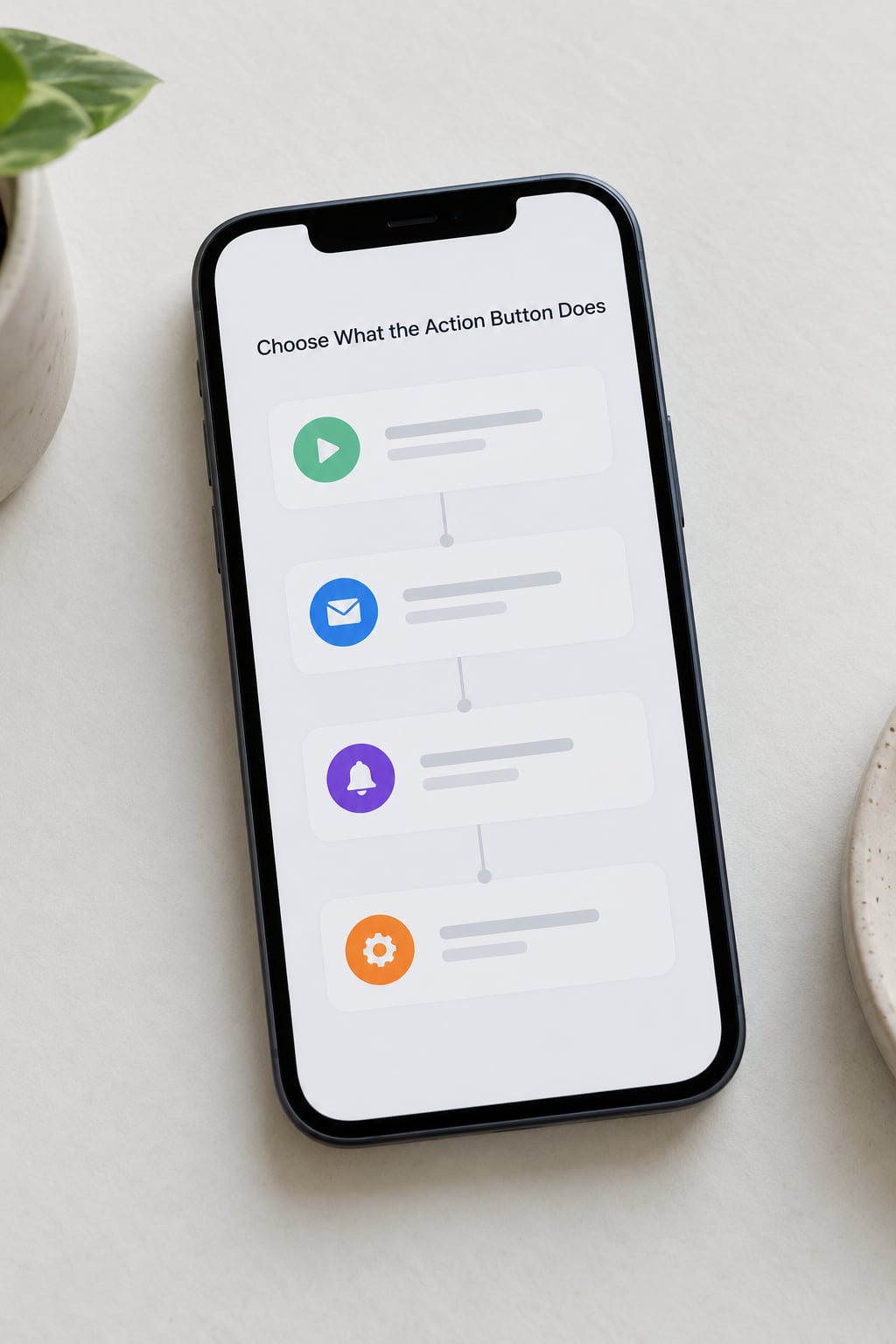
One pattern worth stealing comes from a long-running thread on r/ios: create a folder in the Shortcuts app, name it something like Action Menu, drop several shortcuts into it, and assign the folder to the button. One press-and-hold then surfaces a pickable list instead of running a single action, which gets around the one-action-per-press limit without giving the button up entirely.
Test and Adjust the Action Button
Lock the screen first, then press and hold the Action button for roughly a second. You should feel a short buzz and the action should run. That buzz is the confirmation that the press registered, and it is the fastest way to tell a hardware problem from a configuration problem.
A short tap does not count. If you tap it like a normal button you get no action and often no buzz, and a quick message tells you to hold it a little longer. People try this three or four times, decide the button is faulty, and go looking for a repair that was never needed.
What you cannot do matters as much. There is no double press, triple press or single press mapping on the Action button. One press-and-hold runs one action, and that is the whole model. If you want gestures that respond to multiple presses, those live in Accessibility Shortcuts, which is a separate feature covering things like triple-clicking the side button.
Two more adjustments sit on the same Settings screen depending on what you picked. Assign the Camera action and you can often set whether a quick press opens the last camera mode or the rear camera. Assign Visual Intelligence and the hold duration shortens or lengthens. If the button feels like it triggers at the wrong moment, this is where you tune it.
Common Mistakes and Quick Fixes
Nothing happens at all. Almost always the skipped Choose tap. Go back to Settings, tap Action Button, centre Controls, Shortcut or Accessibility, then tap Choose underneath and actually select an entry. Do the same check with the others: if the strip shows No Action, the button is switched off.
It opens the camera when you wanted something else. You tapped instead of held, and the quick press is wired to the camera on some setups. Hold it a full second and you should get the assigned action instead. If not, re-check the highlighted icon in Settings, because a swiped-but-unsaved change reverts the moment you leave the screen.
It fires in your pocket. iOS is supposed to ignore presses when the phone is in a pocket or lying flat, and usually does, but a loose case or a tight sleeve can defeat it. Check that the Action button is not covered by a case flap, and if you use a case with a cutout, make sure the cutout lines up rather than sitting over the button.
Your Shortcut stopped running after an update. This is a real and reported pattern, not something you did wrong. Open Settings, tap Action Button, swipe back to Shortcut and reselect it. If the shortcut still misbehaves, open it in the Shortcuts app and run it from there, because a broken shortcut inside the app looks identical to a bad button assignment from the outside.
Some banking or security apps refuse to launch. They are protected against being opened by automation, which is deliberate on their part. There is no setting that overrides it, so pick a different action for that part of your workflow.
Buttons unresponsive, phone frozen. Powering down is the last resort. Press and hold the side button plus either volume button until the Apple logo appears, wait for the phone to restart, then release. The Action button is not involved in that sequence, so a broken Action button will not stop a phone from restarting.
Frequently Asked Questions
Which iPhone models have an Action button?
The Action button debuted on iPhone 15 Pro and iPhone 15 Pro Max and stayed on the Pro models that came after, and on the standard models that dropped the physical Ring/Silent switch. If your iPhone still has a slider on the side, or it is an iPhone 12, 13 or 14, there is no Action button to configure. Check by looking for the small button above the volume buttons on the left edge.
What can I make the Action button do on my iPhone?
Thirteen options ship with iOS: Silent Mode, Focus, Camera, Visual Intelligence, Flashlight, Voice Memo, Recognize Music, Translate, Magnifier, Controls, Shortcut, Accessibility and No Action. Each does one job. Silent Mode and Focus handle sound, Camera and Visual Intelligence use the cameras, Recognize Music identifies a song, and Shortcut runs whatever you build in the Shortcuts app.
How do I change the Action button action on iPhone?
Open Settings, tap Action Button, then swipe left or right through the icons until the one you want sits in the middle. Tap Choose underneath to save it. If the action you picked is Controls, Shortcut or Accessibility, tapping Choose opens a second list, and you must select a specific entry from it. Leaving that list untouched is why the button sometimes appears broken.
Can the Action button run a custom Shortcut?
Yes, and that is the most flexible use for it. Open the Shortcuts app, build the sequence you want, then give it a clear name. Go to Settings, tap Action Button, swipe to Shortcut, tap Choose and pick your named shortcut from the list. You can also point the button at a folder of shortcuts so one press-and-hold shows you a menu of options instead of running a single one.
Why is my Action button not working?
Hold it for about a second rather than tapping it, and wait for the haptic buzz that confirms the press registered. If it still does nothing, check that the strip in Settings is not sitting on No Action, and that you tapped Choose and selected an entry for Controls, Shortcut or Accessibility. A case flap covering the button and a shortcut lost in an iOS update are the other common causes.
Can I disable the Action button on iPhone?
You can, though it is rarely worth it. Open Settings, tap Action Button and swipe to No Action. The button stays where it is and does nothing when held. The one case where it helps is if the button keeps firing in a pocket or a bag, though a correctly fitted case usually fixes that without giving up the shortcut you built.
Conclusion
Open Settings, tap Action Button, swipe to something you will actually use rather than leaving it on Silent Mode, and press and hold for a full second to test it. If nothing happens, the fix is almost always the Choose button you skipped, or a tap where a hold was needed. Once it works, that is the whole skill: the button runs one thing, and choosing that one thing well is the entire setup.