If you are asking why does one AirPod sound quieter than the other, the answer is usually one of three things: earwax or lint blocking the speaker mesh on the quieter bud, a balance slider sitting slightly off center in your device’s audio settings, or an earbud that has physically worn out. Cleaning the mesh and re-centering the balance slider fixes most cases in under ten minutes.
The rest are rarer and take longer: a battery on one side failing, a Bluetooth pairing glitch, a firmware bug after an update, or a damaged speaker driver. This guide walks through how to tell those apart before you spend money on anything.
Table of Contents
- 1Why Does One AirPod Sound Quieter Than the Other?
- 2How to confirm which AirPod is quieter
- 3Common causes of one AirPod being quieter
- 4How to fix a quiet AirPod
- 5What not to do when cleaning an AirPod
- 6How to fix pairing and software problems
- 7When to reset or service one AirPod
- 8When a volume difference may not be an AirPod fault
- 9Frequently Asked Questions
- 10Can I fix one AirPod being quiet after an iOS update?
- 11Can I use just one AirPod if the other one is quieter?
- 12What should I do if one AirPod gets wet and sounds quieter?
- 13Can cleaning an AirPod speaker mesh make the sound louder?
- 14When should I contact Apple instead of troubleshooting my AirPods?
- 15What to try first
Why Does One AirPod Sound Quieter Than the Other?
Each AirPod is its own small speaker with its own battery, microphone and Bluetooth link. Nothing is shared between the left and right, which is why a problem almost always shows up on exactly one side.
The most common triggers, in order of how often they turn out to be the culprit:
- Earwax or debris on the speaker mesh. A mesh the size of a grain of rice can cut volume noticeably.
- A poor seal. AirPods Pro with the wrong ear tip size lose bass and overall level because sound escapes around the tip.
- Earwax in your ear canal. The bud is fine; the ear is the problem.
- An off-center balance setting. Your device is sending less signal to one channel on purpose.
- Environmental Audio on AirPods Pro. Noise cancellation and Transparency both duck outside sound, and the effect can feel stronger in one ear.
- A pairing or firmware problem. Common right after an iOS update.
- Physical damage. A dropped case cracks the driver or shakes debris into the housing.
One quick filter: if the difference is there in a quiet room with music at a fixed volume, it is a real fault. If it only shows up outdoors or on a busy street, it is Environmental Audio doing its job.
How to confirm which AirPod is quieter
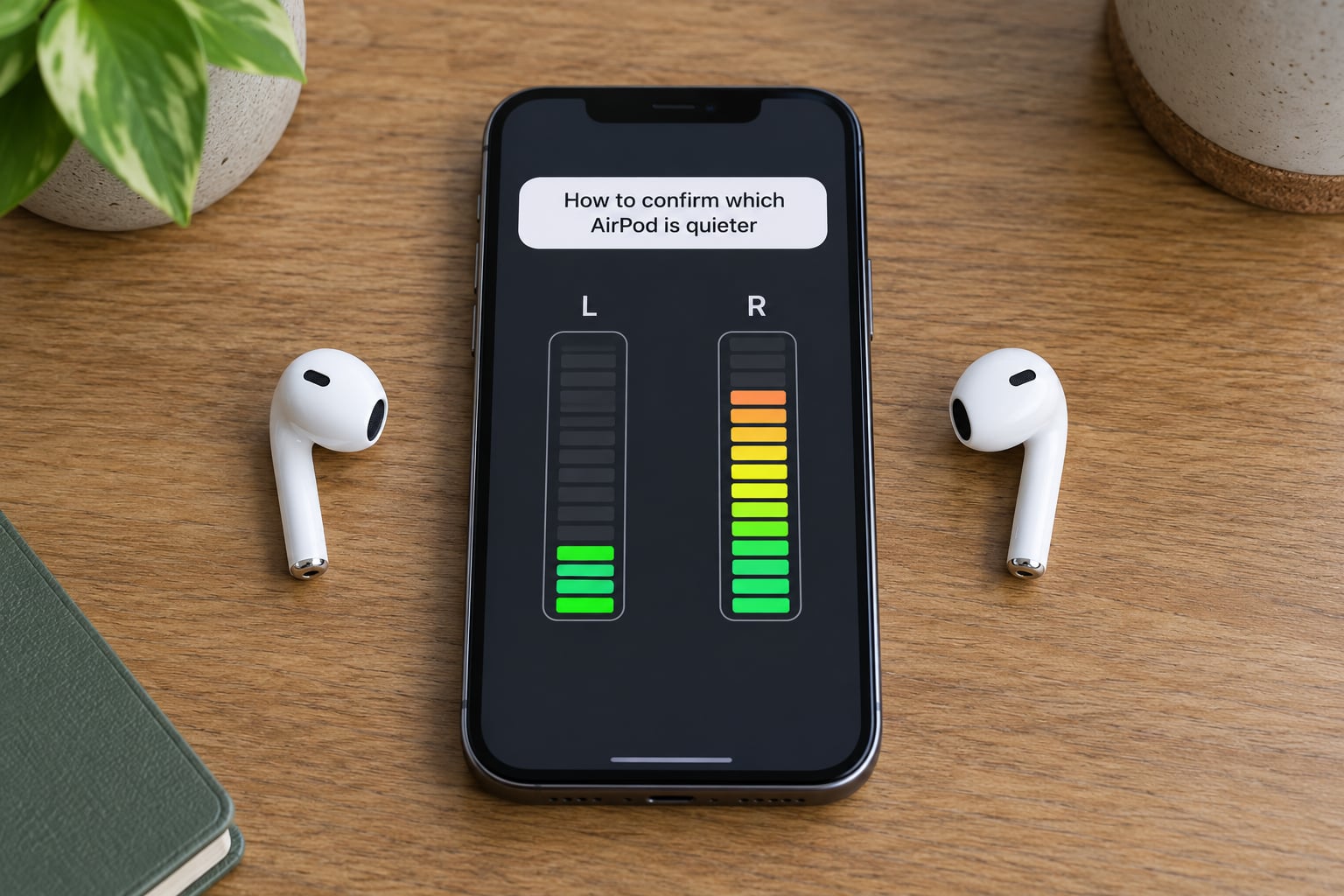
Most people notice this casually, over weeks, which makes the diagnosis unreliable. Give it five controlled minutes instead.
Play one familiar track, set your device to about half volume, and listen. Then swap the AirPods: put the one that felt quiet into the other ear. If the quiet sound follows the earbud into your ear, the AirPod is the problem. If the quiet sound stays in the same ear, it is your ear canal or your hearing.
On an iPhone or iPad, open Control Center and press and hold the AirPods volume control to see the left and right sliders separately. Drag the lower one up until they match. If the slider corrects itself the next time you look, something is resetting it, which points to a software fault rather than hardware.
Then play the same track on a second device, such as a laptop or a tablet, with the same AirPods. Quiet on both devices points to the AirPod; quiet on only one points to that device’s settings or app.
| Symptom | Likely cause | What to do |
|---|---|---|
| Muffled or distant-sounding bud, fixed by wiping it | Wax or lint on the speaker mesh | Clean the mesh dry, then re-test |
| Difference appears after an iOS or iPadOS update | Firmware or settings reset | Update both, then re-pair the AirPods |
| Bass disappears on AirPods Pro only | Wrong ear tip size or weak seal | Run the Ear Tip Fit Test, change tips |
| Left-right sliders differ in Control Center | Balance setting | Re-center both sliders |
| Crackle, cut-outs, or a drop in volume | Damaged driver or failing battery | Reset, then service if it persists |
| Only one person hears the difference | Perceived hearing difference | Have both ears checked |
Common causes of one AirPod being quieter
Blocked speaker mesh is the first thing to rule out, and it is the easiest. Every AirPod has a fine metal grille over its speaker, and it sits in the one place your ear canal constantly pushes wax toward.
Seal problems come second. Standard AirPods are open-fit, so they tolerate a poor seal better than AirPods Pro do. A Pro with an undersized ear tip can lose a surprising amount of level, and the noise cancellation feature is worse at cancelling when the seal is broken.
After that comes your own ear. If one side feels blocked, sounds muffled even without the AirPods in, or has been that way for a while, no amount of cleaning the earbud will fix it.
Then the software side: the balance setting, mono audio, or a pairing record that never finished syncing. These are free to check and free to fix.
Finally, hardware. A bud that has been dropped, sat in a pocket with grit, or has a battery over three years old can genuinely play quieter. When the imbalance creeps in over months instead of appearing overnight, I read that as a worn battery or a loosening internal connection rather than a settings mistake.
How to fix a quiet AirPod
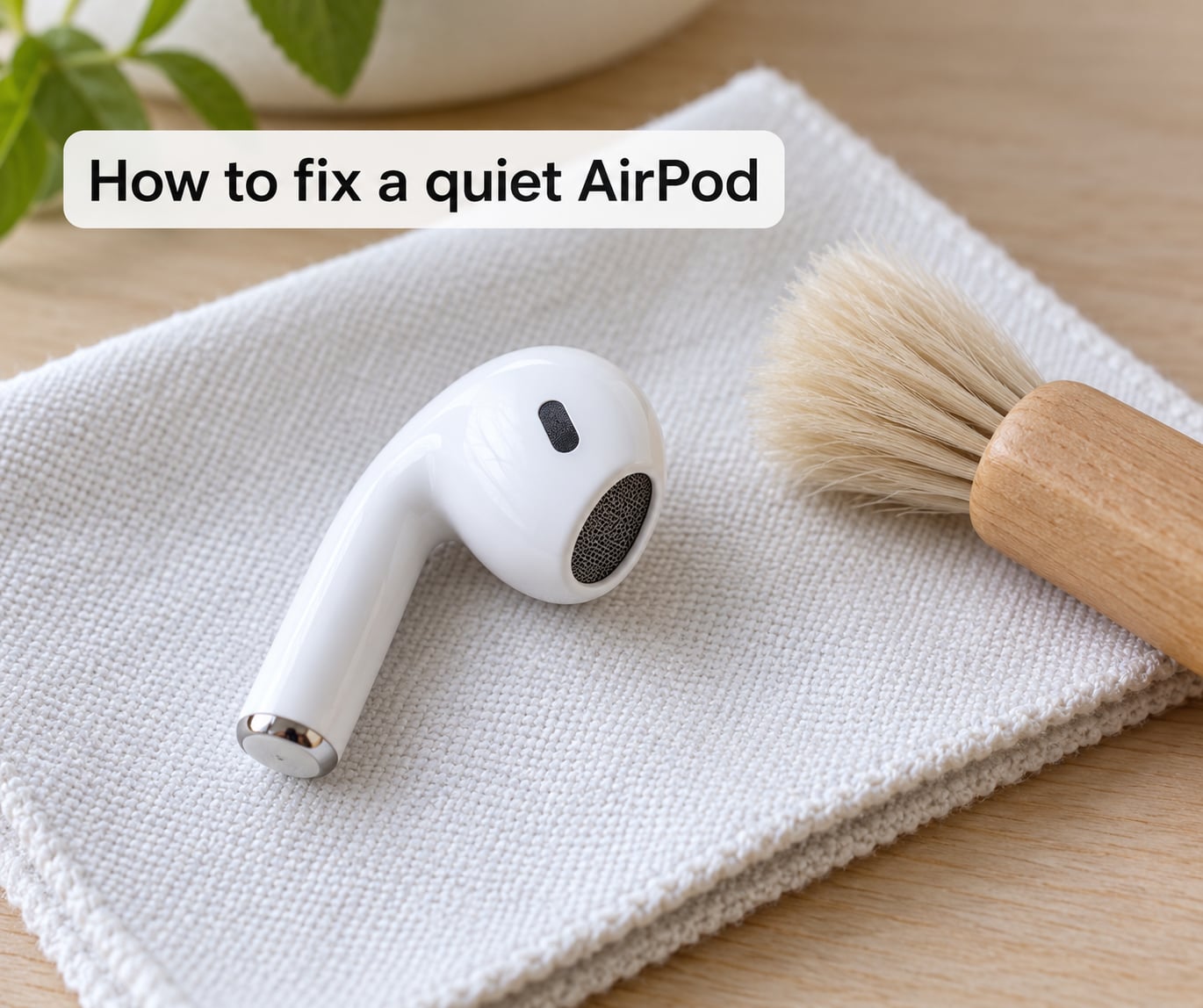
Work down this list in order. Stop as soon as the volume matches.
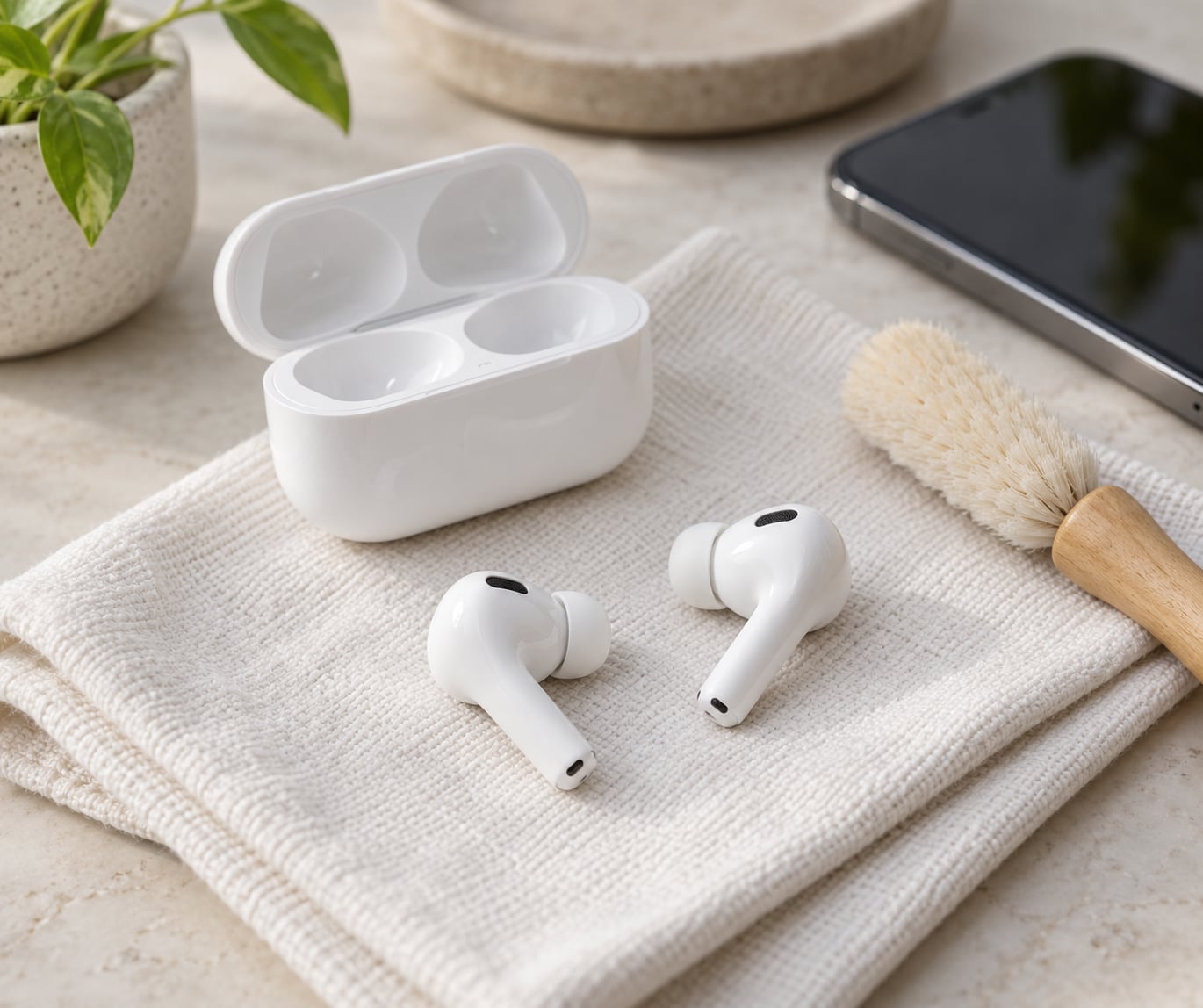
- Clean the speaker mesh dry. Take the AirPod out, brush the grille gently with a soft dry toothbrush, and wipe the outside with a dry lint-free cloth. This is the fix that resolves most blocked-mesh cases.
- Check the ear tip seal on AirPods Pro. Open Settings, then AirPods, then your AirPods entry, and use the Ear Tip Fit Test. If the seal reads poor, try a different tip size.
- Look after your ear, not the AirPod. Do not push anything sharp into your ear canal. If wax is the suspect, a warm shower softens it; anything deeper should go to a clinician.
- Test on a second device. If both devices show the difference, the AirPod is the problem and steps 5 onward will not save it.
- Match the individual volume. On iPhone and iPad, press and hold the AirPods control in Control Center and slide both channels to the same level.
- Re-center balance. Open Settings, then Accessibility, then Audio/Visual, then Balance, and tap the middle. The exact labels move slightly between iOS versions, so look for the left and right speaker slider if the wording differs on your device.
- Turn off mono audio to test the source. In the same Accessibility audio panel, enable mono audio briefly. If the imbalance disappears, the track itself was panned off center. Turn it back off afterwards.
On a Mac, the balance control lives in Sound preferences, and on Windows 11 the same slider sits under the speaker output in Sound settings. On a PC the imbalance often comes from an app rather than the system, so check the per-app volume mixer before changing anything global.
What not to do when cleaning an AirPod
- No liquid. Do not pour alcohol, water, or cleaner into the charging case or the charging ports.
- No metal. Toothpicks, needles, and paperclips puncture the mesh, and that damage is not covered by a warranty.
- No cotton swabs pushed into the grille. The tip stays behind.
- Do not open the AirPod. The housing is glued shut, and a separated housing can compromise the seal.
How to fix pairing and software problems
If the imbalance started after an iOS or iPadOS update, treat it as a pairing problem first. Open Settings, then Bluetooth, and check that both AirPods appear in the list. If only one shows, the other has lost its record and needs re-pairing.
Put both AirPods in the case with the lid open and confirm they show as charged in Settings, then AirPods. If one reads as missing entirely, clean the charging contacts and the bottom of the bud with a dry cloth.
Automatic ear detection is worth checking too. Remove both AirPods, then put on just the one that seems quiet. If it immediately switches to it, ear detection is working normally. If nothing happens, take them out of your ears for thirty seconds and try again.
Install any pending iOS or iPadOS update, then update the AirPods firmware in Settings, then General, then About. The AirPods entry appears there only when new firmware is ready, so it is not a sign of a problem if it is missing.
To re-pair, open the AirPods information page, tap Forget This AirPod, then put them back in the case with the lid open and hold the setup button until the status light flashes amber and then white. Ignore the AirPods while they reconnect to one device at a time.
One warning: do not forget the AirPods before an iOS update. Deleting the pairing record first can leave one bud stuck on an older firmware, which is harder to resolve than the original symptom.
When to reset or service one AirPod
A reset is worthwhile when the balance slider keeps drifting back, when one AirPod drops out of the pairing list repeatedly, or when the imbalance followed an update. It clears the pairing record and the automatic-switching history, so you will need to reconnect your devices afterwards. It does not change any of your settings.
If the same AirPod is still quieter after cleaning, re-centering balance, testing on a second device, and re-pairing, stop. At that point, if the quiet side has crackled, cut out, or never matched a fresh pair, the cause is most likely a failed battery or a damaged speaker driver.
Apple covers manufacturing defects under the one-year Apple Limited Warranty, and AppleCare+ extends that and covers accidental damage. Whether a given repair is covered depends on your purchase date and plan, so check your coverage before assuming the cost.
For a single failing bud, an Apple Authorized Service Provider or the Apple Store can usually replace one AirPod rather than the full pair, though they may want to test the case too. Batteries also wear out unevenly, and a bud that needs charging twice as often as its partner is a battery symptom in disguise.
When a volume difference may not be an AirPod fault
If one ear feels blocked or quieter on its own, with no AirPods involved at all, the cause is medical, not electronic. Impacted earwax, an ear infection, or fluid behind the eardrum after a cold all produce exactly the muffled, distant sound people describe here.
Asymmetrical hearing loss is the least obvious possibility and the most commonly missed. Many people do not notice gradual high-frequency loss on one side; a friend notices you turn the wrong ear toward them before you notice anything yourself.
Stop troubleshooting and seek medical assessment if you notice ear pain, drainage, dizziness, sudden hearing loss in one ear, or a difference that persists after the AirPod is removed. Sudden hearing loss in particular is a same-day situation, not a next-week appointment.
Two people can also hear the same test track differently. If someone else cannot hear any imbalance with your AirPods, your ears are the more likely explanation.
Frequently Asked Questions
Can I fix one AirPod being quiet after an iOS update?
Usually yes. Update both your iPhone or iPad and the AirPods firmware in Settings, then General, then About. If the difference remains, re-center the balance slider in Settings, Accessibility, then Audio/Visual, and re-pair by forgetting the AirPods and holding the setup button until the light flashes amber then white. A quieter bud that survives all of that is a hardware symptom, not an update bug.
Can I use just one AirPod if the other one is quieter?
You can, and Apple supports single-bud use by design. Put the louder AirPod in and leave the quiet one in its case, which stops it from connecting at all. Automatic ear detection handles the switch. Keep using the louder bud as your daily driver, but treat a persistent difference as a fault to report rather than a workaround to settle on.
What should I do if one AirPod gets wet and sounds quieter?
AirPods are not rated as waterproof, so treat any liquid exposure as a reason to stop using that bud. Let it air dry fully with the case open, away from heat and charging, and do not use a hair dryer. If the sound stays muffled, crackly, or cuts out after drying, the driver is likely damaged and only service can confirm it. Do not charge a wet AirPod.
Can cleaning an AirPod speaker mesh make the sound louder?
It often does, because wax and lint act as a partial plug over the grille. Use a soft dry toothbrush on the mesh and a dry lint-free cloth on the housing. Never push a cotton swab into the opening, never use a metal pick, and never pour liquid into the case. Anything more than gentle dry cleaning risks puncturing the mesh, which is not a warranty repair.
When should I contact Apple instead of troubleshooting my AirPods?
Contact Apple once the AirPod stays quieter after cleaning, the balance slider is centered, and a second device shows the same difference. Add crackling, cut-outs, or a battery that drains far faster than the other bud, and it is time to talk to an Authorized Service Provider or the Apple Store. If the quieter ear also feels blocked without the AirPods in, see a hearing professional instead.
What to try first
Start with a five-minute test: one track, half volume, swap the AirPods between ears. That single swap tells you whether you are looking at hardware or at your own ear, and everything else depends on it.
Then clean the speaker mesh dry, check the ear tip seal if you use AirPods Pro, match the left and right sliders in Control Center, and re-center balance under Accessibility. Re-pair the AirPods if the problem began after an update.
If the same AirPod is still quieter after all of that, the fix is not another setting. Get it serviced, and if the quieter ear sounds off without the AirPods in, book a hearing check instead of another round of troubleshooting.